You upload a 55 minute interview, wait a minute, and get a polite message saying the free plan stops at 30. Or worse, the tool happily transcribes half of it and hides the rest behind an upgrade button. Anyone who has tried free AI transcription for real work has hit this wall. The marketing says "unlimited accuracy in seconds." The fine print says something very different.
This article lays out the limits you will actually run into: monthly minute quotas, per file duration caps, upload size ceilings, and accuracy drops that no pricing page mentions. It also shows what to do when a free plan stops being enough.
💡 Quick answer: Free plans usually limit you in three ways at once: total minutes per month, minutes per recording, and the number of uploads. Hitting any one of them stops the job, even if the others have room left.
Why Free Plans Run Out Fast
Transcription costs money to run. Every minute of audio you send burns compute, and providers have to cap that spend somewhere. The cap rarely sits where you expect it.
Three Caps, Not One
Most free tiers stack three separate limits:
- A monthly minute pool. A few hundred minutes sounds like plenty until you realize a single weekly team meeting eats 60 of them.
- A per recording ceiling. Many tools cut off at 30 minutes per file, and some free tiers go as low as a few minutes per recording.
- An import counter. Some services let you upload only a handful of existing files, ever, while live recording stays open.
The cruel part is that these limits interact. You can have 200 minutes left in your pool and still be unable to process a 45 minute lecture, because the per file cap blocks it.
Why the Numbers Keep Shifting
Providers change quotas often. Reports in 2026 comparisons describe one popular meeting assistant cutting its free allowance in half compared with an earlier plan. Treat any number in a blog post, including the ones below, as a snapshot. Check the live pricing page before you plan a project around it.
What Free Plans Actually Allow
Here is a snapshot based on comparison reports from mid 2026. Vendors adjust these figures, so use them to gauge the shape of each offer, not as a contract.
| Service type | Reported free allowance | Main catch |
|---|
| Meeting assistant (Otter style) | About 300 minutes per month | 30 minutes per conversation, 3 lifetime file imports |
| Notta style web app | About 120 minutes per month | Roughly 3 minutes per recording on free |
| Rev style service | About 45 AI minutes per month | English only |
| TurboScribe style web app | 3 transcriptions per day | 30 minutes per file |
| AWS Transcribe | 60 minutes per month | Free for the first 12 months only, and it is an API |
| Small "Whisper" web wrappers | Around 5 minutes per month | Barely enough for a test |
Reading the Table Honestly
A 300 minute pool looks 60 times bigger than a 5 minute pool, but the 30 minute per conversation cap decides whether the tool can handle your actual file. Compare the cap that matches your typical recording, not the headline number.
Hidden Restrictions Worth Checking
Beyond minutes, look for these before you commit:
- Export limits. Some free plans let you read the transcript on screen but lock TXT, SRT, or DOCX export.
- Language restrictions. English only on free is common.
- Speaker labels. Often paid.
- Retention. Free transcripts may be deleted after a set period.
- Training use. Check whether your audio may be used to improve the vendor's models, especially for interviews or client calls.
💡 Tip: Before trusting a tool with a deadline job, run a 3 minute test clip with two speakers and a few technical words. It costs almost nothing and exposes export, speaker, and language limits right away.
File Length and Size Limits
Length and size are different limits, and people mix them up constantly. A one hour recording can be small as a compressed MP3 and enormous as uncompressed WAV.
Duration Caps
Duration caps are what stop podcast episodes, webinars, and lectures. A 30 minute per file limit blocks most real recordings, since typical podcast episodes run 40 to 90 minutes and many university lectures last about an hour.
If you are stuck behind a cap, you have two honest options: split the audio or move to a tool built for long files.
Upload Size Caps
Size ceilings come from the infrastructure side. Many speech to text APIs, including OpenAI's audio endpoints, have commonly documented an upload ceiling of around 25 MB per request. That is generous for compressed audio and tight for WAV files.
A rough sense of scale:
| Format | Approx. size per hour | Fits under 25 MB? |
|---|
| WAV, 44.1 kHz stereo | About 600 MB | No |
| WAV, 16 kHz mono | About 115 MB | No |
| MP3, 128 kbps | About 57 MB | No |
| MP3, 64 kbps mono | About 29 MB | Barely not |
| MP3, 32 kbps mono (speech) | About 14 MB | Yes |
Speech is forgiving. A mono, 32 to 64 kbps file sounds fine for voice, and speech models typically do not need music quality audio to get good results.
How to Split Long Audio
Splitting is the cheapest fix. Follow these steps:
- Convert to mono and lower the bitrate. This shrinks the file by a large margin with little accuracy loss for voice.
- Cut at silences, not at fixed times. Chopping mid sentence creates garbled words at the boundaries.
- Overlap by a few seconds. A short overlap helps you stitch the text back together without losing a phrase.
- Name the chunks in order.
part01, part02, and so on saves confusion later.
- Merge and proofread the seams. Check every join point, because that is where duplicated or missing words appear.
Where Accuracy Drops
Vendors love to quote 95 percent or higher. Those figures come from clean, single speaker, studio quality recordings in major languages. Real life is messier.
Background Noise
A cafe, a car, a running fan: all of them eat into accuracy. Modern models are far more robust than older engines, but noise still produces dropped words, invented words, and wrong names. Put the microphone close to the speaker and the improvement is bigger than anything a settings menu offers.

Accents, Jargon and Names
Accuracy varies by accent, dialect, and vocabulary. Medical terms, legal phrases, product names, and people's surnames are the usual failure points. A model that scores well on general English can still turn a drug name into nonsense.
- Add a glossary to the prompt if the tool allows it. Many modern transcription models accept a short prompt with spelling hints.
- Correct the first few errors and look for patterns. If one name fails, it will fail every time.

Overlapping Speakers
Two people talking at once is the hardest case for any system. Expect merged sentences, missing interruptions, and speaker labels that swap halfway. If you can record each person on a separate track, do it. Transcribing two clean tracks beats transcribing one messy mix.
💡 Rule of thumb: Audio quality matters more than the model. A good microphone and a quiet room usually do more for accuracy than switching vendors.
How to Check Accuracy Yourself
You do not need a lab. Spend 15 minutes on a quick test and you will know more than any marketing page can tell you.
The Word Error Rate Shortcut
Word error rate, or WER, counts substitutions, deletions, and insertions against a correct transcript, then divides by the number of words. A WER of 5 percent means roughly 1 wrong word in 20.
Here is a simple version:
- Pick a 2 minute clip that represents your real audio, noise and all.
- Type the correct transcript by hand.
- Run the clip through each tool you are considering.
- Count the wrong, missing, and extra words in each output.
- Divide the error count by the total words in your reference.
What Numbers Mean in Practice
| Approx. WER | What it feels like |
|---|
| Under 5% | Light proofreading, mostly punctuation |
| 5 to 10% | Readable, but names and numbers need checking |
| 10 to 20% | Useful as a draft, heavy editing needed |
| Over 20% | Often faster to retype than fix |
Do not forget that WER ignores punctuation and formatting. A transcript can score well and still read like a wall of text.
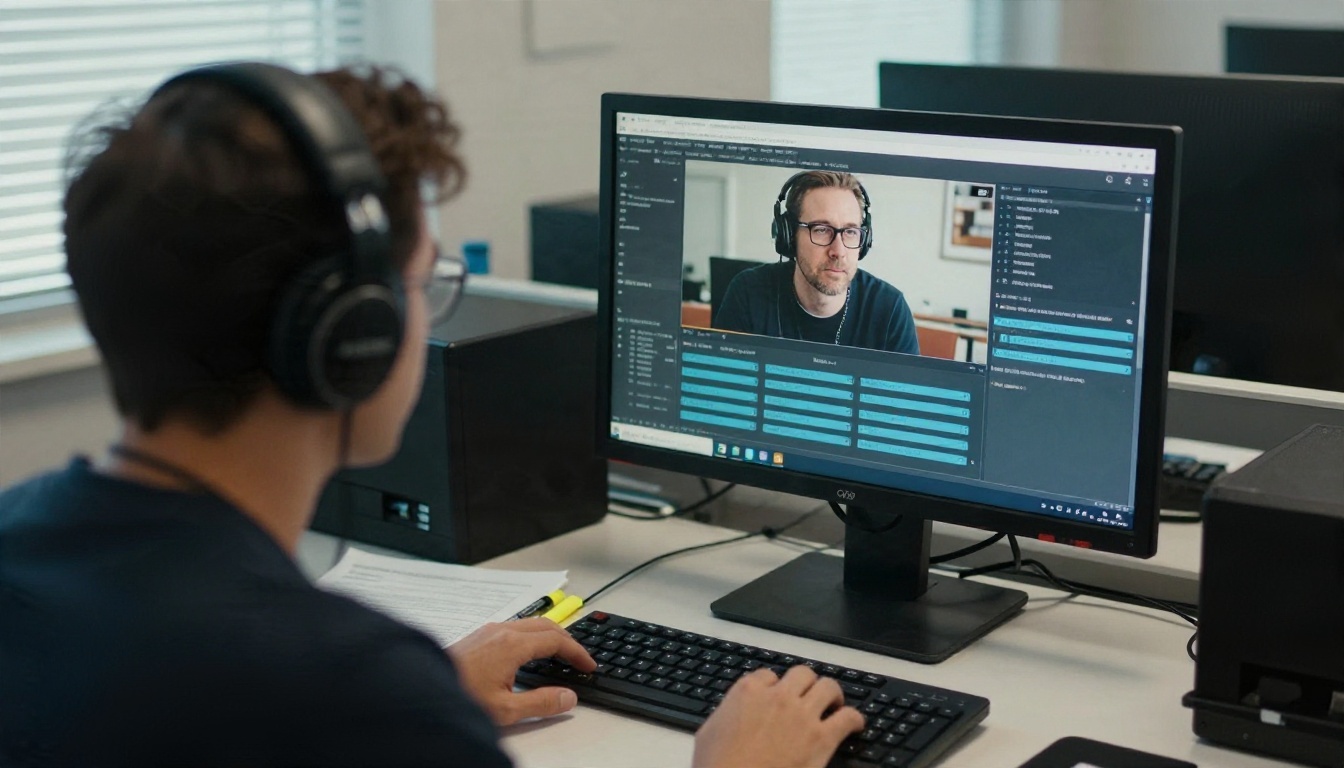
Alternatives When Limits Bite
When a free plan stops fitting, you have three directions: pay for the same tool, split your files, or switch to a model that handles your workload. PicassoIA offers speech to text models you can run on your own recordings without a per recording duration wall like the ones above.

GPT-4o Transcribe
GPT-4o Transcribe is the higher accuracy option from OpenAI's speech family. It tends to hold up better on accents, noisy audio, and fast speech than older speech engines. Pick it when accuracy matters more than cost: interviews, legal or medical style audio, and recordings with difficult vocabulary.
GPT-4o Mini Transcribe
GPT-4o Mini Transcribe is the lighter, cheaper sibling. It suits high volume work such as batches of short voice notes, internal meetings, and first pass drafts where you plan to proofread anyway. If you transcribe a lot of files, the savings add up quickly.
Gemini 3 Pro
Gemini 3 Pro is a multimodal model rather than a dedicated transcription engine. That makes it flexible: you can ask it to transcribe, label speakers, summarize, or translate in the same request. It is a good fit when you want more than raw text, such as a cleaned up transcript with action items.
Side by Side
💡 Tip: Run your 2 minute test clip through all three. The winner for your voice, your accent, and your noise level is often not the one with the best benchmark.
A Practical Workflow on PicassoIA
Here is a repeatable process that avoids most limit headaches.

Step by Step
- Prepare the audio. Convert to mono, 32 to 64 kbps MP3 for speech. Trim long silences at the start and end.
- Pick the model. Use GPT-4o Transcribe for tough audio, GPT-4o Mini Transcribe for bulk work, or Gemini 3 Pro when you want the transcript shaped into something more.
- Upload and set the language. Naming the language removes one source of guessing and often improves results on short or accented clips.
- Add a glossary. If a prompt field is available, list names, acronyms, and product terms with correct spelling.
- Review the seams. If you split the file, check each join point for repeated or missing words.
- Proofread names and numbers first. They carry the most risk and the most consequences.
Parameter Tips
- Language: set it explicitly whenever you know it.
- Prompt or context: keep it short and specific, with spelling hints rather than long instructions.
- Chunk size: if you must split, aim for 10 to 20 minute pieces with a few seconds of overlap.
- Output format: pick timestamps if you plan to make subtitles later.
Going Beyond Text
Once you have a transcript, you can reuse it. Turn it into a summary with a language model such as GPT-4o Mini, or translate spoken video into other languages with ElevenLabs Dubbing.
Choosing the Right Option
No single answer fits everyone. Match the tool to the job:
| Your situation | Best move |
|---|
| A few short voice notes per month | A free plan is fine |
| Weekly one hour meetings | Skip free tiers with 30 minute caps |
| Podcast episodes over 45 minutes | Use a model without a short per file cap, or split carefully |
| Noisy field recordings | Choose the highest accuracy model and fix the audio first |
| Multilingual content | Test each language separately, then consider dubbing or translation |
| Sensitive or confidential audio | Read the data retention terms before uploading |
Three Common Mistakes
- Trusting the headline minutes. The per file cap is usually the real limit.
- Skipping the test clip. Ten minutes of testing saves hours of retyping.
- Ignoring audio quality. Cleaner input beats a fancier model almost every time.
Try It With Your Own Audio
The fastest way to settle the free plan question is to test with your own recording. Take a 2 minute clip, run it through GPT-4o Transcribe, GPT-4o Mini Transcribe, and Gemini 3 Pro on PicassoIA, and compare the errors side by side. You will see within minutes which one handles your voice, your accent, and your background noise.
Then keep experimenting. PicassoIA also lets you create images, video, voiceovers, and music from the same workspace, so a transcript can become a script, a narrated clip, or a set of visuals for your next episode. Browse everything at picassoia.com/en/all-models and try your first recording today.


