You have a finished song, a voiceover or a podcast clip, and no footage to go with it. A few years ago that meant hiring an editor or spending a weekend learning timeline software. Today you upload the audio, add a single image or a sentence of text, and an AI model hands back a short video where the visuals move with the sound.
The catch is the phrase everyone searches for: audio to video AI, free and unlimited. Plenty of sites use those words. Few of them mean the same thing by them. This article sorts out what the words really promise, which online tools are worth opening, how music sync actually works, what good results look like, and where every tool runs into a wall.
What Audio to Video AI Actually Does
Audio to video AI takes a sound file as the main input and produces moving pictures that respond to it. That sounds simple, but there are three very different jobs hiding under the same name, and picking the wrong one is the most common reason people get disappointing results.
Audio In, Frames Out
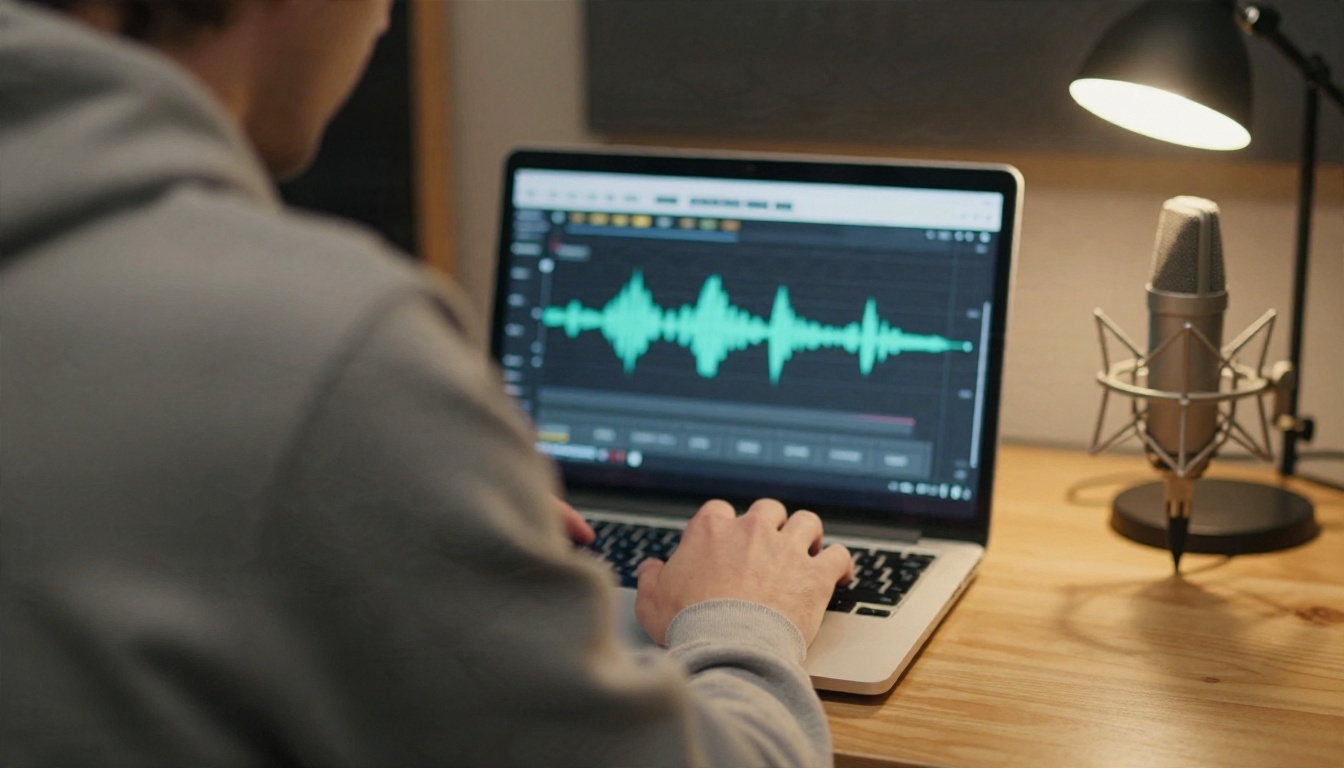
The first job is generation. You give the model a track plus a still image or a text prompt, and it invents the motion. The sound shapes rhythm, mood and timing. The model on PicassoIA called Audio To Video works this way: audio file in, short clip out, with no timeline editor involved.
Visualizers Are a Different Thing
The second job is visualization. Classic music visualizers draw bars, waves or particles that react to volume and frequency. They are fast, predictable and often truly free, but they do not create scenes. If you want a mountain valley that breathes with your ambient track, a visualizer cannot do it.
Voice Driven Video
The third job is speech driven animation: a face or character whose mouth follows a spoken track. Models such as Wan 2.2 S2V and Kling Lip Sync live here. They care about syllables more than beats.
💡 Quick test: if your audio is a song or ambience, you want generation or a visualizer. If it is a person talking and you want a face to match, you want a speech driven model.
What "Free Unlimited" Really Means
Read the fine print on any site that says free and unlimited and you will usually find one of three arrangements. Knowing which one you are looking at saves hours.
Unlimited Exports, Limited Quality
Many visualizer makers let you export as many videos as you like, but the output carries a watermark or is capped at 720p. Free plans from tools such as VEED and Headliner follow this pattern according to recent comparison pages, with watermarks and caps on length or resolution. Others, like Specterr, restrict the number of free videos per day or per month. Details change often, so check the current plan page before building a workflow around any of them.
Credits That Feel Unlimited
AI scene generators cost real compute, so a truly open tap is rare. Some give a pile of sign-up credits instead. Freebeat, for example, advertises a starting credit balance with no card. That is generous, but a credit balance is a finite pool, not unlimited.
Free and Unlimited on PicassoIA
On PicassoIA, Seedance 2.5 Lite is listed as a free and unlimited AI video generator for clips up to 10 seconds. It is a text and image to video model rather than a dedicated audio model, which makes it a good partner: generate the visuals there, then pair them with your track. For music itself, Music 2.6 is listed as a free full song generator.
| What the site says | What it usually means | Watch for |
|---|
| Unlimited exports | No cap on renders | Watermark, 720p limit |
| Free credits | Fixed starter pool | Credits vanish fast on long clips |
| Free trial | Days or a handful of renders | Card required, auto billing |
| Free and unlimited model | Open generation of short clips | Clip length limit |
You can get a long way without installing anything. Here is how the main categories stack up for someone who just wants a video for a song.

Waveform and Equalizer Makers
Tools like Vizzy, Specterr, Headliner and VEED give you bars, waves, circles and a background image. Setup takes minutes. The motion is tied directly to amplitude, so the sync is exact by design. The weakness is sameness: after a few videos everything looks like a visualizer.
AI Scene Generators
These produce actual footage. You describe a scene, optionally feed a reference image, and the model animates it. Sync is looser, since the model interprets the audio rather than measuring it, but the result looks like a real video clip. Options on PicassoIA include Audio To Video, Wan 2.2 S2V and Ovi I2V, which generates audio alongside a video from a single photo.
Models With Built In Sound
Some video models make their own soundtrack instead of taking yours. Veo 3.1 Lite, Seedance 2.0 Mini and Pixverse v6 fall into this group. They are useful when you do not have audio yet and want ambience or dialogue generated with the picture.
| Tool type | Sync accuracy | Looks like | Best for |
|---|
| Waveform visualizer | Exact, amplitude based | Bars and waves | Podcast teasers, quick uploads |
| AI scene generator | Interpretive | Real footage | Music clips, mood reels |
| Speech driven model | Mouth and voice | Talking subject | Avatars, spoken content |
| Built in audio video model | Generated together | Cinematic scenes | Clips without existing audio |
How Music Sync Works
"Sync" gets used loosely, so here is what is really happening when a video seems to follow a song.
Beat, Energy and Mood
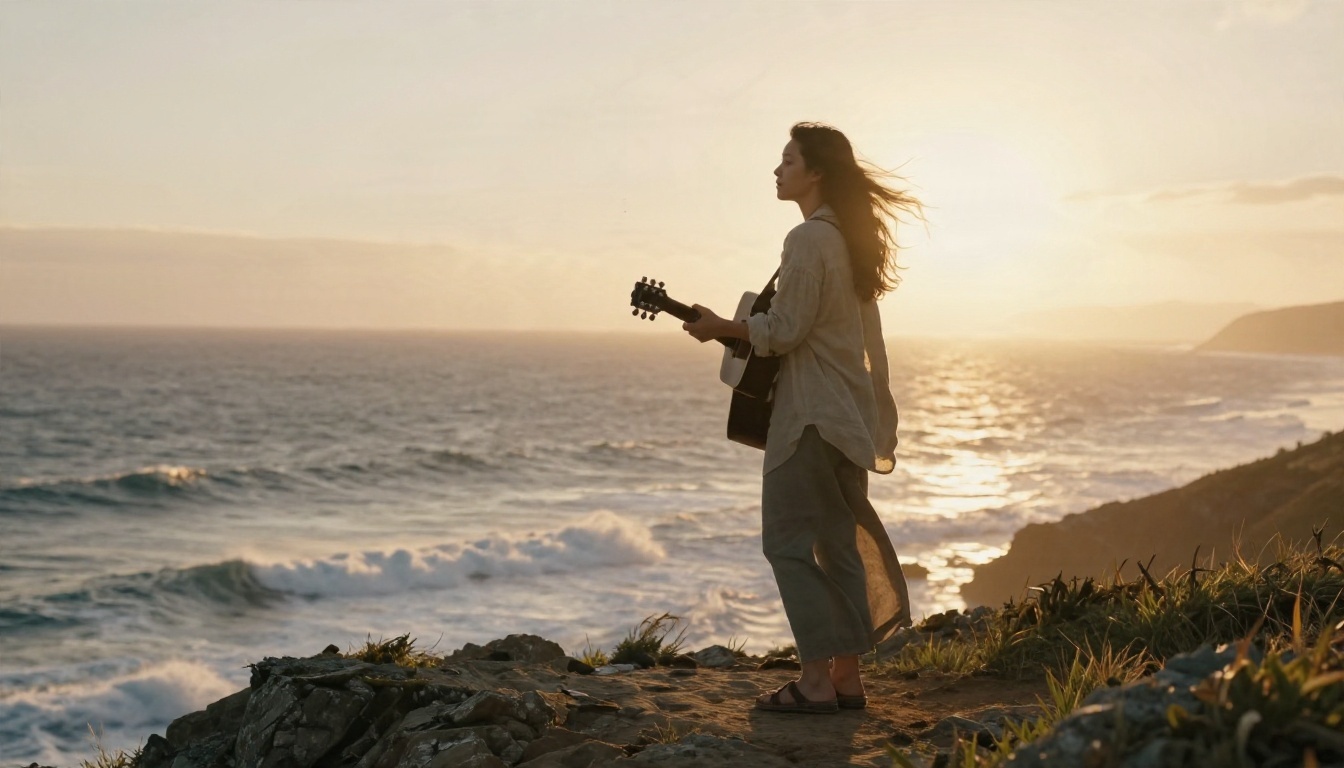
An audio conditioned model reads the track as a signal: where the loud moments fall, how dense the rhythm is, whether the mood is calm or tense. It then shapes motion to match. A slow piano piece tends to produce drifting camera moves and gentle movement. A fast drum pattern pushes toward quicker cuts and more energy in the subject. You are not getting a frame perfect beat grid. You are getting visuals that feel connected to the sound.
Voice and Lip Sync
Speech is stricter. When a character is meant to speak, the mouth shape has to follow the phonemes, or viewers notice within a second. This is why lip sync models exist as a separate category. If your plan involves a talking face, start with Kling Lip Sync or a talking avatar model rather than a general audio model. If you need to translate spoken content, Dubbing handles 90+ languages.
Prepare Your Audio First
Better input gives better output. Before uploading:
- Trim to the best section. Clips are short, so pick the 5 to 10 seconds with the clearest rhythm or the strongest line.
- Normalize volume. Very quiet tracks give the model little to react to.
- Remove long silence. Dead air at the start wastes a large share of a short clip.
- Use a supported format. The PicassoIA model accepts wav, mp3, flac, ogg and m4a.
If your audio is trapped inside an existing video, Extract Audio pulls it out in one step. If you have no audio at all, Realtime TTS 2 can generate a voiceover from text, and Lyria 3 Pro can create a full length song.
How to Use Audio To Video on PicassoIA
This is the fastest route from a sound file to a clip. The model is Audio To Video, and it needs only an audio file plus either an image or a prompt.
Step by Step
- Open the model page. Go to Audio To Video.
- Upload your audio. This is the only required field. Use wav, mp3, flac, ogg or m4a.
- Add a first frame image (optional). The image becomes the opening frame, so choose a photo with a clear subject and room to move.
- Write a prompt. If you added an image, the prompt describes how to animate it. If you skipped the image, the prompt must describe the whole scene.
- Set the guidance scale. Lower values give the model more freedom with the audio. Higher values follow your words more strictly, though pushing it too far can reduce quality.
- Generate and review. Watch the clip with sound on, then adjust the prompt or guidance and run it again.
Prompt Formula That Works
Describe the subject, the motion, the camera and the light, in that order:
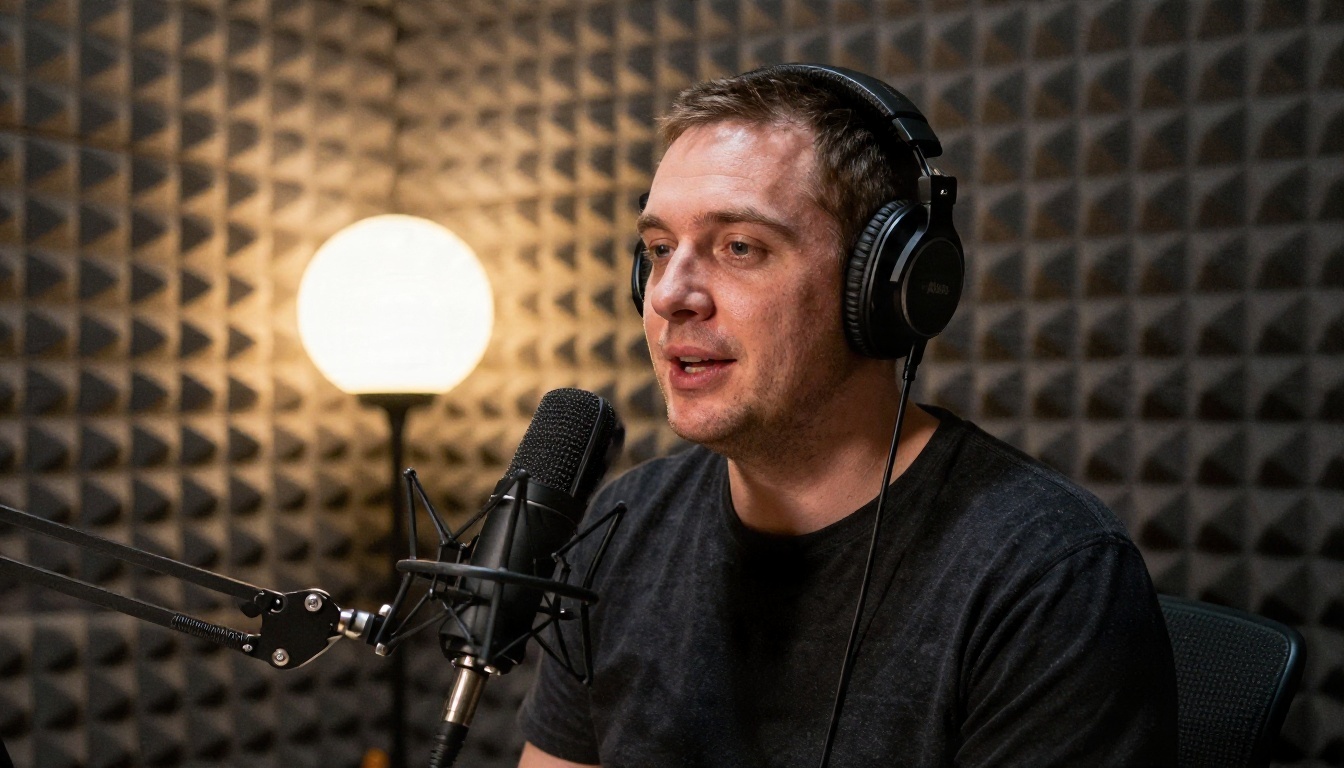
A singer on a rocky cliff at golden hour, wind in her hair, slow push in toward her face, warm backlight, gentle ocean movement behind her.
Keep it to one scene. A prompt with three locations forces the model to guess, and the clip is too short to show them anyway.
Settings Cheat Sheet
| Setting | Start with | Change it when |
|---|
| Audio length | 5 to 10 second excerpt | You need a longer part, so make several clips |
| Image | Sharp, single subject | Motion looks warped, so simplify the photo |
| Prompt | One scene, one camera move | The video ignores your idea |
| Guidance scale | Default, then adjust slightly | Output is too loose or too rigid |
💡 Tip: make three versions of the same clip with slightly different prompts. The model is interpretive, and the best take is often the second or third one.
Examples Worth Copying
Here are the formats where audio to video AI earns its place. Each one maps to a use case the model was built for.
Lyric Teasers for Releases
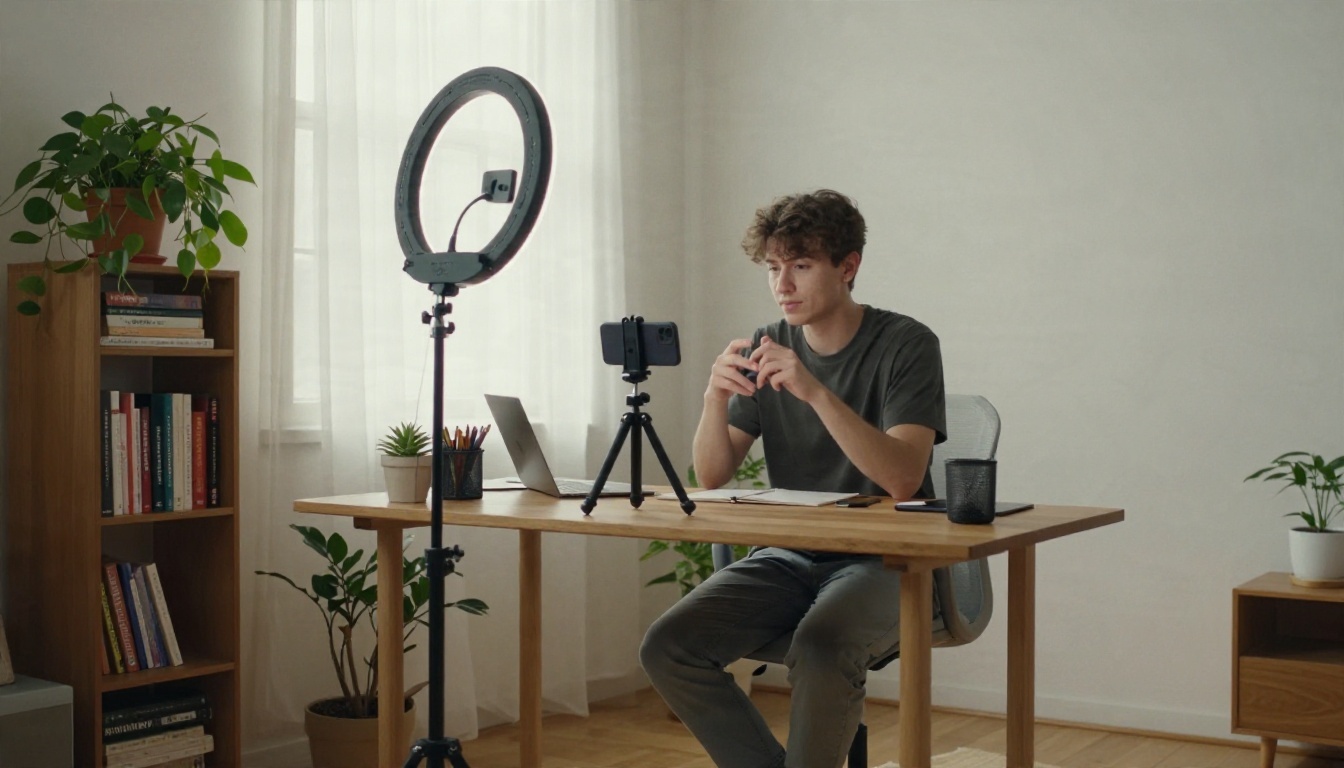
Take the album artwork as the first frame, upload a hook from the track, and prompt a slow camera move with a mood that matches the lyrics. Post the clip on every platform the day the song drops. Artists with no video budget use this as a standard release asset.
Podcast and Voice Clips
A static waveform over a logo is easy to scroll past. A short scene with movement and your host photo as the first frame holds attention longer. Upload the best 10 seconds of the episode, animate a portrait, and add captions in your editor.
Product Jingles and Short Ads
Upload the jingle, use a clean product photo as the first frame, and prompt a slow dolly move around the product. You get a short animated ad without a shoot.
Mood Reels for Pitches
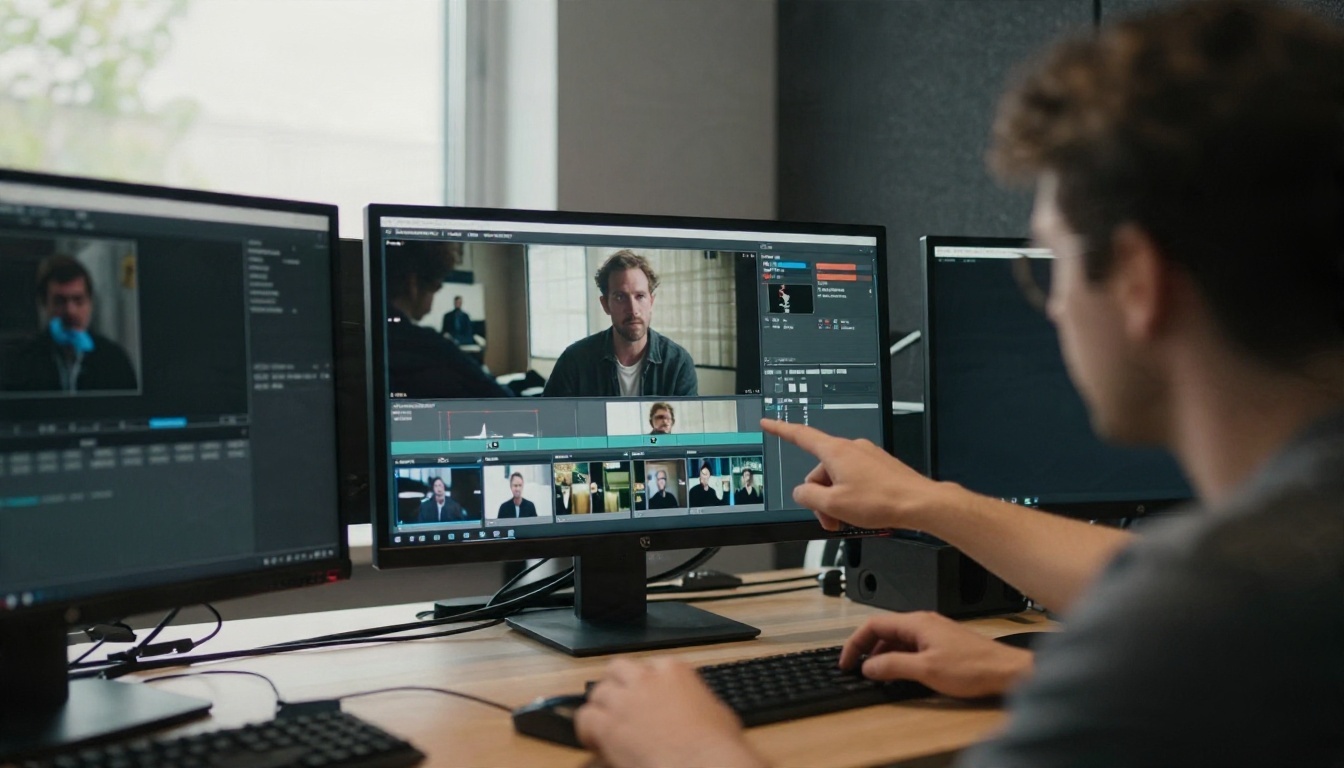
Film and game teams use short audio driven clips to show tone before anything is shot. A landscape photo plus a piece of score, animated for a few seconds, communicates more than a paragraph of description.
Live Music Memories
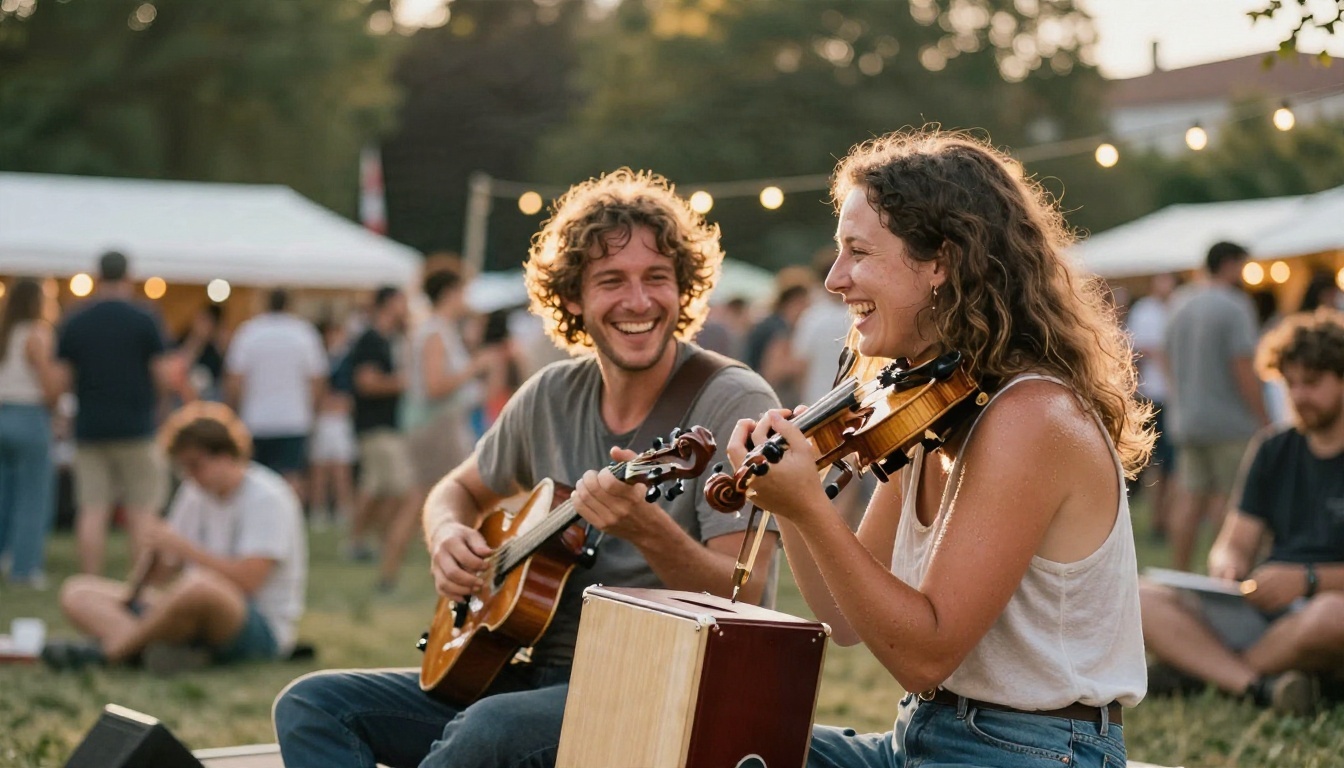
A phone recording of a street performance often has good sound and poor footage. Use the audio, add a clean photo from the event as the first frame, and generate a better looking clip to share.
Limits You Will Hit
No tool escapes these. Better to know them before you plan a project.
Clip Length
Generated clips are short, usually a few seconds up to around ten. A full three minute song means many clips stitched together. Plan the song in sections, generate each, and join them in an editor. Higher capacity models like Seedance 2.5, listed for 30 second videos, help when you need longer single takes.
Sync Is Interpretive
Do not expect cuts landing exactly on the snare. If you need exact beat alignment, generate visuals first and cut them to the track in an editor, or use a waveform visualizer for the sections that need precision.
Faces and Hands
Mouths, fingers and fast motion remain the weak spots of every video model. Prefer wide or medium framing, avoid crowds, and use a speech driven model when the face matters. A faster option for quick iterations is LTX 2.5 Fast, which suits testing ideas before a final run.
Rights and Audio Ownership
Upload only audio you made, licensed or have permission to use. A free tool does not change copyright. If you need original music, generate it with a music model so the rights picture stays simple.
Free Tier Fine Print
Watermarks, resolution caps, daily limits and credit pools all show up in free plans. Treat every unlimited claim as a question: unlimited what, at what quality, for how long?
Make Your First Clip Today
Pick one track you already have. Cut ten seconds of it, grab one photo that fits the mood, and write a single sentence describing how it should move. Then open Audio To Video on PicassoIA and run it.
If you want to build the whole piece in one place, here is a simple chain: create music with Music 2.6, generate scenes with Seedance 2.5 Lite, and animate stills to the beat with Audio To Video. Compare the results, keep the take that feels right, and publish.
Every model mentioned here sits on the same platform, so you can test several approaches in an afternoon. Browse the full list at picassoia.com/en/all-models and start experimenting with your own sound.


