The phrase "AI image editor" used to mean one thing in 2023: type a prompt, receive an image, repeat. That workflow is now the floor, not the ceiling. In 2026, the best AI image editors do far more than generate. They retouch portraits, restore aged photographs, remove backgrounds with sub-pixel accuracy, extend canvas edges seamlessly, replace objects within existing scenes, and upscale low-resolution assets to print-ready quality.
This is not about generation anymore. It is about control.
If you are still evaluating AI tools purely on raw generation output, you are choosing the wrong metric. The real question is: what can the tool do with an image you already have? That question now has better answers than at any point in this technology's history.
What "Editing" Means in 2027
The word has been redefined. Traditional photo editing was about sliders: brightness, contrast, saturation. AI editing is about semantic understanding, the capacity of a model to look at your image, comprehend what is in it, and make precise, meaningful changes to specific parts without disturbing the rest.
From generation to intervention
The shift from generation to editing changes everything about how you work with visual AI:
- Generation: Describe an image from scratch and receive it
- Editing: Take an existing photo and surgically improve specific elements
For most real workflows, photos already exist. The problem is not creating them. The problem is that the shot had the wrong background, the resolution was too low, the subject's expression was off, or the composition does not fit the required format. AI editing solves these without a reshoot.
The 6 pillars of AI image editing
Every serious AI image editor in 2026 covers some combination of these capabilities:
| Capability | What It Does | Best For |
|---|
| Inpainting | Fills selected regions with context-aware content | Object removal, face fixes, detail repair |
| Outpainting | Extends the image beyond its current borders | Aspect ratio changes, composition adjustments |
| Background Removal | Isolates subjects with pixel-level precision | E-commerce, portraits, product photography |
| Super Resolution | Upscales images 2x to 4x with reconstructed detail | Old photos, low-res assets, print preparation |
| Object Replacement | Swaps objects while preserving scene lighting | Product visualization, scene redesign |
| Face Restoration | Reconstructs degraded facial features | Old photos, low-light portrait fixes |
Inpainting: The Most Powerful Edit
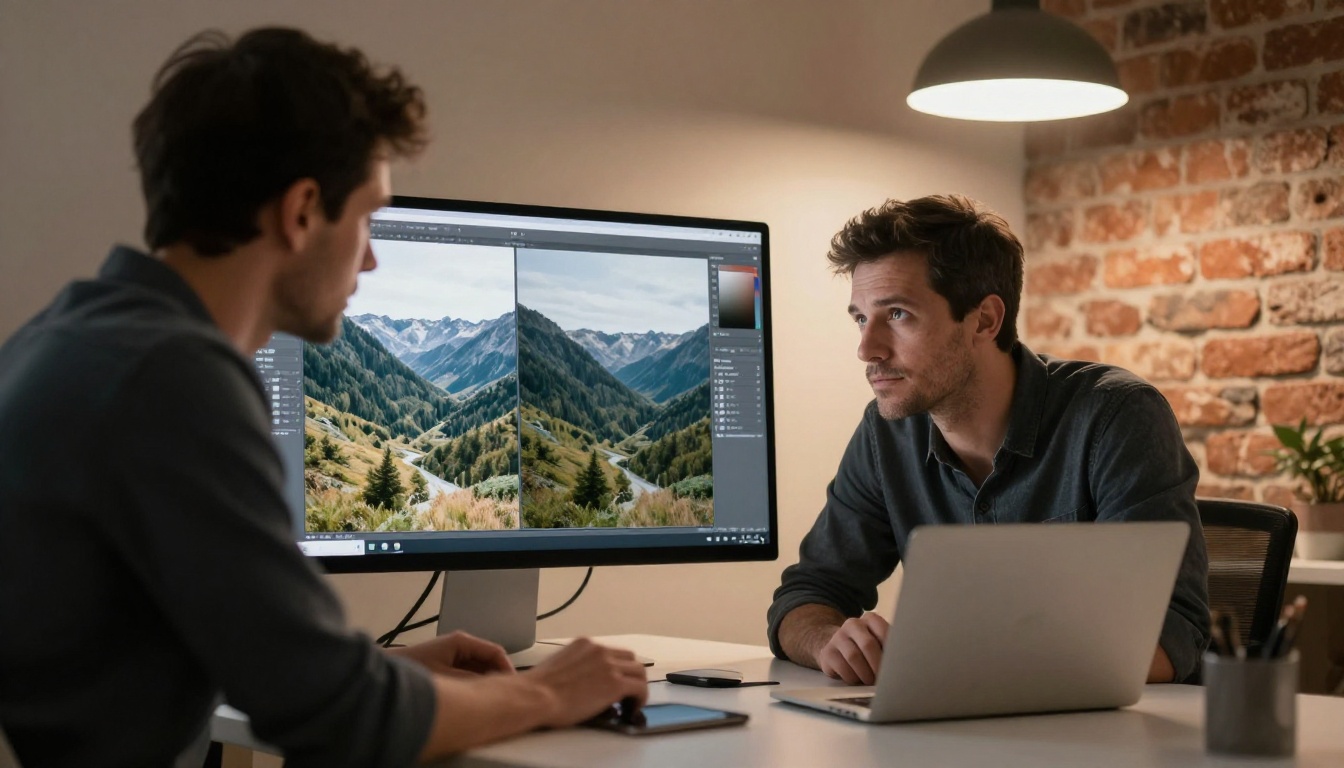
Inpainting is the crown capability of AI image editing. Select a region, describe what you want there instead, and have the model blend it seamlessly with the surrounding content. When it works well, the result is indistinguishable from the original shot.
Flux Kontext Max and Flux Kontext Pro
Flux Kontext Max and Flux Kontext Pro from Black Forest Labs are built specifically for context-aware image editing, not generation from scratch. The "Kontext" architecture processes your original image as a structural reference, not merely a noise seed.
What sets them apart:
- Edits respect existing lighting direction, color temperature, and shadow angles automatically
- Text instructions are interpreted spatially: "replace the sky in the upper third of the frame"
- Flux Kontext Max handles full 4K inputs without tiling artifacts
- Both models support iterative editing where each output becomes the input for the next round
💡 Tip: Be specific about what you want to preserve, not just what you want to change. "Replace the grey sky with a sunset, keeping the rooftop silhouette unchanged" consistently outperforms "add a sunset."
Qwen Image Edit Plus LoRA
Qwen Image Edit Plus LoRA takes an instruction-based approach: describe the change in plain language and the model determines what to modify without requiring a manual mask selection.
This works particularly well for:
- Style changes within a region ("make the jacket look like brushed denim")
- Color adjustments with semantic targets ("change the red car to navy blue")
- Lighting modifications ("add afternoon sunlight from the upper left")
The LoRA component accepts style adapters, giving experienced users precise aesthetic control over the output.
Background Removal and Object Replacement
Pixel-perfect isolation
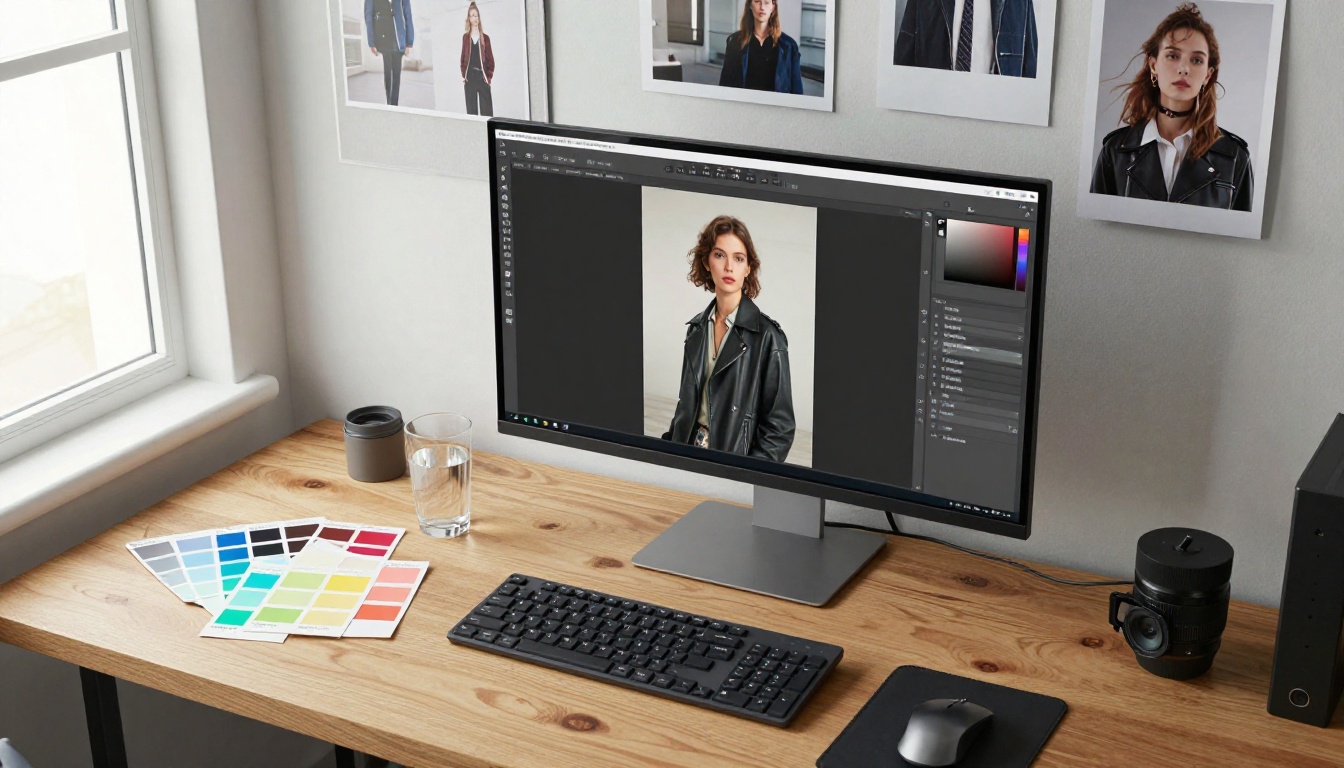
Background removal in 2027 delivers compositing-grade accuracy. Remove Background by Bria returns alpha-channel PNG outputs with sub-pixel precision on:
- Fine hair, fur, and individual flyaways
- Transparent objects such as eyeglasses, glass bottles, and water splashes
- Motion-blurred subject edges
- Complex overlapping foreground elements
The output integrates directly into compositing workflows, product sheets, or background-replacement pipelines without manual cleanup.
p-image-edit for fast batch work
p-image-edit from PrunaAI handles object replacement across multiple images simultaneously. It supports batch workflows, making it the practical choice for:
- Product photography: swapping product variants on the same background shot
- E-commerce catalogs: updating colors, materials, and accessories at scale
- Social content: reskinning the same template with different visual elements
The replaced objects integrate with existing scene lighting and shadows rather than appearing artificially pasted in.
GPT Image 1.5 for complex replacements
When the replacement task is genuinely difficult, GPT Image 1.5 brings the strongest scene comprehension available. It handles:
- Replacing people in crowd scenes while maintaining natural posture and lighting
- Swapping architectural elements in interior shots with consistent perspective
- Changing clothing items on posed subjects while keeping face and skin intact
The tradeoff is speed. GPT Image 1.5 is slower than p-image-edit but significantly more coherent on high-complexity tasks.
Super Resolution: Fix Any Photo
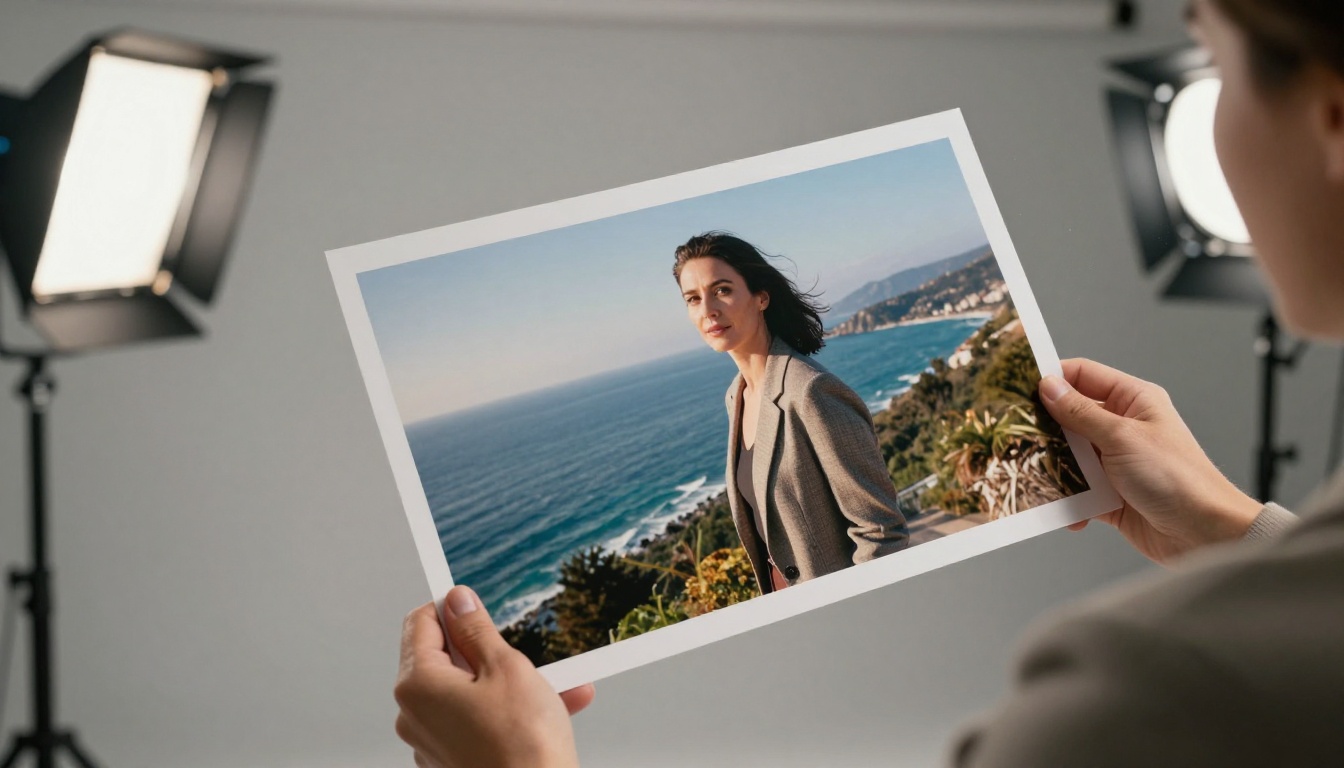
Modern super-resolution models do not interpolate between pixels, which is the old method that produced smooth but lifeless results. They reconstruct missing detail using a trained understanding of how real-world textures look at higher resolutions.
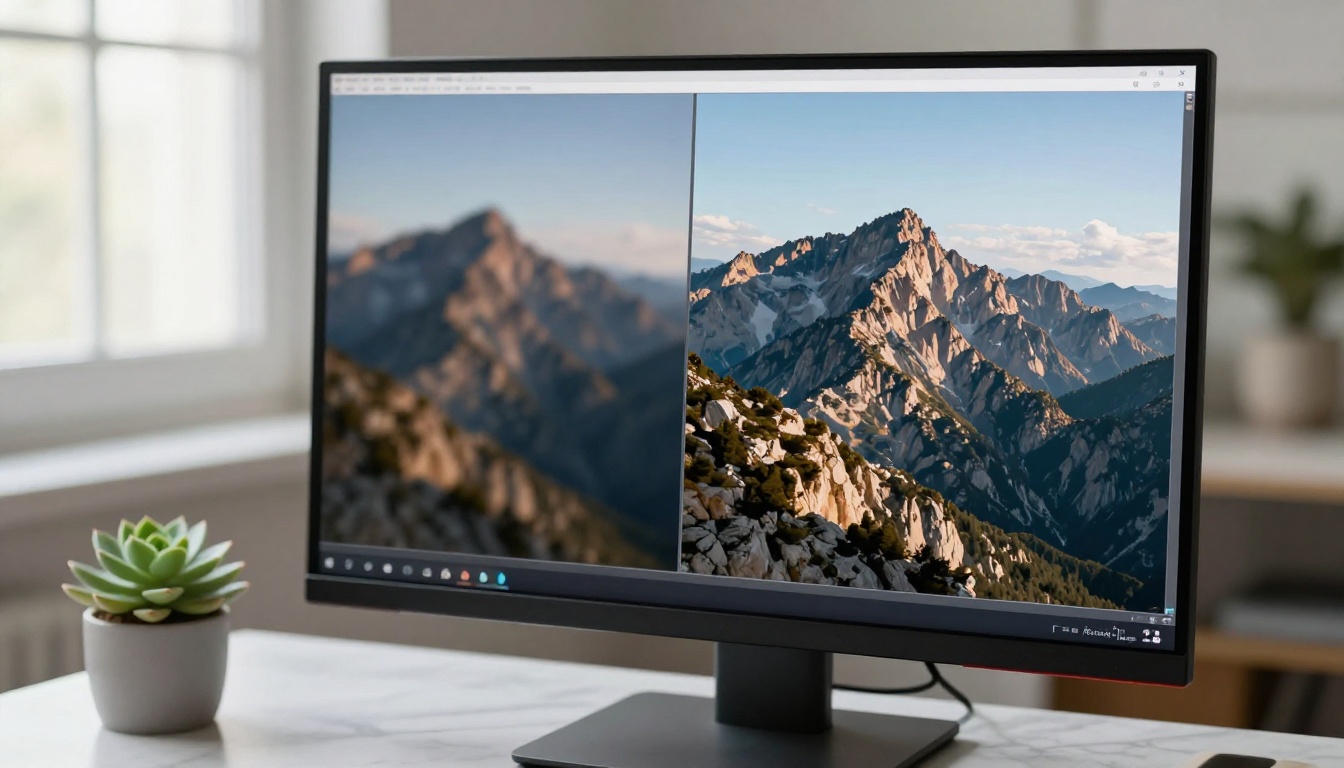
The difference is immediate when you compare outputs:
- Old interpolation: Upscale a 512px face to 2048px, get a soft, plasticky result
- AI super resolution: Upscale the same face, get reconstructed skin pores, individual hair strands, and authentic shadow transitions
The best upscalers, matched to the task
- Real-ESRGAN: The most widely tested open model. Dedicated face restoration mode for portraits. Best for: general photography, archival portraits.
- Crystal-Upscaler: High-precision texture reconstruction. Best for: product photography, architecture, fabric details.
- Topaz Image Upscale: Professional-grade output built for print. Best for: archival restoration, high-end retouching.
- Google Upscaler: Fast 2x output with minimal artifacts. Best for: quick batch processing.
- Recraft Crisp Upscale: Sharp edge preservation on fine detail. Best for: logos, graphics, mixed media.
- Bria Increase Resolution: Trained on commercial restoration pipelines. Best for: corrective archival work.
Restoring old photographs
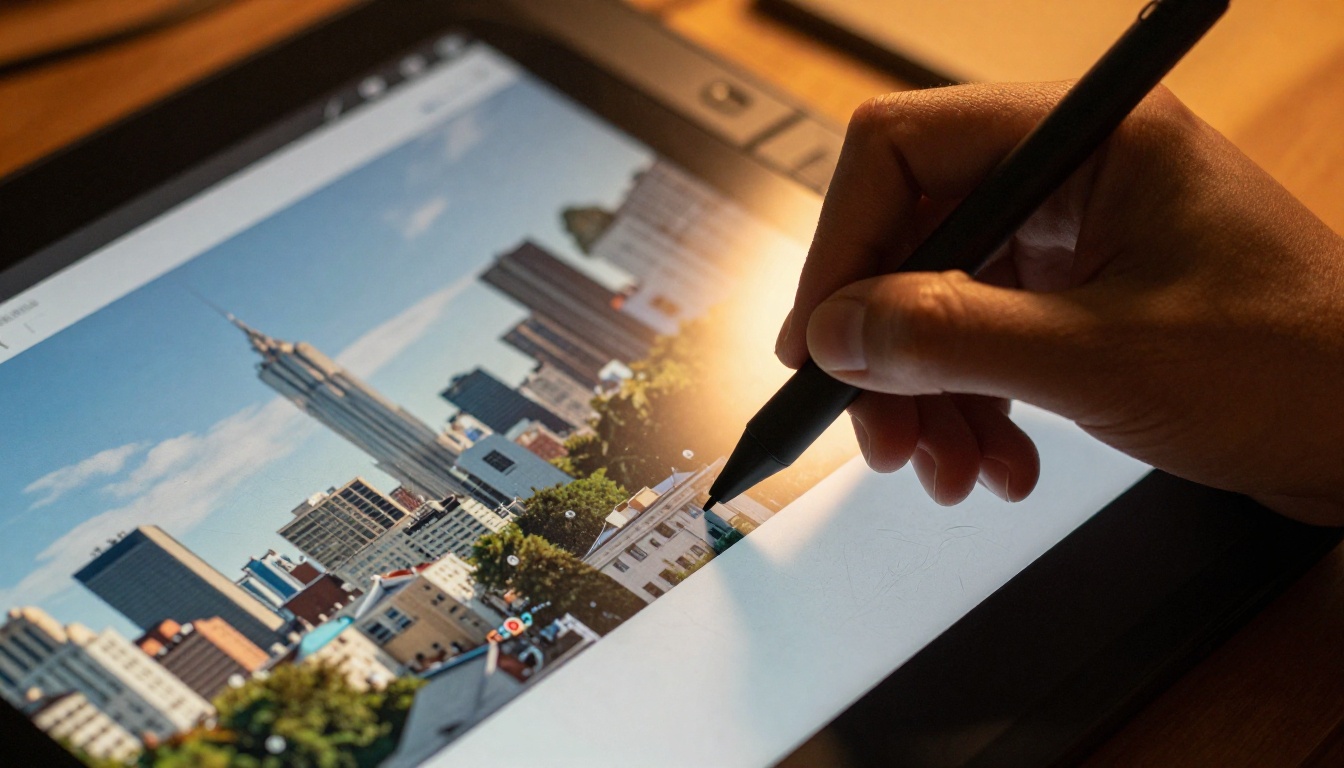
For severely damaged photographs, combining Real-ESRGAN with a targeted inpainting pass via Flux Kontext Pro produces results that would have required weeks of manual retouching two years ago. The pipeline:
- Run Real-ESRGAN for base sharpness and noise reduction
- Identify damaged regions (tears, water stains, color fading)
- Apply Flux Kontext Pro with a mask over the damaged area
- Final output pass with Bria Increase Resolution for print-ready sizing
💡 Tip: Always work on a copy of the original file. AI restoration results are impressive but not reversible at the source level.
Outpainting: Extend Your Canvas
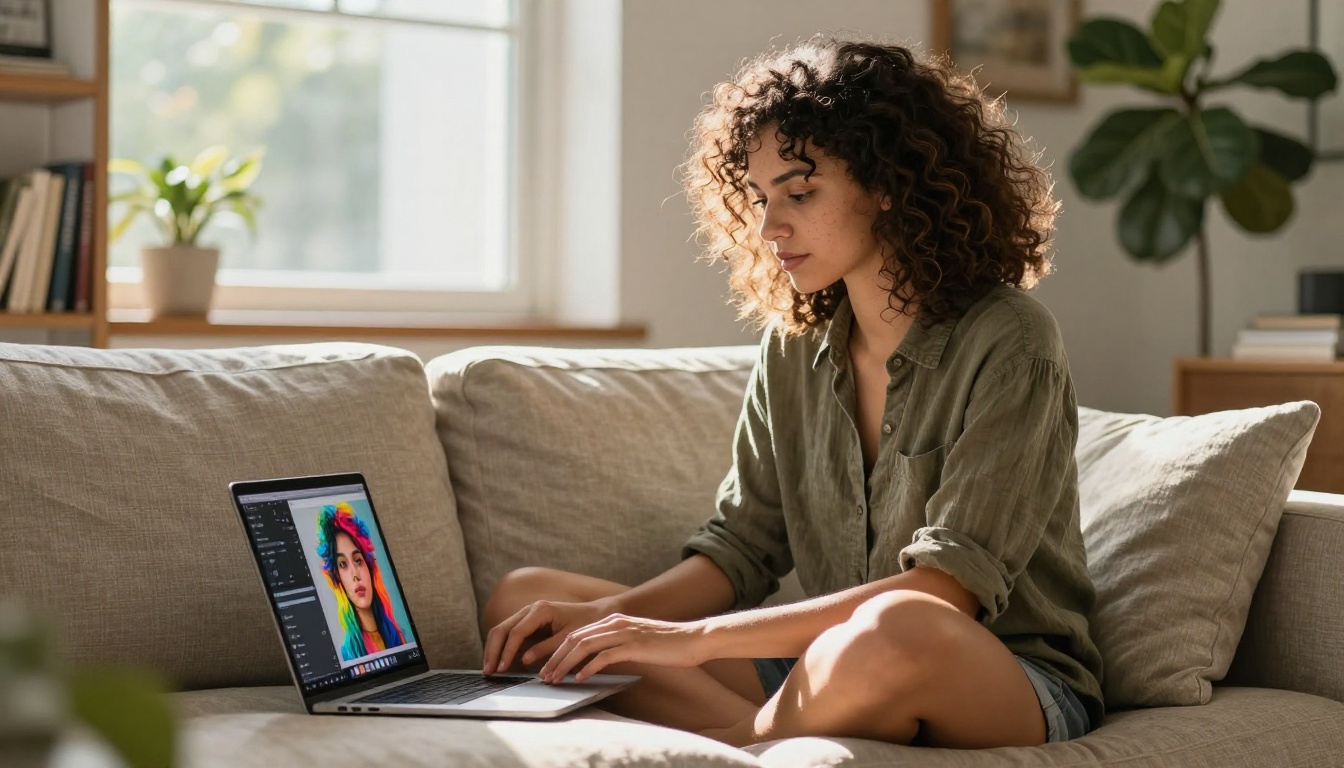
Outpainting adds believable content beyond the original image borders. You have a portrait in 4:5 format and need it in 16:9. Outpainting fills both sides with content that matches the original scene's lighting, perspective, and color palette without altering the subject.
Where it solves real problems
- Social media reformatting: Extend a square Instagram photo into a horizontal banner
- Print vs. digital: Adapt a portrait for a wider print format by extending the background naturally
- Composition repair: Fix a shot where the subject was too tightly framed by adding negative space
- Storytelling expansion: Pull a tight close-up back to reveal the surrounding environment
Flux Kontext Max handles outpainting particularly well because it reads existing scene structure before generating the extended region: light source direction, surface textures, perspective lines. It extrapolates logically rather than inventing arbitrary content.
💡 Tip: When outpainting a portrait, describe what should appear in the extended region. "Extend the left side to reveal a blurred park setting consistent with the warm afternoon light in the original" gives far better results than "extend the image."
How to Use Flux Kontext Pro on PicassoIA
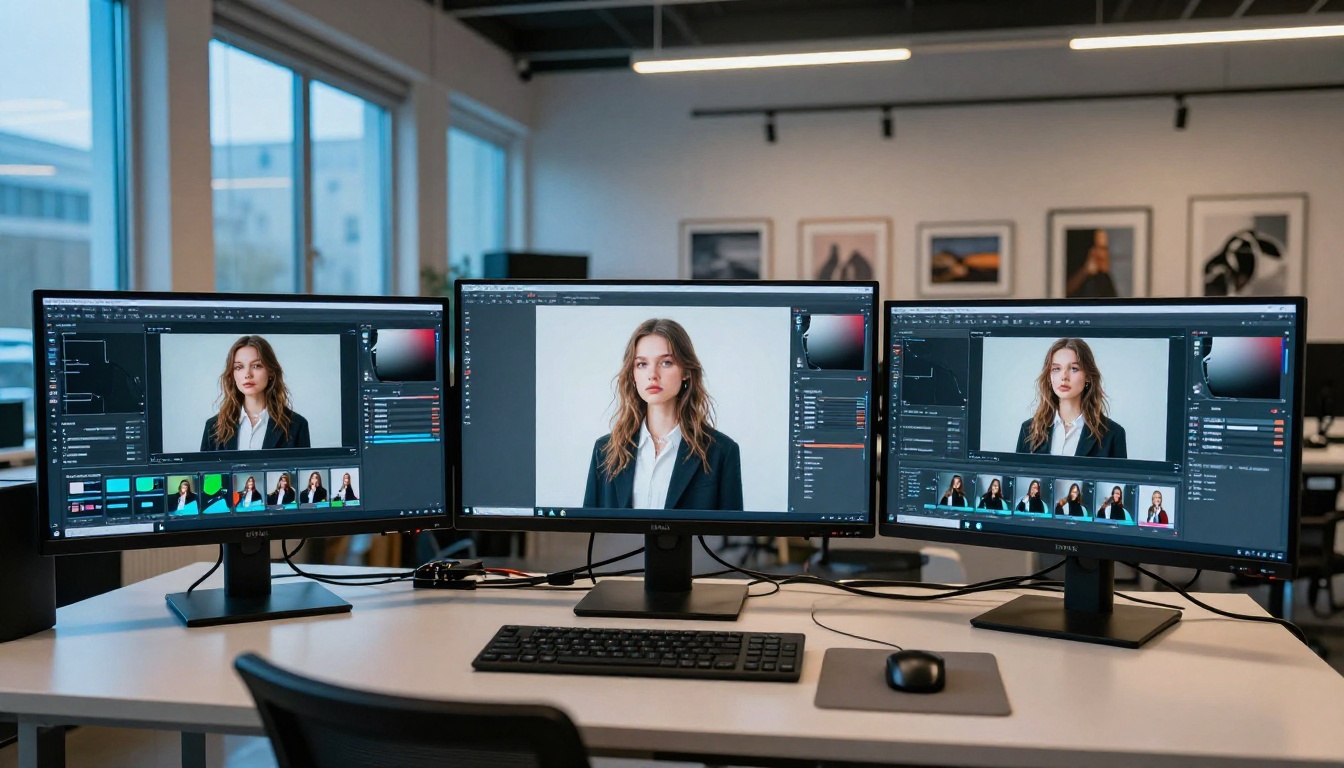
Flux Kontext Pro is the most accessible context-aware editing model on the platform. Here is a direct workflow for precise image edits.
Step 1: Open and upload
Navigate to Flux Kontext Pro. The model accepts a reference image alongside your text instruction. Upload the photo you want to edit.
Step 2: Write a precise editing instruction
Specificity in the prompt directly determines output quality.
Weak: "Fix the background"
Strong: "Replace the cluttered office wall behind the seated person with a clean pale grey painted surface, preserving the warm directional light coming from the upper left"
Name what to change, what to preserve, and where the light comes from.
Step 3: Set the strength parameter
| Strength | Effect |
|---|
| 0.3 to 0.5 | Subtle corrections, color fixes, minor repairs |
| 0.6 to 0.75 | Background swaps, object replacements |
| 0.8 to 1.0 | Major structural changes, full scene redesigns |
For most editing tasks, 0.55 to 0.7 preserves subject integrity while making meaningful changes to surrounding content.
Step 4: Iterate and chain
Flux Kontext Pro supports chained editing. Accept the first output as the new base image and apply another instruction on top. Build toward the final result incrementally rather than trying to accomplish everything in a single prompt.
The Top Editing Models Side by Side
| Model | Specialty | Speed | Best For |
|---|
| Flux Kontext Max | Context-aware editing | Medium | Inpainting, outpainting, 4K inputs |
| Flux Kontext Pro | Instruction-based edits | Fast | Object edits, background swaps |
| GPT Image 1.5 | Complex scene editing | Slow | High-detail complex replacements |
| p-image-edit | Batch object editing | Very Fast | Product catalogs, bulk workflows |
| Qwen Edit Plus LoRA | Instruction-based edits | Fast | Style, color, lighting changes |
| Real-ESRGAN | Photo and face upscaling | Fast | Portrait restoration, archival photos |
| Crystal-Upscaler | Texture reconstruction | Medium | Products, architecture, print assets |
| Bria Remove BG | Background isolation | Very Fast | E-commerce, compositing, product shots |
No single model wins every category. The strongest workflows chain them: edit with Flux Kontext Pro, remove the background with Bria, then upscale the final output with Real-ESRGAN or Topaz Image Upscale.
Where generation fits in
The generative models in 2027 are also significantly stronger than previous releases. Imagen 4 Ultra from Google pushes photorealism further than any prior version. Flux 2 Pro brings consistent composition and fine-detail rendering to fast generation workflows.
The line between generation and editing is blurring. Flux Kontext Max does both simultaneously: it generates new content into an existing scene rather than creating from nothing. That convergence is the real story of 2027.
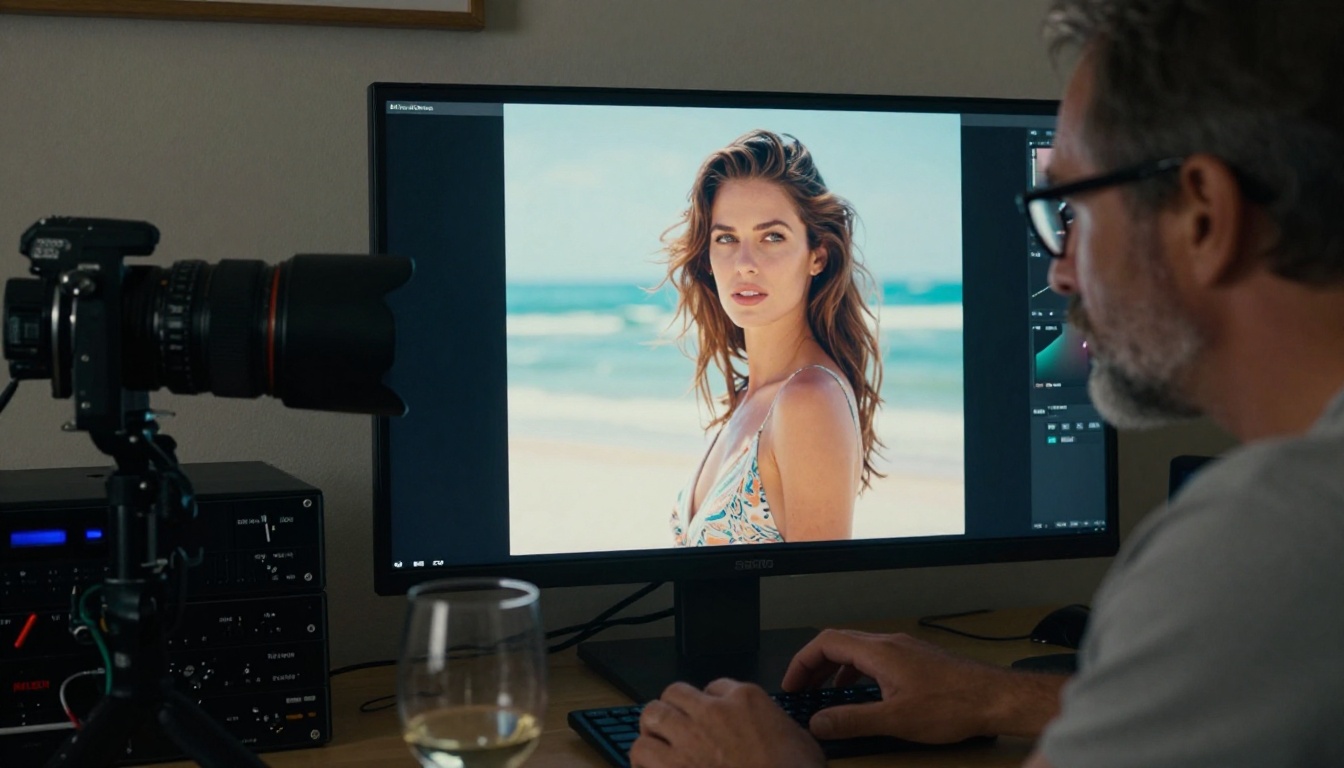
Stop Browsing. Start Editing.
Every capability in this article, inpainting, background removal, super resolution, outpainting, object replacement, and face restoration, is available through PicassoIA without stitching together five different paid tools.
Whether you are fixing a portrait that missed focus, preparing product images for a catalog, restoring a photograph from a decade ago, or correcting a composition that did not work in camera, the tools are there and they are better than they have ever been.
Open Flux Kontext Pro and start with one photo you already care about. Run one edit. See what a context-aware model does with a real image, and you will see immediately why 2027 is not about generation anymore.
It is about precision.