The gap between channels with 100 views and channels with 100,000 views often has nothing to do with talent. It has to do with production speed, consistency, and visual quality. AI tools have closed that gap dramatically in 2027, giving solo creators access to the same workflows that used to require full production teams.
This roundup covers the AI tools that actually matter for YouTube creators: the ones that save real hours, produce output you can publish without embarrassment, and integrate into a realistic workflow. No tools that sounded impressive six months ago and have since been abandoned by their developers.
Why Your YouTube Workflow Needs AI Now
YouTube's algorithm rewards consistency. Uploading twice a week, every week, with quality thumbnails and solid production values was simply impossible for most solo creators two years ago. It required either money or time, and most creators had neither in abundance.
AI has changed the math. Text-to-video models can produce b-roll, scene transitions, and even full short-form content in minutes. AI voiceover tools match human delivery closely enough that most viewers do not notice the difference. Thumbnail generators produce click-worthy visuals faster than any Photoshop workflow. The result is that a single creator can now produce output that would have required a three-person team.
The question is not whether to use AI. The question is which tools are worth your attention in a market that releases new models almost daily.
AI Video Generators Worth Using
Video is the core of any YouTube channel, and the text-to-video category has exploded. Here is what is actually producing usable content right now.
Veo 3.1 for Cinematic B-Roll
Google's Veo 3.1 produces 1080p video with native audio, which is a significant advantage for YouTube creators who need atmospheric background sound or ambiance in their clips. The motion quality is smooth, the lighting response is realistic, and the outputs avoid the jerky, artifact-heavy results common in earlier text-to-video models.
For a faster version with shorter generation time, Veo 3.1 Fast cuts wait time significantly while maintaining most of the visual fidelity. Both versions handle prompt adherence better than most competitors in the same tier.
💡 Tip: Use Veo 3.1 for establishing shots, product reveals, and any scene requiring realistic environment lighting. Pair it with a clear, detailed prompt specifying camera angle and time of day.
Kling v3 for Smooth Motion
Kling v3 Video from Kwai is particularly strong for motion-heavy scenes. Character movement, walking sequences, and dynamic action shots come out with noticeably less warping than most competing models. The Kling v2.6 variant is a solid middle ground between cost and quality if you are running high output volumes.
For channels covering tech reviews, travel, fitness, or any topic requiring movement, Kling consistently outperforms models optimized for static or slow-motion scenes.
Seedance 2.0 for Audio-Synced Content
Seedance 2.0 from ByteDance solves one of the biggest frustrations with AI video: audio synchronization. The model generates video with built-in audio that actually matches the visual content, making it directly usable for montages, intros, and filler content without additional post-production audio work.
The Seedance 2.0 Fast variant is worth using when you need higher throughput for batch content creation.
More Strong Text-to-Video Options
| Model | Strength | Best For |
|---|
| LTX 2.3 Pro | 4K output | Premium intros and trailers |
| Sora 2 | Prompt adherence | Complex scripted scenes |
| Hailuo 02 | 1080p quality | General-purpose YouTube b-roll |
| Pixverse v6 | Cinematic audio | Atmospheric travel and lifestyle content |
| Wan 2.7 T2V | Speed at 1080p | High-volume content pipelines |
| Ray by Luma | Natural motion | Product demos and walkthroughs |
| Gen 4.5 | Cinematic control | Branded YouTube intros |
Voiceover is one of the highest-value applications of AI for YouTube creators. A convincing AI voice means you can produce narration without recording equipment, sound treatment, or personal screen time.
ElevenLabs v3 for Natural Delivery
ElevenLabs v3 is the current standard for realistic AI voiceover. The naturalness of speech delivery, including breath placement, intonation variation, and emotional coloring, makes it difficult to distinguish from a trained human narrator. It supports voice cloning, so you can build a consistent brand voice across all your content.
For multilingual channels or creators who want to repurpose content for international audiences, ElevenLabs v2 Multilingual covers 30+ languages with native-level accent accuracy.
Speech 2.8 HD for Studio-Quality Output
Speech 2.8 HD from MiniMax produces audio at a quality level that competes with professionally recorded studio sessions. The HD variant is noticeably better than the turbo tier for content where audio quality is part of the brand identity, such as documentary-style channels or educational series.
Chatterbox for Precise Voice Control
Chatterbox from Resemble AI offers granular emotional control that most TTS models do not. You can specify delivery style beyond basic presets, which matters for storytelling channels and content where vocal performance is central to the watch experience.
💡 Tip: Generate your voiceover before editing video. Having the audio locked first makes pacing your cuts dramatically easier, and AI TTS is fast enough that this adds only a few minutes to your workflow.
A thumbnail is responsible for roughly 50% of a video's click-through rate. No amount of good content compensates for a thumbnail that nobody clicks.
How AI Speeds Up Thumbnail Production
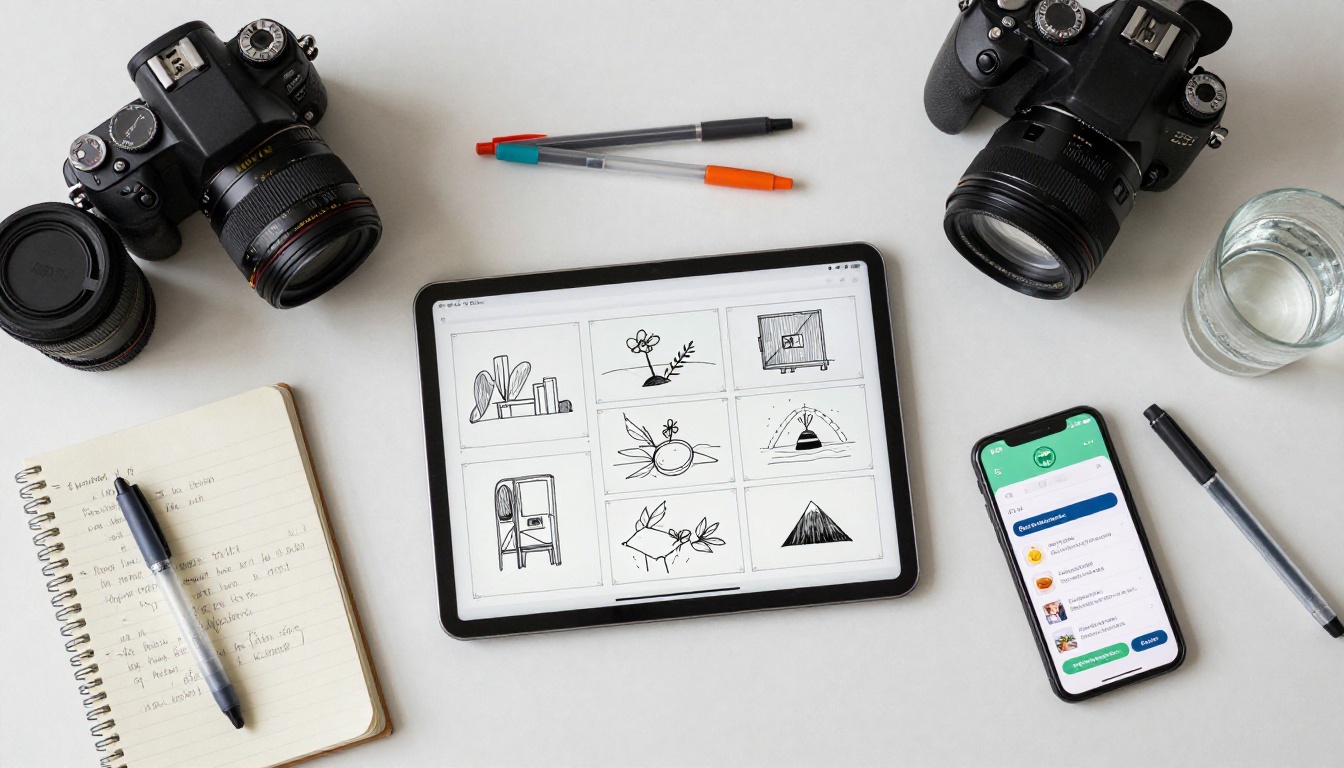
The text-to-image category has matured to the point where generating photorealistic thumbnail backgrounds, character expressions, and product shots is faster and cheaper than stock photography. Pair a strong image generator with a text overlay in Canva or Photoshop and you have a thumbnail workflow that takes 10 minutes instead of 45.
For thumbnails requiring sharp upscaling or higher resolution output from an existing image, Clarity Pro Upscaler delivers photorealistic results that hold up at thumbnail crop sizes without introducing sharpening artifacts.
Visual Consistency Across Thumbnails
Maintaining a consistent visual style across a channel's thumbnails is a proven growth tactic. Using the same AI model with a consistent style prompt achieves this without the overhead of maintaining a template library. Channels with visually cohesive thumbnails have measurably better subscriber retention from suggested video placements.
Thumbnail checklist:
- High contrast between subject and background
- Facial expression or object clearly readable at small sizes
- Color palette consistent with your channel brand
- No more than 3 to 4 words of text overlay
- AI-generated background at 1920x1080 minimum
4K Video Upscaling With AI
Older content, lower-quality recordings, and footage shot on mobile phones can all be significantly improved with AI upscaling. For YouTube creators migrating older archives or shooting in constrained conditions, this is one of the highest-ROI applications of AI in the entire production pipeline.
Crystal Video Upscaler
Crystal Video Upscaler processes footage at up to 4K, adding texture and detail that is not present in the original file. The output is noticeably sharper than bicubic upscaling from editing software, particularly in facial detail and fine environmental textures.
Topaz Video Upscale
Video Upscale by Topaz Labs supports up to 4K at 120fps, making it the right choice for sports and motion-heavy content where frame rate fidelity matters alongside resolution. Topaz has a strong reputation in the professional video community, and its AI engine is specifically trained on high-motion footage.
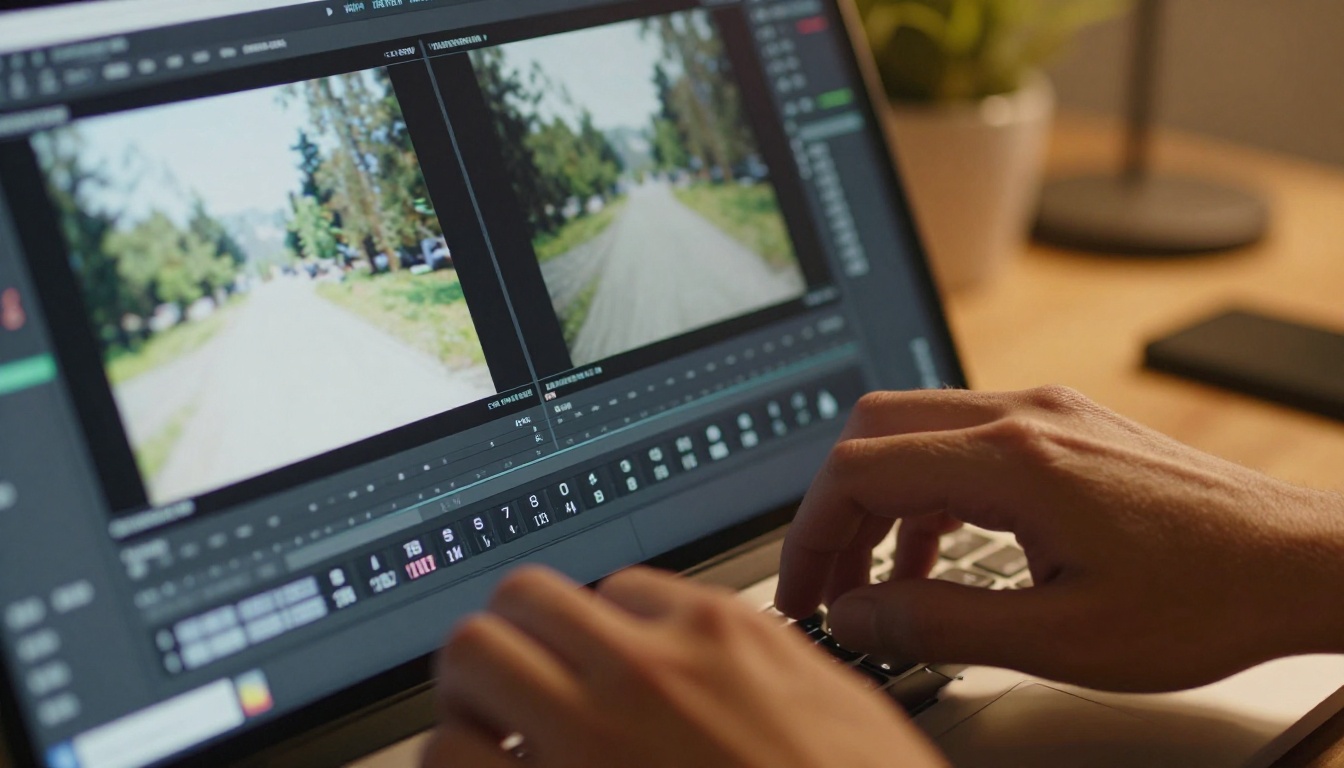
💡 Tip: Upscale your video last in the pipeline, after all color grading and effects have been applied. Running the upscaler on final graded footage produces more consistent results than upscaling raw files first.
AI Avatars for Faceless Channels
Faceless YouTube channels are one of the fastest-growing content formats. They eliminate the need to appear on camera, reduce friction around personal branding, and make content production entirely location-independent. AI avatars have made this format significantly more viable.
HeyGen Avatar IV
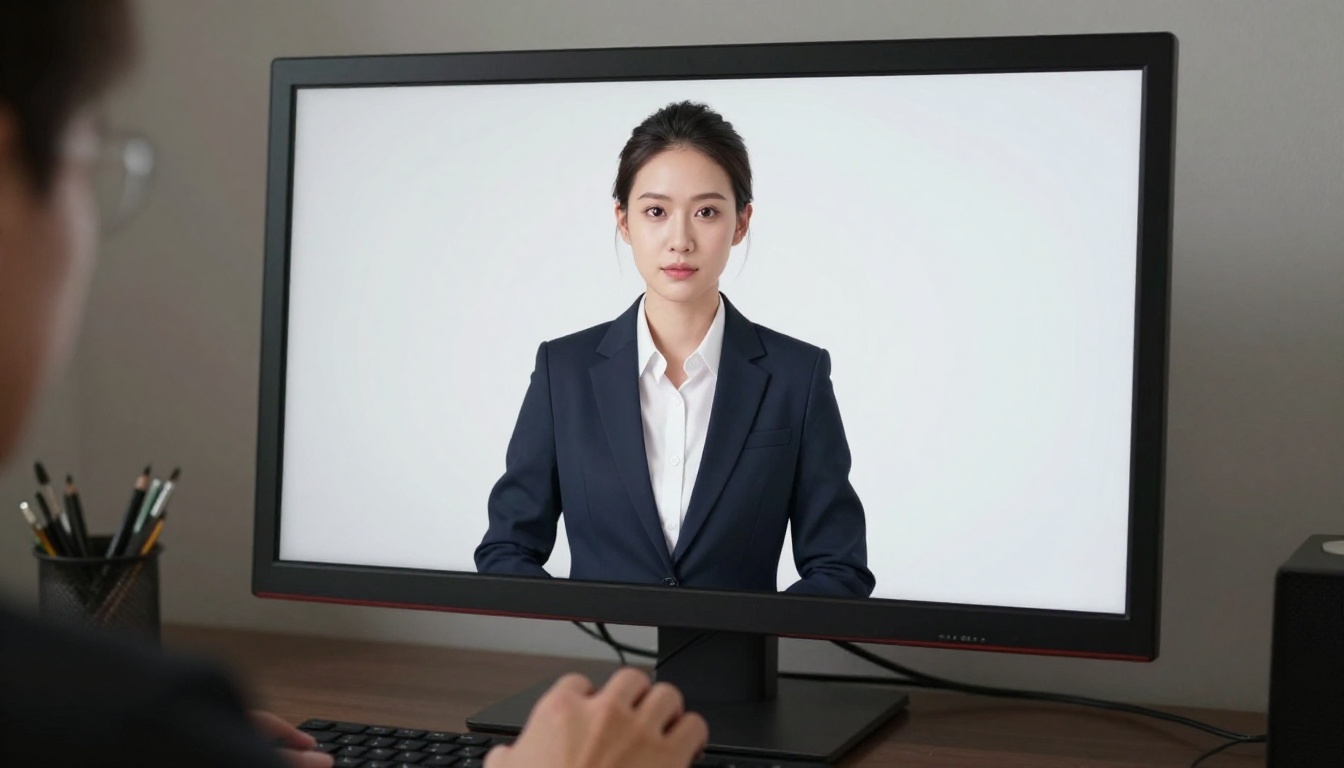
Avatar IV from HeyGen generates a photorealistic avatar that presents scripts directly to camera. The lip sync accuracy and natural head movement make it suitable for tutorials, commentary, and explainer content without triggering the uncanny valley response that plagued earlier avatar tools.
Video Agent extends this by turning a text prompt into a full polished video, handling script, avatar, and assembly in a single workflow. For creators who want to minimize hands-on production time, this is worth serious consideration.
Kling Avatar v2
Kling Avatar v2 animates any face photo into a video presentation. For channels that want to use a custom character or mascot rather than a generic avatar library, this gives you full control over your channel's visual identity without requiring animation skills.
When to choose an AI avatar over real camera:
- You want to post content across time zones without scheduling recording sessions
- Your content is entirely narration-based (news, analysis, commentary)
- You want a consistent on-screen presence regardless of your personal availability
- You are building a brand that is larger than one person's face
How to Use Veo 3.1 on PicassoIA
Veo 3.1 is available directly on PicassoIA without needing API access or technical setup. Here is how to incorporate it into a real YouTube workflow.
Step 1: Open the Veo 3.1 Model
Navigate to the Veo 3.1 model page and select your output duration. Most YouTube creators work with 5 to 10 second clips as b-roll inserts.
Step 2: Write a Specific Prompt
Veo 3.1 responds well to prompt specificity. Include: subject, action, environment, lighting condition, and camera angle. For example: "A chef slicing vegetables in a sunlit kitchen, close-up on the knife and board, natural window light from the left, slow motion, 50mm lens."
Step 3: Include Audio Context
One of Veo 3.1's differentiators is native audio. If you want ambient sound such as kitchen noise, street sounds, or nature audio, describe it in your prompt. This is particularly useful for documentary and lifestyle content.
Step 4: Download and Place in Timeline
Output clips download at 1080p and are ready to drop directly into your editing timeline. No additional processing is required for standard YouTube uploads.
Step 5: Iterate With Veo 3.1 Fast
When testing multiple angles or prompts before committing to a final clip, use Veo 3.1 Fast to iterate quickly. Switch to the full model for your final render.
Building an AI-Powered YouTube Workflow
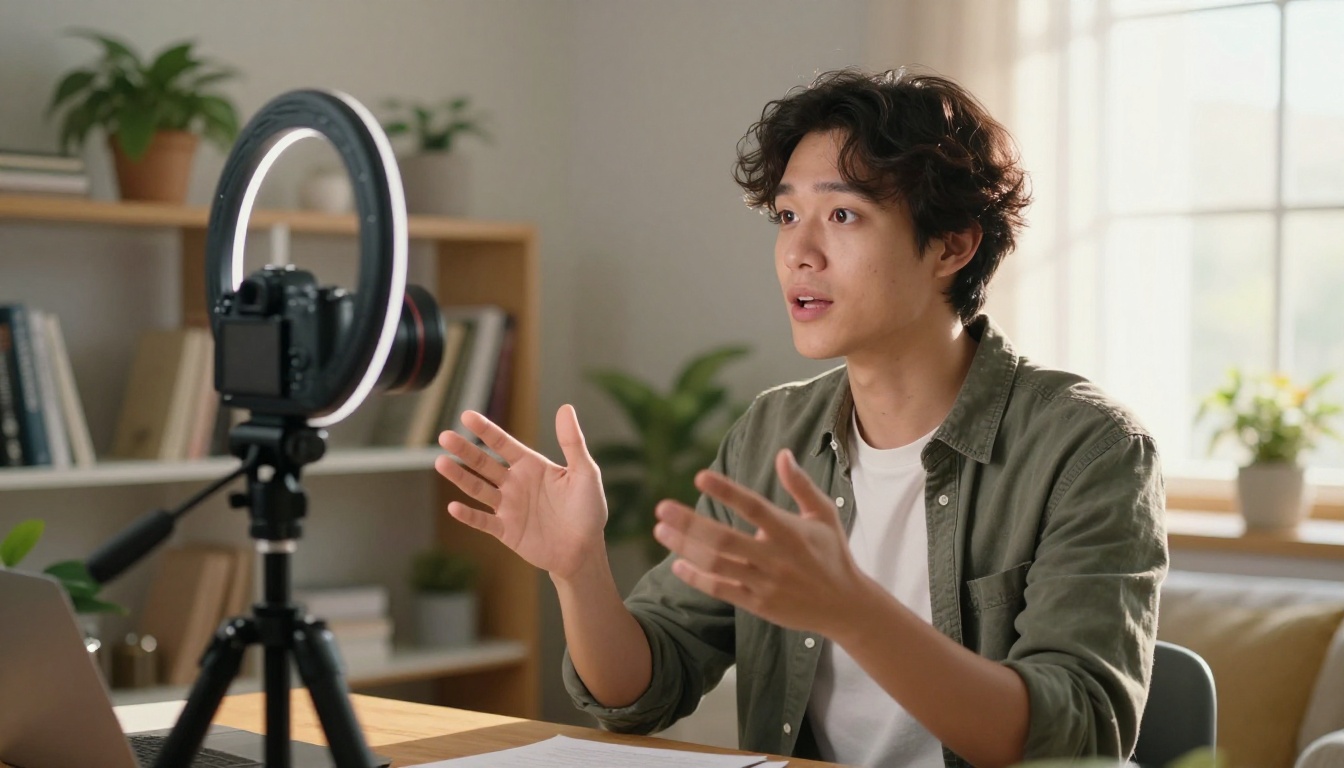
The most effective approach is not to use every tool available. It is to identify which parts of your current workflow take the most time and replace those first. Here is a practical structure that works for solo creators:
1. Script and Research: Large language models handle research summarization, outline generation, and first drafts faster than any manual process. Budget 15 minutes for prompting and editing.
2. Voiceover: Use AI TTS for every video or record your own voice. Consistency matters more than perfection. Lock the audio before you edit video.
3. B-Roll and Inserts: AI video generators replace stock footage subscriptions. Generate exactly what you need for each video rather than searching through catalogs.
4. Thumbnails: Use AI image generation for backgrounds and featured imagery. Keep your text overlay workflow in a design tool you already know.
5. Upscaling: Run finished footage through a video upscaler before export. The quality difference at 1080p is visible to any viewer.
6. Analytics and Iteration: Use YouTube Studio data to identify which thumbnails, topics, and video lengths are performing. Feed those insights back into your AI prompting for the next batch.
💡 Tip: Batch your AI generation. Instead of generating one video clip when you need it, generate five or ten in a session and store them for future videos. This is significantly faster and creates a reusable asset library that speeds up every subsequent upload.

What Separates Good AI Content From Bad
The quality ceiling with AI tools is set almost entirely by the quality of your prompts and your editorial judgment about what to publish. Two creators using the same tool will produce outputs of very different quality based on how specifically they describe what they want.
Invest time in learning prompt structure for whichever video and image tools you choose. The difference between a vague prompt and a specific one is not 10% better output. It is often the difference between something unusable and something publishable.
Keep human oversight in the loop. AI tools produce content faster than you can watch it. Budget time to review every clip before it appears in a published video. AI video models still produce errors, artifacts, and off-brand moments that an editor would catch immediately.
The creators getting the most out of these tools are not the most technically skilled. They are the ones who picked two or three tools, learned them well, and integrated them into a consistent production schedule that they actually maintain.
Start Creating With AI Today
Every image and video model in this article is available on PicassoIA right now. The text-to-video collection covers over 100 models, from fast 480p drafts to cinematic 4K productions with native audio. The text-to-speech collection has professional-grade voiceover tools for every style and language.
Pick one tool from this list. Use it on your next video. Then add a second tool after that. Your first AI-assisted video will take longer than usual because you are learning. Your fifth will take half the time of your old workflow. Your twentieth will feel automatic.
PicassoIA puts all of these tools in one place so you are not juggling accounts across a dozen different platforms. Sign in, pick a model, and start producing. The tools that used to require a production budget are now a text prompt away.