Making a professional-looking video used to require a camera, editing software, and enough patience to sit through a three-day tutorial. In 2027, that whole chain collapses into a text box. The best AI video tools for beginners this year are fast, intuitive, and produce results that would have looked like post-production magic just two years ago. This is the honest breakdown of what actually works, what to skip, and how to get your first clip done today.

Why Video Creation Shifted So Fast
The tools available in 2026 are not a linear improvement over what existed in 2023. They represent a qualitative jump. Models trained on vastly larger datasets with better temporal coherence now hold faces stable across frames, render realistic motion physics, and generate clips up to 30 seconds that actually look like they were filmed.
For a beginner, this is the important part: the quality threshold crossed the point where AI-generated video is usable for real content. Not just demos. Not just experiments. Actual Instagram posts, product ads, YouTube intros, and presentation B-roll.
The 2027 Turning Point
Three specific problems defined early text-to-video tools:
- Face drift: characters would change appearance mid-clip
- Motion artifacts: hands, limbs, and objects moved in physically impossible ways
- Short duration: most clips capped at 4 to 5 seconds
The 2026 generation largely solved all three. Top-tier models now handle consistent character appearance, natural motion, and clips between 5 and 30 seconds without breaking apart.
Who These Tools Are For
These platforms are built for people in very different situations:
- Social creators who need daily short-form content without a film setup
- Small businesses that want product and promotional videos without hiring a videographer
- Educators and presenters who need visual material on a tight budget
- Hobbyists and storytellers with ideas and no production background


1. Gen-4.5 by Runway
Gen-4.5 by Runway is one of the most polished text-to-video tools available right now. It handles cinematic scene transitions, consistent lighting, and complex motion without the visual distortion that plagued earlier versions.
Best for: Narrative content, brand videos, and creative short films.
What beginners appreciate about it: The prompt interpretation is forgiving. You do not need highly technical language to get good results. Natural descriptions work well enough to produce quality output on the first try.
💡 Start with a simple scene description and add lighting details second. "A woman walking through a rainy street at night, neon signs reflected in puddles" produces far better results than an overloaded prompt.
2. Kling v3 Video
Kling v3 Video from Kwaivgi is the tool that surprised many in early 2026. The motion quality is exceptional, particularly for human subjects. Facial expressions hold up. Clothing folds respond to movement correctly. It feels genuinely filmed rather than generated.
Best for: People-centric videos, social content, lifestyle clips.
What makes it beginner-friendly: The motion control variant, Kling V3 Motion Control, lets you apply movement from a reference video to any character. This is incredibly useful when you know what kind of motion you want but cannot describe it in words.
3. PixVerse v5.6
PixVerse v5.6 sits in the sweet spot between speed and quality. It generates usable clips fast, which makes it ideal for beginners who want to iterate quickly without waiting minutes per attempt.
Best for: Quick experiments, social media clips, iteration-heavy workflows.
Strengths: High frame consistency for its generation speed. The visual style tends toward clean and modern without requiring heavy prompt engineering from the user.
4. Google Veo 3
Veo 3 by Google represents one of the most technically capable systems in this space. Scene physics are accurate, lighting behaves realistically, and the model handles complex multi-element scenes well.
Best for: High-quality one-shot clips, product visualization, educational content.
Beginner note: The faster variant, Veo 3 Fast, cuts generation time significantly while maintaining solid quality. Start there for quicker feedback loops before committing to full resolution outputs.
5. Hailuo 2.3 by MiniMax
Hailuo 2.3 by MiniMax is widely recommended in beginner communities for one reason: it is consistent. The outputs rarely produce the jarring artifacts that frustrate new users on other platforms.
Best for: Everyday content creation, consistent output, minimal prompt engineering.
Why it sticks: The model's training produces a visual style that reads as clean and professional without requiring 200-word prompts. Short, clear descriptions get good results. If you want even faster iteration, Hailuo 2.3 Fast cuts wait times substantially.
6. LTX-2.3-Pro by Lightricks
LTX-2.3-Pro brings a unique angle: it accepts text, image, and audio inputs simultaneously. This means you can upload a photo and have it animate, add a soundtrack reference, and describe the scene, all at once.
Best for: Multi-modal creation, animating still images, audio-reactive content.
💡 If you have a great product photo, use LTX-2.3-Pro to animate it rather than generating from scratch. The consistency with the source image is notably high compared to competitors.
If budget is a concern, LTX-2 Distilled offers a free tier with solid performance for shorter clips.
7. Wan 2.6 T2V
Wan 2.6 T2V rounds out the list as the most accessible open-weight option. It runs efficiently and produces clean output that punches above its computational weight.
Best for: Beginners who want a reliable workhorse, batch generation, wide variety of scene types.
The image-to-video variant, Wan 2.6 I2V, extends it nicely when you want to animate existing imagery rather than generate from a text description alone.
Side-by-Side Comparison
| Tool | Speed | Quality | Beginner-Friendly | Best Use Case |
|---|
| Gen-4.5 (Runway) | Medium | Excellent | High | Narrative, brand video |
| Kling v3 Video | Medium | Excellent | High | People, lifestyle |
| PixVerse v5.6 | Fast | Very Good | Very High | Social clips, iteration |
| Google Veo 3 | Slower | Excellent | Medium | High-quality one-shots |
| Hailuo 2.3 | Fast | Very Good | Very High | Everyday content |
| LTX-2.3-Pro | Medium | Very Good | High | Multi-input creation |
| Wan 2.6 T2V | Fast | Good | Very High | General purpose |
Writing Prompts That Actually Work
Most beginners hit a wall here. The video quality is not the problem. The prompt quality is.

The 4-Part Formula
A reliable text-to-video prompt follows this structure:
- Subject plus action: Who or what is doing something
- Environment: Where the scene takes place
- Lighting: Time of day, light source, mood
- Camera: Angle, movement, focal length
Example: "A young woman sits by a rainy window, reading a book. The room is dim with one lamp casting warm light on her face. Static medium shot, 50mm."
This four-part structure works across every tool on this list. You do not need to use all four every time, but including at least three of them consistently produces better output.
3 Mistakes Beginners Make
- Overloading the prompt: More words do not always mean better output. Prioritize the most important details and remove anything that creates conflicting visual signals.
- Skipping camera instructions: Adding a camera angle ("low angle", "close-up", "aerial") dramatically changes the output quality. It is one of the highest-leverage additions to any prompt.
- Ignoring lighting notes: Lighting is half of what makes video look cinematic. Always specify it. "Morning light through a window" produces a very different result than "dim room, one overhead lamp."
💡 Short prompts often outperform long ones. If your output looks chaotic, cut the prompt in half and regenerate.
How to Use Kling v3 on PicassoIA
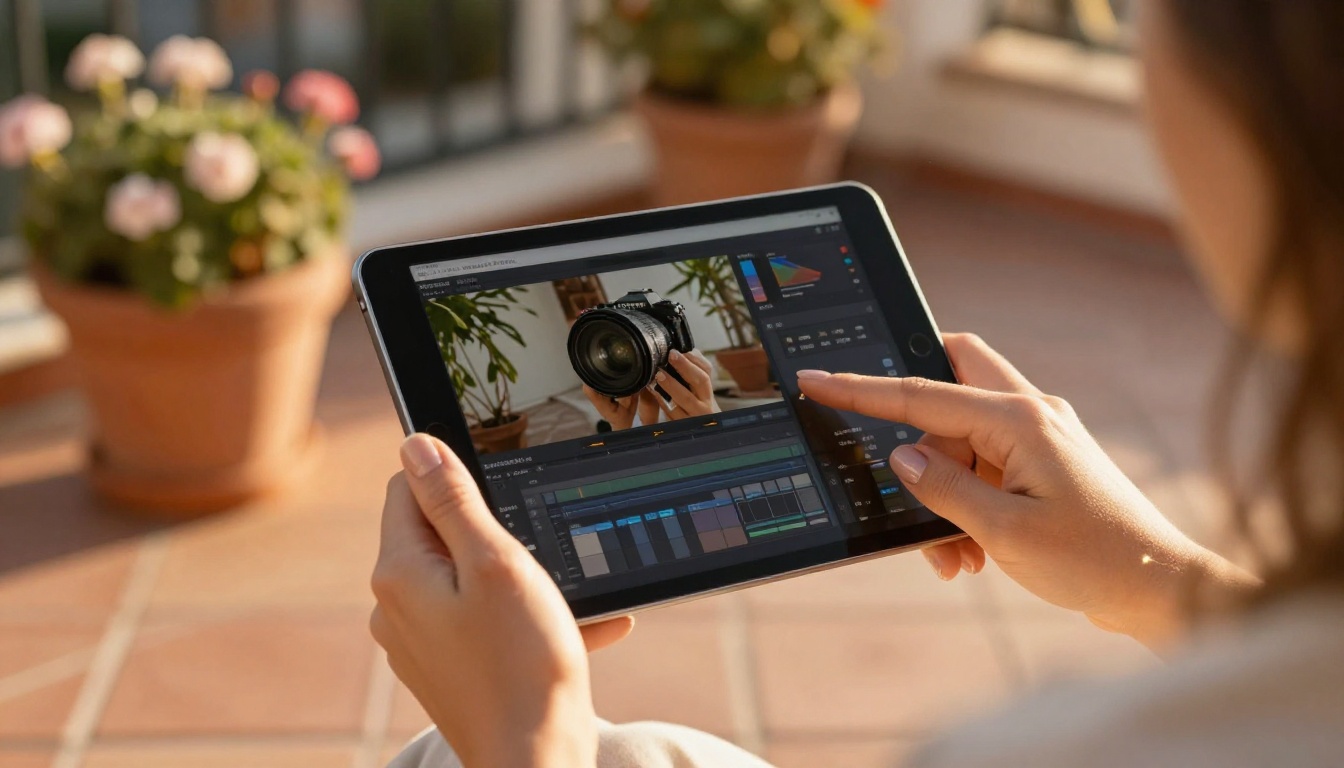
Since Kling v3 Video consistently ranks as one of the top performers for beginners, here is a step-by-step on using it through PicassoIA.
Step 1: Open the model page
Go to the Kling v3 Video model page on PicassoIA. The interface loads with a text prompt field, duration controls, and aspect ratio settings.
Step 2: Write your prompt
Use the 4-part formula. For a first attempt: "A woman in a light summer dress walks slowly through a flower market. Morning light. Handheld medium shot." This is enough to produce a high-quality test clip.
Step 3: Set duration and aspect ratio
For social media, go 9:16 vertical. For YouTube or presentations, stick with 16:9. A 5-second clip is enough to test a scene before committing to longer durations.
Step 4: Generate and review
Check the clip for face consistency and motion smoothness. If either breaks, simplify your subject description and reduce the number of objects in the scene.
Step 5: Iterate one variable at a time
Change one element per generation pass. Adjust lighting first if the mood is off. Adjust camera framing if the composition feels flat. Rewriting the whole prompt every time slows you down without improving results.
💡 Once you have a character you like, try Kling V3 Motion Control. Upload a reference video of any movement and it applies that exact motion to your generated character.
Parameter tips for Kling v3:
- Keep scene elements to 3 or fewer for best consistency
- Specify a single light source for natural-looking shadows
- Use "slow motion" or "static camera" if movement artifacts appear
- Add "photorealistic" at the end of any prompt to push quality higher
Speed vs. Quality
Both matter, but not equally in every context.

When speed wins:
- Daily social content where volume matters more than perfection
- Testing prompt ideas before committing to a final version
- Short filler clips that are part of a larger edit and will not be scrutinized closely
When quality wins:
- Any clip that is the centerpiece of your content
- Brand or product videos where visual fidelity represents your business
- Content that will be watched more than once or shared widely
A practical split: use PixVerse v5.6 or Hailuo 2.3 for speed-first work. Use Gen-4.5 or Kling v3 Video when quality is the priority.
For work that needs both, LTX-2.3-Pro and Wan 2.6 T2V handle the middle ground well for most beginner use cases.
💡 Always generate your most important clip last. Run quick iterations on faster models first to nail your prompt, then produce the final version on the highest-quality model you have access to.
Beyond Video: What Else You Can Do
AI video is just one part of what is available for content creators right now. The same platform hosts tools that extend what you can build:
- Lipsync: Sync any character's lip movement to audio with realistic results using the lipsync model collection
- Video upscaling: Increase resolution, stabilize shaky footage, and restore damaged clips using AI video restoration tools
- Effects: Apply cinematic color grades, style transfers, and visual effects with the effects collection
- Background removal: Pull subjects cleanly from video for composite work
- Text to speech: Add voiceover to your clips without ever recording your own voice
This matters because a real video project almost always needs more than just footage generation. Having lipsync, upscaling, and effects in one place removes the friction of jumping between five different tools and managing five different accounts.
Your First Video Is Closer Than You Think

The gap between "idea" and "finished clip" is now measured in minutes, not days. Pick any model from the list above, write a one-sentence scene description, and generate your first clip today. The worst case is that it does not look right on the first try. The best case is that you have usable content in under five minutes.
Start with Hailuo 2.3 or PixVerse v5.6 if you want quick, low-friction results. Move to Kling v3 Video or Gen-4.5 when you are ready to push quality further.
Every model on this list is accessible right now on PicassoIA. You are not spending half your time managing accounts across different platforms. You type your prompt, pick your model, and see what happens. The hardest part is starting. Everything after that is iteration.


