Type "free face swap" into a search bar and you get fifty tools that all promise a perfect result in one click. Then you upload a photo and get a waxy mask, a watermark across the chin, or a message telling you that your three daily credits are gone. The best face swapper model is not the one with the loudest landing page. It is the one that keeps skin texture, matches the lighting of the original shot, and lets you export without a stamp on it.
This article sorts through what is actually available: the free online tools, the open source options, the newer editing models that handle swaps through plain language prompts, and the video models that replace a person in existing footage. You will also see where every one of them breaks, because they all do.
💡 Quick answer: for still photos, a prompt-driven editing model such as PicassoIA Image Editor Pro gives the most control with no edit cap. For video, P Video Replace puts a new person into footage you already shot.
What a Face Swapper Model Does
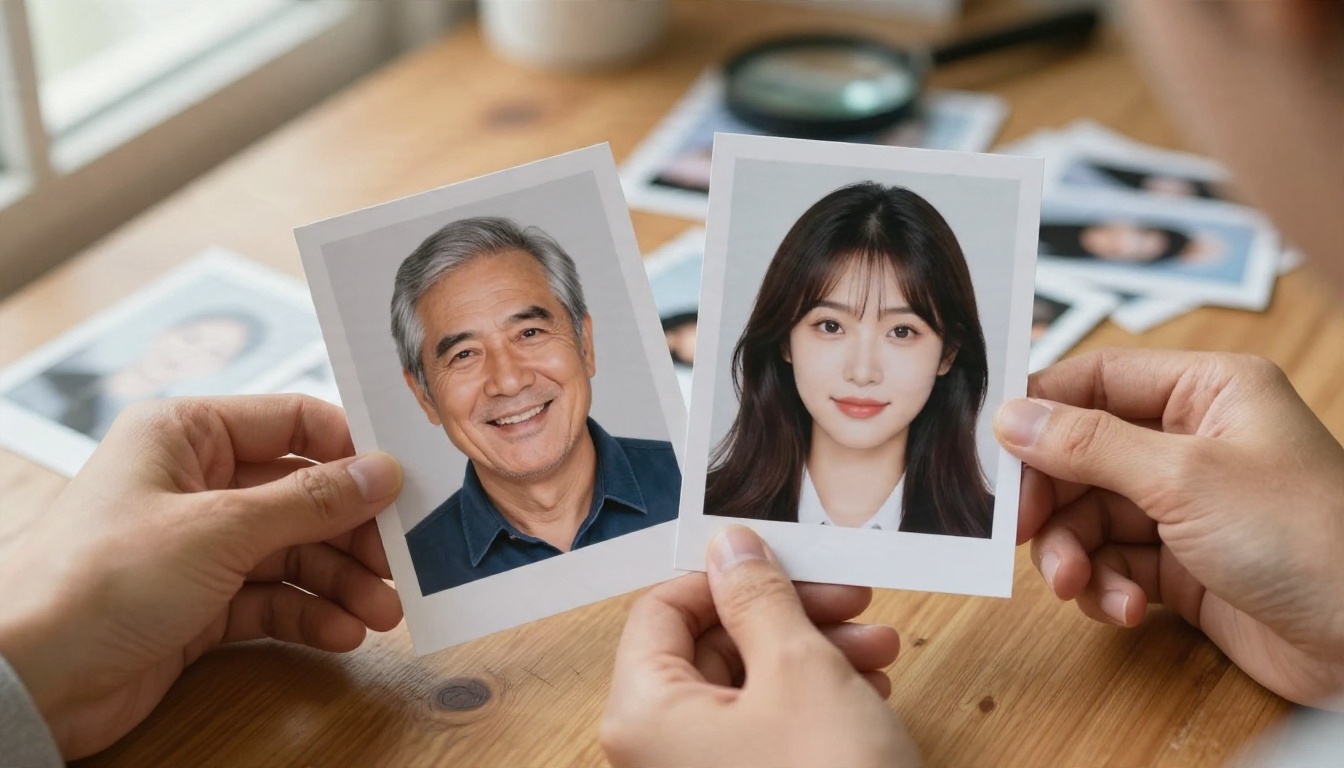
A face swapper model takes two inputs: a target image (the scene you want to keep) and a source face (the identity you want to put in it). The output is the target scene with the new face blended in, ideally with the original expression, head angle, and lighting preserved.
Older tools did this with a fixed pipeline: detect the face, map landmarks, warp the source face onto the target, then blend the edges. That approach is fast and cheap, which is why so many free sites use it. It also explains the typical flaws, like a face that looks pasted on or skin tone that stops at the jawline.

Landmark Swappers vs Prompt Based Editors
Newer editing models work differently. Instead of warping a face, they regenerate the region using both images as context and a text instruction such as "put the person from image 2 into image 1, keep the lighting and expression." The result usually blends better, because the model repaints skin, shadows, and edges rather than cutting and pasting.
The trade-off is control. A landmark swapper does the same thing every time. A prompt-driven editor responds to wording, so a vague prompt gives a vague result.
Photo Swaps vs Video Swaps
Photos are the easy case. One frame, one lighting setup, one expression. Video asks the model to keep an identity stable across hundreds of frames while the head turns, the mouth moves, and light changes. That is why video swapping is slower, costs more, and fails in more interesting ways.
Free Options That Exist Today
Roundups published through late 2026 keep naming the same group of tools. Most of those lists are written by the vendors being ranked, so treat the rankings as a starting point and check each pricing page yourself.
| Tool | Typically recommended for | Usual free limit |
|---|
| Magic Hour | Photos and video in one place | Limited free credits |
| Remaker AI | Quick photo swaps | Daily or credit based cap |
| Facy | Swapping without signing up | Basic output, often capped |
| Vidnoz | Photos and short videos | Credits, watermark on free exports |
| Pica AI | Group photos with multiple faces | Small free allowance |
| WaveSpeed AI | Photo swaps without a watermark | Limited free runs |
| FaceFusion | Open source, runs on your own computer | No cap, needs your own hardware |
The pattern is consistent. Free tiers hand out a few credits, a daily quota, a watermark, or a capped export resolution. Free video tools nearly always limit clip length.

The Open Source Route
FaceFusion is the name that comes up most for people who want no caps. You install it, load your own files, and process as many images as your hardware allows. The cost is setup time and a decent GPU. If you are comfortable with a command line and want unlimited local runs, it is a strong option. If you just want one wedding photo fixed tonight, it is overkill.
What "Free" Usually Means
Be honest about what you are trading. A free swap site pays for servers somehow: through ads, a low resolution export, a watermark that nudges you to upgrade, or by limiting how many images you can run per day. None of that is sinister. It just means "free" and "usable for real work" are often two different tiers.
💡 Tip: before uploading anything private, check whether the tool stores your photos and for how long. A swap of a family photo is not something you want sitting on an unknown server.
The Models Worth Testing on PicassoIA
PicassoIA does not rely on a single swap engine. It gives you several models that handle face and identity replacement in different ways, so you can match the model to the job.
PicassoIA Image Editor Pro for Photos
PicassoIA Image Editor Pro accepts up to three reference images and lets you refer to each one in your prompt as "image 1", "image 2", and so on. That is exactly the structure a face swap needs: a scene, a face, and an instruction. It is also unlimited, with no per-edit cap and no daily quota, so you can run the same swap ten times with ten different prompts until the blend looks right.
Nano Banana and Nano Banana Pro
Nano Banana and Nano Banana Pro are strong when the swap also needs scene changes, like a new outfit or a different background. For a lighter and faster option, Nano Banana 2 Lite trades some detail for speed.
Seedream 4.5 for Fresh Portraits
Seedream 4.5 is a good fit when you want a new portrait that keeps a person's look rather than editing an existing frame. It outputs sharp 4K images and holds skin texture well.
Flux Kontext Fast for Quick Edits
Flux Kontext Fast is built for instant photo edits. It is a good choice for small, targeted changes. For hair specifically, Change Haircut swaps styles without touching the rest of the face.
Video Models for Replacing a Person
For footage, two models matter. P Video Replace takes your source video plus a reference photo and puts that person into the scene while keeping the original motion, camera angle, and timing. It accepts up to three reference images, which helps the face stay consistent when the head turns, and it outputs up to 1080p. Wan 2.2 Animate Replace swaps video characters in a similar way and is worth running side by side with it on the same clip. If you want a still portrait to speak or move, Kling Avatar v2 animates a face into video.
Real Examples and What They Show
Numbers and feature lists only go so far. The useful question is what a swap looks like under real conditions, so here are the situations that decide whether a result looks natural.
Matching Light and Direction
The single biggest giveaway of a bad swap is lighting that disagrees with the scene. A face shot in flat window light does not belong in a frame with hard afternoon sun from the left. The shadow line across the cheek, the catchlight in the eye, and the warmth of the skin all have to agree.
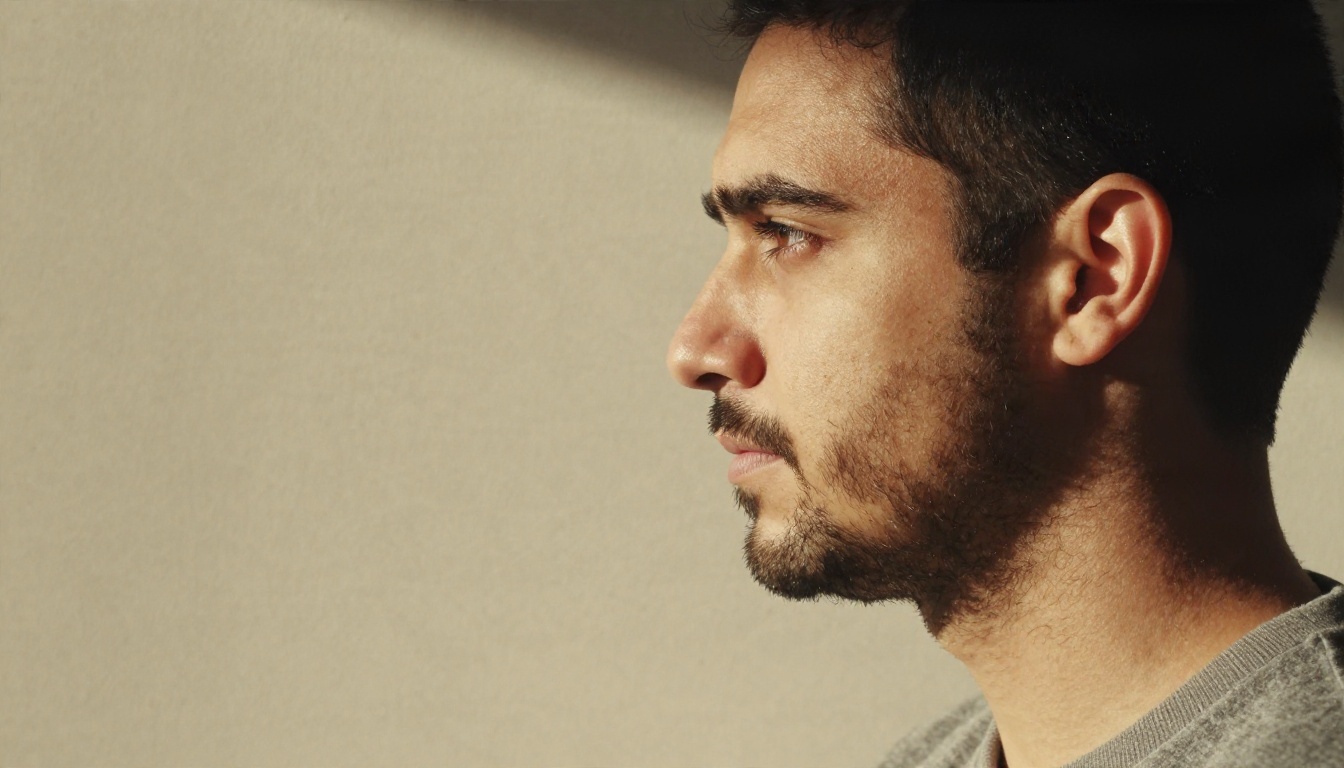
When you choose a source face, pick one with similar light direction to your target. Where that is not possible, say so in the prompt: "keep the hard sunlight from the left and the shadow across the cheek." Prompt-driven editors respond well to that kind of instruction. Landmark swappers mostly ignore it.
Skin Texture and Fine Detail
Cheap swaps smooth the face. Pores vanish, freckles blur, and the cheek looks like it belongs to a different resolution than the neck. A good result keeps fine texture and matches grain across the whole frame.
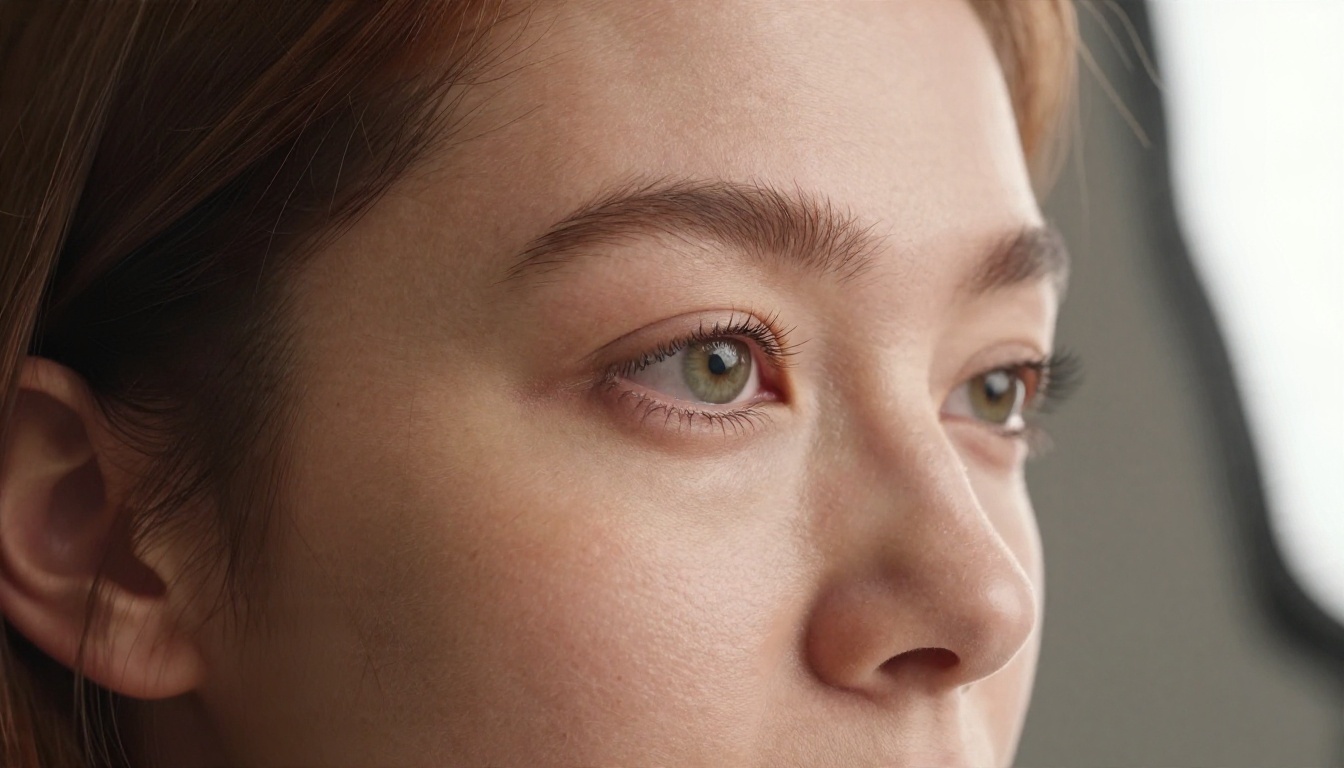
If your result looks too smooth, run it through an upscaler or a second edit pass that asks specifically to restore natural skin pores and film grain. Doing this as a separate step keeps the swap itself clean.
Group Photos
Groups multiply every problem. More faces means more chances for mismatched sizes, angles, and expressions, and some tools only detect one face at a time. Pica AI is often recommended for multiple faces among the free tools. With a prompt-driven editor, the better habit is to swap one person per pass and name them clearly: "replace the man on the far left with the person from image 2."

Video Replacement
Video is where the gap between tools is widest. The model has to keep the identity stable while mouth shapes, head turns, and shadows change. Short clips with a clear, front-facing reference photo give the best results. Fast whip pans, hands crossing the face, and heavy motion blur are the usual failure points.
How to Swap a Face on PicassoIA
This walkthrough uses PicassoIA Image Editor Pro, because it takes multiple reference images and has no edit cap.
Step 1: Pick the Right Source Photos
Choose a target image (the scene to keep) and a source image of the face. Use a sharp, front-facing source with even lighting and no sunglasses or hair across the eyes. The closer the source angle is to the target head angle, the less the model has to invent.
Step 2: Upload and Label the Images
Open the model page and add your target as the first image. The first image is the primary one, so the output dimensions follow it when match_input_image is selected. Add the face photo as image 2.
Step 3: Write a Specific Prompt
A prompt that works well looks like this:
Replace the face of the person in image 1 with the face of the person in image 2. Keep the original pose, expression, hair, clothing, background, and the hard sunlight from the left. Preserve natural skin texture and film grain.
Name what must stay the same. Models change whatever you leave unmentioned.
Step 4: Tune the Settings
| Setting | Recommended value | Why |
|---|
| Aspect ratio | match_input_image | Keeps the original framing |
| Output format | PNG or JPG | PNG for editing later, JPG for sharing |
| Output quality | 95 or higher | Avoids compression softening the face |
| Number of outputs | 2 | Gives you a choice from one run |
| Seed | Fixed once you like a result | Lets you reproduce and refine it |
Step 5: Iterate Without Counting Credits
Because there is no per-edit cap, run variations. Change one thing at a time: the wording about lighting, the source photo, the instruction about expression. Keep the seed fixed when you want to compare prompts fairly, then change it when you want a new take.
Step 6: Swapping in Video
For footage, open P Video Replace, upload your source video and up to three photos of the replacement person from slightly different angles, then pick your resolution. Use the turbo setting for quick drafts and a regular run for the final clip. If something looks off, a short instruction prompt can describe how the person should appear in the scene.
The Limits Nobody Mentions
Every tool in this article shares the same weak spots. Knowing them saves time.
Technical Limits
- Extreme angles: a profile view swapped with a front-facing source forces the model to guess the side of the face.
- Occlusion: hands, glasses, microphones, and hair across the face confuse detection and blending.
- Resolution mismatch: a sharp source dropped into a soft, low resolution target looks wrong.
- Expressions: wide laughs and shouts expose teeth and jaw shapes the source never showed.
- Identity drift in video: longer clips drift away from the reference face. Short clips hold better.
Free Tier Limits
- Watermarks across the image or in a corner
- Daily or monthly credit caps
- Export resolution capped below the original
- Short maximum video lengths
- Queue times that grow when the site is busy
Legal and Consent Limits
Swapping a face is a technical act. Whether you should do it is a different question. Use your own face, or someone's face with their clear permission. Do not use a swap to impersonate a real person, mislead viewers, or put someone into content they did not agree to. Rules about labeling AI generated faces are changing in several countries, so check what applies where you publish before you post.
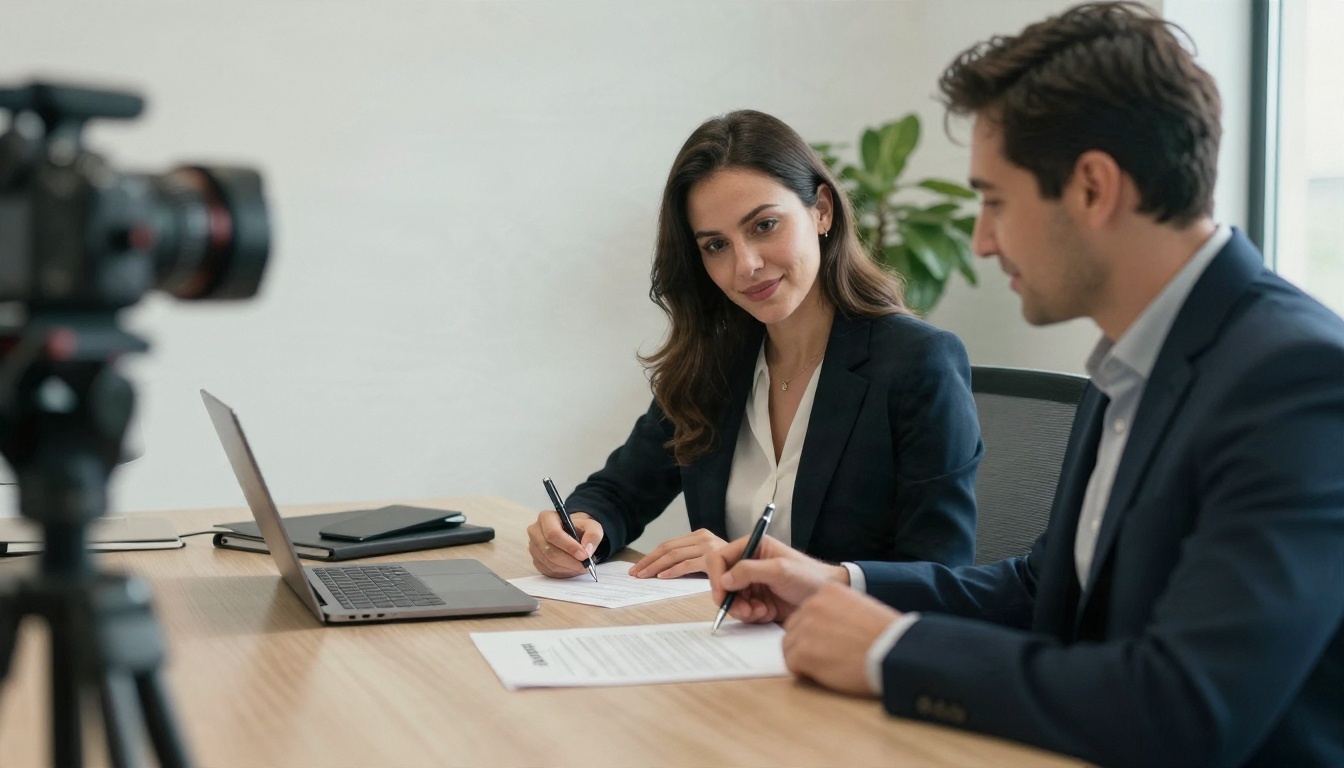
💡 Simple habit: if you would not be comfortable showing the subject the finished image, do not make it.
Which Option Fits Your Job
Match the tool to the task and you avoid most of the frustration.
| Your goal | Best fit | Why |
|---|
| One quick joke swap | A free online tool | Fast, no setup, watermark is acceptable |
| Clean portrait for work or print | PicassoIA Image Editor Pro | Unlimited edits, multi-image prompts |
| Swap plus scene or outfit change | Nano Banana Pro | Handles bigger edits in one pass |
| New portrait in the same look | Seedream 4.5 | Sharp, detailed 4K output |
| Replace a person in a video | P Video Replace | Keeps original motion and camera work |
| Unlimited local runs | FaceFusion | No caps, needs your own hardware |
Pick Based on What Breaks
If your problem is watermarks, pick a tool or model without them. If your problem is blending, choose a prompt-driven editor. If your problem is volume, choose unlimited or local. If your problem is video, choose a model built for it instead of stretching a photo tool.
Try Your Own Swap Today
The fastest way to find the best face swapper model for your photos is to run the same pair of images through two or three of them and compare. Start with PicassoIA Image Editor Pro for a still image, run the same pair through Nano Banana Pro, and see which one keeps the skin texture and light direction you want. For footage, test P Video Replace and Wan 2.2 Animate Replace on the same five second clip.
Use your own photos or photos of people who agreed, write specific prompts, and change one variable at a time. When you are ready to see what else is available, browse the full catalog at picassoia.com/en/all-models and build your own comparison with Picasso IA.