Best Nano Banana 2 Settings for 4K Image Generation
Getting sharp 4K output from Nano Banana 2 is about more than writing good prompts. This article covers every parameter that matters: resolution, inference steps, CFG scale, sampling methods, and the exact values that produce photorealistic results at 3840x2160 resolution.
Getting consistently sharp, detail-rich 4K output from Nano Banana 2 requires more than typing a good prompt. The difference between a blurry, washed-out result and a stunning photorealistic image often comes down to a handful of parameter choices that most people skip right past. This article breaks down every setting that matters, why it matters, and the exact values you should start with.
What Makes Nano Banana 2 Different
Nano Banana 2 is Google's second-generation fast diffusion model. It's built on a compact architecture that prioritizes speed without sacrificing the structural coherence that bigger models are known for. The original Nano Banana was impressive for its inference speed, but the second version introduced refined attention mechanisms that significantly improve fine detail rendering at high resolutions.
The main thing that sets it apart from models like Flux 2 Pro or Imagen 4 is where it sits on the speed-to-quality curve. It's not the highest-quality model available, but it's fast enough to iterate quickly, and with the right settings, it produces 4K-quality detail that holds up under scrutiny.
Speed vs Quality Trade-off
Nano Banana 2 runs inference in fewer steps than most comparable models. That speed advantage comes with a condition: you need to be precise about your settings. Low-step models are more sensitive to parameter changes than slow, heavy models. A CFG scale that works fine on a 50-step sampler can produce burned highlights or flat detail on a 20-step run.
The good news is that once you find the right configuration, results are repeatable. Seed-locking a good output and iterating on the prompt from there is a fast workflow that this model handles extremely well.
Built for High-Resolution Output
One of the clearest improvements over its predecessor is how Nano Banana 2 handles upscaling within the generation pipeline. At native 4K resolution (3840x2160), fine textures like fabric, skin, foliage, and architectural detail retain coherence without the grid artifacts or soft smearing that show up in many other compact models. This makes it particularly strong for portrait work, product imagery, and lifestyle photography styles.
Worth knowing: Nano Banana 2 handles portrait-orientation 4K (2160x3840) just as cleanly as landscape. If you're generating content for mobile screens or vertical formats, the quality difference versus landscape is negligible.
The Core Settings That Actually Matter
Most image generation platforms expose four to six core settings. Here's exactly what to do with each one in the context of Nano Banana 2.
Resolution and Aspect Ratio
For true 4K output, target 3840x2160 pixels (16:9 landscape) or 2160x3840 (9:16 portrait). If the platform offers output size presets, always choose the native 4K option over upscaled 1080p. The visual difference in texture detail is significant.
Format
Dimensions
Use Case
4K Landscape
3840x2160
Desktop wallpapers, cinematic shots, wide scenes
4K Portrait
2160x3840
Mobile content, full-body portraits, vertical ads
4K Square
2160x2160
Social media posts, product photography
2K Intermediate
2560x1440
Faster preview before final 4K render
If speed is a concern during testing, run at 1920x1080 first to verify composition, then switch to 4K for the final generation. This cuts iteration time significantly without changing the final result.
Inference Steps Sweet Spot
This is the parameter most people get wrong. With Nano Banana 2, the sweet spot is between 28 and 35 steps.
Below 20 steps: Fast, but fine detail in hair, skin pores, and fabric texture degrades noticeably.
20 to 27 steps: Acceptable for drafts. Composition is solid but micro-detail is underdeveloped.
28 to 35 steps: Optimal range. Textures fully develop, highlight detail is retained, edges stay crisp.
Above 40 steps: Diminishing returns. Slightly sharper in some areas, but the time cost rarely justifies the gain.
For final 4K renders, set steps to 32 as a default. If you need faster throughput on a batch, 28 holds quality well enough for most use cases.
CFG Scale Settings
CFG (Classifier-Free Guidance) controls how strictly the model follows your prompt. Too low and the output drifts from your description. Too high and it produces over-saturated, artifact-heavy images where highlights blow out and shadows fill in.
Tip: When working with detailed portrait prompts, stay at CFG 5.5 to 6.0. Skin tones and hair detail are most vulnerable to CFG-induced clipping.
How to Use Nano Banana 2 on PicassoIA
Nano Banana 2 is available directly in the text-to-image collection. Here's a step-by-step workflow to get 4K results from your first run.
Step 1: Open the model
Navigate to the Nano Banana 2 model page. You'll see the prompt input, resolution controls, and parameter sliders.
Step 2: Set your resolution
Select 3840x2160 from the resolution dropdown or enter custom dimensions. If you're generating portraits, switch the orientation to 9:16.
Step 3: Write a structured prompt
Format your prompt in three layers: subject description, environment/context, and technical modifiers. For example:
"A woman with long chestnut hair standing in a sun-drenched wheat field, late afternoon backlight, photorealistic, 8K, Kodak Portra 400, shallow depth of field, 85mm lens, natural skin texture"
Step 4: Configure your parameters
Inference steps: 32
CFG scale: 5.5 to 6.0
Seed: Pick any fixed number (e.g., 42) for reproducibility
Sampler: DPM++ 2M Karras (if available) or Euler a
Step 5: Generate and evaluate
Run the generation. Before iterating on the prompt, check these three things: (1) shadow detail in dark areas, (2) skin or surface texture in midtones, (3) highlight retention in bright regions. These are the first areas where suboptimal settings show up.
Step 6: Upscale if needed
If you want to push beyond native 4K, use a super-resolution model after generation. This doubles or quadruples pixel count while preserving generated detail.
Prompt Strategies for 4K Results
A technically correct parameter setup only gets you halfway there. The other half is your prompt. These strategies work specifically well with Nano Banana 2.
Positive Prompt Structure
Build prompts in this order:
Primary subject with specific physical details (hair color, clothing, expression)
Environment with specific elements (location, time of day, weather)
Lighting description (direction, quality, color temperature)
Camera/lens specs (focal length, aperture)
Film/style modifiers (Kodak Portra 400, grain, color grade)
Quality tags (photorealistic, RAW, 8K, high detail)
Longer, more specific prompts consistently outperform short ones at 4K. The model uses the extra token context to fill in micro-details that shorter prompts leave ambiguous.
Negative Prompts That Help
Negative prompts are particularly effective at 4K resolutions where artifacts are more visible:
Tip: Add "compressed" and "noise" to your negative prompt when generating fine fabric textures or hair detail. These two terms specifically reduce the micro-artifacts that appear in high-frequency detail areas at 4K.
Comparing Nano Banana 2 to Other Models
Understanding where Nano Banana 2 fits relative to other models helps you pick the right tool for each job. Here's a practical comparison:
The short version: use Nano Banana 2 when you need fast 4K results with good-to-excellent quality. Switch to Nano Banana Pro or Imagen 4 Ultra when the output is going to print or large-format display.
Common Mistakes to Avoid
Even experienced users make these errors when starting with Nano Banana 2.
Oversaturating the Prompt
Stacking too many style keywords creates conflicting signals. Adding "cinematic, photographic, IMAX, HDR, RAW, Kodak, Fuji, 8K, 16K, ultra-detailed" all at once confuses the model's attention. Pick two or three film or style modifiers and stick with them. More is not better.
Wrong Aspect Ratio
Generating a 4K image at a 1:1 square ratio when your subject needs a landscape framing wastes resolution. The model fills the square, so a horizontal scene gets cropped or awkwardly composed. Always choose the aspect ratio that matches your intended subject before adjusting any other parameter.
Ignoring the Seed Value
Leaving the seed randomized makes iteration nearly impossible. Set a fixed seed when you find a composition you like, then adjust only one parameter at a time. This isolates what changed and prevents good results from being lost to randomness.
Setting Steps Too Low for 4K
At 1080p, 20 steps might look fine. At 4K, the same step count leaves micro-details undercooked. The visible pixel density at 4K reveals what lower-resolution outputs hide. Always add at least 8 to 10 extra steps when stepping up to 4K from a lower-resolution test.
When to Use Other Models Instead
Nano Banana 2 is not always the right choice. Here are the situations where a different model will serve you better:
Maximum print quality: Use Imagen 4 Ultra or Flux 1.1 Pro Ultra. These models produce output with significantly higher perceptual detail for large-format printing.
Technical product imagery: Flux 2 Max handles specular highlights and hard-surface materials with more precision.
Pose-guided or structure-controlled generation: Models like SDXL with multi-ControlNet setups offer structural control that Nano Banana 2 doesn't natively support.
Ultra-fast prototyping at lower resolution: Flux Schnell is faster than Nano Banana 2 for quick concept validation at 512px to 1080px.
Higher fidelity from the same model family: Nano Banana Pro is the natural upgrade path when Nano Banana 2's detail ceiling isn't enough for a project.
Recommended Settings at a Glance
Before moving on, here's the complete quick-reference parameter table for Nano Banana 2 at 4K:
Parameter
Draft Run
Final Render
Resolution
1920x1080
3840x2160
Inference Steps
20
32
CFG Scale
6.0
5.5
Sampler
Euler a
DPM++ 2M Karras
Seed
Random
Fixed
Negative Prompt
Basic
Full list (see above)
The draft run settings let you iterate quickly at low cost. The final render settings maximize detail and tonal quality at full 4K resolution. Switching between the two takes seconds and the workflow pays off in both time and quality.
Start Generating Right Now
The settings in this article are a tested starting point, not the only way to work with Nano Banana 2. Every subject and style has its own optimal range. Portrait prompts tend to perform well at CFG 5.5 with Portra film emulation. Architectural scenes benefit from slightly higher step counts and lower CFG. Outdoor lifestyle images with natural light reward detailed lighting descriptions more than extra inference steps.
The only way to find your own optimal settings is to generate, evaluate, and adjust. The platform puts every tool in one place: start with Nano Banana 2 for fast 4K results, run the final output through a super-resolution model when you need extra scale, and pull in Flux 2 Pro or Imagen 4 when a project calls for maximum output quality.
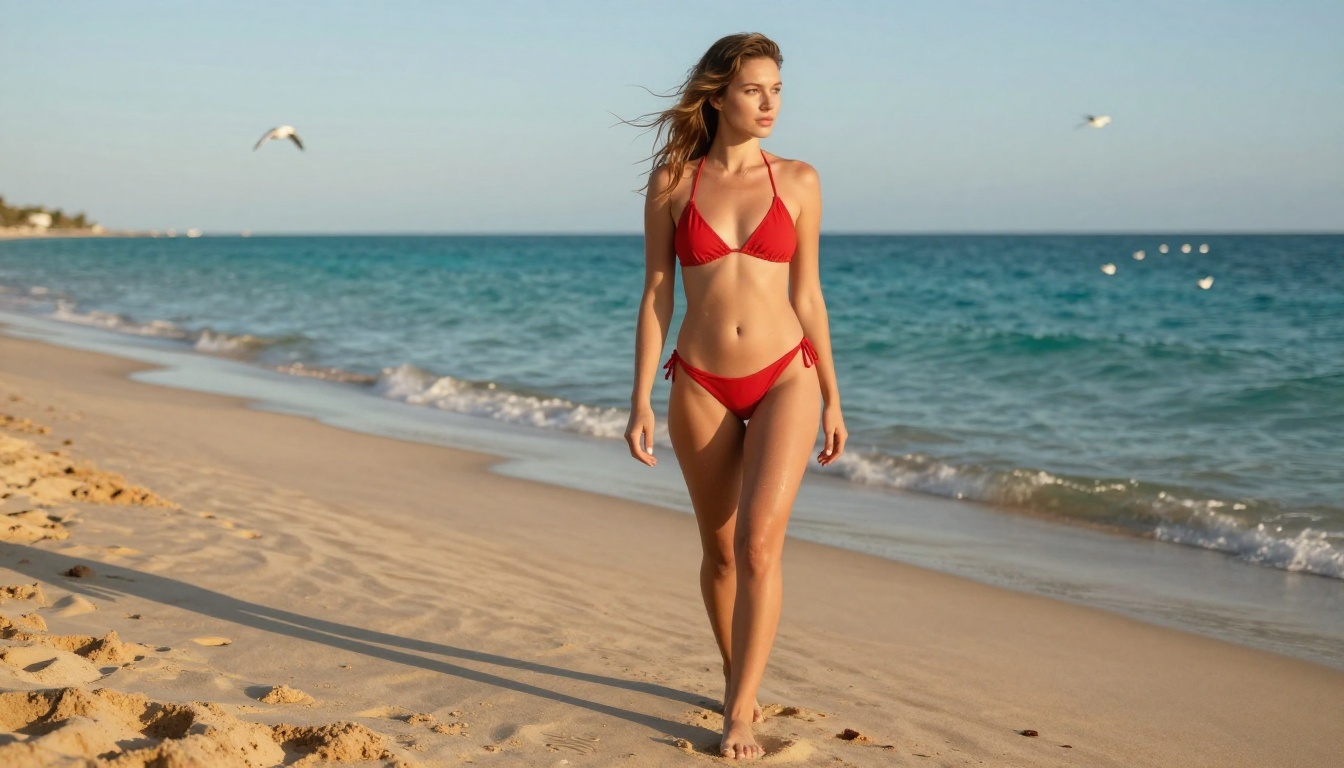
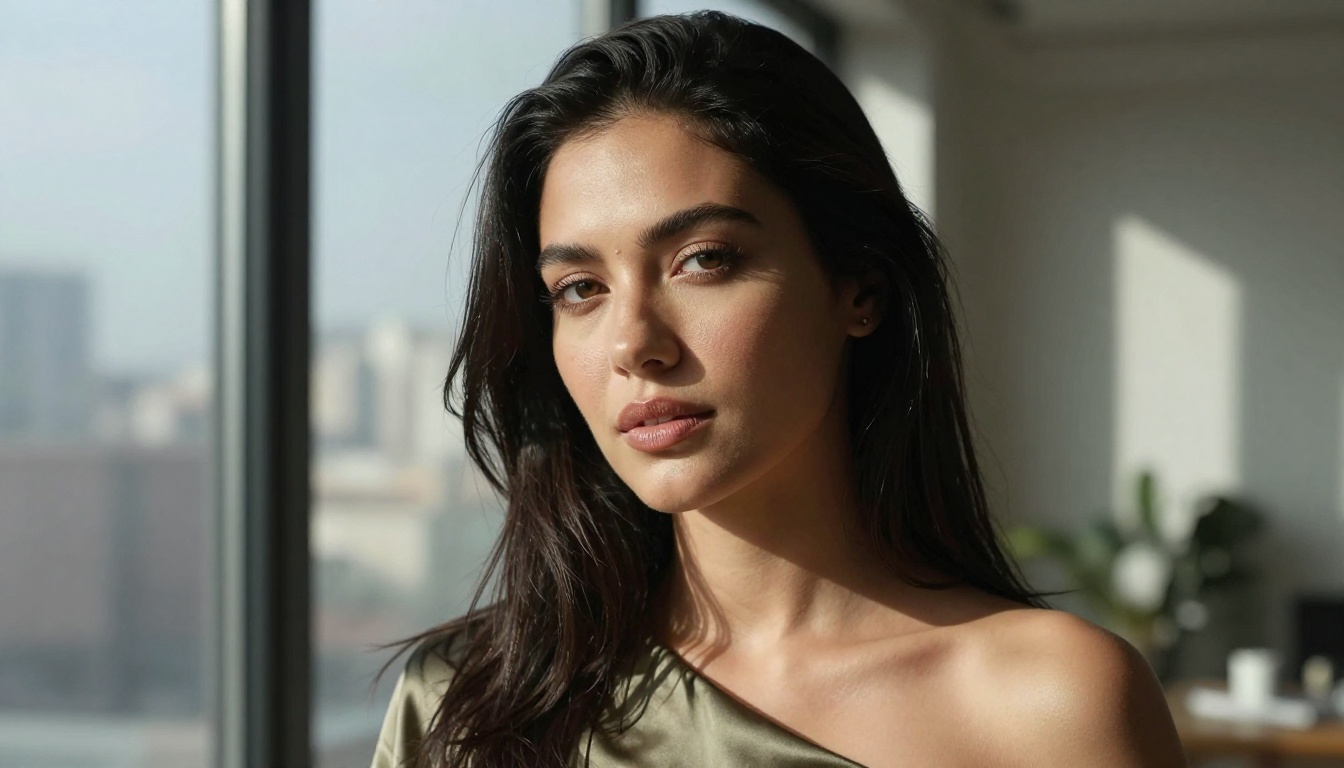
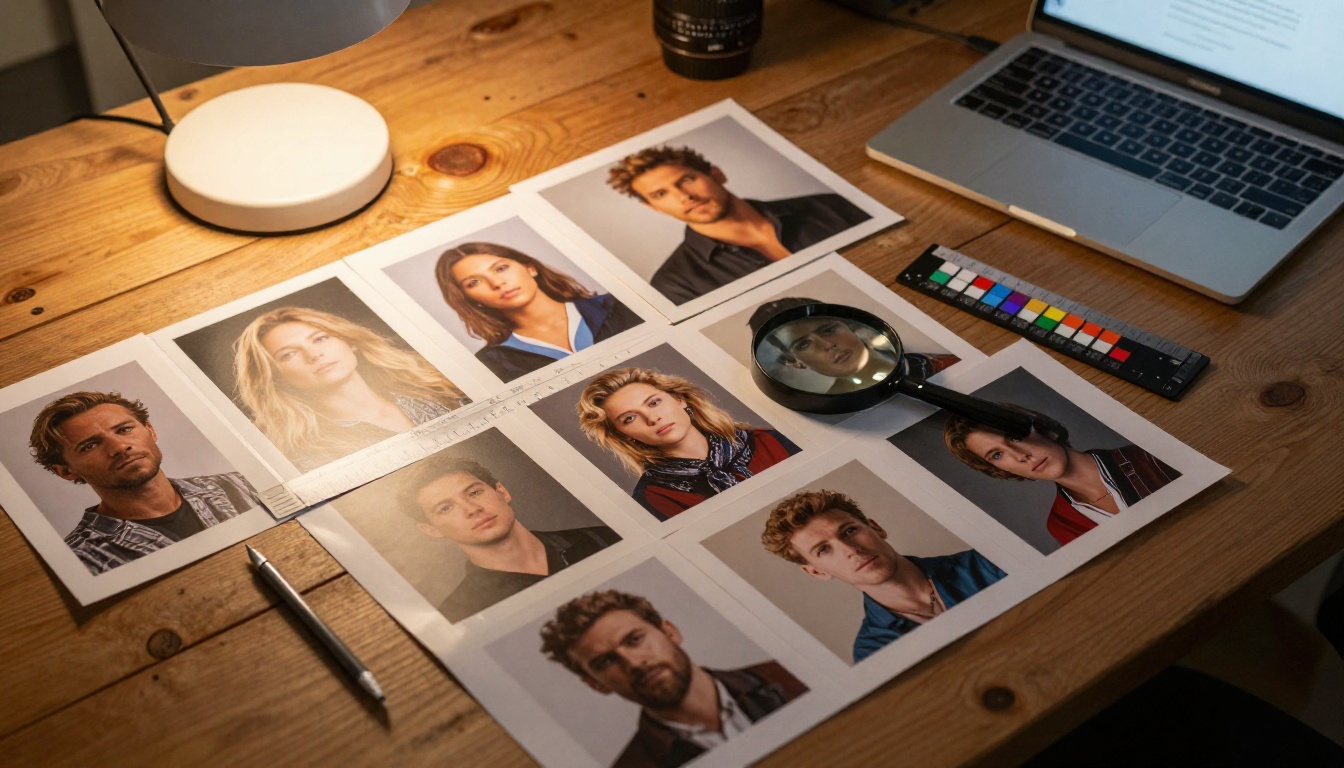
Every image in this article was created using the settings described above. Your results start the moment you open the model.