Large Language ModelsGenerate videosGenerate images
Can Claude Generate Videos? From Images, With Audio and for Free
Claude cannot render video by itself, but it can read your photos, write motion prompts and scripts, and run video models that add synchronized audio. This article shows the image to video workflow, the voiceover and music options, and which parts cost nothing.
Short answer: no, Claude cannot render a video on its own. Claude models reply with text, code and structured data, so there is no built-in button that turns a prompt into an MP4 with sound. That does not make Claude useless for video work. Paired with a video model, it becomes the teammate who writes the shot list, studies your reference photos, drafts the motion prompts and can even start the render for you. This article draws the exact line between what Claude does and what a video model does, shows how to go from a still image to a clip with audio, and points out which parts of the workflow cost nothing.
The Short Answer
Claude is a language model that also reads images. It takes text and pictures in, and it writes text and code out. A video is something else entirely: hundreds of frames plus a synchronized sound track, produced by dedicated video generation models. Those models live in separate systems, which is why "Can Claude generate videos?" has a split answer. Claude does not make the pixels. It makes every decision about what the pixels should show.
That split is good news. Video models are brilliant at motion and weak at planning, while Claude is the reverse. Put them in the same workflow and each makes up for the other's blind spot.
What Claude Does Well
Reads your images. Upload a photo and Claude can describe the composition, the light, the subject's pose and which parts could plausibly move.
Writes motion prompts. It turns a rough idea into a chronological, camera aware description that video models respond to.
Plans the whole piece. Shot lists, beat sheets, voiceover scripts, captions and music briefs are plain text, which is Claude's home turf.
Writes rendering code. FFmpeg commands, Python scripts with MoviePy and React projects built with Remotion all assemble video from assets you already have.
Operates tools. Through the Model Context Protocol (MCP), Claude can call an outside service, start a job and check on it until the file is ready.
What Claude Cannot Do
Output video frames or an MP4 file directly from a chat reply.
Record a voice or compose music by itself.
Paint photographic images natively. It can write SVG or code that draws shapes, but photoreal pictures come from an image model.
Here is the division of labor at a glance:
Task
Claude alone
Claude plus a video model
Write a script or storyboard
Yes
Yes
Describe a photo in detail
Yes
Yes
Output an MP4 file
No
Yes, the video model renders it
Animate a still image
No
Yes
Add synchronized audio
No
Yes, with models that generate sound
Cost
Your chat plan limits
Depends on the model you pick
Three Ways to Get Video With Claude
Every working setup falls into one of three patterns. They differ in how much Claude does for you and how much you copy and paste by hand.
Claude Writes the Prompt
This is the fastest route and it works with every video generator. You describe the scene in plain words, ask Claude for a prompt, and paste the result into a video model. Claude is strong here because good video prompts read like a short screenplay: who is in the shot, what changes over five seconds, how the camera moves and what the light does.
💡 Try this request: "Write a 5 second cinematic image to video prompt for a woman reading on a train. Describe her starting pose, one slow camera move, what the light does, and one ambient sound."
The big advantage is portability. The same prompt runs on different engines, so you can test one idea across several generators side by side and keep the one that looks best.
Claude Writes Code That Renders
If you need explainers, animated charts, slideshows, title cards or text driven clips, ask Claude for code instead of a prompt. FFmpeg stitches images and audio into a file with a single command. MoviePy does the same from a Python script. Remotion lets you describe animation in React and export the frames as video.
This route has a clear limit: the code assembles and animates material you supply. It will not invent new footage of a dog running through a field. The upside is price, because open tools such as FFmpeg and MoviePy run on your own machine with no per-clip fee.
Claude Calls a Video Model
The most hands-off route connects Claude to a generator through MCP. Picasso IA offers a connector for Claude that exposes its own models: Picasso IA Image, Picasso IA Image Editor Pro, Picasso IA Video and Seedance 2.5 Lite. You ask for a clip in chat, Claude submits the job, receives a prediction ID, and checks the status until the video is ready. Up to five jobs can run at once per account.
Because the whole loop lives in one conversation, Claude can fix its own prompt. If the first render ignores the camera move, you say so, Claude rewrites the prompt and submits another attempt. Picasso IA describes these connector models as free on its Infinite and Wonder plans, so check the plans page for the current terms before you build a routine around them.
Turning Images Into Video
Image to video is where Claude helps most, and it is also what people mean by "from images". Your photo becomes the opening frame, so the subject, outfit, location and color palette are locked before the first second plays. Text to video has to invent all of that and often drifts from what you pictured. The Seedance 2.5 Lite page spells out the rule: the clip uses your image as the opening frame and inherits its aspect ratio.
Pick the First Frame
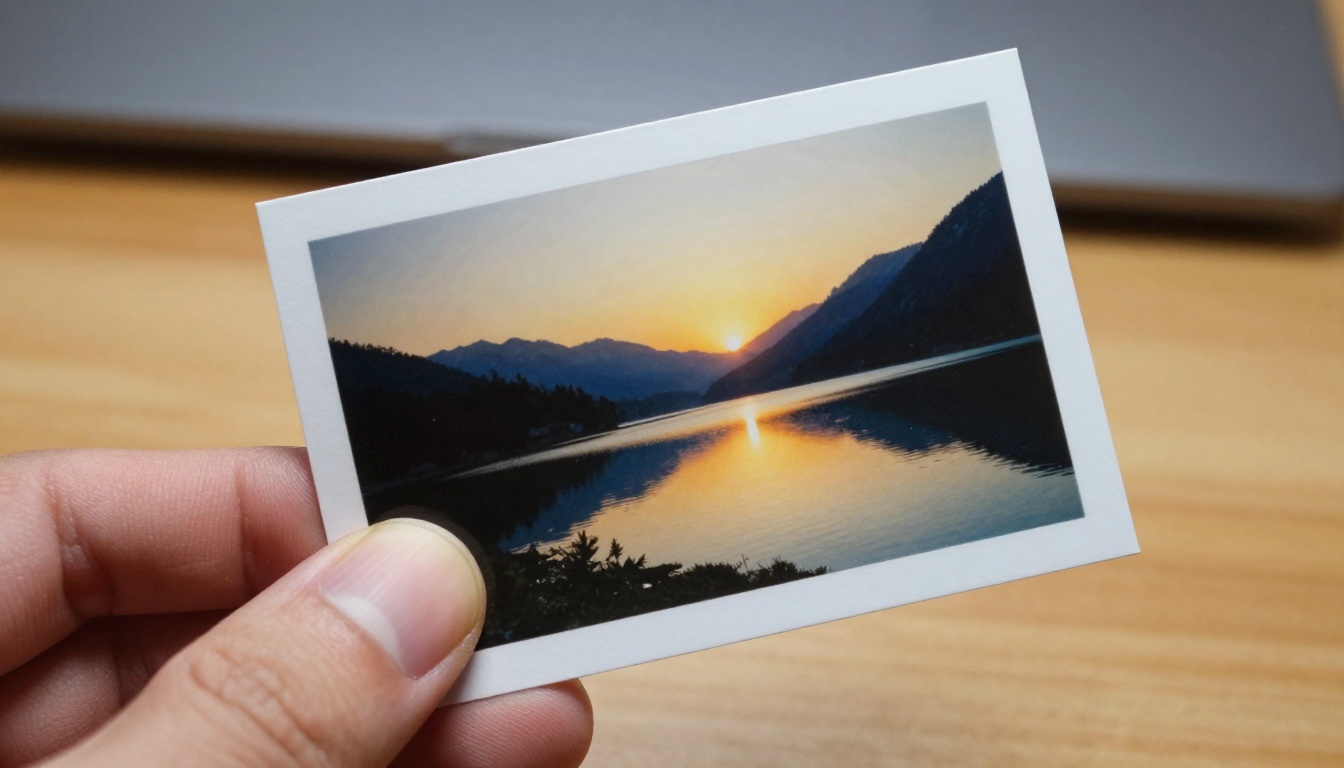
A strong first frame has one clear subject, space to move, sharp focus and natural light. Weak frames are crowded, low resolution or full of text, because video models tend to scramble lettering as soon as anything moves.
Good: a single person, a product on a table, a landscape with clear foreground and background layers.
Risky: group photos with tiny faces, screenshots, posters, signs and packaging with small print.
Upload the image to Claude and ask for a motion prompt. Claude reads the picture, so it already knows the pose, the background and the direction of the light. A reliable formula has four parts, in this order:
Starting pose: what the subject is doing in frame one.
Motion over time: what changes during the clip.
Camera move: a slow push in, a gentle pan, a handheld drift.
Light and sound: how the light shifts and what we hear.
💡 Sample output: "The woman looks up from her tablet and breaks into a small smile. The camera drifts in slowly from her left. Warm window light slides across her hair while cups clink softly in the background."
Keep it to one subject action and one camera move per clip. Five seconds fall apart when the prompt asks for a car chase, a costume change and a sunset all at once.
Claude models are also available inside Picasso IA's language model collection, including Claude Opus 4.7, which is listed as an AI that codes, sees and reasons, plus Claude Sonnet 5 and Claude Fable 5.
Pick Seedance 2.5 Lite or Picasso IA Video when you want to iterate on drafts without watching a meter. Reach for the others when a project needs a particular look or a specific kind of sound.
How Audio Works
Audio is the second half of the question, and it has three separate answers depending on what you want to hear.
Native Audio in the Clip
Several video models generate sound together with the picture: footsteps, room tone, wind, crowd noise and short lines of speech, depending on the model and the prompt. Seedance 2.5 Lite and Picasso IA Video both ship with audio switched on through a save_audio setting, and you can turn it off for a silent clip.
Claude's role is to write the sound into the prompt. "Cups clink, soft jazz from a speaker, rain tapping the window" gives the model something to build on, while a prompt with no sound cues leaves the result to chance.
Voiceover From Text
For narration, ask Claude to write a script at the right length. Natural speech runs at roughly 2.5 words per second, so a 10 second clip holds about 25 words. Then feed the script to a text to speech model. Speech 2.8 HD is listed for studio quality voiceovers, ElevenLabs V3 for natural voiceovers and Gemini 3.1 Flash TTS for 30 voices across more than 70 languages.
Music and Sound Separately
Claude can also write the music brief: genre, tempo, mood, instruments and length. Paste it into a music model such as Music 2.6, Lyria 3 or Stable Audio 2.5. Then mix the voice, the music and the clip together in an editor. If you prefer the command line, ask Claude for the FFmpeg line:
This mixes the voiceover over the clip's own sound and leaves the video stream untouched.
What Free Really Means
"For free" hides three separate costs: the chat with Claude, the video render and the audio. Each one has its own free path, and combining them keeps the total close to zero.
Cost
Free path
Catch
Prompts and scripts
Claude's free tier
Message limits change over time
Rendering the clip
Picasso IA Video, Seedance 2.5 Lite
Plan terms apply
Audio
Native sound inside the clip
Custom voices need a text to speech model
Final edit
FFmpeg, MoviePy
You run them on your own machine
Claude. Claude has a free tier for chat. A handful of prompts and one short script use very little of it, though limits change, so check Anthropic's current plan page.
The video model.Picasso IA Video is described on its page as a free, unlimited video generator from text or an image. Seedance 2.5 Lite is unlimited for Wonder members according to its page, with clips up to 10 seconds. Free here depends on your plan, so confirm it on the Picasso IA plans page before you count on it.
Premium models. Top tier generators such as Veo 3.1 Lite and Sora 2 are typically billed per generation. Run your drafts on a free model first and save the paid ones for a final cut.
💡 A realistic free stack: Claude's free tier writes the prompt, a free video model renders the clip with sound, and FFmpeg trims or joins the result.
How to Use Seedance 2.5 Lite
Seedance 2.5 Lite is the model to reach for when you want image to video with sound and room to iterate. Here is the full path from photo to finished clip.
Open the model page on Picasso IA and choose Seedance 2.5 Lite.
Upload your first frame in the image field. The clip inherits its aspect ratio, so crop the photo the way you want the video framed.
Paste Claude's motion prompt into the prompt field. Cinematic, chronological descriptions work best.
Choose 5 or 10 seconds in duration. Use 5 while you test the prompt.
Pick the resolution. 480p renders fastest and 720p is sharper. 720p is the default.
Leave save_audio on unless you plan to add your own track.
Generate, review, adjust. Watch the result, tell Claude what to change and run it again.
Parameter
Options
Tip
image
Optional first frame
Upload one for image to video, leave empty for text to video
last_frame_image
Optional closing frame
Needs a first frame, and the clip animates from one to the other
💡 Two photo trick: Upload a second photo as last_frame_image and ask Claude to describe the movement between the two pictures, for example a closed door in the first photo and an open door in the second.
Mistakes That Waste Time
Asking for Too Many Actions
Five seconds hold one idea. A prompt that stacks a costume change, a chase and a sunset produces a muddle in which nothing lands. Ask Claude to trim it: "Shorten this prompt to one subject action and one camera move."
Putting Text in the Image
Lettering warps the moment the frame moves. Remove signs, labels and screenshots from the first frame, or accept that the words will shimmer. Add titles afterward with FFmpeg or an editor, where the letters stay sharp.
Skipping the Seed
When a take is nearly right, lock the seed and change one word in the prompt. Changing the seed and the prompt together makes it impossible to tell which one caused the difference.
Make Your First Clip Today
So, can Claude generate videos? Not by itself. It can plan, prompt, code and direct everything around the render, and the render itself costs nothing per clip on the right plan. The shortest path is one photo and one prompt.
Pick a photo, ask Claude for a 5 second motion prompt, and open Seedance 2.5 Lite on Picasso IA. If you want a fresh first frame, create one with Picasso IA Image and animate it straight away. Then experiment: same photo, three different prompts, three clips, and keep the one that moves the way you imagined. Browse every model at picassoia.com/en/all-models, try your own images today, and see how far one still picture can travel.