If you opened Grok last week, typed a bold prompt and watched it bounce back with a refusal, you are not imagining things. The tool that made headlines in 2025 for its "spicy" video mode behaves very differently now, and the answer to "can Grok still make uncensored NSFW video" is more complicated than a simple yes or no. Below you will find what changed, where the walls are, which prompts still produce attractive results, and the alternatives that get you animated glamour clips without the constant refusals.
One note before we start: everything here stays non-explicit. We are talking about swimwear, boudoir styling, evening wear and suggestive mood, not pornographic content.
What Grok Allows Right Now
The short version: Grok Imagine is far more restricted than it was at launch, and nobody outside xAI can tell you exactly where the line sits on a given day. That uncertainty is part of the problem.
The Spicy Mode Timeline
When xAI introduced Grok Imagine in August 2025, tech outlets quickly noticed a "spicy" option that allowed suggestive and even partially nude output. It was a headline feature, and it drove a wave of curiosity. By December 2025, users on Reddit and other forums were reporting that the guardrails had snapped shut: prompts that worked a month earlier now returned blurred or blocked clips. Early 2026 brought a public backlash over misuse of image generation, and several vendors now say the adult option was pulled back or removed.
| Period | What users reported |
|---|
| August 2025 | Spicy mode announced, suggestive and partial nudity possible |
| December 2025 | Sudden tightening, blocked clips, odd forced zoom effects |
| Early 2026 | Public backlash, policy changes, reports of the mode disappearing |
| Late 2026 | Conflicting reports, no clear official statement on video specifically |
Why Reports Conflict
Some sites claim spicy mode is gone. Others say it still exists in certain regions or app versions. Part of this comes from the fact that xAI's own usage rules, the rules of the X platform and the behavior of the API can all differ. Part of it comes from commercial blogs that benefit from telling you a competitor is broken. We could not find a primary statement from xAI that settles the question for video, so treat any confident claim, including a bold "it's fully uncensored again", with suspicion.
What Still Gets Through
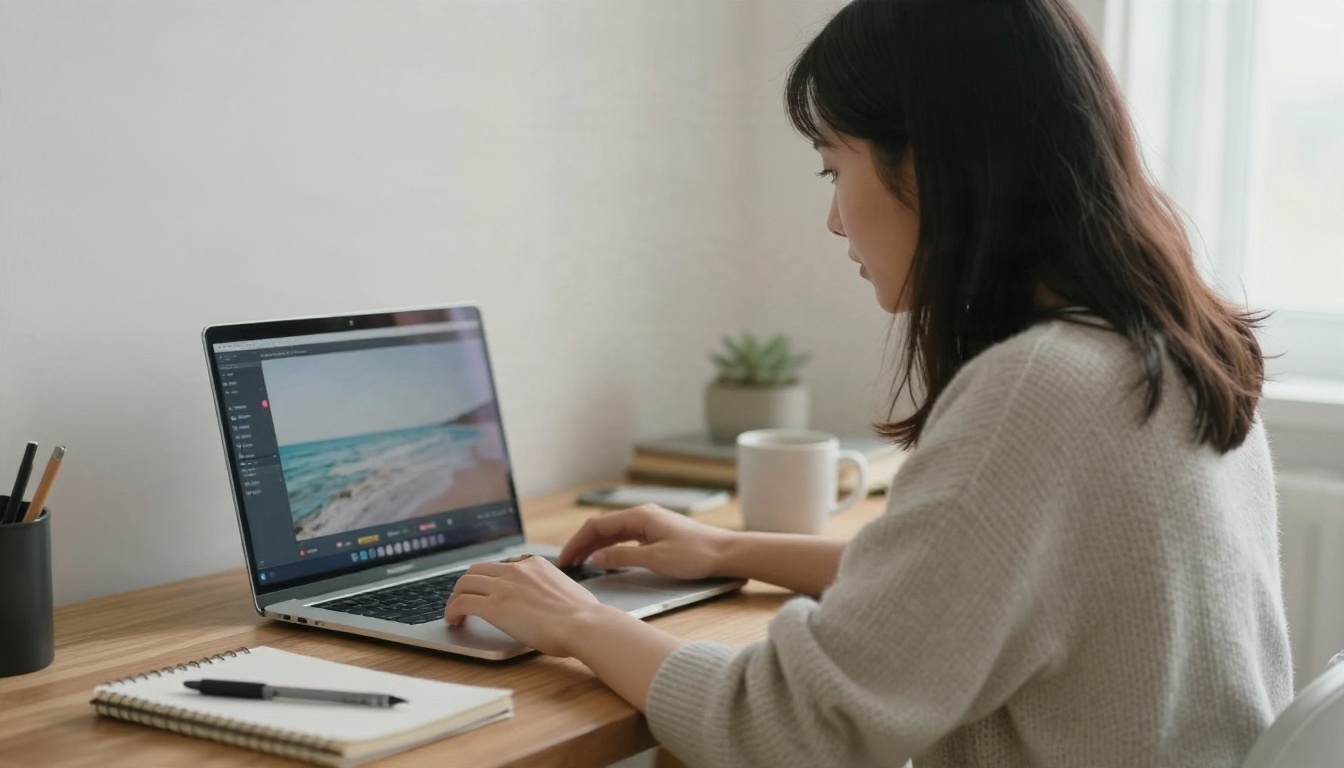
In practice, mild glamour content is the most reliable: swimwear on a beach, a robe by a window, an evening dress on a rooftop. Fully explicit content is blocked, and anything borderline can get refused at random. If your goal is polished, suggestive-but-tasteful clips, Grok can still deliver some of the time. If your goal is anything stronger, expect friction.
💡 Reality check: a tool that works on Monday and refuses on Friday is hard to build a content schedule around. Consistency matters more than raw permissiveness for most creators.
The Limits You Will Hit
Moderation on Text Prompts
Grok scans your prompt before generating anything. Words that point at explicit acts, specific anatomy, or named real people trigger a refusal fast. The check is not purely keyword based, either. Rephrasing a banned idea in softer words sometimes works and sometimes gets flagged anyway, which makes troubleshooting a guessing game.
Moderation on Uploaded Photos
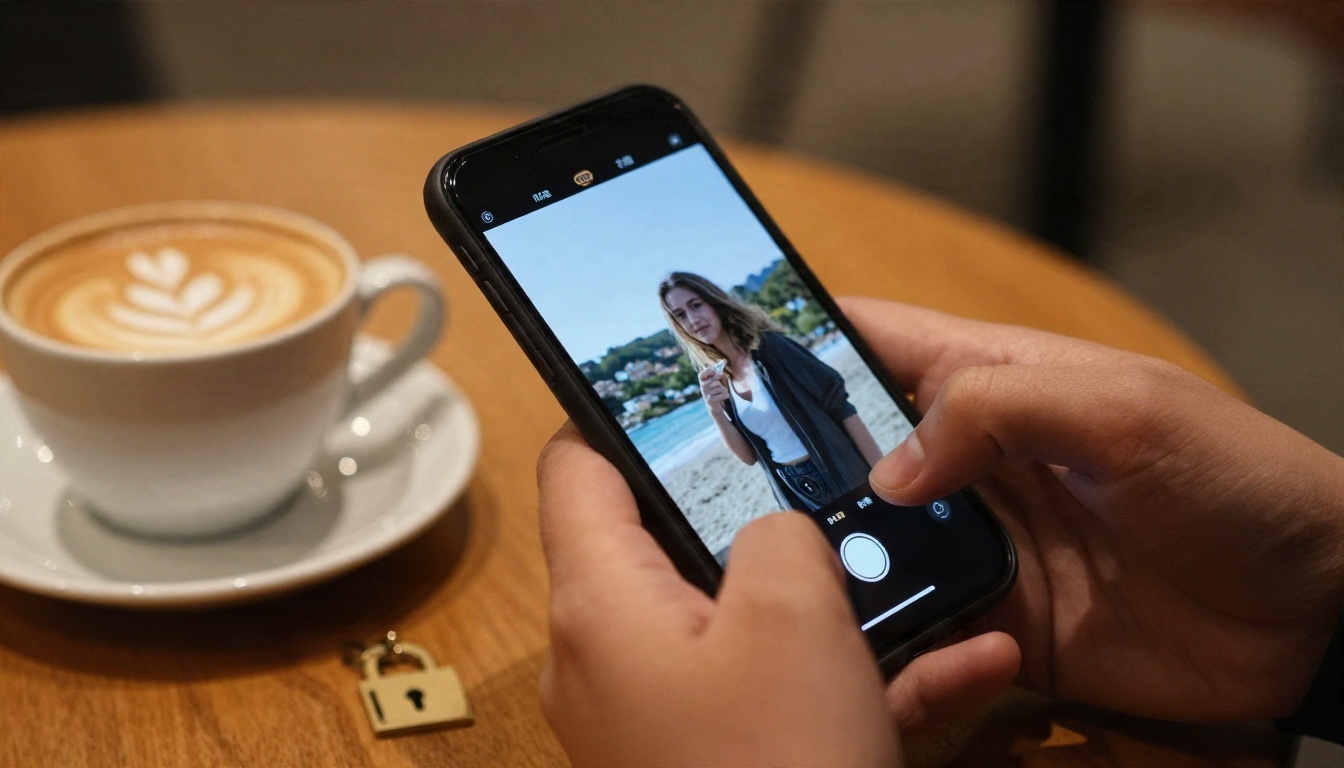
Image-to-video is where most people now get stuck. After the image is generated or uploaded, a second review pass looks at the result. A clip can start rendering, then come back blurred, cropped or replaced with a different motion than you asked for. Users also report that photos of real people are treated far more strictly than fully synthetic characters.
Forced Zoom and Motion Drift
Another complaint after the December 2025 changes was odd camera behavior. Several users described clips that pushed in toward the subject's face or drifted away from the body, as if the model were steering away from anything sensitive. This is the quiet kind of moderation: no error message, just a clip that does not match your prompt.
| Limit | What you see | Workaround |
|---|
| Prompt refusal | Error or "cannot generate" message | Simplify wording, remove sensitive terms |
| Output blur | Clip returns soft or masked | Use fully dressed, clearly non-explicit framing |
| Forced zoom | Camera pushes in unexpectedly | Specify a locked or slow lateral camera move |
| Real-person strictness | Upload rejected | Use a synthetic character image |
| Short clips | About 5 seconds per run | Chain several clips together |
Prompts That Still Work
The Motion First Formula
Video models respond best when you describe what moves instead of repeating what the image already shows. A good structure is: subject and starting pose, then the motion over time, then the camera move, then lighting. Keep one main action per clip. Five seconds is not much time, and overloaded prompts produce mush.
Five Templates to Copy
These are written to stay inside the safe zone while still looking attractive:
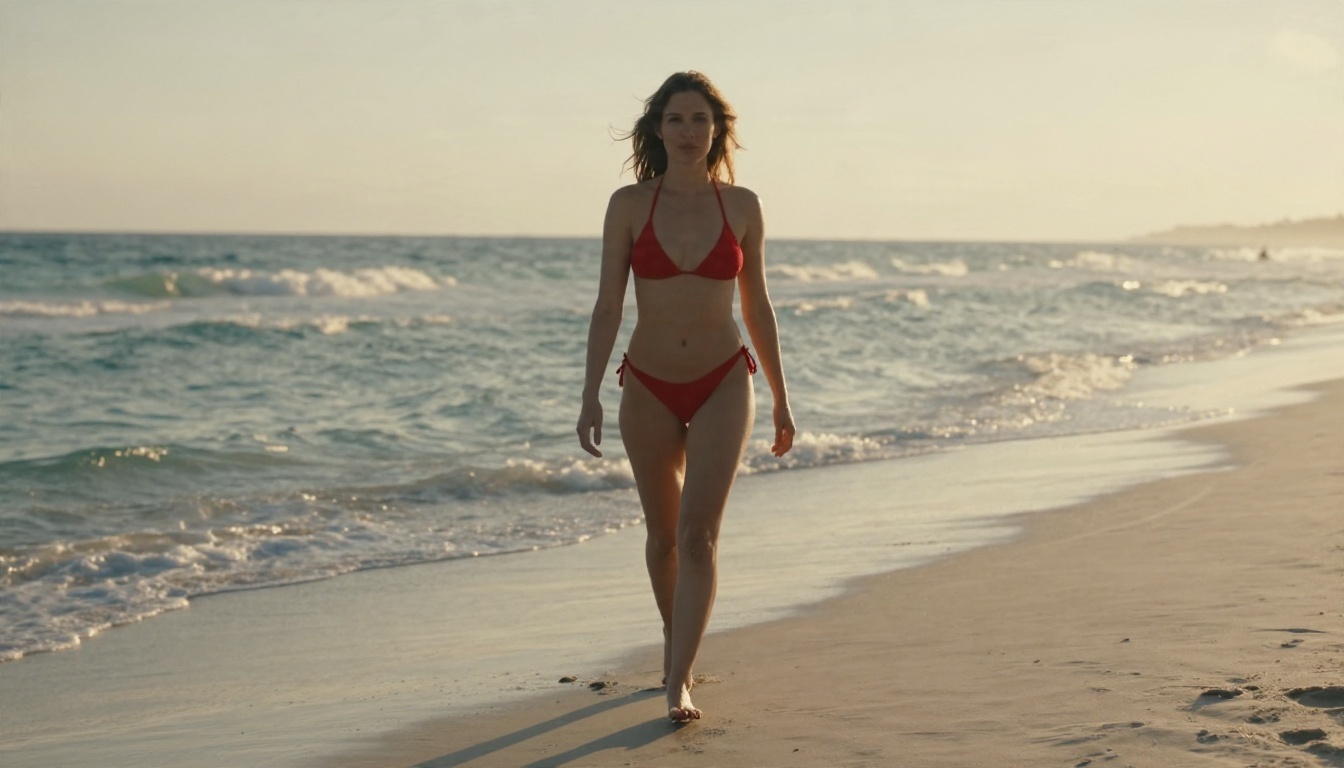
- Beach walk: "She walks slowly along the shoreline, small waves washing over her ankles, hair lifting in the breeze, slow tracking shot from the side, warm golden hour backlight."
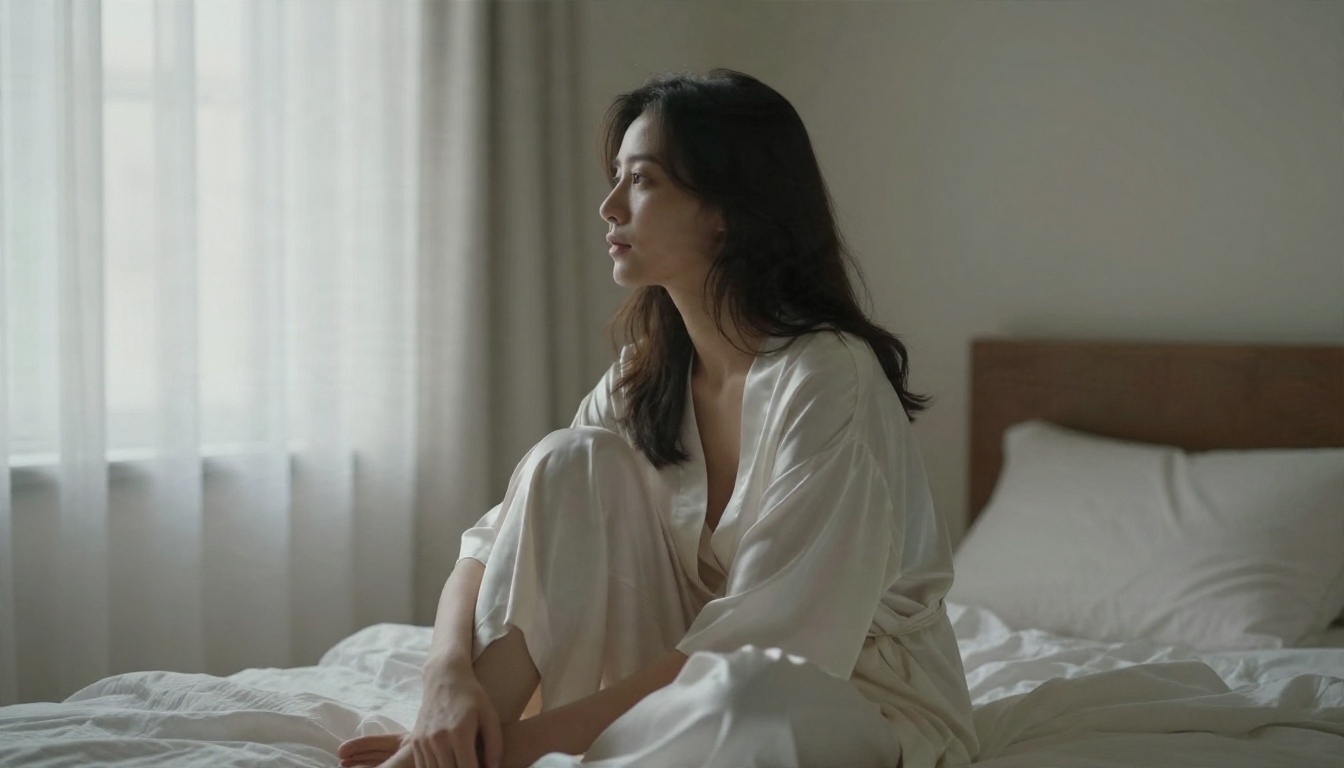
- Window moment: "She turns her head toward the morning light and exhales softly, curtains moving gently, slow push-in at shoulder height, soft natural light."
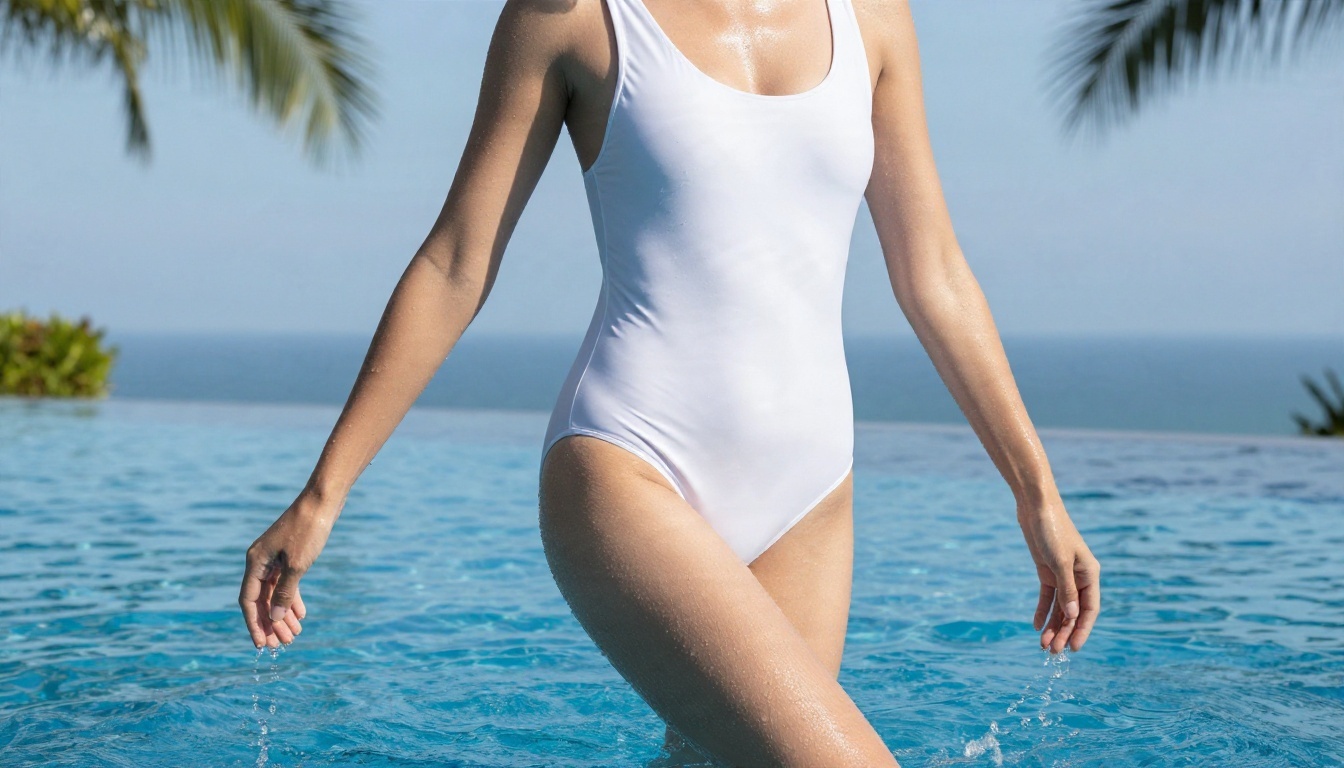
- Poolside exit: "She steps up the pool stairs, water running off her arms, camera tilts up slowly from the water line, bright midday sun, sparkling reflections."
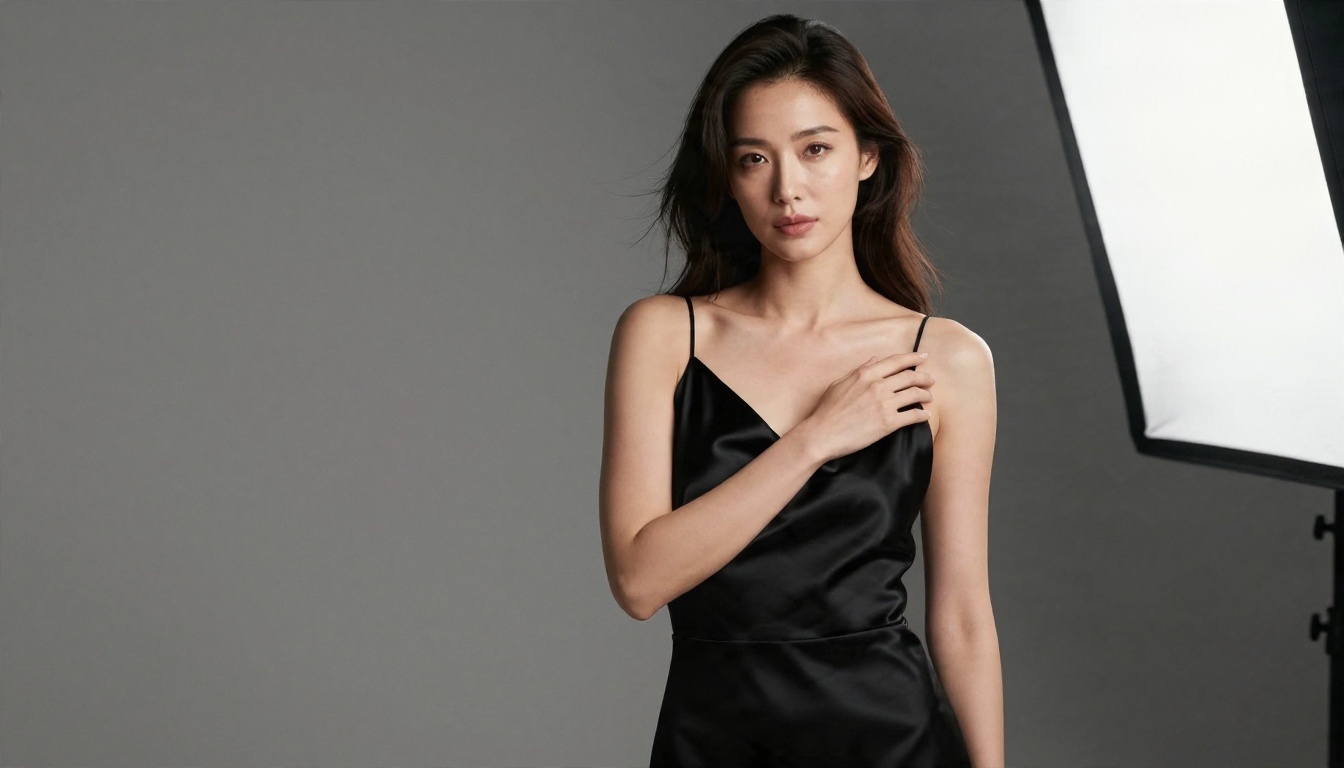
- Studio portrait: "She tilts her chin and lets a slow smile form, fabric catching a soft highlight, locked camera, single softbox from the right."
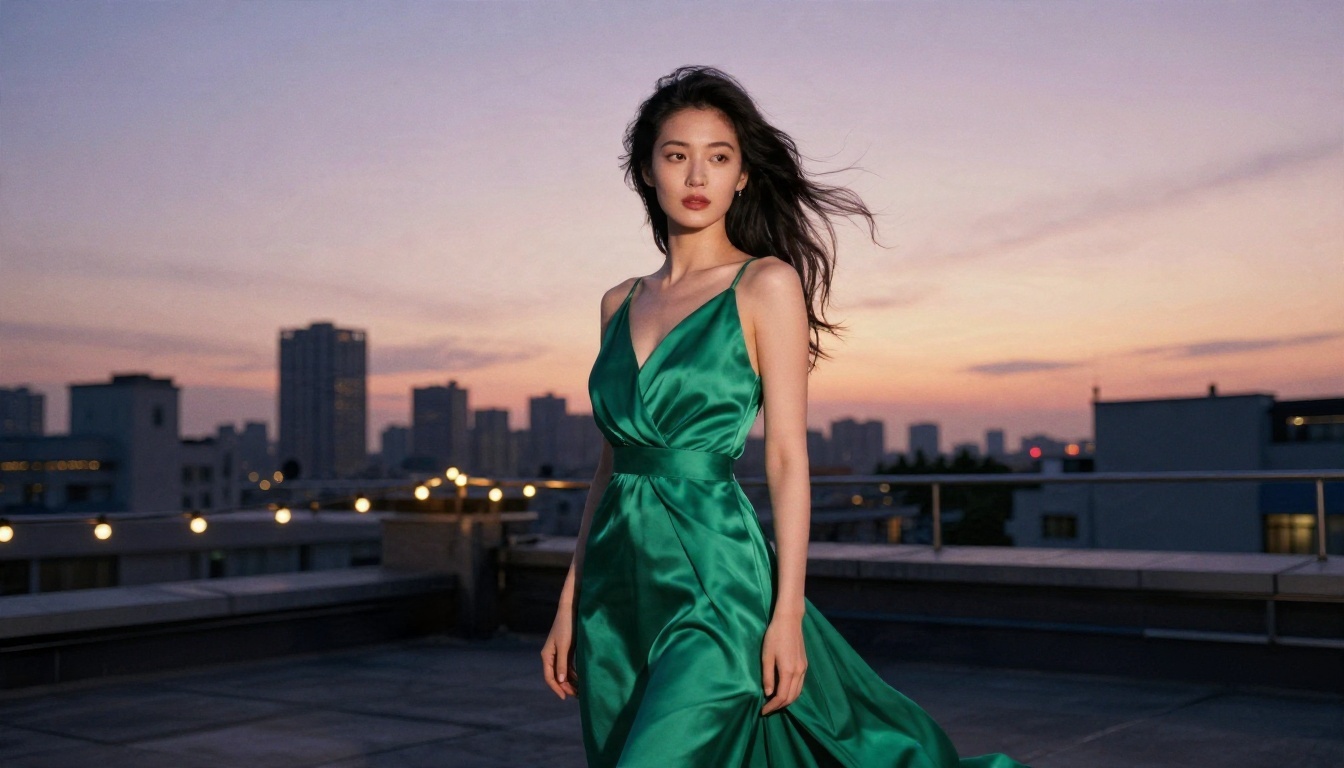
- Rooftop dusk: "Wind lifts her dress and hair as she looks out over the skyline, gentle orbit around her, fading peach sky."
💡 Tip: always say what the camera does. Leaving it open is exactly what triggers the unexpected zooms mentioned above.
What to Avoid Writing
Skip vague "sexy" or "hot" labels. They invite the filter, and they also give the video model very little motion to work with. Describe fabric, light, posture and movement instead. A silk robe slipping slightly on the shoulder reads as suggestive without any risky vocabulary, and it animates better too.
How to Use Grok Imagine Video 1.5 on PicassoIA
If you still want to test Grok's animation style, Grok Imagine Video 1.5 is available on PicassoIA as an image-to-video model. It turns a still image into a short clip with synchronized audio, at up to 720p. Keep expectations realistic: it is built around a moderated model, so it suits tasteful glamour and lifestyle clips, not explicit material.
Step by Step
- Open the model page. Go to the Grok Imagine Video 1.5 page.
- Upload your first frame. The
image field is required. JPG, PNG and WebP all work. Use a sharp, well-lit source, like the studio portrait or rooftop shots in this article.
- Write a motion prompt. Use the formula above: one action, one camera move, one lighting note.
- Set the resolution. Choose
720p for the sharpest result, or 480p for quick drafts.
- Pick the aspect ratio. Leave it on
auto to match your image, or choose 9:16 for vertical social posts.
- Keep the duration at 5 seconds. That is the default and the standard clip length for this model.
- Generate, review, adjust. If the camera drifts, add "locked camera" or "slow lateral move" to the prompt and run it again.
Parameter Tips
| Setting | Recommended | Why |
|---|
| Resolution | 720p | Sharper skin and fabric detail |
| Aspect ratio | auto | Avoids cropping the framing you designed |
| Duration | 5 | Default length, stable motion |
| Prompt length | 25 to 45 words | Enough detail, no conflicting actions |
| Source image | Sharp, evenly lit | Blurry inputs produce unstable motion |
You can also create the starting frame with Grok Imagine Image 2 so the look of the image and the clip match from the first frame.
Alternatives With Fewer Roadblocks
If you keep hitting refusals, the practical fix is to stop fighting one tool and build the image and the motion in separate steps with models that give you more room. PicassoIA's lineup is organized around exactly this approach: an image model for the look, a video model for the movement.
Start With Seedream 4.5
Seedream 4.5 is the first model to reach for when you want glamour, swimwear and boudoir-style stills with sharp skin texture and believable lighting. It produces high resolution output, follows detailed prompts closely and gives you a clean first frame to animate. Generate several options, pick the best one, and move on to video.
Add PicassoIA Image Editor Pro
PicassoIA Image Editor Pro offers unlimited generations, which matters when you are iterating on outfits, poses and settings. Instead of burning credits on each attempt, you can edit freely: change a swimsuit color, adjust the background, fix a hand, relight a scene. For creators who produce content weekly, unlimited editing is often worth more than any single feature.
Animate With Other Video Models
Once you have a strong still, these video models turn it into motion:
- Seedance 2.5 Lite is free and unlimited, with clips up to 10 seconds. Great for drafts and volume.
- Wan 2.6 I2V animates any photo with natural body and fabric motion.
- Kling v3 Video gives cinematic camera work and smooth, realistic movement.
💡 You can browse every option at picassoia.com/en/all-models and compare them side by side.
A Workflow That Works Every Time
Step One: Build the Still
Write a long, specific image prompt: subject, outfit, setting, light direction, lens. Run it in Seedream 4.5 and generate four or five variations. Choose the one with the cleanest hands, face and lighting. If something is off, send it through Image Editor Pro for a fix instead of regenerating from scratch.
Step Two: Add One Motion
Pick the image-to-video model that fits the shot. A windy rooftop looks great in Kling v3 Video. A beach walk suits Wan 2.6 I2V. Write a single action and a single camera move.
Step Three: Keep Clips Consistent
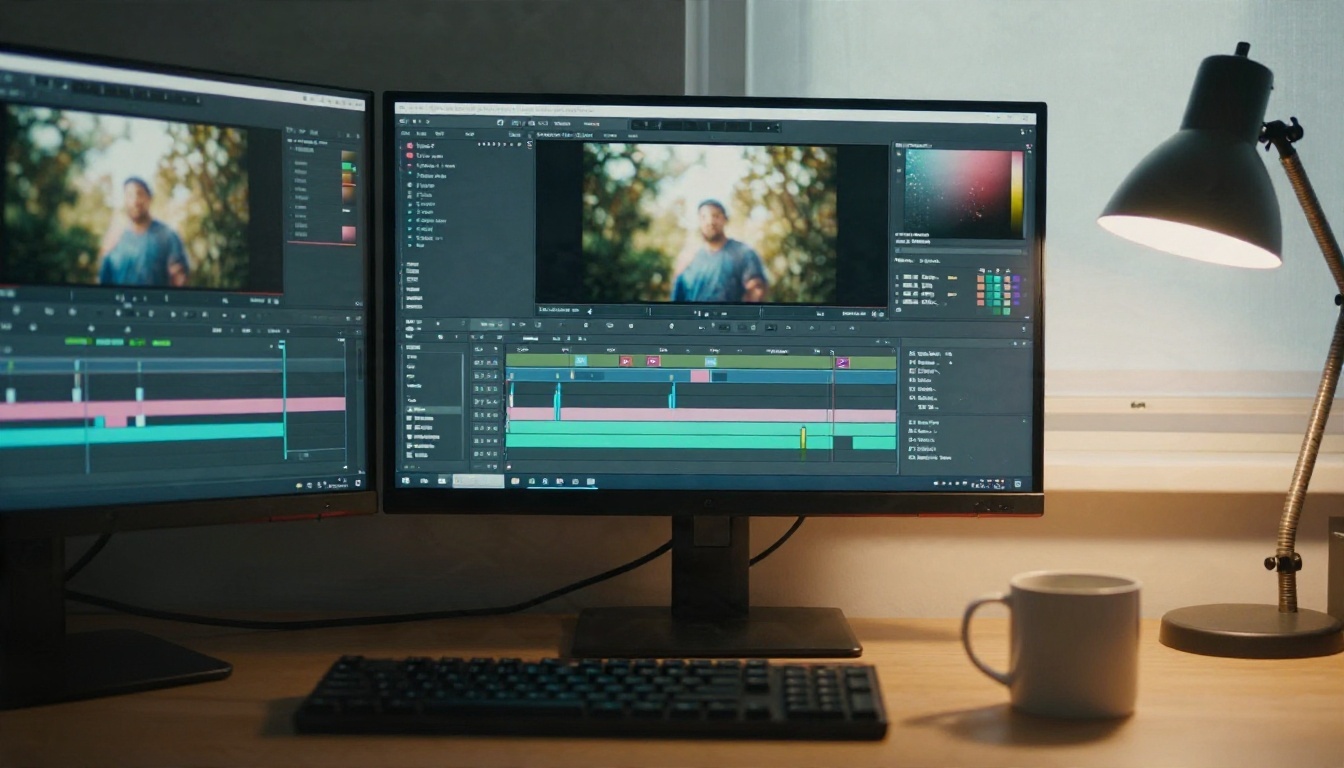
If you plan a sequence, reuse the same character description and the same lighting words in every prompt. Generate the stills first, then animate each one. That keeps the face, outfit and mood stable from clip to clip, and you can stitch the results together in any editor.
Mistakes That Waste Your Credits
Writing Prompts Like Essays
Long, rambling prompts confuse video models. Give one clear action. Save the rich detail for the image prompt, where it belongs.
Ignoring the Camera
No camera instruction means the model picks one for you, and that is how you get the unexpected push-ins. Always specify tracking, orbit, locked or slow tilt.
Starting From a Weak Image
A soft, noisy or awkwardly lit source frame will produce a soft, noisy clip. The image is 80 percent of the result. Spend your effort there.

Chasing the Newest Loophole
Forum threads promising a secret prompt that "turns spicy mode back on" age quickly, and they often rely on settings that change within days. A repeatable workflow with stable models beats a trick that works once.
Try Your Own Clips on PicassoIA
Grok's video moderation will likely keep shifting, and no one outside xAI can promise what it will allow next month. You do not need to wait on that. Start with a still in Seedream 4.5, polish it in PicassoIA Image Editor Pro with unlimited generations, then animate it with Seedance 2.5 Lite, Wan 2.6 I2V or Kling v3 Video. Want to test Grok's own style too? Grok Imagine Video 1.5 is a few clicks away.
Pick one of the five prompt templates above, generate your first frame today and see how far a good workflow gets you. The full list of tools lives at picassoia.com/en/all-models, so go and build something.


