You open Civitai, scroll for ten seconds, and the feed looks oddly tame. Half the thumbnails are blurred, the model you came for shows a grey box, and the search results feel scrubbed. That is the Civitai NSFW filter doing its job, and it is switched on by default for a reason. The good news is that it is a setting, not a wall. The less good news is that turning it off does not give you everything, and a few categories stay hidden whatever you choose.
This article walks through exactly where the filter lives, how the browsing levels work, why some content still refuses to appear, and what to use when you want to generate adult-leaning images without waiting in a queue or fighting a moderation system. Everything below is written for adults, and everything we generate for this article is non-explicit by design.

What the Civitai NSFW Filter Does
Civitai is a huge library of community-made image models, LoRAs, checkpoints and sample galleries. Because anyone can upload, the site needs a way to separate a landscape from a lingerie shoot. It does that by tagging every image with a maturity rating and then comparing that rating to your personal browsing level.
If an image is rated above the level you picked, you never see it, or you see a blurred placeholder. That is the whole mechanism. No magic, no hidden AI judge deciding in real time what you are allowed to look at.
The Five Ratings
The system uses film-style labels. The names have shifted slightly over time, but the ladder is consistent:
| Rating | What it generally means | Visible by default |
|---|
| PG | Safe for anyone, no suggestive content | Yes |
| PG-13 | Mild, swimwear, light suggestion | Often |
| R | Strong suggestion, partial nudity | No |
| X | Explicit nudity | No |
| XXX | Hardest adult content | No |
Your browsing level is simply the highest rung you want to see. Switch it up and the filter relaxes. Leave it low and the feed stays clean.
Why It Is On by Default
Three reasons, all practical. Payment processors care about what a platform hosts. Search engines and workplaces care about what loads on a screen. And a new visitor who lands on a model page should not meet an explicit sample image without opting in. Civitai also separated some of its experience across different domains, and reports on how that split works vary, so treat any single description as a snapshot rather than a permanent rule.
💡 Quick note: the filter is a visibility tool, not an age check. Adult settings are meant for adults only, and you should only change them if you are 18 or older.
How to Turn It Off Step by Step
The exact labels move around when Civitai updates its interface, so use these steps as a map rather than a script. If a button has a slightly different name on your screen, follow the intent.

Step 1: Log In First
Anonymous visitors are locked to the safest level. You need an account, and the account needs a confirmed email. Without that, no toggle will do anything useful.
Step 2: Open the Filter Control
Look near the top of the page for the filter icon or the browsing level selector, usually sitting next to the search bar. Clicking it opens a panel with checkboxes for each rating: PG, PG-13, R, X and XXX.
Step 3: Tick the Levels You Want
Tick the ratings you want to see. If you only want swimwear and glamour photography, tick up to R. If you want everything the site allows, tick all of them. Changes usually apply instantly, and the page refreshes the feed.
Step 4: Check Account Settings
Open your account settings and find the content controls section. This is where you will find options such as showing mature content, blurring mature thumbnails, and hiding specific tags. People often tick the levels in the quick panel and forget the blur option, which is why a feed can still look grey after you thought you had switched it off.
Step 5: Refresh and Test
Reload the page and search for a model you know has mature samples. If thumbnails now load clearly, you are done. If they do not, read the next section, because something else is going on.
💡 Pro tip: sort by Most Collected or Newest after changing levels. The default sort can bury mature galleries under safe ones and make it look like nothing changed.
Why Some Content Still Stays Hidden
This is the part that catches people out. You tick every box and certain results never show up. That is deliberate.
The Blocked Category
Civitai keeps a category of content that is not made visible by any browsing level. It covers material the platform has chosen to ban outright. Raising your level to the maximum does not bring it back, because it is not a rating, it is a removal.
Minor-Related Content
Content tagged with child or minor themes gets filtered out of your feed whenever mature levels are on. Civitai tightened this over time, and recent descriptions suggest it now applies to R-rated browsing as well, not only the strongest levels. If a search keeps returning nothing, a minor-related tag could be silently excluding the results.
Tag and Model Bans
Some tags, models and prompts have been banned following policy changes. Old guides that tell you to search a particular term may point at material that no longer exists.
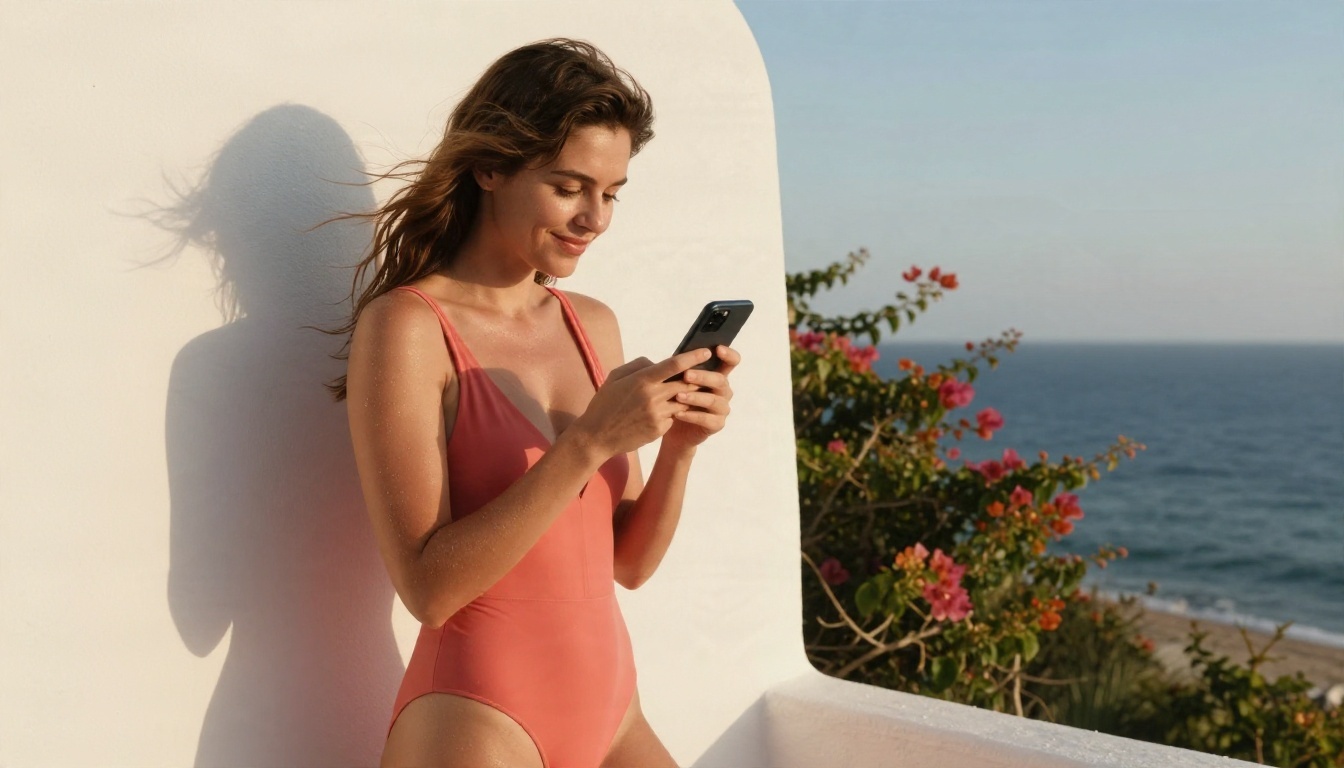
💡 Reality check: turning the filter off is not the same as turning moderation off. Civitai still reviews images, still removes uploads, and still restricts generation on its own site. If your goal is to make images without those limits, browsing settings will not help you.
Browsing Versus Generating
Many people search for the filter because they want to generate mature-leaning images, not just look at them. These are two separate things on Civitai, and mixing them up wastes a lot of time.
What the Filter Controls
The filter controls what appears in galleries and search. It has no effect on what the on-site generator will produce.
What the Generator Controls
Civitai's on-site generation has its own rules, which have tightened over the past couple of years. Prompts get checked, some terms are blocked, and outputs can be flagged or withheld. Credits also cost money or require activity on the site, and queues grow at peak hours.
Running Models Locally
The traditional workaround is downloading a checkpoint and running it on your own computer. That works, but it requires a capable graphics card, a working install, patience with updates, and some comfort with files and folders. For many people it is simply too much friction for an evening of experimenting.
| Option | Setup effort | Speed | Cost | Restrictions |
|---|
| Civitai on-site generator | Low | Queue dependent | Credits | Moderated prompts |
| Local install | High | Hardware dependent | Free after hardware | Your own |
| Browser-based generator | Low | Fast | Varies | Depends on the service |
Alternatives That Skip the Hassle
If your real goal is to create glamour, swimwear, boudoir-style or artistic adult-leaning images, a browser-based generator is the shortest route. You type a prompt, you get a photograph. No downloads, no checkpoints, no filter toggles.
Seedream 4.5 for Photorealism
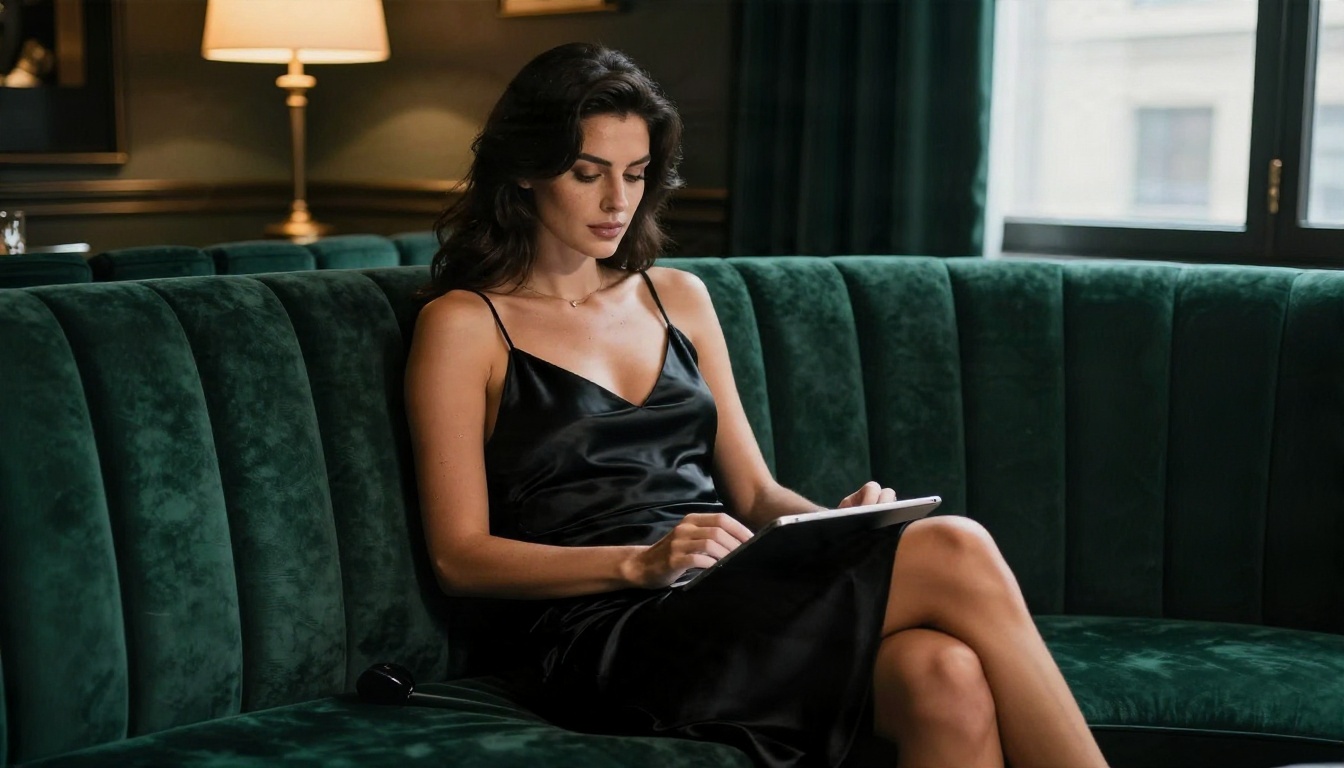
Seedream 4.5 is the model to start with. It produces sharp, photographic skin, believable fabric and natural light, and it handles suggestive, uncensored glamour prompts without refusing them. Hands, hair and lighting come out clean on the first try more often than not, which matters when you are iterating quickly.
PicassoIA Image Editor Pro for Unlimited Edits
PicassoIA Image Editor Pro is the one to open when you want volume. It offers unlimited generations, so you can try a dozen variations of an outfit, a pose or a lighting setup without watching a credit counter fall. It is also strong at editing an existing photo, which is useful when a nearly perfect image needs one small change.
Other Models Worth Trying
Why People Switch
| What you want | Civitai | PicassoIA models |
|---|
| Browse community models | Excellent | Not the goal |
| Generate with fewer prompt limits | Restricted | Uncensored options |
| Fast results without a queue | Varies | Fast |
| Unlimited attempts | Credit based | Available with Image Editor Pro |
| No installs | Yes | Yes |
Civitai remains a superb place to browse what the community is building. It is just not the most efficient place to produce finished images when you have a specific idea in your head.
How to Use Seedream 4.5 on PicassoIA
Here is the quickest route from idea to finished photograph.
Step 1: Open the Model
Go to the Seedream 4.5 page and open the generator. No installation is needed.
Step 2: Write a Photographic Prompt
Describe the subject, the setting, the light and the lens, in that order. Models like this respond best to photographer language rather than a pile of tags.
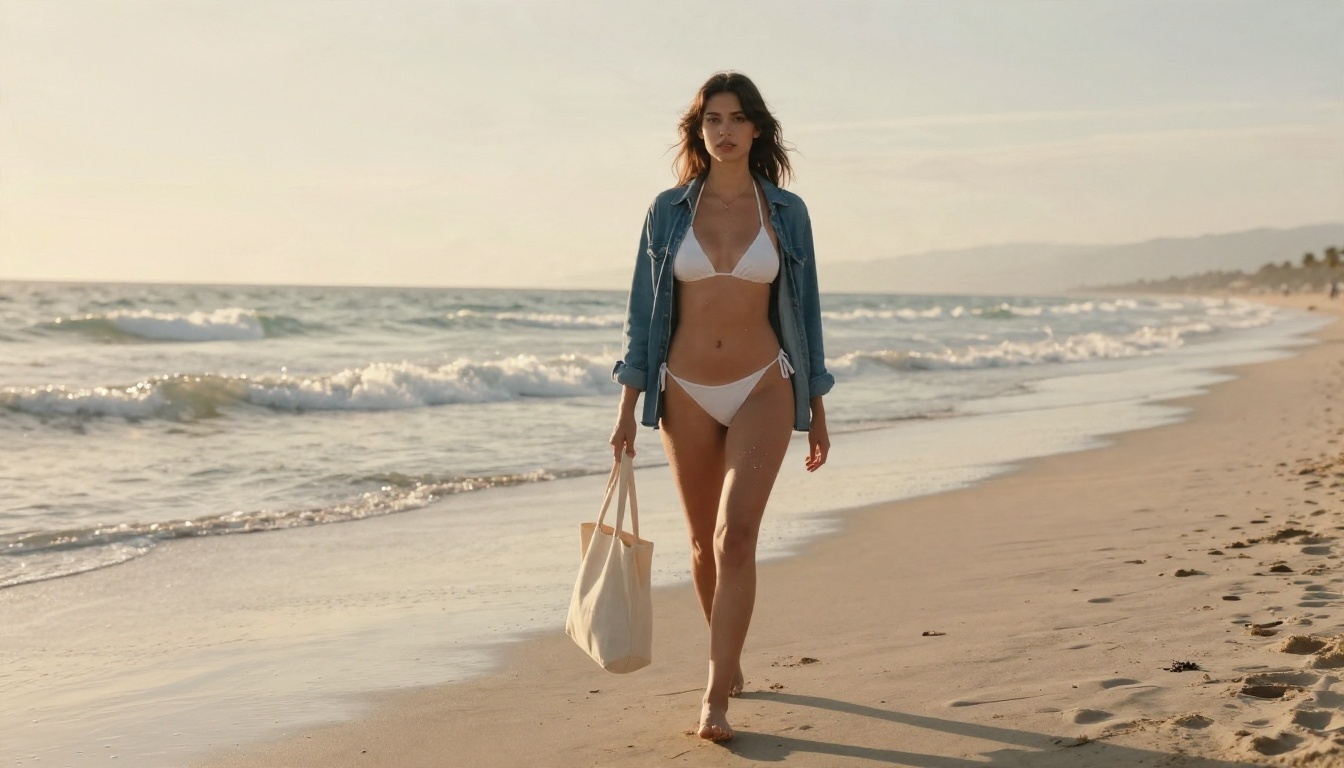
💡 Example prompt: A young woman in a white triangle bikini and open denim shirt walking on a pale sand beach at golden hour, low sun backlighting her hair, 70mm lens, shallow depth of field, natural skin texture, Kodak Portra 400 film grain.
Step 3: Set the Aspect Ratio
Choose 16:9 for wide scenes like beaches and interiors, 3:4 or 2:3 for full-length portraits, and 1:1 for profile images.
Step 4: Generate and Compare
Run the prompt, then change one thing at a time: the lens, the time of day, the clothing. Changing five variables at once makes it impossible to tell which one helped.
Step 5: Refine in Image Editor Pro
When you have a strong image that needs a small fix, open it in PicassoIA Image Editor Pro. Ask for a different outfit color, a cleaner background or a softer expression, and keep iterating without a counter ticking down.
Parameter Tips
| Setting | Recommendation |
|---|
| Prompt length | 40 to 80 words |
| Lighting | Name a direction, such as "window light from the left" |
| Lens | 35mm for scenes, 85mm for portraits |
| Skin detail | Add "visible pores, natural texture" |
| Film look | "Kodak Portra 400, fine grain" |
| Avoid | Stacked quality tags like "masterpiece, 8k, best quality" repeated |
Prompting Tips That Beat Any Filter
Whichever tool you pick, better prompts matter more than looser settings. A few habits that consistently pay off:
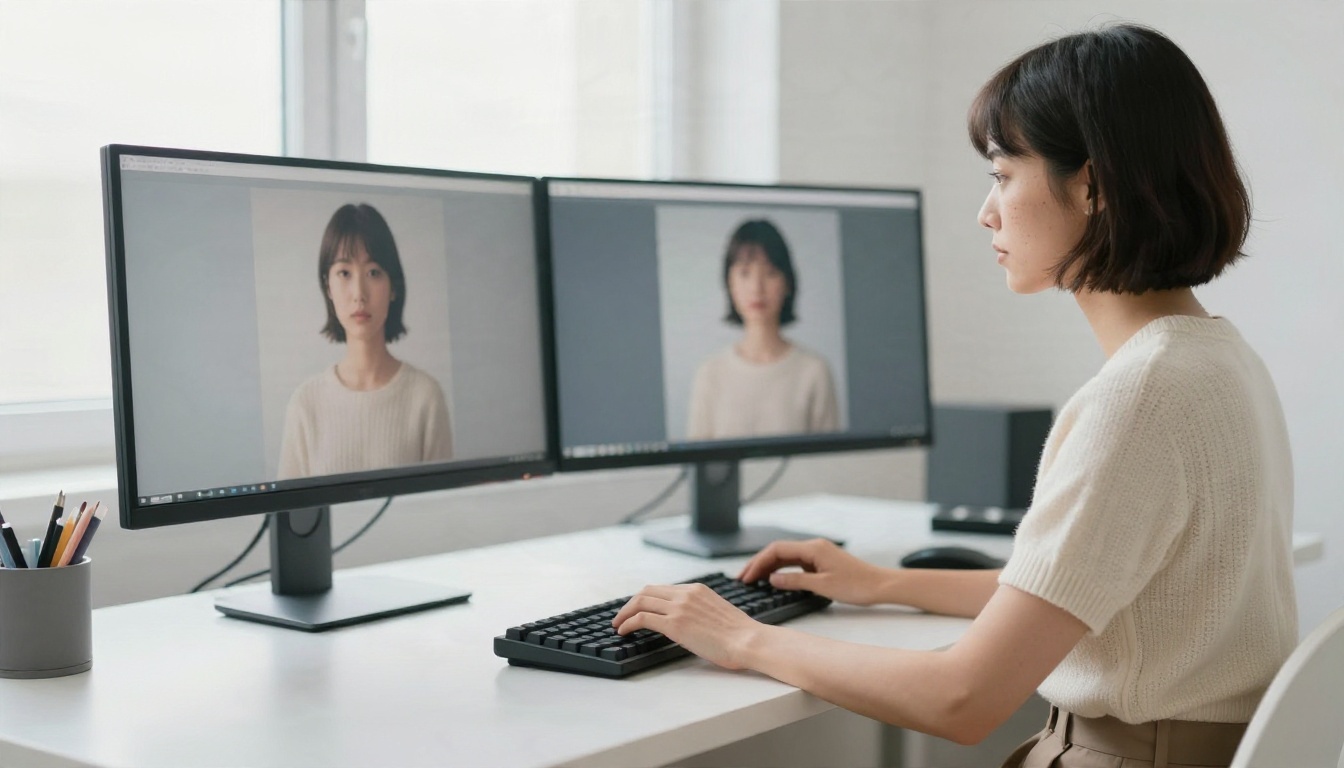
Write Like a Photographer
"Soft window light from the right, 85mm f/1.8, shallow depth of field" outperforms a long string of adjectives. Models trained on photographs respond to photography vocabulary.
Lean Into Suggestion
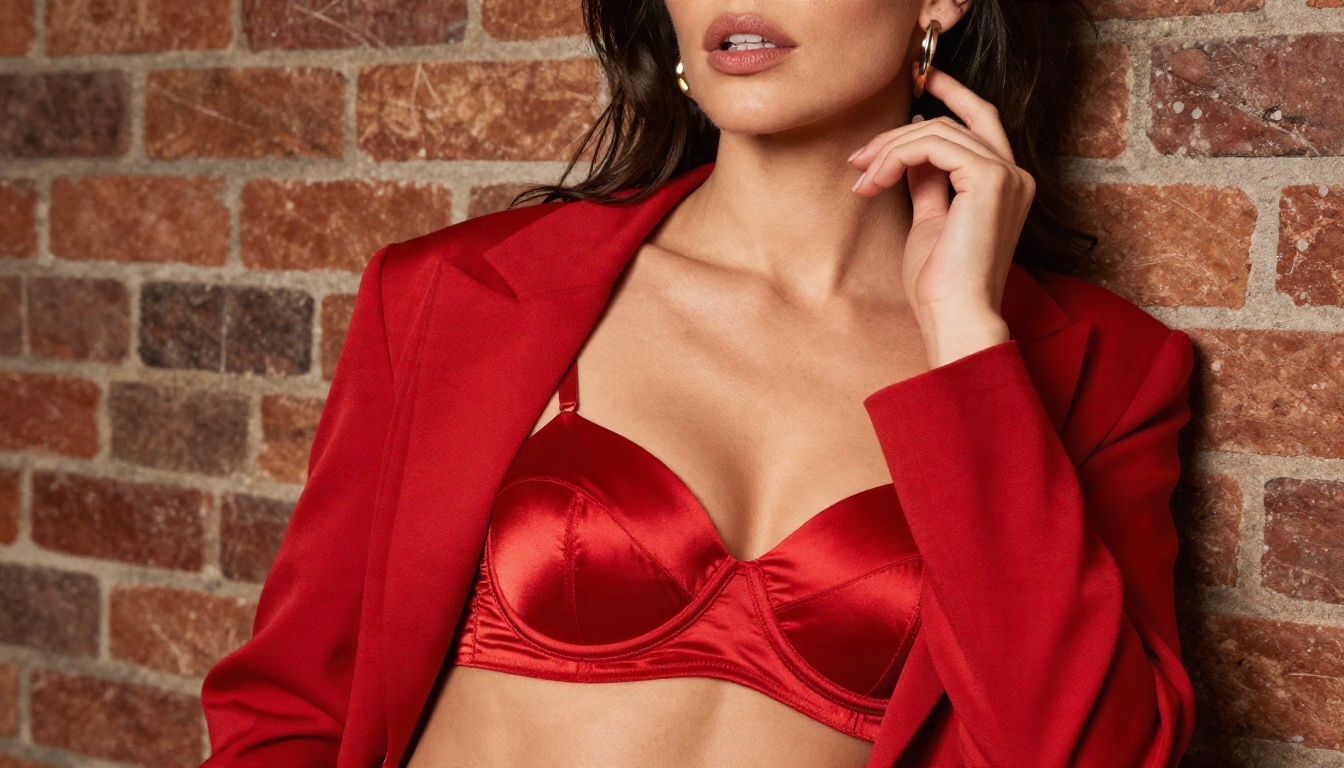
The strongest glamour images are rarely the most explicit ones. Silk, wet skin, backlit hair, a half-open shirt and a confident look do more work than anything graphic. Suggestion also keeps your images usable on social platforms, portfolios and print.
Keep Texture Realistic
Ask for freckles, pores, fabric wrinkles, sand grains and water droplets. Over-smoothed skin is the quickest giveaway of a weak generation.
Reuse What Works
Save your best prompts in a note. Swap the location, the outfit or the hour and you have a whole series with consistent quality.
Staying Safe Online
Whatever platform you use, a few habits protect you and other people.
Use Only Adult Subjects
Never generate anyone who looks underage, and never recreate a real person without their permission. Both are off limits on every responsible platform, and both can create real legal trouble.
Protect Your Account
Use a unique password and two-factor authentication where offered. Mature-content accounts are a target for phishing, and fake "filter unlock" tools and browser extensions are a common trap. If a site asks you to install something to turn a filter off, close the tab.
Keep Private Work Private
Check whether a platform stores your prompts and outputs, and what its sharing defaults are. Do not upload personal photos to a service you have not read the terms for.
💡 Rule of thumb: if a tool promises to remove every limit on every site, it is either lying or it is something you do not want on your computer.
Quick Answers
Can I turn the Civitai NSFW filter off without an account? No. Anonymous visitors stay on the safest level.
Why are my thumbnails still blurred? The blur option in your account settings is separate from the browsing level. Switch both.
Why do some searches return nothing? Blocked content and minor-related tags are filtered regardless of your level.
Does the filter affect image generation? No. Generation has its own prompt rules.
Is there a free way to generate without a queue? Browser-based models such as Z Image Turbo are fast, and PicassoIA Image Editor Pro offers unlimited generations.
Start Creating Your Own Images
Switching off the Civitai filter takes under a minute: log in, open the filter panel, tick the ratings you want, and check the blur option in your account settings. Just keep in mind that blocked content stays blocked, and that the filter only changes what you see, not what you can make.
If making is the goal, skip the settings maze. Open Seedream 4.5 for photographic, uncensored glamour, then move to PicassoIA Image Editor Pro for unlimited variations and quick edits. Write one good photographic prompt, run it, and change a single detail each time. Within ten minutes you will have a small series of images that look like they came from a real shoot.
Ready to try more? Browse every available model at picassoia.com/en/all-models and pick the one that fits your idea.


