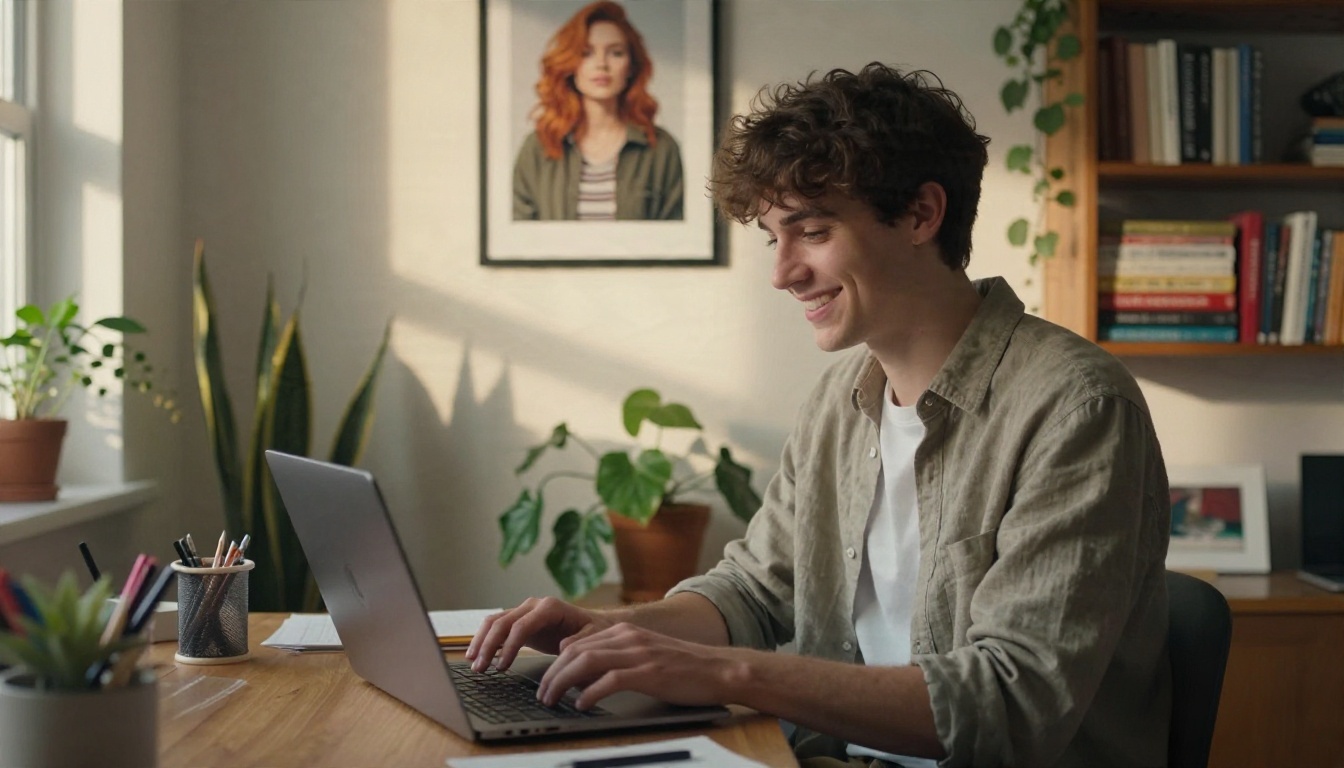
You generate a clip of a woman with a short auburn bob and a green jacket. It looks great. Then you generate the next shot and she has a different nose, longer hair and a jacket that has quietly turned grey. That is identity drift, and it is the single biggest reason AI video still feels like a pile of unrelated clips instead of a story. The good news: a handful of models now accept reference images, first and last frames and seeds, and those inputs let you keep one character recognisable from shot to shot. This article shows which models do it best, what "free" really means in this corner of AI video, which settings protect a face, and the hard limits you should plan around.
What Makes a Model Consistent
A consistent AI video generation model is one that lets you supply the identity instead of asking it to invent one every time. A plain text prompt can never do that reliably, because "a young woman with auburn hair" describes thousands of faces.
Why Faces Drift Between Clips
Every generation starts from noise. Without an anchor, the model fills in hair length, jaw shape, skin tone and clothing from its own statistical guess. Change the camera angle or the lighting and the guess changes too. Longer clips make it worse, because small errors compound frame after frame.
Three Ways Models Hold a Face
Most tools use one of three anchors, and the strongest workflows combine them:
| Anchor | How it works | Best for |
|---|
| First frame (image to video) | Your image becomes the opening frame | Single shots that must match a still |
| Reference images | Several photos define face, outfit, product | Multi-shot sequences, new scenes |
| First and last frame | The clip travels from one image to another | Controlled transitions |
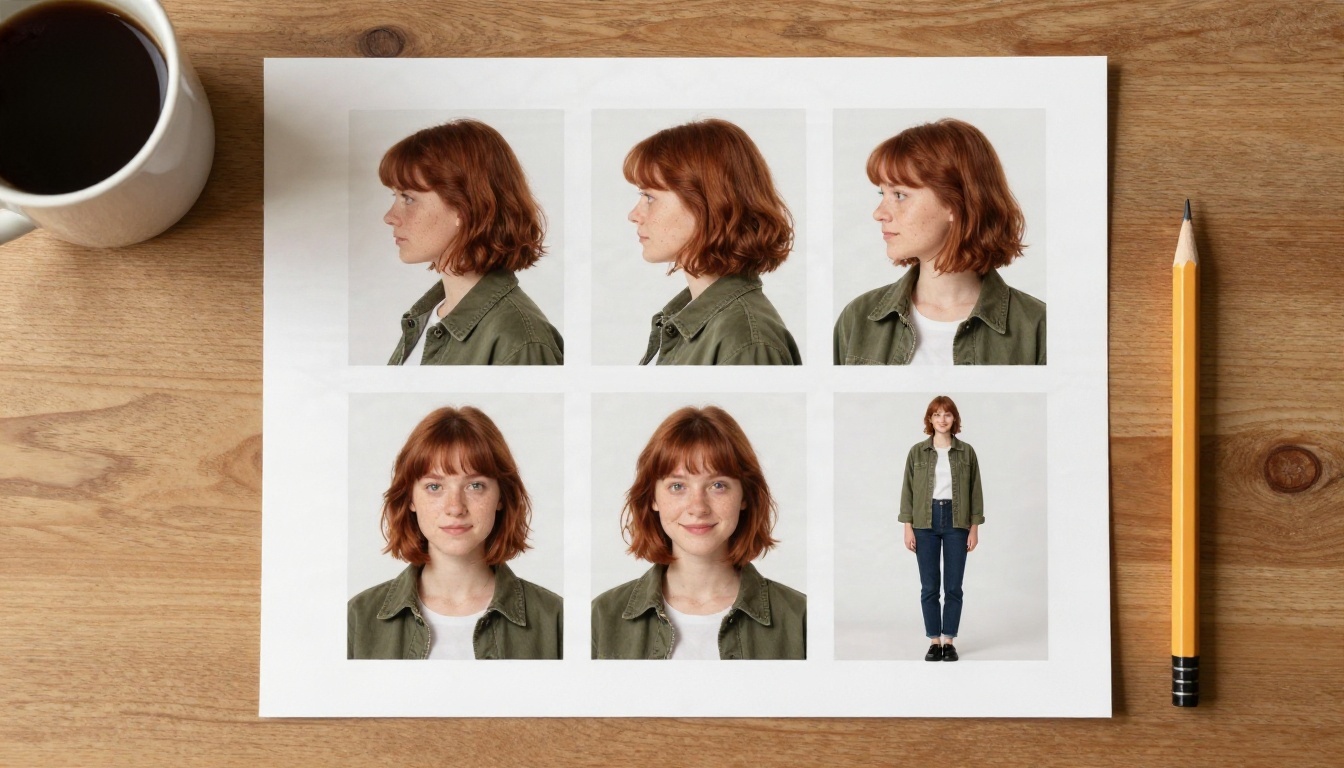
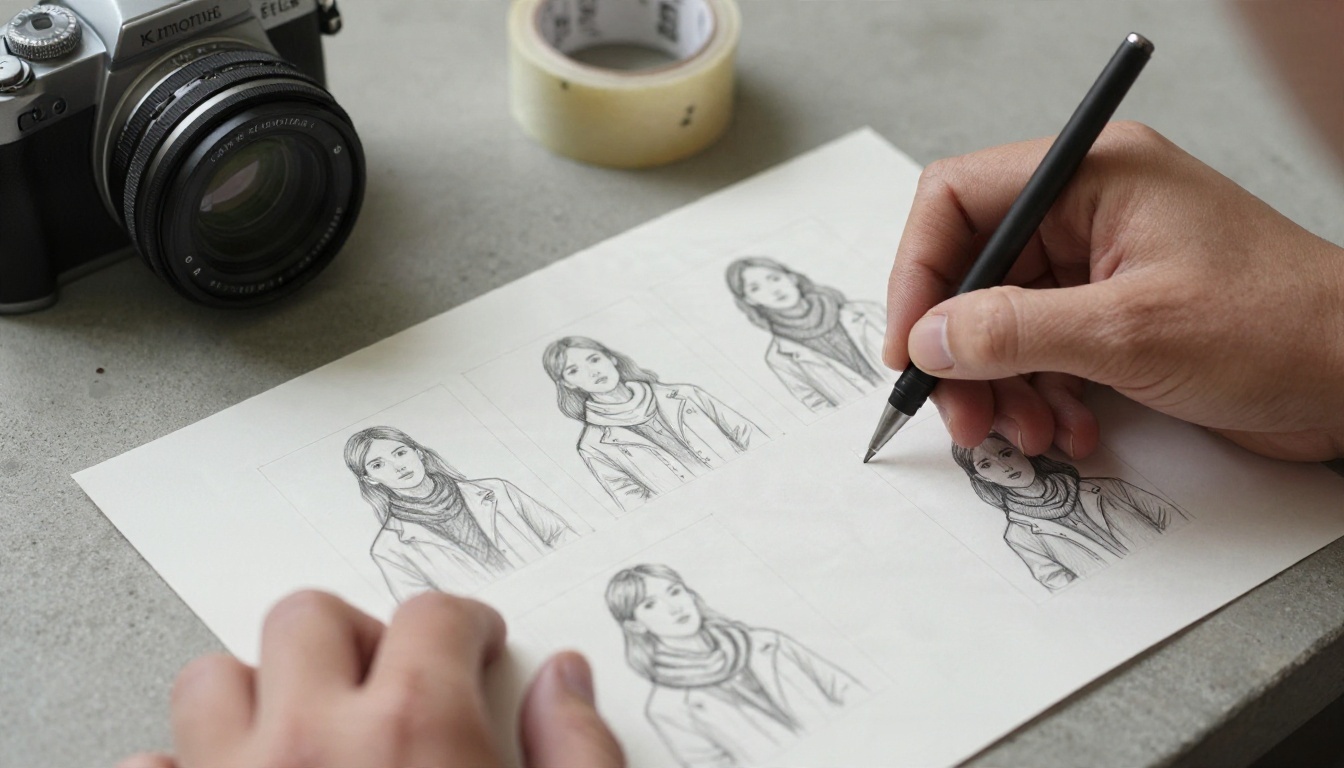
💡 Think like a casting director. Before you generate a single video clip, build a small character sheet: front view, profile, three quarter view, a close face shot and a full body shot. Those images are your insurance policy.
Best Models for the Same Character
Here is how the main options on PicassoIA line up for consistency work. Specs come from each model page, so check the page for your plan's current limits.
| Model | Character anchor | Notes |
|---|
| Seedance 2.5 | Up to 30 reference images, first and last frame | Clips up to 30 seconds, native audio |
| Seedance 2.5 Lite | Input image, optional last frame | 5 or 10 second clips, 480p and 720p |
| Kling v3 Omni Video | Reference driven generation | Up to 1080p |
| Veo 3.1 | Image input, audio | Strong realism |
| Wan 2.7 I2V | Image to video | Animates a still faithfully |
Seedance 2.5 for Multi Shot Stories
Seedance 2.5 is the strongest pick when identity matters across many shots. Its reference image input accepts up to 30 images for a face, an outfit or a product, and you point to them in your prompt as [Image1], [Image2] and so on. It also generates synced dialogue, sound effects and music in the same pass, and a single generation can run up to 30 seconds, so you stitch fewer segments together and fewer seams appear.
One rule trips people up: reference images cannot be combined with first or last frame images in the same request. Pick one mode per generation.
Seedance 2.5 Lite for Fast Drafts
Seedance 2.5 Lite is the lightweight sibling. It renders 480p or 720p clips of 5 or 10 seconds, starts from an input image and accepts an optional closing frame. It does not use the 30 reference image mode, so its consistency comes from the still you feed in. For many projects that is enough, and the speed makes it ideal for testing a character before you commit to longer renders.
Kling, Veo and Wan Alternatives
Different models fail in different ways, so keep more than one in your toolkit:
Free Options and What They Cost
Search for "free consistent character video" and you will find plenty of promises. The reality is more nuanced, and it helps to separate three kinds of free.
What Free Usually Means
Across the industry, free access tends to arrive as one of four things: a small daily credit pool, a one time credit bundle, a monthly clip cap, or output with a watermark or a short maximum length. Free tiers are good for testing a concept. They are rarely enough for a multi shot project, because consistency work burns credits through retries.
Unlimited Plans and Lite Models
On PicassoIA, the page for Seedance 2.5 Lite describes it as an unlimited generator for Elite and Infinite members, with no per clip cost or daily counter. That is a different proposition from a free trial: you can iterate on the same character fifty times without watching a balance. The Seedance 2.5 page also describes online access without editing skills, but plans and quotas change, so confirm what your account includes before you plan a shoot around it.
💡 Spend your budget in the right place. Use an unlimited lite model for draft passes, lock the shot, then spend premium credits only on the final render.
Free Image Tools for the Character Sheet
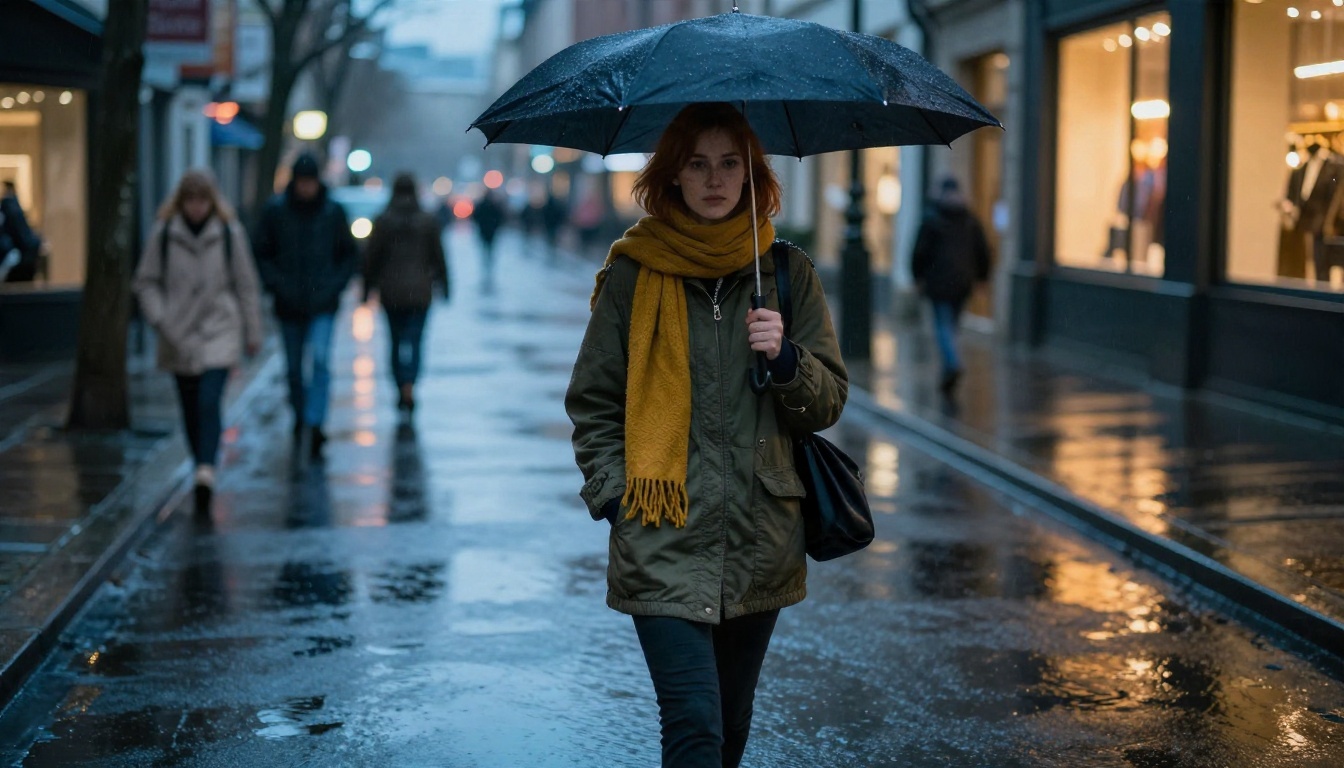
The reference images matter more than the video model, and image generation is the cheap part. Nano Banana Pro, Seedream 4.5 and Nano Banana all handle portraits well, and Flux 2 Klein 9B Base LoRA is worth a look if you want a stylised look repeated. Generate several candidates, pick one winner, then build the rest of the sheet around it.
Settings That Protect the Face
Settings are where consistency is won or lost. The following apply to Seedance 2.5, and most have equivalents in other models.
Reference Images
More is not always better. Use three to six sharp, well lit images that show the same outfit, the same hairstyle and different angles. Avoid mixing photos with different makeup, glasses or hair length, because the model will average them into a stranger. Name each image in your prompt: "[Image1] walks through a rainy market, matching the jacket in [Image2]."
First and Last Frame
Setting both a first frame and a last frame forces the clip to start and end on images you control. It is the best tool for continuity between shots: end clip one on the frame that opens clip two. Remember that in Seedance 2.5 this mode needs the aspect ratio set to adaptive, and it cannot be mixed with reference images.
Seed Control
A fixed seed makes results more repeatable, which helps when you want to change only the camera move. Treat it as a hint, not a promise: the model page states that reproducibility is not guaranteed. Log the seeds of your best takes anyway.
Resolution and Duration
Both Seedance models offer 480p and 720p. Shorter clips drift less, so a 5 second beat usually holds a face better than a 10 second wander. Draft at 480p for speed, then re-render the approved shot at 720p. Be aware that a changed resolution can slightly change the output, so re-check the face on the final render.
| Setting | Draft value | Final value |
|---|
| Resolution | 480p | 720p |
| Duration | 5 seconds | As needed |
| Audio | Off for silent tests | On for dialogue shots |
| Seed | Vary freely | Fix after a good take |
Limits You Will Hit
No model gives perfect identity. Plan for these.
Clip Length Ceilings
A single generation tops out at 10 seconds on Seedance 2.5 Lite and 30 seconds on Seedance 2.5. Longer scenes mean stitching, and stitching is where continuity breaks. Design your edit around short, motivated shots rather than one long take.
Prompt and Input Caps
The Seedance 2.5 prompt has a 2,000 character ceiling, so you cannot paste a full novel of character description. Put the heavy lifting into reference images and keep the text for action, camera and mood. Reference audio and video inputs also have caps on count and combined duration, so trim them before upload.
Where Models Still Fail
Expect trouble with these situations:
- Hands and small accessories, such as rings or a necklace that appears and vanishes.
- Extreme angles, like a top down view of a face that your sheet never showed.
- Crowds, where the model may blend your character into the background faces.
- Text on clothing, which shifts between frames.
If a shot fails, the usual fix is to add a reference image of that exact angle, not to rewrite the prompt.
Fixing Lip Sync After Generation
When dialogue looks off, a dedicated lip sync pass can rescue the take. Kling Lip Sync matches mouth movement to new audio, and Lipsync Precision dubs existing video. For small corrections to a finished clip, Wan 2.7 Videoedit edits video by text instruction.
How to Use Seedance 2.5 on PicassoIA
Here is a repeatable workflow for a three shot scene with one character.
- Build the character sheet. Open an image model such as Nano Banana Pro and generate your hero portrait. Then create a profile, a three quarter view and a full body shot with the same outfit description. Save the best four.
- Open the model. Go to the Seedance 2.5 page on PicassoIA.
- Upload references. Add your sheet images to the reference images field, in a fixed order, so
[Image1] is always the face close up.
- Write a chronological prompt. Describe what happens second by second: "[Image1] steps into a lit doorway, turns toward camera, slow dolly in, warm evening light."
- Set the basics. Choose 720p, pick a 16:9 ratio, set duration to 5 seconds for the first test and keep audio on if the shot has sound.
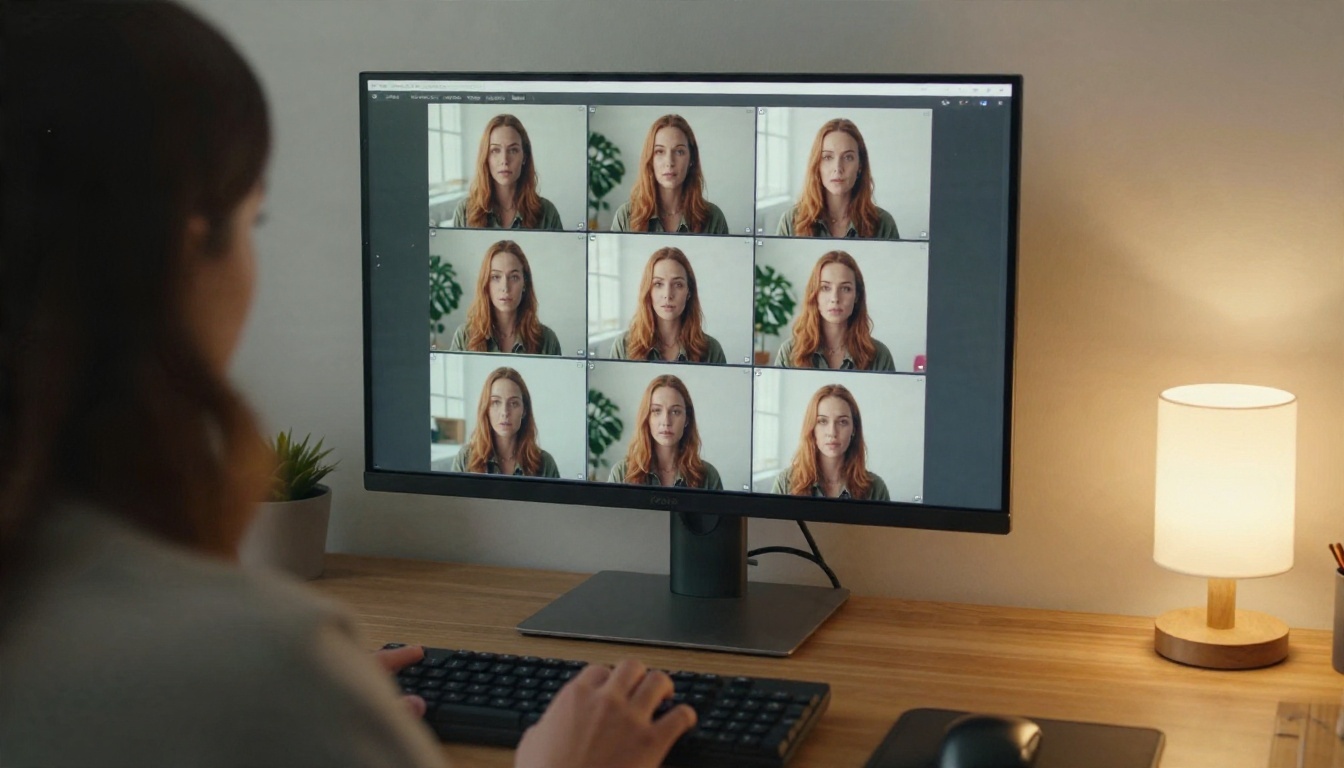
- Review the face. Compare the output with your sheet. Check hair length, jacket colour and freckles.
- Fix and repeat. Add or swap a reference image rather than writing a longer description. Lock a seed once a take is right.
- Chain the shots. Use the last frame of the approved clip as the first frame of the next one in a first and last frame run.
💡 For quick tests, switch to Seedance 2.5 Lite with your hero image as the input, then move to the full model for the final take.
Prompt Patterns That Keep Identity
Prompts still matter, but their job changes when you use references: they direct the scene, not the face.
Lock a Short Description
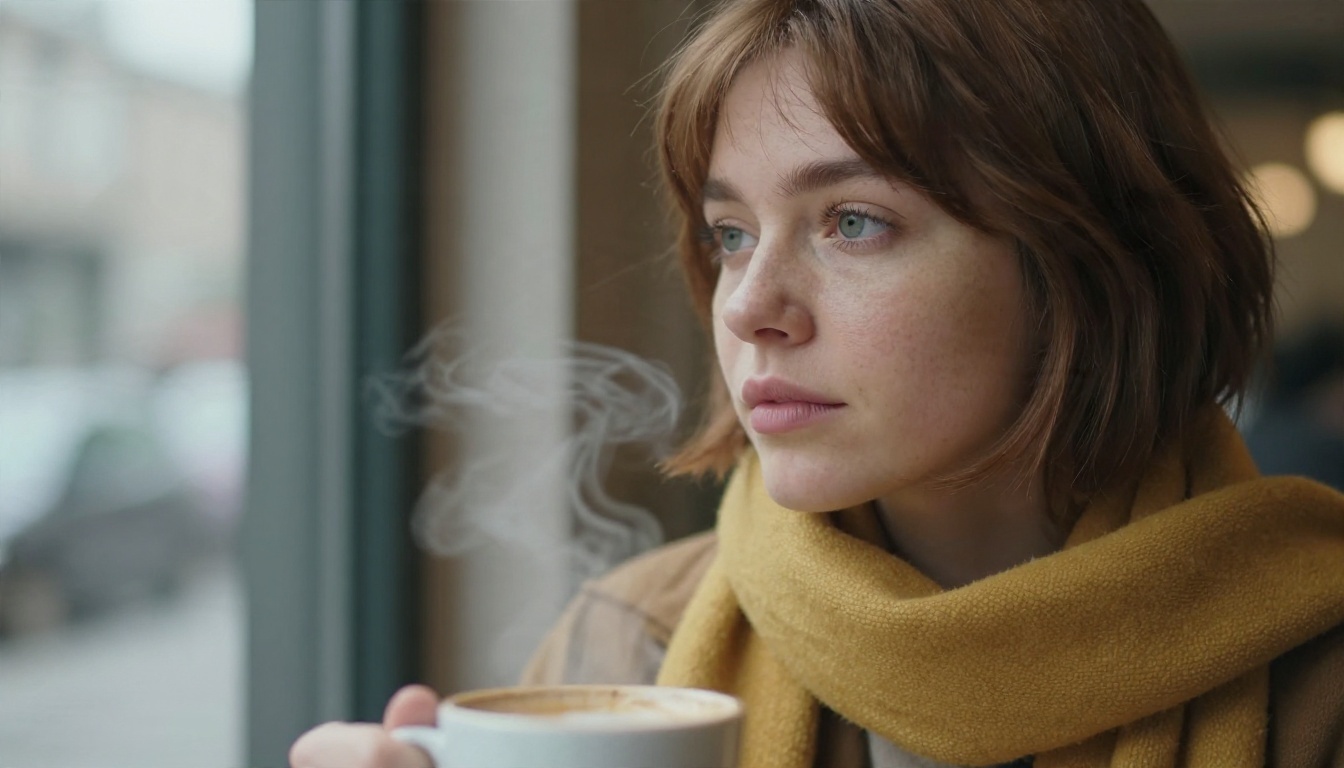
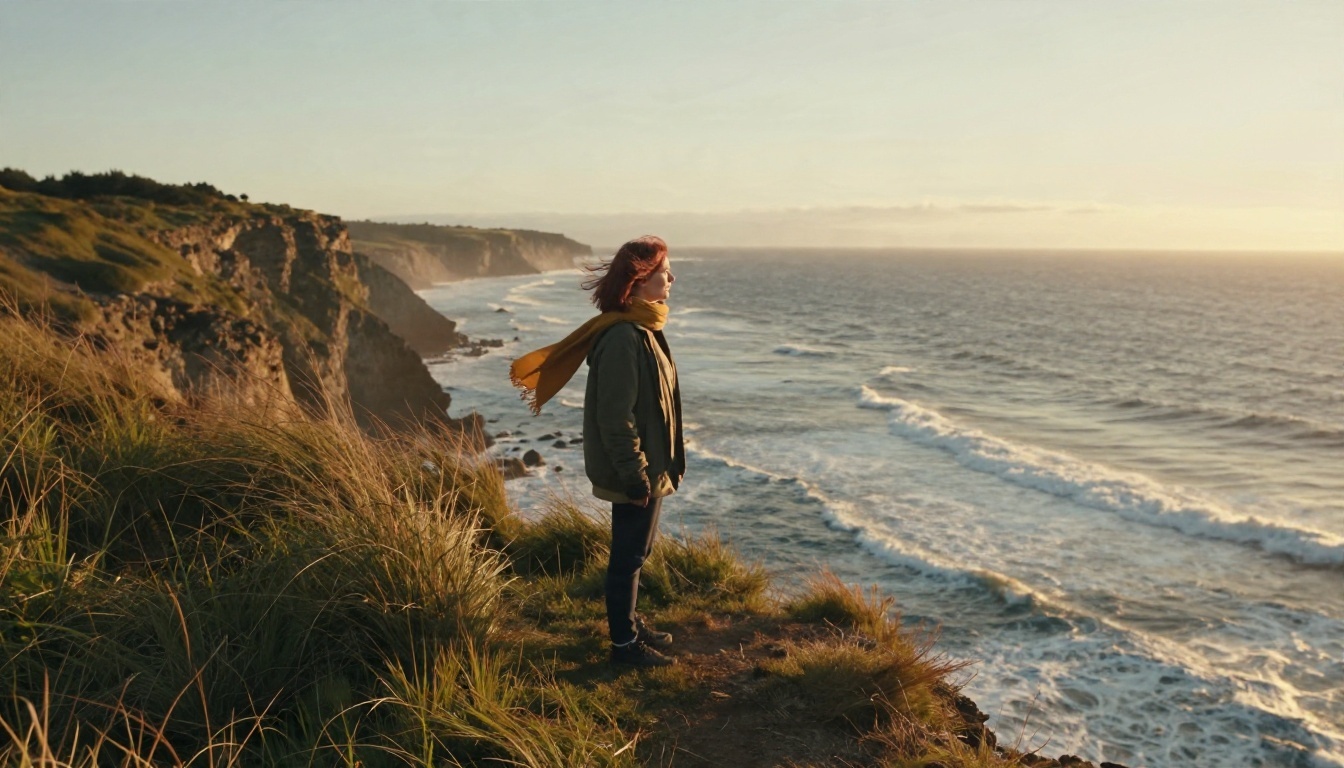
Write one sentence that never changes, then paste it into every prompt: "auburn bob, light freckles, olive field jacket, mustard wool scarf." Consistent wording gives the model the same text signal each time.
Describe Motion, Not Appearance
Spend your words on verbs, camera and light. "Slow push in as she lifts the umbrella, wet street, amber reflections" says far more than another paragraph about her cheekbones.
Three Common Mistakes
- Changing the wardrobe in the prompt. A new outfit instruction competes with your references.
- Mixing lighting styles in the sheet. Hard noon sun in one image and candlelight in another confuses the identity signal.
- Over long clips. Ten seconds of walking invites drift. Cut to a new angle every three to five seconds.
Make Your First Consistent Character
You now have the whole recipe: a clean character sheet, one reference driven model, a fixed seed once a take works, and short shots chained with first and last frames. The fastest way to learn what your favourite model can hold is to run the test yourself. Pick a face, generate four reference angles, and send them through Seedance 2.5 for a three shot scene. Draft with Seedance 2.5 Lite, compare against Kling v3 Omni Video or Veo 3.1, and keep whichever keeps your character's face intact.
Create your own character on PicassoIA today, and browse every video and image model at picassoia.com/en/all-models.