Adobe Firefly has a free tier, but there is a meter running behind every image you make. You type a prompt, press generate, and a small number of credits disappears. Do that a few times and the free allowance is gone for the month. If you landed here wondering how far free access really goes, which prompts are worth spending those credits on, and what to use when the credits run dry, this article answers all three without the marketing gloss.
I will be direct about one thing from the start: Adobe Firefly is not on PicassoIA. It lives inside Adobe's own apps and website. What PicassoIA offers is a set of image generators that cover the same jobs (portraits, product shots, landscapes, text on images), and I will point you to four of them with links further down. First, let's look at what Firefly gives you.
What Adobe Firefly Actually Offers
Firefly is Adobe's generative AI family. It powers text to image, generative fill and other features across the Adobe ecosystem, and it also runs as a standalone web app. For most people the appeal is simple: you can use it in the same place where you already edit photos and design layouts.
The Free Plan in Plain Terms
Adobe states that Firefly has a free plan with limited generations, plus several paid tiers above it. That is the verified part. The part that is harder to pin down is the exact number of free generations. Third-party sites have quoted figures such as 25 credits per month, an older number that dates back to the 2023 launch, while Adobe's own plans page speaks only about "limited" free use without a fixed count in the text I could confirm.
💡 Tip: Treat any exact free allowance you read online (including mine) as a rough guide. Open the credit counter inside your own Firefly account to see the real number today.
Two details from Adobe's credit documentation are worth remembering. First, on a free plan, credits are allocated the first time you use a Firefly feature, not on the day you sign up. Second, those credits expire one month after allocation, so unused credits do not roll over.
Credits and What They Cost
Not every action costs the same. A standard image generation consumes fewer credits than a premium model or a video clip. Adobe's credit FAQ lists Firefly Image 5 at 10 credits per generation. If your free pool is around 25 credits, that is only two or three images from the newest model, before you have even refined a prompt.

| Item | What to expect |
|---|
| Free plan | Exists, with limited generations |
| Credit allocation | Starts when you first use a Firefly feature |
| Credit expiry | One month after allocation on free plans |
| Firefly Image 5 cost | About 10 credits per generation |
| Unlimited promotions | Offered on some paid plans, not on the free tier |
The takeaway: free Firefly is a good place to test the interface and see whether the style suits you. It is a poor place to iterate on a project that needs thirty variations.
Free Ways to Try It
Free does not have to mean one session and done. There are a few legitimate ways to stretch your time with Firefly before you spend money.
Use the Web App First
The web app is the simplest entry point. You get the prompt box, aspect ratio controls and style options without installing anything. For quick tests of a prompt idea, it is the lowest friction route.
Watch for Promotions
Adobe has run time-limited offers that give paid subscribers unlimited generations on certain image models, Firefly Image Model 5 among them. These promotions come and go, and they apply to paid plans rather than the free tier. If you were already considering a subscription, check the current promotions page inside your account before you pay, because timing matters.
Stretch Your Credits
A few habits make 25 credits feel closer to 60:
- Write the prompt in a notes app first. Refine the wording before you spend a credit on it.
- Start with a cheaper model. Test composition on a standard model, then switch to the premium one only for the final render.
- Change one thing at a time. If you alter subject, lighting and lens in the same attempt, you will never know which change helped.
- Save good prompts. A prompt that worked once will work again as a template.

Prompts That Actually Work
Prompts are where free credits are won or lost. A vague prompt produces a vague image, and then you pay again to fix it. A good prompt names the subject, the setting, the light, the lens and the texture in one pass. The structure below works in Firefly and in almost every other text to image model.
A Portrait Prompt
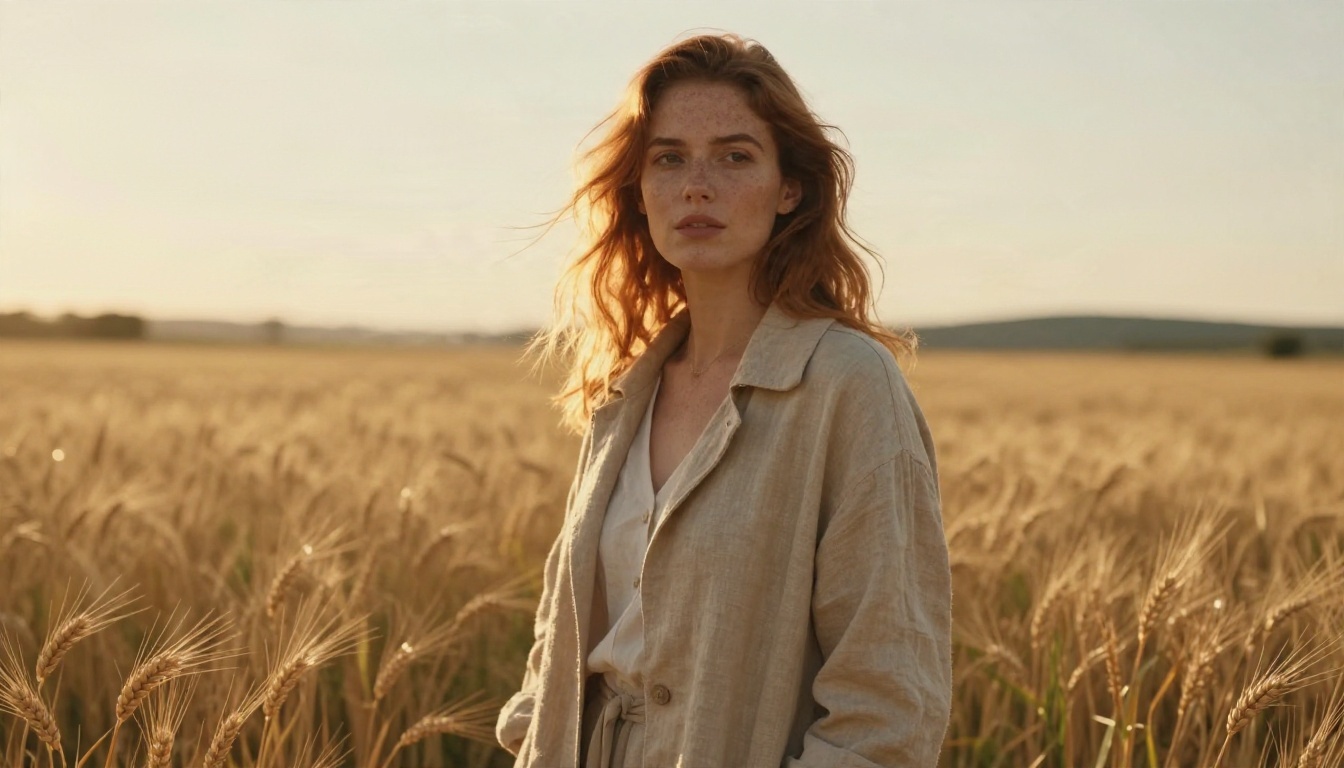
A woman with auburn hair in a long ochre linen coat standing in a wheat field at golden hour, low camera angle, warm backlight on her hair, 85mm lens, shallow depth of field, visible linen texture, natural skin with freckles, soft film grain.
Notice what the prompt avoids. It does not say "beautiful" or "stunning" or "high quality", words that tell the model nothing. It says where the light comes from, which lens to imitate and what the fabric looks like.
A Product Prompt
A faceted glass perfume bottle with pale amber liquid resting on a rough travertine slab, one sprig of dried lavender beside it, soft window light from the right, small water droplets on the glass, 100mm macro lens, muted cream backdrop.
Product prompts reward restraint. One object, one prop, one light source. When you add a fourth or fifth element, the model starts inventing details you did not ask for.

A Landscape Prompt
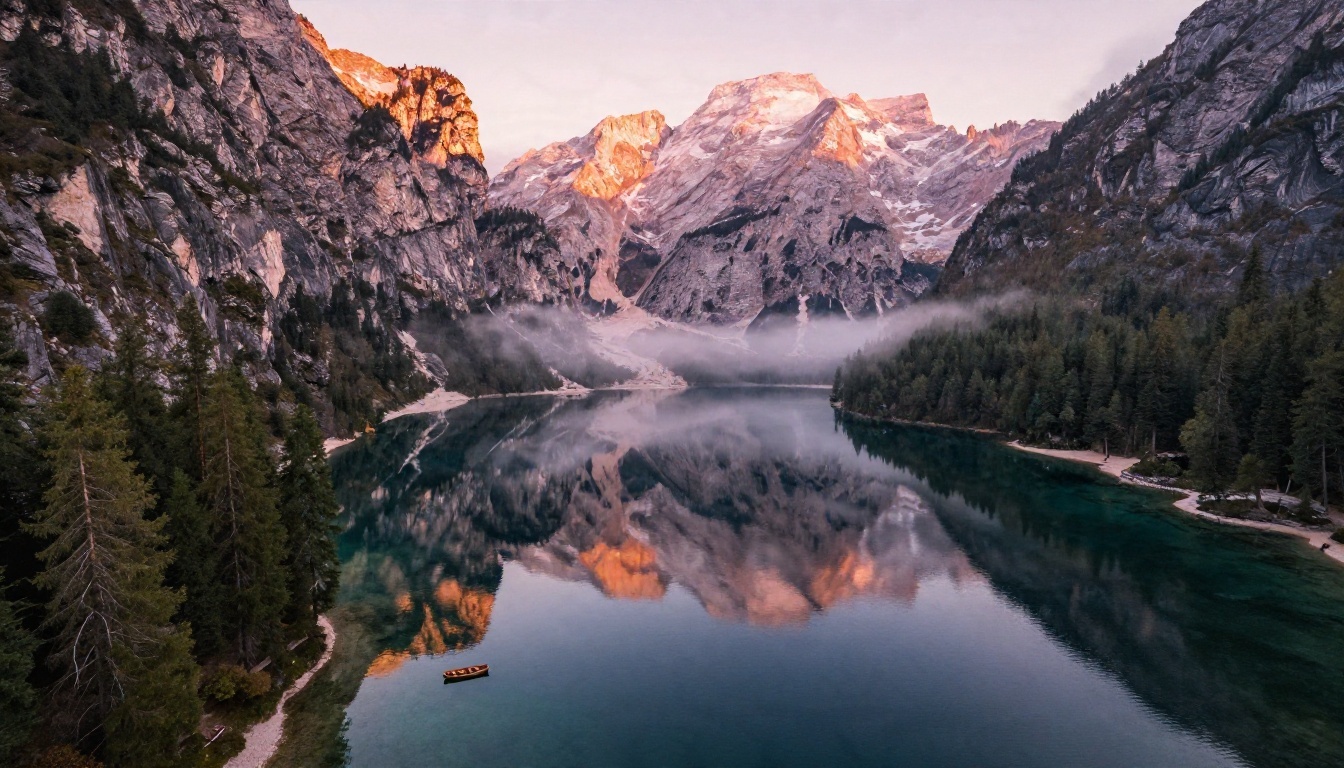
Aerial view of a still alpine lake at sunrise, pine forest and snow-dusted peaks, low mist on the water, a tiny wooden rowboat near the shore, pink and gold light on the ridges, 24mm lens, crisp rock texture.
Landscapes are forgiving, which makes them ideal for testing a new generator. If a model cannot handle mist, water reflections and rock texture, it will struggle elsewhere.
A Formula You Can Reuse
| Slot | What to write | Example |
|---|
| Subject | Who or what, doing what | A baker dusting flour over dough |
| Setting | Place and time | Narrow village kitchen, early morning |
| Light | Direction and quality | Soft window light from the left |
| Lens | Focal length and aperture | 50mm f/1.8, shallow depth of field |
| Texture | Surfaces you want visible | Flour dust, worn wood, linen apron |
| Mood | One feeling, not five | Calm and unhurried |
💡 Tip: If a result looks plastic, add specific texture words such as "visible pores", "fabric weave" or "brushed metal". If it looks flat, change the light direction before you change anything else.
Where Firefly Falls Short
Firefly has real strengths, mostly around its place in the Adobe workflow. Still, some limits show up quickly once you use it for more than a casual test.
- The credit meter. Every generation costs something, and the premium model costs the most. Heavy iteration gets expensive.
- One ecosystem. If your work does not touch Adobe apps, you carry the weight of an ecosystem you may not need.
- Fewer model choices. Different models excel at different things: one handles text on signs, another handles skin, another handles editing. A single model family cannot match all of them.
- Monthly expiry. Unused free credits vanish, so the allowance rewards a short burst of activity rather than steady practice.
None of this makes Firefly a bad tool. It makes it a narrow one. When your work calls for volume, variety or specific strengths, a multi-model platform makes more sense.

Alternatives on PicassoIA
Firefly is not on PicassoIA yet, but for similar results today, these four image generators are. Each one suits a slightly different job, so pick based on what you make most often.
Seedream 4.5 for Sharp Detail
Seedream 4.5 produces detailed images up to 4K from a text prompt. It handles skin, fabric and fine surface texture well, which makes it a natural fit for the portrait and product prompts above.
Nano Banana Pro for Flexible Edits
Nano Banana Pro generates 4K images and follows long, layered instructions closely. It suits scenes where several elements must appear in exact positions.
Imagen 4 for Photorealism
Imagen 4 leans toward natural, photographic output. Landscapes, food and interiors tend to come out with believable light and depth. If you want a faster, cheaper draft pass first, there is also Imagen 4 Fast.
Ideogram v4 Quality for Text in Images
Ideogram v4 Quality is the one to try when you need readable words inside the picture, such as a poster headline or a storefront sign. Many generators still garble lettering, and this one is built to avoid that.
💡 Tip: Run the same prompt through two models and compare. A thirty second test tells you more than any spec sheet.
Similar Results on PicassoIA
For the closest match to Firefly's polished photographic look, start with Seedream 4.5. The steps below take about two minutes.
Steps
- Open the Seedream 4.5 page on PicassoIA.
- Paste one of the prompts from this article into the prompt box.
- Set the aspect ratio to 16:9 for landscapes and banners, or 3:4 for portraits.
- Generate the image and look at the lighting first, then the textures.
- Change a single detail (light direction, lens, prop) and generate again.
- When the composition works, use Super Resolution models to upscale the final pick.
Parameter Tips
- Be specific about light. "Soft window light from the right" beats "good lighting" every time.
- Name the lens. "85mm f/1.4" gives you background blur; "24mm f/5.6" gives you wide, sharp scenes.
- Keep prompts under 80 words. Past that, the model starts ignoring details at the end.
- Skip empty praise words. "Stunning", "masterpiece" and "ultra quality" add nothing a lens and a light source do not already say.
If a prompt demands text inside the image, switch to Ideogram v4 Quality. If you want to edit an existing photo instead of starting from scratch, Nano Banana handles instruction based edits well.

A Quick Decision Table
Still unsure where to spend your time? This table sums up who should pick what.
| If you... | Choose |
|---|
| Already live inside Adobe apps and need a few quick fills | Adobe Firefly free plan |
| Want to test one prompt idea without spending anything | Adobe Firefly free plan |
| Need dozens of variations for a project | A multi-model platform such as PicassoIA |
| Care most about skin and fabric detail | Seedream 4.5 |
| Want natural photographic light | Imagen 4 |
| Need lettering inside the image | Ideogram v4 Quality |
| Want to edit and combine existing photos | Nano Banana Pro |
Start Creating Your Own Images
The best way to judge any generator is to feed it your own idea. Take one of the prompts above, change the subject to something from your life, and run it. A bakery you love, your street at dusk, a product you are about to sell. Then run it again with the light moved to the other side of the frame and compare the two.
Picasso IA puts dozens of image models in one place, so you can try Seedream 4.5, Nano Banana Pro, Imagen 4 and Ideogram v4 Quality without opening four different accounts. Pick a prompt, generate your first image today, and keep the ones that make you want to dream a little bigger. To browse every model available, visit picassoia.com/en/all-models.