You type a prompt, wait ten seconds, and the picture is perfect. Then you spot it: a semi-transparent logo stamped across the bottom corner, or a pop-up asking for an email, a card, and a subscription before you can download. If that sounds familiar, you are not alone. Most people searching for a free AI image generator without watermark are tired of the same bait: a "free" tool that quietly ruins the file you just made.
This article shows what a clean, honest free generator looks like, where the hidden limits hide, how "uncensored" should be read (hint: it does not mean anything goes), and which models on PicassoIA give you sharp, photorealistic results. You also get six prompt examples you can copy straight into a box and run.
💡 Quick answer: the best free setup is a generator that exports full-size files without a stamp, lets you try it before any account wall, and does not refuse every swimwear, fashion or glamour prompt. Seedream 4.5 and PicassoIA Image Editor Pro are the two places to start.
What "Without Watermark" Really Means
A watermark is only the most visible way a free tool protects its business. Once you know the other ways, you can spot a bad deal in seconds.
The Logo in the Corner
The obvious one. A text mark, a brand icon, or a faint diagonal pattern is burned into the pixels. You cannot crop it out cleanly, and if you try to remove it with another tool, you lose detail and often break the terms of use. A clean generator hands you the raw output, nothing added.
Limits That Act Like Watermarks
Some tools skip the logo but get you another way. Watch for these:
- Tiny resolution. A 512 pixel file looks fine on a phone and falls apart when printed or posted on a large screen.
- Blurred previews. The image is sharp until you click download, then you hit a paywall.
- Daily caps. Two or three images a day is a demo, not a generator.
- Slow queues. Free users wait twenty minutes while paying users skip the line.
- Locked licenses. The file is clean, but you cannot use it for anything beyond personal viewing.
💡 Fast test: generate one image, open it at 100 percent zoom, and check the corners and the pixel dimensions. If the corners are clean and the size is at least 1024 pixels on the long side, the tool passes the first check.
A Simple Checklist
| Check | What good looks like | Red flag |
|---|
| Corners and edges | Nothing added to the file | Logo, stamp, or pattern |
| Resolution | 1K to 4K export | 512 px or upscale paywall |
| Daily limit | Enough tries to refine a prompt | 2 to 3 images per day |
| Speed | Seconds to under a minute | Long free queue |
| License | Clear permission for personal and commercial work | Vague or "personal use only" |
No Sign Up: What You Actually Get
"No sign up" is a great promise, and it is also the easiest one to bend. Here is how to read it.
Instant Access Has a Price
When a tool lets you generate with no account, it usually cannot save your history, cannot remember your settings, and cannot protect your work. Close the tab and your best image is gone. That is fine for a single quick test. It is painful when you are iterating on a project over three evenings.
The trade-off is simple: zero friction up front, zero memory afterward. Download every image you like the moment it finishes.
When an Account Is Worth It
A free account pays off when it gives you something concrete: a saved library, repeatable prompts, higher resolution, access to editing tools, or a larger set of models. What you should refuse is an account that asks for a credit card to "verify" a free plan, or one that adds a watermark until you upgrade.
💡 Rule of thumb: an email address is a fair price for a saved library. A payment card for a "free" trial is not.
Uncensored Options That Stay Tasteful
This is the part of the search that gets misunderstood. When people type "uncensored" next to "AI image generator," they usually mean one of two things: either they want a model that does not refuse harmless prompts, or they want explicit content. Those are very different requests.
What Uncensored Should Mean
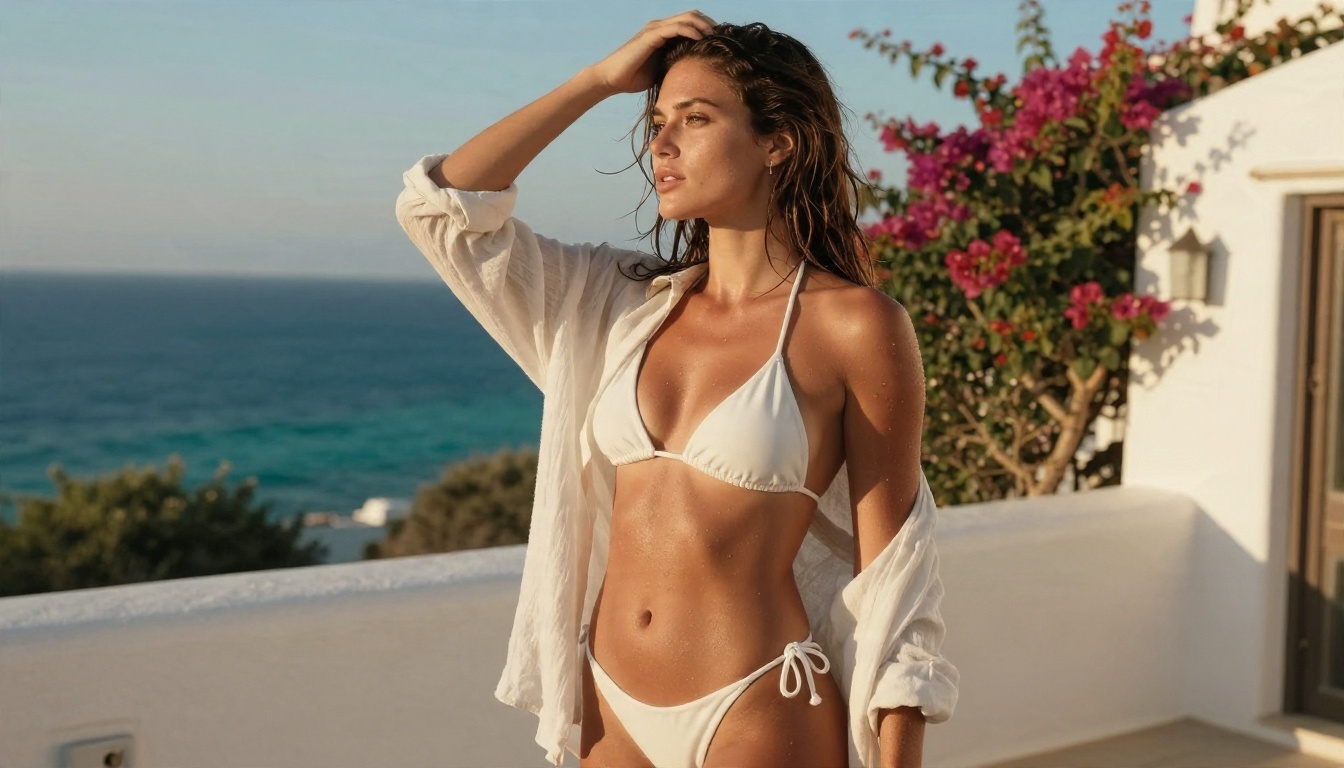
Over-cautious filters are a real annoyance. A prompt for a swimsuit shoot, a boudoir-style portrait, a fashion editorial with bare shoulders, or an artistic figure study gets blocked by tools that treat any skin as a threat. A good generator separates suggestive and beautiful from explicit, and lets the first category through.
That is the useful version of "uncensored": glamour, bikinis, lingerie-style fashion, sensual lighting, and artistic mood, rendered with realistic skin and light. You get the photo you pictured instead of a refusal message.
Where the Hard Lines Sit
Every serious platform still draws lines, and so should you. Pornographic output, content involving minors, and realistic images of real people without their consent are off the table. That is not a limitation worth fighting. It keeps your work publishable, your accounts safe, and the tools available for everyone.
Everything in this article, including the examples, sticks to non-explicit, aesthetic content: the kind of image you could post on a fashion blog or a portfolio.
Best Free Picks on PicassoIA
PicassoIA is built around a large model library, so you can try several engines on the same prompt and keep the one that looks best. For clean, photorealistic, glamour-friendly output, start in this order.
Seedream 4.5 First
Seedream 4.5 is the strongest starting point for this topic. It handles skin texture, fabric, and natural light with a photographic feel, supports high resolution output, and is flexible with fashion, swimwear, and glamour prompts that over-cautious tools reject. Files come out clean, with no stamp added.
Use it when you want a finished image that looks like it was shot on a real camera.
PicassoIA Image Editor Pro
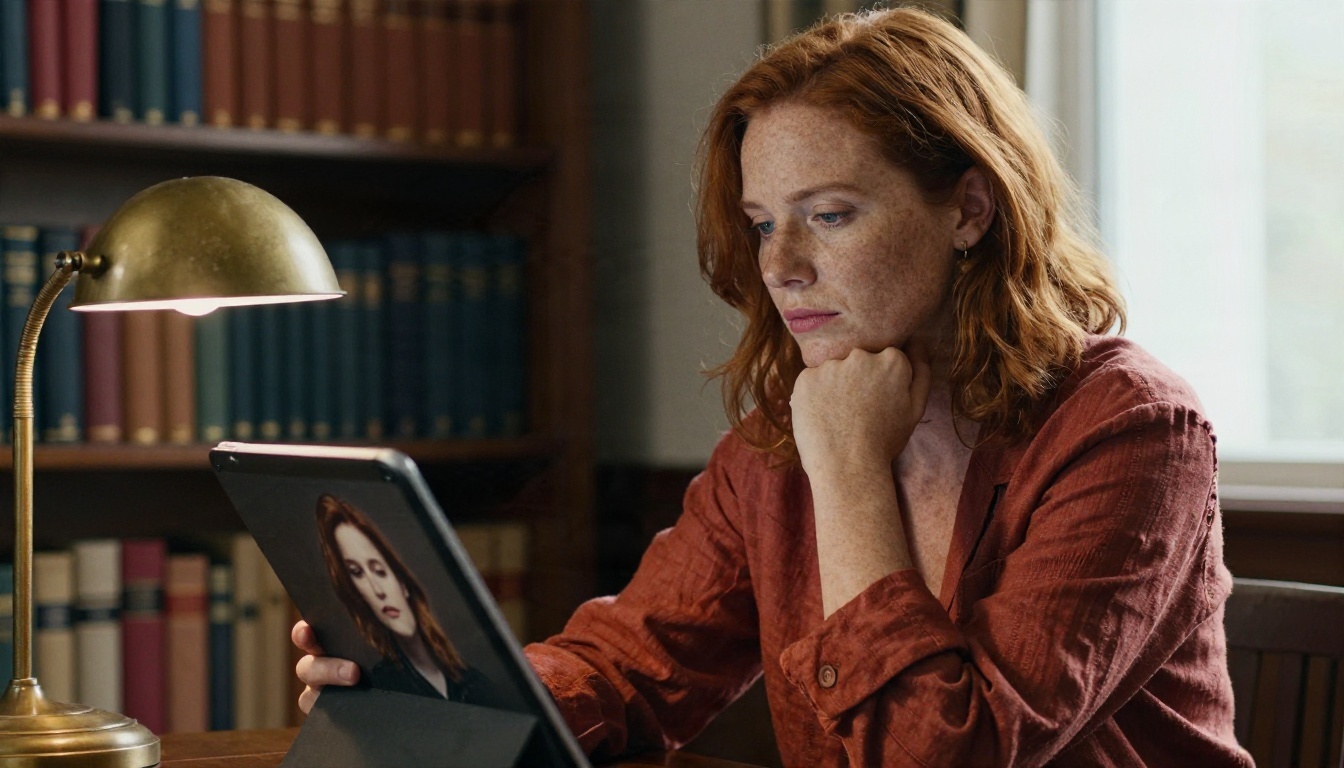
PicassoIA Image Editor Pro is the one to pick when volume matters. It offers unlimited generations, so you can run twenty variations of a prompt without watching a counter. It also works as an editor: change an outfit, adjust a background, fix a detail, or restyle a photo you already have.
That unlimited part is the real value for anyone who has been burned by daily caps. Refining a prompt takes five to fifteen tries, and a tool that charges for each one punishes exactly the people who are learning.
Fast Alternatives Worth Trying
Once you have your look, these models are good for speed and variety:
- Nano Banana Pro: strong prompt following and 4K output, very good for detailed scenes and edits.
- Nano Banana: quick to generate and handy for editing an existing photo with a text instruction.
- Z Image Turbo: sharp images in seconds, ideal for rapid drafting.
- Qwen Image 3 Pro: photorealistic results with good scene logic and readable details.
- Flux 2 Klein 4B Base: a lightweight base model that is useful when you want a fast, flexible starting point.
Side by Side
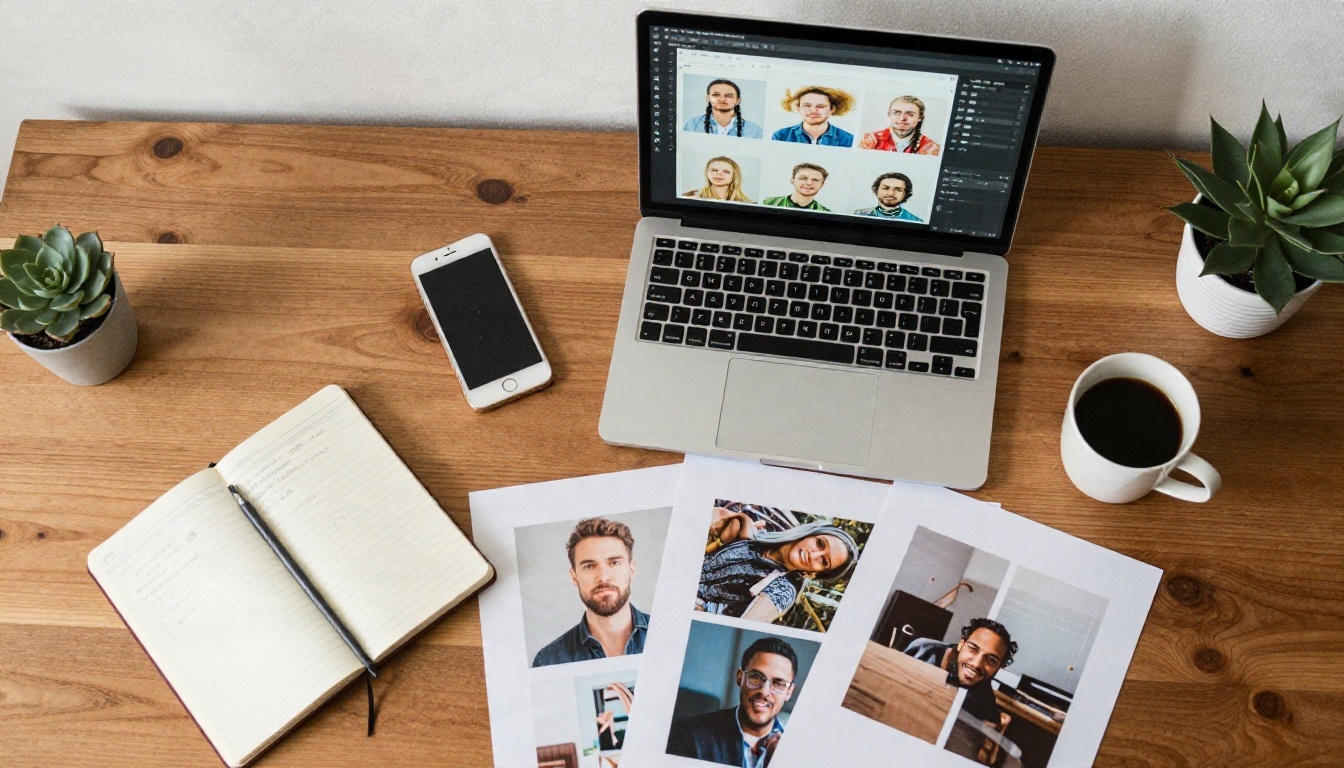
How to Use Seedream 4.5 on PicassoIA
Here is the fastest route from blank box to a finished, clean image.
Step by Step
- Open the Seedream 4.5 page.
- Click into the prompt field and write one clear sentence about the subject, then add the setting, the light, and the camera feel.
- Choose your aspect ratio. Use 16:9 for banners and blog headers, 4:5 or 3:4 for portraits, and 1:1 for social posts.
- Pick the highest resolution your plan allows. Higher resolution gives you room to crop later.
- Generate, then look at the result at full size before deciding what to change.
- Change one thing at a time (the light, the lens, the outfit) and generate again.
- Download the file you like. It arrives without a stamp.
Parameter Tips That Help
- Name the light. "Soft window light from the left" beats "good lighting" every time.
- Name the lens. Phrases like "85mm f/1.8, shallow depth of field" push the result toward a portrait photographer's look.
- Describe texture. Skin pores, linen weave, wet stone, and brushed metal all make the picture feel real.
- Keep prompts focused. One subject, one setting, one mood. Piling in ten ideas gives you a muddy result.
- Fix with the editor. If 90 percent of an image is right, send it to PicassoIA Image Editor Pro and adjust the last 10 percent instead of starting over.
Prompt Examples You Can Copy
These are written for photorealistic, non-explicit results. Swap the details for your own idea.
Glamour by the Sea
"A woman in her mid twenties with sun-kissed skin and damp hair, wearing a white bikini and an open linen shirt, standing on a whitewashed terrace at golden hour, looking over her shoulder. Warm low sun from behind with rim light on her hair, turquoise sea in the background. 85mm f/1.8, visible skin texture, Kodak Portra 400 grain."
Why it works: a clear subject, a clear light direction, and a film stock that sets the color palette.
Evening Fashion Editorial
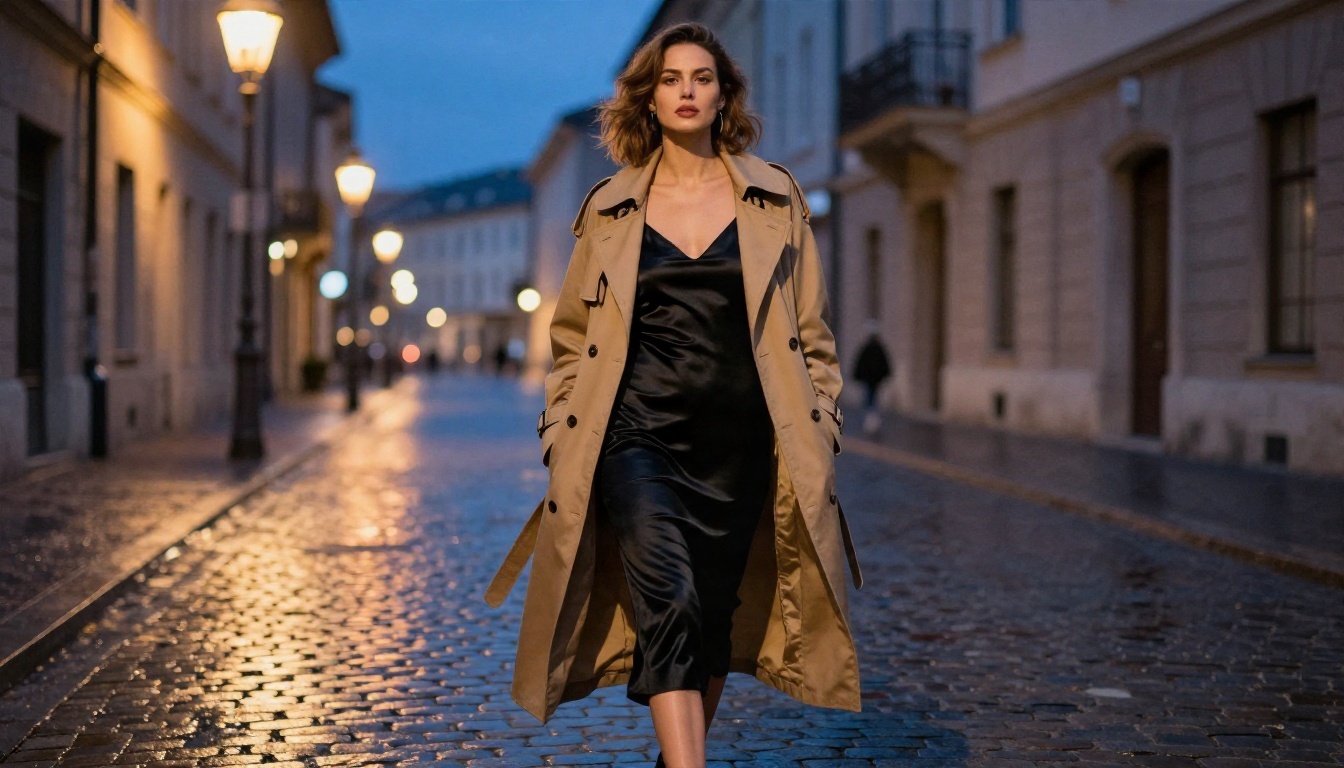
"An elegant woman in a black satin slip dress under an open camel trench coat, walking across a cobblestone plaza at dusk. Warm streetlamp glow against a deep blue sky, wet stones reflecting light. 85mm f/1.4, shallow depth of field, fine fabric sheen."
This is the kind of prompt that over-careful filters sometimes refuse, even though it is ordinary magazine fashion.
Studio Headshot
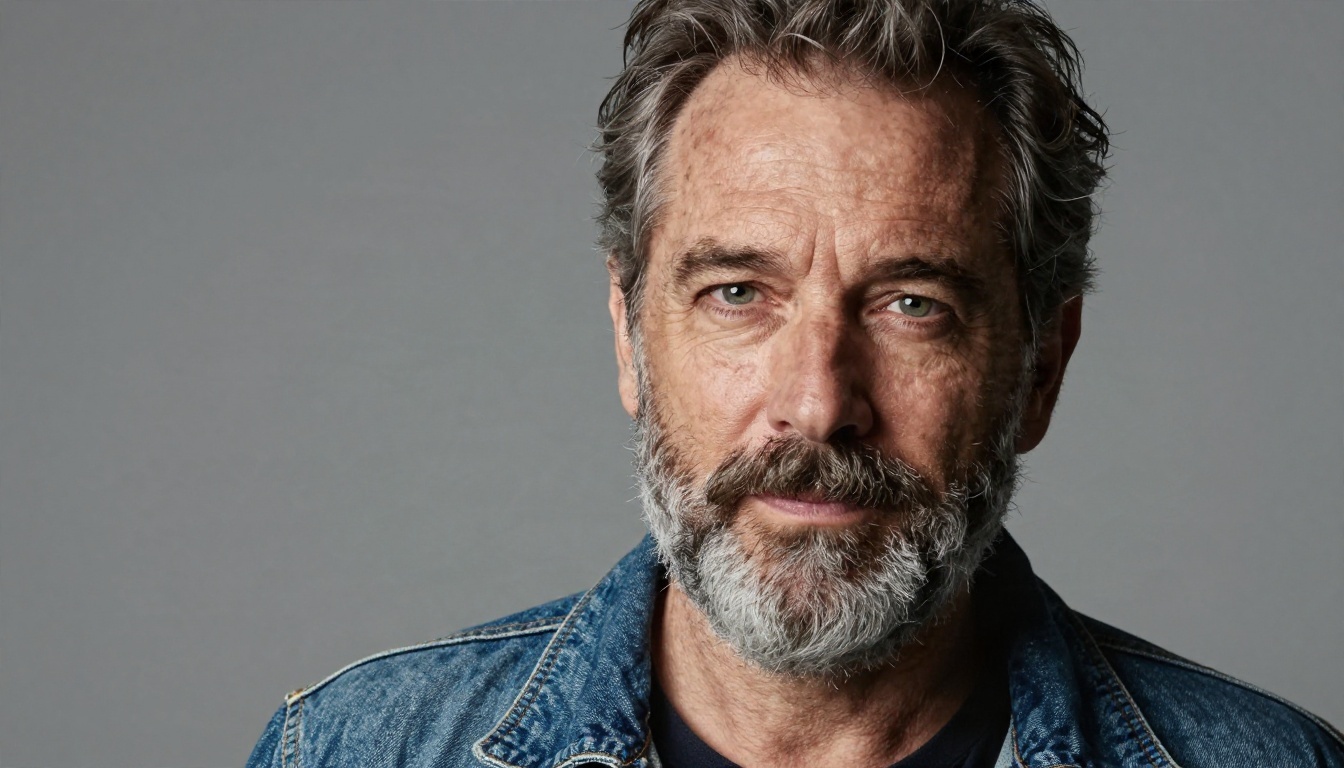
"Close-up portrait of a bearded man in his forties with weathered skin and grey streaks in his hair, denim jacket, neutral grey backdrop. Soft key light from the left with gentle fill, catchlights in the eyes, 105mm f/2, every pore resolved."
Lifestyle Scene
"Two friends laughing on a grey sofa while looking at a phone, cozy living room, warm lamp light mixed with soft daylight, 35mm f/2, natural skin texture, candid documentary feel."

Product and Poster Mockups
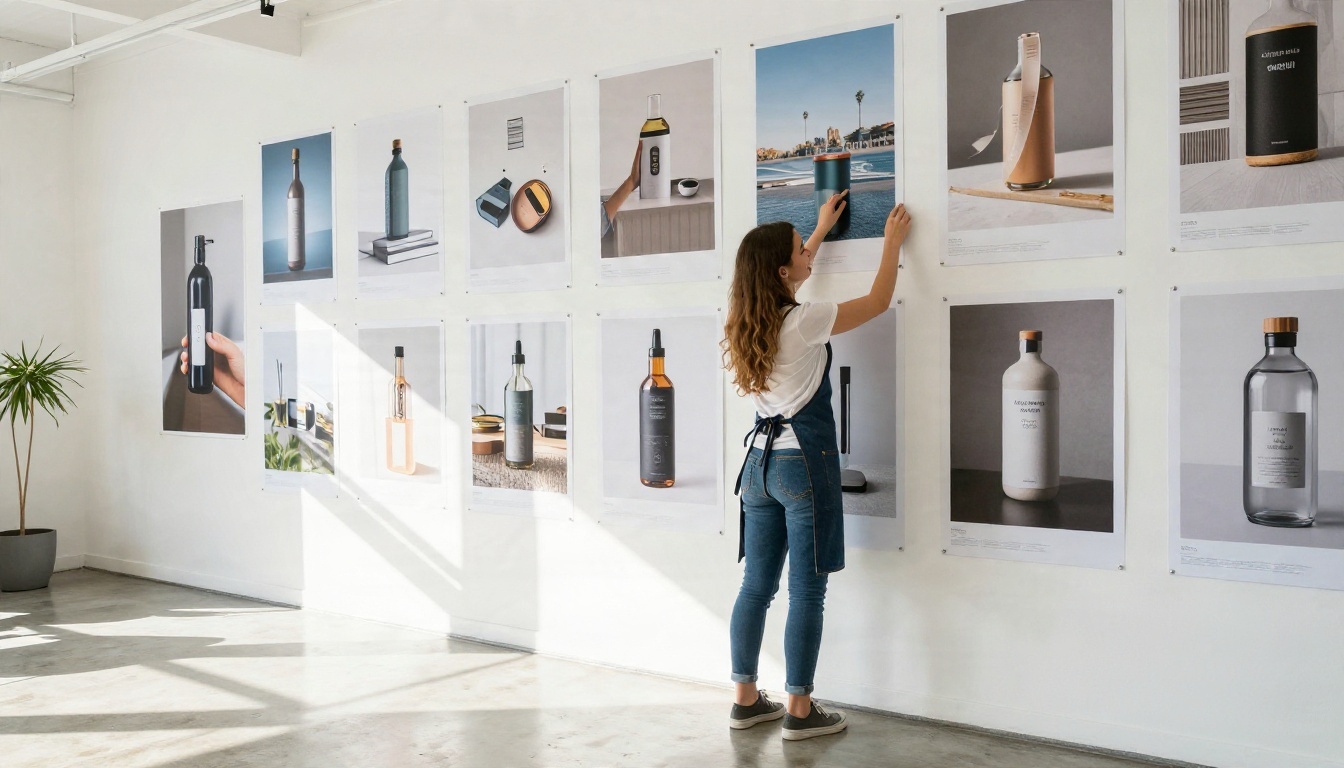
"A young designer taping large printed photographic posters to a white wall in a bright co-working space, diffused skylight, polished concrete floor, 28mm f/2.8, realistic paper texture."
Clean, watermark-free files are what make this possible. A stamped image on a printed poster is useless.
Mistakes That Waste Your Free Tries
Even with unlimited generations, bad habits cost you time.
Writing Vague Prompts
"A pretty woman on a beach" gives you a generic stock photo. Add age range, outfit, time of day, light direction, lens, and mood. Specific beats long.
Skipping the Resolution Check
A beautiful image at low resolution is a dead end. Always generate at the largest size available, then downscale if you need to. You cannot add real detail afterward without an upscaler.
Changing Everything at Once
If you edit the outfit, the background, and the lighting in one pass and the result is worse, you will not know which change caused it. Move one variable per generation.
Ignoring the Terms
Clean files do not automatically mean you can use them anywhere. Check the license before you sell prints, run ads, or publish a book cover. A thirty-second read saves a legal headache.
Chasing Explicit Content
Searching for tools that promise "no limits at all" usually leads to sketchy sites that add malware, harvest your data, or watermark everything after you pay. Stick to platforms with clear terms, real support, and consistent quality.
💡 Smart habit: keep a text file of your best prompts. Reusing a proven prompt with a new subject is faster than writing from scratch.
Make Your First Image Today
You do not need a subscription, a stack of accounts, or a tolerance for corner logos to make a great picture. You need a clean generator, a clear prompt, and a handful of tries to dial in the look.
Open Seedream 4.5 for photoreal glamour and fashion, then move to PicassoIA Image Editor Pro when you want unlimited tries and quick edits. Copy one of the prompts above, change the subject to your own idea, and see what comes back in seconds.
Want to try more engines on the same prompt? Browse the full library at picassoia.com/en/all-models and pick the one that gives your idea the best light.


