Photoshop has held a grip on professional photo editing for over 30 years. Its reputation as the gold standard is real, but so is its cost: $22.99 per month, a steep training time of weeks before producing clean results, and a workflow built for specialists. For most people, that is a barrier that simply is not worth crossing anymore.
AI photo editing has changed the calculation entirely. Free tools now handle background removal, photo restoration, image upscaling, object removal, and portrait retouching with the kind of precision that used to require a professional retoucher and hundreds of dollars in software. The free AI photo editor that rivals Photoshop is not one tool. It is an ecosystem of specialized AI models, each performing its specific task better than Photoshop's generalist approach.
This article covers where AI photo editing wins, where it falls short, and exactly which models to use for each task.
What Photoshop Charges For, AI Now Does Free
The Cost Problem Most Creators Face
Photoshop is not a one-time purchase. Adobe charges $22.99 per month for Photoshop alone, or $54.99 per month for the full Creative Cloud suite. Over two years, that adds up to $550 to $1,320 in software costs, before accounting for the time investment required to reach basic competency.
The training time problem is just as real as the cost. Photoshop's interface was designed for expert retouchers. Its layer mask system, pen tool selections, frequency separation workflow, and Camera Raw integration require concentrated practice before producing clean results. Most users who attempt to remove a background without prior experience produce a ragged, rough-edged cutout that looks worse than the original photo.
💡 Consider this: If a free AI tool does in 8 seconds what takes 25 minutes in Photoshop, you are not just saving money. You are getting hours of your week back.
What "Free" Actually Covers
The word "free" means different things across different tools. The best AI photo editors offer:
- Unlimited basic operations (background removal, standard upscaling)
- Generous monthly quotas on higher-powered models
- Full-resolution exports without watermarks on core tools
The most capable free AI platforms stack multiple specialized models under one interface. A single workflow, from background removal to upscaling to retouching, happens in one place without switching between apps or paying per operation.
The 5 Tasks Where AI Beats Photoshop
Background Removal in One Click
Photoshop introduced its automatic background removal button in 2018. It was a reasonable start, but it still stumbles on complex edges: flyaway hair, transparent fabric, fur against busy backgrounds, and subjects photographed in front of similarly-colored scenes. In most real-world cases, you end up with a rough mask that needs 10 to 20 minutes of manual refinement.
AI background removal in 2027 operates at a completely different level. The Bria Remove Background model processes images with a semantic analysis of what constitutes a subject versus a background. Fine hair strands that Photoshop blurs or clips are preserved intact. Transparent glass, reflective metal, and semi-opaque fabric all come through with accurate edge handling.
The result is a clean PNG with a transparent background in about 8 seconds. No manual refinement needed for the vast majority of photos.
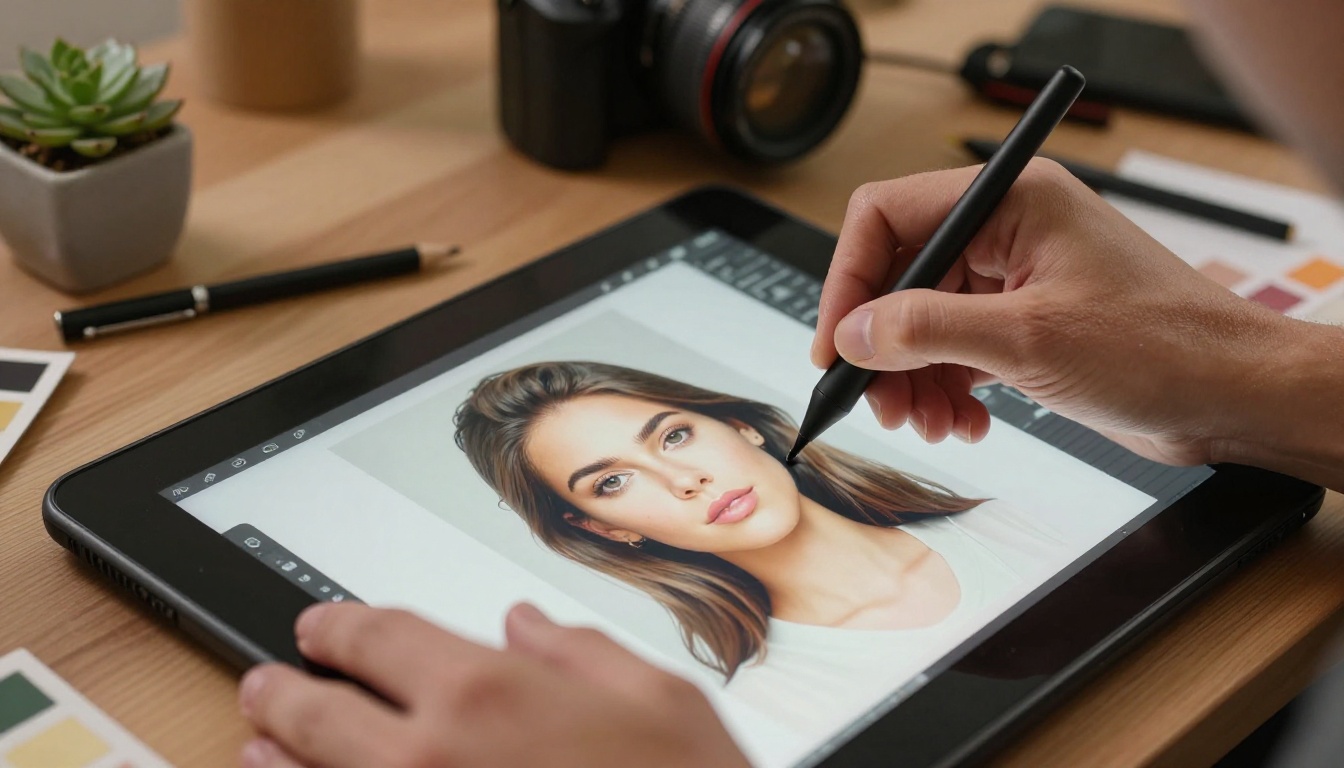
Photo Restoration Without the Manual Work
Restoring a damaged, faded, or grainy old photograph in Photoshop involves a multi-step manual workflow:
- Remove dust and scratches with Spot Healing Brush
- Fix color fading with Curves and Hue/Saturation adjustments
- Reduce grain with the Reduce Noise filter
- Restore lost sharpness with Smart Sharpen
- Correct exposure zone by zone with Dodge and Burn
That is a 30 to 60 minute process for a skilled operator. AI restoration models analyze the entire image holistically and apply all of those corrections simultaneously in under 15 seconds. Color, contrast, sharpness, noise, and damage are all addressed in a single pass.

Upscaling Without Losing Detail
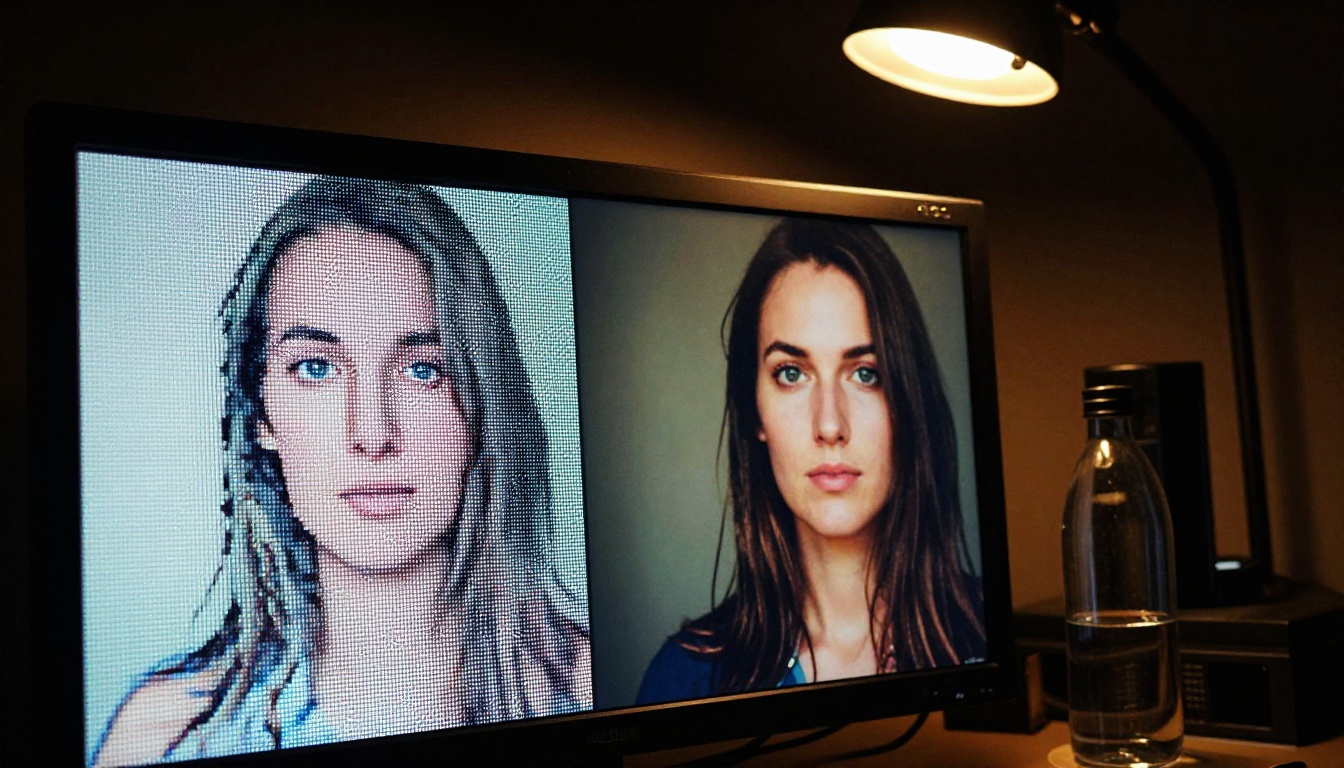
Photoshop's bicubic upsampling algorithm introduces blur when you scale an image beyond its native resolution. Even Preserve Details 2.0, Photoshop's most powerful upscaling mode, produces noticeably soft edges and muted texture at large scales.
AI upscaling models take a fundamentally different approach. Rather than interpolating between existing pixels, they use neural networks trained on millions of high-resolution images to predict and reconstruct detail that was never present in the original. The output is not just sharper. It contains plausible, realistic texture that makes a 720p photo look like it was captured in 4K.
| Upscaling Method | Max Scale | Detail Quality | Speed |
|---|
| Photoshop Bicubic | 400% | Soft, blurry | Instant |
| Photoshop Preserve Details 2.0 | 400% | Moderate | 5-30 sec |
| Real ESRGAN | 400% | Sharp, natural | 10-20 sec |
| Google Upscaler | 400% | Excellent | 15-30 sec |
| Topaz Image Upscale | 600% | Studio-grade | 20-45 sec |
Object Removal That Actually Works
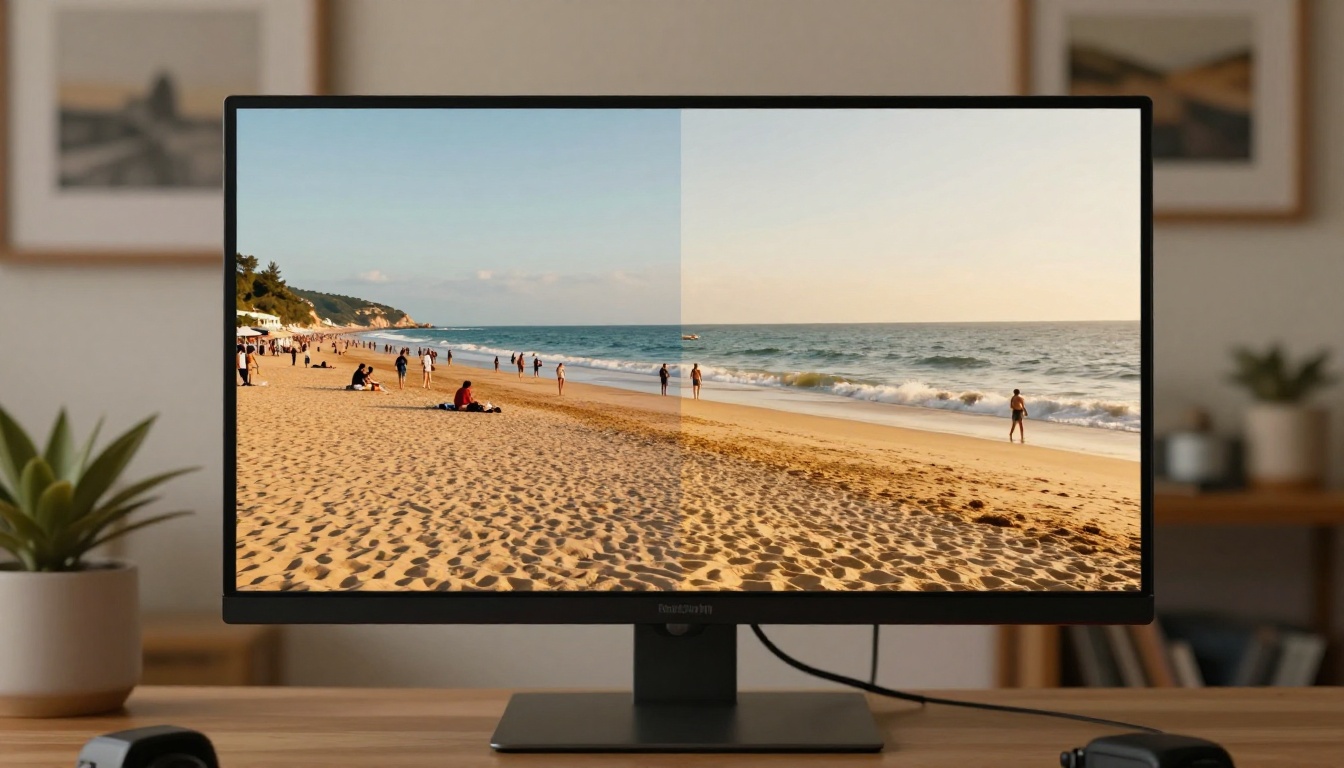
Photoshop's Content-Aware Fill performs well on simple, uniform backgrounds like plain sky, grass, or solid walls. On complex scenes, it fails badly. The fill algorithm copies texture from surrounding areas and repeats or smears it, often producing obvious artifacts that look worse than the original object.
AI object removal models develop a semantic map of the scene before generating the replacement content. A beach scene generates sand and water that matches the ambient light direction and wave pattern. A crowd scene generates background-appropriate content with realistic depth. The fill is produced from scene context, not copied from nearby pixels, so the result integrates naturally.
AI Retouching vs. The Manual Approach
Professional portrait retouching in Photoshop is genuinely difficult. A proper workflow includes frequency separation to address texture and color on separate layers, dodge-and-burn for contouring, liquify for subtle reshaping, and multiple rounds of healing brush work for blemishes. The average person attempting this produces something that looks over-processed and plastic.
AI portrait retouching analyzes the face automatically, addresses blemishes and tone unevenness, and sharpens detail around eyes and hair, all while preserving the natural texture of skin. It looks like the subject on a very good day, not like an editorial cover from an era when airbrushing was considered a virtue.
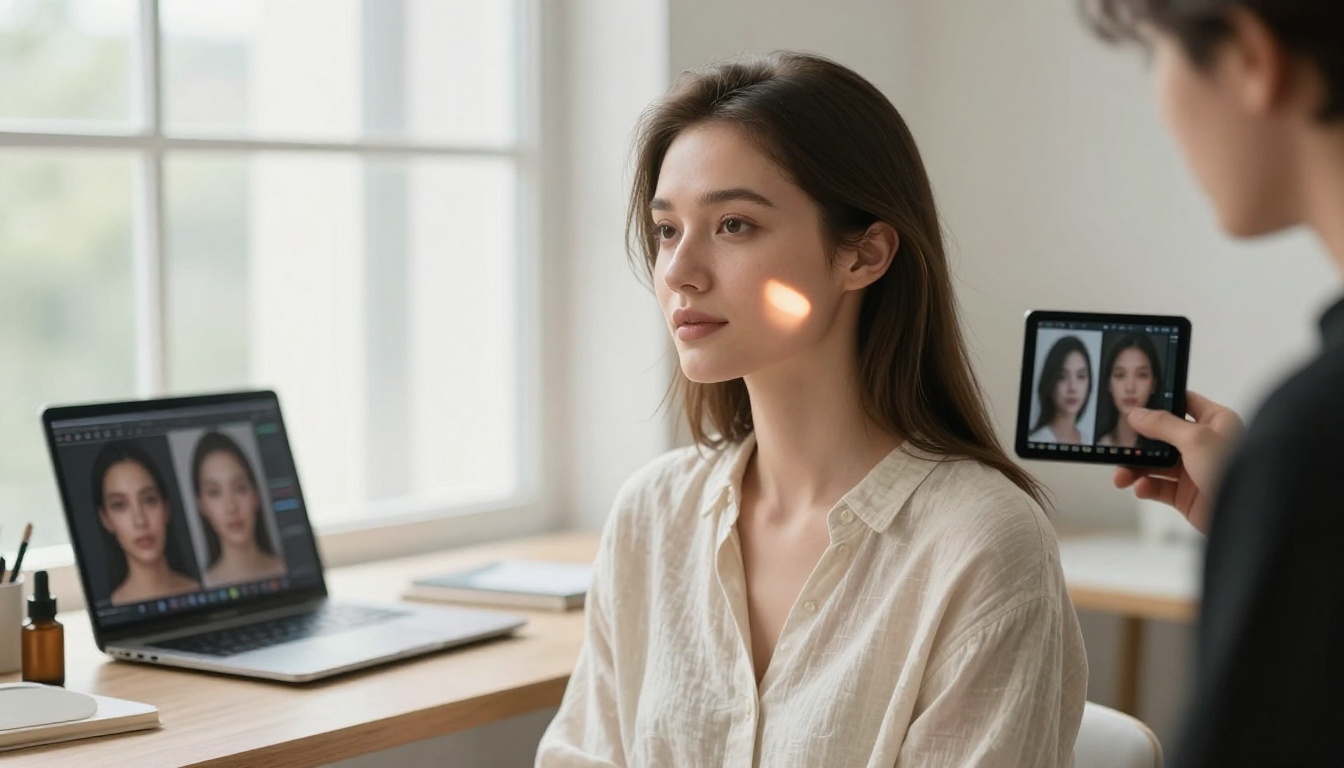
PicassoIA vs. Photoshop, Side by Side
What the Numbers Look Like
PicassoIA brings together specialized AI models for each editing task. This is meaningfully different from Photoshop's approach, which uses a single generalist engine for most operations. When you compare them task by task, the difference becomes very clear.
| Feature | Photoshop | PicassoIA |
|---|
| Background Removal | Manual refinement usually needed | Bria Remove Background: clean in 8 sec |
| Photo Upscaling | Soft at high scales | Real ESRGAN, Crystal Upscaler, up to 6x |
| Photo Restoration | 30-60 min manual process | Automatic, under 15 seconds |
| Color Correction | Manual curves and HSL | Automatic scene-aware correction |
| Object Removal | Fails on complex backgrounds | Semantic context-aware fill |
| Portrait Retouching | Expert workflow required | Automatic, texture-preserving |
| Time to First Result | Hours of practice before clean results | Seconds from first use |
| Monthly Cost | $22.99 and up | Free tier available |
Where PicassoIA Pulls Ahead
The clearest wins for AI are in speed and specificity. Because PicassoIA uses specialized models trained on specific tasks, background removal is handled by a model that only removes backgrounds. Upscaling is handled by a model that only upscales. Portrait retouching is handled by a model trained specifically on faces. Each model outperforms Photoshop's generalist tools on its individual task.
The area where Photoshop still holds ground is in creative manual control. Complex composites with custom light sources, precise hand-painted masks, and multi-exposure blends still benefit from Photoshop's manual toolkit. But for the vast majority of everyday editing needs, AI gets there faster and often with better results.
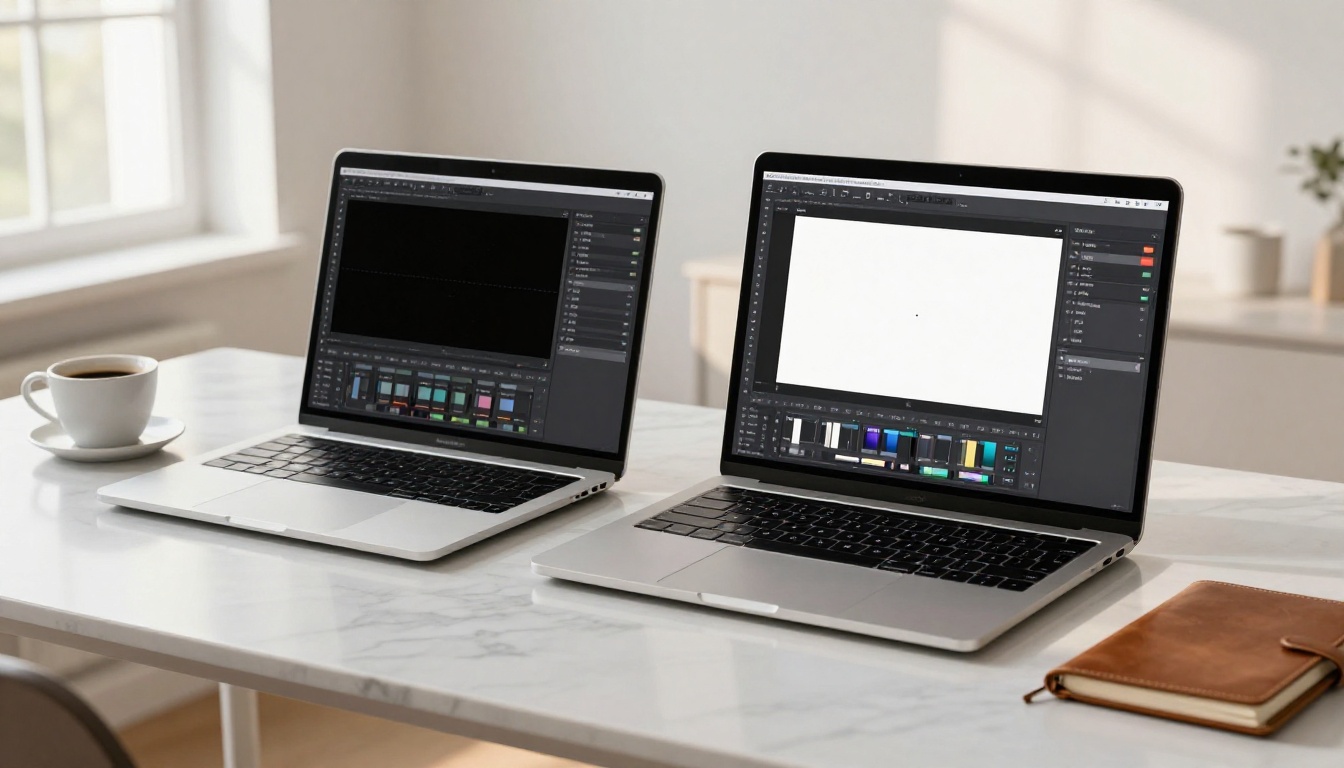
Remove Backgrounds on PicassoIA: Step by Step
The Process from Upload to PNG
The Bria Remove Background model on PicassoIA processes images in about 8 seconds. Here is the entire workflow:
- Open the model page: Visit Bria Remove Background on PicassoIA
- Upload your image: Drag and drop or click to upload. Works with JPG, PNG, and WEBP
- Run it: Click generate. No settings to configure for most photos
- Download your result: Output is a PNG with a clean transparent background
The model handles portraits, product shots, and outdoor photography with equal precision. Complex edges including individual hair strands, flyaway pieces, and fine fur all come through with accurate, clean cutouts.
Tips That Actually Improve the Output
- Higher resolution inputs produce cleaner edges: The model has more edge data to work with, resulting in better hair detail
- Low-contrast edges are harder: If a subject's jacket matches the background color closely, even the best AI model will struggle. Shooting against a contrasting background solves this at the source
- Combine with upscaling after removal: Run the cutout through Recraft Crisp Upscale to sharpen the subject before placing it on a new background
💡 Portrait-specific tip: Use the Crystal Upscaler after removing the background on headshots. It was trained specifically on portrait images and preserves skin pore detail and hair texture far better than general-purpose upscalers.
Upscaling Photos to 4K for Free
Choosing the Right Upscaler
PicassoIA offers five different upscaling models, and the right one depends on what you are working with.
Real ESRGAN is the best general-purpose choice for most photos. It handles landscapes, architecture, street photography, and compressed images with excellent output. It also preserves film grain authentically rather than smoothing it away.
Google Upscaler produces clean, noise-free results well-suited to portraits and product photography where you want sharp, clinical precision without added grain.
Crystal Upscaler is purpose-built for portrait work. If your photo contains a human face, this model delivers the clearest pore detail, eyelash sharpness, and hair strand definition of any free option available.
When to Use Topaz and Recraft
For the maximum upscaling ceiling, Topaz Image Upscale scales images up to 6x with studio-grade detail reconstruction. This is what commercial photographers use when a client needs a small web image printed large format for signage or displays.
Recraft Creative Upscale takes a different angle: instead of only sharpening existing detail, it generates new plausible detail that makes images look like they were captured with a higher-end camera setup. Use this when you want the final image to feel like it was shot with a full-frame camera, not just scaled up from a phone.
💡 For product photography: The Bria Increase Resolution model produces exceptionally clean edges on product cutouts and handles reflective surfaces, glass, and metal without introducing haloing or artifacts.
3 Photo Problems AI Fixes Automatically
Blown-Out Highlights
Overexposed areas (washed-out sky, blown windows, clipped highlights on skin) are notoriously hard to recover in Photoshop. The software can only recover detail if that data exists in the RAW file. In JPEGs, where pure white pixels have no underlying data, Photoshop's highlight recovery produces nothing useful.
AI restoration models analyze the tonal structure of the surrounding image and reconstruct plausible highlight detail. A blown-out sky gets gradient-matched clouds and ambient color that integrates seamlessly with the correctly exposed areas of the frame. This works on JPEGs, not just RAW files.
Noise in Dark Shots
High-ISO grain from shooting in low light produces a texture that makes photos look amateurish. Photoshop's Reduce Noise filter addresses this by blurring the image globally, which removes grain but also destroys fine texture detail in the process. The result looks soft rather than clean.
AI noise reduction identifies and removes noise at the pixel level while maintaining edge sharpness. Fine texture in fabric, skin, and surfaces is preserved. The image looks like a properly exposed, clean shot rather than a blurred approximation of one.
Unwanted Objects in the Frame
Power lines, strangers walking into the shot, parked cars, trash bins in an otherwise beautiful landscape. These are the small accidents that quietly ruin otherwise strong photos. Manually cloning them out in Photoshop is a skilled process that often leaves visible seams.
AI object removal fills these areas with content generated from the scene context. A power line across a clear sky is filled with gradient-matched blue and cloud detail. A passerby in the background of a portrait is replaced with background-consistent content. The fix takes seconds and integrates seamlessly.
Who Gets the Most Out of AI Editing
The Right Fit
AI photo editing is genuinely the right choice for:
- Social media content creators who need consistent quality at volume
- Small business owners editing product photos without a retoucher on staff
- Real estate photographers who need quick sky replacements and object removal
- Freelance photographers doing volume work where manual editing is not billable
- Anyone on a budget who cannot justify $22.99/month for occasional editing
The combination of free background removal, free 4x upscaling, and automatic portrait retouching addresses the editing needs of most creators without requiring any specialized skill.
When Photoshop Still Has the Edge
Photoshop remains the better choice for:
- Complex multi-image composites with custom lighting and precise color matching
- Detailed typography and graphic design work beyond simple text overlays
- Non-destructive RAW workflows with precise local adjustments and color science
- Hand-painted masking for product composites requiring pixel-level precision
For those specific workflows, Photoshop's manual control is still valuable. For everything else, AI has caught up and, in many specific tasks, pulled ahead.
Try It on Your Own Photos Right Now
The gap between professional and amateur photo editing has narrowed to the point where it barely matters for most practical purposes. Free AI photo editors produce results that would have required hundreds of dollars in retouching time just a few years ago.
The most effective way to see the difference is to test it on one of your own photos. Upload an image to PicassoIA, run it through Bria Remove Background, then scale the result with Real ESRGAN or Google Upscaler. From upload to finished result takes under two minutes and costs nothing.
Beyond photo editing, PicassoIA gives you access to 91+ text-to-image models, AI face swap, video generation, AI music creation, and speech-to-text tools. It is a full creative platform built around giving you access to the best AI models in every category, without the subscription overhead.
Your photos deserve better than blurry upscales and rough masks. The tools to fix that are already waiting.