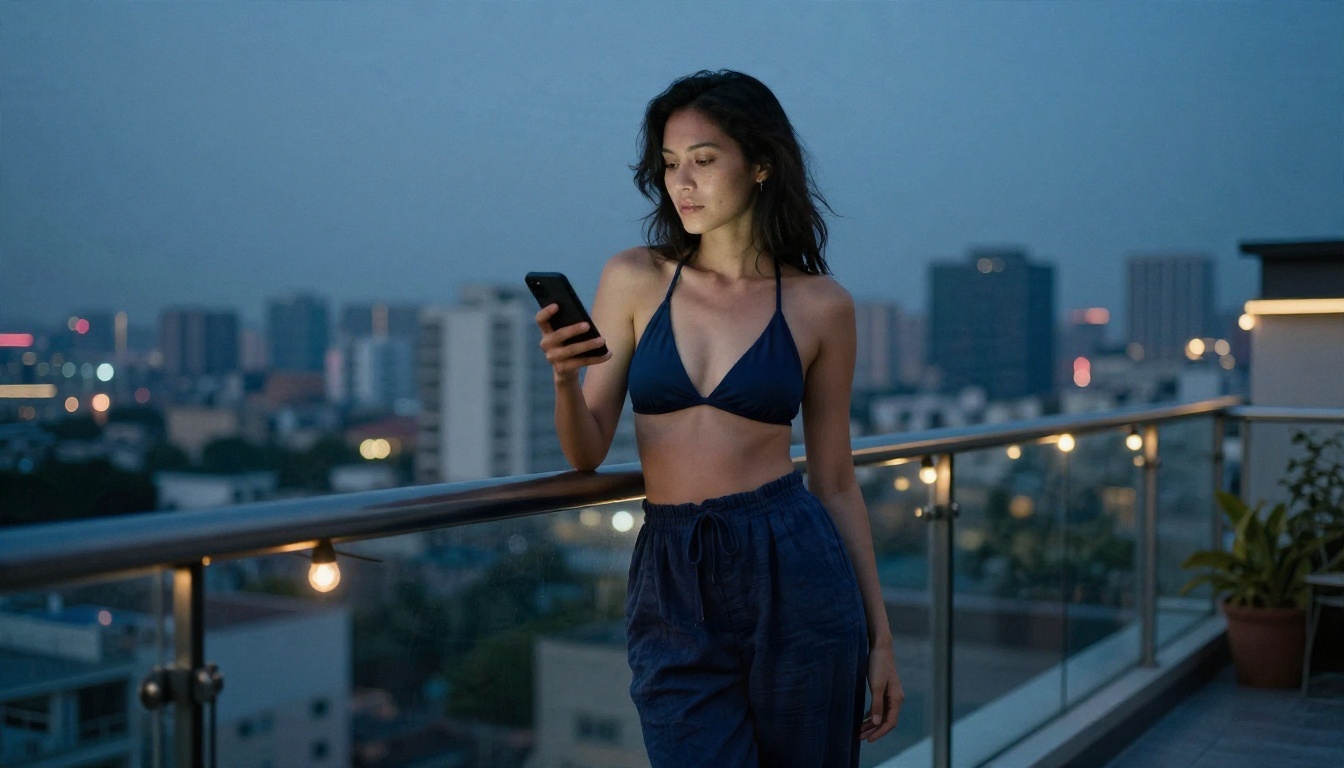
You upload a gorgeous still, press generate, and wait. Then the spinner freezes, the clip comes out three seconds long, or the tool tells you the image "violates policy" for a perfectly tasteful swimwear shot. That is the everyday reality of free I2V NSFW searches: lots of promises, very little straight talk. This article gives you the straight talk. You will see which online tools make sense, how to run the whole workflow from a phone, how long a clip can realistically be, and what to do when nothing works.
A quick definition before we go further. I2V means image to video: you give the model a still photo and a short motion prompt, and it animates the picture. In this article, "NSFW" means suggestive and glamour content such as bikinis, lingerie style fashion shots, boudoir lighting and artistic implied nudity. Nothing here is about explicit material, and every example image uses adult subjects.
What Free I2V NSFW Really Means
Suggestive, Not Explicit
Most people who search this phrase want the same thing: take a glamour photo they already like and make it breathe. Hair moving in the wind, a slow camera push toward a smile, fabric shifting as someone turns. That is a tasteful, cinematic use case, and it is where current video models perform best.
Explicit content is a different story. Almost every mainstream model blocks it, and chasing it is the number one reason people hit "rejected" screens. If you keep your source image in swimwear, fashion or boudoir territory, you will see far fewer failures.
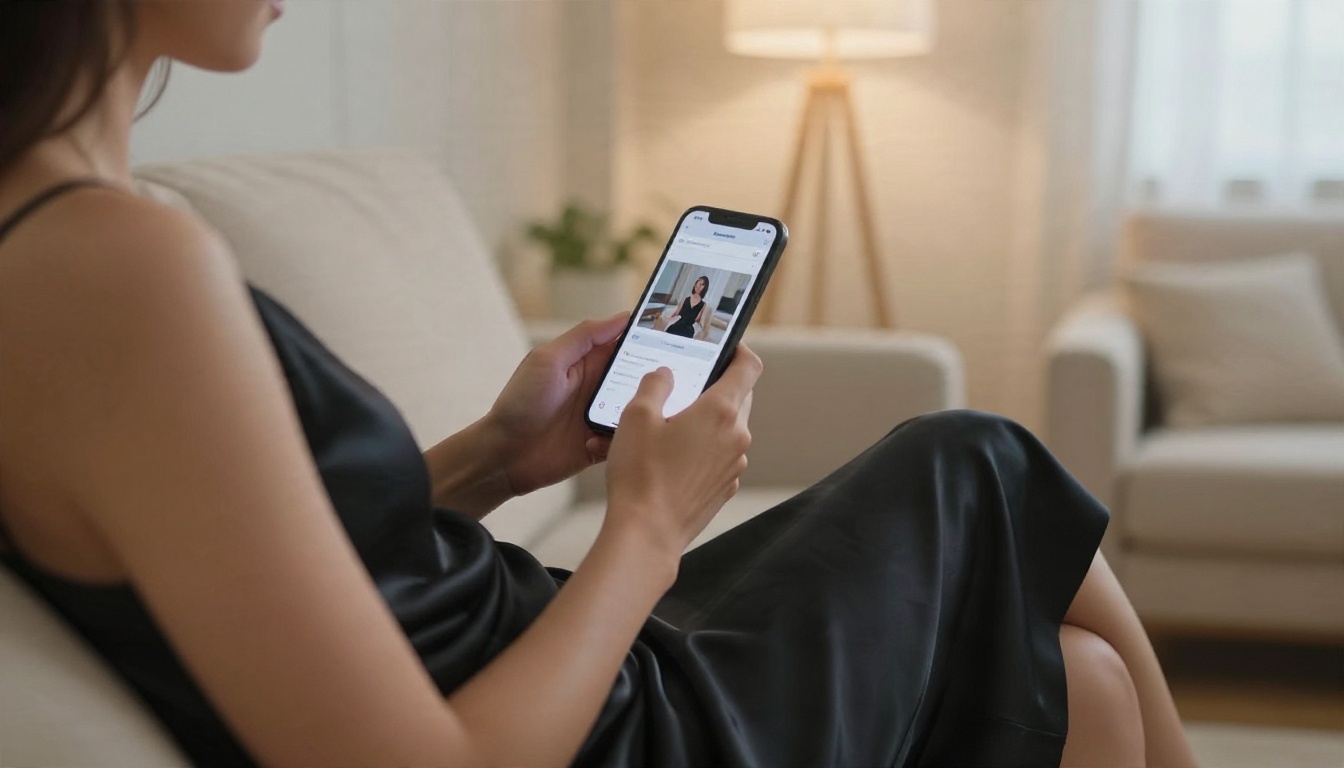
Why the Source Image Matters Most
An image to video model cannot invent a better face than the one you give it. Blurry, over-sharpened or heavily filtered photos produce wobbling skin and melting hands. A clean, well lit, high resolution still gives the model something stable to hold on to.
Three qualities separate a good source image from a bad one:
- Sharp subject, simple background. Busy backgrounds make the model guess, and guesses show up as warping.
- Natural light and real texture. Visible skin texture and fabric weave survive animation far better than plastic smoothing.
- Room to move. A subject cropped tightly at the edges has nowhere to go when the camera pushes in.
💡 Tip: If your photo is not good enough yet, generate a fresh one first. That costs less time than fighting a weak source through five failed video attempts.
Start With a Strong Still
The best free workflow has two stages: make the image, then animate it. For the image stage on PicassoIA, lead with Seedream 4.5. It produces photorealistic skin, fabric and lighting at high resolution, which is exactly what an I2V model wants as a first frame. It handles glamour and swimwear prompts without the heavy refusals you see elsewhere.
Next, use PicassoIA Image Editor Pro. It offers unlimited generations, so you can retouch lighting, change an outfit color, fix a hand or swap a background until the still is right. Unlimited matters here, because the cheapest way to get a good video is to iterate on the photo, not on the video.
For extra options, Qwen Image 3 Pro and Wan 2.7 Image Pro are solid photorealistic alternatives when you want a different look.
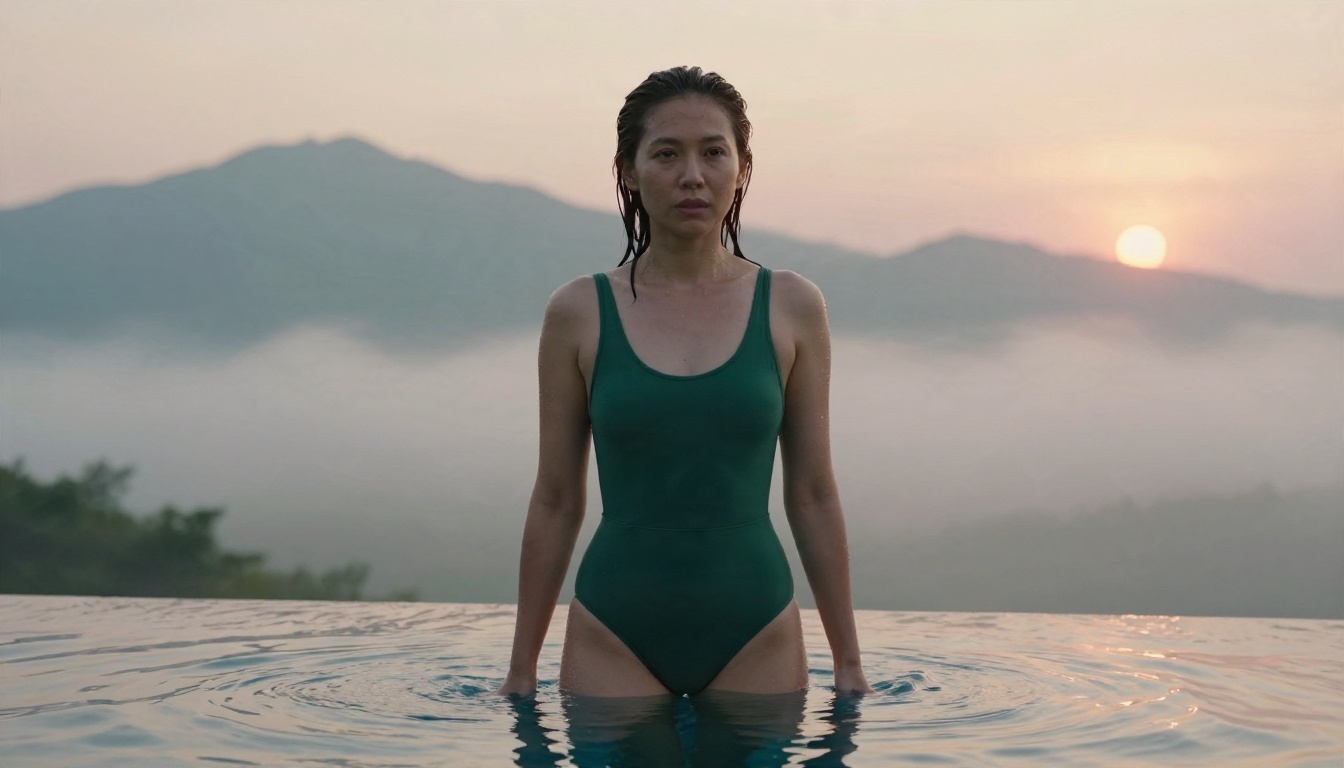
Free Video Models Worth Trying
Once the still is ready, these are the video models to try, with what each does best:
If you only try one thing today, try Seedance 2.5 Lite. It is built around free, unlimited use, and its 10 second ceiling is double what many tools allow.
What Free Usually Costs
Free tools almost always charge you in some other currency. Watch for these:
- Watermarks stamped across the frame.
- Daily credit caps that run out after two or three clips.
- Queue waits that stretch past ten minutes at peak hours.
- Low resolution exports, often 480p or less.
- Hidden length limits that cut clips to a few seconds.
Unlimited models remove the credit anxiety, which changes how you work. You can test five motion prompts in a row instead of agonizing over one.
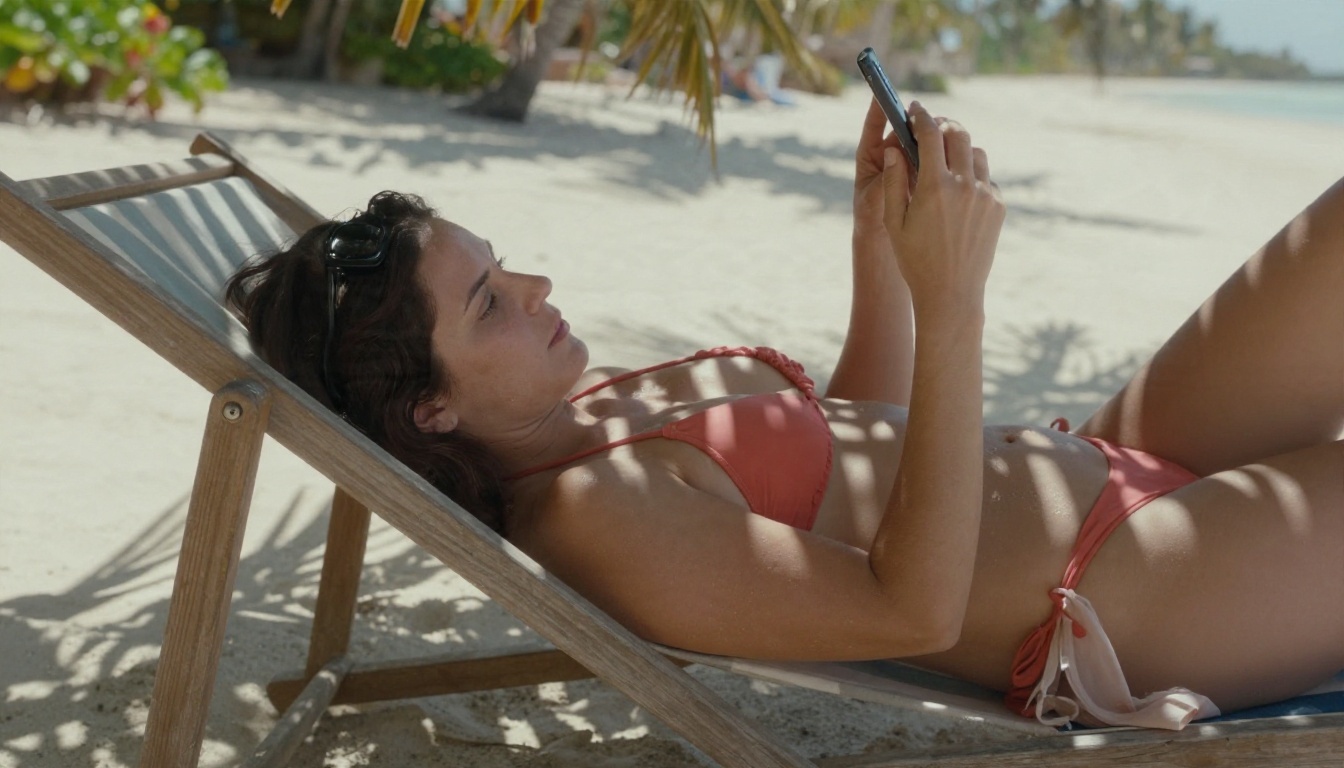
Using I2V on Your Phone
Browser Beats App Store Hunt
Searching for a "mobile app" is where many people get burned. App stores are packed with lookalike apps that wrap the same models in weekly subscriptions, aggressive trials and fuzzy refusal rules. Adult-oriented content tends to be pulled from store listings entirely, so what remains is often the most restrictive version of a tool.
A mobile browser sidesteps that. Modern phone browsers handle file uploads, long generation waits and video playback without trouble, and you skip the install, the permissions and the auto-renewing plan. Save the site to your home screen and it behaves almost like an app.
💡 Tip: Keep the screen awake while a clip renders. Many mobile browsers pause background tabs, which can make a job look stuck when it is actually fine.
A Simple Phone Workflow
Here is a workflow that takes about five minutes from your couch:
- Open the image tool in your mobile browser and generate or upload a still.
- Retouch it until lighting, outfit and framing look right.
- Save the final image to your camera roll in full resolution.
- Open the video model and upload that file as the first frame.
- Write a short motion prompt (one or two sentences).
- Generate, review, and repeat with a single changed detail.
Change only one thing per attempt. If you rewrite the whole prompt every time, you will never know what helped.

How Long Can Clips Run
Typical Limits Per Model
Clip length is set by the model, the plan and the credit balance, not by the website you happen to be using. As a rough guide:
| Tool Type | Common Length |
|---|
| Older or budget I2V models | 3 to 5 seconds |
| Mainstream current models | 5 to 8 seconds |
| Seedance 2.5 Lite | Up to 10 seconds |
| Seedance 2.5 | Up to 30 seconds |
Some other platforms advertise up to 15 seconds on their newest models, though figures like these change often and the cap you see in the menu may depend on your plan. Always check the duration picker after you choose a model, because switching models can silently reset it.
Longer is not automatically better. Most I2V models drift after the first few seconds: faces shift slightly, hands wobble, lighting changes. A tight, clean 5 second clip usually looks better than a loose 15 second one.
Stretching Past the Cap
If you need more than one clip can give, you have three options:
- Chain clips. Take the last frame of clip one, use it as the first frame of clip two, and join them in an editor.
- Use a longer model. Seedance 2.5 is built for much longer outputs when a single shot has to carry a scene.
- Loop it. For a social post, a seamless 5 second loop often feels more polished than a long, wandering shot.
How to Animate a Photo on PicassoIA
This is the fastest free route from still image to moving clip, using Seedance 2.5 Lite.
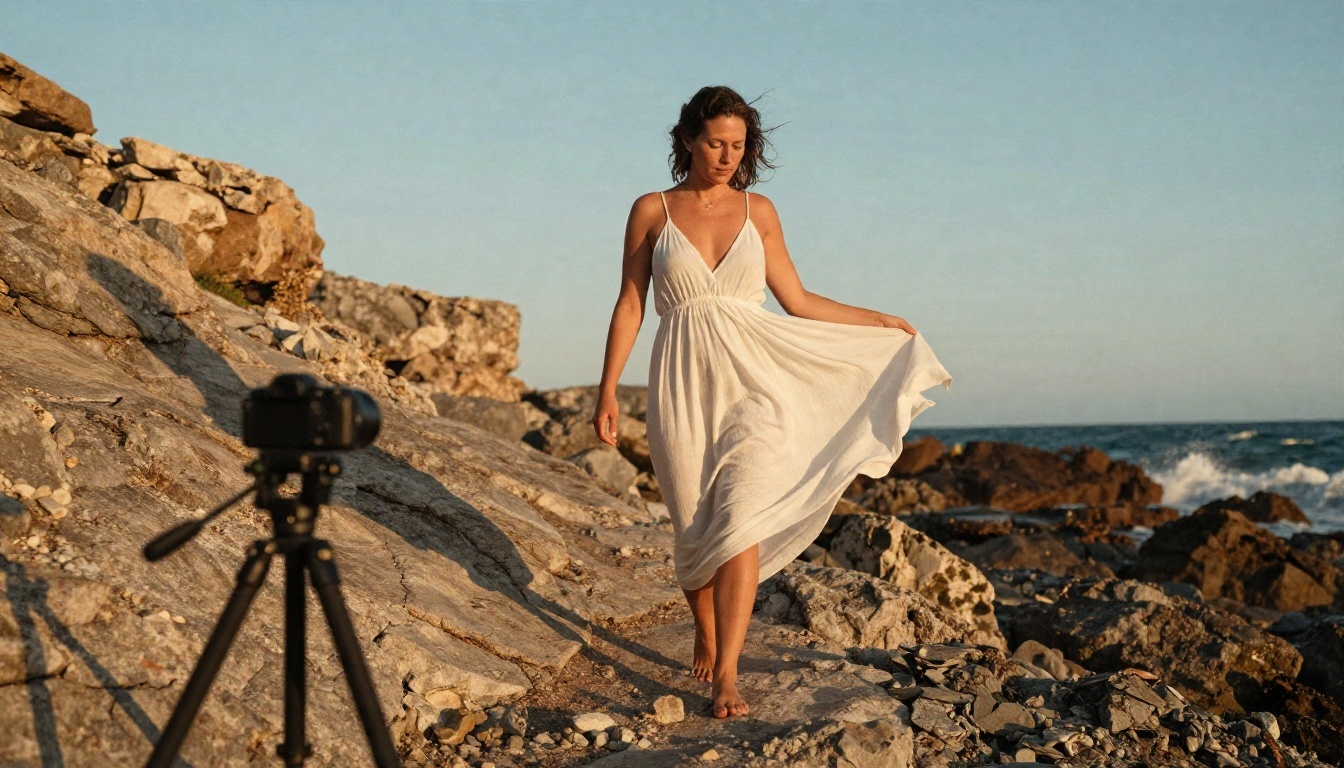
- Create your still. Open Seedream 4.5 and describe the subject, outfit, location and light. Use words like natural window light, 85mm lens, film grain and skin texture for realism.
- Refine it. Send the image to PicassoIA Image Editor Pro for unlimited touch-ups: lighting, color, small fixes.
- Open the video model. Go to Seedance 2.5 Lite and choose image to video.
- Upload the first frame. Use the full resolution file, not a screenshot.
- Write the motion prompt. Describe what moves and how the camera behaves: "Slow push-in, hair lifts gently in the breeze, she turns her head and smiles, soft golden light."
- Pick the length. Start at 5 seconds for tests, then go up to 10 once the motion looks right.
- Generate and compare. Run two or three versions and keep the cleanest.
Parameter tips:
- Keep prompts under about 40 words. Long prompts confuse motion.
- Ask for one main movement and one camera move, never five.
- Use slow and gentle. Fast motion is where faces break.
- Match the aspect ratio to the source image so nothing gets cropped.
For different looks, try Wan 2.7 I2V for consistency or Kling v2.5 Turbo Pro for stronger camera work.
Not Working? Fixes That Help
Stuck on Loading
A spinner that never finishes is the most common complaint. Work through this order:
- Wait two to three minutes before touching anything. Free queues can be slow.
- Do not refresh. Reloading often cancels the job and sends you to the back of the line.
- Keep the tab active on mobile so the browser does not freeze it.
- Switch models. A faster one like Wan 2.2 I2V Fast clears when a heavier one is congested.
- Try again off-peak. Evenings in North America and Europe are the busiest.

Output Looks Frozen or Warped
If the clip barely moves, your prompt was too vague. If it twists and melts, it asked for too much. Both have simple answers:
- Frozen: add a clear verb. "Hair moves in the breeze, she turns toward the camera" beats "beautiful, cinematic".
- Warped: cut the number of actions to one, and slow it down.
- Face drift: use a closer, sharper source image and a shorter duration.
- Hand glitches: pick a source where hands are relaxed or out of frame.
Blocked or Rejected Uploads
When a tool refuses an image, the cause is usually the image or the model's policy, not a bug. Try these in order:
- Choose a less revealing frame. Swimwear, fashion and silhouette shots pass far more often than anything near explicit.
- Remove implied minors cues. Any image that could read as youthful is blocked everywhere, and rightly so. Use clearly adult subjects only.
- Crop out text and logos. Watermarks can trigger automatic filters.
- Re-export the file. A corrupted or oversized upload often fails with a vague message.
- Switch model. Filters differ a lot from one model to the next.
Quick Troubleshooting Table
| Symptom | Likely Cause | Fast Fix |
|---|
| Spinner never ends | Queue congestion or paused tab | Wait, keep tab open, try a faster model |
| Clip is 2 to 3 seconds | Duration reset after model switch | Reset the length picker |
| Almost no movement | Vague prompt | Add one clear action and one camera move |
| Face melts | Too much motion | Slow it down, simplify |
| Upload rejected | Policy filter or bad file | Change the frame, re-export |
| Watermark on output | Free tier rule | Use an unlimited model |
Prompts That Create Natural Motion
A Simple Motion Formula
Use this order: subject + one action + one camera move + light. For example:
"The woman lifts her chin and smiles, hair drifting in a light breeze. Slow dolly-in. Warm golden hour light from the left."
That is 25 words, and it contains everything the model needs. Add more and it starts guessing.
Examples That Work
- Poolside: "She steps forward slowly, water droplets on her shoulders, mist drifting behind her. Gentle camera pan right."
- Boudoir: "She tilts her head toward the mirror, lamp light flickers softly on lace. Subtle push-in."
- Beach: "Sea breeze lifts her sarong and hair, she lowers her sunglasses and glances up. Low angle, static camera."
- Rooftop: "She turns from the railing toward the camera, city lights shimmer behind her. Slow orbit left."
Notice what is missing: no rapid motion, no crowds, no complicated hand actions. These are the three biggest sources of artifacts.
💡 Tip: Keep a notes file with prompts that worked. Reusing a good formula with a new image saves a lot of trial and error.
Try It Yourself Today
Free I2V works best when you treat it as two steps: a strong still, then a short, simple motion. Start with Seedream 4.5 to create the photo, polish it in PicassoIA Image Editor Pro with unlimited generations, then animate it with Seedance 2.5 Lite for clips up to 10 seconds. If one model stalls or refuses, switch to Wan 2.7 I2V, Hailuo 2.3 Fast or Kling v2.5 Turbo Pro.
Open your phone, pick a favorite photo, and run your first clip tonight. You will have a result in minutes, and you can iterate as often as you like. Browse every option at picassoia.com/en/all-models and build your own set of glamour clips on Picasso IA.