Google just made the video side of its Gemini family a lot more practical. Gemini Omni 1.2 Flash can generate a clip with sound, take an existing video, and change one detail of it because you asked in plain language. Clips now run up to 15 seconds, and the price per second dropped compared with the previous release. That sounds like a clean upgrade, but there is fine print, and the fine print matters if you plan to build ads, social posts or short film drafts around it.
This article explains what the model is, what it handles well, where it still stumbles, and what it costs. It also covers a point many readers will care about: Gemini Omni 1.2 Flash is not on PicassoIA yet, so later on you will find four alternatives you can use right now, along with a short tutorial.
💡 Quick take: Gemini Omni 1.2 Flash is a fast, lower-cost video model built for short clips with synced audio and conversational edits. It is strong on reference following and quick iteration. It is weaker on fast sports action, complex physics and rapid script changes.
What Gemini Omni 1.2 Flash Is
Gemini Omni 1.2 Flash is a multimodal video model from Google DeepMind. Google describes it as a model for high-quality video creation and conversational video editing. The "Flash" label tells you the priority: speed and lower cost over the absolute top quality tier.
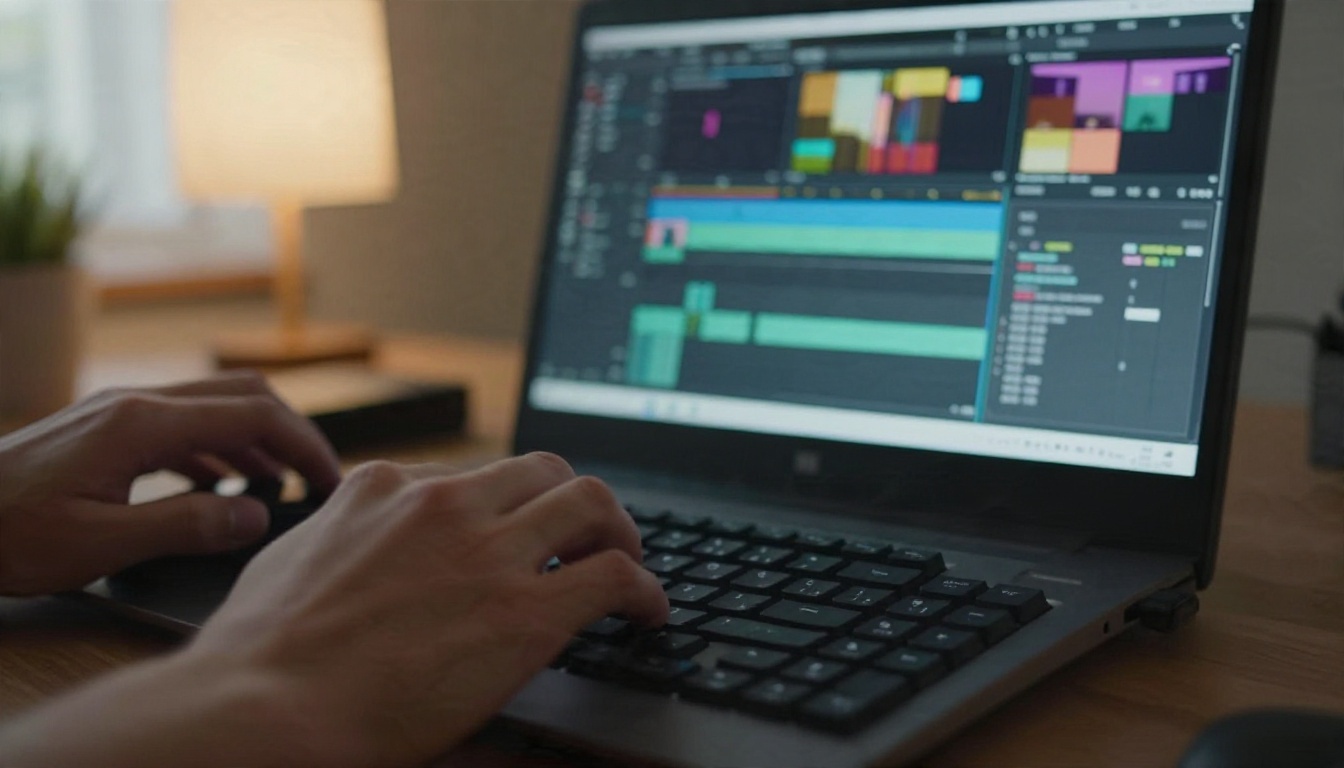
Where it fits in the Omni family
The Omni line sits beside the Gemini text and image models, but its output is moving pictures. Version 1.1 Flash arrived first and set the baseline: short clips, native audio, and edits by instruction. Version 1.2 Flash keeps that approach and pushes the numbers up. Google says it reached general availability on the Gemini API and on Google Cloud in early November 2026, and reports suggest there is no free tier on the API.
What changed from 1.1
The headline changes reported across launch coverage are easy to list:
- Longer clips: native 15 second generation, up from 10 seconds in 1.1.
- Lower price: roughly 30% cheaper per second, according to secondary reports.
- Better reference following: the model sticks closer to the faces, objects and styles you supply.
- Multi-turn editing: you can keep refining the same clip across several messages.
- Migration: the 1.1 model ID is set to route automatically to 1.2 and bill at 1.2 rates from December 3, 2026.
| Feature | Gemini Omni 1.1 Flash | Gemini Omni 1.2 Flash |
|---|
| Max clip length | About 10 seconds | Up to 15 seconds |
| Native audio | Yes | Yes |
| Conversational editing | Yes | Yes, multi-turn |
| Reference following | Good | Closer match reported |
| Price at 720p (reported) | About $0.10 per second | About $0.07 per second |
💡 Pricing numbers come from third-party coverage and they do not all agree. Check Google's own pricing page before you set a budget.
What It Can Do
Text, image and video inputs
You can start from a text prompt, from a still image, or from a short video you want to modify. Reports mention text and image prompts for generation and video input of up to about 15 seconds for editing. Clip length can be set from roughly 3 to 15 seconds in one-second steps, which is handy when you need exactly 8 seconds for a social slot.
One workflow detail worth knowing: the model supports a draft-then-finish approach. Aggregator sources say you can preview at 360p or 720p, then render the final version at 1080p or even 4K. That keeps experiments cheap and saves the expensive resolution for the take you actually like.
Native audio with every clip
Silent video is a thing of the past for this model family. Each generation comes with synchronized sound: ambient noise, effects, and speech when your prompt asks for it. Think of a pan hitting a burner, a door closing or street chatter fading under a voice line.

That matters because sound design is often the slowest part of short video work. A kitchen scene with steam, sizzle and clinking steel is far more convincing when the audio lands on the same frame as the action. You can also steer it with plain words, such as "no dialogue, only ambient kitchen noise."
Conversational editing
This is the feature most people will remember. Instead of regenerating a whole clip, you ask for one change: swap the character's jacket, relight the scene to golden hour, make the sky stormy, remove a passerby. The model aims to leave the original motion and audio intact while applying the edit.
A typical editing session looks like this:
- Generate or upload a base clip.
- Ask for one change, such as "make it dusk, keep everything else the same."
- Review the result and ask for the next tweak.
- Repeat until the clip matches your idea, then render at a higher resolution.
Working this way is closer to giving notes to an editor than writing prompts to a generator.
Reference following
Give the model reference images and it tries to carry the subject and style into the video without copying the image as a literal frame. Version 1.2 is said to hold likeness and object details more reliably across the whole clip. If you are building a series with a recurring character or a branded product, this is the feature that decides whether the clips look like they belong together.
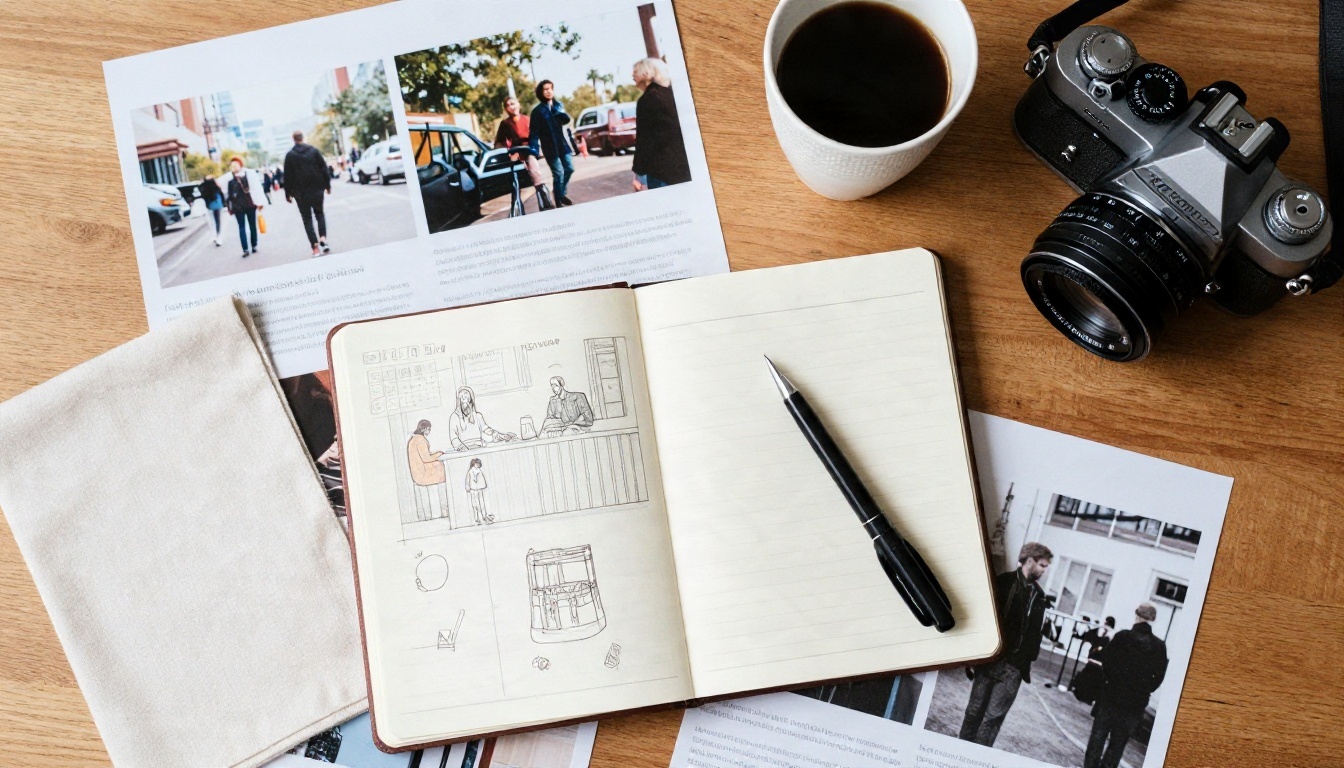
💡 Reference tip: use clean, well-lit references with one clear subject each. Busy images with several people push the model to guess which one matters.
Real Use Cases
Product ads in a single afternoon
A running shoe on wet concrete, a bottle with condensation, a watch catching a sweep of light. Short product clips are the sweet spot for a fast model. You supply a clean product photo as reference, describe the camera move, and iterate on lighting through chat edits.
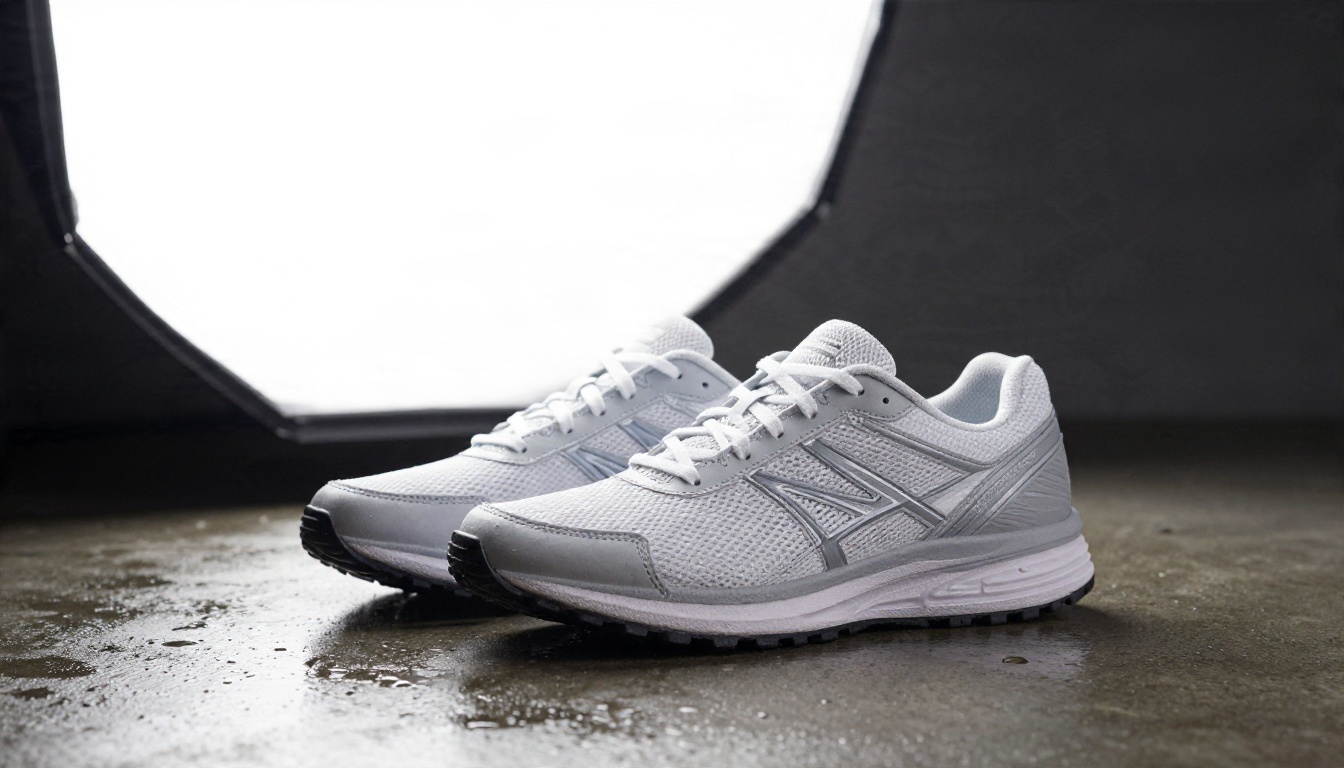
At the reported 720p rate, a 15 second clip costs about a dollar. A bundle of ten draft variations lands near ten dollars. That is a very different budget from a studio shoot.
Social clips that match the platform
Vertical, quick, loud in the first second. Short-form creators need volume, and 15 seconds fits most feed formats. Native audio saves a trip to a separate editor, and chat-style edits let you produce several versions of one idea: a different outfit, a different location, a different time of day.

Previs for filmmakers
Directors and cinematographers can use short generated clips to test framing, mood and pacing before a real shoot. It will not replace a camera crew, but it can answer questions like "does this scene feel better at dusk?" before anyone books a location.
| Use case | Why the model fits | Watch out for |
|---|
| Product ads | Reference following, quick lighting edits | Logos and small text can warp |
| Social clips | 15 seconds, native audio, low cost | Platform trends change fast |
| Film previs | Mood and framing tests | Not a substitute for real coverage of a scene |
| Explainers | Quick visual metaphors | Complex diagrams are unreliable |
Limits You Should Plan Around
No video model is flawless, and Google is open about that. The company's own caveats, as relayed by secondary coverage, point to three weak spots.
Fast sports action
Sprinting, ball tracking, quick direction changes and tackles still give the model trouble. Limbs can blur into each other, a ball can change size, and a runner's stride may lose rhythm between frames. If your clip depends on believable athletic motion, plan on several attempts or pick a calmer shot.

Complex physics
Liquids, cloth, smoke and objects colliding are the classic stress tests. A glass filling with water has splashes, bubbles, refraction and surface tension all at once. Models tend to get the look right in a still frame and the behavior wrong across 15 seconds.

💡 Workaround: keep physics simple. One pour, one drop, one gust of wind. Stack fewer interacting objects in a single shot and cut between angles rather than asking for one long complicated take.
Rapid script changes
If your prompt asks for a scene that jumps location, mood or speaker every second or two, the model may blend moments together or skip one. Google lists rapid script changes among the areas still under work. Treat 15 seconds as room for one idea, maybe two. For longer stories, generate separate clips and cut them together.
Cost and access
Cheaper does not mean free. The Gemini API has no free tier for this model according to reports, and billing is per second of output. Long experiments at 1080p or 4K add up faster than most people expect. Draft at low resolution first and keep the high resolution for the winner.
Other limits to keep in mind
- Clip length: 15 seconds is a ceiling, not a story. Longer pieces need editing.
- Text in frame: signs, labels and captions can come out garbled in any video model.
- Safety filters: public figures, minors and certain topics are blocked or restricted.
- Source disagreement: token limits and pricing figures vary across third-party listings, so confirm numbers on official pages.
Pricing and Access in Plain Numbers
Here is a quick budget table based on the reported 720p rate of about $0.07 per second. Treat it as a ballpark, since higher resolutions cost more and sources vary.
| Clip length | Approx. cost at 720p | Ten drafts |
|---|
| 5 seconds | $0.35 | $3.50 |
| 8 seconds | $0.56 | $5.60 |
| 10 seconds | $0.70 | $7.00 |
| 15 seconds | $1.05 | $10.50 |
Access runs through the Gemini API and Google Cloud, and some Gemini app features such as the 15 second clips have been described as rolling out first to higher subscription tiers. Availability by region can differ.
Is It on PicassoIA?
Gemini Omni 1.2 Flash is not on PicassoIA yet. PicassoIA lists the earlier Gemini Omni 1.1, which is a different version, so it should not be mistaken for 1.2. For similar results today, these four video models are available:
| Model | Best for | Link |
|---|
| Gemini Omni 1.1 | Text or photo to video with audio, plus editing by instruction | Gemini Omni 1.1 |
| Veo 3.1 Fast | Quick cinematic clips with native audio | Veo 3.1 Fast |
| Kling v3 Omni Video | Reference-driven shots up to 1080p | Kling v3 Omni Video |
| Seedance 2.5 | Long clips, up to 30 seconds | Seedance 2.5 |
If you want the same Google family feel, start with Gemini Omni 1.1. If you need longer duration, Seedance 2.5 stretches well past 15 seconds. For tight character consistency, Kling v3 Omni Video is a solid pick, and for polished cinematic motion, Veo 3.1 Fast is a dependable choice.
How to Get Similar Results on PicassoIA
The closest match to the Omni workflow is Gemini Omni 1.1. It generates video with built-in audio from a prompt or a photo, supports reference images, and can edit an existing clip with a simple instruction. Here is how to use it.
Step 1: Open the model
Go to the Gemini Omni 1.1 page and sign in. The prompt box is the only required field.
Step 2: Write a scene prompt
Describe the scene, the camera move, the lighting, the mood and the sound. A strong prompt reads like a shot list:
A chef tosses vegetables in a steel pan, handheld side angle, warm kitchen light, steam rising, sizzling and clinking steel, no dialogue.
Step 3: Choose resolution and ratio
The model offers 360p, 720p, 1080p and 4K. The default is 720p. Use 360p as a fast draft mode, then rerun the good ones at a higher setting. Pick 16:9 for landscape or 9:16 for vertical social posts.
Step 4: Add images when you need control
- Image: a starting photo to animate.
- Last frame: add an end image together with the starting image and the model creates a smooth transition between them.
- Reference images: guide the subject and style, such as a specific character or product, without using them as literal frames.
Step 5: Edit instead of regenerating
Upload an existing clip in the video field and describe a single change, such as "make the sky stormy, keep everything else the same." The edit mode keeps the remaining footage intact, mirroring the chat-style editing that made Gemini Omni 1.2 Flash popular.
Parameter tips
| Setting | Recommendation |
|---|
| Resolution | Draft at 360p, final at 720p or 1080p |
| Aspect ratio | 9:16 for phone feeds, 16:9 for everything else |
| Audio | Name the sounds you want, and add "no dialogue" if you want none |
| Edits | One change per instruction |
| Complex scenes | Shorten the action and avoid stacked physics |
💡 If a shot needs longer duration, try Seedance 2.5. For reference-heavy shots, try Kling v3 Omni Video.
Prompt Ideas to Try Today
Use these as starting points. Each stays inside what current video models do reliably.
- Product hero: "A sneaker on wet concrete, slow dolly-in, soft studio light from the left, water droplets, quiet ambient hum."
- Cafe creator: "A creator adjusts a phone on a tripod, window light, soft cafe chatter, gentle push-in."
- Film mood test: "A woman in a yellow raincoat on a wet cobblestone street at dusk, slow tracking shot, distant traffic and rain."
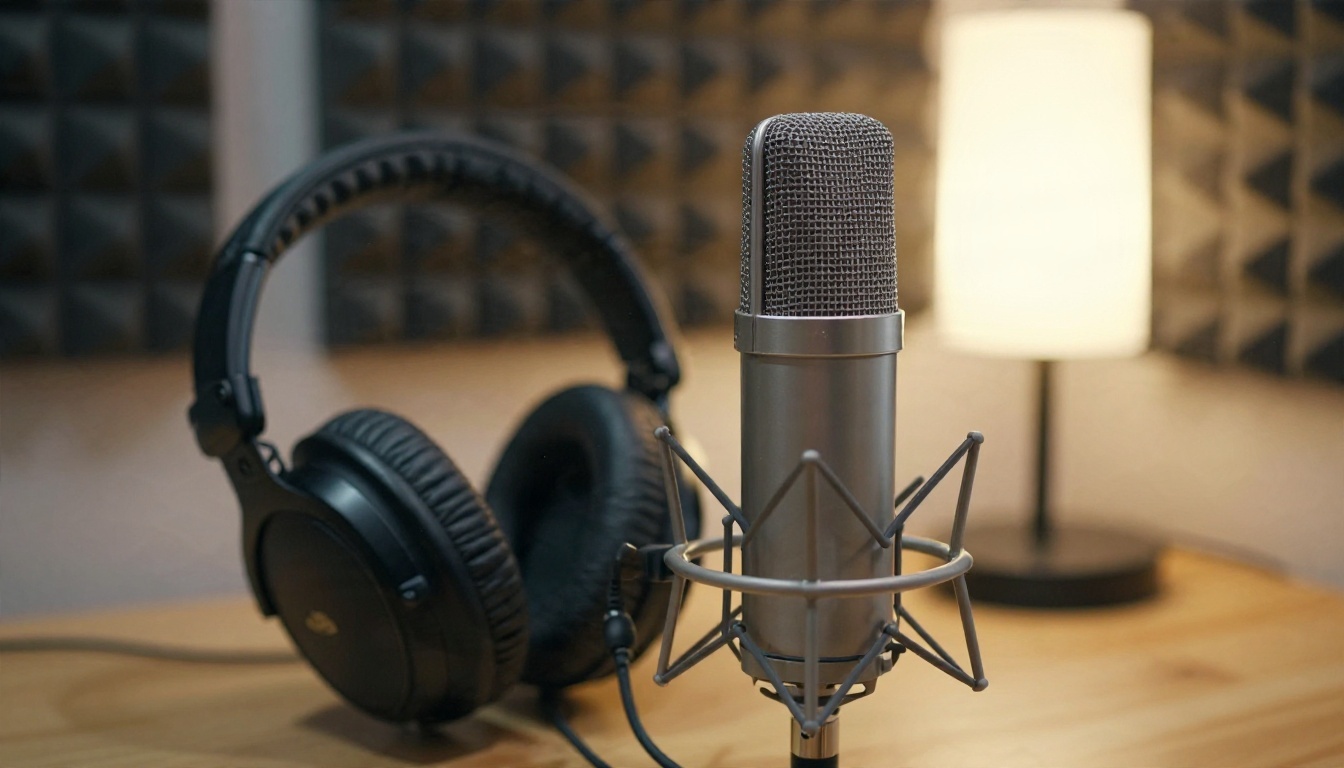
- Sound-led scene: "Close-up of a studio microphone, a hand adjusts the pop filter, faint room tone, warm lamp light."
- Calm landscape: "Wind moving through tall grass at sunrise, slow pan, birds in the distance."
Notice the pattern: one subject, one camera move, one lighting setup, and a named soundscape. That recipe works for nearly every video model, including Gemini Omni 1.2 Flash itself.
Who Should Use It
| If you are... | Pick this approach |
|---|
| A marketer needing many ad variants | Short clips with reference images and chat edits |
| A filmmaker testing a look | Previs clips at draft resolution |
| A creator posting daily | Vertical 8 to 15 second clips with native audio |
| A sports or action producer | Use real footage, and treat AI as a supporting layer |
| A budget-conscious beginner | Draft cheaply and render only the best take |
Make Your Own Clips Today
Gemini Omni 1.2 Flash shows where short AI video is heading: longer clips, sound built in, and edits as easy as sending a message. Its limits are real too, so keep your shots simple, draft before you spend, and cut longer stories together from several clips.
You do not need to wait for 1.2 to try the workflow. Open Gemini Omni 1.1 on PicassoIA, write a one-line scene, add a photo and render a 360p draft. Then compare it against Veo 3.1 Fast, Kling v3 Omni Video and Seedance 2.5 with the same prompt. Five minutes of side-by-side testing will tell you more than any spec sheet. Browse every option at picassoia.com/en/all-models and start building your first clip.


