You open Google Flow, type a prompt for a cinematic coastal drive, and hit generate. Ten seconds later a credit counter ticks down, and you start wondering how many more clips you can squeeze out before the day is over. That is the real experience of Google Flow AI free: a genuinely useful tool, wrapped in a daily budget that rewards planning and punishes experimenting.
This article lays out what the free version gives you, what every limit really means in practice, how lip sync and spoken dialogue work, and which free alternatives keep you creating when the credits run dry. Numbers below come from recent reviews and pricing breakdowns, and Google changes these allocations often, so treat the credit display inside your own account as the final word.
What Google Flow Actually Is
Flow is Google's AI filmmaking workspace. Instead of a single prompt box that spits out one clip, it gives you a project canvas where you generate shots, arrange them in a timeline, extend scenes and keep characters consistent from one clip to the next. Under the hood it runs Veo 3.1, Google's video model, along with Google's image model for creating start frames and references.
💡 Quick take: Flow is the interface, Veo is the engine. When people say "Flow is free," they mean you can use the interface and spend a small daily credit allowance on the engine.
Flow Versus Veo
Veo is the model that renders pixels and sound. Flow is the product wrapped around it, with scene building, camera controls and project storage. You can reach Veo through other products too, which matters later when we look at alternatives.
Who Flow Is Built For
It suits storytellers, ad creatives and social video makers who think in shots rather than single clips. If you only need one quick animation, the project structure can feel heavy. If you are building a 30-second sequence from ten connected shots, it is exactly the right shape.
The Free Version Explained

Without a paid Google AI plan, current sources describe a free allowance of about 50 credits per day. Some regional reports mention a higher daily number in certain countries, but that figure is not consistently confirmed, so plan around 50 and consider anything extra a bonus.
What 50 Credits Buy
Credits are spent per generation, and the cost depends on which Veo 3.1 tier you pick. Here is the pricing table most reviewers report:
| Veo 3.1 tier | Credits per clip | Clips from 50 free credits |
|---|
| Lite | 10 | 5 |
| Fast | 20 | 2 (with 10 left over) |
| Quality | 100 | 0 |
The takeaway is blunt. A free account can never afford a single Quality clip in one day. The free tier is designed for drafts, not finals.
Daily Credits Do Not Roll Over
Free credits expire at the end of the day. Skip a day and you do not get 100 tomorrow. This pushes you toward a steady habit: a few clips per day rather than a binge once a week. It also means unused credits are simply wasted, so a short end-of-day test clip costs you nothing in practice.
An Older Allowance You May Still See
Older articles mention a monthly choice between a handful of fast Veo 3 videos or one standard Veo 3 video. That model has been replaced by the daily credit system. If you land on a page quoting it, check the date before trusting the numbers.
The Limits You Will Hit

Credits are only the first wall. Free accounts run into several others, and knowing them in advance saves frustration.
Peak Hour Blocks and Rate Limits
Reviewers report that video generation can be blocked at busy times for free users, and that rapid back-to-back requests may be rate limited. Paid subscribers tend to get priority. If you create in the evening in North America or Europe, expect the occasional "try again later" message.
No Upscaling on Free
According to one review, free accounts cannot upscale generated video. What you generate is what you export, so choose your tier and framing with care before spending credits.
A Visible Watermark Layer
Every output carries a SynthID watermark, Google's invisible marker that flags AI-generated media. Free outputs may also include a visible mark depending on the tool and plan. For personal projects that is fine. For client work, check the current terms before delivering anything.
Short Clips Only
A single generation is a short shot, usually in the range of a few seconds. Longer sequences come from chaining clips in the timeline, and every extension costs more credits. A 30-second sequence on the free plan is a multi-day project.
💡 Budget trick: Draft on the cheapest tier, lock your prompt wording, and only spend higher-cost credits on the one shot you plan to keep.
Lip Sync in Flow
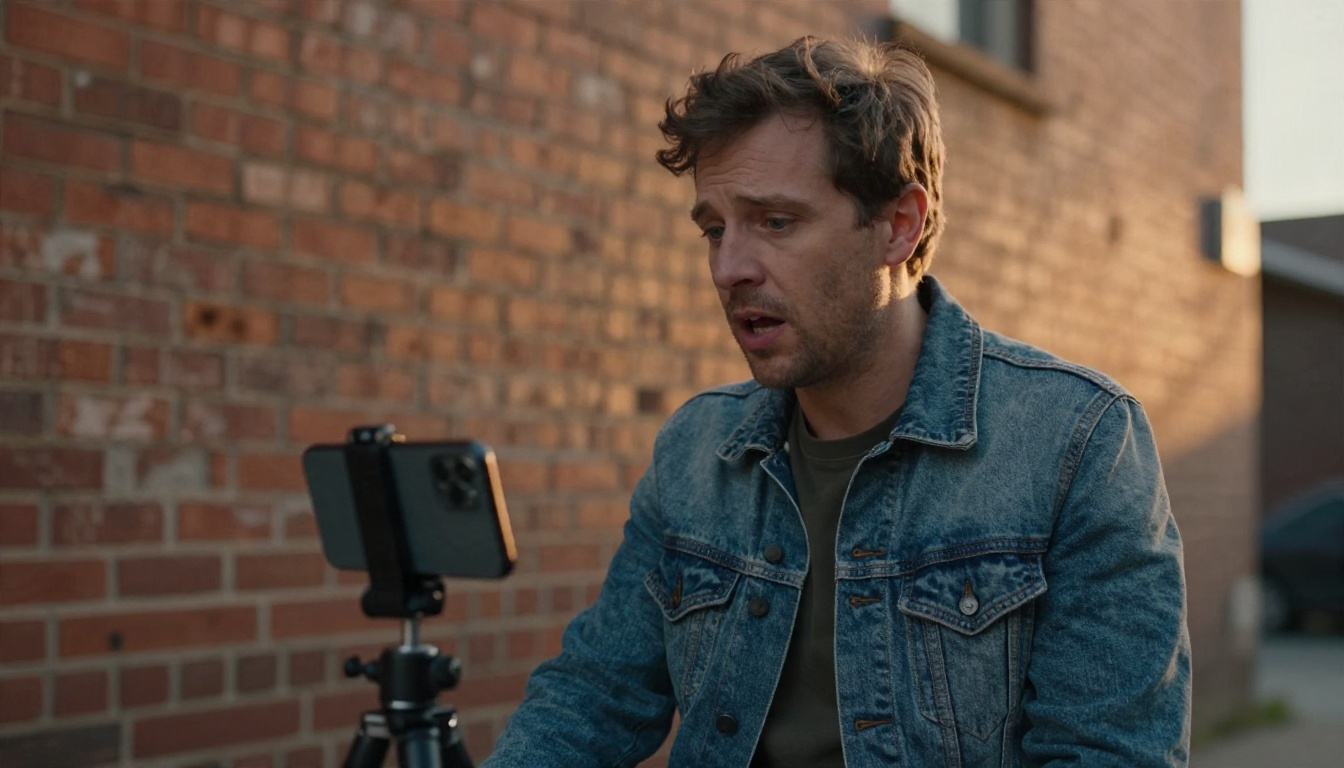
Lip sync is where Veo 3.1 stands out. Instead of generating silent video and asking you to add a voice later, the model creates character dialogue, sound effects and ambient audio in the same pass as the picture. A May 2026 review describes the mouth movement as accurate to the spoken lines, which is the main reason many creators test Flow in the first place.
How Dialogue Prompts Work
You write the line you want the character to say directly in the prompt, usually in quotes, and describe who is speaking and how. For example: a man in a denim jacket in a narrow alley at sunset says, "We only get one take." The model renders the face, the voice and the room tone together.
A few habits improve results:
- Keep lines short. One or two sentences fit inside a short clip. Longer speech gets rushed or cut.
- Name the speaker. If two people appear, say who talks first.
- Describe the sound. "Faint traffic hum, soft echo off brick" gives the audio layer something to build on.
- Frame the face. Medium close-ups give the model more mouth detail than wide shots.
Where Built In Lip Sync Falls Short
Because audio and video come from one pass, you cannot easily swap the voice afterward. If the accent is off or you want your own recorded voice, you need a different workflow. That is where a separate lip sync model helps, and we cover those below.
The Credit Cost of Retries
Dialogue clips often need two or three attempts to get timing and voice right. At 10 to 20 credits per try on the free plan, a single good dialogue shot can eat your whole day. Write the line, test it on the Lite tier, and only then move up.
Quality, Watermarks and Reality Checks

Free does not mean bad, but it does mean lower tiers. The Lite model is quick and cheap, with less fine detail in faces and motion. Quality mode looks sharper and handles complex scenes better, but it costs ten times more.
What Looks Great and What Does Not
Slow camera moves, single subjects, natural light and simple environments hold up well. Crowds, fast action, readable on-screen text and hands doing detailed tasks remain weak spots across nearly every AI video model, not just Flow.
Commercial Use Questions
If you plan to publish for a brand, read the current terms for your plan. Policies around commercial rights, watermarks and attribution differ between free and paid accounts and can change without much notice.
When Credits Run Out
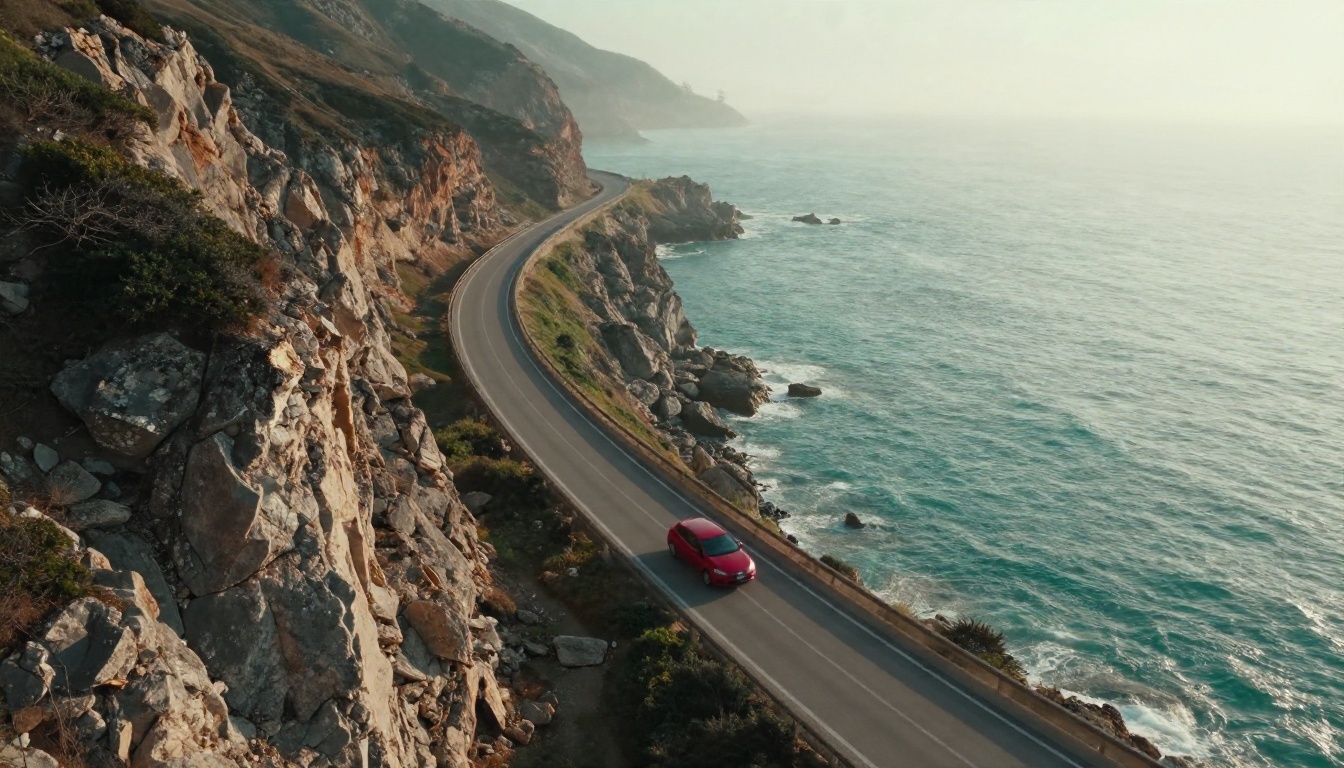
Flow is not on PicassoIA yet, but several models that deliver similar results are. If you want to keep generating after the daily credits are gone, these are worth knowing.
Seedance 2.5 Lite for Free Volume
Seedance 2.5 Lite is listed as a free and unlimited AI video generator with clips up to 10 seconds. That is the closest answer to the daily credit wall: you can keep iterating on a prompt without counting. It is the best first stop when your goal is volume and experimentation.
Veo 3.1 Variants for Veo Quality
Flow runs on Veo, and Veo itself is available on its own pages. Veo 3.1 Lite, Veo 3.1 Fast and Veo 3.1 generate video with native audio, so you keep the dialogue and sound effects you wanted from Flow without the project interface. Veo 3 Fast is a cheaper step back if you only need a quick draft.
Kling v3 for Cinematic Motion
Kling v3 Video is a strong pick for camera moves and character motion, while Kling v3 Motion Control lets you drive a character with a reference performance.
Other Fast Options
Wan 2.5 T2V Fast and Hailuo 2.3 Fast are quick drafting tools when you want many variations in a short time.
Side by Side
Better Lip Sync Options
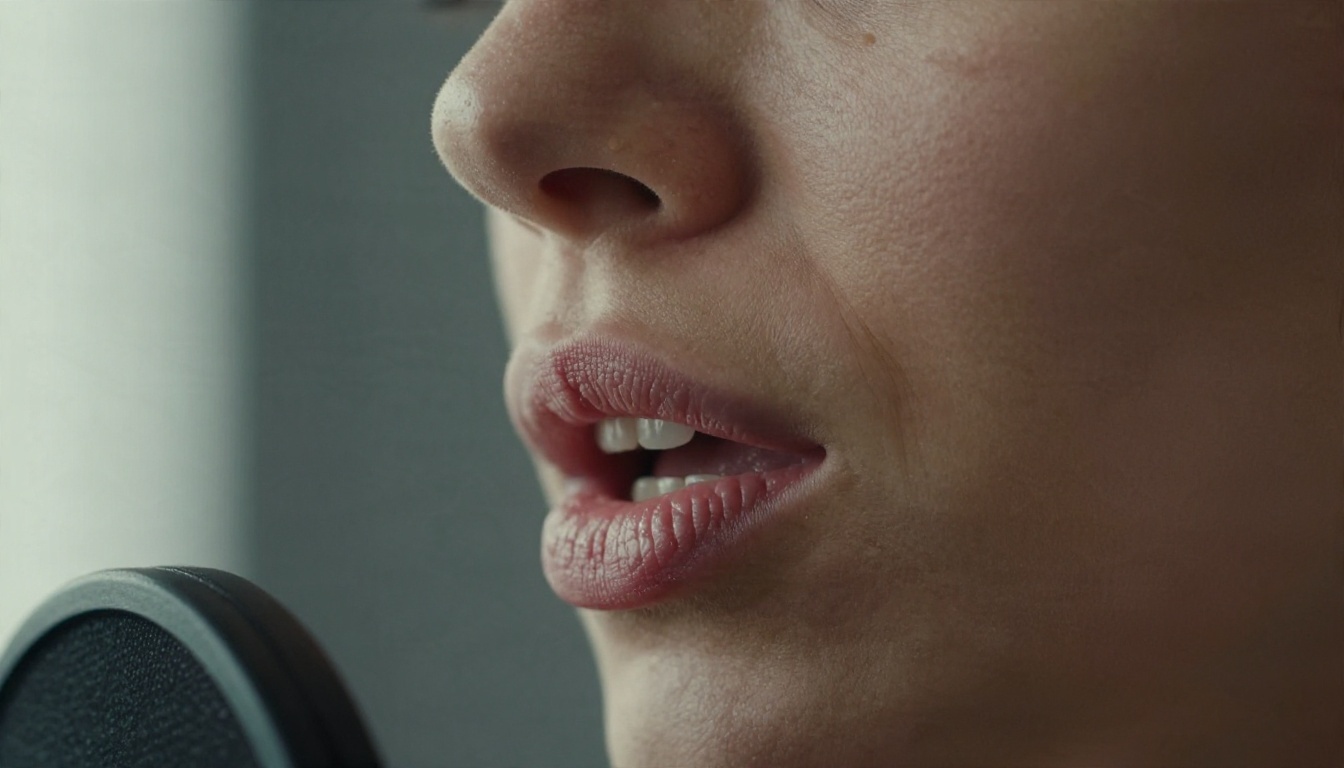
If you want to use your own voice or a specific narration, a dedicated lip sync model gives you more control than dialogue baked into the video.
Sync Your Own Audio
Lipsync 2 takes an existing video and a voice track, then matches the mouth movement to the audio. Kling Lip Sync does the same job inside the Kling family, and Pixverse Lipsync is a third option when you want to compare results.
A Two Step Workflow
- Generate a silent or ambient clip with a close, steady face shot.
- Record or generate the voice line, then run the clip and the audio through a lip sync model.
- Check the first and last second for mouth drift, then trim.
This split approach costs fewer retries than rolling the dice on dialogue inside a single generation, because you can fix voice and picture separately.
How to Get Similar Results on PicassoIA
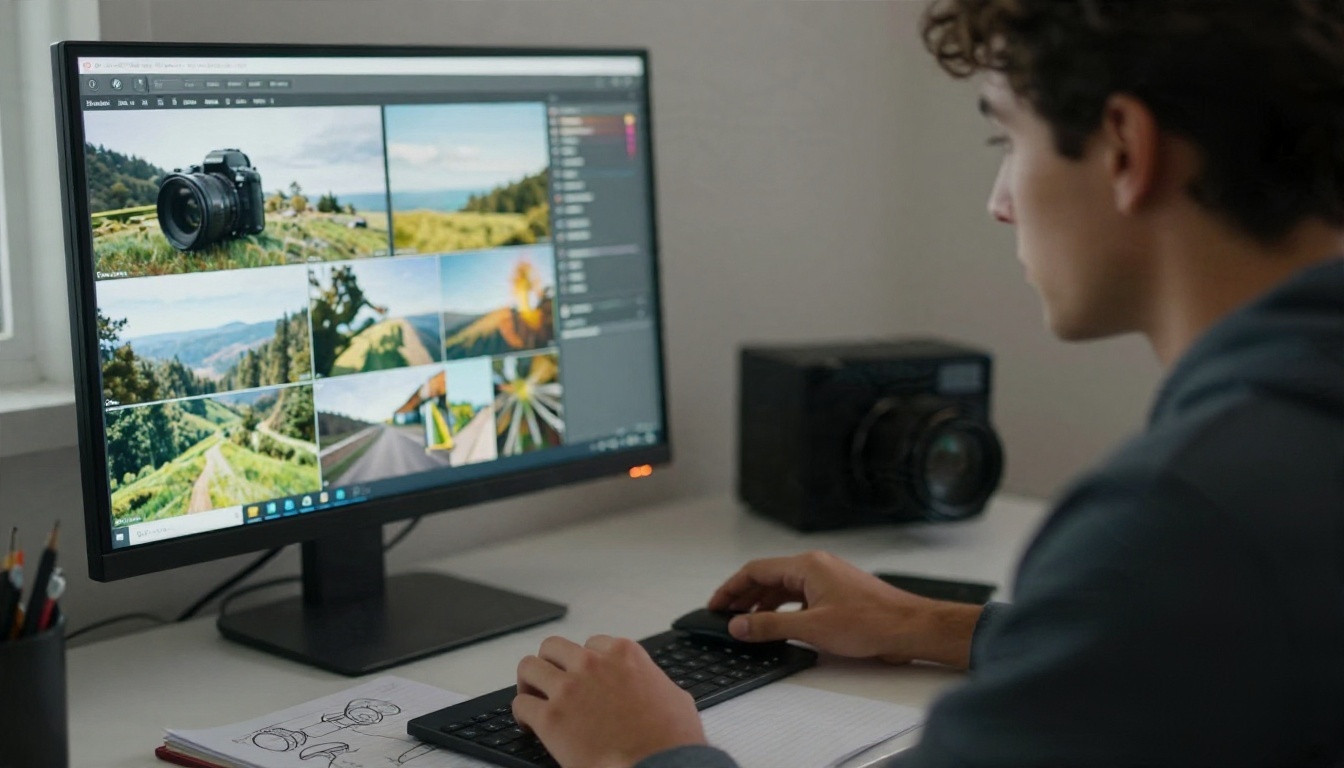
Here is a simple workflow using Seedance 2.5 Lite as the free engine, then adding audio polish as needed.
Step by Step
- Open the model page. Go to the Seedance 2.5 Lite page and start a new generation.
- Write a shot, not a story. One subject, one action, one camera move. Example: "A woman in a gray coat walks along a rainy street at dusk, slow dolly-in, soft streetlight reflections on wet pavement."
- Pick the duration. Start short, since clips can run up to 10 seconds. Shorter clips render faster and let you test more variations.
- Generate several versions. Because the model is free and unlimited, run three or four variations of the same prompt and keep the best.
- Refine one thing at a time. Change only the camera move or only the lighting between runs so you can see what each edit does.
- Upgrade the keeper. Take your best prompt into Veo 3.1 Fast or Kling v3 Video for a higher quality final render.
- Add voice if needed. Use Lipsync 2 to match a recorded line to the final clip.
Parameter Tips
- Be specific about light. "Soft overcast daylight from the left" beats "good lighting."
- Describe motion in order. Say what happens first, then second, then how the camera moves.
- Keep one camera move per clip. Combining a pan, a zoom and a tilt confuses most models.
- Avoid on-screen text. Add titles in your editor afterward.
Make Start Frames First
For maximum control, create a still image first and animate it. Nano Banana Pro and Imagen 4 produce clean photorealistic frames, and Nano Banana is handy for editing a frame until the composition is right. Then feed that frame into an image to video model such as Wan 2.5 I2V Fast.
Should You Stay on Flow Free?
The honest answer depends on how you create.
Stay If
- You want to test Veo 3.1 quality with dialogue at no cost.
- You only need a few clips per week.
- You like the project timeline and scene tools.
Move On If
- You hit the daily credit wall before finishing a single sequence.
- You need clips longer than a short shot without paying.
- You want your own voice, more variations or a workflow with fewer retries.
A Practical Hybrid Plan
Many creators use both. They spend Flow's daily credits on one or two high-value Veo shots, then use unlimited models for drafting and variations. The daily free allowance becomes a polish tool, not the whole pipeline.
Start Making Your Own Clips
Flow's free version is a good taste of what Veo can do, and the daily credits are enough to test a handful of ideas. The moment you want volume, your own voice or longer sequences, you need a wider toolkit.
Try it yourself: write one shot description, run it through a free model like Seedance 2.5 Lite, then polish the best version with a Veo or Kling model. Create a few start frames with Imagen 4, animate them, and add a voice with a lip sync model. You can browse every video, image and lip sync model in one place at picassoia.com/en/all-models, so pick one, write a prompt, and make your first clip today.


