You typed "GPT Image 2.5 free" into a search bar, and now you are staring at ten tabs that all claim to be the real deal. Some promise unlimited images. Some hide a paywall behind a "start now" button. A few want your credit card before you have seen a single pixel. Sorting fact from marketing takes longer than actually making a picture.
This article cuts through that. You will see which routes to GPT Image 2.5 are genuinely free, where the hard limits sit, which alternatives hold up when the free quota runs dry, and exactly how to try it on PicassoIA in a few minutes. No hype, just what works.
💡 Quick answer: There is an official free route through the free ChatGPT plan, but OpenAI has not published a per day image count. The API is paid. Third party sites offer small trial credits. For a free browser based option with no software, PicassoIA hosts two GPT Image 2.5 variants you can open right now.
What GPT Image 2.5 Actually Is
The short version
GPT Image 2.5 is OpenAI's image model line that follows GPT Image 2. It turns written prompts into images, edits existing photos from text instructions, and renders readable text inside the picture, which older models routinely botched. If you have ever seen a generated poster with garbled lettering, that is the exact problem this generation tries to solve.
The practical gains people notice first:
- Instruction following: long, multi part prompts land closer to what you asked for.
- Text rendering: labels, signs, packaging and posters come out legible far more often.
- Editing: you can feed in a reference photo and describe the change in plain language.
- Aspect ratios: square, portrait, landscape and widescreen formats are all available.
Flare and Sunburst variants
On PicassoIA the model shows up in two flavors. GPT Image 2.5 Flare is tuned for speed, so a finished image arrives in a few seconds. GPT Image 2.5 Sunburst leans toward precise instruction following and editing, with several quality tiers so you can trade speed for fine detail. If you want to compare against the previous generation, GPT Image 2 is available too.
| Variant | Best for | Default quality | Standout trait |
|---|
| Flare | Fast drafts, social graphics | Auto | Results in seconds |
| Sunburst | Edits, labels, packaging | Low | Precise multi step prompts |
| GPT Image 2 | Baseline comparison | n/a | Previous generation |
Is It Really Free Online?
Short answer: partly. "Free" means very different things depending on where you click, so it helps to separate the four routes people actually use.
The free ChatGPT plan
ChatGPT's free plan can generate images with the current OpenAI image model, according to third party reports such as this apidog write up. The catch is that OpenAI has not published a clear per day or per month number for free users. Several independent guides, including one from laozhang.ai, say free caps are tighter than paid plans without giving exact figures. In practice that means you can make a handful of images, then see a message asking you to wait or upgrade.
The paid API route
If you are a developer, the official API does not have a free image tier. Image endpoints require a paid usage tier, and you pay per image based on size and quality. Rate limits scale with your tier, so a new account moves slowly at first. One vendor breakdown, the atlascloud rate limit page, reports a range from a few images per minute on low tiers up to a few hundred on top tiers. Treat those numbers as a rough picture and check OpenAI's own documentation before building anything around them.
Trial credits on third party sites
Plenty of websites advertise "free GPT Image 2.5" and then hand you a few cents of starter credit. One guide mentions about ten cents for new users, which works out to somewhere between one and five images depending on the quality setting. That is a demo, not a workflow. The limits and terms on these sites change without notice, so never rely on them for a deadline.
Hosted free access on PicassoIA
PicassoIA lists GPT Image 2.5 as a browser based, no software option. You open the model page, type a prompt, pick a quality level and an aspect ratio, and generate. The Sunburst page describes it as free and online, and Flare is built for quick turnaround. That makes both handy for testing a prompt before you decide whether the model deserves a paid plan.
The Limits You Will Hit
Every free route has a ceiling. Knowing where it sits saves you from losing an afternoon to a locked account.
Daily and hourly caps
On the free ChatGPT plan, the cap is soft and opaque. You do not get a counter, you get a message after the allowance is used. Planning around that is hard, so batch your best prompts early in the session instead of spending attempts on throwaway ideas.
💡 Tip: Write three versions of a prompt in a notes app before you generate anything. Run the strongest first. You will waste fewer free attempts on vague wording.
Quality and size ceilings
The model exposes quality settings from low through medium, high, xhigh and max, plus an auto mode. Higher quality takes longer and costs more, which is why free tiers usually default to the lower end. Output sizes range from 1024 by 1024 up to widescreen and 4K options, though sizes above roughly 2560 by 1440 are flagged as experimental and can produce more variable results. For most blog headers and social posts, a standard 16:9 or 3:2 frame at medium or high quality is plenty.
Speed, queues and moderation
Free users often wait behind paying ones when demand spikes. The moderation layer also rejects some prompts, especially involving real people, public figures and certain sensitive subjects. If a prompt gets refused, rewording around a fictional character or a generic description usually works better than retrying the same text.
| Limit type | What to expect on free routes | Practical workaround |
|---|
| Daily count | Undisclosed, soft cap | Batch your best prompts early |
| Quality | Lower defaults | Draft low, finalize at high |
| Resolution | Large sizes can be experimental | Stay at 16:9 or 3:2 |
| Queue speed | Slower at peak hours | Try off peak times or use Flare |
| Moderation | Strict on real people | Use generic or fictional subjects |
Free Alternatives Worth Trying
When the GPT Image 2.5 allowance runs out, you do not have to stop. Several strong models are available on the same platform, each with a different personality.

Photorealism picks
If lifelike skin, fabric and natural light matter most, start with these:
Editing and speed picks
For quick edits and fast iteration:
How they compare
How to Try It on PicassoIA
Here is the fastest path from zero to a finished image. It takes under five minutes.
Step by step
- Open a model page. Pick GPT Image 2.5 Flare for speed or Sunburst for precision.
- Write your prompt. Describe the subject, the setting, the lighting and the lens. One clear paragraph beats a list of buzzwords.
- Choose an aspect ratio. Use 16:9 for blog headers, 3:2 for photos, 9:16 for stories.
- Pick a quality level. Start at low or medium for drafts. Switch to high once the composition looks right.
- Set the number of images. The model accepts 1 to 10 per run. Start with two or three so you can compare.
- Add a reference photo if needed. Use the input images field to guide an edit or a variation.
- Generate and refine. Change one detail at a time so you can see what each edit does.
Settings that matter
| Setting | What it does | Tip |
|---|
| Quality | Trades speed for detail | Draft low, finish high |
| Aspect ratio | Sets the frame | 16:9 for headers |
| Background | Auto, transparent or opaque | Transparent for product cutouts |
| Output format | PNG, JPEG or WebP | PNG for editing, WebP for the web |
| Number of images | 1 to 10 per run | Keep it small on free runs |
A prompt that works
Weak prompts produce generic images. Compare these two.
- Weak: "a coffee shop"
- Strong: "A corner coffee shop at 7 a.m., steam rising from a ceramic cup on a worn oak counter, soft window light from the left, 50mm lens at f/1.8, shallow depth of field, natural film grain, warm muted colors."
The strong version names the subject, the light, the lens and the mood. Every one of those pieces gives the model something to hold on to.
💡 Tip: If you need text inside the image, keep it to one or two short words and put them in quotes. The model handles short phrases far better than full sentences.
Mistakes That Waste Free Credits
Most people burn through a free allowance in the first ten minutes. These are the usual culprits.
Vague prompts
"A beautiful woman" or "a nice landscape" gives the model nothing to anchor on. You get a bland average of everything it has seen. Add a place, a time of day, a light direction and a lens, and the same model suddenly looks twice as capable.
Chasing max quality too early
Running every attempt at the highest quality level is the fastest way to hit a cap. Treat low quality as a sketch. Once the framing is right, spend one high quality run on the final.
Trusting "unlimited" claims
Be skeptical of any site that promises unlimited GPT Image 2.5 with no account and no cost. Image generation costs real compute. If a site hides the price, the catch is often a watermark, a tiny resolution, a data collection form or a bait and switch. When a limit is stated openly, you can plan around it. When it is hidden, assume it is low.
Ignoring the editing route
A single good base image plus three targeted edits often beats ten fresh generations. Upload your best result as a reference, then describe the change: "same scene, warmer light" or "remove the second chair." Editing tends to keep composition stable and uses fewer attempts.
Commercial Use and Rights
Free does not automatically mean free to sell. Before you put a generated image on a product page, an ad or a book cover, check the terms of the specific service you used.
Check the terms first
Different platforms attach different conditions to generated output, and those conditions can change. Look for the commercial use section in the terms, and keep a screenshot or note of what it said on the day you created the image. If the work is for a client, mention that the image was AI generated.
Real people and brands
Avoid prompts that depict real public figures or reproduce trademarked logos. Moderation may block them anyway, and even when it does not, you carry the risk. Invented characters and generic products are safer subjects and look more original.
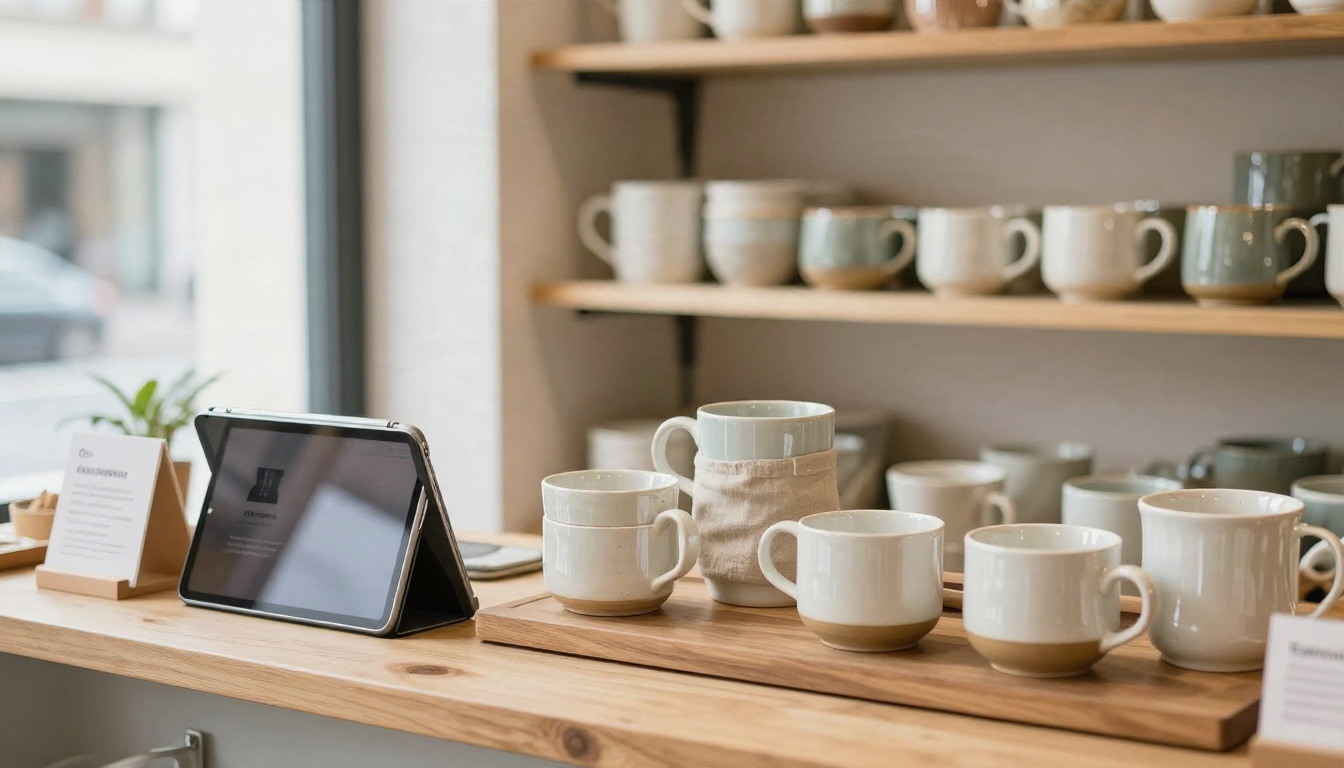
For small shops, the sweet spot is usually product mockups, packaging concepts and social graphics. GPT Image 2.5 Sunburst supports transparent backgrounds, which makes clean product cutouts easy to place on your own layouts.
Start Making Your Own Images
You now have the full picture: the free ChatGPT route works with an undisclosed cap, the API is paid, trial credits are tiny, and hosted options let you test without installing anything. The smartest move is to try a few prompts and see which model fits your style.
Open GPT Image 2.5 Flare for a fast first draft, switch to Sunburst when you need precise edits or readable text, and keep Imagen 4, Seedream 4.5 and Nano Banana Pro in your back pocket for variety. When you want endless revisions, Image Editor Pro lets you keep tweaking without watching a counter.
Pick one idea you have been putting off, a product shot, a portrait, a poster, and write a single detailed paragraph for it. Generate it on PicassoIA, compare it with a second model, and keep the winner. The first result is rarely the best one, and every extra attempt teaches you what your prompts are missing.
Sources for the third party figures mentioned above: apidog, laozhang.ai and atlascloud. Limits and pricing change often, so confirm with OpenAI before you rely on them.


