Grok's image generator is one of the few AI tools that doesn't hide behind heavy content filters. If you've tried creating realistic images on mainstream platforms and hit a wall, Grok Imagine Image takes a different approach. This article breaks down exactly how the model works, how to use it on PicassoIA step by step, and which settings and prompts produce the most believable, photorealistic results.
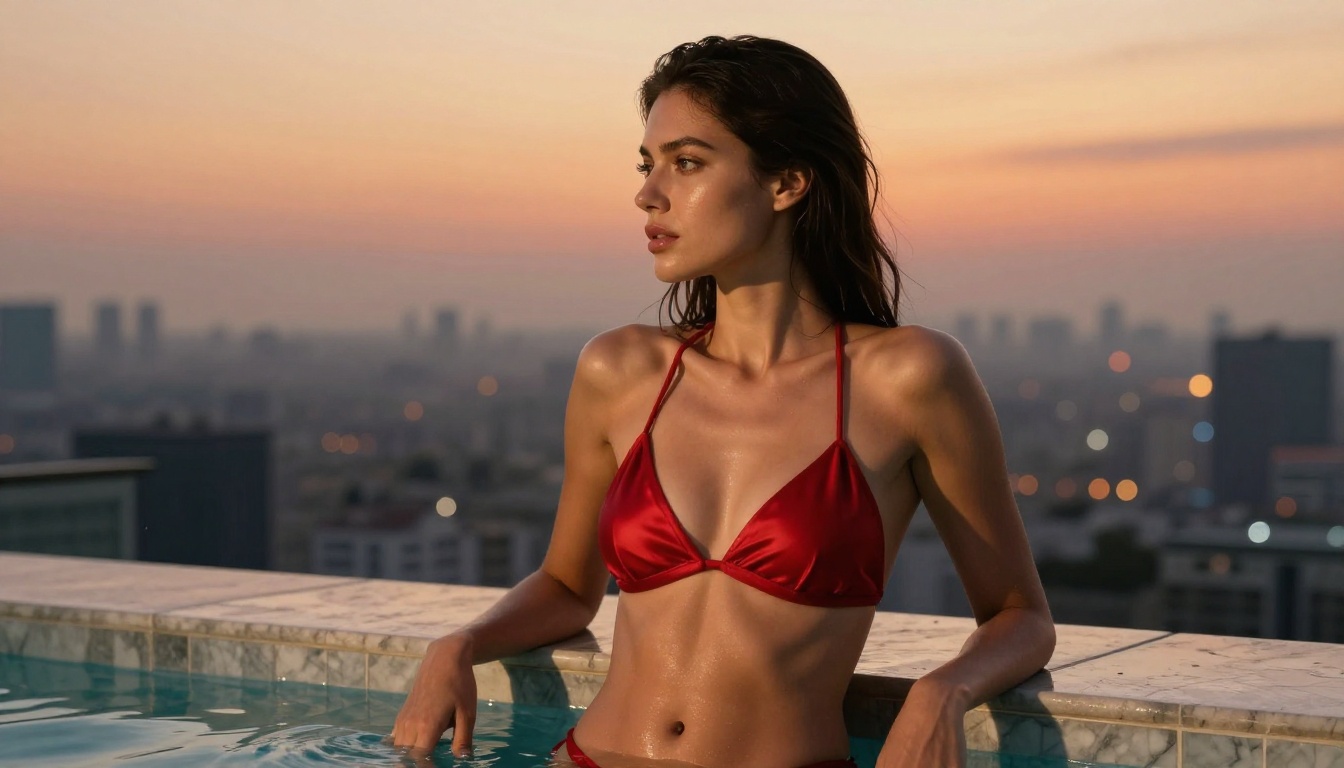
What Grok Imagine Actually Does
Grok Imagine Image is an image-to-image AI model built by xAI. Its specific strength is taking an uploaded photo and remixing it: swapping outfits, changing backgrounds, or applying stylistic changes while preserving the subject's face and proportions with high fidelity. The model operates with fewer content restrictions than Midjourney, DALL-E, or Stable Diffusion's default configurations, making it popular for creators who want realistic results without constant refusals.
What sets it apart is not just the lack of restrictions. The underlying model produces genuinely realistic textures, accurate skin tones, and natural lighting behavior that many filtered models also struggle with, simply because their safety training interfered with output realism.
The Aurora Model Inside
Grok Imagine Image runs on Aurora, xAI's proprietary visual generation model. Aurora was trained with a specific emphasis on photorealism and coherent scene understanding. When you give it a portrait photo, it doesn't just copy the image or apply a flat filter. It interprets the subject's pose, facial structure, lighting conditions, and environment, then rebuilds the scene according to your text prompt.
This architectural approach is why Grok excels at the bikini conversion use case specifically. The model understands clothing as a layer over body geometry, allowing it to replace garments while keeping body proportions, skin texture, and face consistent. Other models often distort limbs or break facial likeness when making drastic outfit changes. Aurora handles this more cleanly.
What "Uncensored" Means Here
The word "uncensored" gets thrown around loosely in AI image communities. For Grok Imagine Image, it means the model does not refuse prompts related to revealing clothing, suggestive poses, or adult-adjacent content as long as the output stays within non-explicit bounds. The model is not pornographic and won't generate explicit sexual content, but it handles bikinis, lingerie, glamour photography, and artistic suggestive concepts without triggering refusals.
💡 This is an important distinction. Grok Imagine Image is more permissive than mainstream tools, but it is not an explicit content generator. Think glamour photography and fashion editorial, not explicit adult content.
How to Use It on PicassoIA
PicassoIA provides direct access to Grok Imagine Image without requiring an xAI subscription or API access. The workflow is straightforward.
Step 1: Open Grok Imagine Image
Go to picassoia.com/en/collection/text-to-image/xai-grok-imagine-image. The interface shows a prompt field at the top and an image upload zone below it. You do not need to configure aspect ratios or sampling steps manually. The model handles those automatically.
Step 2: Write a Strong Prompt
The prompt drives the conversion. Be specific about what you want the output to look like: outfit description, setting, lighting, and mood. Vague prompts like "beach bikini photo" produce decent results, but detailed prompts tap the model's full realism capability.
A strong prompt structure looks like this:
[Subject description] + [Outfit detail] + [Environment/background] + [Lighting condition] + [Mood or style]
For example: "Young woman in a white string bikini on a tropical beach at golden hour, warm sunlight from the left, turquoise water in the background, photorealistic, natural skin texture"
Step 3: Upload a Reference Photo
Click the upload zone and add a clear portrait photo of the subject. The best source images are:
- Well-lit with even, diffuse light or natural daylight
- Front-facing or at a slight three-quarter angle
- High resolution at least 1024px on the short side
- Uncluttered background to help the model focus on the subject
Avoid photos with heavy makeup filters, extreme JPEG compression, or partially obscured faces. The model performs significantly worse on low-quality inputs.
Step 4: Read Your Output
Generation takes a few seconds. The output image appears directly in the interface. If the result preserves facial likeness and applies your prompted conversion correctly, you're done. If the output misses details, try these fixes:
- Add more outfit specifics to the prompt (fabric, color, cut, coverage level)
- Simplify the background description if the model seems confused
- Increase subject description detail to reinforce face and body proportions
Prompts That Actually Work
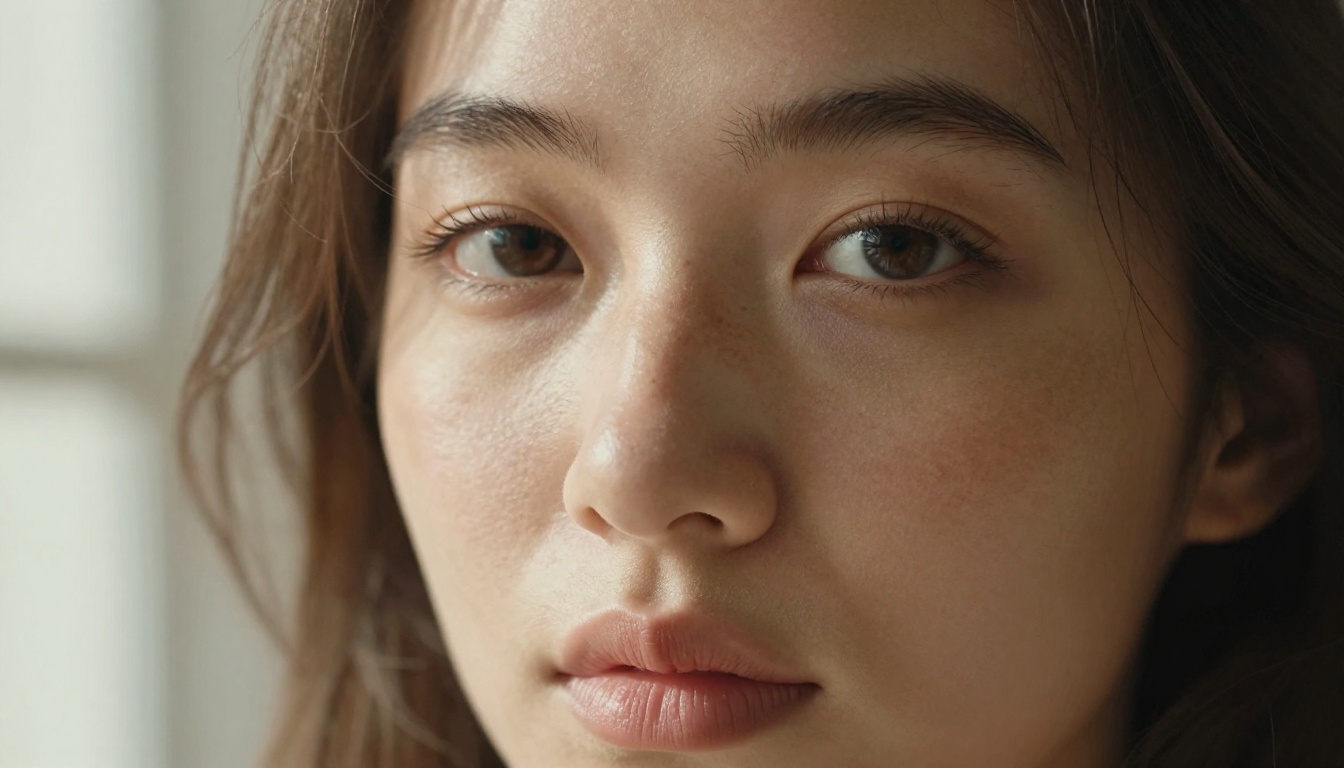
Most failed Grok Imagine Image attempts come down to weak prompts. The model is capable of far more than users typically ask for. Here is what separates prompt writers who get great results from those who don't.
What Makes a Good Grok Prompt
Three things matter most:
- Outfit specificity: Don't say "bikini." Say "white triangle-top string bikini with gold hardware, minimal coverage, wet from the ocean."
- Environmental context: The background and setting affect how the model calculates lighting and shadows on the subject.
- Realism anchors: Phrases like "photorealistic", "natural skin texture", "film photography style", "8K detail" consistently shift outputs toward higher realism.
💡 Avoid abstract style terms like "cinematic" without concrete visual descriptors. "Golden hour sunlight from the upper right creating warm skin highlights" is more useful than "cinematic lighting" alone.
5 Prompt Templates to Try
| # | Prompt Template | Use Case |
|---|
| 1 | [Subject] in [outfit], [location], golden hour light from left, photorealistic | Beach/outdoor scene |
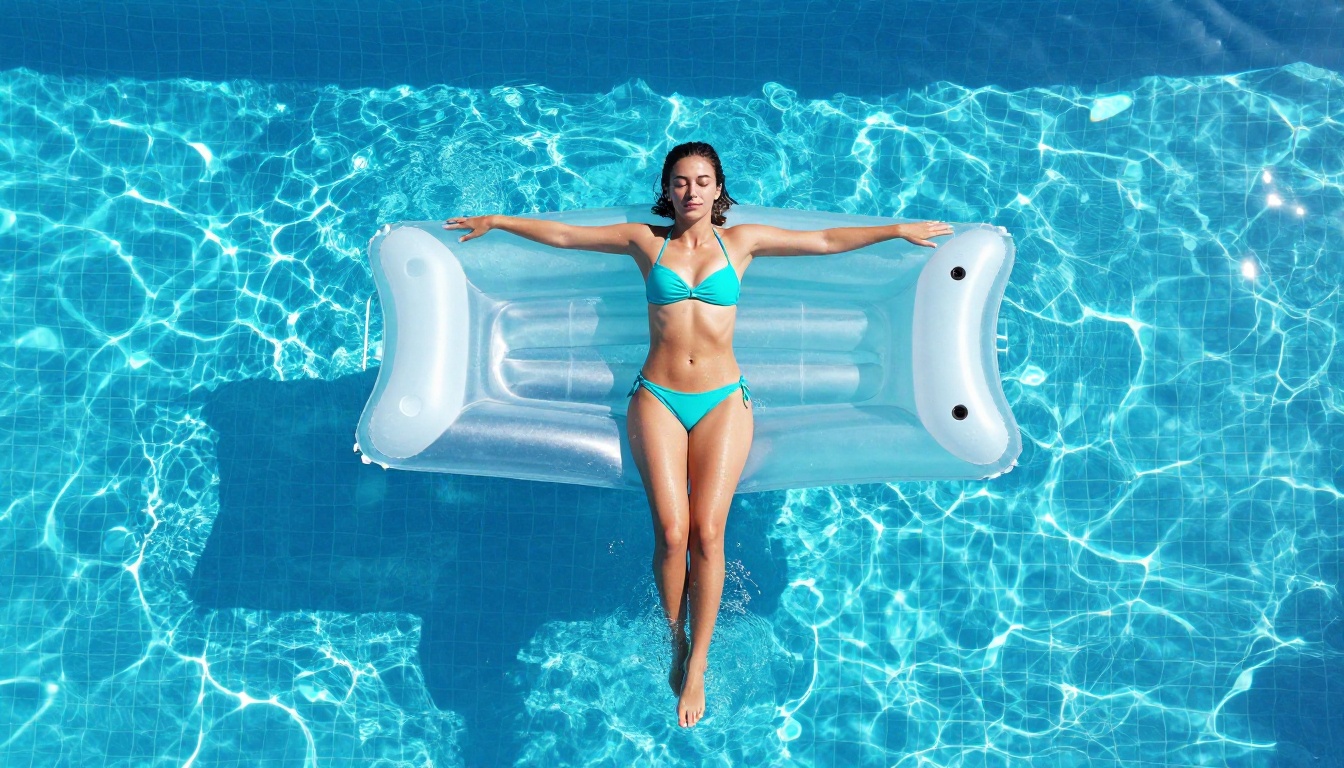
| 2 | [Subject] in [outfit], luxury hotel pool, overhead soft daylight, 8K RAW | Poolside glamour |
| 3 | [Subject] in [outfit], white studio background, even soft lighting, fashion editorial | Clean studio look |
| 4 | [Subject] in [outfit], rooftop at sunset, city skyline bokeh, 85mm portrait lens | Urban/editorial |
| 5 | [Subject] in [outfit], Mediterranean yacht deck, afternoon sea light, natural skin tone | Luxury lifestyle |
Grok vs the Other Top Models
Grok Imagine Image is one of several capable unrestricted image models on PicassoIA. Knowing where it wins and where it falls short saves you time and credits.
Seedream 4.5 vs Grok Imagine
Seedream 4.5 by ByteDance is the strongest all-around NSFW model on the platform. It accepts both text-to-image and image editing workflows, generates in under three seconds, and produces highly realistic results. For pure text-to-image generation of original content, Seedream 4.5 outperforms Grok. But for photo-to-photo conversion, especially portrait-preserving outfit changes, Grok Imagine Image has a specific advantage in facial coherence.
| Capability | Grok Imagine Image | Seedream 4.5 |
|---|
| Text-to-image | Yes | Yes, stronger |
| Image-to-image | Yes, specialized | Yes |
| Facial preservation | Excellent | Good |
| Speed | Fast | Under 3 seconds |
| NSFW support | Yes | Yes |
| Best use | Photo conversion | Original generation |
When to Use PicassoIA Image Editor Pro
PicassoIA Image Editor Pro operates on a completely different value model. As an image-to-image tool, it competes directly with Grok for conversion work. Its biggest differentiator is the pricing structure: Elite and Infinite subscribers get unlimited generations. If you need volume, generating 500 or 1,000 variations costs nothing extra. That same volume with a pay-per-generation model could easily reach $100. Results arrive in under one second, and the model includes a free 3-generation trial requiring no credit card.
For creators doing large batches of content, PicassoIA Image Editor Pro makes more economic sense than Grok. For single high-quality conversions where facial accuracy is critical, Grok is worth the credit cost.
Qwen Image 2 and Recraft V4
Qwen Image 2 is an open-source option offering both image creation and editing with strong realism. Being open source, it has no corporate safety restrictions baked into its architecture. It handles detailed descriptions well and produces accurate anatomy without the distortions common in consumer-grade models.
Recraft V4 is text-to-image only. It doesn't accept reference photos, which makes it unsuitable for portrait conversion work. However, for creating original photorealistic content from scratch, it consistently produces high-quality outputs.
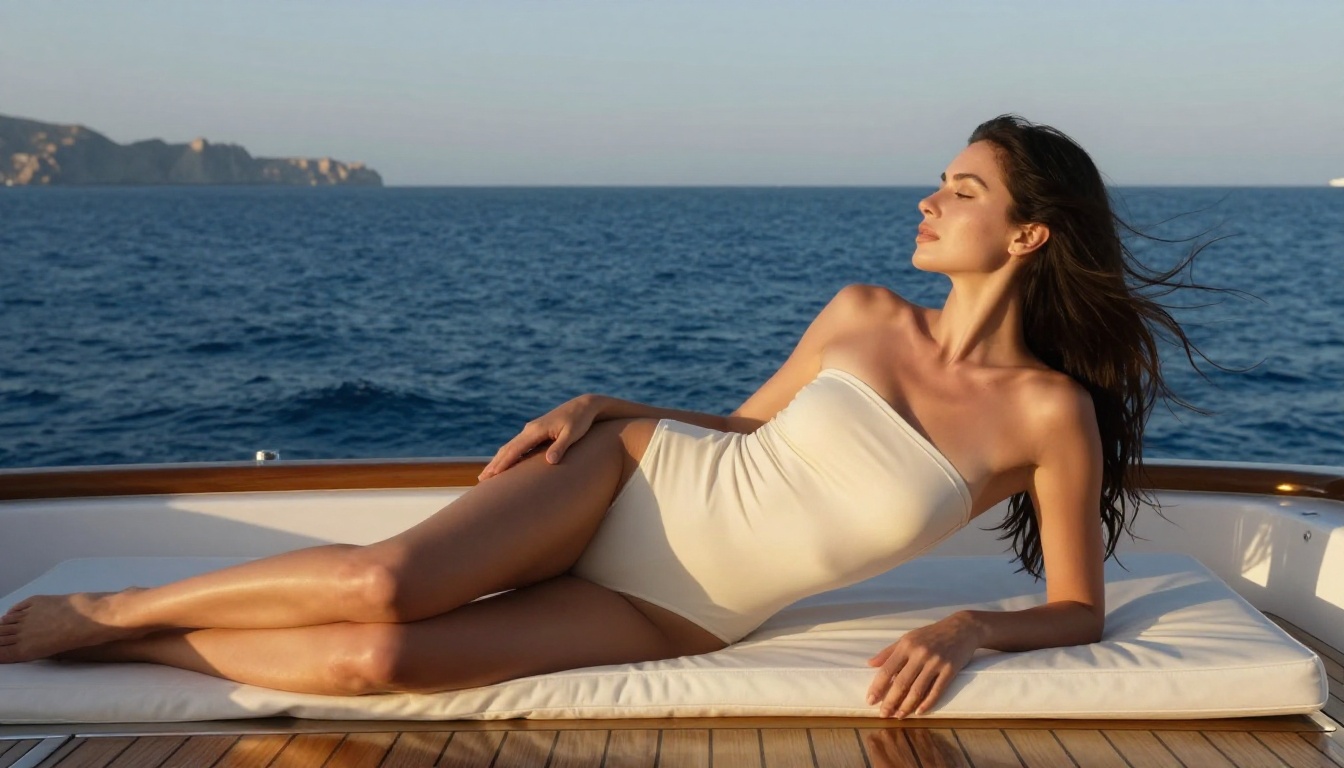
Best Models for Unrestricted Image Generation
PicassoIA hosts a curated set of models that allow adult-adjacent and NSFW content creation. Here is the full recommended list for creators working in this space:
- Seedream 4.5 by ByteDance is the top recommendation. It accepts adult content, supports image editing, and generates ultra-realistic results in under 3 seconds. (Its successor, Seedream 5 Lite, does not support NSFW.)
- PicassoIA Image Editor Pro offers unlimited generations on Elite and Infinite plans. That means 1,000 images at no extra cost vs. roughly $100 on standard pay-per-use models. Results arrive in under one second with a free 3-generation trial, no credit card needed.
- Qwen Image 2 is open source, edits or creates any image in seconds, and produces very detailed realism without content filters.
- Grok Imagine Image converts any uploaded portrait to a bikini or revealing outfit format with high facial accuracy.
- Recraft V4 produces very realistic text-to-image results, though it does not support image input workflows.
- P-Image by PrunaAI supports NSFW text-to-image and returns results in under one second.
💡 Browse every available model, including video generators with no content filters, at picassoia.com/en/all-models.
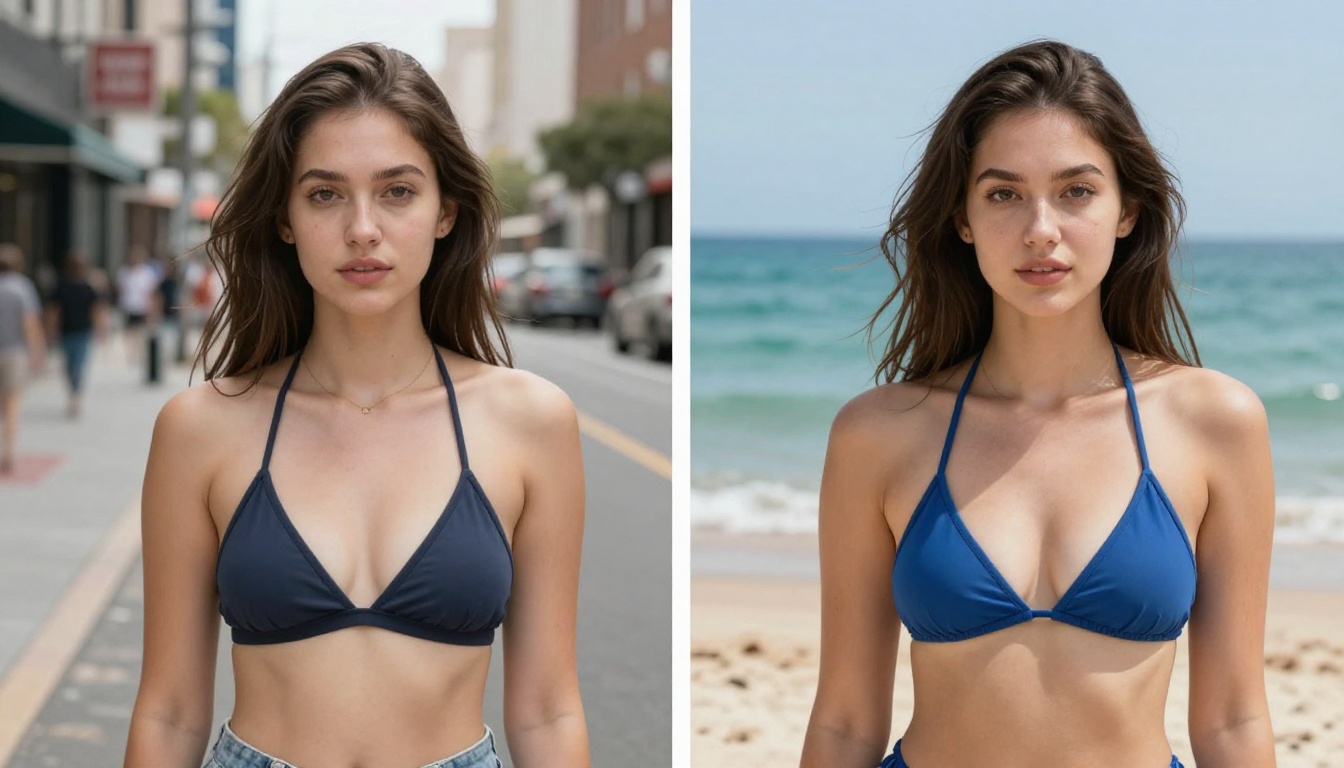
Using Grok 4 to Write Better Prompts
One workflow that significantly improves output quality is using a large language model to generate and refine your prompts before sending them to Grok Imagine Image. Grok 4, also available on PicassoIA, is the natural pairing since it comes from the same xAI ecosystem and understands Aurora's visual vocabulary.
Using an LLM for Prompt Writing
Ask Grok 4 to help you describe a scene with maximum visual specificity. A simple instruction like: "Write a detailed image generation prompt for a photorealistic bikini photo on a tropical beach, including lighting direction, camera specs, skin texture details, and background description" will produce a prompt far more detailed than most users write manually.
Other LLMs available on PicassoIA work equally well for this:
- Claude Sonnet 4.6 produces highly descriptive prompts with strong attention to sensory detail
- GPT 5 offers strong creative prompt writing with flexible style adaptation
- Gemini 3.5 Flash handles rapid prompt iteration when you need multiple variations fast
The pattern that works best: describe your vision in plain language to the LLM, ask it to convert that into a structured image generation prompt, then copy the result directly into Grok Imagine Image. You'll consistently get better outputs than writing prompts from scratch.
💡 When using an LLM to write prompts for NSFW image generation, explicitly tell it to include: lighting direction, camera angle, lens focal length, skin texture description, and background depth. These four details move outputs from mediocre to professional quality.
Common Mistakes to Avoid
Even with a capable model, certain habits reliably produce weak results. Here are the ones that come up most often.
Low-quality source photos: Blurry, heavily filtered, or small source images degrade output quality significantly. Always use the highest resolution photo available.
Incomplete prompts: Single-line prompts with no environmental or lighting context leave too much to chance. The model fills in the gaps, and those gaps are where inconsistencies appear.
Over-specifying the face: Prompts that try to describe facial features in detail often cause the model to deviate from the reference photo. Trust the reference image for facial reproduction; use the prompt for outfit, setting, and lighting.
Wrong tool for the job: If you want to create an original image from scratch with no source photo, Seedream 4.5 or P-Image will produce better results than Grok Imagine Image, which is optimized for conversion workflows.
Prompt Depth vs Output Quality
How much detail actually matters in a prompt? Here is a quick reference based on typical output quality across prompt lengths:
| Prompt Type | Example | Output Quality |
|---|
| Minimal | "bikini beach photo" | Low realism, generic scene |
| Basic | "Woman in red bikini on tropical beach" | Decent, minor anatomy issues |
| Detailed | "Woman in red triangle bikini, Cancun beach, golden hour light from left, 85mm lens, photorealistic" | High realism, good lighting |
| Full | 4+ sentence prompt with lighting, camera, texture, and environment | Professional quality, consistent results |
The jump from minimal to detailed is larger than the jump from detailed to full. Even a single sentence adding lighting direction and a camera reference will noticeably improve your results.
Start Generating Right Now
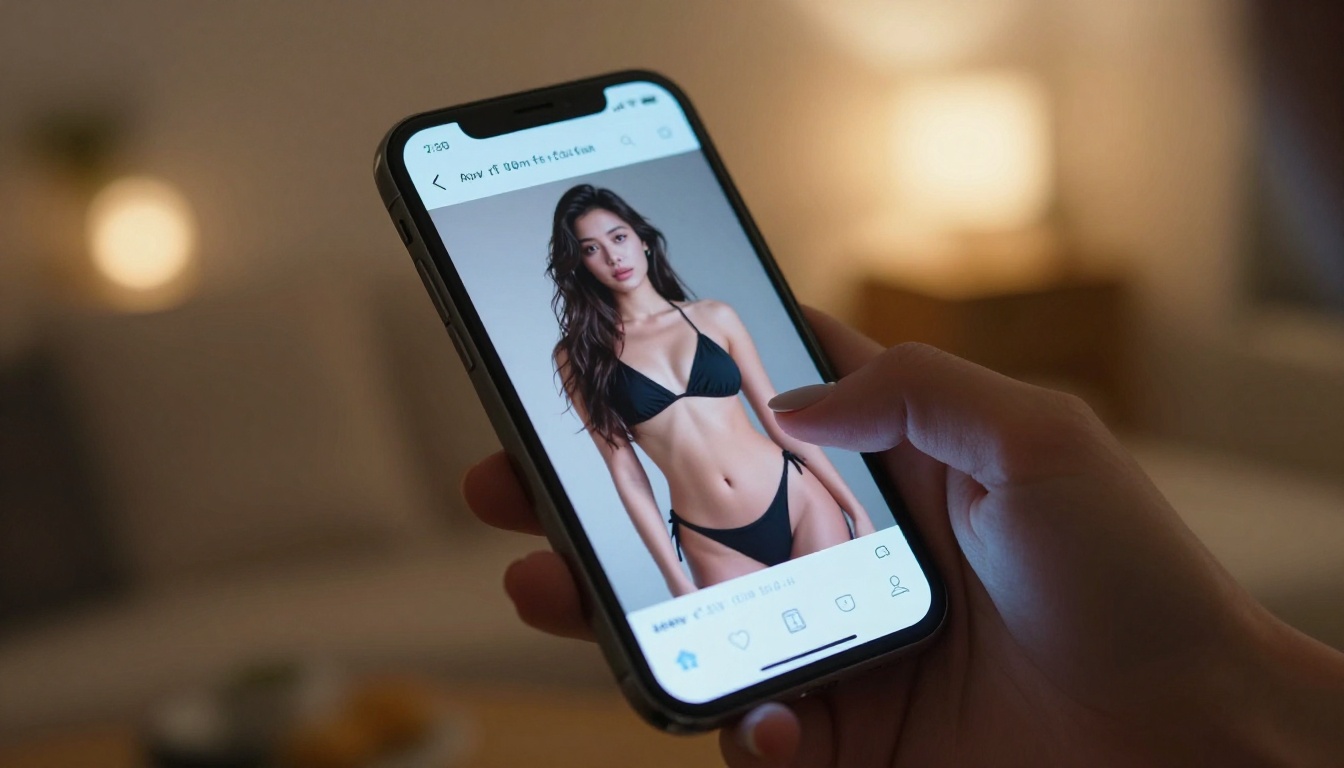
Grok Imagine Image on PicassoIA takes about thirty seconds to generate a result from a source photo. If you have a portrait photo and a clear vision of the conversion you want, the model will deliver a photorealistic output faster than any manual editing workflow.
Start with one of the prompt templates from earlier in this article, use a clean well-lit source photo, and see what the model produces. For higher volume work or unlimited generation access, PicassoIA Image Editor Pro is the better economic choice. For original text-to-image content without a reference photo, Seedream 4.5 remains the strongest option on the platform.
Every model mentioned in this article is accessible without separate accounts or API keys. You reach all of them through a single PicassoIA subscription.
Browse the complete catalog of unrestricted image and video models at picassoia.com/en/all-models and start creating without limits.


