You take a photo of someone you love, and 10 seconds later it's moving. Hair flowing, eyes blinking, head gently turning. That's what Grok Imagine from xAI does, and it's not a gimmick. It's one of the most accessible image-to-video tools available right now, and the results are genuinely impressive for a one-click operation.
This article breaks down how Grok Imagine works, what makes a good source photo, how to use it on PicassoIA, and how it stacks up against the competition.
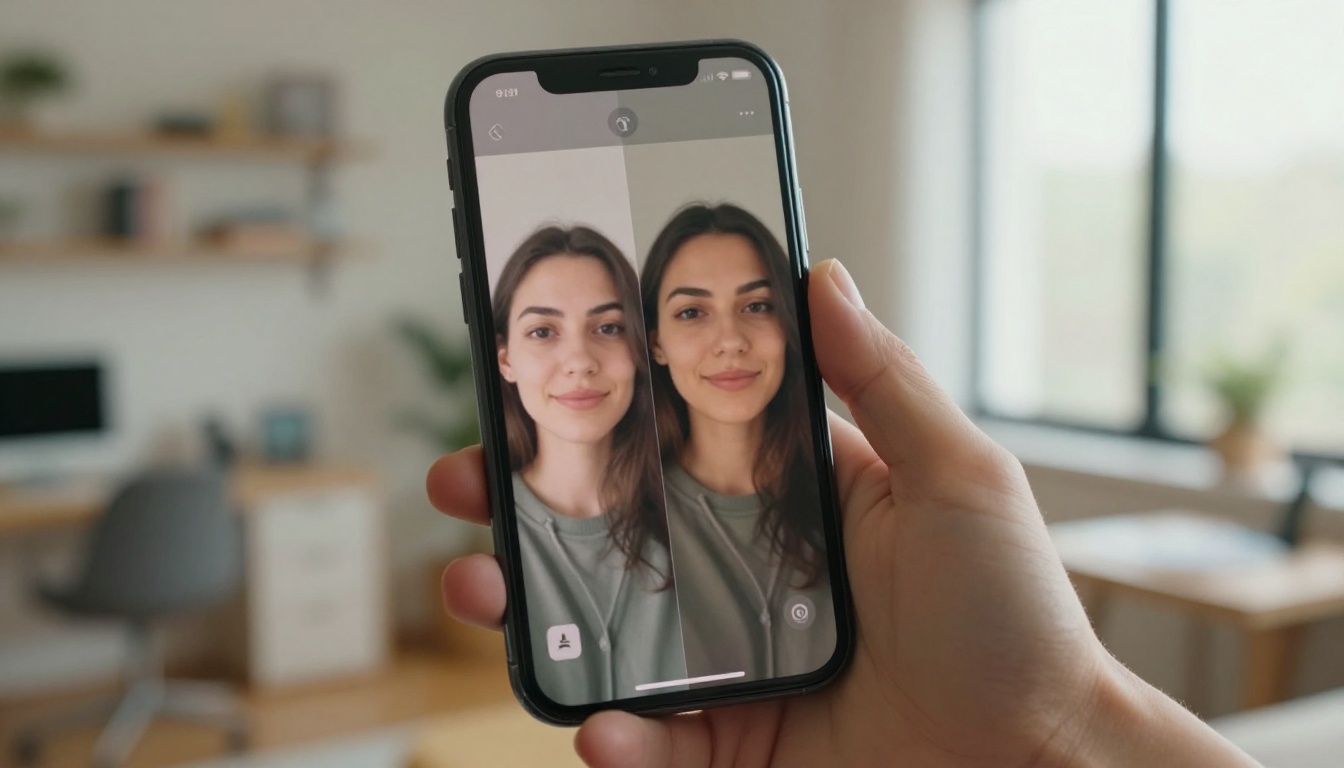
What Grok Imagine Actually Does
Grok Imagine is xAI's multimodal generation feature built into the Grok platform. The image-to-video capability specifically takes a static image as input and generates a short video clip, typically 4-5 seconds, that animates the scene in a natural, physically plausible way.
It doesn't just pan the camera or apply a zoom. It synthesizes motion within the image itself: fabric moves with implied wind, water ripples, hair shifts, faces make micro-expressions. The result feels organic rather than mechanical.
The One-Click Promise
The appeal of Grok Imagine is the friction it removes. Traditional image-to-video workflows required you to:
- Choose a specialized model
- Write a detailed motion prompt
- Tune parameters (guidance scale, motion strength, frame count)
- Wait through multiple generation steps
- Download and review each output
Grok Imagine collapses that into a single upload and one click. You don't write a motion prompt unless you want to. The AI infers what motion makes sense from the image itself.
💡 The tradeoff: Simplicity means less control. If you want specific camera movements, custom motion trajectories, or precise timing, you'll want a more configurable tool. But for quick, natural-looking video from any photo, Grok nails it.
How the AI Reads Your Photo
The model analyzes several layers of your image before generating motion:
| Analysis Layer | What the AI Detects |
|---|
| Subject detection | Faces, bodies, animals, objects |
| Scene context | Indoor/outdoor, weather, time of day |
| Physics inference | Gravity, wind, water, fabric behavior |
| Depth estimation | Foreground vs. background separation |
| Lighting direction | Sun angle, shadows, reflections |
This analysis informs what the model considers "plausible" motion for the specific image. A portrait in a breezy outdoor setting will have different motion than the same portrait in a still indoor scene.
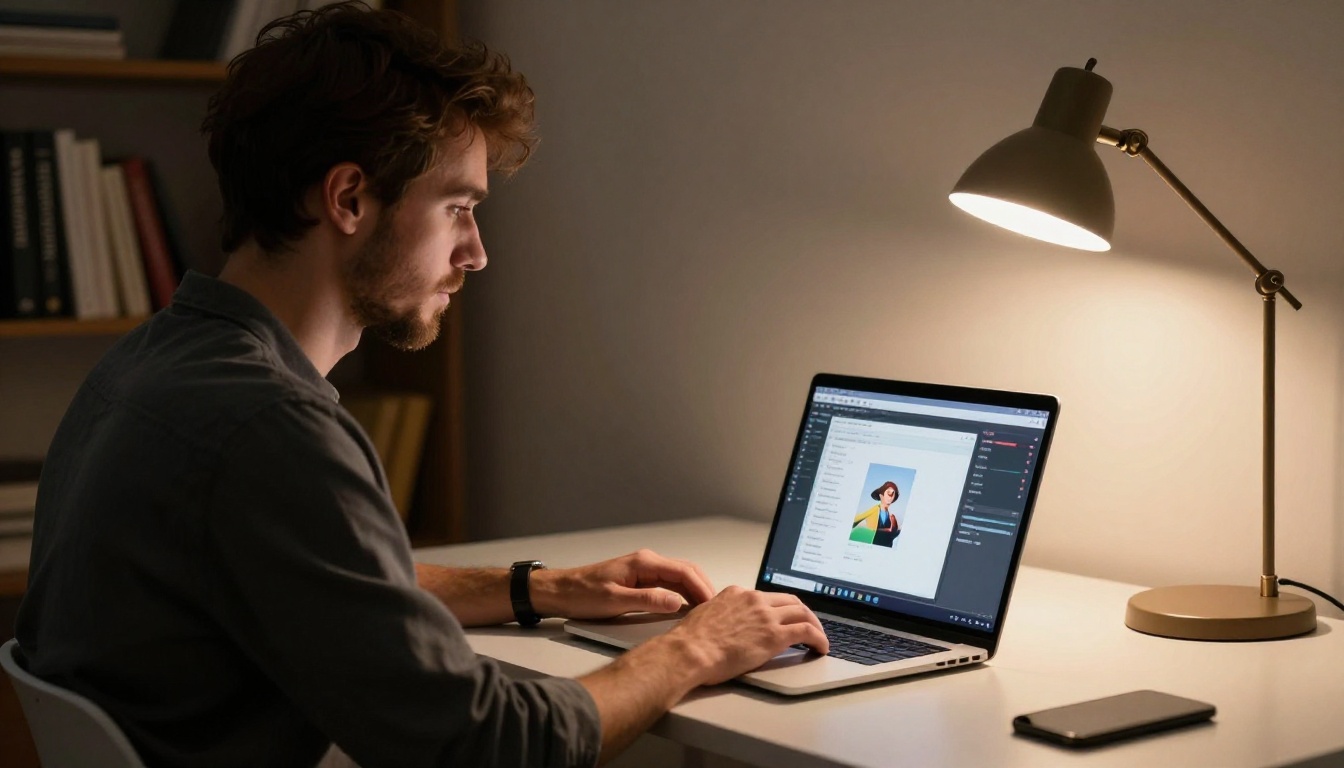
How to Use Grok Imagine on PicassoIA
Grok Imagine Video is available directly on PicassoIA, which means you can use xAI's image-to-video technology alongside 89+ other video generation models in one platform. Here's the exact workflow:
Step 1: Prepare Your Photo
Not all photos animate equally well. Before uploading, check these criteria:
- Resolution: At least 512x512 pixels. Higher is better.
- Subject clarity: The main subject should be in focus and well-lit.
- Composition: Avoid extreme cropping or subjects at the very edge of frame.
- Format: JPG or PNG both work. Avoid heavily compressed files.
Tip: RAW photos converted to high-quality JPG consistently produce better animation than compressed social media exports.
Step 2: Upload and Prompt
Go to the Grok Imagine Video model page on PicassoIA. Upload your image and optionally add a text prompt to direct the motion.
Prompt examples that work well:
"gentle breeze moving through hair, slow head turn""waves in background, natural breathing motion""camera slowly drifts forward, subject stays still""blink and subtle smile forming"
If you leave the prompt blank, Grok infers motion automatically. This works surprisingly well for portrait and landscape photos.
Step 3: Generate and Review
Generation typically takes 15-45 seconds depending on queue. The output is a 4-5 second loopable video clip at 720p or 1080p depending on your source image resolution.
Review checklist:
If you're not satisfied, re-run with a more specific prompt. Adding explicit motion direction almost always improves consistency.
Step 4: Download and Use
PicassoIA delivers your video as an MP4 file, ready for use on any platform: social media, presentations, websites, or video editing software.
💡 Pro tip: For social media, the 16:9 output from Grok Imagine crops well to 9:16 vertical format if you use a video editor to reframe the shot.
What Photos Work Best
This is where most people get tripped up. The model performs unevenly depending on the source photo. Here's what consistently delivers strong results and what to avoid.
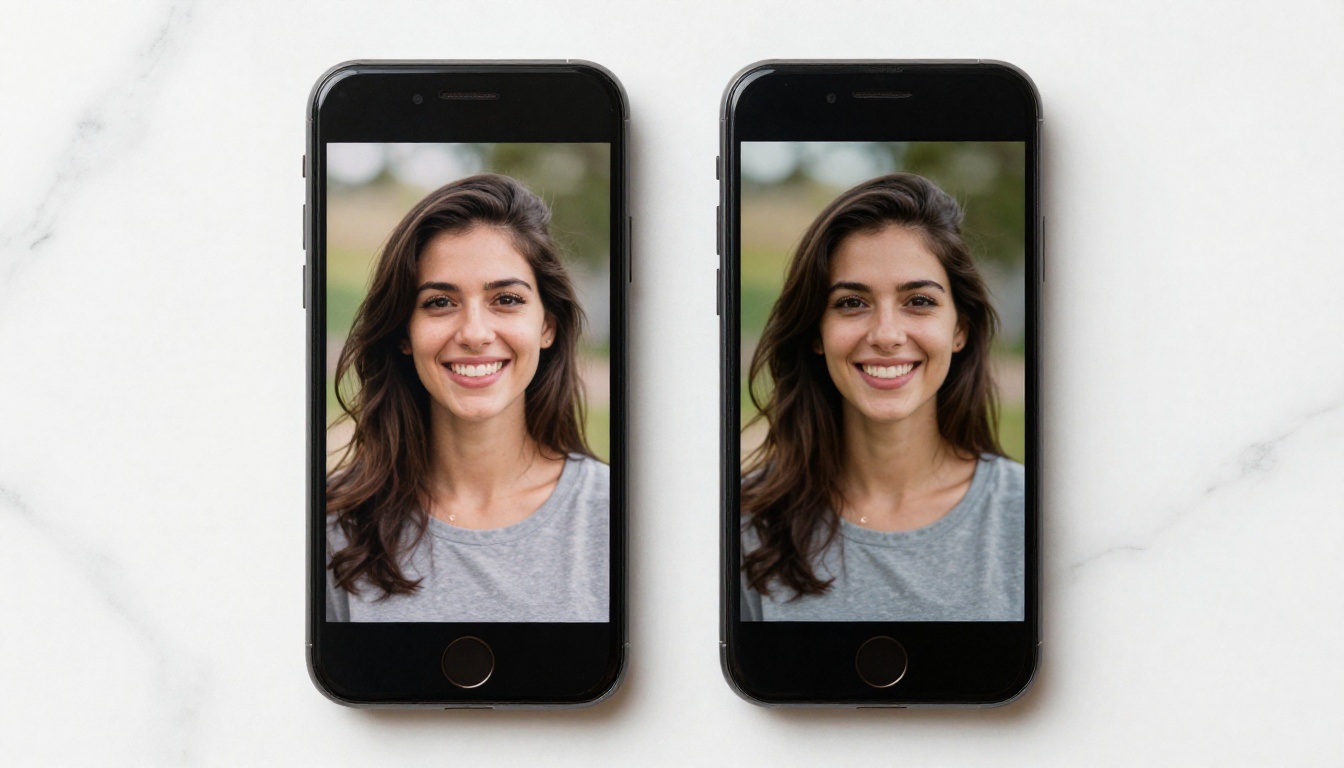
3 Photo Types That Shine
1. Close-up portraits with natural backgrounds
Faces are where the model is strongest. It handles blinking, micro-expressions, and subtle head movements with high fidelity. A portrait with a natural background (trees, sky, blurred interior) gives the model room to add atmospheric motion without disrupting the subject.
2. Outdoor scenes with environmental elements
Photos that include natural motion cues, water, leaves, clouds, grass, give the AI explicit physics targets. The model animates these elements first and uses them to ground the overall motion of the scene.
3. Group shots at social events
Candid group photos from parties, gatherings, or public spaces work well because the model can add subtle body sway and ambient movement to multiple subjects simultaneously, creating a "live photo" feel.
What to Avoid
Some photo types consistently produce weaker results:
| Photo Type | Issue |
|---|
| Heavy studio flash lighting | Kills depth cues the model relies on |
| Extremely busy backgrounds | Motion artifacts in complex texture areas |
| Text-heavy images (posters, signs) | Text distorts badly during animation |
| Extreme close-ups (eye, hand only) | Not enough spatial context for coherent motion |
| Low-light grainy photos | Grain amplifies visibly during video generation |
The sweet spot is a clear subject, natural light, and a background with some visual breathing room.
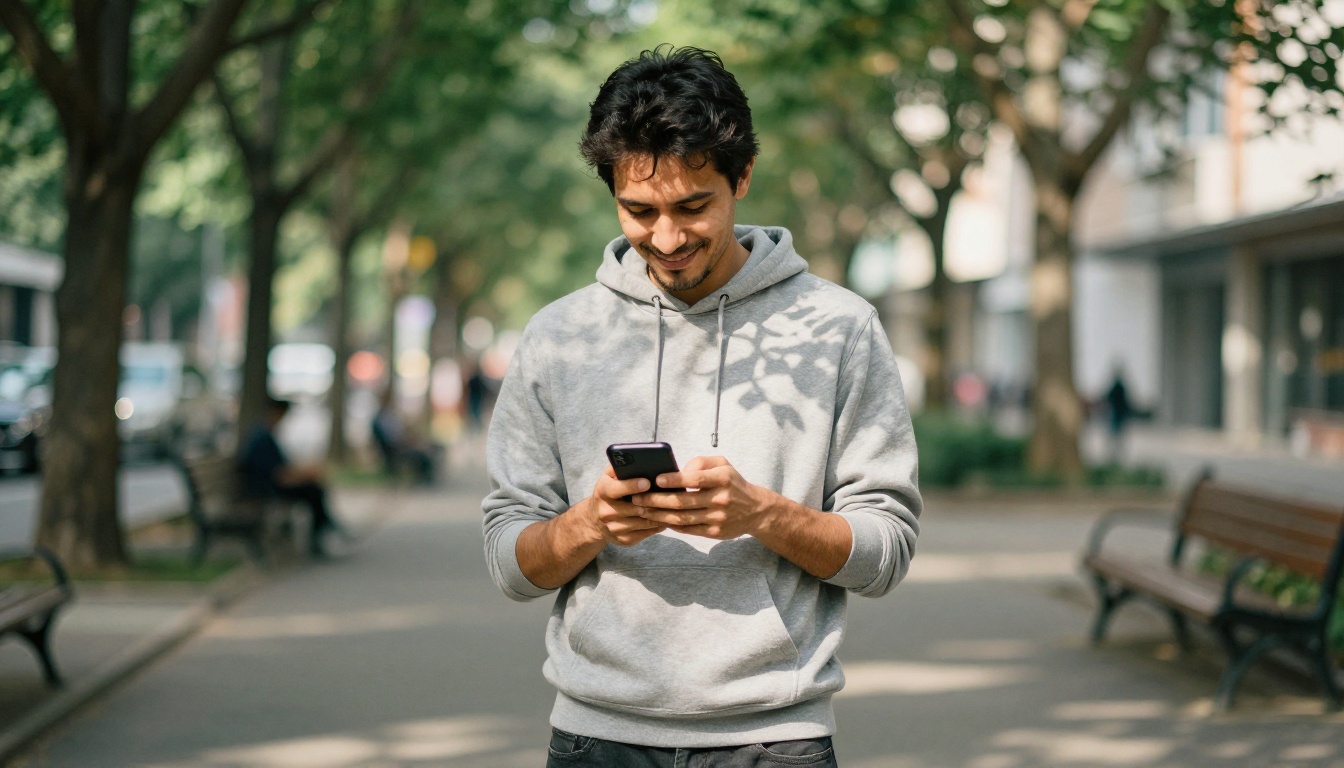
Grok Imagine isn't the only image-to-video model available, and depending on your use case, another tool may serve you better. Here's an honest comparison:
Speed vs. Control
Output Quality Breakdown
Grok Imagine Video produces 4-5 second clips with natural-looking motion and solid face consistency. It doesn't support camera movement control or multi-shot sequencing, but for single-shot portrait or scene animation, the output quality is among the best for a zero-configuration workflow.
Wan 2.6 I2V gives you far more control over motion direction and intensity. If you need the camera to dolly in while a character walks, Wan handles that complexity well. The tradeoff is that it requires more prompt engineering to get clean results.
Kling v3 Video and Kling V3 Omni Video are the go-to for cinematic production quality. Motion is smooth, temporal consistency is excellent, and you can combine text and image inputs in a single generation. The output feels more "produced" than Grok's naturalistic style.
💡 Bottom line: Use Grok Imagine when you want fast, natural-looking results with no setup. Switch to Wan, Kling, or Seedance when you need precise control or longer video output.
Grok Imagine Image: The Still Photo Side
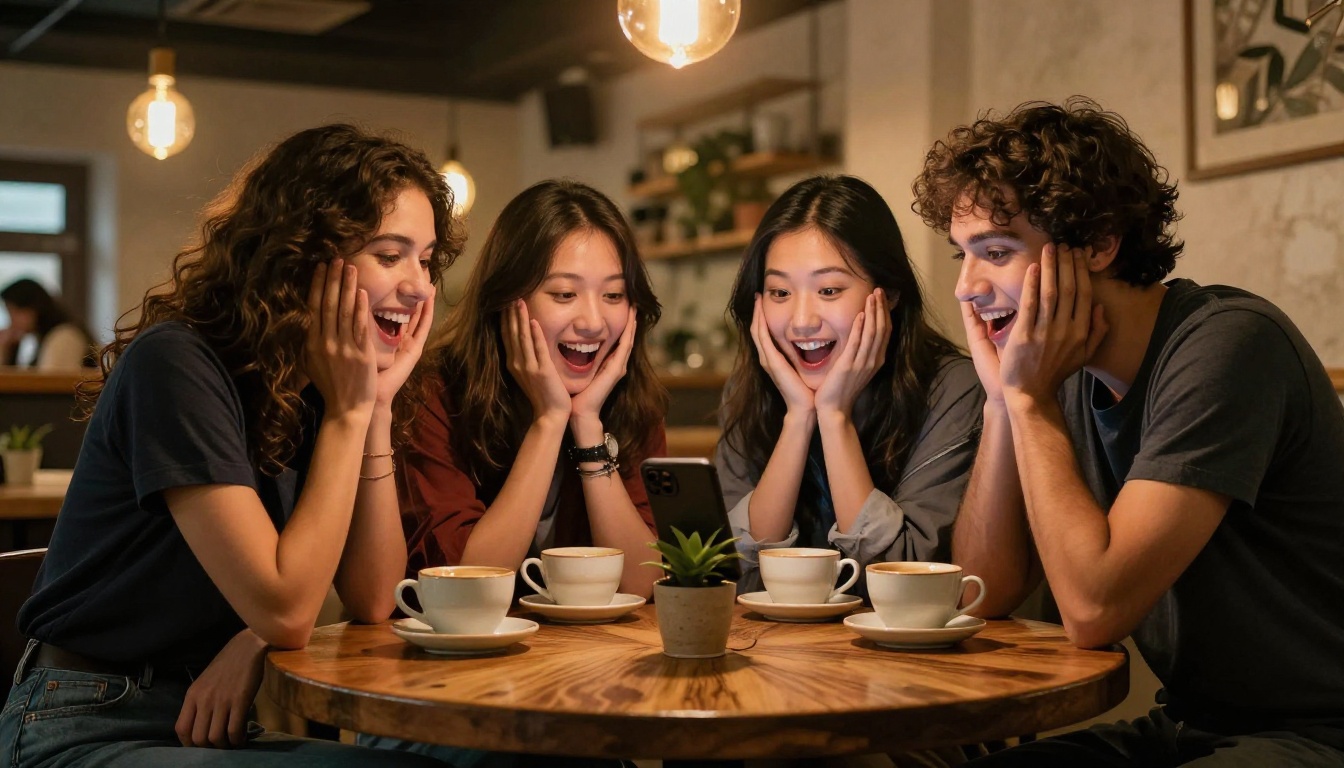
It's worth separating the two Grok Imagine capabilities. Grok Imagine Image is the text-to-image version of Grok's generation suite, and it also supports image editing via text prompts.
If you want to generate a high-quality still image first and then animate it, the two-step workflow works particularly well:
- Generate your source image with Grok Imagine Image
- Feed that output directly into Grok Imagine Video
Because both models share xAI's internal representations, the animated output tends to be more coherent when the source image was itself generated by Grok. Faces stay consistent, lighting holds, and the motion integrates naturally with the scene.
Alternatively, you can generate a high-fidelity base image with Flux 2 Pro or the video-optimized LTX 2.3 Pro for even greater resolution before animating.
5 Creative Uses People Are Missing
Most people use image-to-video for portraits. Here are five uses that are underexplored but highly effective:
1. Product photography — Animate a product shot so it rotates or shimmers. Works exceptionally well for jewelry, cosmetics, and apparel on social media.
2. Real estate content — Take a single architectural photo and generate a subtle zoom-in or ambient motion clip for listings and property ads.
3. Event recap posts — Turn the best still photo from a party or corporate event into a short animated moment for recap content.
4. Historical and family photos — Animate archival or old family photos to see loved ones with natural movement. The model handles vintage photo textures well.
5. Photorealistic illustrations — Even highly detailed illustrations and paintings can be brought to subtle life, with natural breathing and lighting shifts.
💡 Combination workflow: Use Wan 2.6 I2V for product shots where you need camera control, and save Grok for portrait and lifestyle content where natural motion matters more than camera precision.

The Technical Side: What Happens Under the Hood
Knowing how the model works internally helps you predict when it will succeed and when it won't. Grok Imagine Video uses a diffusion-based video generation architecture conditioned on image inputs. This is fundamentally similar to models like Wan and Kling, but the conditioning approach and training data differ significantly.
Technical behaviors worth knowing:
- Temporal consistency: The model is trained to keep the subject stable across frames. Faces, in particular, are locked to their identity in the source image. This is why portraits animate cleanly without the uncanny warping you'd see in older models.
- Motion magnitude: By default, the model generates conservative motion. Subtle is the default. If you want more dramatic movement, specify it explicitly:
"strong wind, hair whipping, energetic motion".
- Loop behavior: The model doesn't generate true loops natively, but the end frame is often close enough to the start frame that basic looping in post works well for short social clips.
- Resolution scaling: The output resolution scales with input. A 4K source photo will generally produce a sharper output than a 1080p source, even if both are processed at the same internal resolution.

xAI's Place in the Photo Animation Landscape
It's worth contextualizing Grok Imagine within the broader AI video ecosystem. xAI, the AI company behind Grok, built its generation capabilities as native parts of the platform, not bolt-on third-party integrations. The image and video generation features are trained and maintained internally, which means they update in sync with the core language model.
For users, this matters because:
- The model improves continuously alongside the broader Grok platform
- Text-conditioned generation is particularly coherent, since the language model is first-class
- Support and iteration speed are higher than for third-party pipeline integrations
On PicassoIA, direct access to xAI's model sits alongside a full catalog of image-to-video options that give you alternatives when Grok isn't the right fit for a specific job. You're not locked into one approach.
LSI keywords woven into this article: photo to video AI, image animation, one-click video generation, AI video from photo, xAI image tools, photo animation tool, AI content creation, Grok visual tools, social media video, image-to-video AI, AI video creator online, photo to clip, animate still image, AI motion synthesis, Grok app features.
Start Animating Your Photos Now
The best way to understand what Grok Imagine does is to run a photo through it. Start with a portrait, preferably one shot in natural light with a slightly blurred background, and let the model run with no prompt. See what it generates by default.
From there, compare the output to what you'd get from Kling v3 Video or Seedance 2.0 with the same source image. The differences in motion style, artifact handling, and overall feel will tell you immediately which tool fits your workflow.
PicassoIA gives you access to all of these models in one place, so you can run side-by-side comparisons without juggling accounts, separate APIs, or download managers. Upload once, compare several models, keep the best result.
Photo-to-video AI is no longer a niche capability. It's a practical creative tool, and Grok Imagine makes it accessible to anyone with a decent photo and something worth animating.


