xAI just changed the short-form video game. Grok Imagine Video is the video generation feature built directly into xAI's model lineup, and it produces clips that feel shockingly natural for a model running at this speed. If you've been watching the AI video space but haven't tested what xAI has shipped, this is the article that breaks it all down, from what the model actually does to how to get your first clip in under a minute.
What Grok Imagine Video Actually Is
xAI's Answer to the Video Race
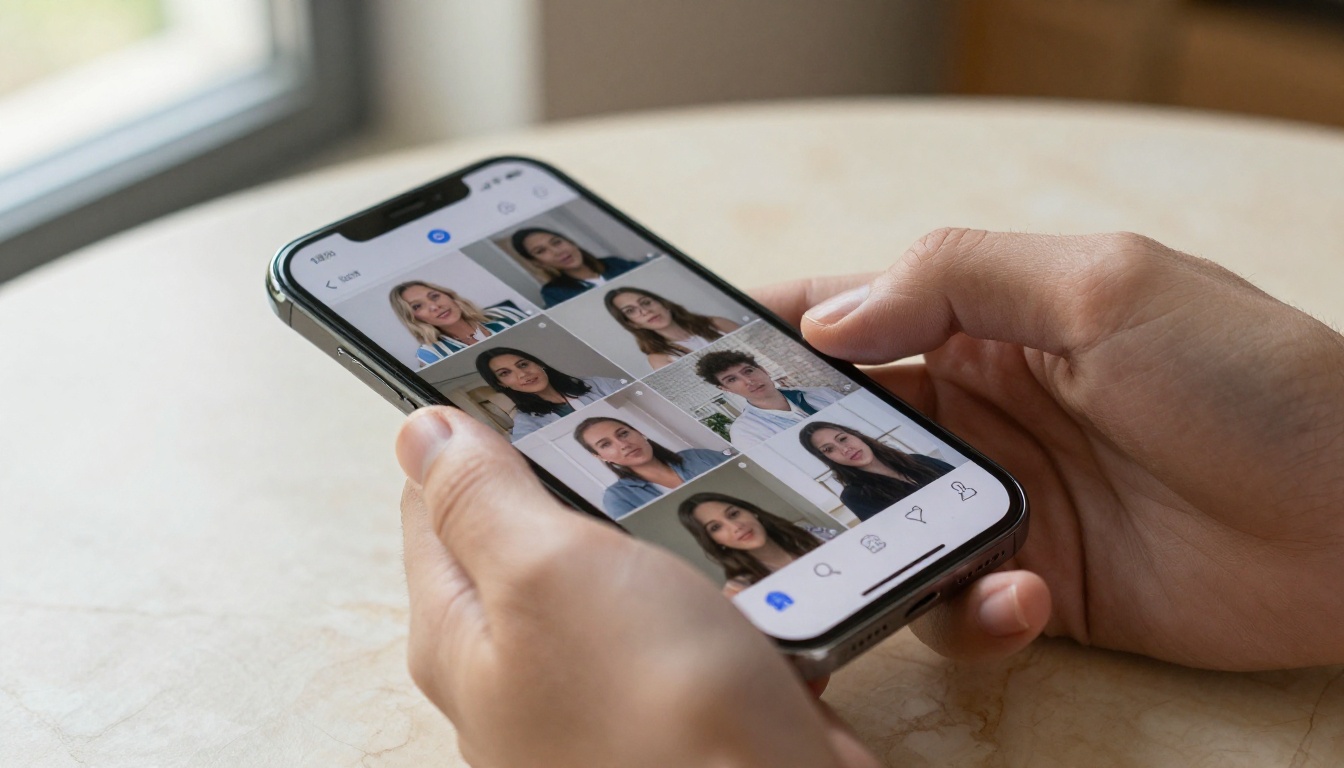
Grok Imagine Video is a text-to-video and image-to-video model created by xAI, the AI company founded by Elon Musk. Released as part of the growing Grok model family, it lets users generate short video clips using written prompts or static images as a starting point. The result is a fluid, realistic short clip that fits directly into social media workflows, product showcasing, or creative experimentation.
Unlike earlier video AI tools that required complex workflows or specialized hardware, Grok Imagine Video is built for speed and accessibility. The model focuses on coherence and visual realism rather than photorealistic perfection, making it well-suited for anyone who wants quick, usable results without a steep production background requirement.
xAI's approach to video generation follows the same philosophy behind the Grok text models: build for real-world usefulness, prioritize responsiveness, and iterate fast. The video model reflects that DNA. It isn't trying to compete directly with Hollywood-grade AI video tools. It's trying to be the one you actually reach for first.
💡 Tip: xAI's Grok models update frequently. Video generation quality improves with each release, so results you see today may look noticeably sharper in the next model iteration.
What Sets It Apart from Video AI
Most AI video generators fall into one of two categories: slow and high-quality, or fast and mediocre. Grok Imagine Video occupies an interesting middle ground. It prioritizes prompt adherence (the model actually follows what you describe), motion coherence (objects move in physically plausible ways), and generation speed (clips are ready in seconds, not minutes).
The model supports both generation modes:
- Text-to-video: Describe a scene in plain language and get a video clip back
- Image-to-video: Upload a static image and have Grok animate it with motion
This dual-input approach gives creators far more control over the final output. You're not locked into pure text generation. You can start from a photo you already have and let the AI bring it to life, which opens up a completely different category of use cases for existing visual content.
How Grok Video Generation Works
The Core Technical Approach
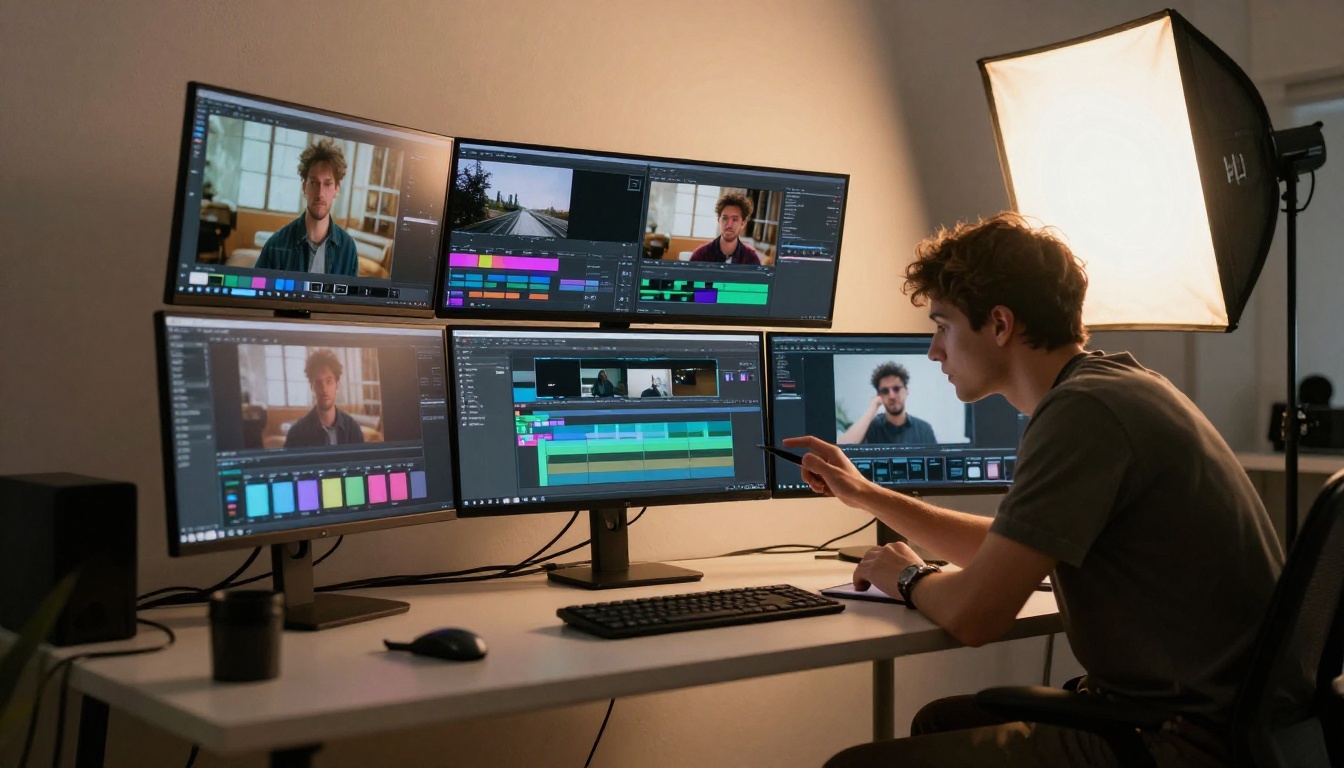
At its core, Grok Imagine Video uses a diffusion-based video generation process. The model analyzes a text prompt or image input and generates video frames sequentially, ensuring that each frame maintains visual consistency with the one before it. This temporal coherence is one of the harder problems in AI video generation, and it's where many competing models still struggle visibly.
The xAI team trained the model on a wide range of real-world video data, which contributes to the natural motion physics you'll notice in generated clips. When you describe a person walking, the leg movement actually looks human. When you describe water flowing, it flows with believable behavior. When you describe a camera pan, the perspective shift feels grounded rather than artificial or floaty.
Prompt Structure That Actually Works
How you write your prompt matters enormously. Grok Imagine Video responds well to a four-part structure that grounds the model in clear visual and motion instructions:
- Subject first: Start with the main subject of the scene ("A woman in a red coat")
- Action second: Describe what's happening ("walking through a park in autumn")
- Environment third: Set the scene ("fallen leaves on the ground, overcast sky, bench in the background")
- Style last: Add any visual notes ("cinematic, warm tones, slight slow motion")
A complete, effective prompt might look like: "A man in casual clothing sitting at a café table, sipping coffee, slight steam rising from the cup, city street visible through the window, golden afternoon light, handheld camera feel."
Compare that to a weak prompt like "man drinking coffee" and the difference in output quality is dramatic. The model needs context to produce scenes with visual depth and movement that actually reads as intentional.
💡 Tip: Keep prompts between 30 and 80 words. Too short produces vague, generic clips. Too long causes the model to lose focus on what actually matters in the scene.
Image-to-Video: Animating Still Shots
The image-to-video feature is where Grok Imagine Video becomes genuinely powerful for creators who already have a visual library. You can take any still photograph, a product shot, a portrait, a landscape, and Grok will animate it with subtle or dramatic motion depending on your text guidance.
This opens up use cases that text-only prompting can't reach:
- Social media content: Take a still product photo and make it subtly animate for a Reel or short-form clip
- Brand assets: Animate a lifestyle image without needing a video production team or shoot day
- Creative storytelling: Turn a single frame of a character into a short, atmospheric scene with real motion
With image-to-video, the text prompt shifts from describing the scene to describing the motion. Instead of building a world from scratch, you're telling the model how things should move within the world you've already provided. Be explicit: "camera slowly pushing in," "leaves gently swaying in wind," "subject turns to look at camera," "water surface rippling outward."
How to Use Grok Imagine Video on PicassoIA

PicassoIA hosts Grok Imagine Video directly, which means you don't need a separate xAI subscription or API credentials. You access the model through PicassoIA's interface and generate videos in just a few clicks, alongside 88 other text-to-video models available on the same platform.
Step 1: Open the Model
Head to the Grok Imagine Video page on PicassoIA. You'll see the generation interface with a text prompt field and an optional image upload section for image-to-video mode. The interface is intentionally minimal so you're not slowed down by settings you don't need for basic generation.
Step 2: Write Your Prompt
Type your scene description in the prompt field. Be specific about the subject, action, environment, and any lighting or camera movement you want to see. If you're using image-to-video mode, upload your source image first. The prompt then acts as motion instruction rather than a full scene description, so focus your words on movement and camera behavior.
Step 3: Set Your Parameters

PicassoIA's interface gives you control over the core generation parameters:
| Parameter | What It Controls | Recommended Setting |
|---|
| Duration | Length of the generated clip | 5-10 seconds for social content |
| Aspect Ratio | Shape of the video frame | 16:9 for YouTube, 9:16 for Reels |
| Motion Intensity | Amount of movement in the clip | Medium for natural, grounded results |
| Seed | Reproducible generation | Fix it when iterating on a good result |
Step 4: Generate and Download
Hit generate and wait a few seconds. PicassoIA processes the request and displays your video in the interface. You can download it directly, regenerate with adjusted parameters, or use the result as a new input for further editing with other platform tools.
💡 Tip: If the first result isn't quite right, change one parameter at a time. Adjusting everything at once makes it impossible to identify what actually improved the output.
Grok Video vs Other AI Video Models

With so many AI video generators available in 2027, choosing the right tool for a specific task is a real decision. Here's how Grok Imagine Video stacks up against the main alternatives available on PicassoIA.
Speed vs Quality Tradeoffs
| Model | Speed | Visual Quality | Best Use Case |
|---|
| Grok Imagine Video | Very Fast | Good | Quick social content, rapid prototyping |
| Seedance 2.0 | Fast | Very High | Professional short-form with native audio |
| Kling v3 | Medium | High | Motion-controlled character videos |
| Sora 2 | Slow | Exceptional | Cinematic, long-form narrative content |
| Veo 3 | Medium | High | Realistic, environment-heavy scenes |
| LTX 2.3 Pro | Fast | High | Text, image, and audio combined input |
When to Pick Grok Imagine Video
Grok Imagine Video is the right call when:
- You need a video clip fast and don't have time for longer render queues
- Your content lives on social platforms where speed matters more than cinematic polish
- You're testing ideas before committing to a longer, more detailed render with a premium model
- You want to animate an existing image with minimal setup and zero production friction
It isn't the right tool for a 4K brand campaign or a 60-second narrative sequence. For those projects, Sora 2 or Seedance 2.0 will produce better results, at the cost of longer generation times.
3 Common Mistakes with xAI Video Prompts

Most users who get disappointing results from Grok Imagine Video are making one of three consistent errors. Fixing these can immediately improve output quality without changing anything else about your workflow.
Mistake 1: Vague Prompts
"A person in a city" generates a forgettable clip. "A young woman in a beige trench coat crossing a cobblestone street, pigeons scattering as she walks, overcast morning light, slight camera pan following her movement" generates something worth watching. Every additional detail gives the model more material to work with. Specificity is the single highest-leverage change most users can make when results feel generic.
Mistake 2: Ignoring Motion
Many users focus entirely on the visual scene and forget to describe the motion. Grok Imagine Video is a video generator, which means motion is half the output. If you don't tell it how things should move, it defaults to something generic and static-feeling. Be explicit: "slow zoom in," "subject turns head slowly," "wind moving through the grass," "hands reaching toward camera," "camera pulling back to reveal the full scene."
Mistake 3: Skipping Iteration
The first clip is a starting point, not a final output. Professional creators using AI video tools generate five to ten variations before selecting one to use. Each iteration teaches you something about how the model responds to your specific prompt style. Build a working library of prompts that produce consistent results, and you'll spend far less time guessing on future projects.
💡 Tip: Save prompts that produce good results. A personal library of tested prompt patterns is one of the most practical assets any AI video creator can build.
Other Top AI Video Models to Try
PicassoIA hosts over 89 text-to-video models, giving you access to a full spectrum of video generation approaches all in one place. After Grok Imagine Video, these are the models worth prioritizing based on your specific content needs.
Seedance 2.0 and Kling v3
Seedance 2.0 from ByteDance is one of the most polished fast video generators available right now. It supports text-to-video, image-to-video, and native audio generation within the same clip. Visual quality is noticeably sharper than Grok for scenes with fine texture detail, and motion physics are consistently strong across a wide range of subject types.
Kling v3 is the go-to option when you need precise control over character movement. Its motion control capabilities allow you to define specific body movements and expressions in ways that other models can't match. For character-driven content and performance videos, it remains one of the strongest choices available. If you want omni-input support combining text, image, and audio in a single workflow, Kling V3 Omni handles all three input types cleanly.
Veo 3 and LTX 2.3 Pro
Veo 3 from Google is exceptional for environment-heavy videos. Outdoor scenes, landscapes, and architectural sequences look remarkably photorealistic. The model handles lighting conditions and environmental texture in ways that feel closer to real cinematography than typical AI video output. A faster variant, Veo 3 Fast, is available for users who want Google-quality results at higher speed.
LTX 2.3 Pro from Lightricks handles the full creative stack: text input, image input, and audio input within a single generation. If you're building content that needs a synchronized soundtrack, this is the model to use. LTX 2.3 Fast offers a speed-optimized version with the same multi-input support for higher-volume workflows.
Hailuo 2.3 and Sora 2
Hailuo 2.3 from Minimax is a reliable all-around performer with strong prompt adherence and solid motion quality across most scene types. The fast variant Hailuo 2.3 Fast cuts generation time without a significant quality drop, making it a practical default for high-volume content workflows where consistency matters as much as peak quality.
Sora 2 from OpenAI remains the quality benchmark for AI video. Generation time is longer than most alternatives, but for high-stakes projects where visual quality is the deciding factor, Sora 2 delivers results that genuinely look like professional production footage. It's the model you reach for when the output actually matters and render time is not the constraint.
Start Creating AI Videos Right Now
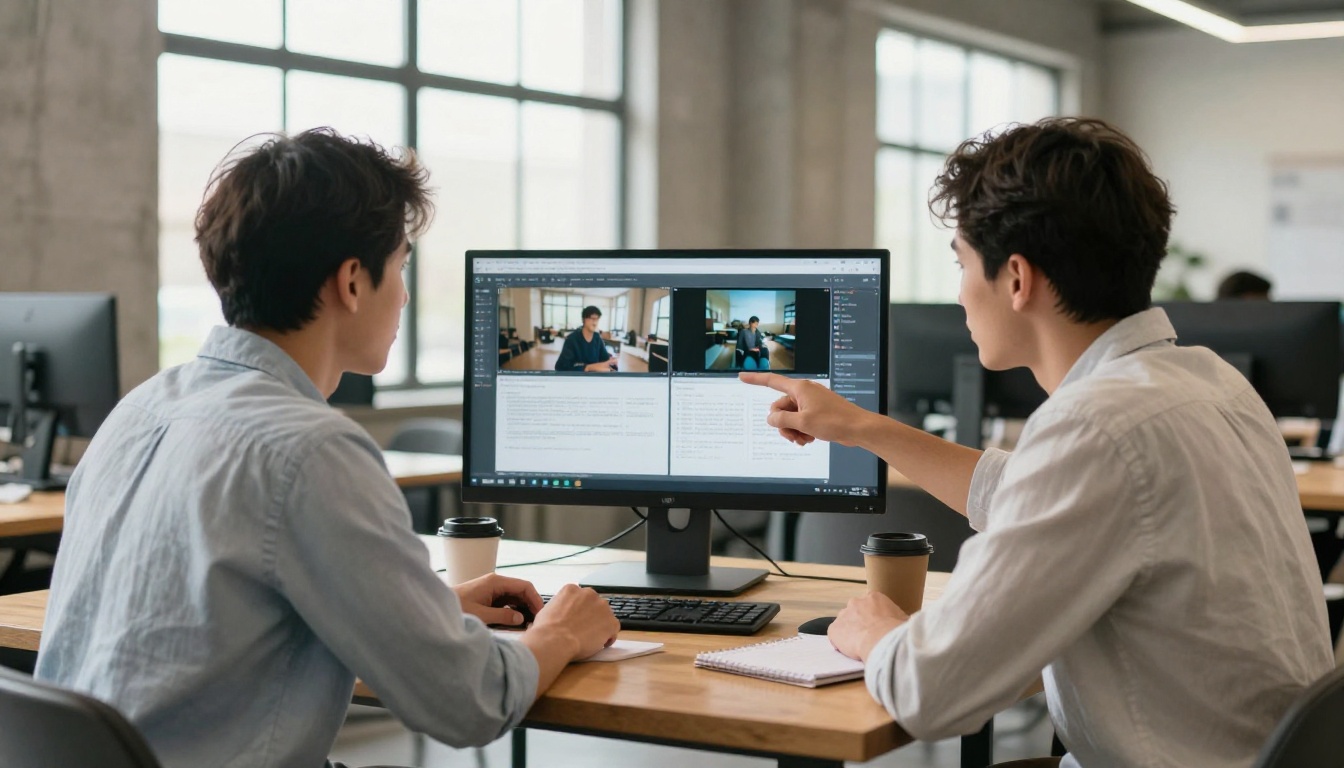
xAI's Grok Imagine Video has made AI video generation accessible in a way that didn't really exist a year ago. Fast generation, dual text and image inputs, and tight prompt adherence make it a practical tool for creators, marketers, and builders who need video content without a full production setup or a significant time investment.
The real power, though, comes from having all these tools in one place. PicassoIA gives you access to over 89 text-to-video models, including Grok Imagine Video, Seedance 2.0, Kling v3, and Sora 2, all from a single interface. No juggling separate subscriptions. No setting up API keys for each provider. Just a prompt and a generate button.
The gap between "I have an idea" and "I have a video" has never been smaller. Open the Grok Imagine Video model on PicassoIA, write your first prompt, and see what xAI's model actually produces. There's no faster way to form an honest opinion about where AI video generation stands right now.


