Most AI video tools give you the visuals. Then you have to deal with the sound separately. Grok Imagine Video by xAI changes that entirely. It makes videos with native audio baked right in, automatically, from a single text or image prompt. No extra software, no sync headaches, no tedious layering. You describe a scene, and you get a video that already sounds like it should.
What Grok Imagine Video Actually Does
Grok Imagine Video is xAI's text-and-image-to-video model. It accepts a written prompt, or an image plus a prompt, and returns a short video clip. Its standout feature in 2027 is native audio generation: the model produces sound directly as part of the video output rather than as a separate post-processing step.
Text to Video in Seconds
The mechanics are straightforward. You write a description of what you want to see, hit generate, and the model builds a video. The underlying system handles motion, lighting, scene transitions, and audio, all within a single inference pass. That is the important part: it is not two models talking to each other. It is one output pipeline producing both visual and audio streams simultaneously.
For content creators, marketers, or anyone who builds videos regularly, this removes an entire production layer. You are not sourcing royalty-free tracks, not manually syncing sound effects, not hoping the mood of the audio matches the mood of the clip. The model infers what a scene should sound like and renders it.
The Native Audio Difference
"Native audio" is not the same as "AI-dubbed audio." When a model generates sound natively, it means the audio is computed in tandem with the video frames, not added afterward. The result is environmental sounds that match the visual action in a way that post-generated audio often fails to achieve.
A wave crashing on screen hits at the right frame. A crowd cheering in the background grows louder as the camera moves toward them. Footsteps land on the beat of each step animation. These are details that matter, and they are the difference between a video that feels real and one that feels like a prototype.
This is the core promise of Grok Imagine Video's audio feature, and it is what sets it apart from many competitors that still treat audio as an afterthought.
How the Audio Gets Generated
The model does not select pre-recorded sounds from a library. It synthesizes audio based on the scene description and the visual content it generates simultaneously. This includes:
- Ambient environmental sound: Wind, rain, city noise, forest ambience
- Object-specific sound: Water flowing, fire crackling, mechanical motion
- Voice-adjacent audio: Crowd murmur, conversation texture (not specific words)
- Music-influenced tone: Atmospheric audio that leans musical for abstract or stylized prompts
The degree of audio fidelity depends heavily on prompt specificity. A vague prompt like "a forest" may produce generic ambient sound. A prompt like "a pine forest in early morning, light rain tapping on leaves, a stream running nearby" will produce a far richer soundscape.
Ambient Sounds vs. Music
It is worth drawing a distinction here. Grok Imagine Video's native audio is primarily environmental and scene-matched. It is not a music generator. If you want a video with a cinematic score, the better workflow is to use Grok for the visuals and then pair it with a dedicated AI music tool.
For original music generation, models like music-01 by Minimax, Lyria 2 by Google, or Stable Audio 2.5 handle full musical composition from a text prompt. These produce proper tracks you can layer over any video.
For Grok's use case, the audio is best described as immersive scene sound, the kind that makes a video feel finished without needing a musical score underneath.
Why Sync Matters in 2027
In the current AI video landscape, synchronization between visual and audio is a real technical challenge. Many models generate video and audio in separate passes, which introduces timing drift, mismatched energy levels, and a generally "off" quality that viewers notice even if they cannot articulate why.
Native generation solves this because the model optimizes both streams toward the same objective at the same time. The result is a fundamentally better-aligned output. For anyone publishing AI-generated video content, this is the difference between content that holds attention and content that loses it in the first three seconds.
How to Use Grok Imagine Video on PicassoIA

Grok Imagine Video by xAI is available directly on PicassoIA. You do not need an xAI API token, a separate account, or any technical setup. Everything runs through the PicassoIA interface.
Step 1: Open the Model Page
Go to Grok Imagine Video on PicassoIA. You will see the text input area at the top, with optional image upload for image-to-video mode below it.
Step 2: Write Your Prompt
This is the most important step. Your prompt controls both the visual output and the audio output. Think about the scene as if you were describing it for someone who would recreate it for a film set.
💡 Prompt tip: Include specific audio cues in your description. Instead of "a beach at sunset," write "a beach at sunset with waves rolling gently onto the shore, distant seagulls, and a soft wind." The model responds to explicit environmental details.
Good prompt structure:
[Scene setting] + [Action or subject] + [Environmental audio cues] + [Lighting or mood]
Example prompt:
"A busy Tokyo street at night, neon signs reflecting on wet pavement, rain falling steadily, distant traffic and pedestrian chatter, occasional umbrella rustling, warm streetlight ambience."
Step 3: Choose Your Mode
- Text to Video: Prompt only. Best for generating scenes from scratch.
- Image to Video: Upload a reference image. The model animates the image and generates matching audio. Good for bringing still photos to life.
Step 4: Generate and Review
Hit generate. Grok Imagine Video typically produces a clip in the 5 to 10 second range. Play it with headphones or speakers to evaluate both the visual quality and the audio layer. If the audio feels thin, revisit your prompt and add more environmental detail.
💡 Tip: Run two or three variations of the same scene with different audio cues in the prompt. Compare which version produces the most satisfying sound match. It costs very little and teaches you quickly how the model interprets audio instructions.
Prompt Tips That Actually Work

After running dozens of generations with Grok Imagine Video, certain prompt patterns produce reliably better audio output.
Be Specific About Sounds
Generic prompts produce generic audio. The model needs context to infer sound. Here is the difference in practice:
| Vague Prompt | Audio Result | Improved Prompt | Audio Result |
|---|
| "A forest" | Generic ambient noise | "A dense forest in heavy rain, branches creaking" | Rain, creaking wood, dripping water |
| "A cafe" | Muddled background noise | "A quiet cafe, espresso machine hissing, soft jazz faintly playing" | Clear cafe ambience |
| "A waterfall" | Basic water sound | "A tall waterfall crashing into a rocky pool, mist in the air, birds distant" | Layered, immersive water audio |
| "City at night" | Traffic blur | "A wet city street, police siren fading in the distance, car tires on wet asphalt" | Textured urban night sound |
Scene-Setting Techniques
- Layer the sounds: Mention foreground sound (a specific action), midground sound (environmental), and background sound (ambient). The model handles all three.
- Reference time of day: Dawn and dusk have specific audio signatures the model knows. "Early morning" tends to produce quieter, more atmospheric audio than "midday."
- Mention the space: Indoor sounds differ from outdoor. "Inside a cathedral" will produce very different reverb than "on a city rooftop."
💡 Pro tip: If you want minimal audio, describe a visually quiet scene: "A still lake at dawn, no wind, mirror-like surface." This tells the model to generate near-silence, which can be as effective as loud environmental audio for certain content.
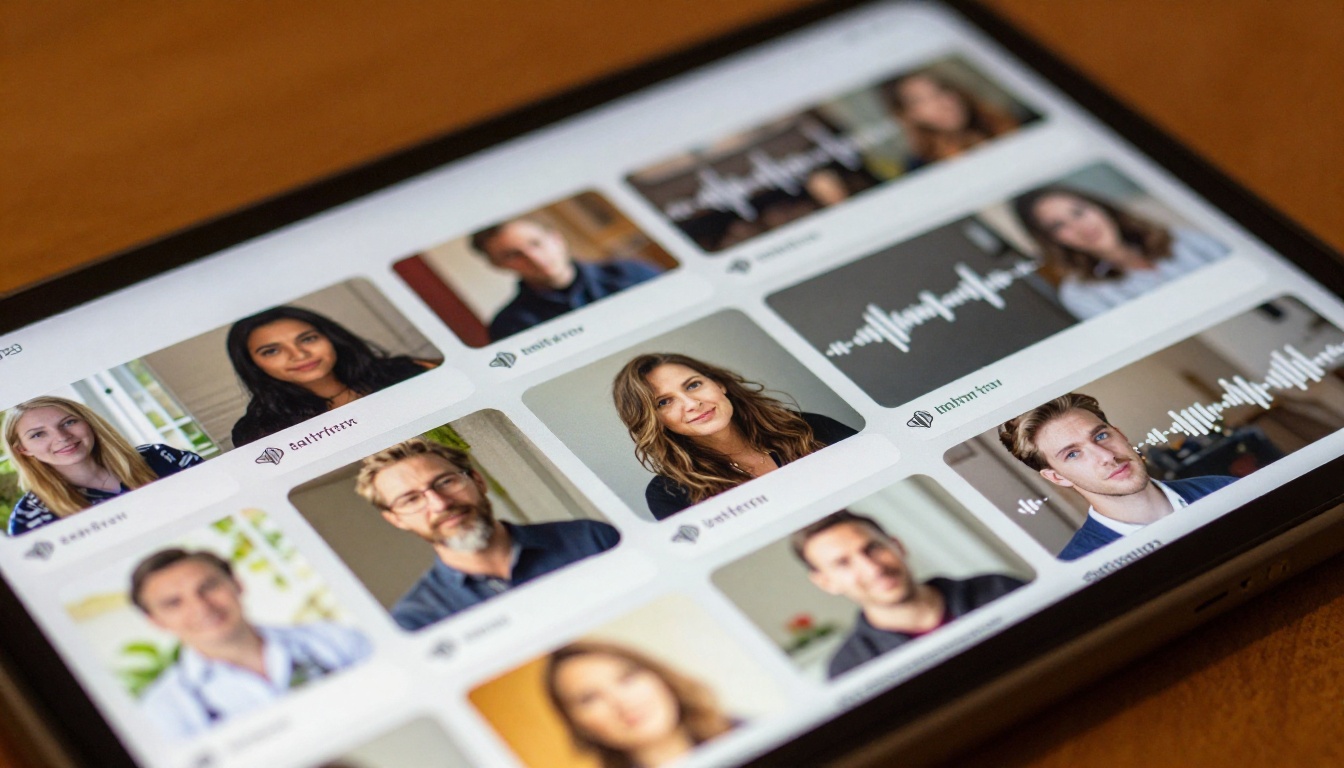
The AI video space now has several models that support audio in some form. Here is how Grok Imagine Video compares to the main alternatives:
Each model has a different strength. Grok Imagine Video sits in a solid middle ground: it is faster than Veo 3, more audio-capable than Kling, and accessible without any external dependencies.
Other Audio-Video Models Worth Trying
Seedance 2.0 and Veo 3
Seedance 2.0 by ByteDance is one of the few models that matches Grok Imagine Video in terms of native audio quality. It tends to add more musical texture to outputs, which works well for lifestyle or brand content. There is also a faster variant, Seedance 2.0 Fast, for rapid iteration.
Veo 3 by Google goes further and can generate realistic dialog audio, not just environmental sound. If your use case involves characters speaking on screen, Veo 3 is the current benchmark. The tradeoff is generation time. There is also a faster version, Veo 3 Fast, if speed matters more than maximum fidelity.
LTX-2.3-Pro and Audio to Video
LTX-2.3-Pro by Lightricks takes a different approach. Rather than generating audio automatically, it accepts an audio prompt or audio file and uses that to drive the video generation. This gives you precise control over the final audio, which is useful when you already have a specific soundtrack or sound design in mind.
There is also a dedicated Audio to Video model from Lightricks that animates still images in direct response to an audio file's rhythm and energy. If you have a track you love and want visuals that react to it, this is the tool for that workflow.
Start Creating Your Own Videos
The argument for using Grok Imagine Video is simple: it removes friction from video production. The hardest part of making a video that actually sounds good has always been the audio. You either pay for a license, spend time searching for the right track, or record something yourself. Grok Imagine Video takes that off your plate automatically.
That said, it is still a model, which means it rewards experimentation. The best results come from people who run multiple generations, study what the model responds to, and iterate on their prompts with intention.
PicassoIA gives you direct access to Grok Imagine Video alongside over 80 other video generation models, including Seedance 2.0, Veo 3, and LTX-2.3-Pro, all in one place. You can test different models side by side, compare audio quality, and find the right tool for each specific creative task without switching platforms.
If you have been putting off experimenting with AI video because of the audio problem, now is the time to try again. The problem is largely solved. Open Grok Imagine Video on PicassoIA, write a scene with specific sound details, and see what the model builds. The only thing left is to start creating.


