Hailuo 02 Standard is the 768p tier of MiniMax's video model, and it is the setting most people end up using without realizing it has a name. It is the sweet spot between the fast 512p preview and the sharper 1080p Pro option: sharp enough for social posts and client drafts, cheap enough to run dozens of times while you tune a prompt. If you want to know exactly what resolution you get, how long a clip can run, how to write prompts that behave, and what "free" really means, this article puts the numbers in one place.
The short version: Standard means 768p, clips run 6 or 10 seconds, you can anchor the video with a first frame and a last frame, and the 10 second length only works at 768p. Everything below expands on those four facts, with a practical workflow you can run on Hailuo 02 on PicassoIA.
What Hailuo 02 Standard Actually Is
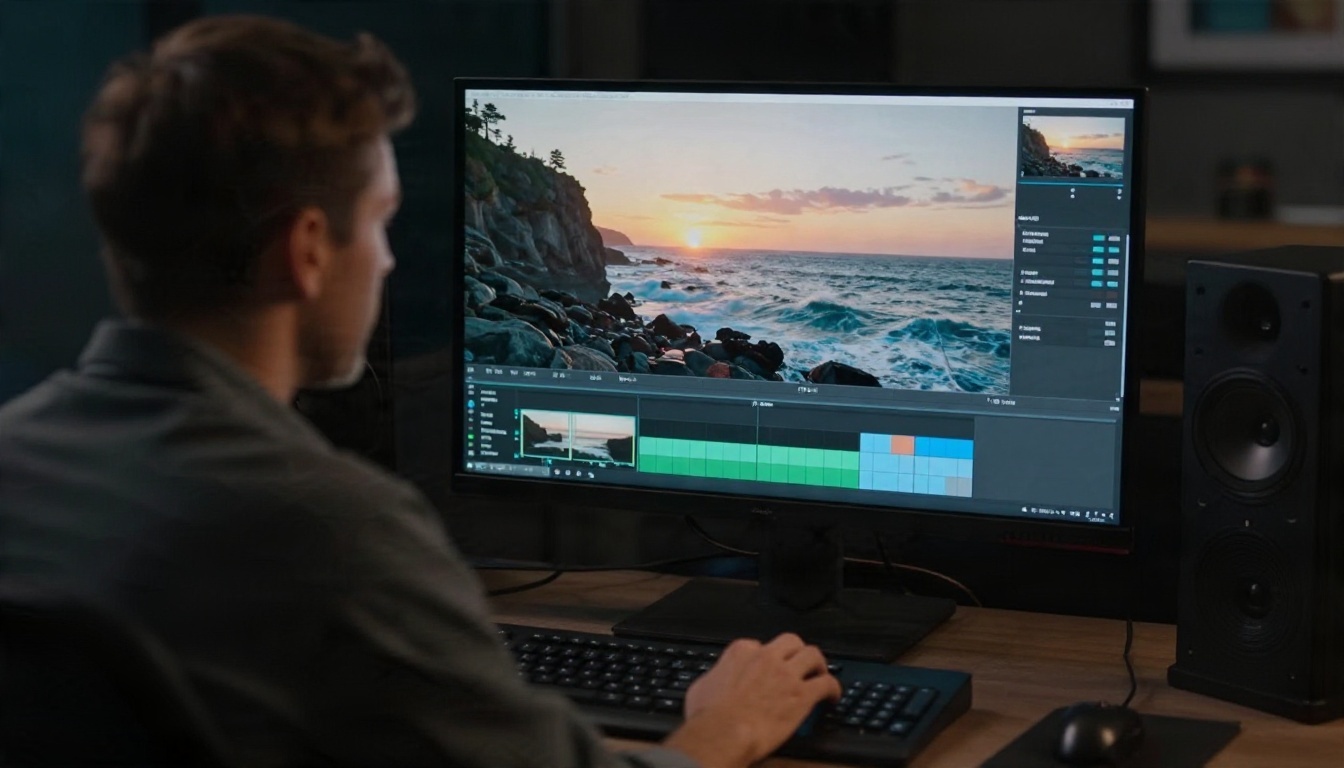
Hailuo 02 is a text-to-video and image-to-video model from MiniMax. It became popular because motion looks grounded: liquids pour the way liquids pour, fabric drags, people move with weight. The model ships in three resolution tiers, and each tier has a nickname in the community:
- 512p, the fast draft tier
- 768p, the Standard tier
- 1080p, the Pro tier
"Standard" is not a separate model you install or pick from a different menu. It is the middle resolution setting, and it is also the default. On PicassoIA the Hailuo 02 page exposes all three tiers through one resolution field, with 768p preselected.
💡 Tip: If a page, API listing or forum thread says "Hailuo 02 Standard" and another says "Hailuo 02 SD", they are talking about the same 768p tier. "Pro" almost always means 1080p.
Who Standard Is For
Standard suits anyone who needs a usable clip quickly: short-form creators, small agencies building ad concepts, designers testing motion for a landing page, and photographers animating a still. If your final delivery is a phone screen, 768p holds up well. If you are cutting for a big display or a client who will pause on frames, switch to 1080p for the final render only.
Resolution Options Compared
Here is how the three tiers line up, based on the options exposed in the model schema:
| Setting | Nickname | Clip lengths | Best use |
|---|
| 512p | Fast / draft | 6 seconds | Testing a prompt, checking composition |
| 768p | Standard | 6 or 10 seconds | Social clips, concept videos, everyday work |
| 1080p | Pro | 6 seconds | Final delivery, sharper detail, higher quality |
Two details trip people up.
First, resolution is not only pixel count. The Pro tier is described as higher quality, not just larger. Textures such as skin, foliage and water look cleaner, and small objects hold their shape better across the clip. Standard is not blurry, but if you zoom into a face at full screen you will notice the difference.
Second, 768p is not a fixed pixel box. When you supply a first frame image, the output follows the aspect ratio of that image. A vertical photo gives you a vertical clip. A wide landscape photo gives you a wide clip. That makes Standard easy to use for platform-specific formats without a separate crop step.
💡 Tip: Run every new idea at 512p first. A bad composition will look bad at any resolution, and the draft tier tells you that in a fraction of the time. If you want a draft-only workflow, Hailuo 02 Fast is built for exactly that.
Standard Versus Hailuo 2.3
Hailuo 2.3 is the newer generation, and PicassoIA lists Hailuo 2.3 and Hailuo 2.3 Fast as separate models. They are not the same thing as the Hailuo 02 Standard tier. If you like how 02 behaves but want to compare, run the same prompt on both and keep whichever motion reads better.
Clip Length: 6 or 10 Seconds

Standard gives you two durations: 6 seconds and 10 seconds. The catch is that 10 seconds is only available at 768p. The moment you move to 1080p, you are limited to 6 seconds. Some third-party listings are inconsistent about this, so trust the model's own schema, which states plainly that 10 seconds is only available for 768p.
That limit makes Standard the longer-clip tier. If your scene needs time to breathe, such as a slow reveal, a walking shot or a drifting camera move, Standard at 10 seconds is the only Hailuo 02 setting that offers it.
When 6 Seconds Wins
Six seconds is usually better than ten. A shorter clip leaves less room for the model to drift away from your starting frame, so faces, products and backgrounds stay consistent. Use 6 seconds for:
- Product loops and ad hooks
- Reaction shots and cutaways
- Anything where the subject must stay identical from start to end
- 1080p final renders
When 10 Seconds Is Worth It
Ten seconds works when the action itself is slow. Think of a landscape with weather rolling in, a person walking toward the camera, or a camera that glides past a table of objects. Writing one clear motion for the whole 10 seconds matters more here. If you cram three actions into one prompt, the model tends to rush the first and blur the second.
💡 Tip: Third-party API providers have listed prices of roughly 23 cents for a 6 second 768p clip and about 56 cents for 10 seconds. Prices change, but the pattern holds: ten seconds costs more than double, so use it deliberately.
Prompts That Behave
Hailuo 02 responds best to prompts that read like a shot description, not a keyword pile. A reliable structure:
Subject + action + camera move + setting + light + mood
Here is how that looks in practice:
| Weak prompt | Stronger prompt |
|---|
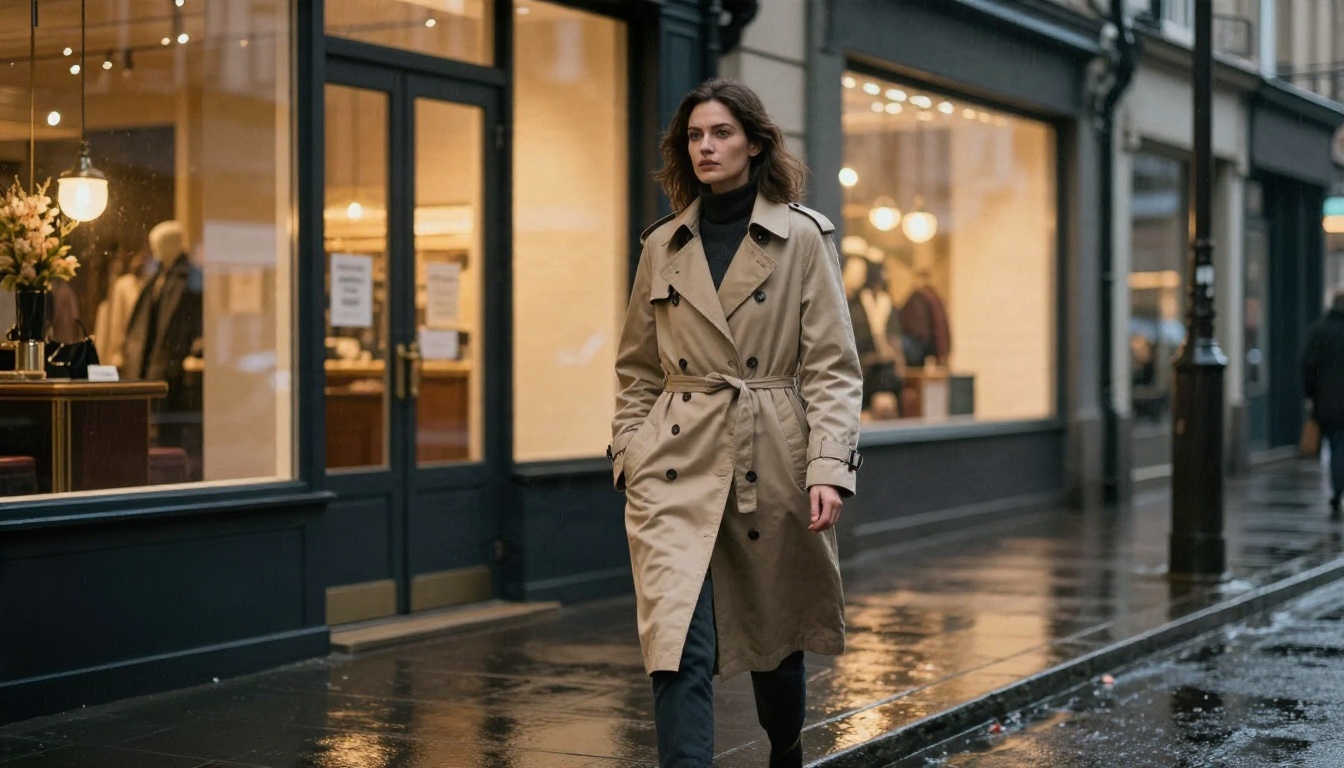
| a woman walking in the rain | A woman in a long beige coat walks toward the camera along a wet city sidewalk at dusk, slow dolly back, warm shop windows reflecting on the pavement, soft overcast light |
| coffee pouring | Black coffee pours from a steel kettle into a white ceramic cup, steam rising, locked-off close-up, soft window light from the left |
| mountain | A slow aerial drift over a pine valley at sunrise, mist moving between the trees, gentle forward camera motion, golden light |
Four Rules That Save Credits
- One action per clip. A single clear verb beats a list of events.
- Name the camera. "Slow dolly in", "static tripod", "handheld follow" each change the result noticeably.
- Describe light. Time of day and light direction anchor realism more than adjectives like "cinematic".
- Keep it short. Two to four sentences. Long paragraphs dilute the main motion.
Use the Prompt Optimizer Carefully
The model includes a prompt optimizer switch, on by default. It rewrites rough input into a more detailed visual instruction. That helps when you type something short like "dog on a beach". It can hurt when you already wrote a precise prompt, because the rewrite may add elements you did not ask for. A good habit: leave it on for first drafts, turn it off once you have a prompt you like and want repeatable behavior.
Motion and Physics Strengths
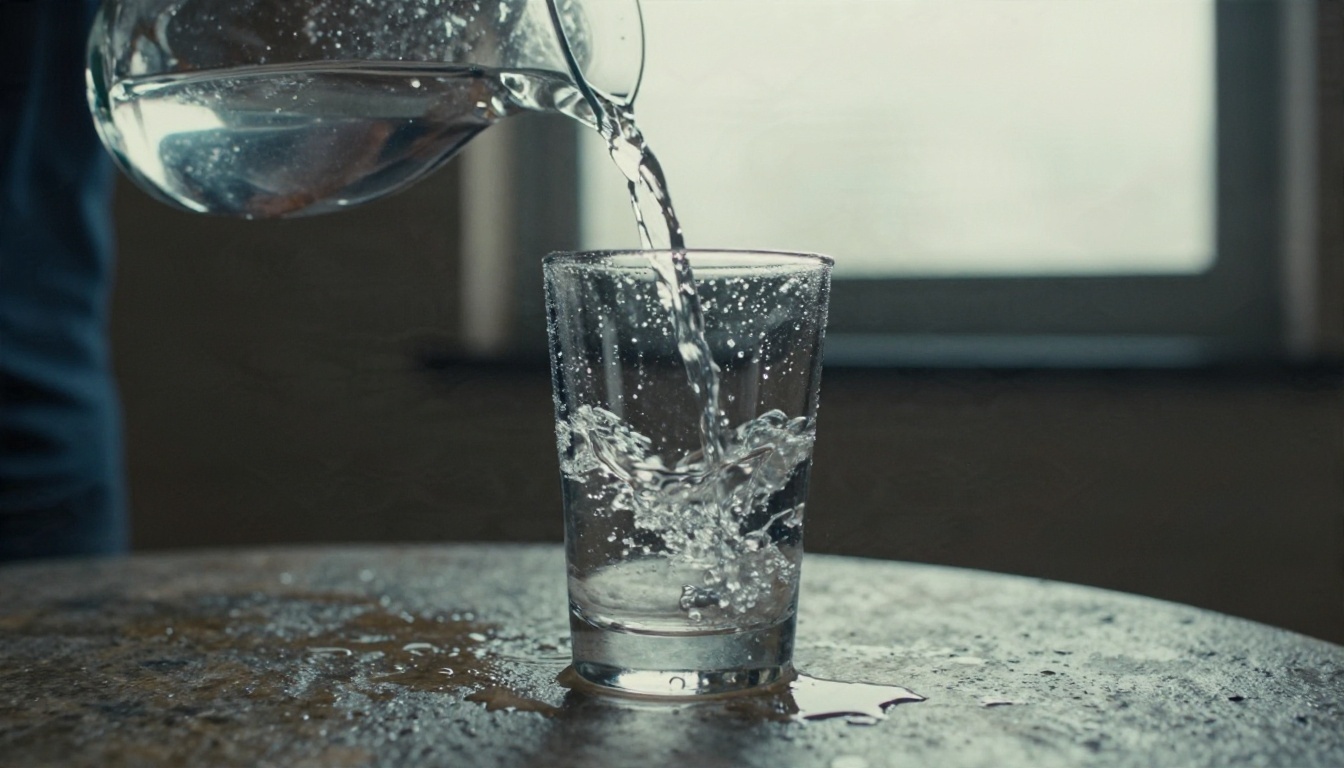
Hailuo 02 earned its reputation on physical plausibility. Subjects that stress physics are where it stands out:
- Liquids: pouring, splashing, rippling surfaces
- Fabric and hair: coats in wind, scarves dragging, hair settling after a turn
- Weight transfer: footsteps, jumps, objects falling and landing
- Atmosphere: mist, rain, dust and smoke drifting in light
Where it still struggles, as most video models do: legible text on signs, fast hand-object interactions with small items, and crowds where many people need unique, consistent motion. Keep those out of your Standard tests, or accept that you will need several attempts.
💡 Tip: If a clip nearly works but one detail wobbles, do not rewrite the whole prompt. Change a single phrase, such as the camera move, and re-run. You will see what each word actually controls.
First and Last Frame Control
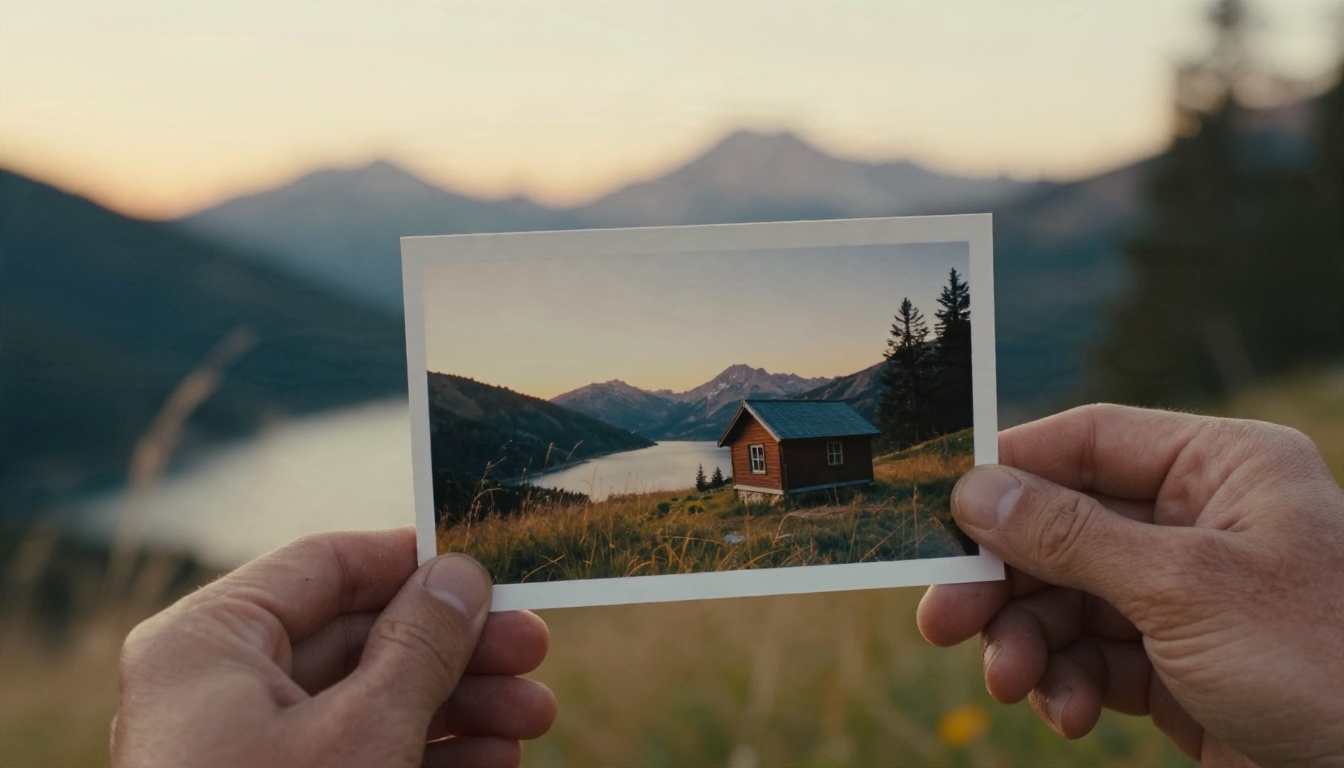
This is the most underused feature. Besides text prompts, Hailuo 02 accepts a first frame image and an optional last frame image. The first frame anchors what the video starts with. The last frame forces the clip to end on a specific image.
Why this matters for Standard:
- Brand and product consistency. Start from your actual product photo, so the object in the clip is the object you sell.
- Controlled transitions. Use two images of the same scene at different moments, and the model fills the movement between them.
- Aspect ratio control. The clip follows the first frame's proportions, so you choose vertical or horizontal by choosing the image.
A reliable workflow is to generate a still with an image model, check that the composition is exactly right, and then animate it. The still takes seconds to fix; a video takes longer to redo.
Writing Prompts for Image-to-Video
When you supply a first frame, do not describe what is already in the image. Describe what changes. Instead of "a cabin by a lake at sunrise with mountains", write "slow push in toward the cabin, mist drifting across the water, grass moving gently in the breeze". The picture already holds the scene. Your prompt supplies the motion.
Free Limits and What They Mean

"Free" is where reports disagree, so here is what can be said with confidence and what cannot.
What is consistent across reports about the Hailuo consumer app:
- Free usage is credit-based, not unlimited
- Free exports commonly carry a watermark
- Paid plans remove the watermark and add commercial usage rights
- Free jobs are generally queued behind paid ones
- Free exports are often capped below the resolution paid users get, with 720p and 6 second clips frequently mentioned
What is not consistent: whether the credits arrive as a one-time welcome allotment that expires after a few days, or as a smaller daily top-up. Different reviews describe both, and the terms change. Check the pricing page of the service you are using before planning a project around it.
💡 Tip: Never base a client deadline on a free tier. Free queues slow down at peak hours, and watermarked clips are only useful as drafts.
Practical Ways to Stretch Free Credits
- Draft at 512p before spending anything on 768p.
- Write the prompt in a notes app first, then paste it, so you do not burn runs on typos.
- Generate from a still you already approved, which removes the biggest source of wasted attempts.
- Batch similar ideas with one change per run so every run teaches you something.
A Free, Unlimited Alternative on PicassoIA
If your main constraint is the number of attempts, Seedance 2.5 Lite is listed on PicassoIA as a free and unlimited video generator with clips up to 10 seconds. It is a different model with a different look, but it is a sensible place to test ideas before you spend anything on higher tiers.
How to Use Hailuo 02 on PicassoIA
Here is the workflow, step by step, using the Hailuo 02 page.
- Open the model page. Go to the Hailuo 02 model in the text-to-video collection.
- Write your prompt. Use the formula: subject, action, camera move, setting, light. Two to four sentences.
- Set resolution to 768p. This is the Standard tier and the default. Use 512p for quick drafts and 1080p only for the final version.
- Choose duration. Pick 6 seconds for consistency or 10 seconds for slow scenes. Remember that 10 seconds is locked to 768p.
- Add a first frame (optional). Upload a still to start from your own picture. Add a last frame if you want a specific ending.
- Decide on the prompt optimizer. Leave it on for rough prompts, off for precise ones.
- Generate and review. Watch the clip twice: once for motion, once for faces and edges.
- Iterate with one change at a time. Adjust the camera move, the light, or the action, never all three.
- Upscale the winner. Re-run the best prompt at 1080p for a 6 second final, or use a video enhancement model if you need a longer clip at higher resolution.
Recommended Settings by Goal
| Goal | Resolution | Duration | First frame |
|---|
| Prompt testing | 512p | 6 s | No |
| Social post | 768p | 6 s | Yes |
| Slow scenic shot | 768p | 10 s | Optional |
| Client final | 1080p | 6 s | Yes |
| Product loop | 768p or 1080p | 6 s | Yes, plus last frame |
Alternatives Worth Testing
No single video model wins every shot. These sit alongside Hailuo 02 on PicassoIA and are worth a side-by-side run:
A simple test: take one product photo, write one prompt, and run it on three models. Pick the winner by looking at edges and motion consistency, not by the first impression.
Product Ads at 768p
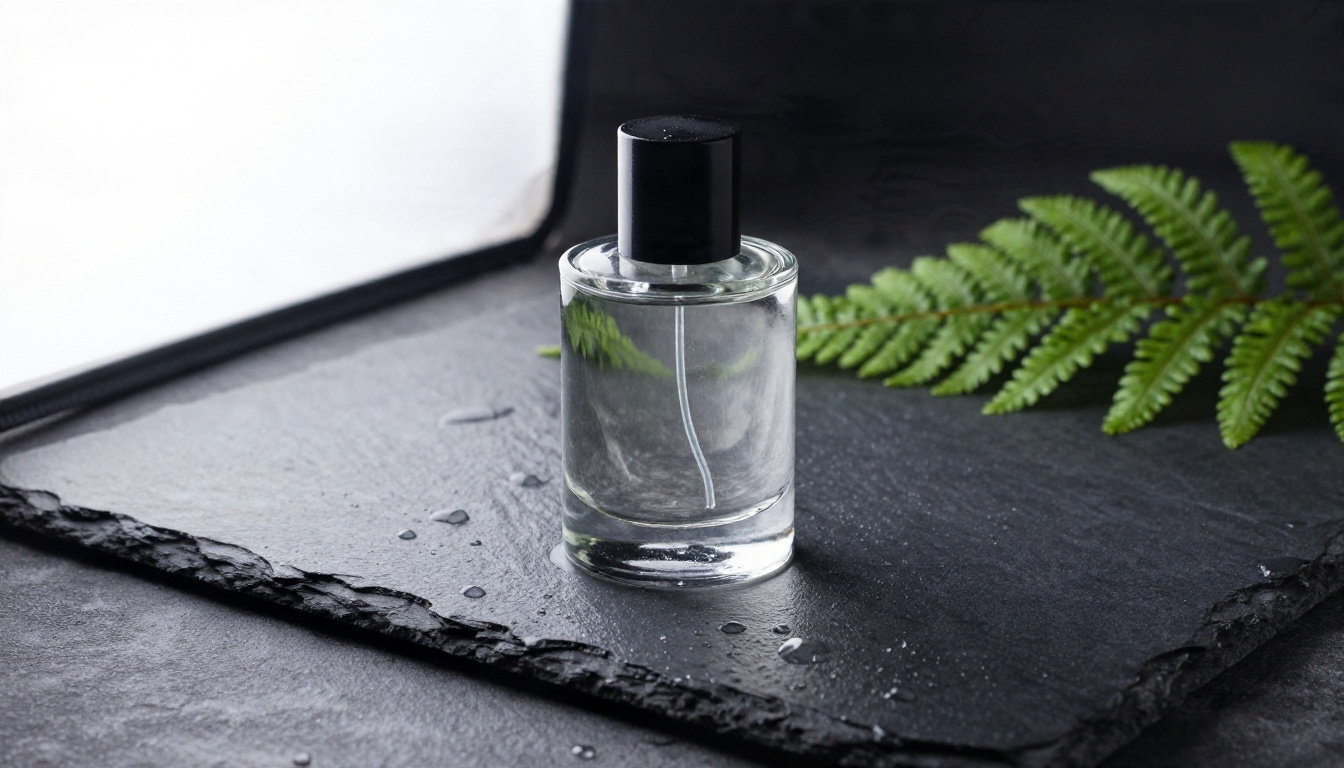
Product shots are a strong use case for Standard. A bottle on slate, a sneaker on wet stone, a watch on linen: all have simple surfaces and clear lighting. Prompt example: "Slow push in toward a glass perfume bottle on wet slate, water droplets sliding down the glass, soft daylight from the left, shallow depth of field." Set the first frame to your product photo, choose 6 seconds, and keep the optimizer off so nothing gets added.
Common Mistakes to Avoid
These are the errors that waste the most credits:
- Starting at 1080p. Draft low, finish high.
- Choosing 10 seconds by default. Longer clips drift more and cost more.
- Cramming several actions. One verb per clip.
- Describing the image in an image-to-video prompt. Describe the motion instead.
- Ignoring the aspect ratio. The first frame sets it, so crop the still before you animate it.
- Relying on text in the scene. Signs and labels tend to warp. Add them in editing.
- Skipping the second review pass. A clip that looks fine at a glance often has a morphing hand or a drifting background.
💡 Tip: Keep a prompt log. Write the prompt, settings and result in one line. After ten runs you will have your own list of phrases that reliably work.
Quick Reference
| Question | Answer |
|---|
| Standard resolution | 768p |
| Clip lengths | 6 or 10 seconds |
| 10 seconds at 1080p | Not available |
| Frame control | First and optional last frame |
| Draft tier | 512p |
| Pro tier | 1080p, 6 seconds |
| Prompt formula | Subject, action, camera, setting, light |
Try Your Own Clip Today
Standard is the right place to start because it is forgiving. You get enough resolution to judge quality, a 10 second option for slow scenes, and a cost that lets you iterate. Pick one scene from your own life or work, write two sentences describing the motion, and run it on Hailuo 02 at 768p. Then change only the camera move and run it again. Within a few attempts you will know how the model reads your writing.
When you are ready to compare, open the full catalog at picassoia.com/en/all-models, try the same prompt on a second model, and keep the clip that feels most like the picture in your head. Picasso IA puts the image models, the video models and the enhancement tools in one place, so your first frame, your animation and your upscale can all happen in a single session.


