Nobody wants to find out in the salon chair that a pixie cut was a bad idea. A haircut trial with AI fixes that: you upload one selfie, pick a style, and a few seconds later you see yourself with bangs, a bob, curls or copper hair. No scissors, no dye, no regret. The catch is that results vary a lot between tools, and the photo you feed in matters almost as much as the tool you pick.
This article covers what a free AI haircut trial can and cannot tell you, which kinds of free apps and browser tools exist, how to shoot a photo that gives a believable preview, and exactly how to run a trial on PicassoIA with a dedicated haircut model. Think of it as a practical routine: take the photo, test five or six styles, compare them, and walk into the salon with a clear reference.
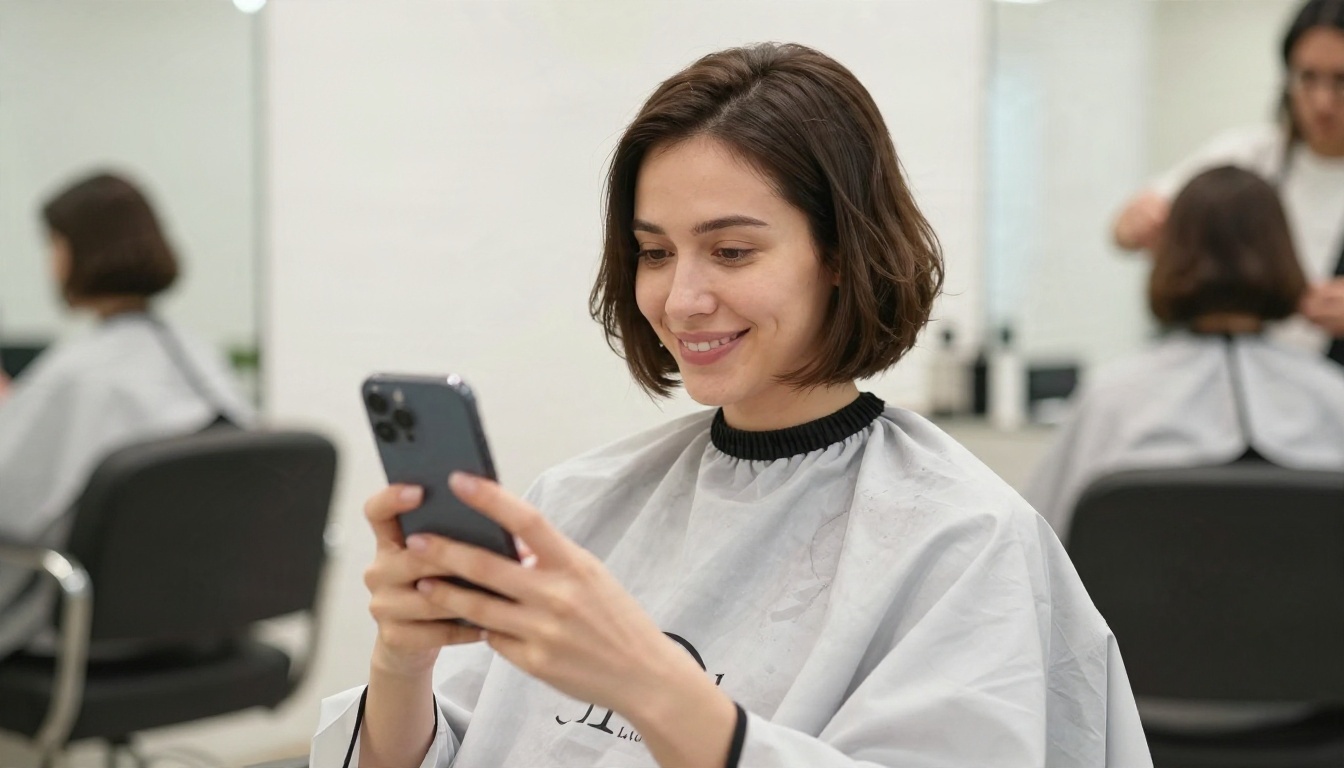
What a Haircut Trial AI Really Does
An AI hairstyle try-on takes a photo of your face and redraws the hair area. Everything else, your eyes, skin, jawline and clothes, is meant to stay put. The tool swaps the hair for a new length, shape, texture or color and blends it into the original lighting.
How the Preview Gets Made
Older apps relied on a flat hair overlay that sat on top of your head like a wig. Newer image models work differently. They read the face, the head angle, the light direction and the existing hair, then generate new hair that follows those cues. That is why modern results show believable shadows under bangs, flyaways at the hairline and a natural part.
Most tools offer three input styles:
- Preset picker: you choose a named cut such as Bob, Shag or Undercut from a list.
- Text prompt: you describe the style in words, like "soft layers with curtain bangs."
- Reference photo: you supply a picture of the cut you like and the tool applies it to your face.
For a quick trial the preset picker is the easiest. For something unusual, a text prompt gives more freedom.
What It Cannot Predict
A preview is a visual sketch, not a promise. It cannot know how thick your hair is, how your cowlick behaves, or how much damage your ends have. Fine, straight hair will not hold the volume a layered shag shows in the preview. Dense, coarse hair may look heavier than the render suggests.
💡 Tip: Treat the preview as a conversation starter with your stylist. Bring two or three versions and ask, "Which of these will work with my hair type?" A good stylist will tell you in thirty seconds.
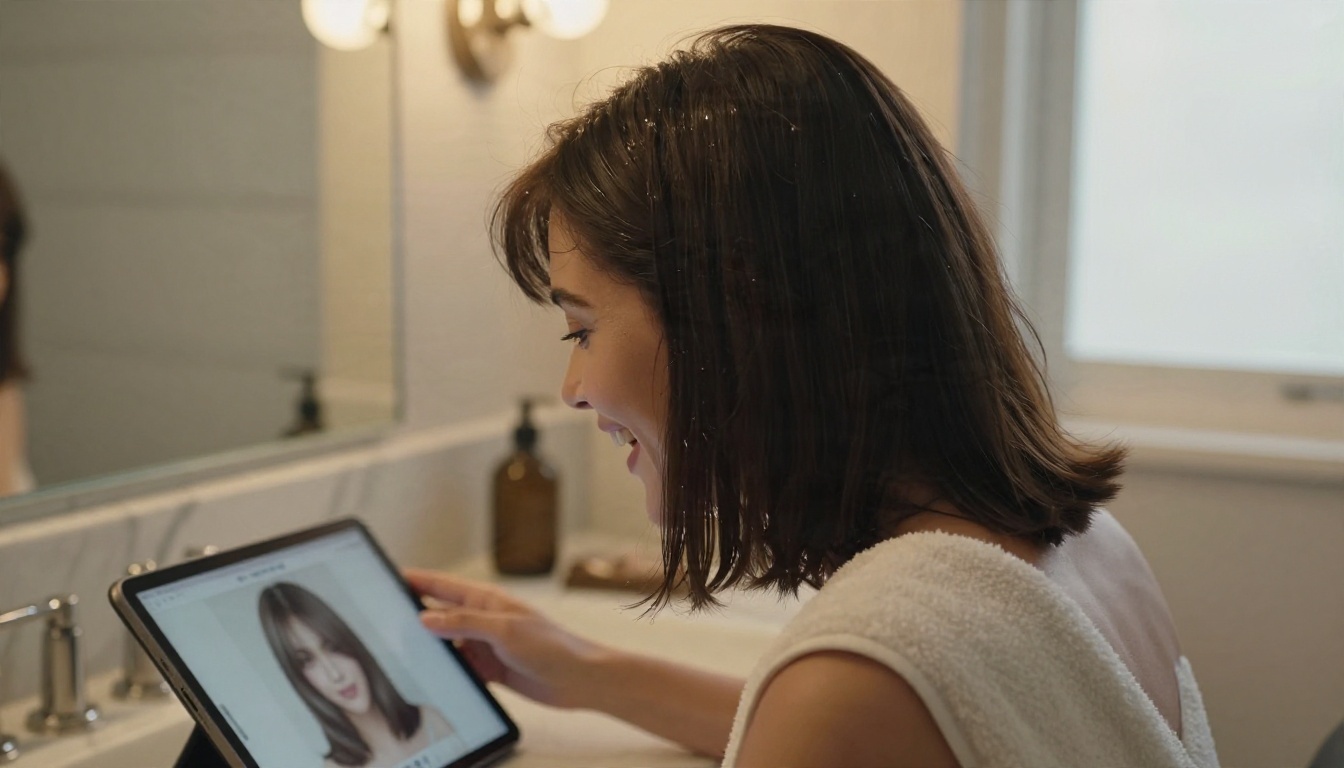
Free Ways to Try Hairstyles Online
Searching for a free hairstyle changer returns dozens of options, and most of them follow the same pattern: free to download, then limited by a paywall. Knowing the pattern saves time.
Free Apps and Their Limits
Phone stores list a long line of try-on apps, including Haircut AI, HairMatch AI, HairMe AI, Fadeup, Glancely and Hair AI. Beauty editors such as YouCam Makeup and BeautyPlus also include hairstyle features. They usually share these traits:
| Feature | What you usually get for free | What sits behind a subscription |
|---|
| Number of styles | A small starter set, sometimes only a few | Libraries of 60 to 180+ cuts and colors |
| Face shape tips | A basic suggestion | Detailed recommendations |
| Image quality | Lower resolution, sometimes watermarked | Sharper exports |
| Daily trials | A few per day or per week | Unlimited use |
| Hair colors | One or two shades | Full color range |
Prices change often, and several apps advertise weekly plans, so read the store listing before you tap "start trial." A free trial that renews automatically is the most common surprise.
Browser Tools
If you do not want another app on your phone, browser tools are an option. Some video editors and beauty sites offer a hairstyle changer in a web page. You upload a photo, pick a style and download the result. The upside is zero installation. The downside is that free web tools often cap resolution or the number of images per day.
Privacy Before You Upload
You are handing over a clear photo of your face. Before you do, check three things:
- What the privacy policy says about storing and reusing uploaded photos.
- Whether you can delete your images and account.
- Whether the tool asks for more than it needs, such as contacts or full photo library access.
If a policy is vague, use a photo you would be comfortable sharing publicly, or pick a different tool.
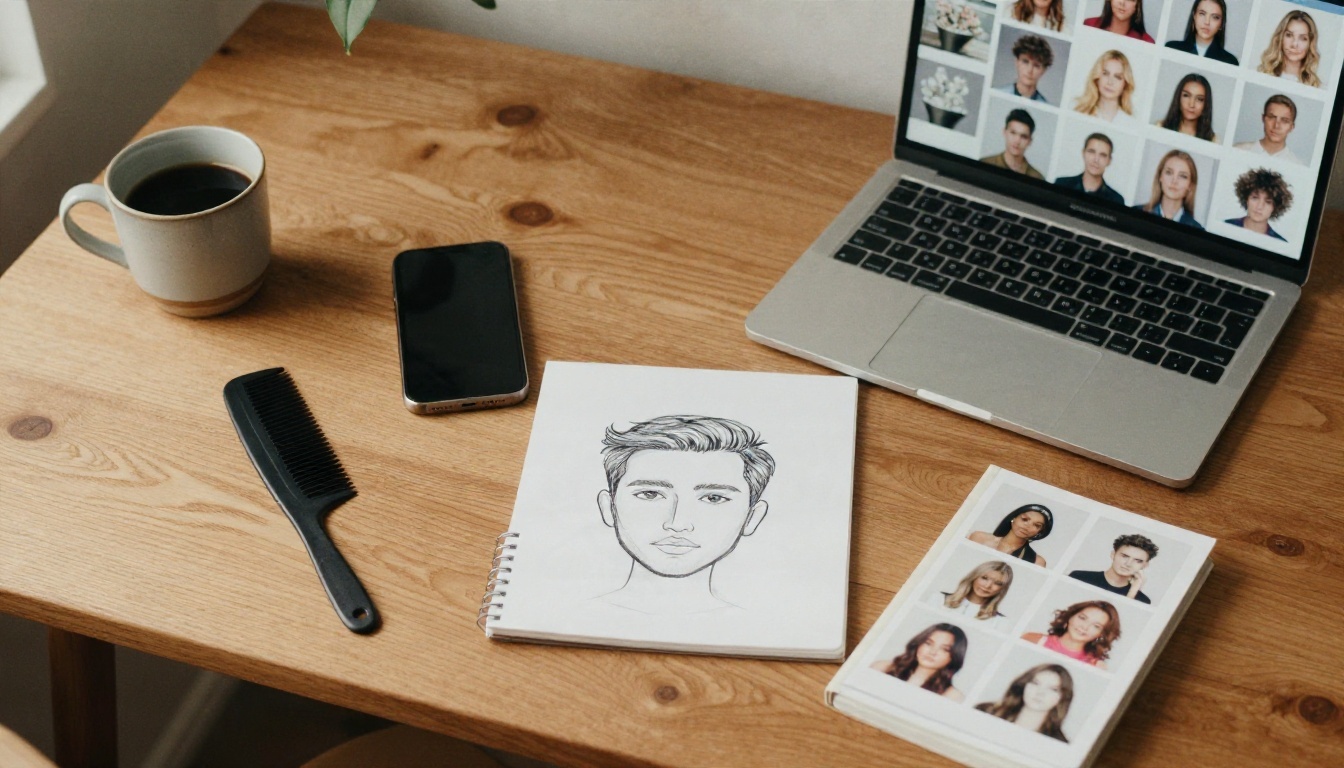
Photo Tips for Realistic Results
Garbage in, garbage out applies here more than anywhere. The same tool can give a stunning preview from one selfie and a distorted mess from another. Spend two minutes on the photo and your results improve dramatically.
Light and Angle
Face a window and let soft daylight fall evenly on your face. Avoid strong overhead lights, which cast hard shadows under your hair and confuse the tool about where the hairline sits. Hold the camera at eye level. A phone held below your chin or high above your head distorts proportions, and the generated hair will inherit that distortion.
A simple setup that works:
- Stand about one arm's length from a window, facing it.
- Keep your head straight, chin level, eyes on the lens.
- Use the rear camera if you can, because it is usually sharper than the front one.
- Wear a plain top in a color that contrasts with your hair.
Hair Off the Face
Pull your hair back, or at least tuck it behind your ears. Tools need to see your forehead, temples, ears and jawline to place new hair properly. When old hair covers half your face, the model has to guess what lies underneath and sometimes invents strange shapes.
The same logic applies to hats, large glasses and heavy bangs. If you plan to try a fringe, a photo with your forehead visible will give a cleaner result than a photo where your current fringe is cut across your eyebrows.
Photo Mistakes That Ruin Previews
| Mistake | What goes wrong | Fix |
|---|
| Heavy filters | Skin and hair edges look smeared | Use the raw camera photo |
| Head tilted sharply | New hair does not match the angle | Keep the head level and facing forward |
| Group photos | The tool may pick the wrong face | Crop to one person |
| Low resolution | Strands look blurry or waxy | Use at least a clear 1080 px photo |
| Strong backlight | Face goes dark, hair edge glows | Turn so light hits your face |

How to Use Change Haircut on PicassoIA
PicassoIA has a model built for exactly this task. Change Haircut lets you upload a photo, pick a haircut and a color from dropdown lists, and generate the result in seconds. It offers more than 100 styles, over 30 hair colors, and returns clean PNG or JPG files without a watermark.
Step by Step
- Open the model page. Go to Change Haircut on PicassoIA.
- Upload your photo. Add one clear selfie using the input image field. JPEG, PNG, GIF and WebP files are accepted.
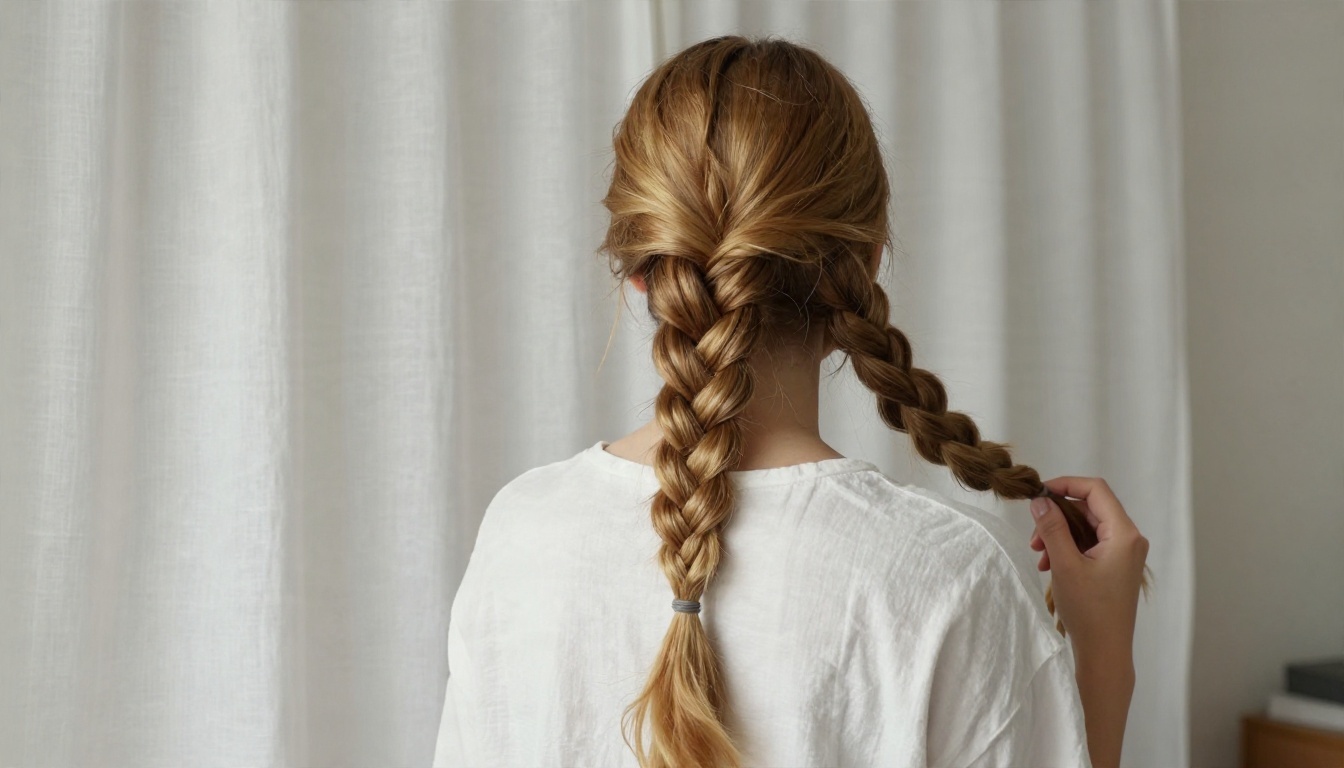
- Choose a haircut. Open the haircut dropdown and pick a style such as Bob, Pixie Cut, Shag, Curly, Undercut or French Braid. The list also includes updos, braids and vintage looks like Victory Rolls.
- Choose a color. Leave hair color on "No change" to test shape only, or pick one of 30+ shades, from Honey Blonde to Burgundy.
- Set the gender field. Use male or female if you want cuts that better match the person in the photo, or leave it at "none."
- Pick the output size. Keep aspect ratio on "match input image" so your face is not stretched.
- Generate and save. Run the model, review the result and download it.
Settings That Matter
| Setting | Recommended value | Why |
|---|
| haircut | One style per run | Easier to compare cleanly |
| hair_color | "No change" on first pass | Judge the cut before the color |
| aspect_ratio | match_input_image | Keeps proportions identical |
| output_format | PNG for detail, JPG for quick sharing | PNG keeps finer strands |
| seed | Fixed number | Reproduce a result you liked |
💡 Tip: Run the same photo through five or six cuts and keep the seed fixed. Because the underlying randomness stays the same, differences between results come from the style itself, which makes your comparison fair.
If a result looks a little soft, run it through Real ESRGAN to upscale the image up to 4x before you save it or send it to your stylist.
Picking Cuts by Face Shape
A trial is the fastest way to test the old advice about face shapes. The rules of thumb are easy to check when you can see yourself in each cut within seconds.
Round and Square Faces
Round faces often look longer with side parts, long layers and volume at the crown. Square faces tend to look softer with waves, side-swept bangs and a lob that hits near the collarbone. Try one blunt cut and one soft cut on the same photo. The contrast tells you more than any chart.
Oval and Heart Shaped Faces
Oval faces suit almost anything, so use the trial to chase personality: a crisp pixie, a sharp A-line bob, or long glossy waves. Heart shaped faces, with a wider forehead and narrower chin, often look balanced with chin length cuts, side bangs and layers that add width near the jaw.
Curly and Coily Hair
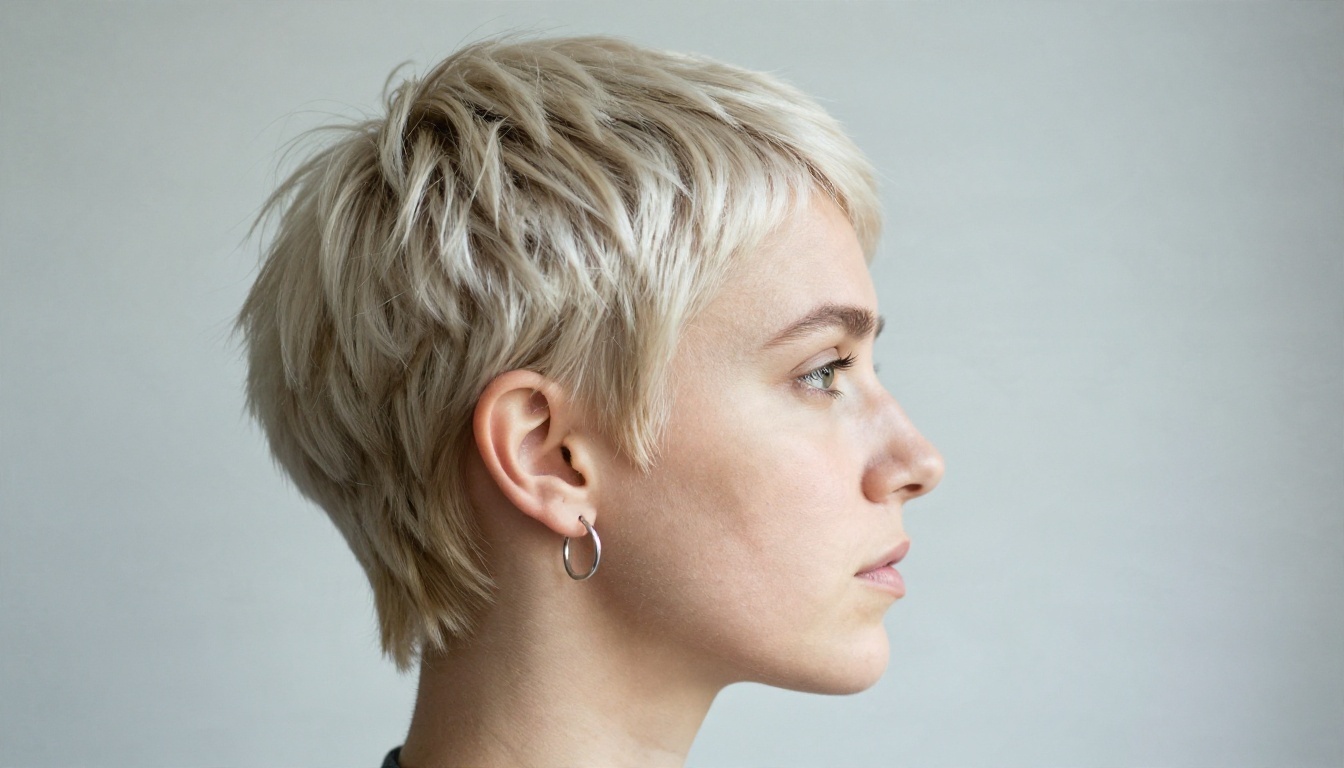
Many general tools struggle with curl patterns and give naturally curly hair a smoothed, generic look. If your hair is curly or coily, test styles built around texture: Twist Out, Bantu Knots, Cornrows, Box Braids or Curly. The Change Haircut model includes several of these in its list, so you can check how a protective style or a defined curl looks on your face.
When the result looks too smooth, try again with a different seed or a photo where your current curls are visible and defined.
Color Trials Without the Dye
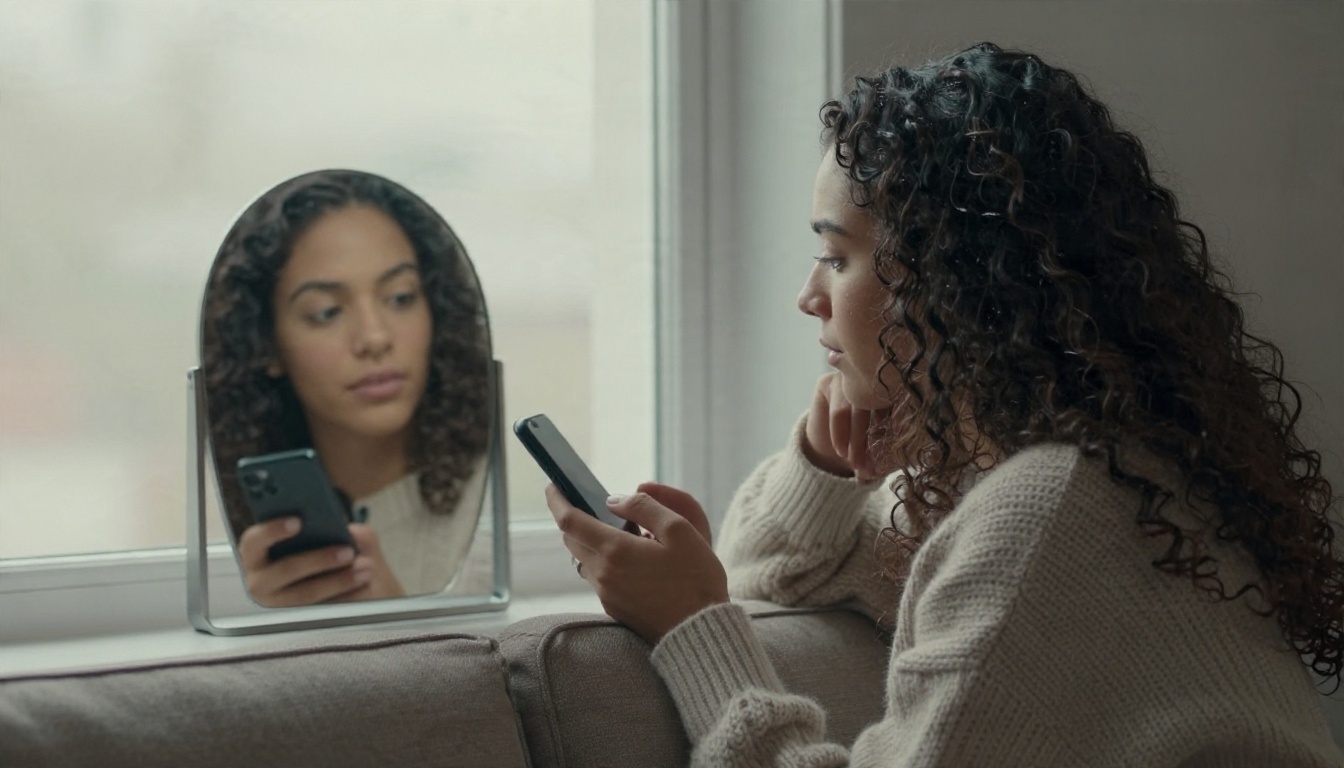
Color is where a trial saves the most money. Bleach and toner are expensive, and fixing a bad shade can take weeks. A preview lets you check a handful of options in a few minutes.
A sensible order for testing color:
- Stay close to your base shade first. Try one tone lighter and one tone darker.
- Check your skin undertone. Warm undertones usually flatter honey, caramel and copper. Cool undertones often pair well with ash brown, silver and blue-black.
- Move to bold shades last. Pink, purple or platinum are fun to test, but remember they require bleaching on dark hair.
- Compare in daylight on your screen. Screens can warm or cool a color, so view the previews near a window.
💡 Tip: A preview shows color on a flat image. Real hair has depth, roots and fading. Ask your colorist about the upkeep: a platinum blonde may need a visit every four to six weeks.
Show the Result to Your Stylist
The best use of an AI preview happens in the salon, not on the phone. A picture takes the vagueness out of words like "a little shorter" or "kind of layered." Here is a short routine that works.
- Pick your top two or three results and save them to one album.
- Add a real-life reference photo of the cut on a person with hair similar to yours.
- Bring a photo of your current hair from the same angle as the preview.
- Ask the stylist to flag anything that will not work with your texture or density.
Barbers and stylists often welcome this. A phone screen with a clear reference beats five minutes of guessing about what "textured crop" means.
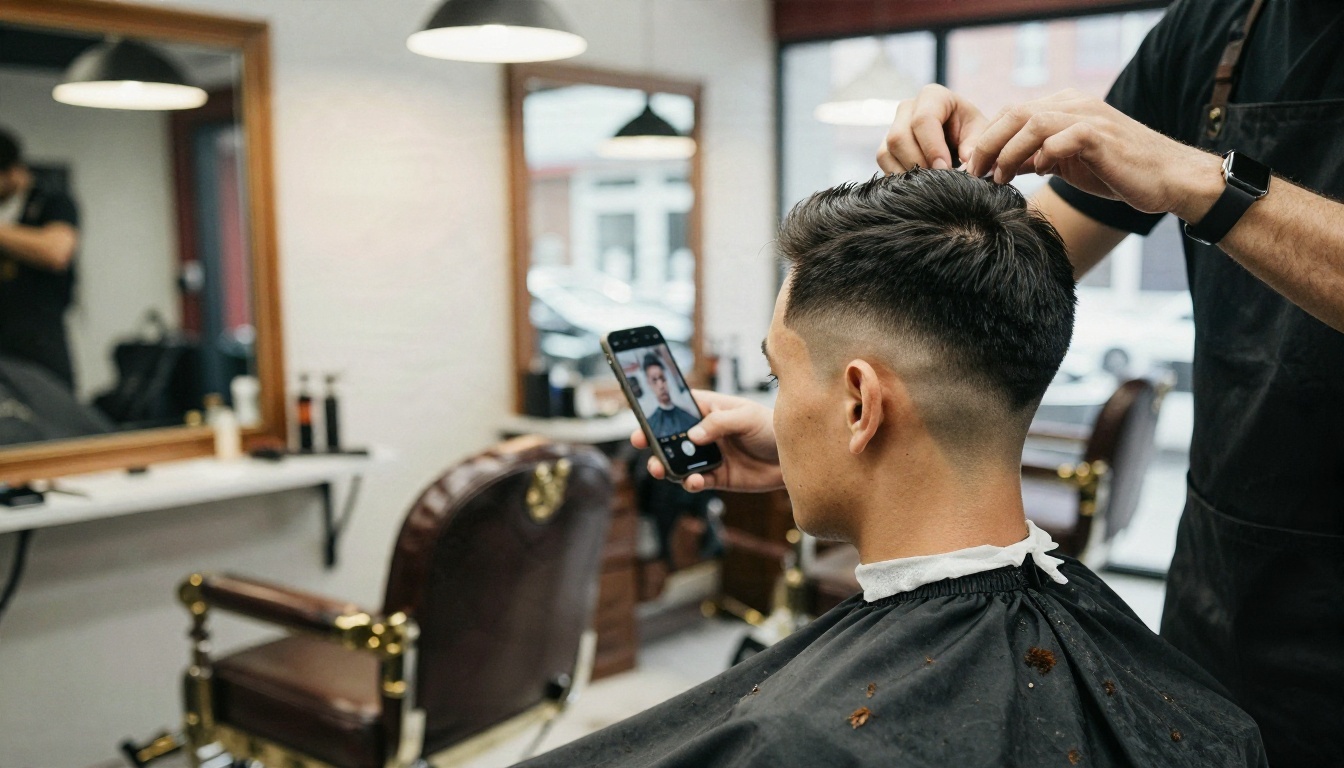
You can also use a trial to ask friends. Two people looking at the same preview often notice things you miss, like a part that sits too far to one side.

Other PicassoIA Models Worth Trying
A dedicated haircut model is the fastest route, but general image editors on PicassoIA can handle trickier requests, such as a specific reference cut or a full portrait in a new setting.
| Model | Best for | Link |
|---|
| Change Haircut | Fast style and color swaps from dropdown lists | Change Haircut |
| Nano Banana | Text based photo edits, such as "give her a layered bob" | Nano Banana |
| Nano Banana Pro | Higher detail edits and sharper portraits | Nano Banana Pro |
| Flux Kontext Fast | Quick instruction based edits on an existing photo | Flux Kontext Fast |
| Seedream 4.5 | Polished portrait images with strong detail | Seedream 4.5 |
| Real ESRGAN | Upscaling a preview before sharing or printing | Real ESRGAN |
A useful workflow: start with Change Haircut to narrow down the cut and color, then use Nano Banana or Flux Kontext Fast when you want a custom detail, like "add curtain bangs and keep the same color." For a polished portrait of the final look, try Seedream 4.5 or Nano Banana Pro.
When to Use a Text Prompt
Dropdown lists are fast, but words give more control. A prompt such as "shoulder length shag with soft curtain bangs, ash brown with subtle caramel highlights, keep the face and background unchanged" tells an editing model exactly what to alter and what to protect. Add that last clause every time. It reduces the chance that skin, eyes or the background drift.
Try Your Own Look Today
You do not need a salon appointment to find out whether bangs suit you. Take a bright, front facing photo near a window, pull your hair back, and open Change Haircut on PicassoIA. Run six styles, keep the seed the same, and save your favorites in one folder. Then try two colors on the winner.
When you want more control, switch to Nano Banana for prompt based edits or Seedream 4.5 for a polished portrait. If you want to browse everything else the platform offers, from image editors to upscalers, head to picassoia.com/en/all-models and experiment with your own photos. Your next haircut can start as a preview, and the version you pick will be one you have already seen on your own face.


