Most people who search for a hentai avatar maker want the same thing: a glossy, stylish, slightly flirty anime character they can use as a profile picture, a streaming icon or a Discord banner, and they want it in minutes, not after a week of tutorials. The good news is that you no longer need to draw anything. A modern AI image model reads a short text description, adds the big eyes, the sharp linework, the colorful hair and the glamorous mood, and hands back a finished avatar. The bad news is that most free "makers" give you the same five templates, a watermark and a blurry download.
This article fixes that. You will see how the free options differ, which models give the cleanest anime faces, how to build a prompt that works on the first try, and which settings matter most. Everything here stays on the suggestive, non-explicit side: glamour, attitude and style, with adult characters only (18+). No explicit scenes, no real people's likenesses.

What a Hentai Avatar Maker Does
A hentai avatar maker is a tool that produces a single stylized adult anime character from your choices: hair, eyes, outfit, pose, mood. The term comes from the look of the genre (soft shading, exaggerated eyes, glamorous proportions), not from any obligation to make explicit art. Plenty of people use it for a bold profile picture that feels more personal than a stock photo.
The Style Traits That Define the Look
Before you type a prompt, it helps to know what you are actually asking for. These are the features that make an avatar read as "hentai style" rather than generic cartoon:
- Large, detailed eyes with layered highlights and colored irises.
- Soft cel shading with gentle gradients on skin and hair.
- Saturated hair colors such as pastel pink, silver-white, lavender or crimson.
- Glossy lips and blush that add a warm, flirty mood.
- Glamour styling: chokers, lace trim, satin, off-shoulder tops, accessories.
- Clean outlines and a simple, readable background.
Who Actually Uses These Avatars
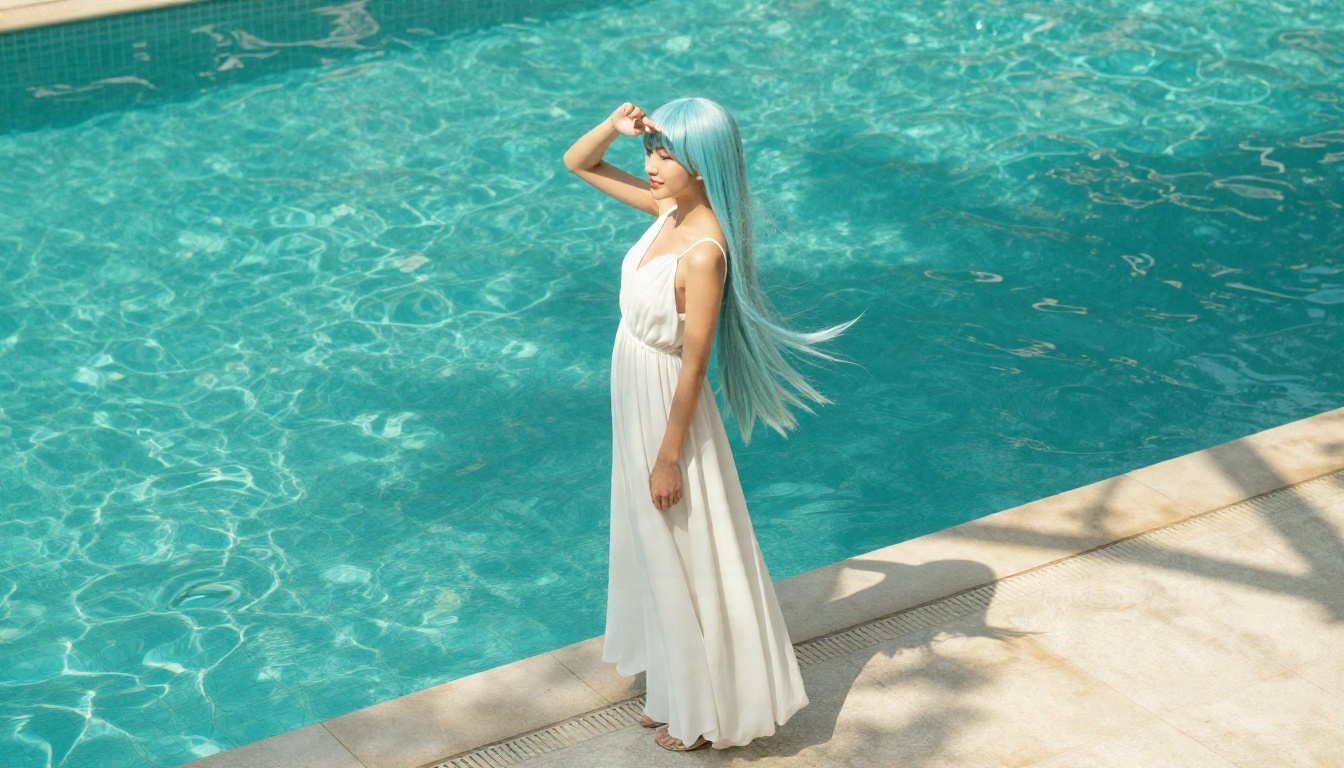
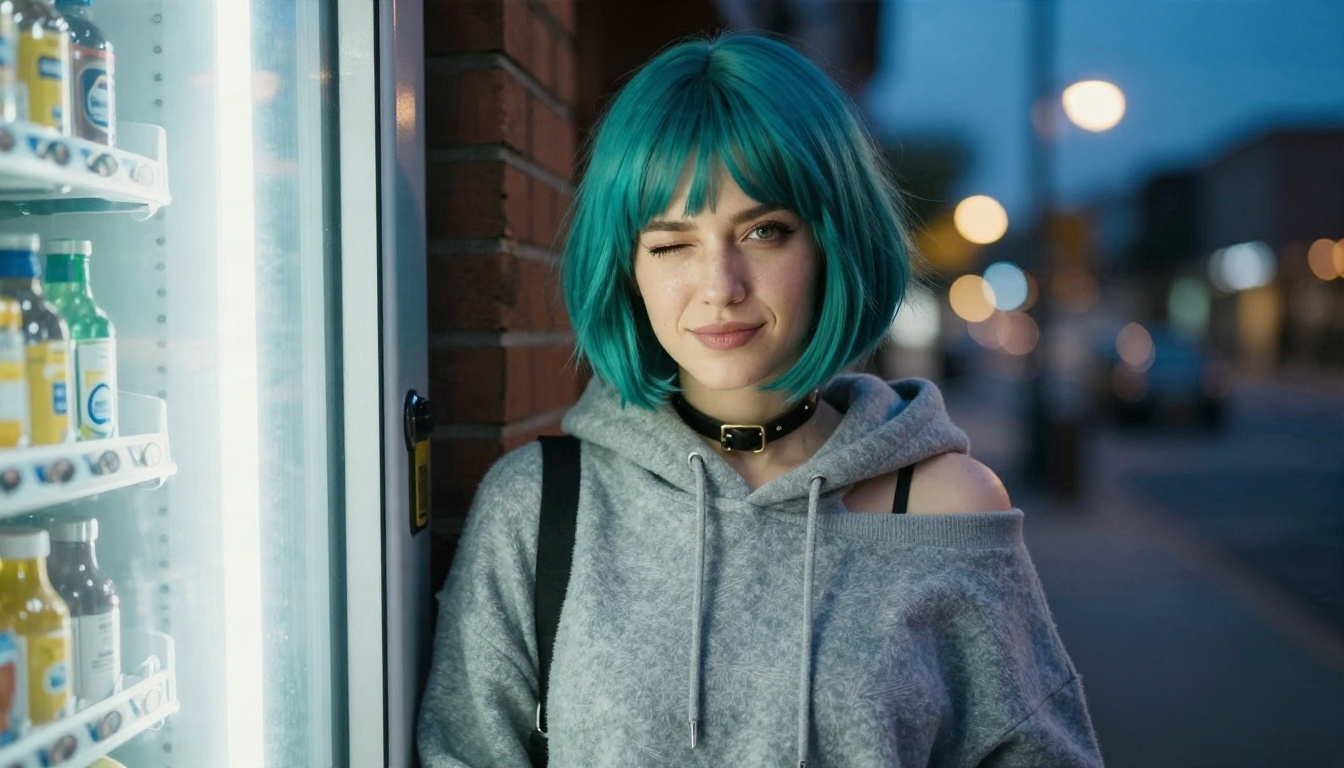
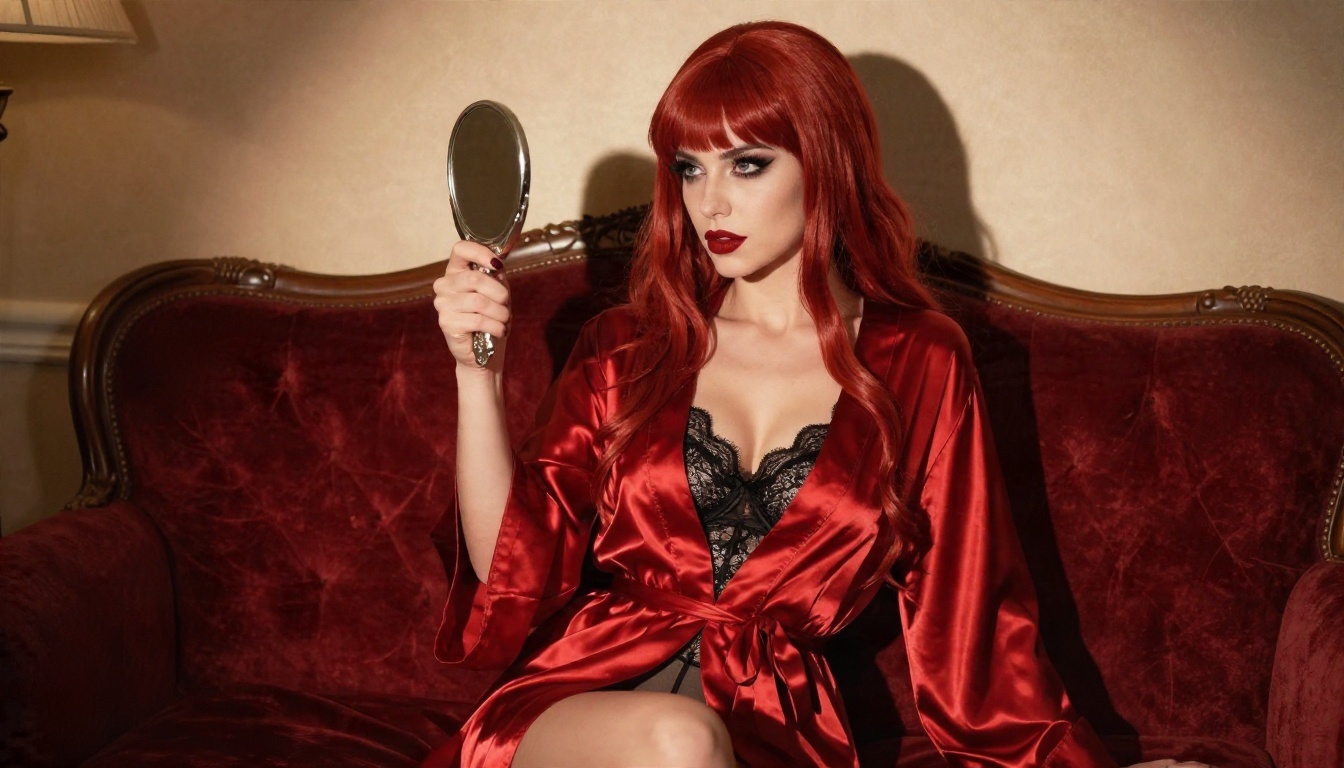
The audience is wider than you might expect. Streamers use them as channel icons. Artists use them as a mascot for a portfolio. Writers use them as a face for a character in a story. Gamers want something that stands out in a lobby list. Cosplayers use an avatar as a mood board before they build a costume, and the photo below shows why: a real wig, real lenses and a bit of makeup recreate the same pastel look, which also makes a great reference image for an AI model.
💡 Quick rule: every character you make should be clearly an adult. Add "adult woman, 25 years old" or similar to your prompt so the model never drifts toward a younger face.
Free Online Options Compared
There are three kinds of free avatar makers, and they behave very differently once you try them.
Template Builders
These are the drag-and-drop sites with sliders for hair, eyes and clothes. They are fast and predictable, but you can only choose from what the designer drew. Expect repeated faces, limited poses and a watermark unless you pay.
Random Generators
These press a button and give you a character. They are fun for ideas, but you cannot steer them. If you want "silver hair, teal eyes, black choker, sunset rooftop," you will keep rerolling.
Text to Image Models
This is where the real quality lives. You write what you want, and the model draws it. The result is unique, sharp and fully customizable. The cost is a bit of prompt writing, which is exactly what the rest of this article makes easy.
| Option | Speed | Customization | Quality | Watermark |
|---|
| Template builder | Very fast | Low | Medium | Often yes |
| Random generator | Instant | None | Medium | Often yes |
| Text to image model | Fast | Very high | High | No (on PicassoIA) |
Best Models for Anime Avatars
Not every image model draws anime faces equally well. Some lean photographic and lose the stylized eyes. Others follow prompts closely but soften the linework. These are the models worth trying, in the order I would test them for adult anime glamour.
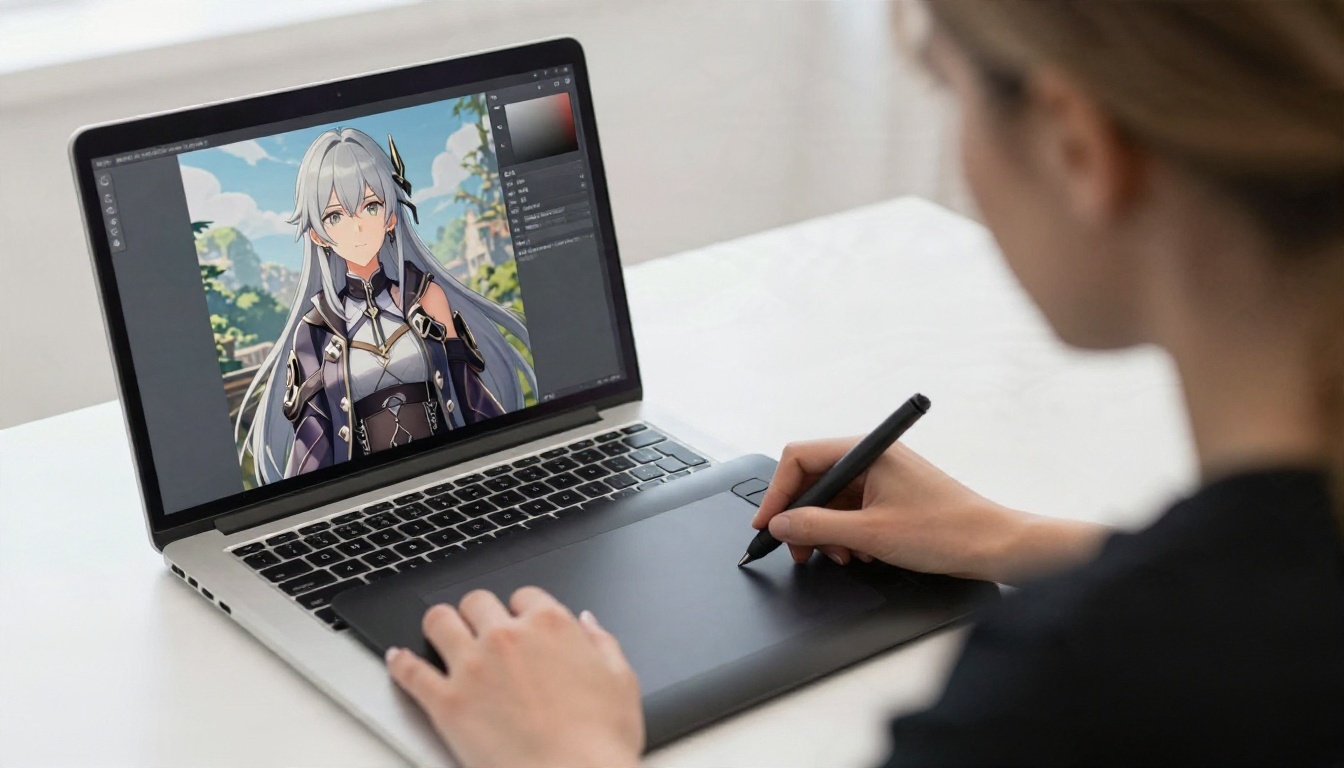
- Seedream 4.5 is the first model to open. It follows long prompts closely, keeps faces clean and handles hair color, accessories and lighting with very little cleanup. It is my default for avatars.
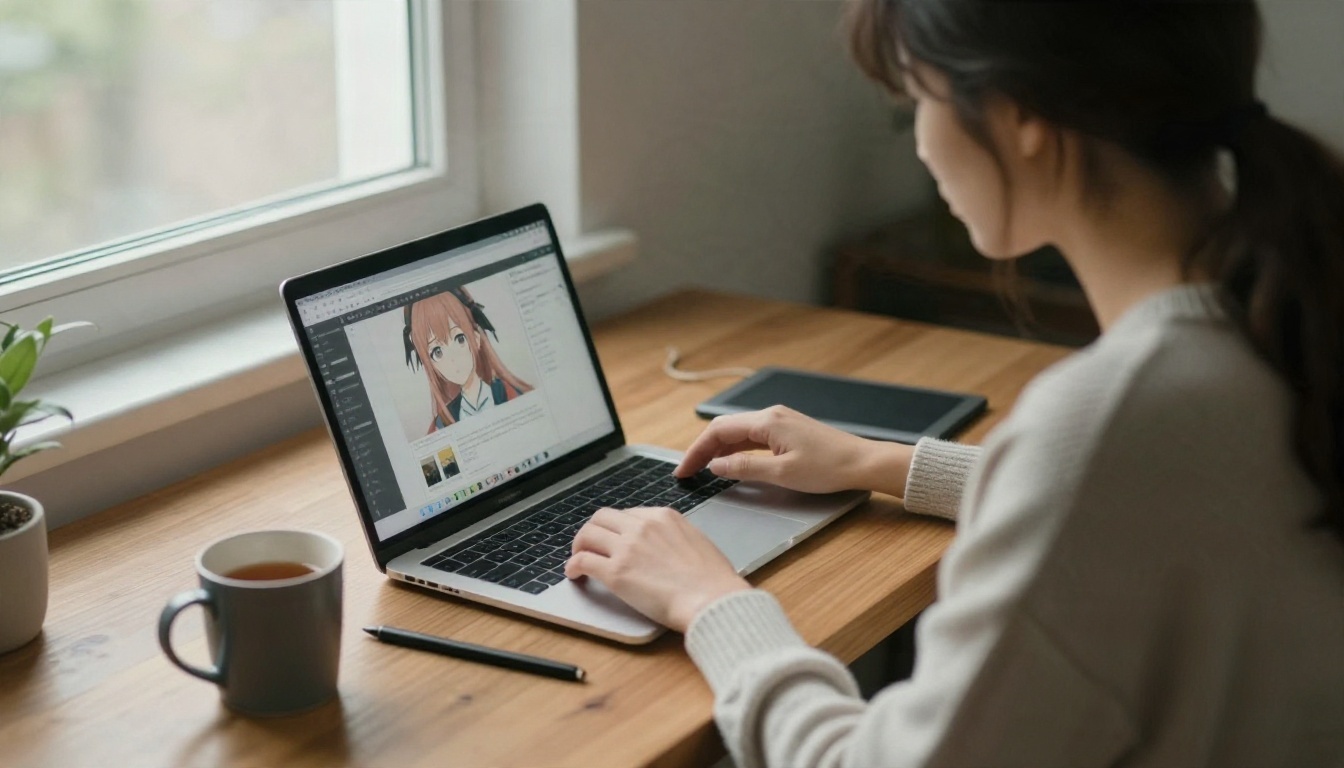
- PicassoIA Image Editor Pro offers unlimited generations, which matters when you are iterating on eye color, hairstyle and outfit. Use it to edit an avatar you already like: change the hair, swap the outfit, adjust the mood.
- Seedream 4 is a strong second option with a slightly different color feel, useful when you want a softer, pastel finish.
- Z Image Turbo is built for speed. Use it for quick drafts when you want ten variations in a few minutes.
- Flux 2 Klein 9B Base LoRA suits styled output and works well once you settle on a look you want to repeat.
- Qwen Image 3 is good at clean composition and readable text, handy if you want a name tag or a short word in the artwork.
💡 Why this matters: PicassoIA is built around uncensored, unlimited creative generation with fast results, so you spend your time refining the avatar instead of fighting a refusal message or a daily cap.
How to Use Seedream 4.5 on PicassoIA
Here is the workflow I use for a new avatar. It takes about three minutes.
Step 1: Open the Model
Go to the Seedream 4.5 page on PicassoIA and open the generator. You will see a prompt box and a few options for size and image count.
Step 2: Write the Prompt
Start with the subject, then the style, then the details. A reliable structure is:
[adult woman, age] + [hair] + [eyes] + [outfit] + [mood/pose] + [background] + [lighting] + [style words]
Example: "Adult anime woman, 25 years old, long pastel pink twin-tail hair, large violet eyes with star highlights, black velvet choker, off-shoulder top, playful smile, soft bedroom window light, clean cel shading, glossy lips, detailed anime illustration, upper body portrait."
Step 3: Pick the Size
Avatars are shown as squares or circles, so choose a 1:1 ratio for profile pictures. If you also want a banner, generate a second image at 16:9 with the same prompt.
Step 4: Generate and Compare
Make four images at once. Pick the one whose face and eyes feel right, and keep its seed or prompt so you can create matching variations later.
Step 5: Refine in the Editor
Send your favorite into PicassoIA Image Editor Pro. Ask for small changes: "change hair to silver," "add cat ears," "make the background a sunset rooftop." Because generations are unlimited, you can try as many edits as you like.
Prompts You Can Copy
A good prompt is a recipe. Keep the base the same and swap one ingredient at a time. That way you always know what caused a change.
The Base Prompt Formula
Adult anime woman, 26 years old, [hair color and length], [eye color] eyes with detailed highlights, [outfit], [expression], [setting], soft cel shading, clean linework, glossy lips, subtle blush, detailed anime illustration, upper body, sharp focus.
Fill in the brackets and you have a working avatar prompt. Here are some ready examples:
| Look | Prompt snippet |
|---|
| Pastel dreamer | long pastel pink twin-tails, violet eyes, velvet choker, soft window light |
| Silver muse | silver-white long hair, aqua eyes, glittery eyeliner, ring-light glow |
| Crimson glamour | crimson hair with side-swept bangs, smoky eyes, red satin robe, warm lamp light |
| Teal street style | short teal bob, winking, oversized hoodie, evening city glow |
| Summer pool | pastel blue hair, white sundress, turquoise water, midday sun |
Hair and Eye Combinations That Work
Color contrast is what makes an avatar pop at thumbnail size. These pairs read well even at 64 pixels:
- Pink hair with violet or teal eyes.
- Silver hair with aqua or red eyes.
- Black hair with gold or crimson eyes.
- Lavender hair with pink eyes.
- Blonde hair with deep blue eyes.
Outfit and Mood Words
Mood changes everything, so be specific. "Flirty," "confident," "sleepy," "playful" and "mysterious" all push the face in a different direction. For outfits, stick to tasteful glamour words: satin, lace trim, off-shoulder, choker, silk robe, sundress, hoodie, fitted blazer. These give you a suggestive look that stays safe for profile pictures on most platforms.
Use a Photo as a Reference
Here is a trick most people skip. Upload a photo (your own, or a cosplay reference like the ones in this article) to an editing model and ask it to turn the photo into an anime avatar while keeping the pose and the mood. Models like Nano Banana and Nano Banana Pro handle this kind of reference-based editing well. Only use photos you own or have permission to use.
Best Settings Cheat Sheet
Settings are where an average avatar becomes a sharp one. Here is what I change, and why.
Aspect Ratio and Size
| Use | Ratio | Notes |
|---|
| Profile picture | 1:1 | Face centered, shoulders visible |
| Discord or X banner | 16:9 | Subject on the right third |
| Phone wallpaper | 9:16 | Leave space at the top for the clock |
| Stream overlay | 4:3 | Plain background for easy cutouts |
Always generate at the highest resolution the model offers. You can shrink an image later, but you cannot add detail that was never drawn.
Prompt Length and Weight
Short prompts give the model too much freedom, and the face changes every time. Very long prompts bury the important parts. Aim for 40 to 80 words, with the most important traits (age, hair, eyes, mood) in the first half.
Consistency Across Many Avatars
If you want a set of avatars with the same character in different outfits, keep the hair, eye color and age words identical in every prompt and change only the outfit and background. Then use the editor to adjust details instead of rerolling from scratch.
Cleanup and Upscaling
Once you have a favorite, run it through a super resolution model to sharpen the linework and remove soft edges. Use a background removal model if you want a transparent PNG for a stream overlay or a sticker.
Common Mistakes to Avoid
I have seen the same errors again and again. Fix these three and your results improve right away.
Mistake 1: Vague Prompts
"Cute anime girl" gives you a random face every time, and it often looks younger than you want. Name the age, the hair, the eyes, the outfit and the light. Specific words give consistent output.
Mistake 2: Too Many Colors
Six colors in a prompt produce muddy art. Choose one main hair color, one eye color and one accent (a choker, a ribbon). The rest should be neutral.
Mistake 3: Ignoring the Thumbnail Test
Zoom out until the avatar is 64 pixels wide. Can you still tell the hair color and the expression? If not, simplify the background and raise the contrast. A clean backdrop in a soft color almost always wins.
💡 Safe sharing tip: check the rules of the platform where you post. Most allow stylish, suggestive profile pictures, but many ban explicit art. Keep your avatar tasteful and you will never have it removed.
Make Your Own Avatar Today
You now have the full recipe: pick the model, write a structured prompt, choose the right ratio, compare four results, then refine in the editor. Start with Seedream 4.5 for the first draft, move to PicassoIA Image Editor Pro for unlimited edits, and keep Z Image Turbo nearby for rapid sketches. Try one prompt from the table above, change a single word, and see how the character shifts.
Pick a hair color, pick an eye color and press generate. In ten minutes you can have a profile picture nobody else has, and in an afternoon you can have a whole set. Browse every available model at picassoia.com/en/all-models, choose the one that fits your look, and make your first Picasso IA avatar now.