A year ago, making a ten second shot of a sailboat at dawn meant a camera, a boat and a very early alarm. Today, a lot of people do it with one sentence and a few minutes of waiting. They type a description, or drop in a single photo, and a model hands back a moving clip with camera motion, lighting and often synchronized sound. If you have been wondering how are people making AI videos, which tools are actually free, what they type into the prompt box and what the results look like, this article answers all of it in plain terms.
The short version: most people are not building feature films. They are making small, useful clips for social posts, shop pages, family albums, pitch decks and story ideas. The tools have become good enough that a beginner can get a usable shot on the first or second try, as long as the prompt is written with some care.
What People Actually Make
Before the tools, look at the output. The same handful of use cases show up again and again.
Short Clips for Social Feeds
This is the biggest group by far. Creators film nothing, or very little, and fill vertical feeds with generated b-roll: slow ocean waves behind a quote, a cat chasing a paper boat, a street scene in the rain. Others mix real footage with generated inserts so a talking-head video has a cutaway every few seconds.
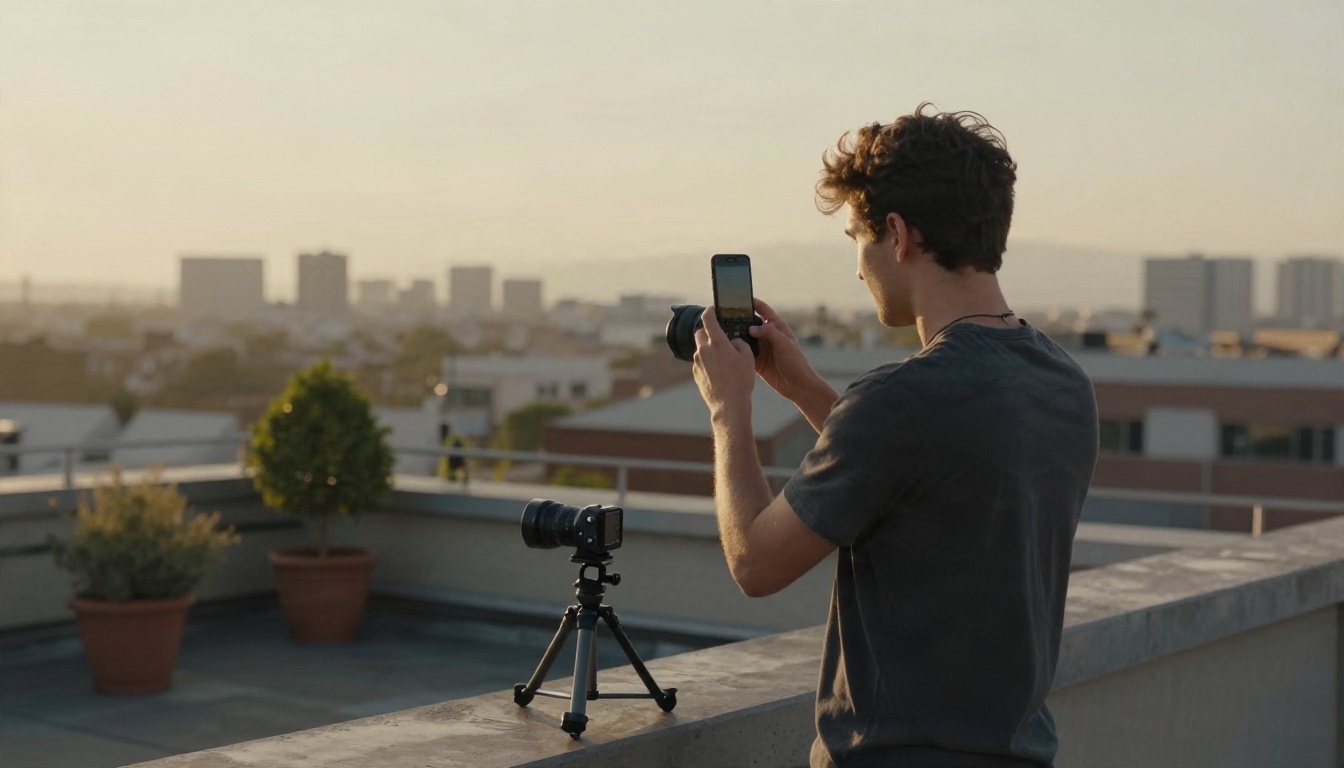
The pattern is simple: shoot the personal part on your phone, generate the shots you could never afford to film, then stitch them together in whatever editor you already use.
Product and Shop Videos
Small business owners are quietly some of the happiest users. A potter, a candle maker or a coffee roaster can take one clean product photo and ask for a slow push in with steam rising or light moving across the glaze. The result goes on a product page or an ad without hiring a videographer.

💡 Tip: Start from your best product photo, not your worst. Image to video models keep the look of the first frame, so a sharp, well lit source gives you a sharp, well lit clip.
Family Photos Brought to Life
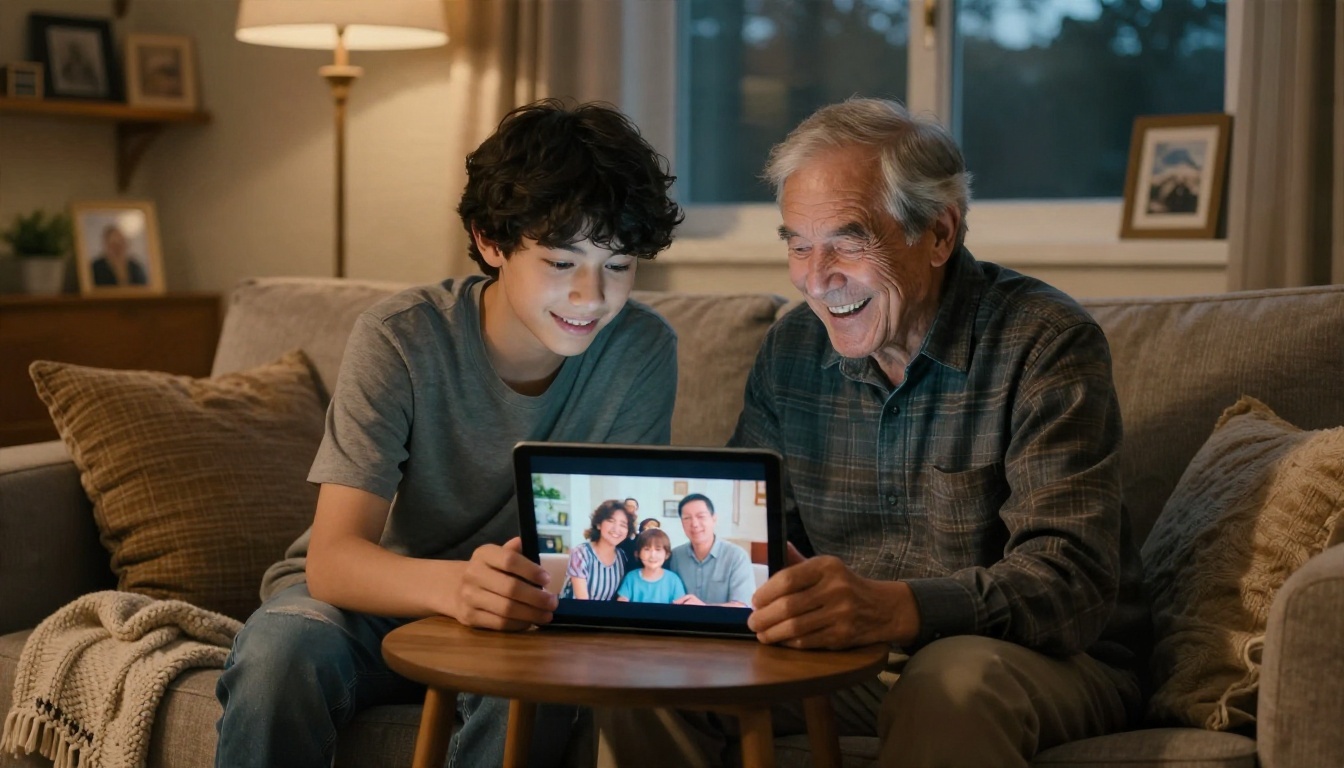
Another surprising use: old pictures. People upload a grandparent's portrait or a childhood beach photo and generate a few seconds of gentle motion, a smile, a breeze, a turn of the head. It is emotional, it takes a minute, and it is why so many of these clips get shared in family group chats.
The Three Ways Clips Get Made
Almost every AI video starts from one of three inputs. Knowing which one fits your idea saves a lot of wasted attempts.
Text to Video
You write a description and the model invents the whole scene. This is the fastest path from idea to clip, and it is where tools like Kling v3 Video, Veo 3.1 Fast and Sora 2 are used. Text to video shines when you want something that does not exist yet: a fox in a snowy forest, a drone shot over a made up coastline.
The tradeoff is control. You describe, the model interprets, and the second attempt often looks different from the first.
Photo to Video
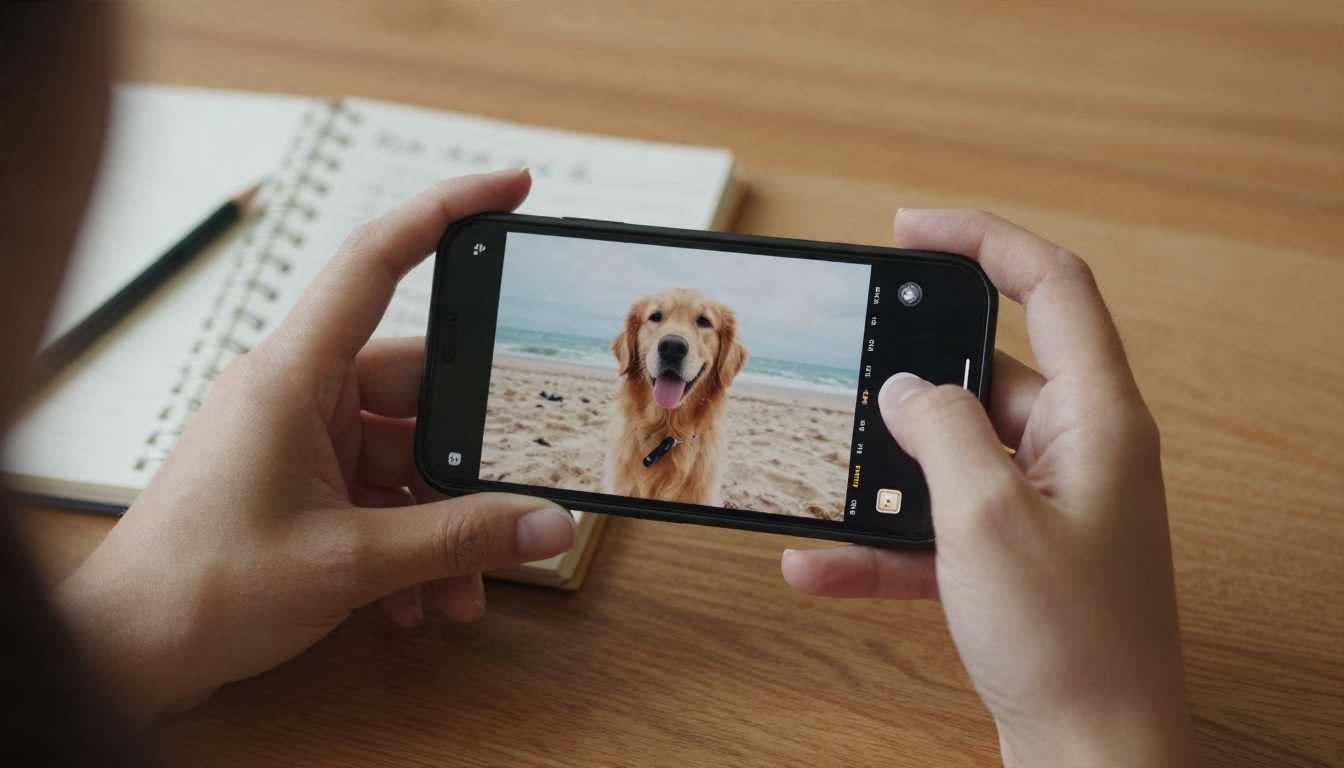
You supply a first frame and describe the motion. This gives you far more control over how the subject looks, which is why product shots, portraits and brand visuals lean on it. Generate a still with an image model such as Nano Banana Pro or Seedream 4.5, approve it, then animate it. You lock the look first and spend video credits only on a frame you already like.
Reference and Editing Workflows
The third route uses existing material. With PicassoIA Reference To Video you feed reference images, video and audio so characters and settings stay consistent across shots. With Wan 2.7 Videoedit you change an existing clip by text, and Kling v3 Motion Control lets you drive a character's movement. This is where people go once the one shot novelty wears off and they want a consistent character across a whole story.
Everybody asks about free. The honest answer is that free exists, but it comes with strings.
What "Free" Really Means
Looking at the free AI video options people keep recommending in 2027, the pattern is consistent. Free usually means one of four things: a small pool of daily or monthly credits, a lower resolution cap, a watermark on the export, or a short trial window. Rankings online also conflict, because many lists are written by the vendors themselves. Treat any "number one free tool" claim with a pinch of salt and test two or three yourself.
Some names come up constantly: Kling AI, Hailuo, Pika, Google's Veo models through its AI Studio, Grok for clips with generated audio, and ByteDance's Seedance 2.0, which arrived in February 2026. HeyGen is popular for avatar presenters, and CapCut is a different animal: its AI features mostly work on footage you already have rather than building a scene from a prompt.
Where to Start for Free
On PicassoIA, the quickest free route is Seedance 2.5 Lite, whose page describes it as a free and unlimited video generator with clips up to 10 seconds. It is a good place to practice prompts without watching a credit counter. For image first workflows, Nano Banana Pro is listed for free 4K image generation, which pairs well with photo to video.

Here is a quick comparison of the models people reach for most often.
| Model | Best for | Strength |
|---|
| Seedance 2.5 Lite | Practice and quick drafts | Free and unlimited, up to 10 seconds |
| Seedance 2.5 | Longer stories | Clips up to 30 seconds |
| Kling v3 Video | Cinematic motion | Smooth camera work and people |
| Veo 3.1 Fast | Clips with sound | 1080p output with native audio |
| Sora 2 | Dialogue and ambient scenes | Synced audio from text |
| Wan 3 Prime | High resolution scenes | 1080p from text |
| Hailuo 02 | Photo animation | 1080p with strong image fidelity |
| LTX 2.5 Fast | Fast iterations | Speed when testing ideas |
Prompts That Get Results
A prompt is not a wish. It is a short shot description, and the models respond best when you write it like a director's note.
The Simple Formula
Use this order: subject, action, setting, camera, light, mood. For example: "A woman in a yellow raincoat walks along a wet pier at dawn, slow dolly in from behind, soft fog, pale golden light, calm and quiet." Every part answers a question the model would otherwise guess.

Keep one action per clip. A five or ten second shot can hold a single idea: a person turning, steam rising, a wave rolling in. Ask for three things at once and you get a muddle.
Prompts You Can Copy
Paste these into any text to video model and change the nouns.
- Product: "A handmade ceramic mug on a wooden table, steam rising slowly, camera pushes in smoothly, warm morning window light, shallow depth of field."
- Travel: "Aerial view gliding over a turquoise bay with small fishing boats, gentle forward motion, bright midday sun, natural colors."
- Portrait: "Close up of an elderly man laughing, slight head tilt, handheld feel, soft lamp light, realistic skin texture."
- Food: "A chef pours olive oil over fresh pasta, slow motion, side angle, kitchen sounds in the background."
- Nature: "A fox walks through fresh snow in a pine forest, low camera tracking beside it, cold blue morning light, quiet ambient sound."
💡 Tip: For models with native audio, such as Veo 3.1 Fast or Sora 2, describe the sound too: "rain on a tin roof," "distant traffic," "soft piano." It makes the clip feel finished.
Mistakes That Waste Credits
- Vague prompts. "A cool video of a city" gives you a generic city. Name the time of day, the street, the camera move.
- Too many subjects. Crowds and complicated interactions are where most models still slip.
- Ignoring the first frame. In photo to video, a cluttered or blurry source gives a cluttered, blurry clip.
- Asking for readable text. Signs and screens often come out garbled. Add text later in an editor.
- Never iterating. People who get great clips usually run the same idea four or five times and pick the best take.
Apps People Use Daily
Not everyone sits at a desktop. A large share of AI video is made on phones, in short bursts, between other tasks. The usual routine looks like this: snap or pick a photo, open an AI video app or a browser based tool, type one line of motion, wait a minute or two, then drop the result into a social or editing app. Phone friendly options include Kling AI, Hailuo, Pika, Grok and CapCut, with HeyGen common for talking presenters.
For people who prefer one place for everything, PicassoIA brings text to video, image generation, video editing, lipsync, text to speech and music into a single account, so the picture, motion, voice and soundtrack come from the same workspace. You can browse everything at picassoia.com/en/all-models.
Real Examples, Step by Step
Seeing the workflow in order makes it less mysterious. Here is how two common projects actually run.
From Idea to Storyboard
Two students want a 30 second teaser for a short story. They do not start with video. They write six one sentence shots on index cards, arrange them on the floor, and cut anything that needs more than one action. Each card becomes a prompt. Then they generate each shot separately, starting with a fast, cheap model to check composition before moving to a higher quality one.
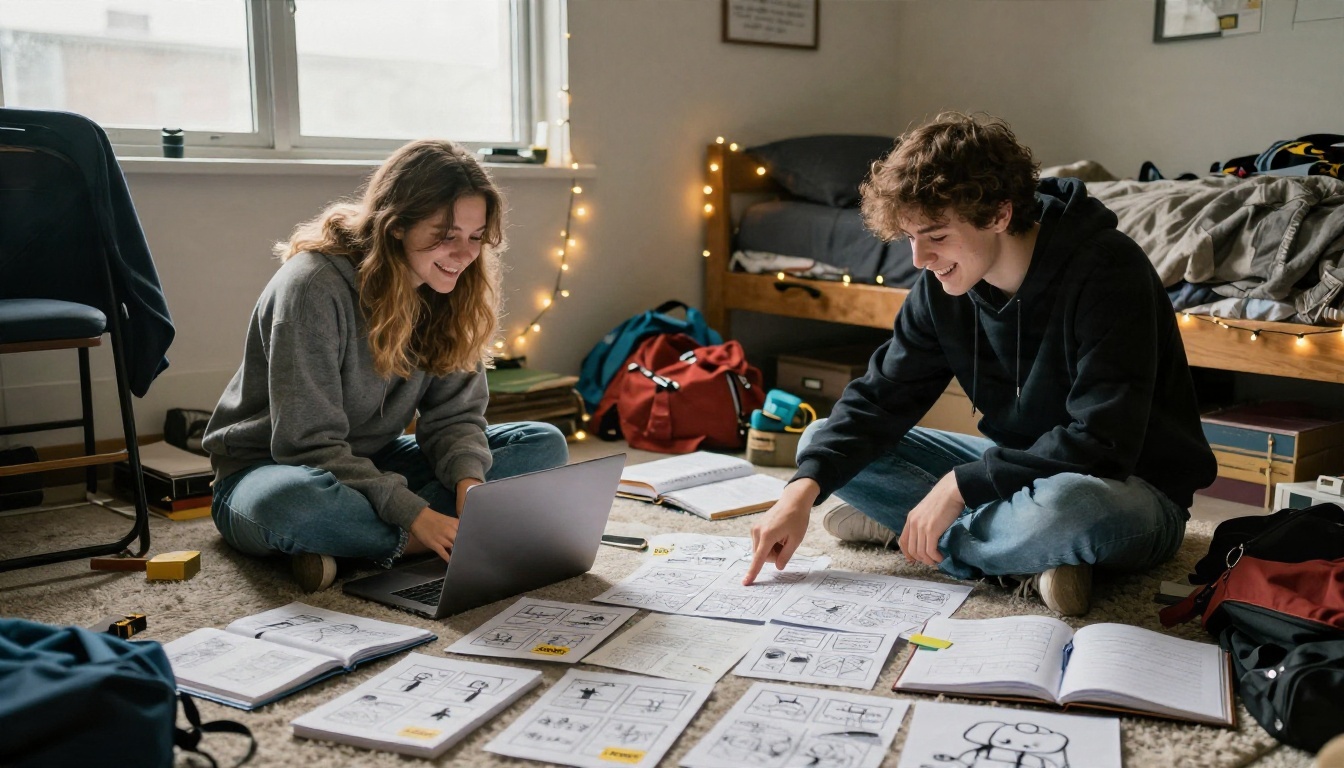
Sketching shots on paper first sounds old fashioned, but it is the single biggest reason their clips cut together well. Every shot has a purpose before a single credit is spent.
Adding Voice, Sound and Edit
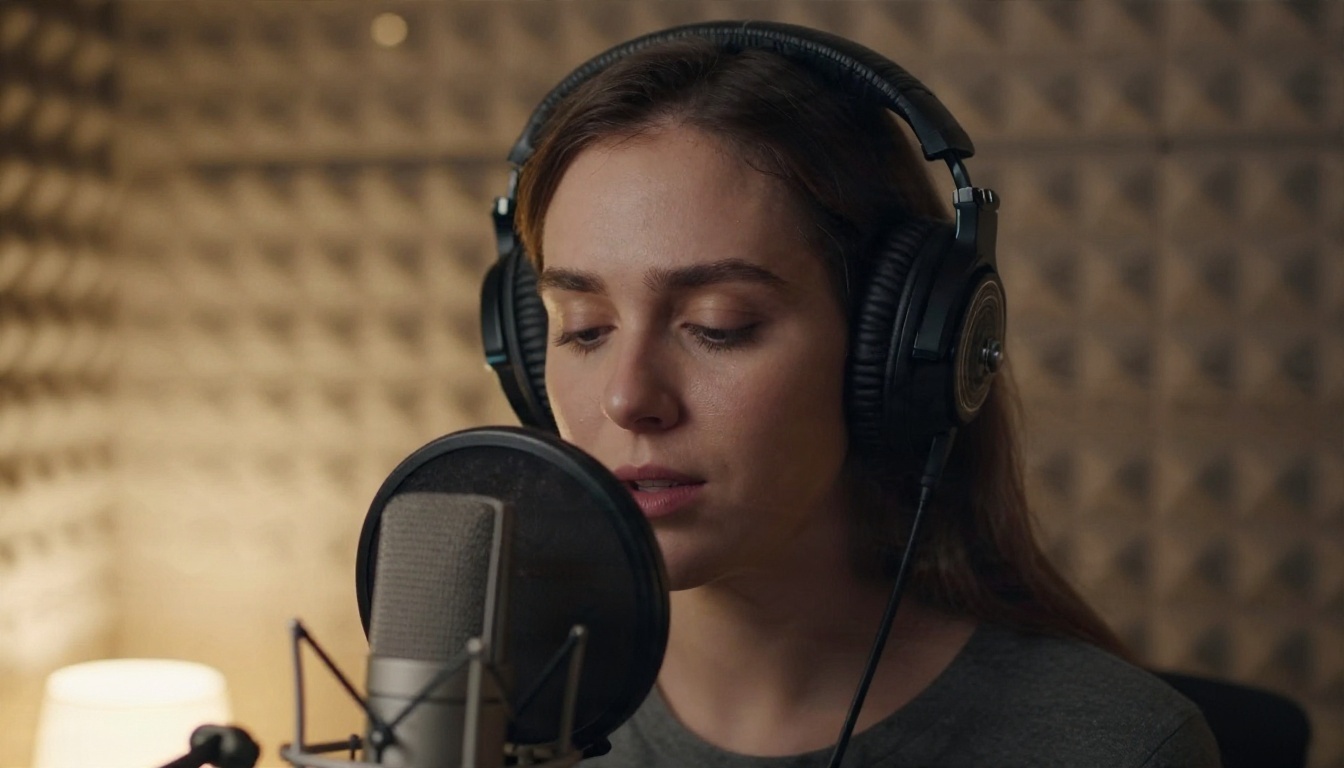
A filmmaker generates eight clips, picks the best six, and lays them on a timeline. Some models, such as Veo 3.1 Fast and Sora 2, already deliver sound with the clip. For the rest, he records or generates a voiceover, adds a music bed and trims each shot to its best three seconds. The cut hides small glitches and gives the whole piece rhythm.
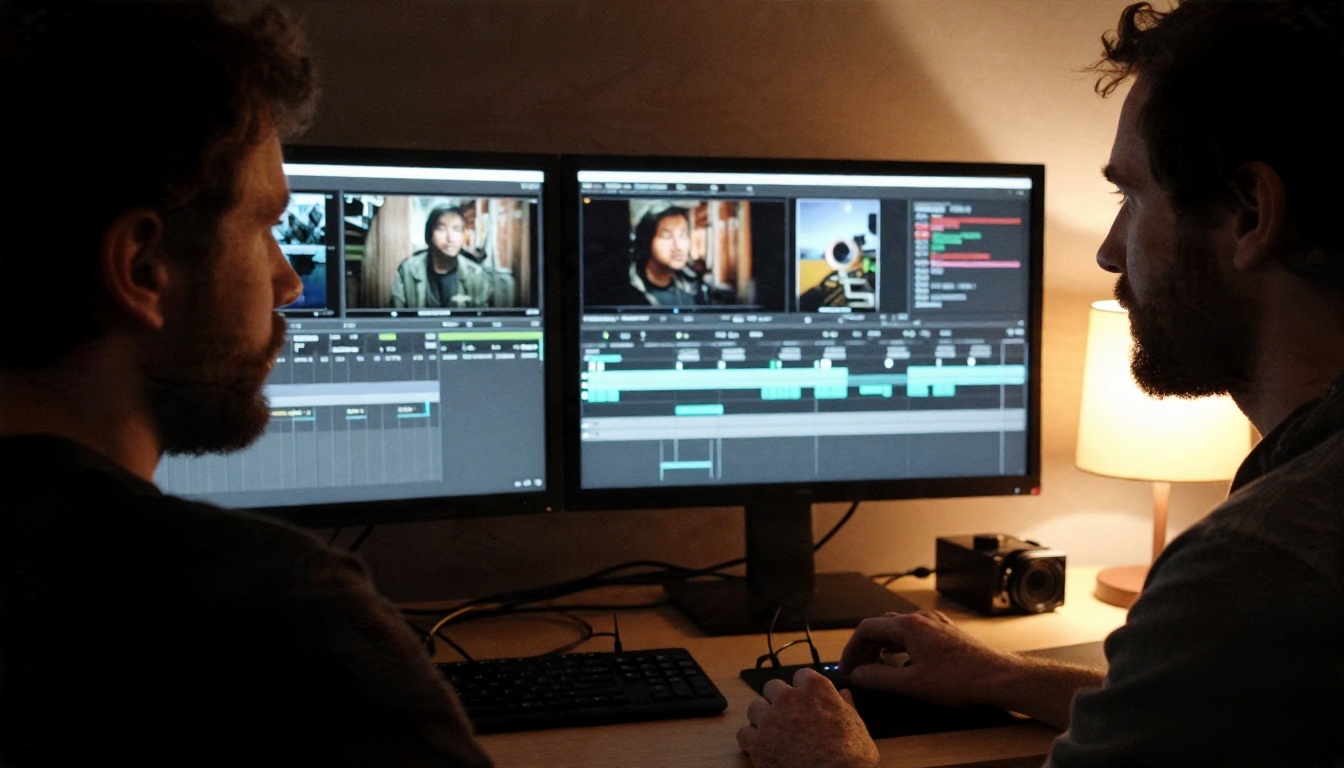
Narration is a small step with a big payoff. A clear voice over a modest visual feels more professional than a stunning visual with no sound at all.
Which Model for Which Job
You do not need all of them. Match the model to the task and you will waste fewer attempts.
💡 Tip: Run the same prompt through two models and compare. Differences in motion, color and realism are obvious side by side, and you will quickly learn which one fits your style.
Make Your First Clip Today
The people getting good results are not specialists. They write short, concrete prompts, they keep one action per shot, they test on a free or fast model first and they edit the best takes together. That is the whole method.
Pick one small idea this week: a product on a table, a pet photo, a place you wish you could film. Open Seedance 2.5 Lite, paste one of the prompts above, adjust the nouns and press generate. If you want to start from a still, create it with Nano Banana Pro or Seedream 4.5, then animate it with Kling v3 Video or Wan 3 Prime.
When you want to try more options, browse the full catalog at picassoia.com/en/all-models and run your own experiments on PicassoIA. Your first clip will probably be rough, your fifth will be good, and by the tenth you will have a style of your own.


