How to Avoid Censorship in AI Image Generators: What Actually Works
A deep look at how AI content filters work and the real methods to get around them. From picking the right uncensored models to writing smarter prompts, this gives you everything for unrestricted AI image creation, including non-explicit NSFW content without constant frustration and rejections.
AI image generators have a problem. They were built for everyone, but the content policies that came with them were built for the most cautious possible interpretation of "everyone." The result is a frustrating experience where completely reasonable creative requests get blocked, misinterpreted, or watered down to something you never asked for.
If you're here, you already know the feeling. You type a prompt, hit generate, and get back either a blurred image, an error message, or something so sanitized it's useless. This article breaks down exactly why that happens and what you can do about it, starting from choosing the right models and ending with prompt strategies that actually deliver.
Why AI Generators Block Your Prompts
The filter system and how it reads your words
Most AI image platforms use a two-layer content filtering system. The first layer is a text classifier that scans your prompt for flagged words, phrases, or combinations before the image even starts generating. The second is a post-generation filter that analyzes the output image itself against content thresholds. If either layer flags the content, the request gets blocked.
The problem is that these classifiers are blunt instruments. They operate on keywords and probabilistic scores, not intent. Words associated with beauty, bodies, fashion, and romance all carry elevated risk scores that can trip filters even in completely innocent contexts. A fashion photography prompt can fail the same check as something genuinely explicit, simply because it shares vocabulary.
Some platforms add a third layer: human moderation queues for borderline outputs. This makes the system even more unpredictable, because results depend on whoever happens to review your image.
Why safe mode is almost always too aggressive
Safe mode was designed for public-facing applications: apps used by minors, platforms shared across teams, services embedded in corporate tools. The default threshold was set accordingly, which means even adult platforms often ship with settings calibrated for the most restrictive possible use case.
The result is a system that blocks content that would be perfectly legal, common, and unremarkable in any art direction context. Swimwear, lingerie, glamour portraits, artistic nudity, boudoir photography, these are established photographic genres with decades of commercial history. They don't belong in the same category as genuinely harmful content, but many filters treat them that way.
Pick the Right Model First
Models with fewer restrictions
The single most effective thing you can do is choose a model that was built for creative freedom. Not all text-to-image models apply the same filters. Some are designed specifically for artistic and adult content creation, with content policies that treat users as adults capable of making their own decisions.
On PicassoIA, Realistic Vision v5.1 is one of the most consistent performers for photorealistic NSFW content. It was fine-tuned specifically on realistic photography datasets and has fewer hard-coded restrictions than general-purpose models. Similarly, RealVisXL v3.0 Turbo delivers high-fidelity realistic results with strong adherence to detailed prompts.
DreamShaper XL Turbo is another strong option, particularly for artistic and fantasy-adjacent content. It interprets NSFW prompts with more nuance than most base models.
Flux vs. Stable Diffusion for NSFW
Flux Dev and Flux 1.1 Pro represent a significant step forward in prompt adherence. Flux-based models are much better at following complex, specific instructions, which means your nuanced NSFW prompts don't get reinterpreted or sanitized mid-generation. The model actually does what you ask.
Stable Diffusion 3.5 Large and Stable Diffusion 3.5 Large Turbo are worth using when you need speed with reasonable output quality. SD 3.5 Large Turbo in particular delivers fast iterations, which matters when you're refining a prompt through multiple generations.
💡 Pro tip: Avoid base models like SDXL for NSFW content without LoRA customization. The base model has broad content restrictions. Use it as a foundation with a LoRA fine-tune instead.
Prompt Writing That Gets Past Filters
Words to avoid in your prompts
Certain words reliably trigger content filters regardless of context. Replacing them with synonyms or descriptive phrases often gets the same result without the block. Here are the most common culprits and their workarounds:
Flagged Term
Alternative Phrasing
Naked / Nude
Bare skin, uncovered, natural state
Sexy
Alluring, confident, sensual
Explicit
Suggestive, intimate, tasteful
NSFW
Artistic, glamour, editorial
Direct body part terms
Descriptive anatomical language
Erotic
Romantic, passionate, intimate
The goal is to give the model enough context to understand what you want, without triggering keyword-based classifiers. Think like a magazine art director writing a brief, not like someone searching adult content sites.
How to phrase NSFW requests
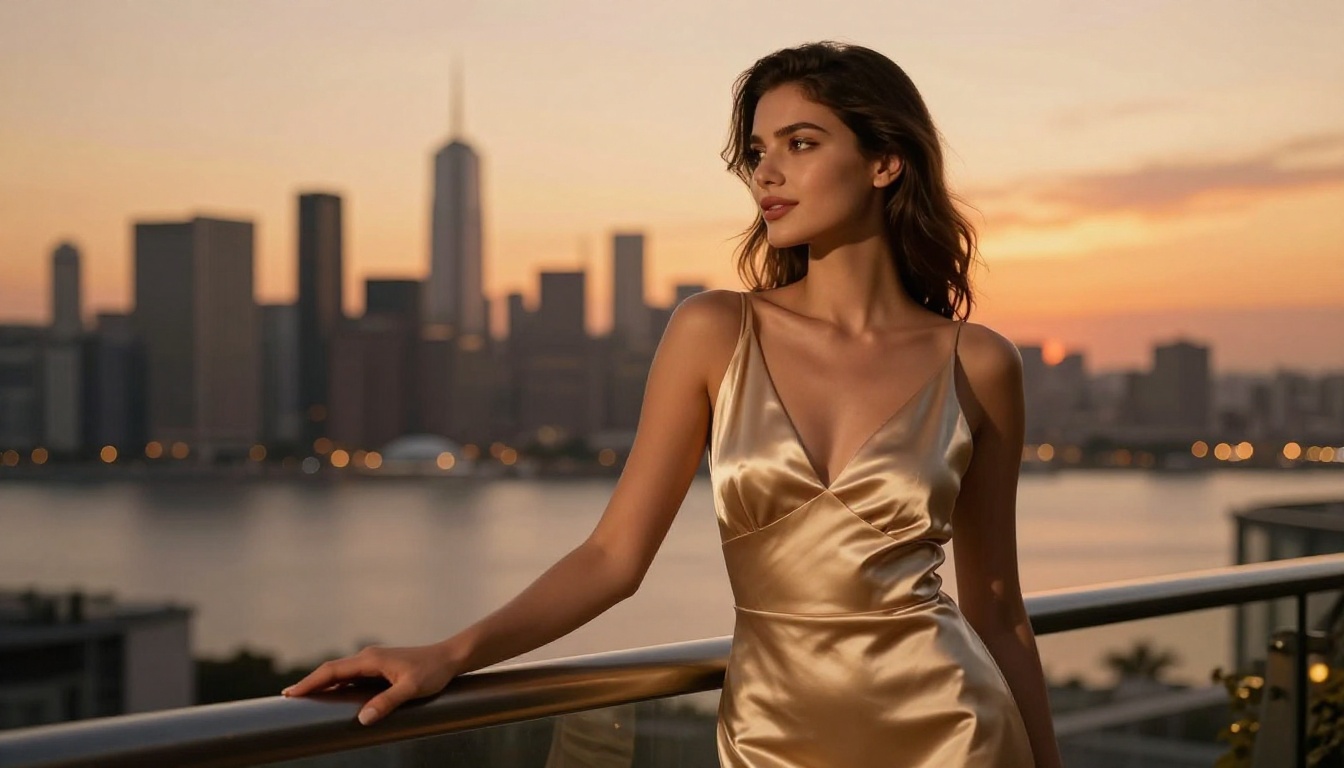
The most effective NSFW prompts describe the scene as professional photography would. Specify the genre (boudoir photography, glamour portrait, editorial fashion, artistic nude study), the lighting setup, the camera and lens, and the mood. This framing signals creative and professional intent to the content classifier.
Weak prompt: "sexy girl in bikini"
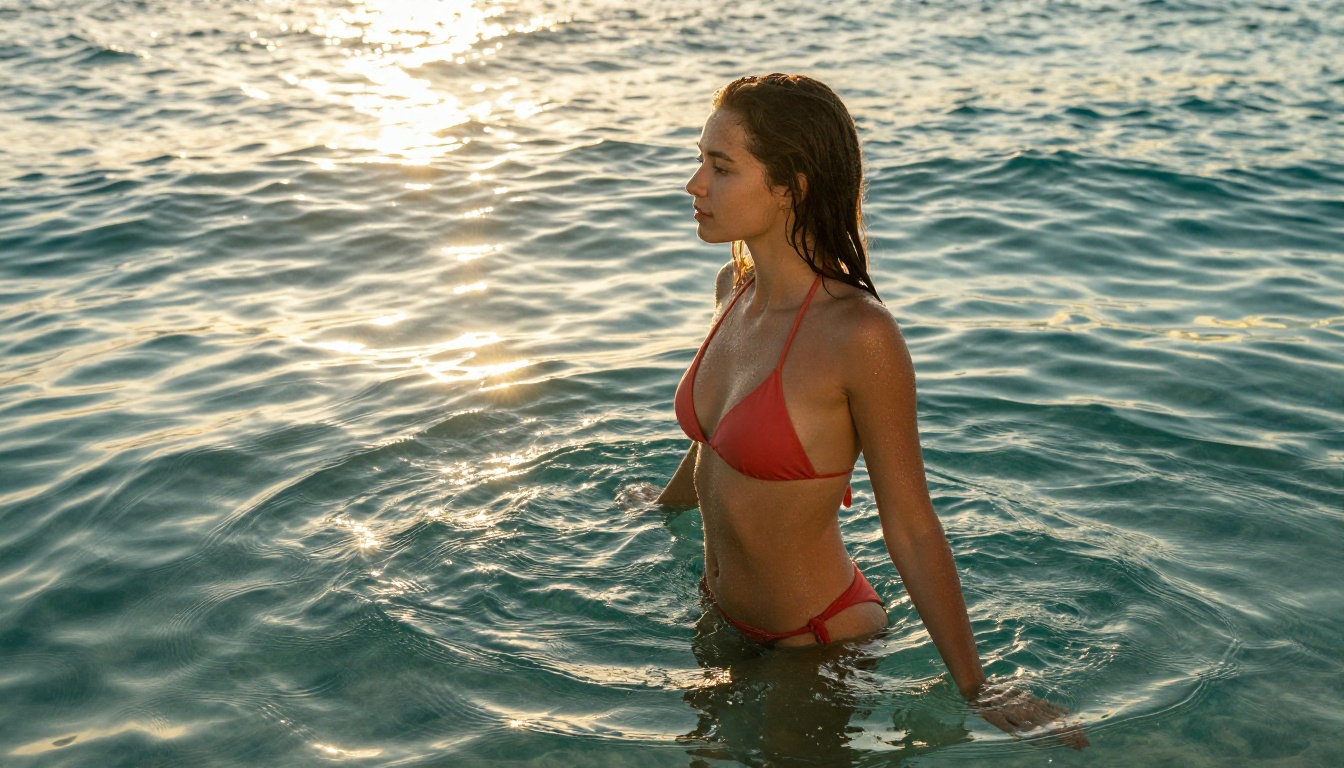
Strong prompt: "Glamour editorial portrait of a confident woman in a minimal white bikini, professional photography, soft natural window light, Kodak Portra 400 film grain, 85mm f/1.8, shallow depth of field, photorealistic RAW 8K"
The strong version is more specific, more descriptive, and frames the content as photography rather than as a request for explicit material. It also produces a dramatically better image.
Negative prompts and what they actually do
Negative prompts tell the model what to exclude from the generation. Most people use them to improve quality (remove blurriness, extra limbs, watermarks), but they also work as a filter bypass mechanism.
Adding negative prompts like censored, blurred, mosaic, pixelated, covered, clothed can nudge the model toward generating the uncensored version it would otherwise default away from. This is especially effective on models that have soft restrictions rather than hard blocks.
PicassoIA supports several models that are specifically suited for generating non-explicit NSFW content. The platform's model library gives you direct access to fine-tuned models, and the interface allows full control over generation parameters.
Step 1: Choose an uncensored model
Navigate to the text-to-image collection on PicassoIA and select one of the recommended models for NSFW content. Realistic Vision v5.1 is the best starting point for photorealistic results. RealVisXL v3.0 Turbo is the upgrade for higher resolution output. For artistic or fashion-forward content, DreamShaper XL Turbo gives you more creative latitude.
If you want maximum control through LoRA customization, Flux Dev LoRA and p-image LoRA let you apply additional fine-tunes on top of the base model.
Step 2: Write your prompt using the photography framing
Use this formula: [Subject description] + [Setting/Environment] + [Lighting] + [Camera/Lens] + [Style keywords]
Avoid generic or lazy prompts. The more specific your description, the better the output and the less likely it is to be flagged by intermediate filters.
Step 3: Adjust generation parameters
Set your guidance scale (CFG) between 6 and 8 for realistic outputs. Too high (above 10) and the model over-interprets your prompt, often producing exaggerated or distorted features. Too low and it ignores your instructions.
Set your sampling steps between 25 and 40. More steps generally produce sharper detail, but diminishing returns kick in after 35 on most models.
Use a 16:9 aspect ratio for cinematic, widescreen compositions. Use 1:1 for portrait-focused square crops.
Step 4: Iterate with precision
Don't regenerate from scratch if the result is close but not right. Instead, adjust one parameter at a time. If the image is technically correct but lacks the right mood, adjust the style keywords. If the subject's proportions are off, add negative prompts for distortion. If the lighting isn't what you wanted, be more explicit: "volumetric morning light from upper left at 45 degrees, soft shadows."
💡 Reminder: Keep content non-explicit. PicassoIA supports artistic, glamour, and suggestive content, but pornographic material falls outside the platform's terms. The sweet spot is everything a high-end fashion or boudoir photographer would shoot.
Settings That Change Everything
Safety tolerance sliders
Many platforms and models expose a safety tolerance or guidance strength parameter. On PicassoIA, adjusting this when available allows you to shift the threshold between strict content filtering and more permissive generation.
Start at the midpoint and move toward permissive incrementally. Jumping straight to maximum permissiveness can degrade output quality because some models calibrate their style and coherence around moderate safety settings.
CFG scale and its effect on content
The CFG (Classifier-Free Guidance) scale controls how strictly the model follows your prompt versus how much creative freedom it takes. For NSFW content where you need precise control over what the model generates, a higher CFG (7 to 9) ensures the output stays closer to your description.
Lower CFG scores let the model improvise, which can lead to unexpected sanitization where the model decides on its own to obscure parts of the image. Higher scores keep it honest to your prompt.
CFG Scale
Effect
3 to 5
Creative but unpredictable, may self-censor
6 to 8
Balanced, good for most NSFW prompts
9 to 12
Strict prompt adherence, potential artifacts
13+
Over-interpretation, distorted outputs
Common Mistakes That Trigger Censorship
These are the errors that trip up most people trying to generate NSFW content, even on permissive platforms:
Using platform-flagged vocabulary: Terms associated with explicit content in training data get flagged regardless of intent. Use descriptive, professional language instead.
Prompting without context: "woman undressing" gets flagged. "Editorial boudoir portrait, woman in silk robe, candlelit bedroom, tasteful and artistic" does not.
Ignoring model selection: Trying to generate NSFW content on a model trained for children's content (like sticker makers or pixel art generators) will always fail. Platform and model choice matters before anything else.
Too many flagged terms in one prompt: Even if individual terms pass, combining several medium-risk words can push the cumulative score over the filter threshold. Spread your detail across fewer flagged terms.
No negative prompts: Not specifying what you don't want leaves the model free to self-censor. Explicit negative prompts prevent this.
Ignoring aspect ratio: Portrait-oriented images (9:16) are processed differently than widescreen. For certain body-focused compositions, the wrong ratio can trigger different filter behaviors.
Using third-party wrappers: Many apps built on top of models like Flux or Stable Diffusion add their own content layer on top of the model's native one. Access the model directly through PicassoIA instead for cleaner results.
What You Can Actually Create
Understanding the spectrum of what's possible helps you set realistic expectations and prompt accordingly. Here's what falls within non-explicit NSFW territory:
Content Type
Allowed
Notes
Bikini / swimwear
Yes
Standard fashion territory
Lingerie / boudoir
Yes
Artistic framing required
Artistic implied nudity
Yes
Implied, not shown
Topless artistic
Depends on model
Use high-creativity models
Explicit sexual content
No
Outside platform terms
Explicit close-ups
No
Hard blocked
Fashion / glamour
Yes
No restrictions
Sensual portraits
Yes
Photography framing helps
The models best suited for the middle of this spectrum on PicassoIA are Realistic Vision v5.1, Flux 1.1 Pro Ultra, and Flux 2 Pro. Each handles realistic human subjects with high fidelity, and each has a content policy that treats adult creative work as legitimate.
For those who want to work with LoRA customization to push output in specific directions, SDXL Multi ControlNet LoRA gives you structural control over pose and composition on top of NSFW-capable base models.
Start Creating Without the Frustration
Everything above is about removing obstacles between what you want to create and what the generator actually produces. The combination of the right model, photography-framing prompts, tuned CFG settings, and targeted negative prompts gets you to that result faster and with fewer dead ends.
PicassoIA's model library is where this comes together. With over 90 text-to-image models available, including Flux Dev, Realistic Vision v5.1, Stable Diffusion 3.5 Large, and more, you have direct access to the models that perform best for this kind of work. No third-party wrapper, no extra content layer on top, no guessing whether the platform supports what you're trying to do.
Pick a model, write a prompt using the methods above, and iterate. That's the workflow. It's less complicated than most people think once you've cut through the friction of default content policies that were never designed for serious creative work.
Start with Realistic Vision v5.1 if you want photorealistic results immediately. Start with Flux 2 Pro if you want the most accurate prompt adherence and highest output quality. Start with DreamShaper XL Turbo if you want creative and artistic interpretations with fewer restrictions.
The platform is ready. The models are ready. The only thing left is your prompt.