How to Create +18 AI Art with Zero Technical Knowledge
You don't need a design degree or coding skills to create stunning +18 AI art. This article walks you through choosing the right AI model, writing prompts that produce gorgeous photorealistic results, and avoiding the mistakes that kill quality. Everything from a simple text box, right now.
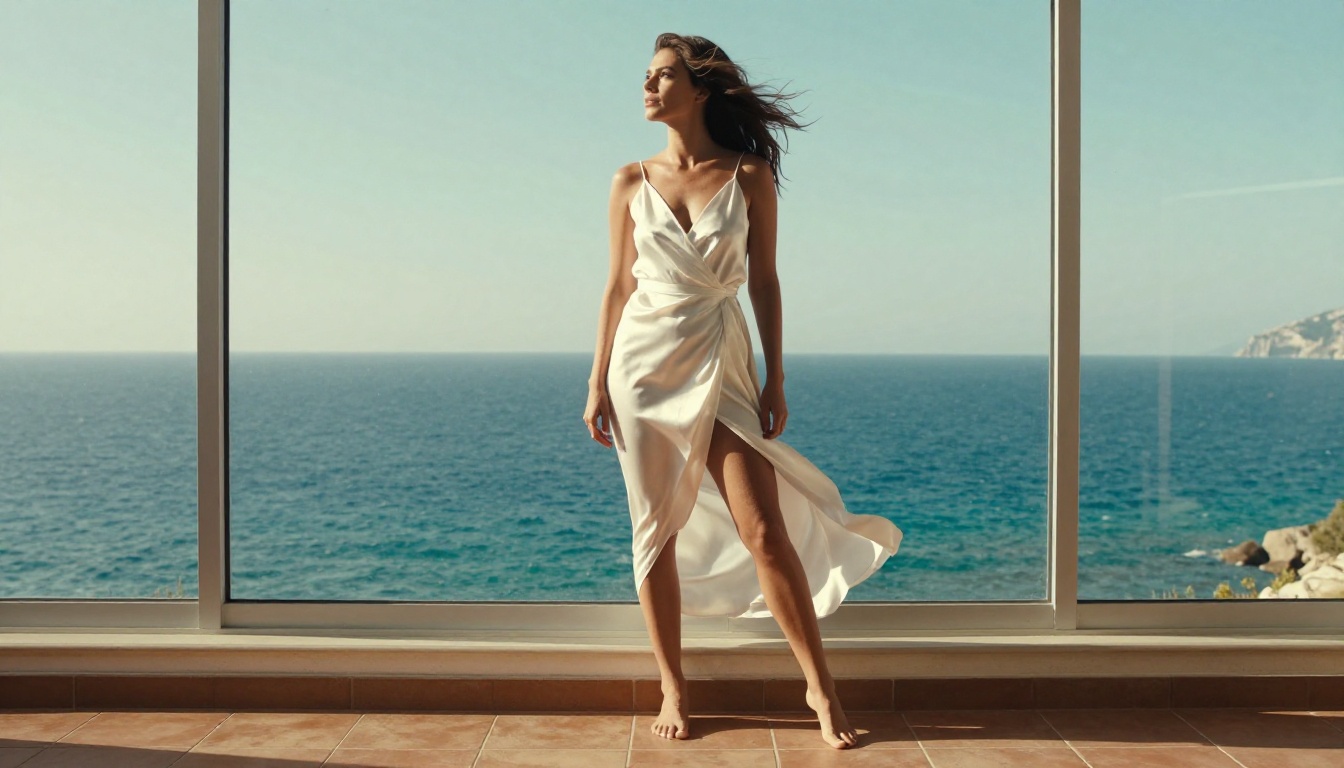
You don't need a degree, a GPU, or even a paid subscription to start creating stunning +18 AI art. If you can type a sentence, you can produce photorealistic images that look like they came from a professional photographer's studio. That's the reality of AI image generation in 2027, and this article is going to show you exactly how to do it.
What +18 AI Art Actually Means
Before anything else, let's set the right expectations. "+18 AI art" is a broad term that covers a wide range from artistic glamour and editorial fashion photography all the way to content that would be flagged on mainstream platforms. Understanding where the lines are drawn will save you frustration later.
Suggestive vs. Explicit
Most platforms that allow +18 content operate on a spectrum. Suggestive content includes:
Swimwear and lingerie photography
Boudoir-style portraits
Artistic implied nudity (where the body is implied but nothing graphic is shown)
Glamour, pinup, and fashion-forward imagery
Explicit content goes further and is restricted or outright banned on many platforms, including most mainstream AI generators. When this article refers to "+18 AI art," we're talking about the suggestive, tasteful, and glamorous end of that spectrum. Beautiful, not graphic.
Why People Create It
The reasons are more varied than you might think:
Use Case
Who Does It
Digital art portfolios
Independent artists
Character design
Novelists, game designers
Personal expression
Hobbyists
Stock-style imagery
Content creators
Fashion and beauty mockups
Brand designers
The common thread is creative freedom. AI lets you produce imagery that would cost thousands to shoot professionally.
Picking the Right Model for the Job
This is the single biggest factor in your results. Different models have wildly different strengths. Using the wrong one is like asking a watercolor artist to shoot a photograph. Here's what you need to know about the major players available right now.
Flux: The Photorealism King
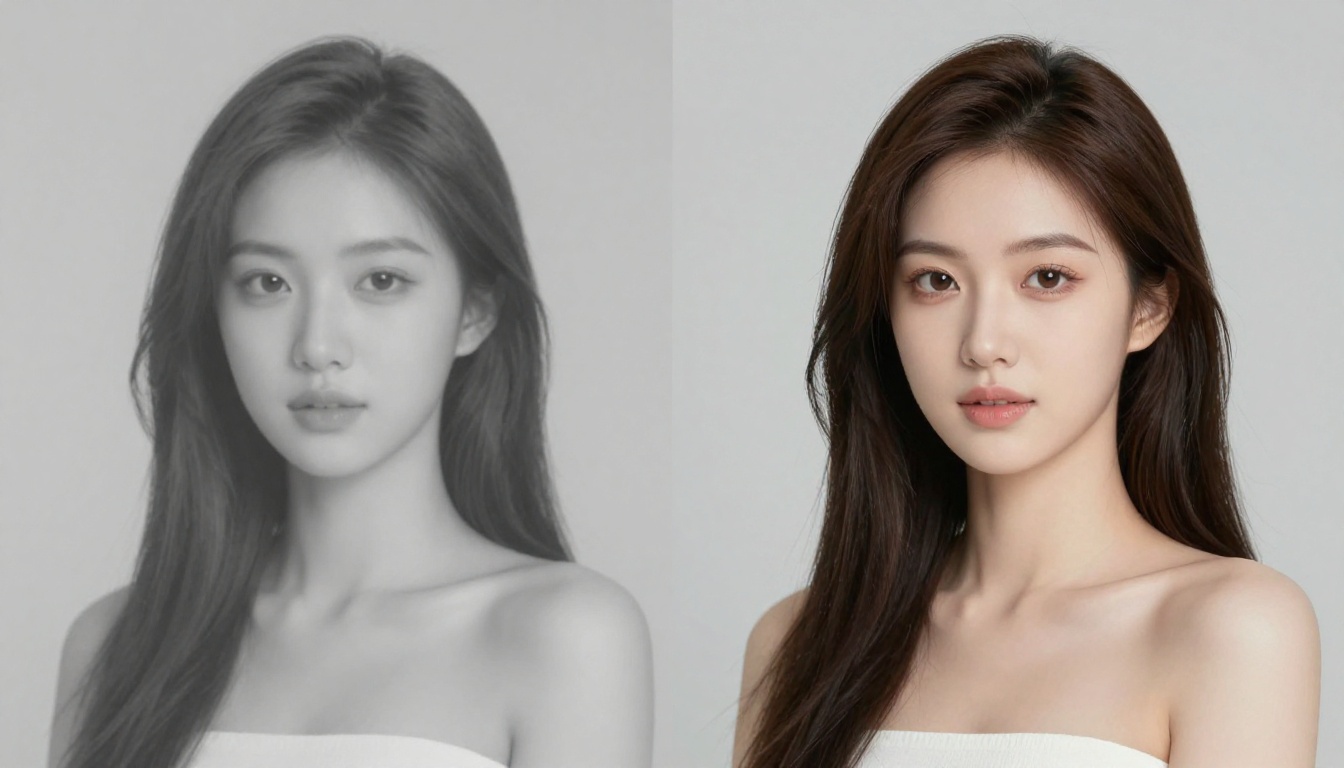
The Flux family from Black Forest Labs is currently the gold standard for photorealistic human portraits. Flux 1.1 Pro handles skin texture, lighting, and facial detail better than almost anything else at this price point. If you want images that look like they were shot on a Sony mirrorless, this is your model.
Flux 1.1 Pro Ultra pushes resolution higher and is worth the extra cost for print-quality or large-format results. For faster iteration while testing prompts, Flux Dev is a solid, cheaper alternative that gives you 80% of the quality.
Flux 2 Pro is the newest addition, with improved coherence and even better prompt following. When you write "warm golden light from the left," it actually delivers that.
Realistic Vision v5.1: Classic Glamour
Realistic Vision v5.1 is a community favorite for a reason. It has a particular warmth and softness that works beautifully for boudoir and glamour styles. Skin tones come out naturally, and it tends to produce more artistic, editorial results rather than cold clinical realism. For fashion and beauty shots, it's often the better choice over the Flux models.
RealVisXL v3.0 Turbo is the faster, SDXL-based sibling. It runs quicker and works extremely well when you need to iterate fast.
SDXL and DreamShaper: Fast and Flexible
SDXL from Stability AI is one of the most flexible models available. It's not the sharpest for photorealism, but it takes creative prompts extremely well and handles unusual compositions without falling apart.
DreamShaper XL Turbo is built on top of SDXL with fine-tuning specifically for beautiful portraits. It's fast, it's free-to-try, and the results for glamour content are genuinely impressive.
💡 Which model should you start with? If you want the most photorealistic results with minimal effort, start with Flux 1.1 Pro. If you want warmer, more artistic-feeling output, go with Realistic Vision v5.1.
Writing Prompts That Actually Work
The prompt is the one skill you actually need to develop. The good news: you don't need to be a writer. You need a structure. Once you understand the anatomy of a working prompt, you'll start getting great results within minutes.
The Anatomy of a Good Prompt
A strong text-to-image prompt has four layers:
Subject: Who or what is in the image. Be specific. "A woman" is weak. "A 28-year-old woman with loose auburn hair and green eyes, wearing an ivory satin slip dress" is much stronger.
Environment: Where is the scene set? What's in the background? What time of day?
Lighting: This is the single most underrated element. Specify direction, quality, and color of light. "Warm volumetric morning light from the left at 30 degrees" will transform your image.
Camera and Technical: What lens? What angle? What film stock? These parameters tell the model what kind of photograph to simulate.
5 Proven Prompt Formulas
These templates work reliably across most photorealistic models:
Formula 1: Boudoir/Glamour
[Subject description], wearing [specific clothing], in a [detailed bedroom/studio setting]. [Lighting description]. Shot on [camera and lens], [film grain]. Photorealistic, 8K, non-explicit, editorial fashion.
Close-up portrait of [detailed subject description]. [Lighting: source, direction, quality]. Canon 85mm f/1.4, [background description in bokeh]. Individual pore and hair strand detail. 8K photorealistic beauty photography.
Formula 4: Implied/Artistic
[Subject] from [angle], [minimal clothing implied through silhouette or partial view]. [Dramatic lighting]. [Film simulation]. Artistic, non-explicit, fine art photography.
Formula 5: Scene with Mood
[Subject] in [atmospheric location]. [Time of day and weather]. [Specific props and textures]. [Camera settings]. [Emotional atmosphere]. Photorealistic, 8K, [film stock].
What Not to Write
Certain prompt mistakes are extremely common among beginners:
Vague adjectives: "beautiful," "sexy," "attractive" tell the model almost nothing. Describe specifics instead.
Contradictory instructions: Don't ask for "close-up portrait" and "full body" at the same time.
Too many subjects: More than two people in a scene almost always degrades quality.
Superlative overload: You don't need "photorealistic photorealistic photo photograph." Once is enough.
How to Use Flux 1.1 Pro on PicassoIA
Since Flux 1.1 Pro is the strongest starting point for photorealistic +18 art, here's a step-by-step walkthrough of using it on PicassoIA.
Step 1: Open the Model
Go directly to the Flux 1.1 Pro model page on PicassoIA. No installation, no software to download. It runs entirely in your browser.
Step 2: Write Your Prompt
Use one of the formulas from the section above. Paste your prompt into the input field. Keep it between 80 and 150 words. Shorter than 80 words usually produces generic results. Longer than 200 words starts to confuse the model.
Step 3: Set the Parameters
A few settings that make a real difference:
Parameter
Recommended Setting
Why
Aspect Ratio
16:9 or 3:2
Mirrors real photography formats
Steps
28-35
Sweet spot between speed and detail
CFG Scale
3.5-5.0
Lower values = more creative, higher = more literal
Click generate and wait 10-30 seconds. Evaluate the result critically:
Is the lighting what you described?
Are skin textures natural?
Is the composition what you intended?
If something is off, change one thing at a time in your prompt. Don't rewrite the whole thing. Isolate variables. This is how you learn what each element of your prompt is actually doing.
Style Parameters That Make the Difference
Once you have the basics working, these specific additions will push your results from good to exceptional.
Lighting That Transforms Results
Lighting is the single variable that separates amateur-looking images from editorial quality. Here are the specific terms to use:
"Volumetric morning light from the left": Creates warm, directional, cinematic illumination
"Overcast diffused lighting": Soft, even, flattering on skin with no harsh shadows
"Rembrandt lighting": Classic portrait lighting with a triangular highlight on one cheek
"Backlight with rim lighting": Silhouette separation against a bright background
"Candlelight from below": Intimate, moody, dramatic
💡 Tip: Always specify the direction of light. "Warm light" gives you warm light from nowhere in particular. "Warm light from the upper left" gives you a specific, painterly effect.
Camera Angle and Lens Choices
The angle and lens specification alone changes the entire feel of an image:
Setup
Effect
85mm f/1.4, eye level
Classic portrait, intimate and neutral
28mm f/2.8, low angle
Powerful, imposing, slightly dramatic
50mm f/1.2, close-medium
Natural, documentary-feeling
90mm f/2, side profile
Elegant, fashion editorial
35mm f/2.8, overhead
Flat lay, aerial, detached
Atmosphere and Texture Keywords
These additions rarely get mentioned in beginner articles, but they dramatically improve realism:
film grain Kodak Portra 400 or Fujifilm Provia 400X (adds realistic texture)
dust motes in light beams (adds depth to interior scenes)
skin pore detail (forces micro-level realism)
fabric texture visible (forces the model to render clothing materials correctly)
condensation on glass or water droplets on skin (adds tactile realism to scenes)
3 Common Beginner Mistakes
These are the errors that account for 90% of disappointing first results.
Over-Prompting vs. Under-Prompting
Over-prompting looks like this: "A beautiful stunning gorgeous attractive sexy woman in the most photorealistic detailed hyperrealistic 8K ultra HD crisp sharp photo ever taken in history of photography..."
Under-prompting looks like this: "A woman in lingerie."
Both fail. The first overwhelms the model with meaningless superlatives. The second gives it nothing to work with. Aim for precise, specific, layered description. Not quantity, not hype.
Ignoring Negative Prompts
Most models accept a negative prompt field, where you tell the AI what to avoid generating. Beginners skip this entirely, then wonder why they get blurry faces or cartoonish skin.
A solid starting negative prompt for photorealistic content:
Paste that in every time. It prevents the most common artifacts.
Wrong Model for Wrong Style
GPT Image 1.5 from OpenAI is exceptional at following complex instructions, but its aesthetic leans toward polished and slightly synthetic. For raw, natural-looking glamour photography, Realistic Vision v5.1 or Flux 1.1 Pro Ultra will deliver more convincing results.
Newer options like Seedream 4.5 from ByteDance and Ideogram v3 Quality are both worth testing if you want a different visual signature. They handle atmospheric and moody images particularly well.
Editing What the AI Gives You
Generating the image is only half the process. The best creators treat the first output as a starting point, not a final result.
Inpainting: Fix Without Regenerating
If 80% of your image is perfect but one element is off (a face, a hand, a background detail), inpainting lets you redraw just that region. You select the area, write a prompt for what should replace it, and the model regenerates only that portion while leaving the rest intact. This preserves the image you spent time building while fixing the specific problem.
Super Resolution: Print-Quality Output
Flux 2 Pro already generates high-resolution output, but if you need to print large or use the image in professional contexts, applying an AI upscaler adds additional detail at 2x or 4x resolution. PicassoIA has Super Resolution models for exactly this purpose.
Outpainting: Extend the Canvas
Generated a beautiful portrait but the framing cuts off at the shoulders? Outpainting extends the canvas in any direction, having the AI generate what would logically appear beyond the current frame. It's incredibly useful for correcting composition mistakes without starting over.
Platform Rules Worth Knowing
Every platform handles adult content differently. Here's what to expect before you start generating.
What Gets Blocked
Even on platforms that allow suggestive content, automated safety filters will block certain prompt combinations. Common triggers include specific body-part terminology combined with explicit intent language. The artistic approach outlined in this article stays well clear of those filters by focusing on environment, lighting, clothing, and photography style rather than explicit description.
Storing and Sharing Your Creations
Images generated on PicassoIA are uploaded to cloud storage automatically. Images you share publicly are visible to others. If you're creating personal content, keep it in your private account.
Your First Three Prompts
If you're paralyzed by choice, here are three starter prompts you can copy directly into Flux 1.1 Pro on PicassoIA right now:
Scene 1: Boudoir Bedroom
A 25-year-old woman with loose dark hair, wearing an ivory satin slip dress, seated on the edge of a French antique bed. Warm morning light from the left window. Canon 85mm f/1.4, shallow depth of field. Kodak Portra 400 film grain. 8K photorealistic, non-explicit, editorial boudoir.
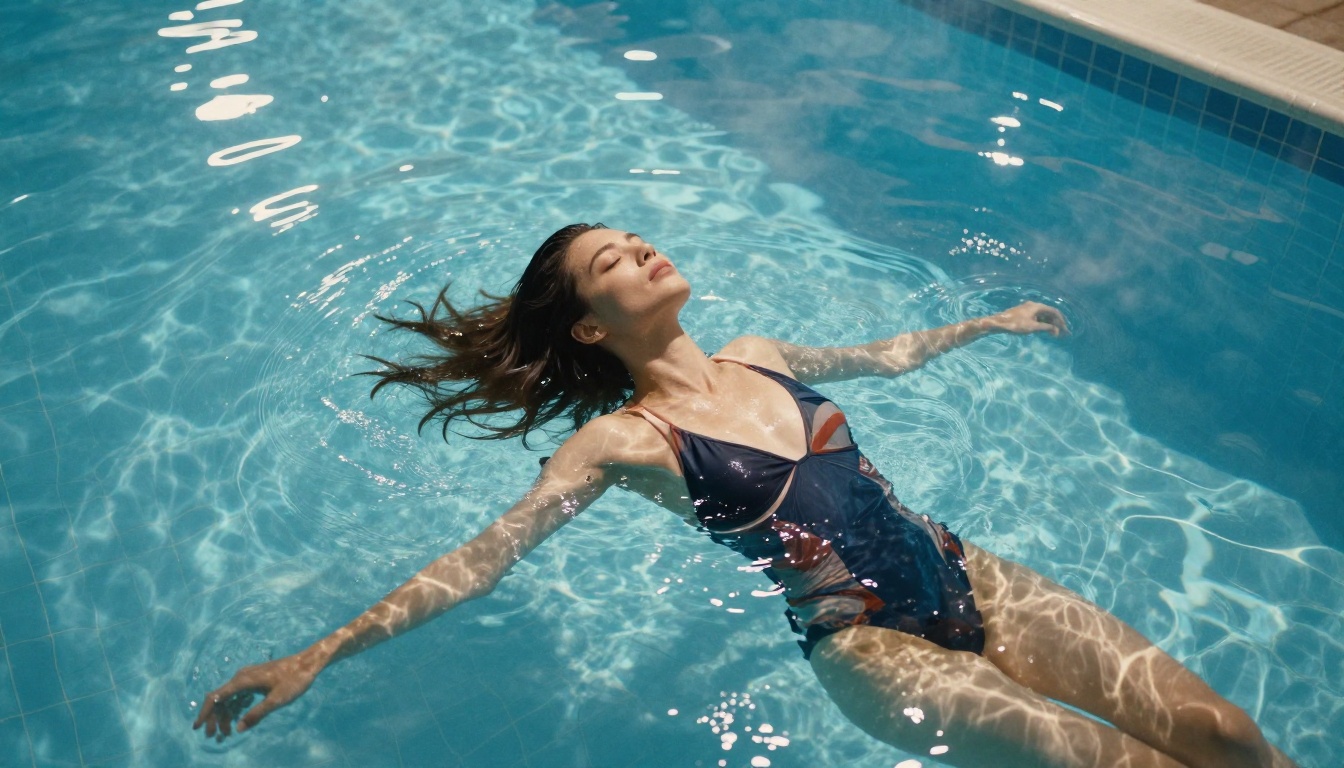
Scene 2: Poolside
A woman in a black high-fashion one-piece swimsuit, lounging at the edge of a rooftop infinity pool, city skyline in the background at golden hour. Low angle shot, Sony 50mm f/1.8. Visible texture on concrete pool edge, slight wet-skin reflection. 8K photorealistic, Fujifilm Provia.
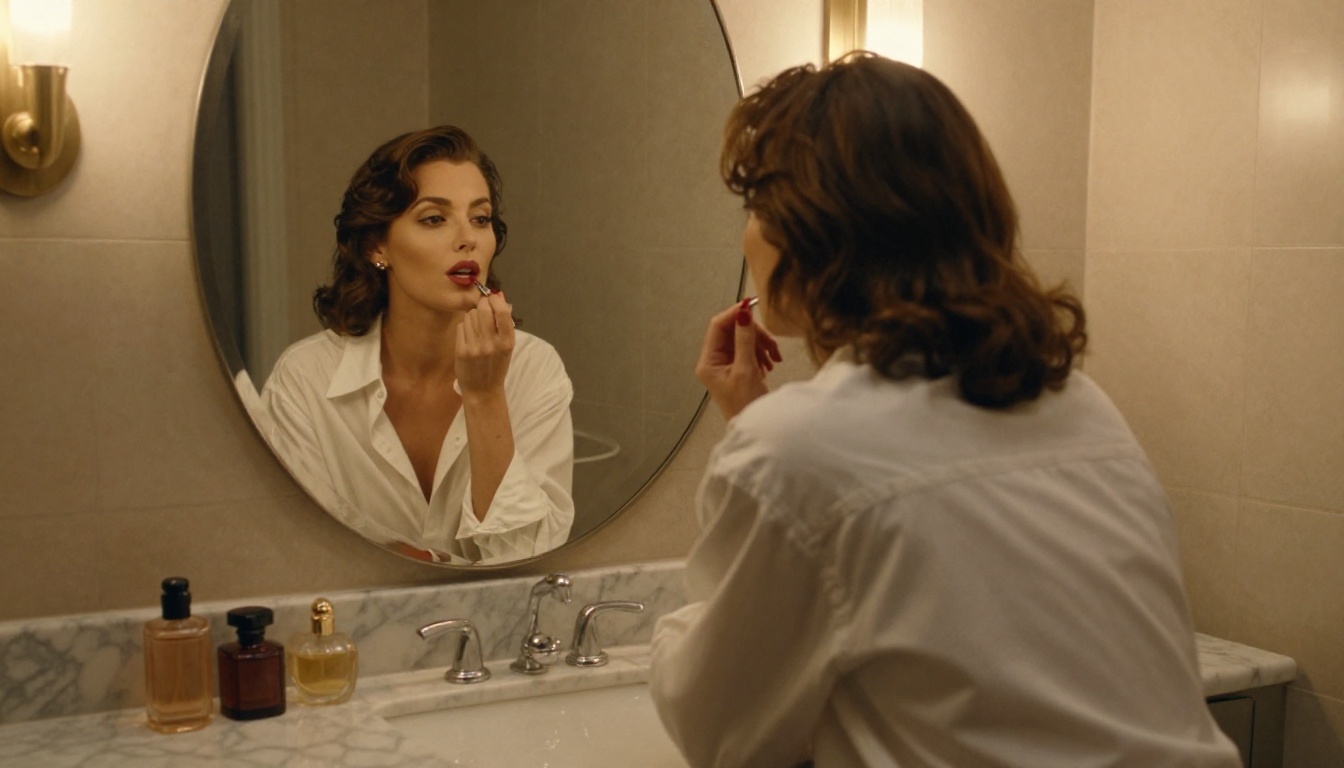
Scene 3: Classic Glamour
Side profile of a woman seated at a Hollywood vanity, wearing a silk robe with one shoulder bare, applying red lipstick. Warm amber bulb lighting from both sides of mirror, Nikon 85mm f/2. Visible perfume bottles in soft focus. Lomochrome film grain, 8K photorealistic, non-explicit.
Start Creating Right Now
Everything in this article works today. No waiting, no installations, no coding. You open PicassoIA, pick a model, type your prompt, and generate. The first result won't be perfect. Neither will the second. But by your fifth or sixth iteration, you'll start seeing exactly how each element of your prompt changes the output.
Start with Flux 1.1 Pro and one of the starter prompts above. Then begin swapping out elements: change the lighting, change the lens, change the setting. That's how prompt writing actually works. It's not memorizing templates. It's learning a visual language through experimentation.
The most important step is the first generation. Everything else builds from there. Try it on PicassoIA now.