If you've ever tried generating an AI video and realized your character looks completely different from one frame to the next, you know the frustration. The face changes. The hair changes. Even the body proportions shift. For adult AI content creators, this is a real problem that breaks immersion and ruins the entire creative vision. The good news: in 2027, there are specific workflows and tools that solve this completely.
Why Character Consistency Breaks in AI Video
The Core Technical Problem
Every time an AI video model generates a new scene, it starts fresh. Without a fixed reference, the model interprets your text prompt in slightly different ways. The result is a character that shares a general description but looks like a different person in each clip.
This happens because most text-to-video models are trained on massive datasets without specific identity preservation layers. The prompt says "young woman with brown hair" and the model generates something plausible, not something identical to your previous generations.
Why +18 Content Amplifies the Issue
For adult content specifically, the stakes are higher. Viewers expect continuity. A character's face, body type, skin tone, and signature features need to stay locked across every scene, whether it's a close-up, a medium shot, or a wide angle. Even minor inconsistencies pull the viewer out of the experience entirely.
Building Your Character Reference Sheet
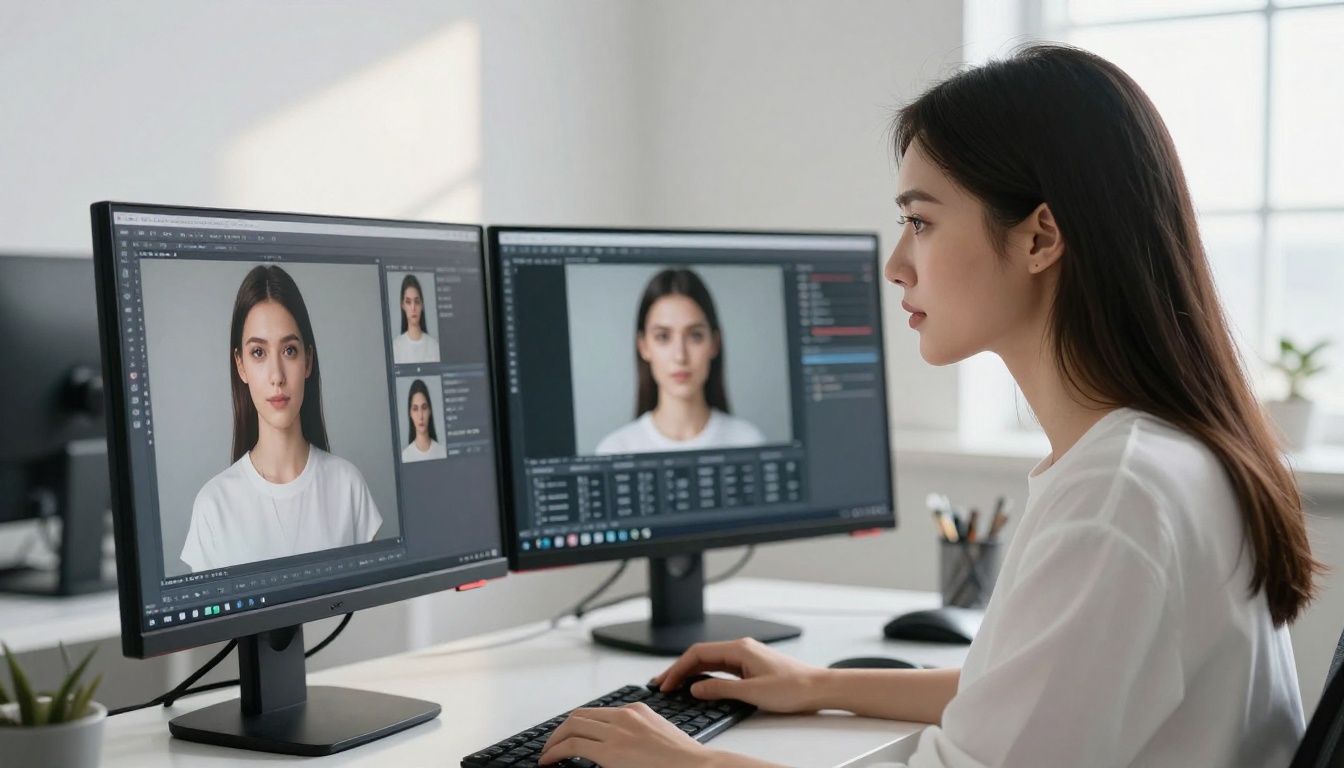
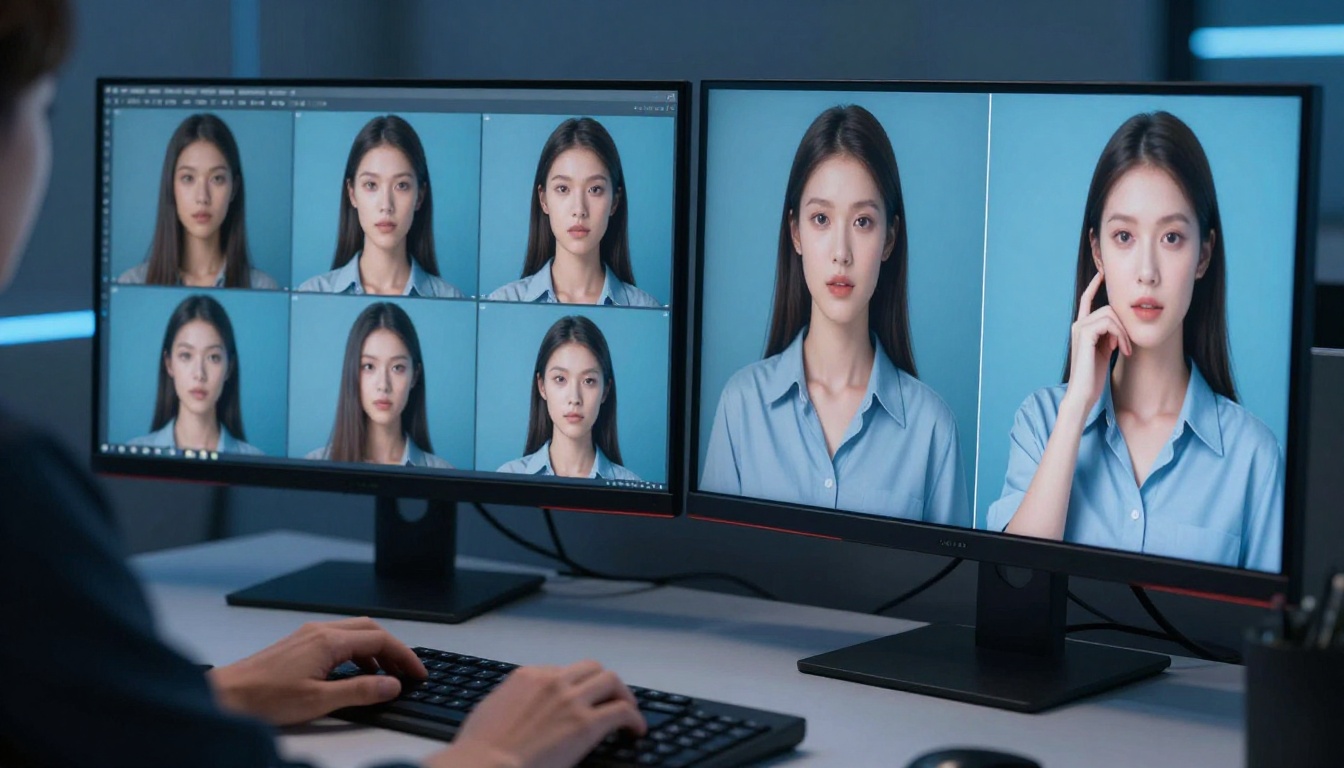
This is the foundation of everything. Before you generate a single video frame, you need a locked character sheet with 4 to 6 reference images that cover different angles and expressions of the same person.
What a Solid Character Sheet Includes
| Reference Type | Purpose |
|---|
| Front-facing portrait | Establishes facial features clearly |
| 3/4 angle portrait | Shows depth and proportions |
| Side profile | Locks hair, nose, and jaw profile |
| Full body shot | Establishes height, body type, proportions |
| Expression variation | Smile, neutral, intense look |
Using Flux Kontext for Reference Locking
Flux Kontext Pro is one of the most reliable tools for this step. It specializes in text-based image editing, which means you can take a base image and instruct it precisely: "Keep her face identical, change only the background to a bedroom." This preserves your character's core visual identity while letting you generate variations.
Flux Kontext Max takes this further with higher fidelity on fine facial details. For premium adult content where face accuracy is non-negotiable, this is worth the extra generation cost.
💡 Pro tip: Generate your character sheet using the same seed value and model across all reference images. This locks the underlying noise pattern and gives you the most visually coherent set of references.
LoRA Training for Maximum Precision
If you want true photographic consistency, training a custom LoRA on your character is the most reliable path. p-image-lora on PicassoIA gives you LoRA-powered generation with fine-tuned control over identity preservation. Feed it 10 to 20 high-quality images of your character, and the resulting model will reproduce that face across thousands of generations.
Choosing the Right Video Model
Not every text-to-video model handles character consistency equally. For adult content with locked characters, you need models that support image-to-video generation or have explicit character reference inputs.
Image-to-Video: The Backbone of This Workflow
The most reliable approach is image-to-video generation. You provide your locked character reference image and a motion prompt. The model animates what you gave it rather than hallucinating a new character from scratch.
Top Models for Consistent Character Videos
DreamActor-M2.0 by ByteDance is one of the strongest options available. It animates any character from a single photo with impressive motion fidelity. Upload your reference image and it will animate that exact face and body through whatever motion you describe.
Kling V3 Motion Control adds another layer of precision by letting you transfer motion patterns to your character. This is particularly useful when you want your character to perform a specific movement while keeping their identity locked.
Kling Avatar V2 is purpose-built for avatar-style consistent character videos. It takes a reference image and builds a persistent avatar that you can drive through different scenarios.
Wan 2.6 I2V Flash offers fast image-to-video generation. When you need to produce multiple clips quickly while keeping your character locked, this model's speed advantage is significant.
When to Use Text-to-Video Instead
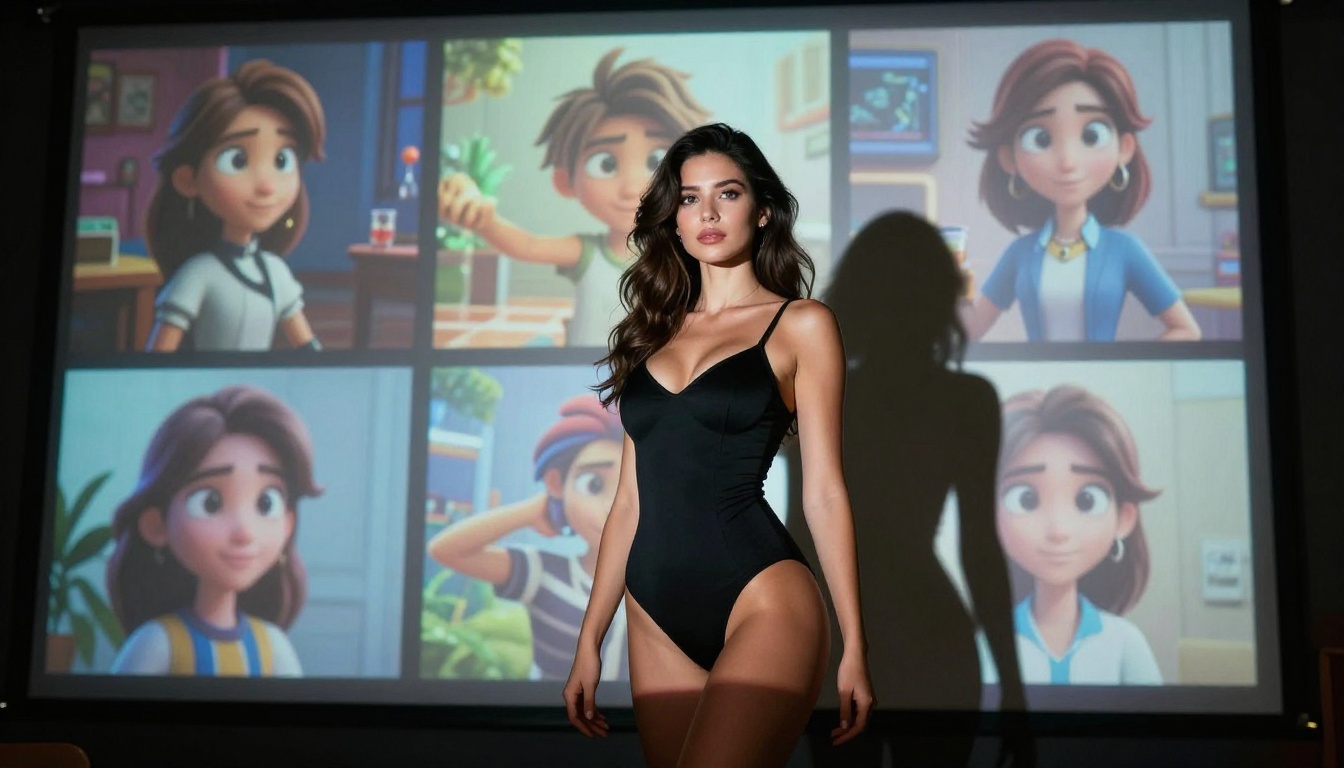
Some scenes are hard to photograph in reference form. For those, Kling V3 Video and PixVerse v5.6 both support character reference inputs alongside text prompts. Feed them your character reference image plus a descriptive text prompt, and they'll attempt to generate a new scene with that character.
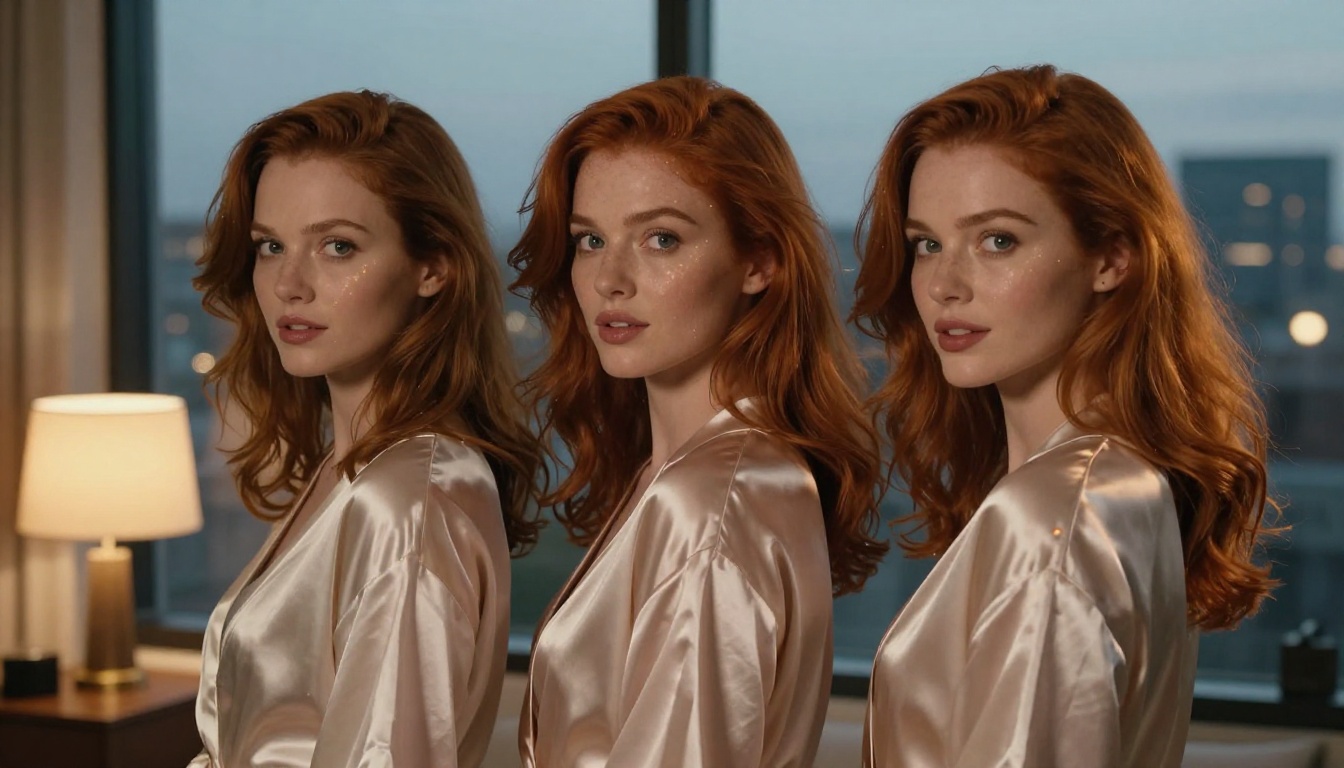
💡 Character consistency tip: Always include your character's most distinctive physical traits in every prompt. Specific details like "auburn-haired woman with green eyes, light freckles, slim athletic build" help reinforce identity even when the model isn't relying solely on the reference image.
The Step-by-Step Production Workflow
This is the exact process that produces multi-scene adult AI videos with locked characters.
Step 1: Lock Your Character Image
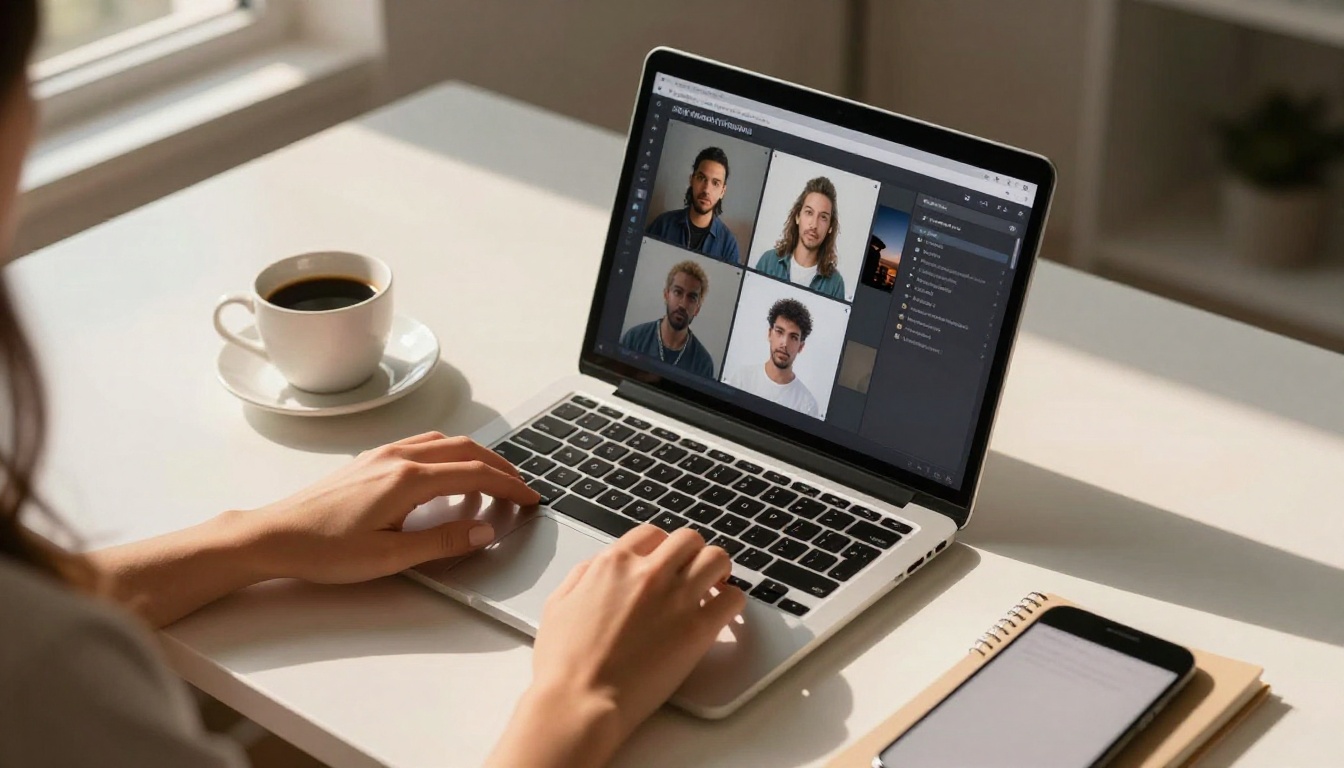
Start with Flux Kontext Pro or Flux 1.1 Pro Ultra to generate your hero character image. This is your master reference: a high-resolution, front-facing portrait that captures every detail you want preserved.
Write a very specific prompt:
- Exact hair color, length, and texture
- Eye color and shape
- Skin tone with specific descriptors ("warm olive," "fair with light freckles")
- Distinctive facial features
- Body type with specific proportions
Step 2: Build Your Scene Library
Before generating videos, plan your scene sequence. Each scene needs:
- A base reference frame generated from your master image with appropriate framing
- A motion description describing the action, not the person
- A context description covering the environment and what surrounds her
- A camera angle specification for visual variety
Use Wan 2.2 Animate Animation to apply motion to your static character images. This model specializes in applying any motion to any character, which means you can create a scene library of the same person performing different actions across varied environments.
Step 3: Animate Scene by Scene
Feed each reference frame into your chosen video model. For this step:

Step 4: Quality Check Each Clip
Before accepting any generated clip, verify these four points:
- Face match: Does the face match your master reference?
- Hair consistency: Is the hair color, length, and texture identical?
- Body proportions: Do the proportions match across all clips?
- Skin tone: Is the skin tone consistent even under different lighting?
If any clip fails these checks, regenerate it with a more explicit reference description or a different seed value. Never accept a drifted clip and hope viewers won't notice.
How to Use DreamActor-M2.0 on PicassoIA
Since DreamActor-M2.0 is one of the strongest tools for this workflow, here is how to use it effectively on PicassoIA.
Setting Up Your Generation
- Navigate to DreamActor-M2.0 on PicassoIA
- Upload your master character reference image in the Reference Image field
- Write your motion prompt describing the action, not the person
- Set your desired clip duration (4 to 8 seconds works best for scene cuts)
- Choose your output resolution: 720p for drafts, 1080p for finals
Parameter Tips
| Parameter | Recommended Setting | Why |
|---|
| Motion Strength | 0.6 to 0.8 | Preserves identity while allowing natural movement |
| CFG Scale | 7 to 9 | Balances prompt adherence with visual quality |
| Seed | Fixed per project | Keeps character features stable across all clips |
💡 Seed locking trick: Use the same seed for your first three generations. Once you find a seed that produces strong character fidelity, lock it for the entire project. This significantly reduces face drift between clips.
Combining Multiple Models for Best Results
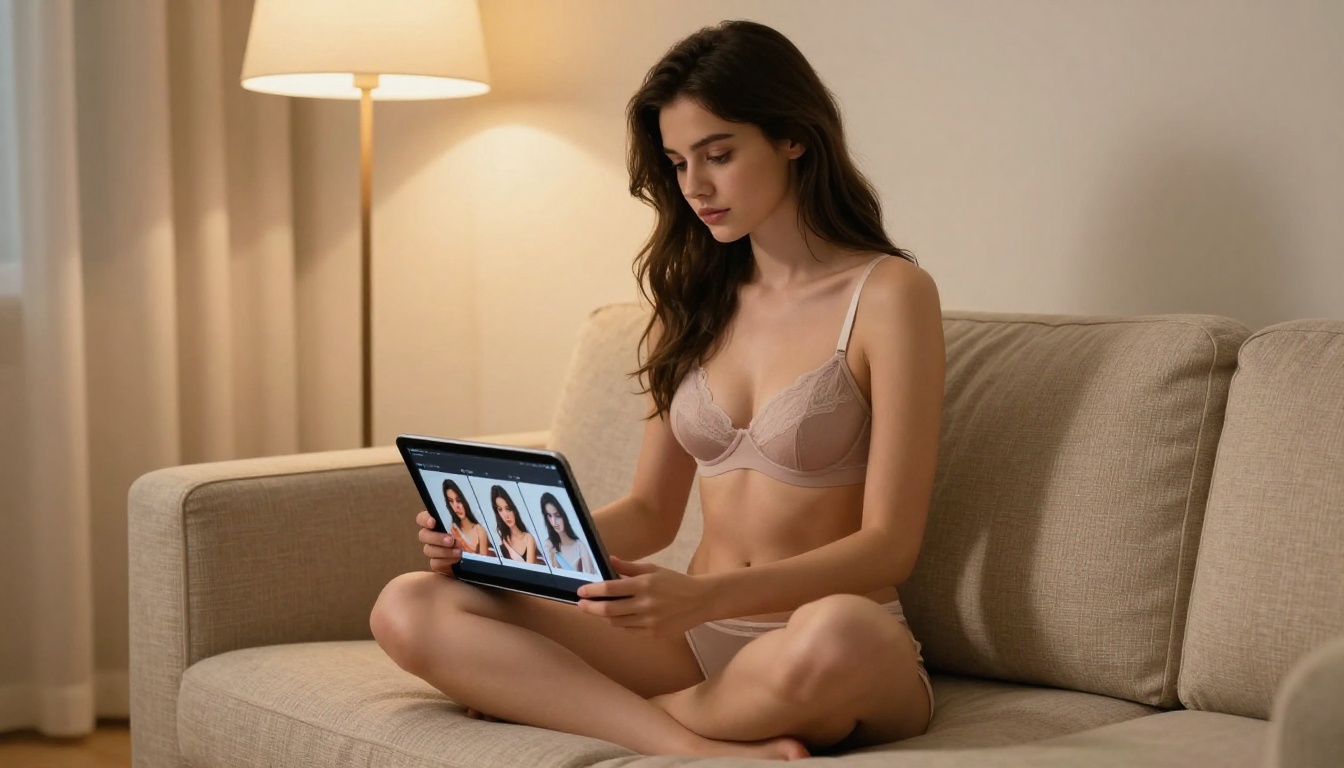
No single model wins at every scene type. The creators producing the highest-quality consistent character adult content in 2027 are using model stacking: different models for different types of shots, all fed from the same locked reference sheet.
The Multi-Model Approach
| Scene Type | Best Model | Reason |
|---|
| Close-up facial | DreamActor-M2.0 | Strongest face fidelity |
| Full-body motion | Kling V3 Motion Control | Best motion transfer |
| Fast scene cuts | Wan 2.6 I2V Flash | Speed without major identity loss |
| Avatar scenes | Kling Avatar V2 | Purpose-built for avatar consistency |
| Multiple characters | Vidu Q3 Pro | Strong multi-character scene handling |
Vidu Q3 Pro is worth highlighting specifically for creators working with more than one character. It handles multi-character scenes better than most models, which becomes important when you want your consistent character interacting with others in the same frame.
Common Mistakes That Kill Consistency
Mistake 1: Vague Character Descriptions
"Beautiful woman" is not a character description. The AI needs specifics to reproduce the same person. Always describe at least: hair color and style, eye color, skin tone, approximate age range, and one or two distinctive features.
Mistake 2: Switching Models Mid-Project
Different models have different interpretations of the same reference image. If you start a project with DreamActor-M2.0, finish it with DreamActor-M2.0. Switching to PixVerse v5.6 halfway through will introduce visual inconsistencies that are very hard to correct in post-production.
Mistake 3: Ignoring Lighting Consistency
If your reference image has soft natural light and your video prompt describes dramatic studio lighting, the character's appearance will shift noticeably. Keep lighting conditions consistent between your reference frame and your video prompt throughout the entire project.
Mistake 4: Skipping the Reference Sheet
Jumping straight to video generation without a locked reference sheet is the single biggest mistake. Two or three hours spent building a solid reference library saves dozens of hours of failed generations later.
Face Swap as a Consistency Safety Net
When a video clip looks great but the face drifted slightly, Face Swap AI can fix it without regenerating the entire clip. PicassoIA's Face Swap AI feature lets you overlay your master character face onto the generated clip, correcting identity drift without losing the motion quality you worked hard to achieve.
This is the safety net of the entire workflow. It doesn't replace good generation practice, but it resolves the roughly 20% of clips that almost work but need that final face correction to be usable.
Workflow Summary
Here is the complete workflow in order:
- Generate master reference image with Flux Kontext Pro or Flux 1.1 Pro Ultra
- Build character sheet with 4 to 6 angle variations
- Plan scene sequence with motion and context descriptions per clip
- Animate close-ups with DreamActor-M2.0
- Animate motion scenes with Kling V3 Motion Control
- Generate fast-cut scenes with Wan 2.6 I2V Flash
- Quality check every clip against the master reference
- Apply Face Swap on any clips with minor identity drift
- Assemble the final video sequence
Your Character Series Starts Here
Every tool you need to produce multi-scene adult AI videos with locked, consistent characters is available right now on PicassoIA. The workflow above is what separates creators who produce polished, professional-feeling content from those stuck regenerating the same scene over and over hoping it comes out right.
The reference sheet is everything. Build it first, build it well, and every generation after that becomes dramatically more predictable and satisfying.
Try DreamActor-M2.0 for your first character animation, Flux Kontext Pro for your reference sheet, and Kling V3 Motion Control when you want to push motion further. All of them are in one place so you can move through the entire pipeline without switching platforms.