Taking a single photo and turning it into a fluid, realistic video used to require a full film crew, expensive software, or years of technical knowledge. Today, AI models handle that entire pipeline in under two minutes. If you've been searching for a way to create adult AI videos from just one reference image, the technology has finally caught up with the idea, and the results are far more realistic than most people expect.
This breakdown covers exactly how the process works, which models are worth your time, how to set up your source photo for the best output, and a step-by-step tutorial using the top character animation model available right now.
What Photo-to-Video AI Actually Does
Most people assume you need multiple photos, body reference data, or a 3D model to animate a character. That assumption is outdated. Modern image-to-video models use diffusion-based architectures that can infer depth, motion physics, and body geometry from a single 2D frame. The result is a short video clip where your subject moves naturally, without any manual rigging or frame-by-frame editing.
How the model reads your image
When you upload a photo, the model doesn't just "move" it. It analyzes the subject's body orientation, estimates joint positions through pose detection, maps the surface texture and lighting onto a 3D proxy, and then synthesizes frames that maintain consistent appearance while simulating physically plausible motion. The output isn't a filter effect. It's a reconstruction.
The quality of that reconstruction depends heavily on two things: the model you choose, and the quality of your input photo.
Motion synthesis vs. image generation
This is a critical distinction. Image-to-video models take an existing photo and animate it. They differ from text-to-video models that hallucinate a scene from scratch. When you use image-to-video for adult AI content, you're working with a real visual reference, which means:
- The character's face, body proportions, and clothing are preserved from your source photo
- Motion feels grounded because it's anchored to a real visual baseline
- Results look significantly more photorealistic than pure text-to-video generations
💡 Pro tip: The closer your source photo is to a natural, well-lit portrait or full-body shot, the more the model has to work with. Blurry, heavily filtered, or compressed images produce noticeably worse animations.
The Models That Deliver Real Results
Not every model handles adult content or complex human animation equally well. Some produce stiff, uncanny movement. Others degrade facial features halfway through the clip. The following models consistently hold up.
DreamActor-M2.0 for realistic character animation
DreamActor-M2.0 by ByteDance is purpose-built for animating characters from a single reference image. It uses a disentangled motion representation that separates body motion, facial expression, and camera movement into independent control channels. In practice, this means the character moves naturally without the head floating or the face losing detail mid-clip.
For adult content specifically, DreamActor-M2.0 handles fabric dynamics, skin shading consistency, and subtle body motion better than most alternatives. It's the starting point for the tutorial later in this article.
Kling V3 for cinematic motion quality
Kling V3 Omni Video by Kwai accepts both text and image inputs, and its motion quality has a distinctly cinematic feel. It handles slow, deliberate movement particularly well, making it ideal for sensual or atmospheric adult video content where abrupt transitions would break immersion.
For motion-controlled outputs, Kling V3 Motion Control lets you transfer specific body motion patterns onto your subject, which opens up significant creative control without requiring multiple source images.
Wan 2.6 I2V for natural fluid movement
Wan 2.6 Image-to-Video consistently produces fluid, natural-feeling motion with strong temporal consistency across frames. It tends to outperform on longer clips where other models start to degrade. If you're generating clips longer than 4 seconds, Wan 2.6 I2V is one of the most stable options available.
For faster processing with slightly reduced quality, Wan 2.2 I2V Fast is an excellent rapid iteration tool before committing to a full-quality render.
Other solid options at a glance
| Model | Best For | Speed |
|---|
| PixVerse v5.6 | Stylized motion, expressive animation | Fast |
| Hailuo 2.3 Fast | Image-to-video, natural physics | Fast |
| LTX-2.3-Pro | Text, image and audio-driven video | Medium |
| I2VGen-XL | Dynamic video from static images | Medium |
| PIA | Personalized image animation | Slow |
How to Prepare Your Photo
The single biggest factor in output quality is not which model you pick. It's the photo you feed it. A great model with a poor input will always produce a mediocre video. Here's how to set yourself up for strong results.
Resolution and framing matter more than you think
- Minimum resolution: 512x512 pixels. Anything lower and the model won't have enough texture data to maintain consistency across frames
- Optimal resolution: 1024x1024 or higher. Full-body shots should be at least 768px tall
- Framing: For character animation, full-body or three-quarter shots outperform tight headshots. The model needs to infer limb positions, and it can't do that from a cropped bust shot
- Aspect ratio: 16:9 or 9:16 works best with most image-to-video models
Lighting and pose affect output quality
The model uses lighting direction to estimate surface normals, which informs how it renders motion-induced shading changes. A photo taken in flat, diffused light produces smoother animations. Harsh side lighting with deep shadows can cause flickering as the model struggles to maintain consistency frame to frame.
For pose, a neutral standing or seated position with visible limbs gives the model more spatial information. Extreme poses, arms tucked behind the back, or heavy occlusion of the body reduce output accuracy significantly.
💡 Pro tip: Natural photography-style images, like those generated with Flux 1.1 Pro Ultra or Realistic Vision v5.1, feed into image-to-video models extremely well. They share the same training distribution, which produces noticeably cleaner animations.
What photos to avoid
- Screenshots from other videos: Heavy compression artifacts confuse the model's texture mapping
- Heavy filters or stylized edits: Cartoon-like skin smoothing or oversaturated tones break photorealistic motion output
- Multiple people in frame: Most image-to-video models animate the dominant figure and ignore or distort others
- Extreme close-ups with no body context: The model can't animate what it can't see
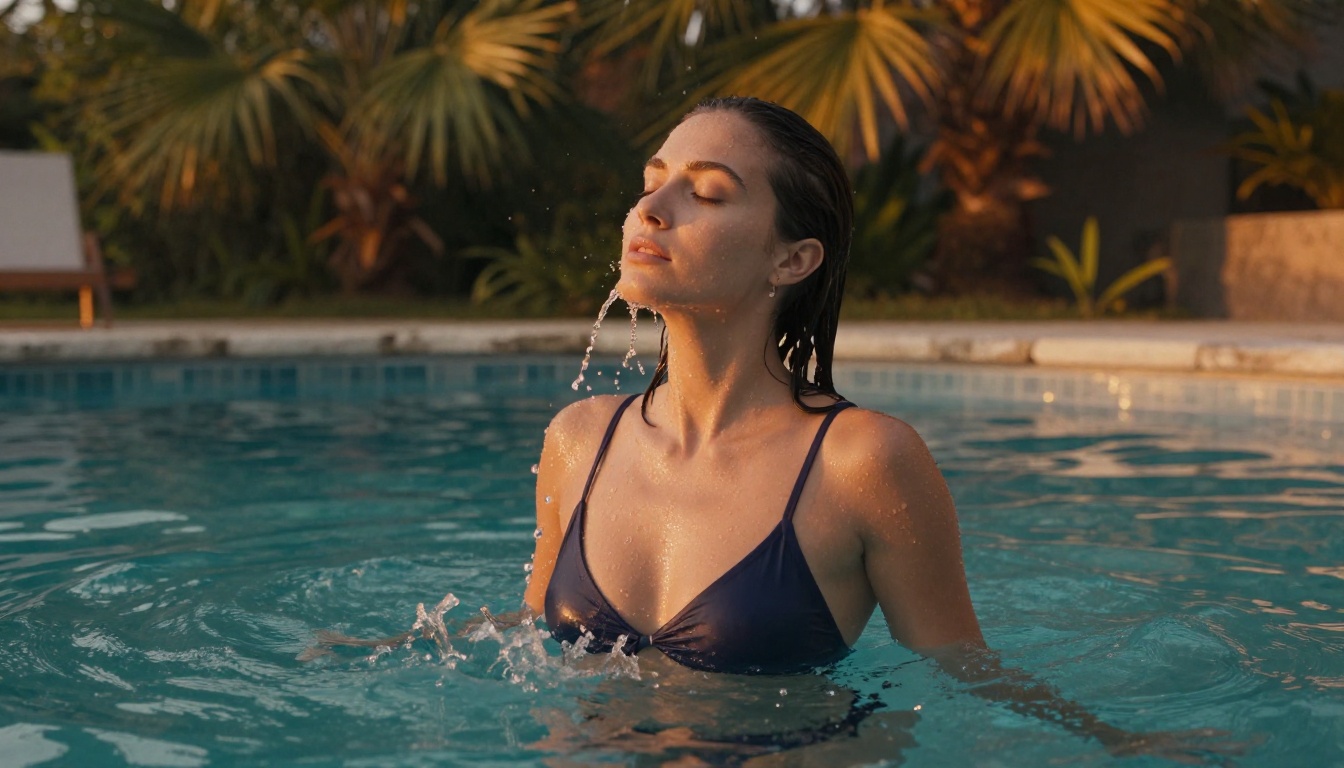
How to Use DreamActor-M2.0 on PicassoIA
DreamActor-M2.0 is available directly on PicassoIA without any complex setup. Here's the full workflow from photo upload to final video.
Step 1: Upload your reference photo
Navigate to the DreamActor-M2.0 model page and use the image upload field. The model accepts JPEG and PNG formats. For adult content, make sure your image shows the subject clearly with visible body proportions. Avoid cropping at the waist if you want full-body animation.
The model will auto-detect the subject and display a pose skeleton overlay in the preview panel. If the skeleton is misaligned or incomplete, try a different crop or zoom level on your source image before re-uploading.
Step 2: Set motion type and duration
DreamActor-M2.0 offers several motion mode options:
- Full-body motion: Animates the entire character including arms, torso and legs. Best for active or suggestive movement sequences
- Upper-body motion: Focuses on torso, arms and head. Good for seated subjects or close-cropped shots
- Expression-only motion: Animates facial expressions and head tilt only. Useful for portrait-style adult content
For duration, 4 to 6 seconds is the sweet spot. Shorter clips lack payoff. Longer clips above 8 seconds often show temporal degradation where facial features or skin tone drift from the source.
💡 Pro tip: Run 4-second generations first for fast iteration. Once you have a prompt and settings combination that works well, scale up to 6 seconds for the final output.
Step 3: Write your motion prompt
The motion prompt is separate from the image itself and describes the movement you want to see. This is where most users make mistakes, writing scene descriptions instead of motion instructions.
What works:
- "slow sensual sway, hair falling forward, soft eye contact, slight smile"
- "seated figure leaning back gradually, arms stretching above head, relaxed expression"
- "gentle hip movement, hand brushing hair from face, calm breathing visible"
What doesn't work:
- "be sexy" (too vague for motion synthesis)
- Describing the scene rather than the motion (the model reads the image for scene context, use the prompt only for movement direction)
Step 4: Generate and review
Hit generate. First run takes 45 to 90 seconds depending on server load. Download the MP4 and scrub through it at 0.5x speed before accepting the result. Things to check:
- Face consistency across all frames. Any melting or morphing means the source photo had low-resolution facial detail
- Fabric behavior: Clothes should respond to body movement with natural physics, not stutter or teleport between frames
- Edge coherence: The silhouette of the subject against the background should stay sharp throughout
If any of these fail, the fastest fix is regenerating with a slightly different seed, not rewriting the entire prompt.
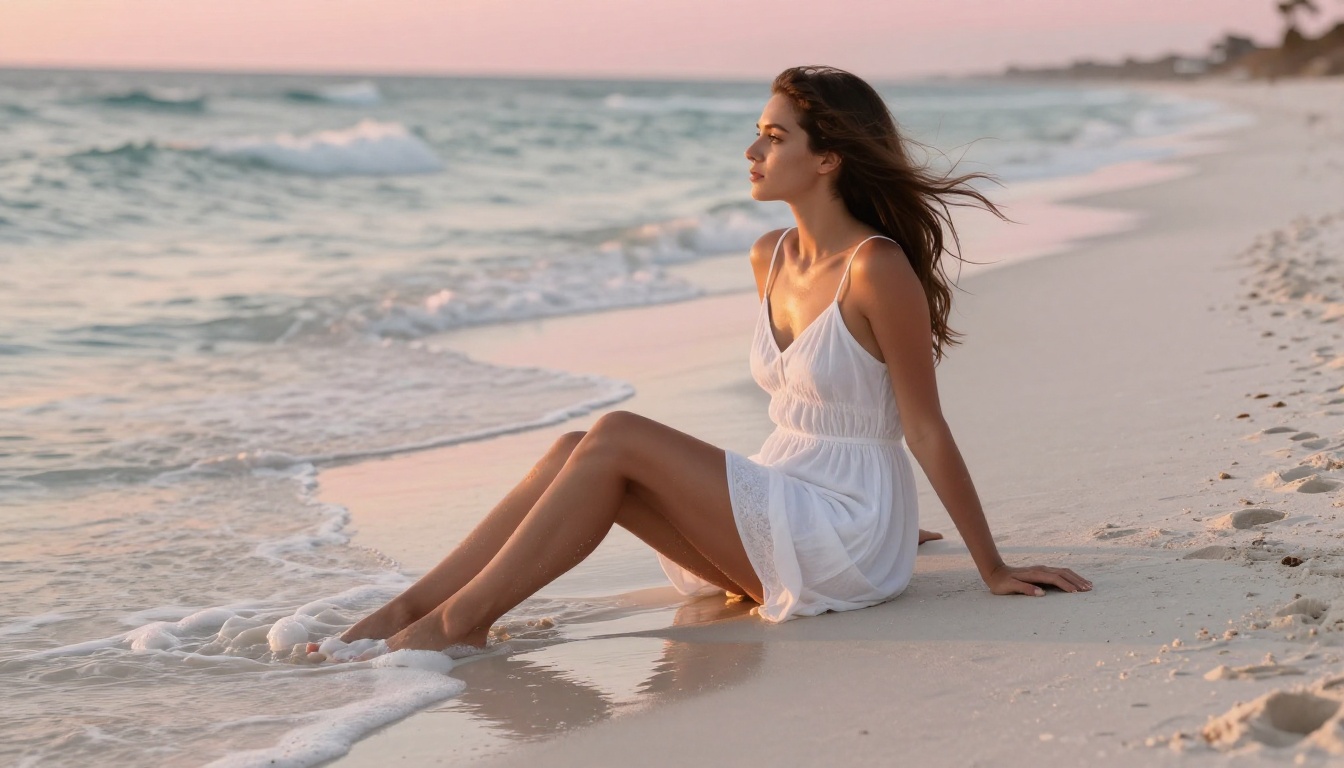
Prompt Writing That Actually Works
The difference between a stilted, robotic animation and something that feels genuinely alive comes down to how specifically you describe the motion. Vague prompts produce generic movement. Precise prompts produce naturalistic behavior.
Motion verbs that trigger fluid animation
These work consistently across DreamActor-M2.0, Kling V3 Video, and Wan 2.5 I2V:
- Swaying, shifting weight, leaning (imply continuous motion rather than static poses)
- Turning head slowly, glancing over shoulder (facial and neck articulation)
- Hair falling, fabric rippling (physics-anchored secondary motion that adds realism)
- Breathing deeply, chest rising and falling (subtle but impactful for photorealism)
- Eyes lowering, lips parting slightly (expression-level control for intimate adult content)
Scene and atmosphere descriptors
Adding atmosphere to your prompt helps the model tune its temporal lighting and color grading:
- "warm golden light" keeps skin tones consistent and reduces flicker
- "soft focus background" discourages the model from animating the background independently
- "slow cinematic motion" biases toward deliberate, smooth movement over jerky transitions
What NOT to put in your prompt
- Explicit body part references: These trigger safety filters or produce distorted anatomy
- Clothing removal instructions: The model can't synthesize new surface information that doesn't exist in the source photo
- Camera movement instructions: Unless the model specifically supports it, like Kling V3 Motion Control, most models will interpret pan or zoom requests as body distortion
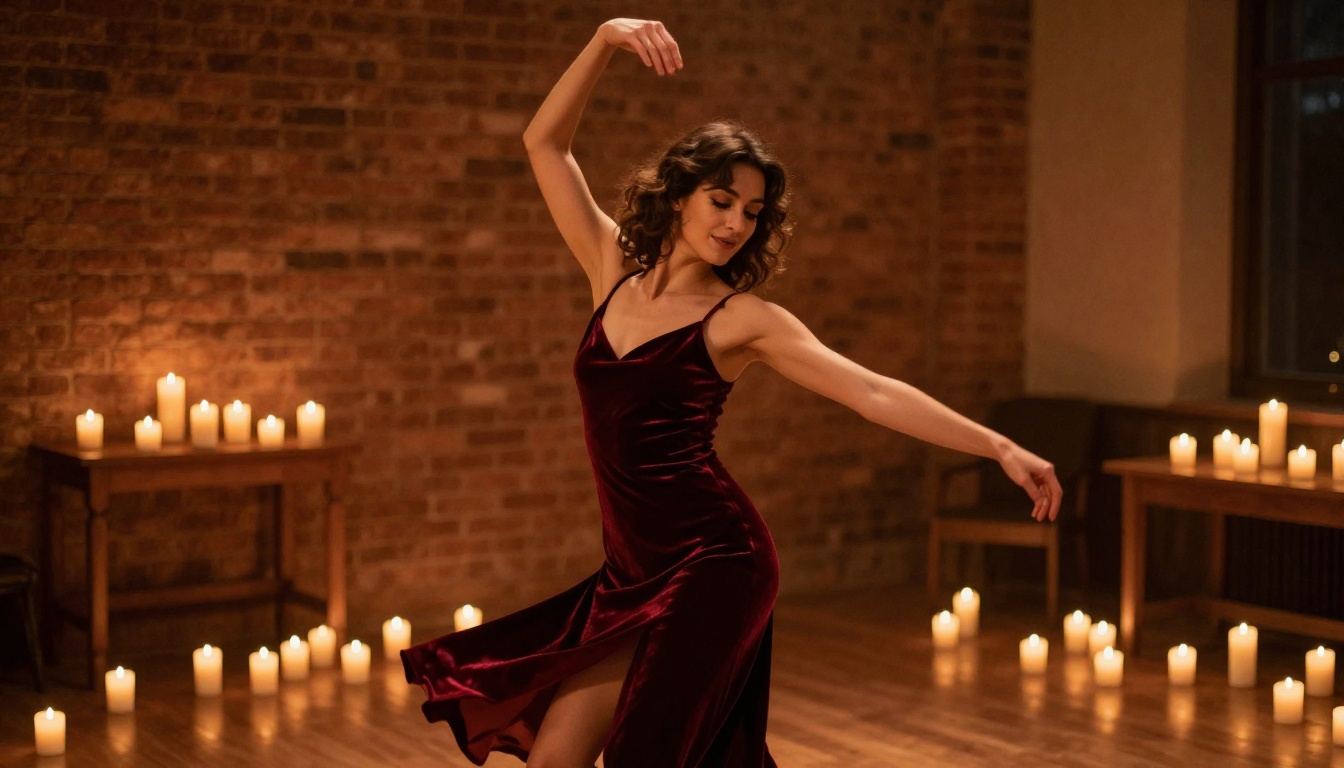
Speed vs. Quality: Picking the Right Model
Different use cases call for different priorities. Here's how the main image-to-video models compare for adult content generation specifically.
The decision matrix is straightforward:
💡 Pro tip: Run 2 to 3 fast iterations with Wan 2.2 I2V Fast to lock in your prompt and source image. Then switch to DreamActor-M2.0 for the final quality render. This saves significant time and credits.
Common Problems and Fast Fixes
Even with a great source photo and a solid prompt, things go wrong. Here's what causes the most common failures and how to fix them quickly.
Face drift mid-clip
Cause: Low facial resolution in the source photo, or the subject is at an angle where facial geometry is partially occluded.
Fix: Use a photo where the face is clearly visible, minimum 256x256 pixel crop at the face region. Front-facing or slight 3/4 angle works best. Avoid heavy shadows across the face.
Unnatural stiff movement
Cause: The motion prompt uses positional descriptions ("standing still, arms by sides") rather than actual movement verbs.
Fix: Replace static descriptions with motion language. Instead of "standing relaxed," use "swaying gently, weight shifting from foot to foot, slight hip movement."
Background warping and flickering
Cause: The model is attempting to animate both the subject and the background simultaneously.
Fix: Add "static background, only subject moves, camera fixed" to your prompt. If the background is complex or detailed, try cropping the source photo to reduce background information.
Clothing texture degradation
Cause: Highly patterned or textured clothing is difficult for the model to maintain consistently across frames.
Fix: Source photos with simpler, solid-color clothing produce significantly more stable fabric animation. If you're generating your source image first, models like SDXL or Realistic Vision v5.1 give you direct control over clothing complexity.
Using AI-Generated Photos as Your Source
You don't need a real photograph as your source image. Many creators generate a photo first using a text-to-image model, then animate it. This gives you full control over the character, lighting, pose, and clothing before touching the video generation step.
For adult content workflows, this two-step pipeline is often more reliable than starting with a real photo:
- Generate your base photo using Flux 1.1 Pro Ultra or Realistic Vision v5.1 with a detailed prompt specifying pose, lighting, clothing, and facial detail
- Feed that photo directly into DreamActor-M2.0, Kling V3, or Wan 2.6 I2V
Because AI-generated photos have consistent lighting, clear body geometry, and no compression artifacts, image-to-video models typically animate them more cleanly than real-world photographs. The shared training distribution between diffusion image models and video models is the likely reason.
The workflow also gives you complete creative control. You can iterate on the source image until you have exactly the pose, expression, and clothing you want before spending any video generation credits.
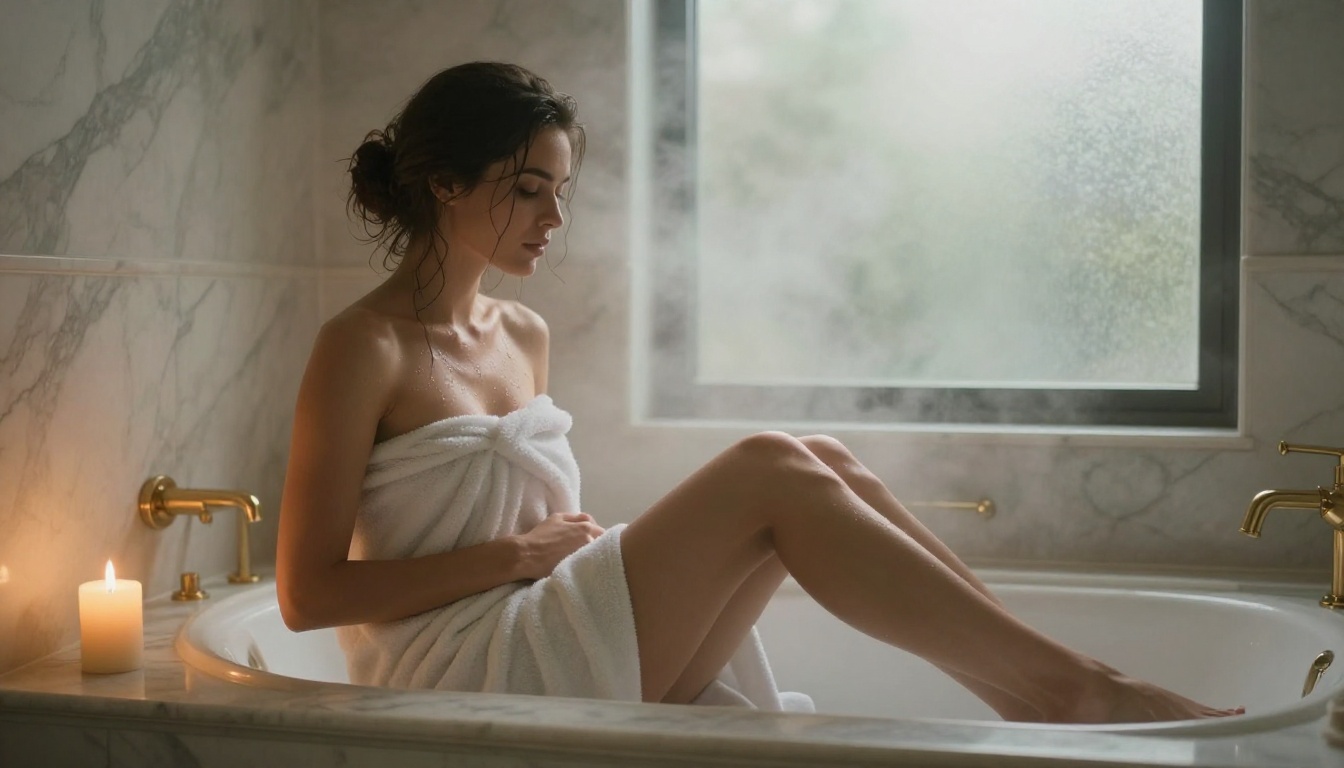
For the most photorealistic source images, Flux 1.1 Pro Ultra produces RAW-photography-style outputs that hold up exceptionally well under motion synthesis. If you want more control over anatomical accuracy and realistic skin rendering, Realistic Vision v5.1 is the better choice for adult-content source images.
Both are available in the PicassoIA text-to-image collection and can be used directly before moving to any image-to-video model in the same session.
Start Creating Your Own Videos
The entire workflow described in this article is available on PicassoIA without any complex setup. Every model mentioned here is accessible directly from the platform's video generation collection.
Start with DreamActor-M2.0 if you want the best out-of-the-box character animation from a single photo. Use Kling V3 Omni when you need longer, cinematic clips with polished motion quality. Prototype fast with Wan 2.2 I2V Fast before committing credits to a full-quality render.
If you want to build your reference photo from scratch before animating it, the Flux 1.1 Pro Ultra and Realistic Vision v5.1 models in the image generation collection give you photorealistic starting points that animate cleanly every time.
The quality ceiling for photo-to-video AI keeps rising. The models available today would have been considered impossible two years ago. There's no better moment to start experimenting with what a single photo can become.