How to Create AI Videos with Consistent Characters in Veo 3.1
Veo 3.1 can produce character-consistent AI videos when paired with the right prompt architecture. This article breaks down the character bible method, seed-locking techniques, multi-scene workflows, and the best PicassoIA models to maintain visual identity across every clip you generate.
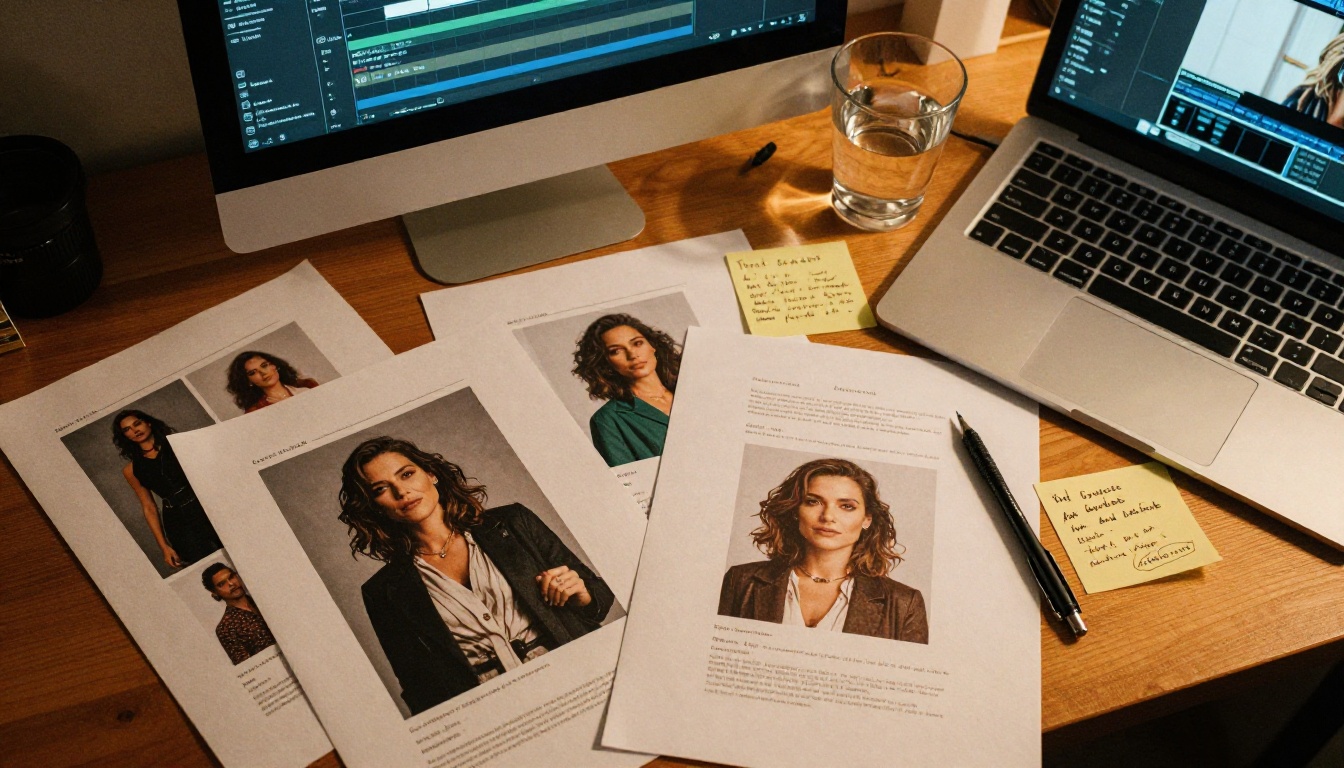
Keeping the same character across multiple AI video clips is one of the hardest problems in AI video production right now. One scene your protagonist has warm brown eyes and shoulder-length dark hair. The next scene, she has lighter eyes, a different jaw shape, and her outfit has changed completely. It happens in almost every model, and for anyone building a series, a short film, or a brand campaign, this inconsistency destroys the work before it reaches an audience.
Veo 3.1 addresses this problem more directly than its predecessors. It does not fully solve it automatically, but with the right prompting strategies, character reference systems, and workflow discipline, you can produce multi-scene AI videos where your characters look like the same person in every clip.
This is exactly how to do that.
Why Characters Keep Changing Between Scenes
The Root Cause in Text-to-Video Models
Text-to-video models generate each clip as an independent sampling process. They do not retain a memory of what a character looked like in a previous generation unless you give them explicit, structured anchors. The model interprets your prompt fresh every time. A small change in wording, even moving a phrase to a different position in the prompt, can shift the character's face, skin tone, and proportions significantly.
The problem compounds with vague descriptions. Writing "a woman with dark hair" gives the model enormous latitude. Dark hair can be jet black or chocolate brown. Short, long, wavy, straight. The model picks whatever fits its probability distribution in that moment, which changes with every render.
What Veo 3.1 Does Differently
Veo 3.1 introduced refined temporal coherence, meaning the model is better at maintaining visual consistency within a single clip. Across clips, however, you still need to manage consistency yourself through your prompt architecture.
The fast variant trades some of this coherence for speed, which works well for draft iterations but is not ideal for final character-locked scenes.
💡 Important distinction: Temporal coherence (within a clip) is a model capability. Cross-clip consistency is a workflow discipline. You own that part.
Building Your Character Reference System
Before you write a single Veo 3.1 prompt, you need a character reference document. This is the single most important step in the entire workflow. Without it, your character will drift no matter how good your prompting technique is.
The Character Bible Method
A character bible is a fixed-text block that you copy and paste verbatim into every prompt for that character. It defines the non-negotiable visual anchors. You build it once and never change it mid-project.
Here is an example structure:
Trait
Specific Value
Hair
Straight black hair, cut just below the shoulders, slight natural wave at the ends
Eyes
Dark brown almond-shaped eyes, heavy upper lash line
Skin
Warm golden-brown complexion, subtle freckles across the nose bridge
Face
Oval face shape, defined cheekbones, soft jawline
Build
Slim athletic build, approximately 5'6"
Signature outfit
Fitted dark green cargo jacket with brass zipper, worn over a white ribbed tank top
Every detail here is specific. Not "dark hair," but "straight black hair, cut just below the shoulders, with a slight natural wave at the ends." Specificity is what removes the model's freedom to drift on you.
Physical Traits to Always Define
These are the traits models drift on most often. Pin every single one of them:
Hair: Color, length, cut style, texture, and how it falls naturally
Eyes: Color, shape, and any distinguishing feature (lash density, liner, etc.)
Skin tone: A descriptive anchor, not just "light" or "dark"
Face shape: Oval, round, square, or heart
Height and build: Approximate proportions relative to frame
Signature outfit: One consistent outfit for high-continuity scenes
Any distinguishing feature: Scar, mole, glasses, jewelry, tattoo
Writing Prompts That Lock In Consistency
With your character bible ready, the next step is structuring your Veo 3.1 prompts so the character description anchors the generation every single time.
The Anchor Phrase Technique
Always open your prompt with the character bible block. Do not bury it in the middle. Models weight earlier tokens more heavily, so leading with physical description gives the character traits the most influence over the output.
"A woman with straight black hair cut just below the shoulders with a slight natural wave, dark brown almond-shaped eyes, warm golden-brown complexion with subtle freckles across the nose, wearing a fitted dark green cargo jacket with brass zipper over a white ribbed tank top, walking through a rainy Tokyo street at night, neon signs reflecting in shallow puddles, medium shot, following camera movement, cinematic."
Notice the character block leads, then the action and environment follow. That order is not optional.
Negative Prompting for Stability
When the interface supports it, use negative prompts to block the most common drift variations:
blonde hair, blue eyes, light skin, red outfit, short hair, different face
This prevents the model from defaulting to its highest-probability character configurations and forces the generation to stay within the visual space you defined.
💡 Tip: Keep a "negative character block" document alongside your main character bible. Paste both into every generation. One defines what the character IS, the other defines what they are NOT.
How to Use Veo 3.1 on PicassoIA
Veo 3.1 is available directly on PicassoIA with no setup required. Here is the full step-by-step process for character-consistent video production.
Step 1: Open the Model
Navigate to the Veo 3.1 model page on PicassoIA. You will see the text input field for your prompt. If you are working on draft iterations or testing scene concepts, Veo 3.1 Fast is also available and processes significantly faster with minimal quality trade-off at the draft stage.
Step 2: Paste Your Character Bible First
Open your character bible document. Copy the full physical description block and paste it at the very beginning of the prompt field. Then add your scene-specific action, environment, and cinematic details after it.
Do not paraphrase the character description between scenes. Do not summarize it. Use the exact same wording you defined in your bible. Even minor rewording introduces enough semantic variation to shift the character's visual appearance.
Step 3: Structure Multi-Scene Prompts
For a multi-scene project, create a numbered prompt list in a separate document before generating anything:
Scene 1:[Character Bible] + walking through a rainy street at night, neon reflections, medium shot
Scene 2:[Character Bible] + sitting at a café window, warm morning light, close-up shot
Scene 3:[Character Bible] + running across a rooftop at dusk, wide establishing shot
The character bible block is identical across all three. Only the action, environment, and camera direction change.
Step 4: Lock the Seed
If Veo 3.1 exposes a seed parameter in the interface, record the seed of your best-looking character generation. Use that exact seed value for every subsequent scene featuring that character. This is the single strongest consistency lever available to you.
💡 Workflow note: Generate two to three variations of each scene first. Pick the one where the character bible traits are most accurately represented. Then lock that seed before moving to the next scene.
Veo 3.1 Prompt Parameters at a Glance
Parameter
What to Do
Prompt order
Character bible first, action second, environment third
Negative prompt
List any traits the character does NOT have
Seed
Use a fixed value for all scenes with the same character
Model variant
Veo 3.1 for finals, Veo 3.1 Fast for drafts
Clip length
Use standard duration on first pass before committing
Other Models Worth Testing for Consistency
Veo 3.1 is a strong primary choice, but it is not the only option on PicassoIA for this workflow. Depending on your project type, these models offer complementary strengths.
Kling V3 Motion Control
Kling V3 Motion Control lets you transfer motion from a reference video directly onto your character. This is particularly useful when you already have a consistent character image and want to animate it with specific movements rather than relying on text description alone for motion.
The workflow: generate a consistent character portrait first, then feed that image plus a motion reference video into Kling V3 Motion Control. Your character inherits the motion pattern while retaining the visual identity from the reference image.
DreamActor-M2.0 for Portrait Animation
DreamActor-M2.0 by ByteDance specializes in animating a single portrait photo. If you generate or capture your character once with strong visual consistency, DreamActor produces multiple animated clips that all reference the same source image. This is one of the most reliable approaches to cross-clip consistency because the visual anchor is a real image rather than a text description.
💡 Workflow tip: Generate your character's reference portrait using a text-to-image model, confirm it matches your character bible precisely, then use DreamActor-M2.0 to animate different scenes. The portrait becomes your consistency lock.
Wan 2.2 Animate Replace
Wan 2.2 Animate Replace takes a different approach: it replaces a character in an existing video clip with your custom character based on a reference input. This is ideal when you already have a scene with the right action and camera movement but need to swap in your character. The original clip provides the motion and environment; your character description provides the visual identity.
Also worth testing for specific use cases:
Kling Avatar V2 for avatar-based character videos with strong face consistency
Hailuo 2.3 for cinematic-style clips that hold character detail well in close-up shots
Gen-4.5 by Runway for high-motion scenes where character identity needs to hold through fast movement
3 Mistakes That Break Consistency Every Time
Even with the right tools, these three mistakes will undermine your character continuity regardless of the model you use.
Vague Physical Descriptions
"A tall woman with dark hair" is not a character description. It is a suggestion. The model fills every undefined space with its own interpretation, and that interpretation shifts between generations.
Fix: Every physical trait needs at least two specific attributes. Hair color AND texture AND length. Eye color AND shape. Skin tone AND any unique marking.
Changing Prompt Structure Between Scenes
If your character bible appears at position one in Scene 1 and position three in Scene 3, the model weights the description differently. The character will drift even though the text is identical.
Fix: Build a rigid prompt template. Character bible always leads. Action always second. Environment third. Camera and lighting last. Never deviate from this order across your entire project.
Ignoring Seed Settings
Every generation without a fixed seed is rolling fresh dice. Two prompts with identical text produce different-looking characters because the noise initialization differs each time.
Fix: Note the seed of your best generation. Use that seed for all subsequent scenes featuring that character. If the model does not expose seed input, screenshot the generation settings for reference.
Advanced Workflows for Multi-Scene Projects
Batch Generation with a Seed Lock
Once you find a seed that produces a character who matches your character bible accurately, generate four to six scene variations using that same seed with slightly different action descriptions. Compare them side by side. The face and build should remain stable while only the action changes.
If the character starts drifting after several variations, the action description is likely conflicting with the character description somewhere in the prompt. Simplify the action segment or reorder the prompt structure to prioritize the character bible.
Image-to-Video as the Strongest Anchor
The most reliable consistency workflow available does not rely on text prompts alone. It uses a two-step process:
Generate a high-quality, consistent portrait of your character using a text-to-image model
When the model has a real image of your character as visual input rather than just text, the character's face, skin tone, hair, and proportions are all locked into that reference. Text-to-video drift essentially disappears because the model has something concrete to match against.
This approach requires more steps, but it delivers a level of visual consistency that text-only prompting currently cannot reach.
💡 Production pipeline: Use Veo 3.1 for scenes that need dynamic environments and high visual quality with cinematic motion. Use image-to-video workflows when character face accuracy is the absolute priority and you cannot afford drift.
Start Building Your Own Character-Consistent Videos
Character consistency in AI video is a solved problem, not because the models handle it automatically, but because there is a clear, repeatable process for achieving it. Build your character bible. Lock your prompt structure. Use seed values. When possible, use an image anchor rather than text alone.
Veo 3.1 rewards structured prompting more than any vague creative improvisation. The creators producing the most consistent results are not the ones writing the most creative prompts. They are the ones with the most disciplined prompt architecture, the most specific character documentation, and the cleanest workflow between scenes.
All of the models referenced in this article are available on PicassoIA. You can run Veo 3.1, Kling V3 Motion Control, DreamActor-M2.0, Wan 2.2 Animate Replace, and Hailuo 2.3 without switching platforms, which makes it straightforward to compare results and build the workflow that fits your specific project type.
Start with one character. Write the bible. Lock the seed. Generate the first scene. The rest follows from there.