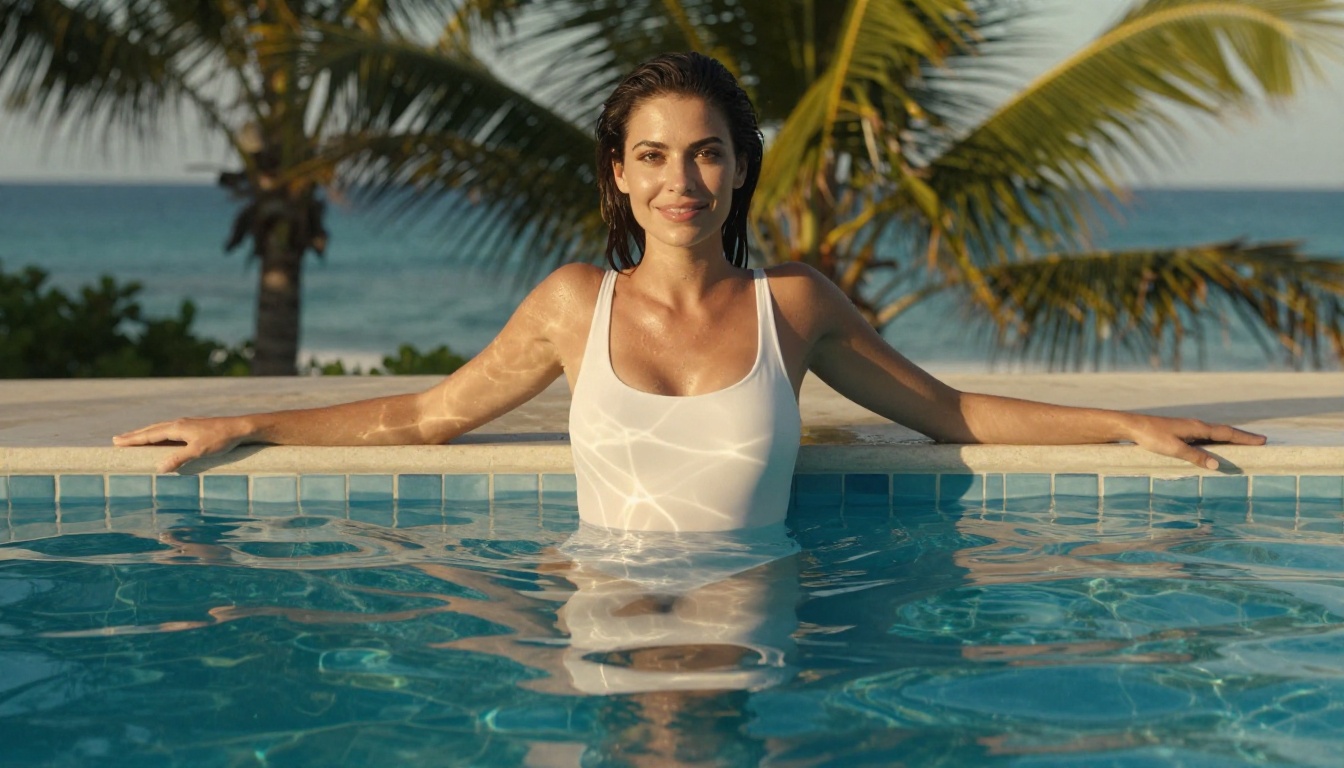
If you have been looking for a faster, cleaner way to create and edit photos with AI, Nano Banana 2 by Google is worth stopping for. It is one of the most responsive text-to-image models on the market right now, and when you access it through Google's Gemini ecosystem or directly through PicassoIA, the results are striking. This article covers exactly how to edit photos with Nano Banana 2 on Gemini, what makes this model different from the rest, and how to write prompts that actually produce what you have in mind.
What Is Nano Banana 2?
Google's Fastest Image Model Yet
Nano Banana 2 is a text-to-image generation model developed by Google, designed specifically for speed without sacrificing visual quality. It sits in a lineage of Google's generative image research alongside models like Imagen 4 and Imagen 4 Ultra, but the Nano Banana series takes a different approach: prioritize rapid generation so you can iterate quickly.
Where heavier models take time to produce a polished output, Nano Banana 2 generates crisp, detailed images in a fraction of the time. That makes it ideal for photo editing workflows where you need to produce several variations fast, compare options, and zero in on the one that works.
💡 Worth knowing: The "Nano" in the name refers to model size efficiency, not output quality. Images from this model are full-resolution and photorealistic when prompted correctly.
What "Fast" Actually Means Here
Speed in AI image generation is not just about seconds on a clock. It is about how quickly you can go from an idea to a usable result, refine it, and produce a final version. Nano Banana 2 compresses that loop significantly.
For photo editing use cases, this matters a lot. Instead of running three or four prompts over the course of an hour, you can test a dozen variations in the same time. That iteration speed changes how you approach creative decisions entirely.
The model's predecessor, Nano Banana, set the baseline for this kind of fast generation within Google's AI stack. Version 2 builds on that with improved prompt adherence, better handling of human subjects, and stronger consistency across skin tones, lighting conditions, and fine textures like fabric and hair.

Gemini and Photo Creation
Gemini as a Multimodal Platform
Google Gemini is not just a chatbot. It is a multimodal AI platform that handles text, images, code, and reasoning together. When you interact with Gemini for image-related tasks, you are working within an ecosystem that connects language understanding with visual generation in a tightly integrated way.
This matters for photo editing because Gemini can interpret your creative intent, not just your literal instructions. If you describe a scene in natural language, Gemini translates that intent into generation parameters that models like Nano Banana 2 can act on effectively.
The combination is powerful. You get the conversational flexibility of Gemini's language model with the visual output quality of a purpose-built image generation model. That pairing is what makes photo editing with this setup feel different from working with a standalone image tool.
Where Nano Banana 2 Fits In
Within the Gemini ecosystem, Nano Banana 2 operates as the speed-optimized image generation layer. When you ask Gemini to create or modify a photo, it routes that request through whichever generation model fits the task. For rapid prototyping, variation testing, and conversational editing sessions, Nano Banana 2 is often the model working behind that output.
You can also access it directly through platforms like PicassoIA, which gives you explicit control over model selection, aspect ratio, prompt structure, and iteration without needing to rely on Gemini's interpretation layer. Both approaches have their place, and understanding both makes you significantly more effective.

How to Edit Photos with Nano Banana 2 on Gemini
Step 1 — Start with a Clear Reference
Before you type a single word into a prompt, know what you are trying to produce. Photo editing with AI is not random; it is directed. The more clearly you can picture the output, the better your prompt will be.
Ask yourself three questions before starting:
- Subject: Who or what is in the photo?
- Environment: Where does it take place, and what is in the background?
- Mood: What is the lighting, color tone, and emotional feel?
Having answers to those three questions before you open Gemini or PicassoIA cuts your iteration time in half.
Step 2 — Write the Prompt Right
This is where most people lose time. Vague prompts produce vague results. Nano Banana 2 responds exceptionally well to prompts that include specific lighting direction, camera angle, lens focal length, and texture descriptions.
Here is a basic prompt structure that works consistently:
[Subject + Action/Pose] + [Environment + Background] + [Lighting] + [Camera Angle + Lens] + [Texture/Atmosphere] + [Style Flag]
A prompt that follows this structure produces dramatically more consistent output than one that simply says "woman on beach at sunset." The difference between a mediocre result and a stunning one is almost always in how much specific visual information you pack into the description.
💡 Pro tip: Include the film stock you want to emulate. Phrases like "Kodak Portra 400 film grain" or "Fujifilm Velvia saturation" push the model toward specific color science characteristics that feel genuinely photographic.
Step 3 — Refine and Iterate Fast
The real power of Nano Banana 2 is in iteration. Generate a first result, identify what is not quite right, and adjust the prompt for the next run. Because generation time is short, you can do this five or six times without losing momentum.
When refining, change one variable at a time. If you change the lighting, the subject description, and the background all at once, you will not know which change produced the improvement. Isolate the variable, test it, then move to the next.
Through Gemini, you can do this conversationally. Tell Gemini "make the lighting warmer and shift the camera angle to low-angle" and it will carry those changes forward into the next generation. Through PicassoIA, you edit the prompt text directly, which gives you more precise control over exactly what changes.
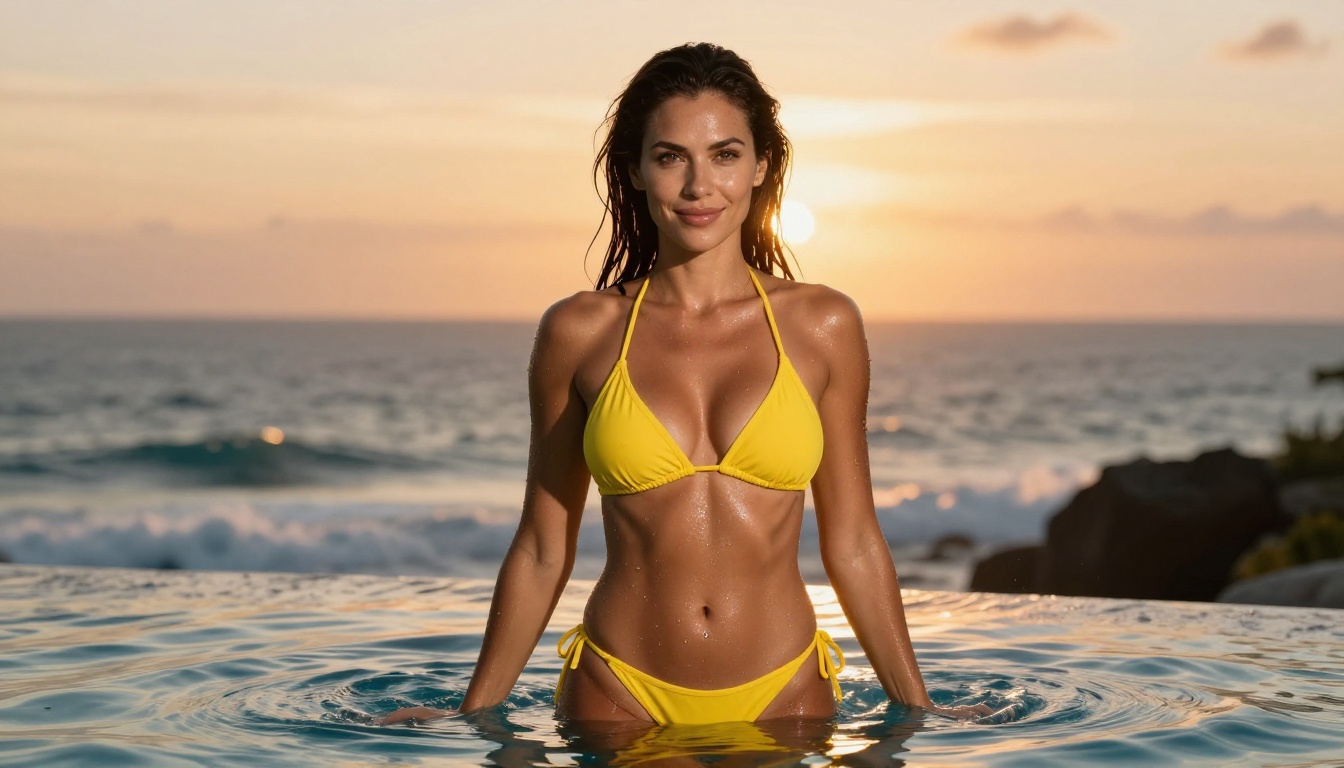
Use Nano Banana 2 on PicassoIA
Why the Platform Matters
PicassoIA gives you direct access to Nano Banana 2 without any intermediary interpretation. You write the prompt, you select the model, and you see exactly what that model produces from your exact instructions. For photographers and creative professionals who want precision, this is the preferred way to work.
The platform also gives you access to the broader Nano Banana Pro model for cases where you want higher quality at the cost of slightly longer generation time. And if you need to compare Nano Banana 2 against other models like Flux 2 Pro or GPT Image 1.5, PicassoIA makes that side-by-side testing straightforward.
How to Run Nano Banana 2 on PicassoIA
Follow these steps to start generating photos with Nano Banana 2 on PicassoIA:
- Open PicassoIA and go to the text-to-image section
- Search for "Nano Banana 2" in the model browser, or navigate directly to the Nano Banana 2 model page
- Set your aspect ratio — for photography-style outputs, 16:9 works best for landscapes and environments, while 4:3 suits portrait compositions
- Write your prompt using the structured format described above
- Click Generate and review the result
- Iterate by adjusting specific prompt elements and regenerating
The whole cycle from first prompt to polished output typically takes less than five minutes for an experienced user. Even beginners get solid results within ten to fifteen minutes of experimentation.
💡 Key detail: PicassoIA does not filter or reinterpret your prompt the way a conversational interface does. What you write is what the model receives. This means your prompt quality directly determines your output quality, with no buffer.
Prompt Writing That Works
What This Model Responds to Best
Nano Banana 2 performs particularly well when prompts include these elements:
- Specific lighting direction ("morning light from the left", "soft rim light from behind")
- Lens and aperture details ("85mm f/1.4", "24mm wide angle", "100mm macro")
- Surface and texture language ("skin with visible pore detail", "fabric weave clearly visible", "wet hair catching light")
- Atmosphere flags ("film grain", "shallow depth of field", "bokeh-drenched background")
- Color science references ("Kodak Portra 400", "Fuji Provia", "warm highlights, cool shadows")
What it does not respond well to: abstract emotional descriptions without visual anchors ("make it feel dreamy"), single-word style flags without context ("photorealistic"), or extremely long run-on prompts without clear structure.
5 Prompt Templates to Try
Here are five tested prompt templates you can adapt directly:
1. Glamour Portrait
Beautiful woman with [hair description] in [clothing], [pose], shot at 85mm f/1.4, [lighting direction], background in soft bokeh, Kodak Portra 400 film grain, photorealistic RAW 8K
2. Environmental Lifestyle
[Subject] in [environment], [action], natural [time of day] light from [direction], 35mm f/2.0, visible film grain, warm highlights, casual candid energy, photorealistic
3. Architectural Setting
[Subject] standing in [architectural space], [clothing], volumetric light through [window/arch], 50mm f/2.8, dust particles visible in light beams, Kodak Portra 400 color science
4. Close-Up Detail
Macro shot of [subject detail], [surface texture description], 100mm macro lens, f/8, [light source and direction], fine grain visible, photorealistic RAW
5. Golden Hour Outdoor
[Subject] at [location], [outfit], late afternoon golden light from the right, 85mm f/1.8, skin with natural texture and sun-kissed tone, warm specular highlights on shoulders, ocean/landscape background in bokeh
Compare Top Models for Photo Editing
Knowing when to use Nano Banana 2 versus other models helps you pick the right tool for each job:
The pattern is clear: use Nano Banana 2 when you want speed and solid quality for iterating on ideas. Move to Nano Banana Pro or Imagen 4 when you are producing a final image that needs maximum fidelity.
3 Common Mistakes
Vague Descriptions
The most common mistake in AI photo editing is treating the prompt like a search query. "Beautiful woman at sunset" is not a prompt; it is a keyword. A real prompt describes the specific subject, their exact position and expression, the light source and its direction, the camera angle, the background environment, and the desired atmospheric quality. The more visual specificity you include, the more control you have over the output.
No Lighting Direction
Lighting is arguably the most important variable in any photograph, real or AI-generated. Yet most beginner prompts skip it entirely. Nano Banana 2 responds directly to lighting instructions. "Soft morning light from the left" produces a fundamentally different result than "dramatic side lighting" or "golden hour backlight." Always include lighting in your prompt.
Skipping Iteration
One generation is almost never the final image. The photographers and content creators who get the best results from Nano Banana 2 treat the first output as a starting point, not a destination. They identify one specific element to improve, adjust the prompt, and generate again. That disciplined iteration process is what separates consistently good results from occasional lucky outputs.
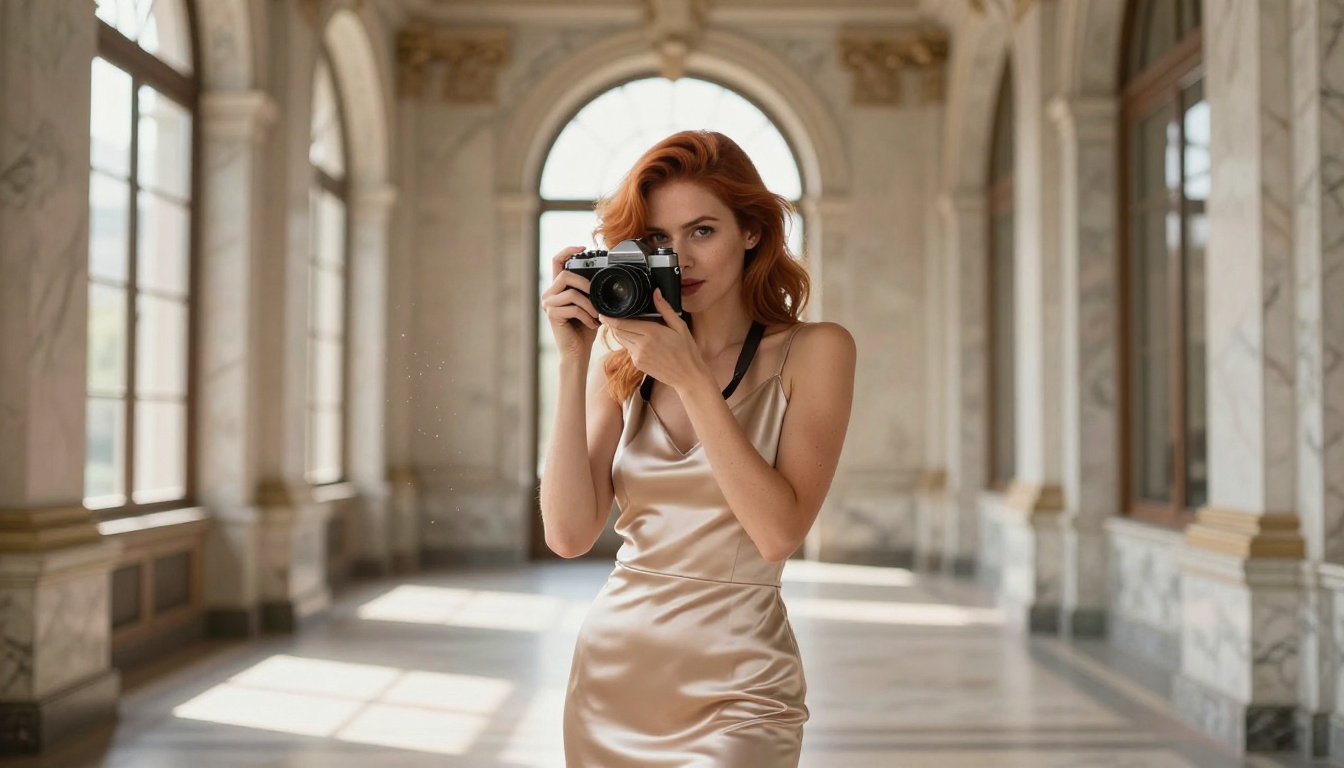
Super Resolution
Once you have a strong image from Nano Banana 2, you can push it further with PicassoIA's super resolution tools. These models upscale your generated image 2x or 4x while preserving and sharpening fine details. For print use cases or large-format digital displays, this extra step can make a real difference in output quality.
Inpainting and Object Replacement
PicassoIA also offers inpainting capabilities that let you select specific areas of a generated image and replace or modify them. This is particularly useful when Nano Banana 2 produces a result that is nearly perfect except for one element. Rather than regenerating the entire image, you can target just the area that needs work and leave the rest intact.
For more extensive changes to an existing photo, the object replacement tool lets you swap out background elements, change clothing, or modify props without affecting the rest of the image composition. These tools extend the editing workflow far beyond what a single generation can do.
💡 Workflow tip: Generate the base image with Nano Banana 2 for speed, then use inpainting and super resolution to bring the final output to professional quality. It is a two-stage process that consistently outperforms trying to get everything right in a single prompt.
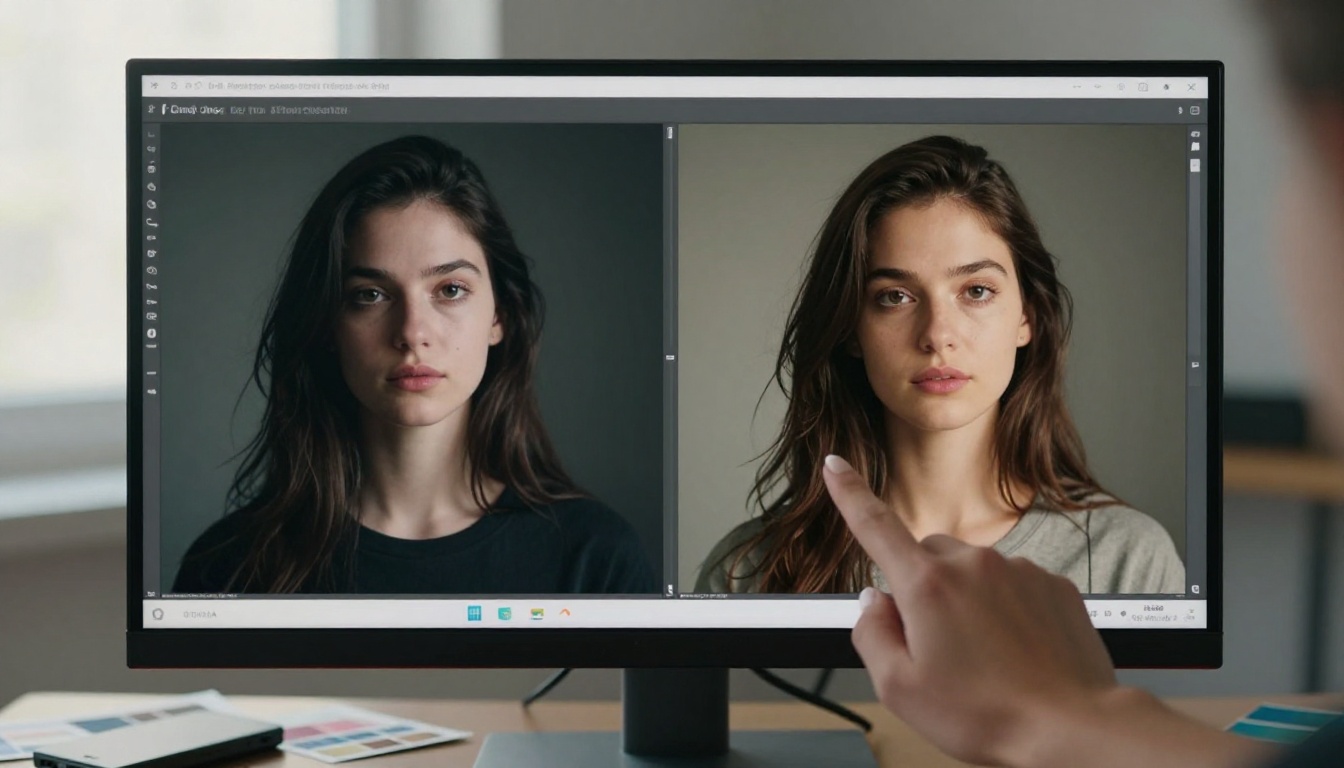
Your First Photo Session
A Simple Workflow for Beginners
If you are new to AI photo editing and want a repeatable starting point, here is a workflow that works without requiring prior experience:
Phase 1 — Define the shot (2 minutes)
Write down the subject, environment, lighting, and mood in plain language. No prompt structure needed yet, just your creative vision in natural language.
Phase 2 — Structure the prompt (3 minutes)
Convert your plain language description into the structured prompt format: Subject + Environment + Lighting + Camera + Texture + Style.
Phase 3 — First generation (1 minute)
Run the prompt on Nano Banana 2 through PicassoIA or Gemini. Look at the output critically.
Phase 4 — Identify one improvement (1 minute)
What is the single most obvious thing that could be better? Lighting too flat? Background too busy? Subject position off? Pick one thing.
Phase 5 — Adjust and regenerate (1-2 minutes)
Change only that one element in the prompt. Generate again. Compare.
Repeat phases 4 and 5 until you have the image you want. Most sessions reach a strong final output within three to five iterations.
Tips for Repeatable Results
Consistency matters if you are producing content at volume. To get repeatable results from Nano Banana 2:
- Save your best prompts in a personal library organized by subject type and lighting condition
- Use a fixed seed value when you want slight variations on an exact composition
- Note which film stock emulations produce the color science you like most for different subject types
- Build a set of base templates from the five prompt structures above and adapt them rather than starting from scratch each time
The creative investment is front-loaded. Once you have a library of prompts that work, producing new high-quality images becomes much faster.

Try Nano Banana 2 Right Now
Everything covered in this article points to one concrete action: open Nano Banana 2 on PicassoIA and run your first prompt. The model is live, fast, and free to experiment with.
Pick a scene from your own creative work or from the prompt templates above. Run it. See what comes back. Adjust one element and run it again. Within fifteen minutes of hands-on time, you will have a better understanding of what this model can do than any amount of reading can give you.
If you want to push further after that first session, explore the other Google models on the platform. Nano Banana Pro steps up the quality ceiling for final outputs. Imagen 4 Ultra offers the highest fidelity in Google's current lineup. And Flux 2 Pro from Black Forest Labs gives you a strong non-Google alternative for complex multi-element scenes.
The tools are all there. The difference between decent AI photo results and genuinely impressive ones is almost entirely in how you write prompts and how consistently you iterate. Nano Banana 2 makes that iteration cycle fast enough that you can actually afford to experiment freely. Take advantage of that.