Veo 3.1 generates impressive clips on a single prompt, but the real power of the model shows up when you push past that first generation and ask it to keep going. Scene extension in AI video is the practice of using a generated clip as a foundation and producing additional footage that continues seamlessly from the last visible frame. It is one of the most requested workflows in AI video production, and with Veo 3.1, it is now more accessible than ever.
The challenge is not just "generate more video." Anyone can produce another clip. The challenge is making two separate generations feel like one continuous take. That requires understanding how the model handles temporal context, motion direction, and subject continuity. Get those three things right, and your scene extensions will be seamless. Get them wrong, and viewers notice the cut immediately.
This article covers the three core methods for extending scenes in Veo 3.1, a step-by-step walkthrough of the process on PicassoIA, and the most common mistakes that destroy continuity before you even finish rendering.
What Scene Extension Actually Does
Frame continuity vs. new generation
When you generate a clip with Veo 3.1, the model produces a fixed-duration output based on your prompt. Scene extension means you take the end state of that clip and provide it to the model, either as context through an image frame or through a carefully crafted continuation prompt, so the next generation picks up where the last one ended.
This is different from generating a completely new scene. A new generation has no visual memory of what came before. Scene extension forces the model to work within constraints set by the previous output, specifically:
- Subject position and appearance at the last visible frame
- Lighting conditions as they existed at the end of the clip
- Motion direction and velocity from the final moments of movement
- Camera angle and depth already established in the previous shot
When these four factors are preserved in your extension prompt or input frame, the seam between clips becomes nearly invisible.
When the model "remembers" what happened
Veo 3.1 does not literally remember your previous generation. It has no persistent state between calls. What it does instead is use the input you provide as its starting point for the next generation. This means either a still frame extracted from the last second of the previous clip, or a carefully structured text prompt that describes the current state of the scene.
This distinction matters because it tells you exactly what information you need to carry forward. The model is not connecting to a session. It is reading a new prompt with new inputs and generating fresh footage. Your job is to make those inputs as close to the end state of the previous clip as possible.
The more precisely your extension inputs match the final visual state of the previous generation, the less the model has to guess, and the better the continuity will be.

3 Ways to Extend a Scene
Prompt-based continuation
The simplest method. You describe the current state of the scene and instruct the model to continue the action. The trick is writing as if you are describing what you see right now, not what happened before.
What works:
- "A woman in a white dress is standing at the edge of a cliff, wind pulling her hair to the left. She begins to turn slowly toward camera."
- "The camera continues its slow push-in toward the abandoned building, morning mist still present at ground level."
What fails:
- "Now continue the video where she starts walking" (vague, no current state described)
- "The same scene from before" (no prior context available to the model)
Think of each extension prompt as a director's cut note where you must re-establish the world as if for the first time, but using the exact visual logic from your previous clip.
Image-to-video chaining
This is the most reliable method. Extract the last frame of your generated clip as a still image, then use it as the starting image for your next generation with Veo 3.1's image-to-video capability. The model treats that frame as Frame 0 of the next clip and builds forward from it.
Steps:
- Export your base clip
- Extract the final frame as a JPEG or PNG
- Upload it as the source image for your next generation
- Write a prompt that describes the next action, not the current state
This approach locks in subject appearance, environment, and lighting automatically because the model can see them in the starting frame. You only need to describe what happens next.
💡 Pro tip: Extract a frame from around 0.5 seconds before the actual end of the clip. The very last frame sometimes contains compression artifacts or motion blur that reduces the quality of the extension start.
Multi-segment prompting
For complex sequences, plan your extension strategy before generating a single frame. Write a shot list for your video broken into 8-12 second segments, each designed to end at a visually stable moment: a character stopping, a camera movement pause, a natural stillness before the next action.
Each segment becomes a separate generation. The ending state of each is designed to be the perfect starting point for the next. This method works especially well for:
- Narrative short films with multiple scenes
- Product demos that move through several camera angles
- Music video sequences with choreographed movement
The planning overhead is higher, but the output quality is significantly more consistent than extending after the fact.
How to Use Veo 3.1 on PicassoIA
Veo 3.1 is available directly on PicassoIA, which means you can run this entire workflow from a single platform without any API setup or local installation. Here is the full process.
Step 1: Write a strong base prompt
Go to Veo 3.1 on PicassoIA and write your initial prompt. Focus on establishing four things:
- Subject: Who or what is the main element?
- Environment: Where are they? What are the specific visual details?
- Action: What is happening right now, not what will happen?
- Camera movement: Is the camera static, panning, or pushing in?
Example base prompt: "A young woman in a camel coat walks slowly through a narrow cobblestone street in Lisbon at golden hour, camera tracking alongside her at medium distance, warm afternoon light casting long shadows across the stones."
Be specific about clothing, lighting direction, and camera angle. These three details are the ones you will need to carry forward into every extension prompt.
Step 2: Generate and analyze the output
Click generate and let Veo 3.1 produce the first segment. Watch the output carefully and note:
- Where does the subject end up at the end of the clip?
- What direction is the camera moving at the final frame?
- What is the lighting state as the clip ends?
- Is any new visual element present that was not in the original prompt?
Write these observations down. They become the inputs for your extension prompt.
Step 3: Extract the last frame
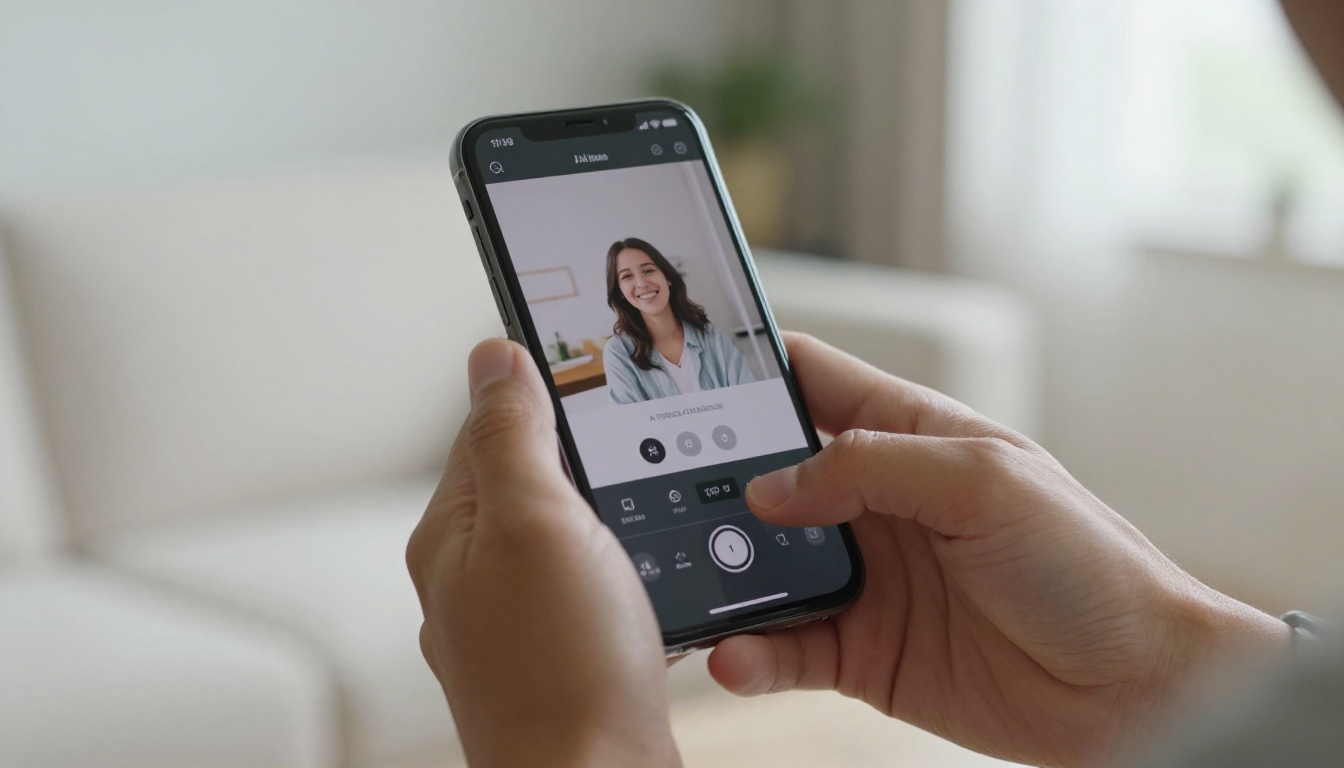
Download your clip. Use any video tool (VLC, a free online frame extractor, or your editing software) to pull the final frame as a still image. Save it at the highest resolution available.
💡 Tip: Name the file descriptively, such as lisbon-scene-clip1-endframe.jpg, so you can track which frame belongs to which generation when working with multiple segments.
Step 4: Upload the frame and write your extension prompt
Back in Veo 3.1 on PicassoIA, use the image-to-video input option. Upload your extracted frame. Now write a prompt describing the next action only:
Example extension prompt: "She pauses at a café entrance, glancing up at the hanging flower pots overhead, the camera continues its slow tracking motion alongside her."
Step 5: Chain segments and build the sequence
Download the extension clip. Evaluate its last frame. Repeat the process as many times as your sequence requires. Each generation adds 5-12 seconds of footage that flows organically from the previous clip.
Sequence building workflow:
| Step | Action | Output |
|---|
| 1 | Generate base clip from text prompt | Clip A (8 seconds) |
| 2 | Extract final frame from Clip A | Frame A-end |
| 3 | Upload Frame A-end, write extension prompt | Clip B (8 seconds) |
| 4 | Extract final frame from Clip B | Frame B-end |
| 5 | Repeat for Clip C, D, E | Full sequence |
Writing Prompts That Continue Correctly
The "last frame" technique
Every extension prompt should begin by describing the exact visual state of the scene at the end of the previous clip, as if narrating what a viewer sees when they pause the video at the last second. Then describe what happens next.
This grounding step tells Veo 3.1 where it is starting before it begins generating. Without it, the model makes different assumptions about the scene's current state and may produce a jarring visual cut.
Temporal cues that work
Certain phrases reliably signal continuation rather than a new scene:
- "...continues walking..."
- "...the camera keeps pushing in..."
- "...she slowly turns, still at the same position..."
- "...motion continues as..."
- "...same shot, now..."
These cues tell the model you want continuity, not a new establishing shot.
What kills continuity instantly
Avoid these in extension prompts:
- Introducing new characters who were not in the previous clip
- Changing the time of day abruptly (ending at golden hour, then writing "at night")
- Switching camera angle dramatically without signaling a cut (e.g., "now from above")
- Describing past events instead of current state ("She had just walked into the room")
- Over-qualifying the scene with new details that create visual conflicts with the previous frame
Veo 3.1 vs Other Video Models
Scene extension is not exclusive to Veo 3.1, but different models handle it with different results. Here is how the top options on PicassoIA compare for extension workflows:
| Model | Temporal Continuity | Image-to-Video Input | Best For |
|---|
| Veo 3.1 | Excellent | Yes | Cinematic, narrative sequences |
| Veo 3.1 Fast | Very good | Yes | Rapid drafts and iteration |
| Kling v3 | Very good | Yes | Character motion, dramatic scenes |
| Runway Gen-4.5 | Good | Yes | Stylized cinematic output |
| LTX-2.3-Pro | Good | Yes | Speed with quality balance |
Veo 3.1 stands out for scenes with complex motion physics, detailed environments, and long sequences where visual drift is a concern. Visual drift refers to the gradual shift in a subject's appearance across multiple extensions. It maintains subject coherence across more chained generations than most competing models.
Veo 3.1 Fast is the right choice when you are testing your prompt chain and need quick previews before committing to full renders. It uses the same model architecture at reduced processing time, which means your prompt strategy translates directly when you switch to the standard version.
4 Common Mistakes That Break Extension
Changing the subject mid-prompt
If your base clip features a woman in a red jacket and your extension prompt says "a person in a dark coat approaches the camera," the model has no reason to maintain the original subject. Be explicit and reference the same descriptors you used in the original prompt.
Broken: "A person walks toward the fountain."
Working: "The woman in the camel coat continues walking, now approaching a stone fountain at the center of the square."
Ignoring motion direction
Motion direction is one of the strongest signals in video continuity. If your base clip ends with the camera pushing in from left to right, your extension prompt needs to maintain that direction. Reversing or breaking the motion vector mid-sequence is one of the most noticeable continuity errors in AI video production.
Always describe the camera and subject motion in the same spatial terms as your original clip. If the camera was tracking left, it continues tracking left unless you deliberately describe a stop or change.
Over-describing the new scene
A common mistake is loading extension prompts with too much new visual information. Every new detail you add is a competing instruction that may override the visual logic from the previous frame. Keep extension prompts lean. Describe the minimum necessary to specify the next action.
💡 Rule of thumb: Your extension prompt should be 30-50% shorter than your original base prompt. The previous frame carries most of the context. You are only adding the next action.
Wrong duration settings
Veo 3.1 allows different output durations. For extension workflows, shorter clips (5-8 seconds) tend to maintain continuity better than longer ones (12+ seconds). The longer a clip runs, the more the model naturally drifts from the starting state. Build your sequence from multiple short clips rather than trying to generate one long perfect output.

Real-World Use Cases
Short films and narrative scenes
The chaining workflow is purpose-built for short film production. A two-minute film requires roughly 15 clip segments, each extending from the previous. Plan your scene breaks at natural visual pauses: a character stopping to look at something, a cut-ready camera position, a moment of stillness before the next action.
Filmmakers working on short films with Veo 3.1 report the best results when treating each 8-second segment as its own shot in a shooting script. Think in shots, not in scenes. Each clip is a line in the shot list, not an act in the story.
Social media content
For short-form content on vertical platforms, extension is useful for building a 30-60 second piece from a 10-second base clip. Generate a strong visual hook in the first clip, then extend it two or three times to reach your target duration. This keeps the visual quality consistent throughout, which is preferable to editing together multiple unrelated generations that were created independently.
Product showcases
When showcasing a product, you often need the camera to orbit, push in, and then hold on a hero angle. This three-step movement is difficult to achieve in a single clip. The extension workflow lets you generate the orbit first, extract its final frame at the close-up position, and extend to the hold shot as a separate generation.
The result is a smooth, intentional camera path that would otherwise require frame-perfect prompting in a single generation. Each movement becomes its own focused generation with a clear start and end state.
Start Building Your First Extended Sequence
The fastest way to see what Veo 3.1 can do is to run through the five-step workflow on a single simple concept. Pick one subject, one environment, and one action. Generate the base clip, extract the final frame, write one tight extension prompt, and compare the two clips side by side. The seam will likely be near-invisible on your first attempt, and from there the workflow scales to any length you need.
PicassoIA puts Veo 3.1, Veo 3.1 Fast, and over 85 other video generation models including Kling v3 and Runway Gen-4.5 all in one place. You can test your extension workflow across multiple models without switching platforms and find the one that fits your specific visual style and pacing needs.
After building your sequence, the platform also has video upscaling, stabilization, and stylization tools to polish the final output. Your extended scene is the foundation. What you build on top of it is where the production value actually shows. Head over to Veo 3.1 on PicassoIA and run your first extension today.


