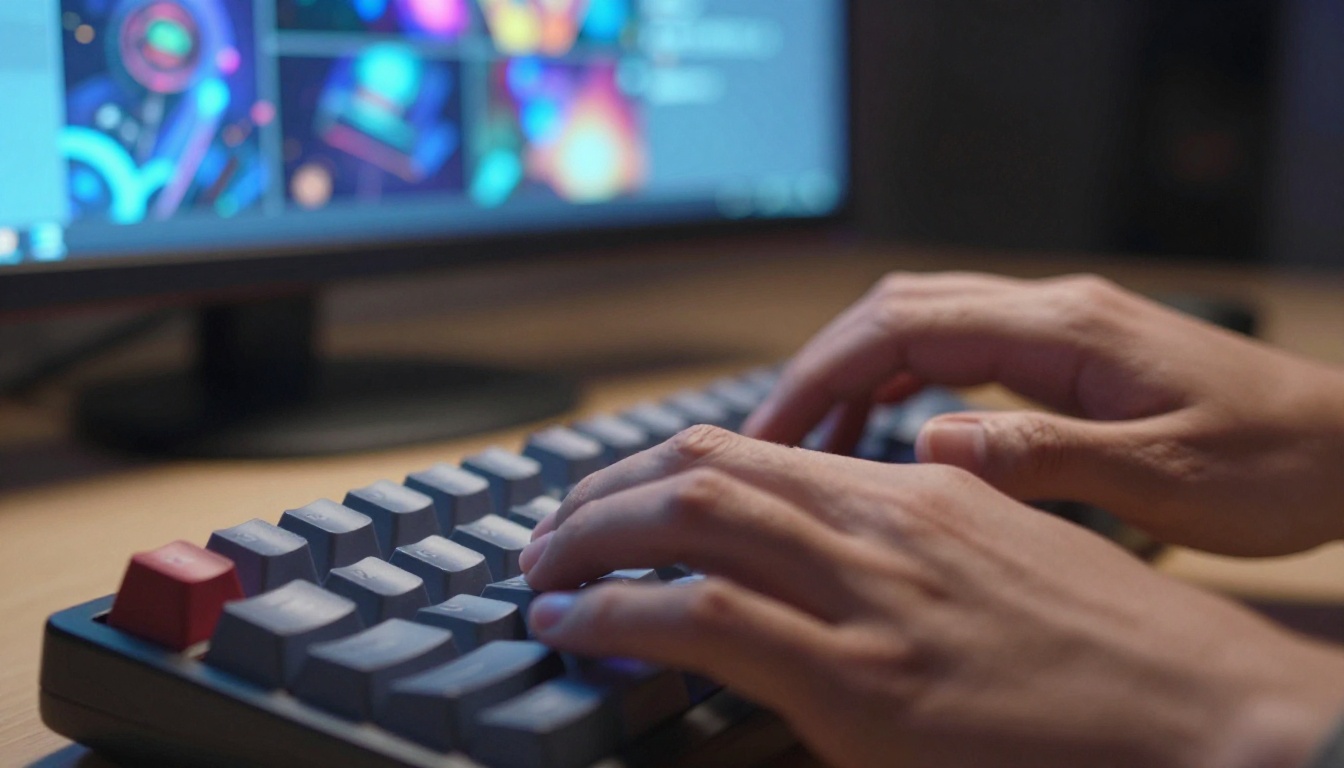
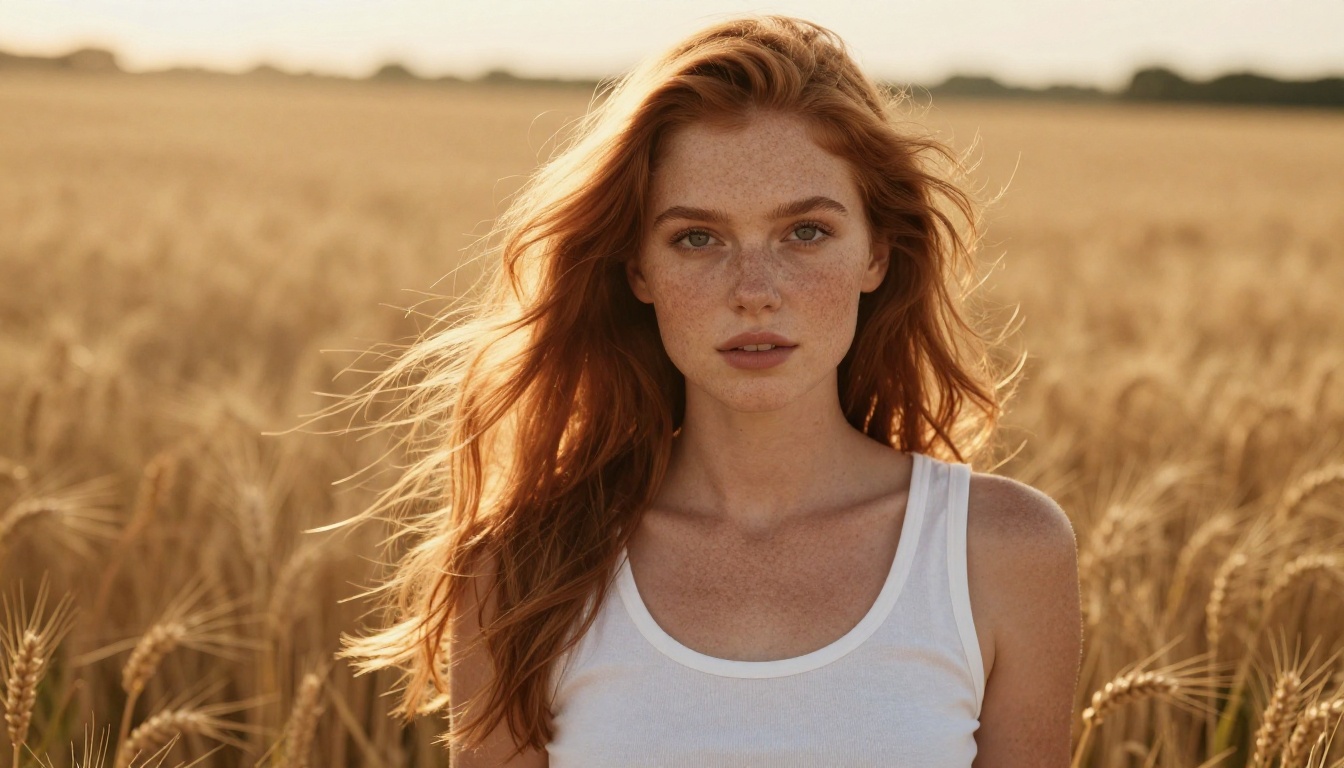
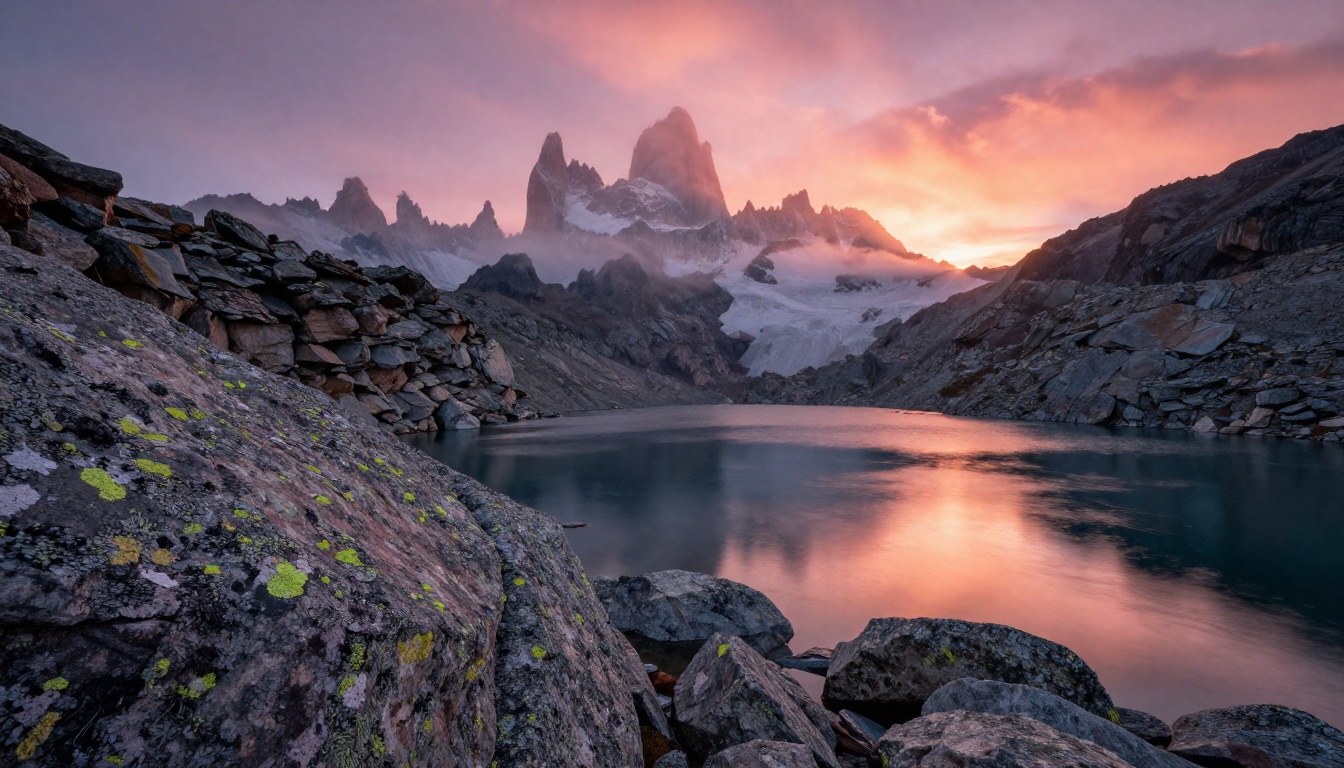
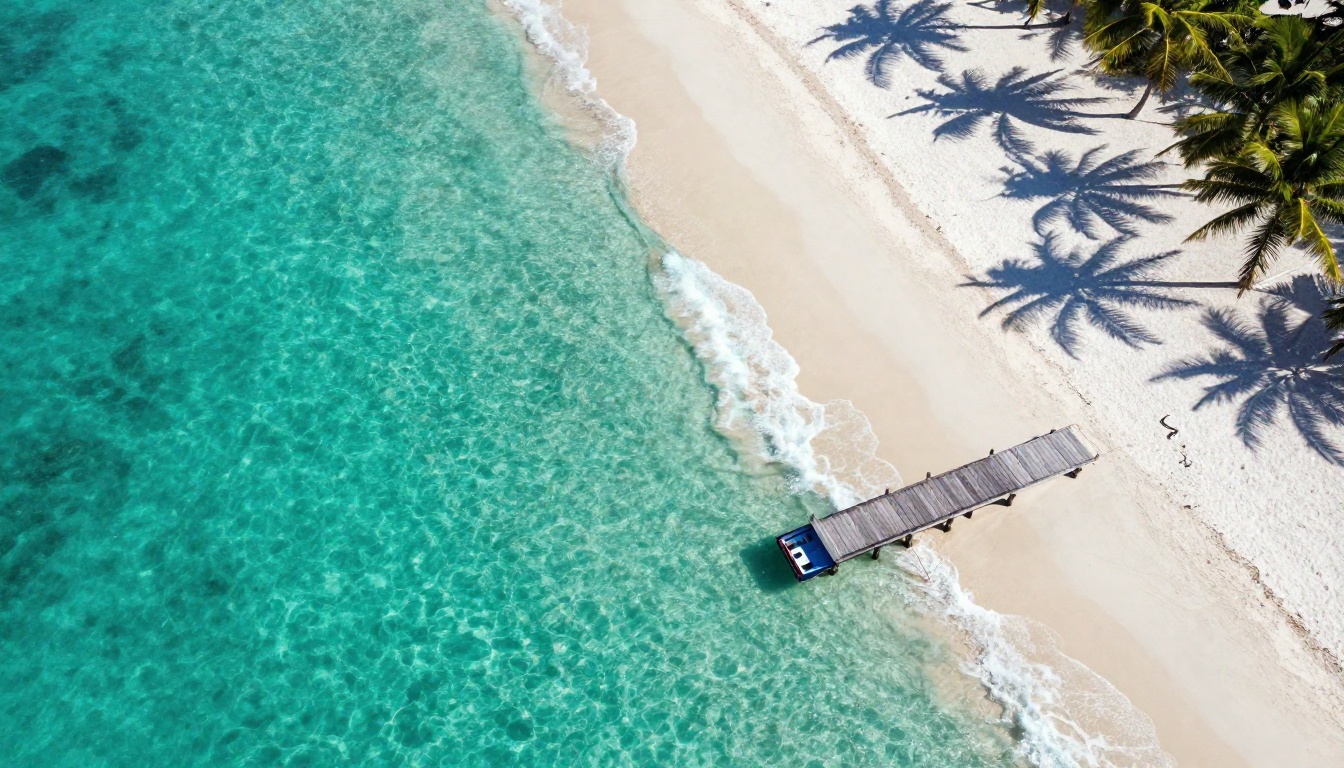
Want to create stunning 4K images without spending a dime? This article breaks down the best free AI image generators, upscaling tools, and prompt strategies that actually produce ultra-sharp, print-ready results. No subscriptions, no fluff, just real output worth sharing.
The first time you see a properly generated 4K AI image, you will wonder why you ever settled for anything less. Sharp rock textures, natural skin pores, detailed wood grain, morning mist drifting over mountain peaks. These details simply do not exist at lower resolutions. The good news: you do not need a paid subscription or expensive software to create them. Free tools exist right now, and this article shows you exactly how to use them.
What "4K" Actually Means in AI Images
Resolution vs. Quality: Two Different Things
"4K" in traditional photography means a horizontal resolution of roughly 3840 pixels. In AI image generation, the terminology gets used loosely. A model can output an image at 1024x1024 and call it "high resolution." That is not 4K. True 4K output for AI means either generating directly at 3840x2160 pixels (very few free models can do this natively) or generating at a mid-range resolution and applying AI upscaling to reach 4K without losing detail.
Both approaches work. Which one you choose depends on what you need the image for. For most people, the generate-then-upscale workflow produces excellent results with zero additional cost.
Why 4K Matters for Prints and Large Screens
If you are creating images for social media thumbnails, 1080p is often enough. But for anything going on a wall, a large screen, or a professional context, 4K is the floor, not the ceiling.
Use Case
Minimum Resolution Recommended
Large-format print (A2 and above)
3840x2160 (4K)
Wallpapers for 4K monitors
3840x2160
Commercial stock photography
4K or higher
Framed canvas prints
4K minimum
Digital billboards
4K or higher
The Best Free AI Models for Sharp Images
Flux Dev: The Free Benchmark
Flux Dev by Black Forest Labs is currently the strongest free text-to-image model available. It outputs at up to 1440x1440 natively, with remarkable coherence in textures, lighting, and anatomy. The detail in fabric folds, skin, and natural environments is noticeably better than older open-source models.
For 4K output, generate at maximum native resolution with Flux Dev, then run the result through an upscaler. The quality holds exceptionally well through that process.
Tip: Use Flux Schnell when you want rapid iterations. Switch to Flux Dev when you want the best possible base image for upscaling.
Flux 1.1 Pro Ultra: Native High Resolution
Flux 1.1 Pro Ultra is the highest-end option from Black Forest Labs. It supports significantly higher native output resolutions than its Dev counterpart and adds superior detail reproduction for textures and fine structures. When absolute sharpness matters from generation to delivery, this is the model to reach for.
Stable Diffusion 3.5 Large: Open Source Power
Stable Diffusion 3.5 Large is Stability AI's most capable open-weight model. It handles photorealistic prompts extremely well and produces clean, sharp outputs at high resolutions. The model architecture allows for detailed prompt following, meaning the more specific your description, the sharper the result.
SDXL: Reliable and Widely Supported
SDXL by Stability AI remains one of the most widely used models for high-quality image generation. While newer models have surpassed it in raw detail, SDXL's strength is consistency and broad community support. Thousands of fine-tuned versions exist, and it integrates seamlessly with upscaling pipelines. If you want predictable, clean output that upscales well to 4K, SDXL delivers every time.
GPT Image 2: OpenAI's Realism Leader
GPT Image 2 brings OpenAI's image generation into a new tier of realism. It produces images with nuanced lighting, accurate proportions, and strong photorealistic textures. For portraits and lifestyle imagery, it consistently delivers one of the most accurate models currently on the platform.
How to Get True 4K from Any AI Generator
The Generate-Then-Upscale Method
Very few free models generate native 4K output. The practical workflow used by professionals is straightforward:
Generate at maximum native resolution (typically 1024px to 1440px depending on the model)
Apply AI upscaling to 4x the original (reaching approximately 4096px)
Sharpen if needed using a secondary detail-recovery model
This two-step approach consistently produces better results than attempting to generate at lower resolution in a single pass. The upscaling models available today are exceptionally good at inferring missing detail rather than simply stretching pixels.
Write Prompts That Force Detail
The quality of your source image determines the quality of your upscaled result. A blurry, low-detail base image upscales into a blurry, slightly larger image. To force detail into the generation, include these elements in every prompt:
Camera lens: "85mm f/1.8", "50mm f/2.0", "16mm f/8"
Film stock: "Kodak Portra 400", "Fujifilm Velvia 50"
Tip: Think like a photographer, not a painter. Describe the physical conditions of the scene, not just what it looks like aesthetically. Specific physical details produce specific, sharp results.
Super-Resolution: From 1080p to 4K in Seconds
Real ESRGAN: The Industry Standard
Real ESRGAN is one of the most battle-tested upscaling models available. It upscales images 4x while actively restoring detail, texture, and sharpness that may have softened during generation. It handles portraits with natural skin detail, landscapes with fine environmental texture, and architecture with sharp edges and material definition. The model runs quickly and produces output nearly indistinguishable from natively captured high-resolution photography.
Topaz Image Upscale: Maximum Detail at 6x
For situations where you need the absolute maximum resolution, Topaz Image Upscale goes beyond 4K. It supports up to 6x upscaling, which means a 1024px source becomes approximately 6144px output. This is print-ready at almost any size. Topaz is particularly strong with complex backgrounds containing natural elements, images requiring edge clarity alongside soft backgrounds, and any scene with mixed sharp and soft focus areas.
Crystal Upscaler: Built for Portraits
Crystal Upscaler was specifically designed for portrait photography and faces. It applies targeted detail recovery to facial features, hair, and skin while preserving natural-looking softness in backgrounds. If your 4K images feature people, this model produces the most natural-looking facial detail of any upscaler currently available.
Bria Increase Resolution: Fast and Clean
Bria Increase Resolution offers clean 4x upscaling with minimal artifacting. Its strength is speed and consistency across image types. For batch processing or rapid iteration where you need 4K output without fine-tuning the upscale, this is the efficient choice.
How to Use Flux Dev on PicassoIA
PicassoIA gives you access to Flux Dev and the full super-resolution suite in one place, without needing to manage local installations or API keys.
"A woman with curly dark hair in a white linen dress standing on a sunlit cobblestone street in Lisbon, warm late afternoon light casting long shadows, 85mm f/1.8 lens, visible fabric texture on dress, photorealistic skin with natural pores, RAW 8K photography, Kodak Portra 400 film grain"
Step 3: Set Output to Maximum Resolution
In the settings panel, push the width and height sliders to their maximum values. Higher native resolution means less upscaling needed and better final quality.
Step 4: Generate and Review
Run the generation. Review the output critically: check edges, skin or surface textures, and lighting consistency. If any element looks soft or smeared, refine your prompt with more specific physical descriptors.
Step 5: Apply Upscaling
Take the generated image and run it through Real ESRGAN or Topaz Image Upscale to reach true 4K resolution. Download the result.
Prompt Strategies That Actually Work
The difference between a mediocre AI image and a stunning 4K result often comes down to how the prompt is written. Here is a breakdown of what works:
Prompt Element
Weak Version
Strong Version
Subject
"woman standing"
"woman with auburn hair and freckles standing relaxed"
Environment
"on a street"
"cobblestone street in old Lisbon at golden hour"
Lighting
"good lighting"
"volumetric afternoon light from left, long shadows"
Camera
"high quality"
"85mm f/1.8, shallow depth of field, bokeh background"
Texture
none
"visible fabric weave, natural skin pores, film grain"
Resolution
none
"RAW 8K photography, Kodak Portra 400"
Adding camera lens specification alone improves detail coherence noticeably. Adding film stock references shifts the color grading and grain texture toward photorealism. Both of these elements are things photographers understand instinctively. AI models respond to them the same way.
Tip: Avoid abstract aesthetic descriptors like "beautiful" or "stunning." Instead, describe what makes something beautiful: the specific light direction, the texture of a material, the distance and angle of the camera.
5 Mistakes That Kill Image Sharpness
1. Generating at Low Resolution First
Generating small to "save time" and then upscaling produces mediocre results. The upscaler can only work with the information present in the source image. Start at maximum resolution every single time.
2. Writing Vague Prompts
"A beautiful landscape" tells the model almost nothing. Every detail left unspecified gets filled with an average of what the model has seen during training. Averages look average. Specific prompts produce specific, sharp images.
3. Skipping the Upscale Step
Even the best generator at 1440px is not 4K. The upscale step is not optional if you want print-quality output. Run every final image through Real ESRGAN or Topaz Image Upscale before downloading.
4. Ignoring Lighting in the Prompt
Lighting is what makes photography feel real. An image without specific lighting descriptions defaults to flat, directionless illumination. Always specify where the light comes from, what time of day it is, and what quality it has (hard vs. soft, warm vs. cool).
5. Accepting the First Result
The first generation is almost never the best one. Run 3-5 variations with slightly different prompt phrasing. Pick the sharpest, most coherent result, then upscale that one. Iteration is the actual workflow of anyone who consistently produces high-quality AI images.
Create Your First 4K Image Right Now
Every technique in this article is available on PicassoIA today. From Flux Dev and Flux 1.1 Pro Ultra for high-resolution base generation, to Real ESRGAN, Crystal Upscaler, and Topaz Image Upscale for pushing images into true 4K territory. The workflow is straightforward: generate at the highest available native resolution, upscale with a model that preserves and adds detail, and write prompts that describe physical reality rather than vague aesthetics.
The tools are free. The quality ceiling is high. The only variable is the prompt you write.
Open Picasso IA and run your first generation. Pick a subject you actually care about, spend 60 seconds writing a detailed prompt using the camera and lighting techniques above, and see what comes out. Then upscale it. The difference will be immediate.