ByteDance just changed what free AI video generation looks like. Seedance 2.0 combines text-to-video, image-to-video, and native audio output in a single model, and right now you can run it without paying a cent. This piece walks you through exactly how to do that, from writing your first prompt to downloading a polished clip ready to post anywhere.
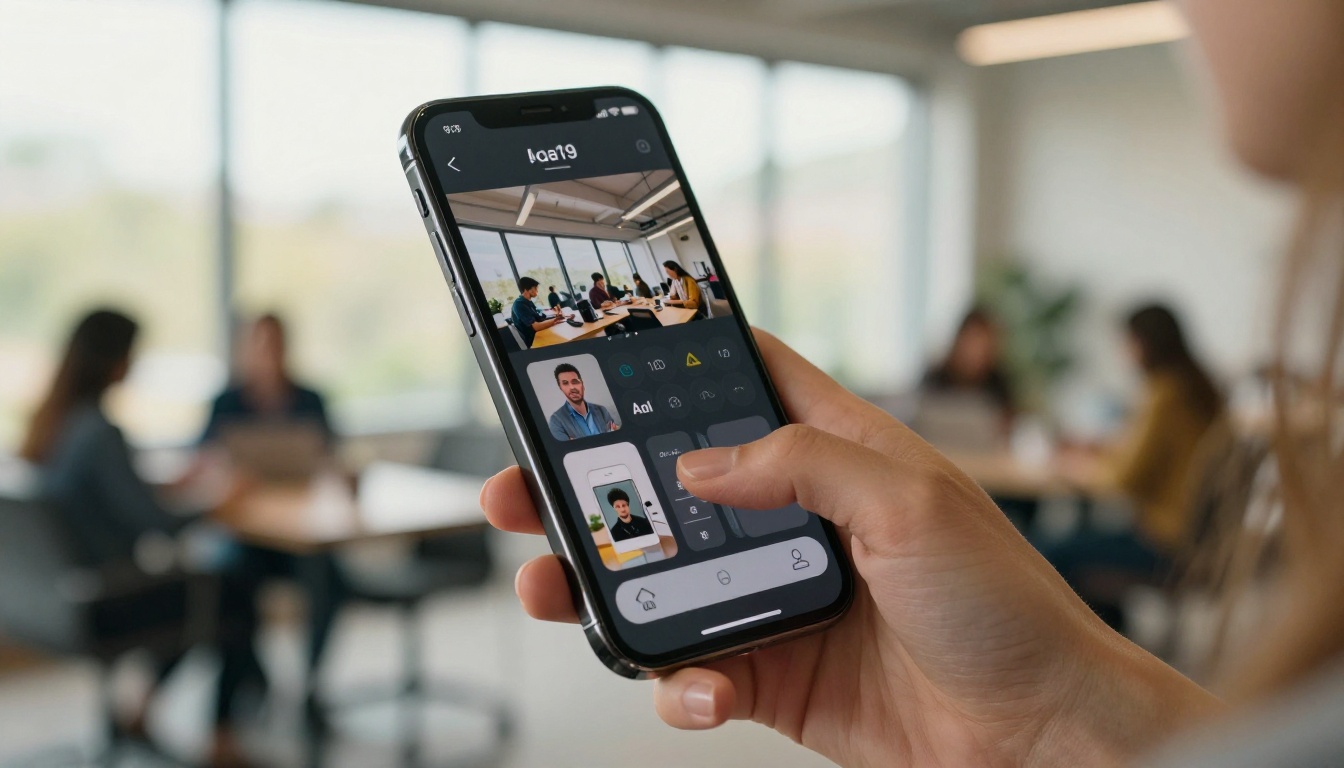
What Seedance 2.0 Actually Does
Before you type your first prompt, it helps to know what this model is actually built for. Seedance 2.0 is a second-generation video generation model from ByteDance. It does not just generate silent video clips. It produces video with ambient and contextual audio baked directly into the output, which puts it in a completely different category from most free alternatives.
Native Audio Built Right In
Most video generation models output silent clips. You then have to add sound manually, either by sourcing music, generating speech, or recording your own audio. Seedance 2.0 skips all of that. It analyzes the scene being generated and produces appropriate ambient sound automatically. A video of ocean waves will sound like ocean waves. A city street clip will have the rumble of traffic and distant voices.
This is not a small detail. For creators who want to publish content fast, native audio alone saves significant time in post-production. You get a video with sound on the first render.
Text and Image Inputs Both Work
The model accepts two types of input. You can write a text prompt describing the scene you want, or you can upload an image and have it animated into a video clip. This dual input method makes it useful for a much wider range of projects than pure text-to-video tools.
If you have a product photo, a portrait, or a still from another project, you can feed it directly to Seedance 2.0 and request a specific motion. The model will animate it while preserving the original visual composition.

How to Use Seedance 2.0 on PicassoIA
PicassoIA gives you direct access to Seedance 2.0 without needing a Replicate account, API keys, or any technical setup. The interface is simple and works in a browser on any device.
Step 1 - Open the Model Page
Go directly to the Seedance 2.0 model page. You will see a clean interface with a prompt field at the top, an optional image upload area, and settings for resolution and duration below. No installation, no downloads.
Tip: Bookmark this page. You will come back to it more than once once you see what it can produce.
Step 2 - Write Your Prompt
The prompt field is where most of the creative work happens. Seedance 2.0 responds well to descriptive, scene-based prompts. Think of it less like a search query and more like a film direction note. Tell it what is in the frame, how things are moving, what the light looks like, and what the mood is.
Here is the difference between a weak and a strong prompt:
| Weak Prompt | Strong Prompt |
|---|
| A woman walking | A woman in a beige trench coat walking slowly through a rain-soaked cobblestone street at night, golden streetlights reflecting on wet stones, cinematic |
| A sunset | Golden hour over a calm ocean, warm amber light, long shadows on the water, slow camera push forward, photorealistic |
| A cat | A tabby cat sitting on a windowsill, morning light from the left, curtains moving gently in the breeze, close-up, natural |
The more specific you are about motion, lighting, and framing, the better the result. Treat each prompt like a camera direction.
Step 3 - Set Duration and Resolution
Below the prompt, you will find two important controls:
- Duration: Most free runs support 4-second and 8-second clips. Start with 4 seconds while you test prompts. Once you find a combination that works, increase to 8 seconds for more polished output.
- Resolution: The standard option is 720p. This is enough for social media posts, presentations, and previews. Higher resolutions are available but may require additional credits.
Tip: For testing prompt ideas, always use 4 seconds at 720p. It is faster and you get feedback quickly without burning through credits.
Step 4 - Run and Download
Click Generate. The model will queue your request and render the clip in the background. Depending on server load, this typically takes between 30 seconds and 3 minutes. Once the video is ready, it appears in your output panel. Click to preview in the browser, then download the file directly to your device.

Writing Prompts That Work
Prompt quality is the single biggest factor in your output quality. The model is capable of producing cinematic results, but it needs the right input to do so.
What to Include in Every Prompt
A well-structured Seedance 2.0 prompt should always include these five elements:
- Subject: Who or what is in the frame (a woman, a car, a forest)
- Action: What is happening (walking, panning across, falling, glowing)
- Environment: Where it takes place and what surrounds the subject
- Lighting: Direction, color temperature, and quality of light
- Camera instruction: Angle, movement, and style (close-up, slow push, aerial drift)
Adding a sixth element, mood or tone, makes a significant difference. Words like "cinematic," "melancholic," "joyful," or "tense" shift the visual treatment noticeably in the final output.
5 Prompts for Cinematic Results
These prompts are ready to paste directly into Seedance 2.0:
-
Urban twilight: A woman in a long red coat standing at a rain-wet intersection in a city at blue hour, car headlights reflecting on the road, slight breeze moving her hair, slow dolly forward, cinematic
-
Nature close-up: Macro shot of water droplets falling on a green leaf in a rainforest, morning light filtering through the canopy above, shallow depth of field, slow motion
-
Interior warmth: A cozy coffee shop in the early morning, steam rising from a white ceramic cup on a wooden table, soft natural light from a window to the left, bokeh background, peaceful
-
Ocean aerial: Aerial drone view slowly descending toward a calm turquoise ocean at golden hour, small waves catching the light, horizon stretching endlessly, cinematic, photorealistic
-
Portrait in motion: A young man in a white linen shirt standing in a sunlit wheat field, wind moving the field in waves around him, looking into the distance, warm afternoon light, 35mm film look
Each of these will produce a usable clip on the first try with a well-performing model like Seedance 2.0.

Seedance 2.0 vs Seedance 2.0 Fast
PicassoIA also offers Seedance 2.0 Fast, a lighter version of the same model. Both are worth having in your workflow, but they serve different purposes.
| Feature | Seedance 2.0 | Seedance 2.0 Fast |
|---|
| Output Quality | Highest | Good |
| Generation Speed | Slower | Significantly faster |
| Native Audio | Yes | Yes |
| Best For | Final output, portfolio, publishing | Rapid testing, iteration |
| Credit Cost | More | Less |
When to Use the Fast Version
Use Seedance 2.0 Fast when you are experimenting with prompts. It is the best way to test five or six different creative directions quickly without consuming too many credits. Once you identify the prompt structure that gives you the look you want, switch to the full Seedance 2.0 for the final render.
Think of it as a draft/final workflow. Fast for sketching, full for delivery.
Other Free Models Worth Using
Seedance 2.0 is not the only free video model available on PicassoIA. Depending on what you are building, these alternatives are worth knowing about.
LTX-2 Distilled
LTX-2 Distilled from Lightricks is one of the fastest free text-to-video models currently available. It is built on a distilled architecture, which means it produces results in fewer inference steps than most models. The tradeoff is that it handles complex prompts less gracefully than Seedance 2.0, but for simple motion clips it is very fast.
Best for: Quick social media clips, background loops, simple motion content
Wan 2.6 T2V
Wan 2.6 T2V is an open-source model from Wan Video with strong prompt adherence. Where Seedance 2.0 excels at cinematic scenes, Wan 2.6 is particularly strong at following precise prompt instructions with good consistency across multiple renders. If you need to produce similar clips in bulk with repeatable results, Wan 2.6 is worth testing.
There is also Wan 2.6 I2V for image-to-video conversion, which works well alongside static assets like product photos or portrait images.
What to Do After Your Video Is Ready
Generating the clip is only part of the workflow. Here is how to take it further without leaving the platform.
Add AI Music
PicassoIA has a dedicated AI Music Generation section with models that create custom background tracks from text prompts. Describe the mood or genre you want ("upbeat acoustic, morning energy" or "cinematic tension, minimal percussion") and you get an original track that fits your clip. This pairs well with Seedance 2.0 outputs that already have ambient audio but benefit from a music layer on top.
Try Lipsync
If you are using a portrait or talking character clip, the Lipsync models on PicassoIA can sync mouth movements to any audio input. This is useful for branded content, explainer videos, or social posts where a character needs to appear to be speaking. The output quality on the best available lipsync models has improved significantly and produces realistic results even on AI-generated faces.
Common Mistakes That Ruin Results
Even with a good model, certain patterns consistently produce poor outputs. Avoid these:
Overly abstract prompts. Prompts like "something beautiful and emotional" give the model nothing concrete to work with. Ground every prompt in physical reality: objects, places, actions, lighting.
Too many subjects at once. Asking for "a woman, a man, a dog, and a car all moving in different directions" creates visual chaos. Start with one or two subjects maximum.
Ignoring camera instruction. Without a camera note, the model often defaults to a static mid-shot. Adding a simple instruction like "slow dolly in," "aerial pan," or "handheld close-up" dramatically changes the feel of the output.
Skipping the mood word. Adding a single word like "melancholic," "joyful," "tense," or "serene" at the end of your prompt has a measurable effect on color grading and pacing choices the model makes.
Generating at full settings during testing. Running every test at max duration and max resolution wastes credits. Test at 4 seconds and 720p. Finalize at 8 seconds and higher resolution only when the prompt is confirmed.

How Seedance 2.0 Fits Into a Broader AI Workflow
One video clip is rarely a finished product on its own. Here is how Seedance 2.0 slots into a larger production pipeline:
- Start with an image: Use a text-to-image model to generate the exact visual you want, then feed it to Seedance 2.0 as an image-to-video input. This gives you precise control over the first frame.
- Upscale the output: After generating your clip, run it through an AI video enhancement tool to increase resolution and sharpen detail, particularly if you are publishing on larger screens.
- Add voiceover: Use a text-to-speech model on PicassoIA to generate a narration track, then combine it with your Seedance clip in any basic video editor.
- Layer in music: AI music generation models can produce a full original score timed to your clip in minutes.
This chain takes a single text prompt and turns it into a fully produced video asset with music, voice, and motion. All of the tools for each stage are available on PicassoIA, many of them free.
Start Making Videos Right Now
Everything in this article comes down to one action: open Seedance 2.0 and type your first prompt. The model is available, it is free to use, and the quality ceiling is high enough to produce work worth publishing.
Start with one of the five prompts listed earlier in this article. See what comes out. Then adjust a word or two and run it again. The fastest way to build intuition for AI video generation is to generate a lot of video. Seedance 2.0 makes that possible without any upfront cost.
If you want to go further, PicassoIA has over 87 video generation models in one place, including Seedance 2.0 Fast for rapid testing, LTX-2 Distilled for speed, and Wan 2.6 for precision. You can experiment with all of them from the same dashboard, with the same credits, without switching between multiple platforms.
The tools are there. The access is free. What you make with them is entirely up to you.


