Sora 2 Cameo is the feature that changes everything about how you appear in AI-generated video. Instead of watching nameless characters walk through cinematic scenes, you become the character. Your face, your likeness, your presence placed inside worlds that exist only because a model imagined them.
The catch is that most breakdowns skip the details that actually matter: what Cameo reads from your reference image, how to write prompts that keep your identity intact throughout the clip, and what the common failure points are. This article covers all of that, including a step-by-step walkthrough on PicassoIA and a comparison with the best alternative models for AI video self-insertion.
What Sora 2 Cameo Actually Does
The Cameo Feature Explained
Cameo is Sora 2's personalization layer. When you attach a reference image or short video clip of yourself to a generation request, the model uses it to anchor the visual identity of the main subject. It doesn't just drop a face onto a body. It reads posture, skin tone, hair texture, facial proportions, and tries to maintain consistency across every frame of the generated clip.
The result is a video where you appear as the protagonist, placed into whatever environment your text prompt describes. Stand on a cliff at sunset. Walk through a rain-soaked Tokyo alley at night. Sit in a vintage French cafe. The setting is yours to define through language.
Why It's Different from Face Swap
Face swap tools and Cameo operate on fundamentally different logic. A traditional AI face swap takes an existing video and replaces one face with another in post-processing. The body, movement, and lighting already exist. The tool is only substituting pixels.
Cameo generates from scratch. There is no pre-existing footage. The model synthesizes every frame, every lighting condition, every shadow and reflection. Your likeness is baked into the generation from the very beginning, not pasted on afterward. That's why the results can look so natural when the prompt is written correctly.
What You Need Before You Start
Your Reference Photo or Video
The quality of your output depends heavily on what you feed the model. These are the parameters that matter most:
For reference photos:
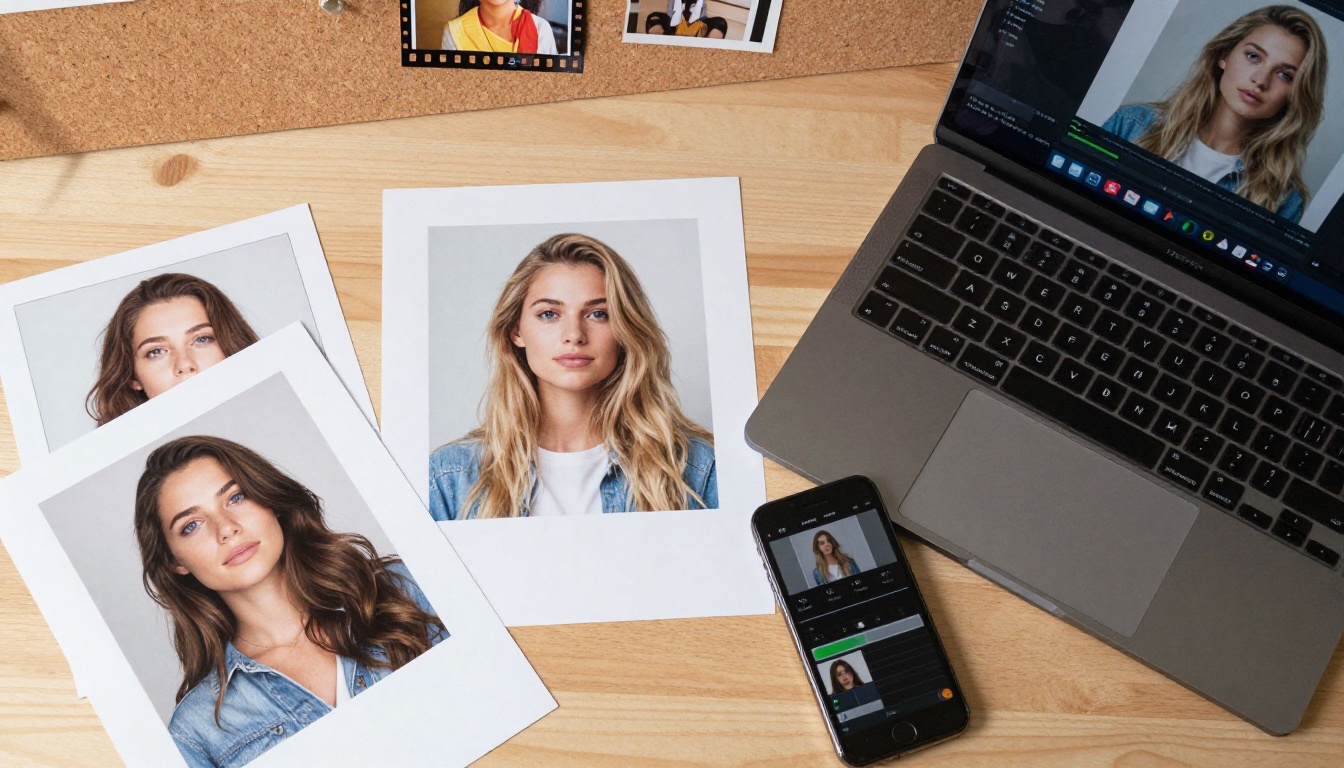
- Straight-on or three-quarter angle face shots perform best
- Consistent, neutral lighting across the face (avoid harsh one-sided shadows)
- Resolution of at least 512x512 pixels, ideally 1024x1024 or higher
- No heavy filters, heavy blurring, or extreme color grading
- Clear visibility of hair texture, skin tone, and full facial features
For reference video clips:
- 3 to 10 seconds is sufficient
- Natural head movement helps the model read facial geometry and depth
- Avoid backgrounds with strong competing colors
- Simple, clean clothing that doesn't dominate the frame
💡 Tip: A quick 5-second selfie video recorded in natural window light often outperforms a heavily edited portrait photo. Movement gives the model more data about your actual three-dimensional facial structure.

Access to Sora 2
Sora 2 is available directly on PicassoIA. You don't need a separate OpenAI account or subscription. The platform handles all the API calls and stores your output to your account.
If you want higher resolution outputs and longer clip durations, Sora 2 Pro gives you access to the more capable version of the model. The Cameo personalization functionality works across both tiers.
Step-by-Step on PicassoIA
Step 1: Open Sora 2
Go to the Sora 2 model page on PicassoIA. You'll see the generation interface with a text prompt field and an option to attach a reference image or video. Click the attachment icon in the input area to activate Cameo mode.
Step 2: Upload Your Reference
Drag and drop your reference file, or click to browse your library. The interface accepts JPG, PNG, MP4, and MOV formats. Once uploaded, a small thumbnail confirms the file was received. At this point the model has the information it needs to know who to place inside the video.
Step 3: Write Your Prompt
Your text prompt now describes the scene, not the person. Since your likeness comes from the reference, the prompt focuses entirely on context:
- The environment: Where does the scene take place?
- The action: What are you doing in the scene?
- The time and light: Day, night, sunset, overcast?
- The camera movement: Static, slow pan, tracking shot, handheld?
- The mood: Calm, dramatic, playful, melancholic?
Example prompt: "The person walks slowly through a misty Japanese bamboo forest in early morning fog, sunlight filtering between stalks, slow-motion tracking shot from behind, cinematic 24fps, Kodak grain"
💡 Tip: Do not describe what the person looks like in the prompt. That information comes from your reference. Describing physical appearance again creates a conflict and often produces inconsistent results.
Step 4: Set the Parameters
These are the key parameters to set before hitting generate:
| Parameter | Recommended Value | Why It Matters |
|---|
| Duration | 5 to 10 seconds | Long enough to be usable, short enough to maintain quality |
| Resolution | 1080p | Preserves the facial detail from your reference image |
| Motion intensity | Medium | High motion increases the risk of facial drift and distortion |
| Seed | Fixed (optional) | Useful for iterating on the same base generation without random variation |
Step 5: Generate and Preview
Hit generate and wait. Sora 2 takes longer than lighter models. Depending on server load and clip length, expect anywhere from 60 seconds to a few minutes. Once the clip renders, preview it directly in the interface before downloading.
If the likeness feels off in the first result, the fastest fix is almost always the reference image itself. Swap it for one with better lighting or a cleaner angle before adjusting your text prompt.
Writing Prompts That Work
Subject Placement in the Scene
The model needs to know where you are in the frame and what you're doing. Vague prompts produce vague results. Compare these two approaches:
Weak: "A person walking outside"
Strong: "The person walks along a narrow cobblestone lane in a rainy European city at night, amber streetlamps reflecting on wet pavement, mid-shot from behind, cinematic color grading"
The strong version tells the model the environment, the weather, the light source, the camera distance, and the visual style. Each additional detail narrows the range of outputs and produces more precise results.
Environment and Atmosphere
Think of your prompt as a cinematographer's brief. Include as many of these as are relevant:
- Primary light source: Where is the light coming from? Is it warm or cool?
- Background depth: Is there a skyline, landscape, or interior behind the subject?
- Atmospheric conditions: Fog, dust, rain, snow, heat haze?
- Time of day: Dawn, midday, golden hour, blue hour, night?
- Color palette: Warm tones, cool shadows, desaturated or vibrant?
These elements matter more than they appear to. The model uses them to calculate how light falls on your face and how your figure physically interacts with the environment.
Style and Mood Keywords
Adding cinematic style descriptors at the end of your prompt consistently improves output quality with Sora 2. These are the ones that produce the strongest results:
- cinematic 4K, Kodak Vision 3, 35mm film grain
- shallow depth of field, anamorphic bokeh
- documentary style, handheld camera movement
- slow motion, cinematic color grading
- golden hour warmth, cool blue-violet shadows
💡 Tip: Avoid requesting specific camera brands or focal lengths. The model responds better to lighting and mood descriptors than to technical hardware specifications.
Sora 2 vs. Other AI Avatar Models
Not every AI video tool puts you inside a scene the same way. Here's how the main options compare for personalized AI video generation:
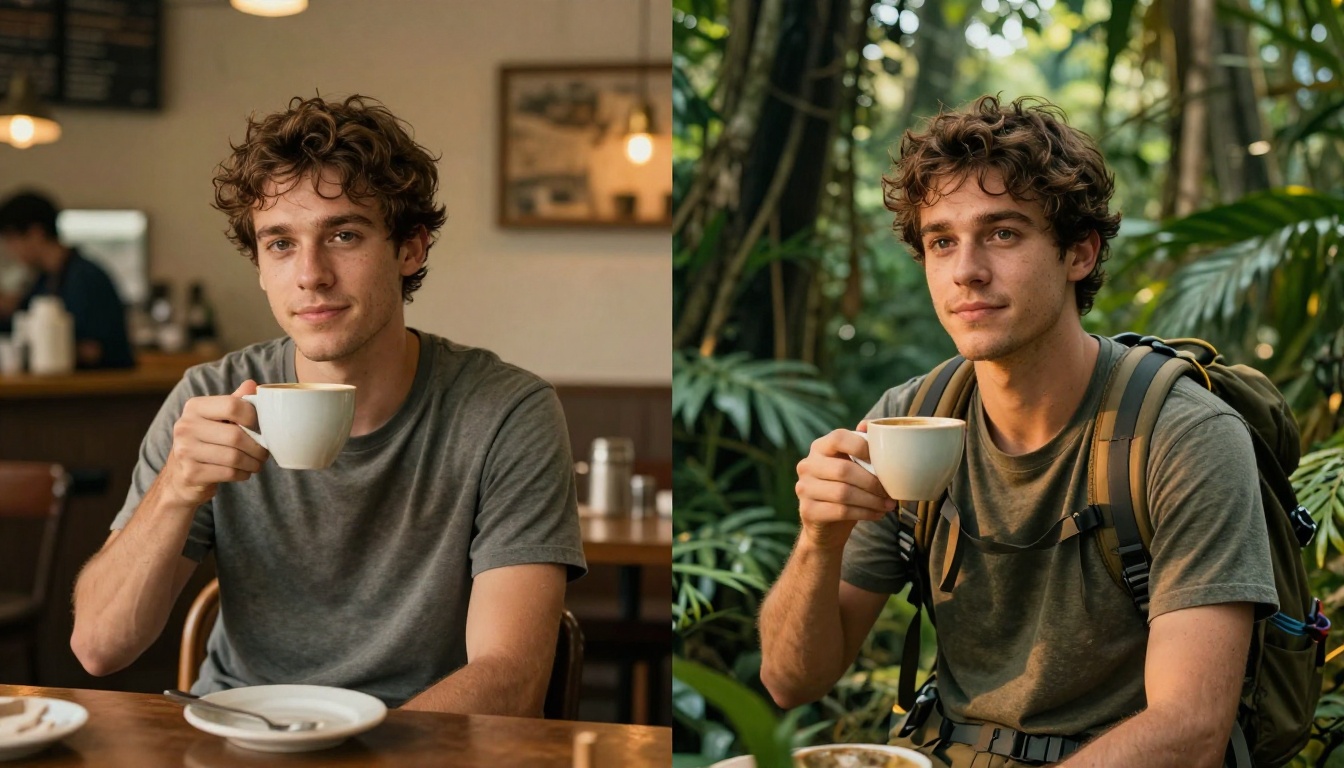
Sora 2 leads on creative range because the entire scene is generated fresh from your prompt. Alternative models work with animation, pose transfer, or character replacement, which constrains what the final environment can look like. If maximum creative freedom is the goal, Sora 2 Cameo is the strongest option available right now.
3 Common Mistakes to Avoid
1. Using a Low-Quality Reference
This is the single biggest reason Cameo results disappoint. A blurry selfie, a heavily filtered portrait, or an image where the face is partially obscured gives the model almost nothing to anchor to. The output will be inconsistent at best and unrecognizable at worst.
Fix: Use the best quality photo you have. Natural light, clean background, face in sharp focus. A modern smartphone in good light is more than sufficient.
2. Describing Appearance in the Prompt
When you already attached a reference image, adding physical appearance descriptions to the text prompt creates a direct conflict. If your reference shows dark hair and the prompt includes "blond person walking through the park," the model has to choose one source. It frequently chooses the text description.
Fix: Let the reference handle all appearance information. Let the prompt handle environment, action, lighting, and mood only.
3. Setting Motion Intensity Too High
High motion settings produce more dynamic clips, but they also increase the probability that facial features drift, blur, or distort mid-video. A clip where your face looks accurate in the first few frames and unrecognizable by the end has no practical use.
Fix: Start at medium motion intensity. Increase only after you have a generation that already holds a strong likeness throughout the full duration.
Other Ways to Put Yourself in Videos
Sometimes full scene generation isn't what you need. If you already have existing footage and want to place yourself into it, or if you want to animate a still portrait photo, there are specific models designed exactly for those cases:
DreamActor-M2.0
DreamActor-M2.0 from ByteDance animates a single character photo using a reference motion video. Upload your portrait, upload the motion you want to copy, and the model transfers that movement onto your likeness. It's well-suited for dance content, presentation videos, or any scenario where you need a specific body motion replicated.
Kling Avatar V2
Kling Avatar V2 is purpose-built for avatar-style video. It specializes in talking head content: a still photo of your face becomes a speaking, emoting video character. Useful for social content, voiceover-driven clips, or personalized video messages where full-body scene generation isn't necessary.
Wan 2.2 Animate Replace
Wan 2.2 Animate Replace swaps the main character in an existing video with your reference image. If you have a clip with the right movement or environment but want the person in it to look like you, this is a faster path than generating a new scene from scratch with Sora 2.
Each approach has a specific context where it wins. For maximum creative range and the most immersive results, Sora 2 Cameo is still the strongest option. For speed, specific motion transfer, or working from existing footage, the specialized models are often the better call.
Your Reference Is Already on Your Phone
The barrier to appearing inside an AI-generated video is now almost nonexistent. You already have what you need: a decent photo, a text description of where you want to be, and access to a tool that can produce the result.
The only way to calibrate what Sora 2 Cameo does with your specific reference is to run it. The first generation is rarely perfect, but it shows you exactly what the model is reading from your image and where the prompt needs adjusting. Most people produce something compelling within the first two or three iterations.
PicassoIA has Sora 2 and Sora 2 Pro ready to run alongside DreamActor-M2.0, Kling Avatar V2, and dozens of other personalized video models if you want to compare approaches side by side. Pick a scene you've always wanted to appear in. Upload your photo. Write the prompt. See what the model does with it.