Kling 3.0 is the version where everything clicked. Not just better video quality, not just sharper motion, but native AI-generated sound baked directly into the output. For the first time, a single AI model can take a text prompt and return a cinematic clip with ambient sound, synchronized audio that actually matches what is happening on screen, and the kind of audiovisual coherence that used to require a production team.
If you have been generating silent AI videos and manually layering audio in post, this changes the process entirely. This article walks through exactly how to use Kling 3.0 to create AI videos with sound: what the model does differently, how to write prompts that produce consistent results, and a full step-by-step walkthrough using PicassoIA, where all three Kling v3 variants are available right now.
What Kling 3.0 Actually Does
A real leap in video quality

The previous generation of Kling models produced impressive motion, but video quality varied significantly based on scene complexity. Kling 3.0 addresses this with better temporal consistency, meaning objects, faces, and environments hold their appearance across the full clip duration rather than drifting or flickering between frames.
At its best, Kling 3.0 produces footage that holds up to close inspection. Fabric moves with realistic physics. Water reflects light dynamically. Camera movements feel motivated and organic rather than floaty or mechanical. The model also handles camera transitions with significantly more intelligence, responding to prompt instructions like "slow push-in" or "orbital shot" in ways earlier versions could not match.
What actually improved in v3:
- Temporal coherence across 5 to 10 second clips
- Sharper facial detail and expression retention throughout the clip
- Realistic physics for cloth, hair, and fluid motion
- Responsive camera movement from prompt descriptions
- Native audio generation synchronized to visual content
- Significantly reduced flickering and object drift in complex scenes
The jump in cinematic quality is most visible in mid-shot scenes with a single primary subject. Close-ups of faces, objects in motion, and environmental scenes with consistent lighting all produce results that look genuinely professional.
Sound synchronization built in
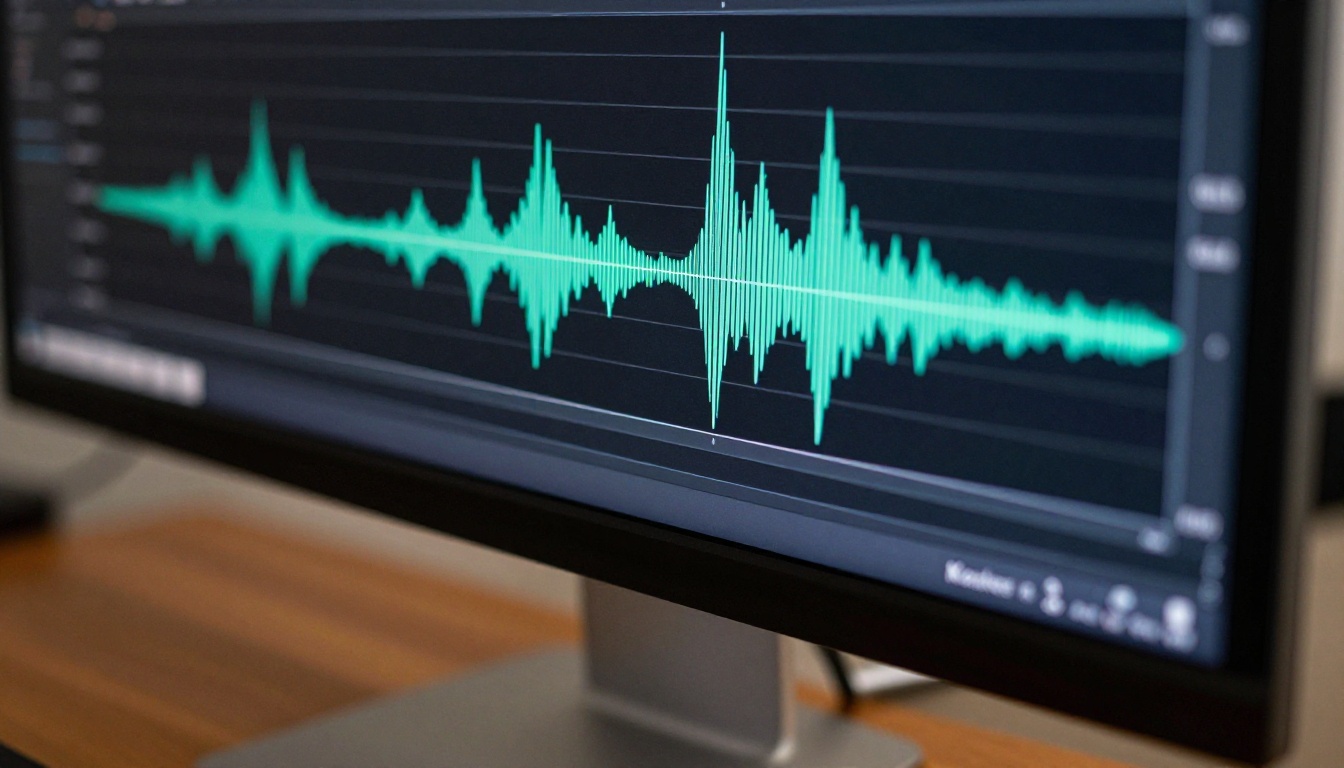
This is the headline feature. Kling 3.0 Omni generates audio that is not generic background music layered over video. The model infers what sounds should logically accompany the visual content and generates them in sync. A scene of rain on a window produces the sound of rain. A crowd walking through a train station produces footsteps and ambient murmur. A bonfire at night produces the crackle and pop of burning wood.
The synchronization performs best with scenes that have clear, singular sound sources: a solo musician, a waterfall, rain on pavement, a vehicle engine starting. Multi-source scenes with overlapping complex audio can produce artifacts. The model is more reliable when you tell it exactly what to generate rather than leaving it to infer.
Tip: For best audio results, specify the sound you want explicitly in the prompt. "A campfire crackling on a quiet mountain night, sound of distant wind through pine trees" produces better audio than simply describing the visual scene without audio direction.
Writing Prompts That Work
The structure that gets results
Kling 3.0 responds well to structured prompts that separate the visual content from the motion description and the audio content. Think of it as writing a brief for three different departments: the camera crew, the director, and the sound designer. Each needs specific information to do their job well.
A prompt that works well follows this pattern:
[Scene description] + [Camera movement] + [Lighting conditions] + [Audio description]
Here is an example prompt that produces strong, consistent results:
"A woman in a yellow raincoat walks alone down a cobblestone street in Paris at dusk, rain falling heavily, puddles reflecting warm neon cafe signs. Slow tracking shot following her from behind at ground level. Overcast natural light with warm amber window glows from storefronts on both sides. Sound of heavy rain on stone, distant thunder, wet footsteps."
This tells the model exactly what to show, how to frame it, how to light it, and what to generate for audio. The result is substantially more consistent than vague single-sentence prompts.
Prompt component breakdown:
| Component | What to include | Example |
|---|
| Subject | Who or what is in frame | "A woman in a yellow raincoat" |
| Action | What the subject does | "walks slowly down a cobblestone street" |
| Environment | Where the scene takes place | "Paris at dusk, heavy rain" |
| Camera | How the shot is framed | "slow tracking shot from behind at ground level" |
| Lighting | Quality and direction of light | "warm amber window glow, overcast sky" |
| Audio | What sounds should be present | "rain on stone, distant thunder, wet footsteps" |
Following this structure consistently produces far more predictable output than free-form prompting. Kling 3.0 is a powerful model, but like any AI system, it performs best when given clear, organized input.
3 common mistakes to avoid
1. Vague subject descriptions
"A person walking" gives the model almost no information. It will guess. Specify gender, approximate age, clothing, posture, and emotional state. More specificity produces more predictable output. "A woman in her late twenties, loose white linen dress, walking slowly and looking down" generates a completely different and much more consistent result.
2. Skipping the audio prompt component
When using Kling 3.0 Omni specifically, leaving the audio component out of the prompt does not mean silence. The model will infer and generate audio anyway, and that inference is often mismatched. A beach scene might generate seagull sounds when you wanted wave sounds. A crowded street scene might produce music instead of urban ambient noise. Always specify what you want to hear.
3. Requesting too many simultaneous actions
"A woman dancing while rain falls and a car crashes in the background and a dog runs past" overwhelms the motion system. Pick one primary action and one secondary atmospheric element. The model handles that combination reliably. Beyond that, quality degrades in ways that are difficult to predict or correct through prompt adjustment alone.
How to Use Kling 3.0 on PicassoIA
Step 1: Choose your Kling version

PicassoIA gives you access to three distinct Kling v3 variants, each suited to different use cases. Choosing the right one before you start saves significant iteration time.
-
Kling v3 Video: The standard text-to-video version. Best for pure text-prompt generation with high motion quality. Ideal when you want cinematic output from written descriptions without needing integrated audio generation.
-
Kling V3 Omni Video: The flagship multimodal variant. Accepts both text and image inputs and generates native audio alongside the video. This is the version to use when sound is a priority for your project.
-
Kling V3 Motion Control: Specialized for transferring motion patterns from reference footage to new characters or scenes. Best for creators who need consistent, controllable movement rather than organic AI-inferred motion.
For most people creating AI videos with sound for the first time, Kling V3 Omni Video is the right starting point.
Step 2: Write your video prompt
Once inside the Kling V3 Omni Video tool on PicassoIA, the main input field accepts your full text prompt. Use the structured approach described above: subject, action, environment, camera, lighting, audio.
Keep prompts between 80 and 150 words. Below 80 words, the model lacks sufficient direction. Above 150 words, it sometimes loses coherence attempting to satisfy every element simultaneously.
Optional but recommended: Upload a reference image as a starting frame. When you provide an image, Kling V3 Omni animates from that exact visual, which gives you precise control over the look of the final output that text alone cannot match. A great workflow is to generate a photorealistic still image first using a text-to-image model on PicassoIA, then use that image as the starting frame for Kling V3 Omni.
Step 3: Set audio parameters
Kling V3 Omni includes audio controls directly in the generation interface on PicassoIA. The main settings to pay attention to:
- Audio generation toggle: Make sure this is enabled. It can appear off by default depending on interface version.
- Audio prompt field: A secondary input specifically for sound description. If available, use it. Describe ambient sound, specific sound sources, and whether you want dialogue, music, or purely environmental audio.
- Duration: 5-second clips produce the most consistent audio synchronization. 10-second clips are available but audio coherence can degrade in the second half of longer generations.
- Aspect ratio: 16:9 for standard landscape video, 9:16 for vertical social content designed for mobile viewing.
- Quality mode: Standard works well for iteration and testing. Use Pro or Master mode for final output when quality is critical.
Tip: If you want background music rather than ambient sound, be specific: "Soft lo-fi guitar melody, 80 BPM, warm and intimate tone, no percussion" produces far better music generation results than simply writing "background music."
Step 4: Generate and review output

Hit generate and wait. Kling 3.0 generation on PicassoIA typically takes between 2 and 5 minutes depending on server load and quality settings. The output appears in your generation history when complete.
Before downloading, preview the full clip with audio enabled. Check for:
- Audio sync with the first 3 seconds of video
- Motion continuity in the primary subject, particularly around hands and faces
- Any abrupt visual cuts, flickering frames, or morphing artifacts in the background
If the first generation misses the mark, adjust one element at a time. Change the audio prompt first, then the camera description, then the main scene description. Changing everything simultaneously makes it impossible to identify what caused the issue, and you end up burning credits without learning anything useful.
The Omni Mode Difference
Image-to-video with sound
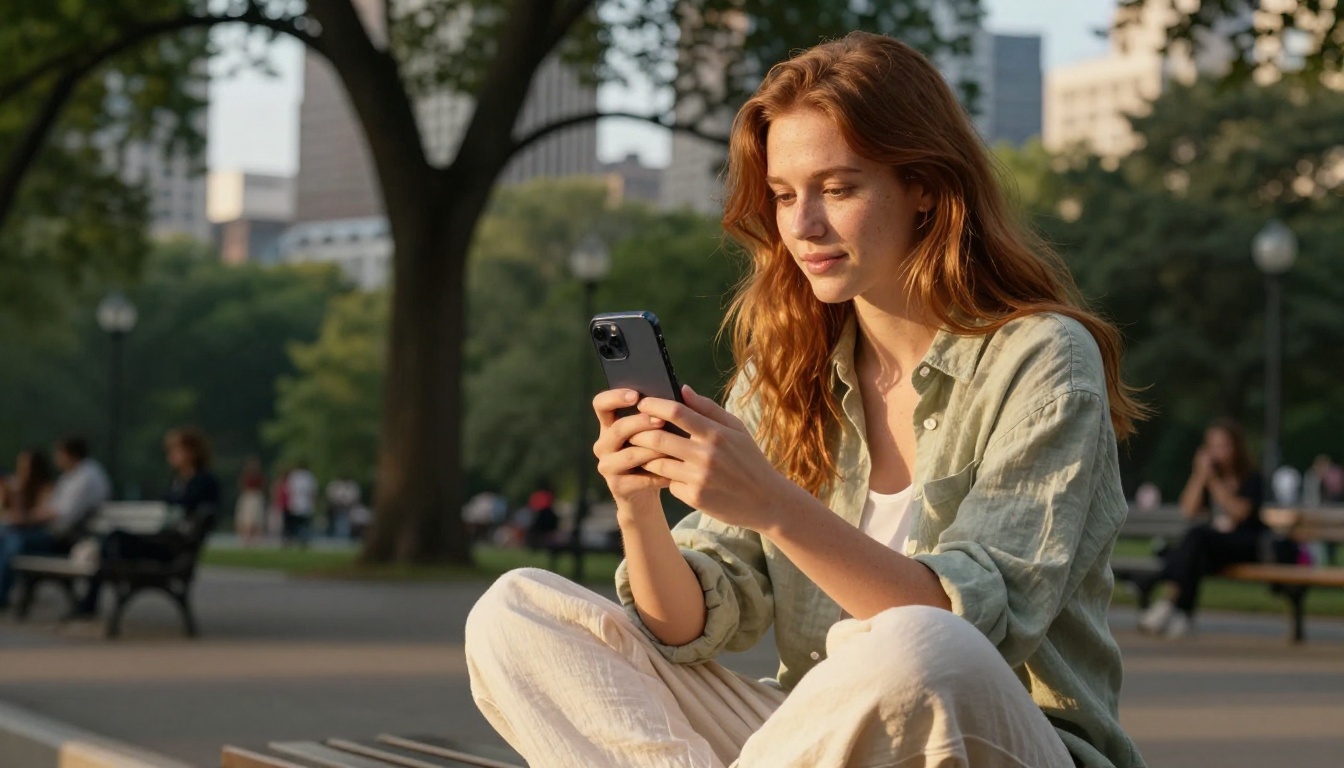
One of the most powerful workflows with Kling V3 Omni Video is the image-to-video pipeline. Generate a photorealistic still image first using any text-to-image model on PicassoIA, then upload that image into Kling V3 Omni as the starting frame for your video.
The advantage is precise visual control. When you work purely from text, the model makes decisions about character appearance, environment design, color palette, and composition. When you start from a reference image, those decisions are already locked in, and you only need to describe the motion and audio you want. The result feels intentional in a way that pure text generation rarely achieves on the first attempt.
This pipeline is particularly effective for:
- Product videos: Generate a clean product shot, then animate it with subtle motion and appropriate ambient sound
- Portrait animations: Create a photorealistic person, then animate them with natural motion and environmental audio
- Location scenes: Start from an architectural or landscape image, add motion and atmospheric sound
When to use Motion Control
Kling V3 Motion Control solves a specific problem: you want a character to move in a very particular way, such as a specific dance, a distinctive walking gait, or a precise gesture sequence, but you cannot describe that motion accurately enough in text to get consistent results.
With Motion Control, you supply a reference video clip showing the motion you want, and the model transfers that movement to the character in your prompt or reference image. Your AI-generated character moves exactly like the reference subject rather than in a vague AI-interpreted approximation.
This is especially useful for brand content, music video production, and any project where repeatable, specific motion patterns need to appear across multiple generated clips.
Getting Sound Right
Types of audio Kling generates
Kling 3.0 generates three broad categories of audio, and understanding where each category performs reliably helps set accurate expectations.
Ambient sound: Environmental audio that matches the scene. Wind through trees, city traffic, ocean waves, rain on pavement, restaurant murmur. This is where Kling 3.0 performs most reliably. Specify the environment clearly in your prompt and the ambient audio is usually appropriate and well-synchronized.
Sound effects: Object-specific sounds triggered by on-screen events. A door closing, glass breaking, a vehicle engine starting, footsteps on different surfaces, water poured into a glass. These sync well when the event is clear, prominent in the visual, and specified in the audio component of your prompt.
Music: Background musical scores or specific instrument sounds. This is the least reliable category in Kling 3.0. The model can generate musical backgrounds, but genre, tempo, and instrumentation require very specific description to produce usable results. If music is critical to your output, a practical alternative is generating the video first, then adding a purpose-built track through a dedicated AI Music Generation model on PicassoIA, where you can generate music from text prompts with far more control over the result.
Matching sound to your scene
The single most effective strategy for audio quality is making the sound source visually prominent in the frame. If you want the sound of rain, show rain falling in the frame, not just a person standing indoors who might be hearing rain offscreen. The model reads visual cues to confirm audio choices, and prominent visual sources generate more accurate synchronized audio.
High-reliability audio scenarios:
- Single dominant sound source filling the frame (waterfall, fire, rain)
- Natural environmental audio in wide establishing shots
- Mechanical sounds tied to visible machinery or vehicles in frame
- Human movement sounds like footsteps or breathing in quiet environments
- Outdoor scenes with clear weather conditions (wind, rain, sun)
Lower-reliability audio scenarios:
- Multiple competing sound sources at similar volume levels
- Off-screen sound effects with no visual confirmation
- Specific music genres requiring precise tempo and instrumentation
- Urban scenes with complex overlapping ambient layers
- Dialogue-heavy scenes or scenes requiring intelligible speech
Comparing Kling 3.0 to Other Models
PicassoIA hosts several video models with native audio capability. Knowing where each one fits helps you choose the right tool for each project phase.
| Model | Best for | Audio | Speed |
|---|
| Kling V3 Omni | Cinematic video with native synchronized sound | Native | Medium |
| Seedance 2.0 | Text and image to video with native audio | Native | Medium |
| LTX-2.3-Pro | High-speed generation with audio support | Native | Fast |
| Veo 3 | Photorealistic scenes with strong audio quality | Native | Slow |
| P-Video | Text, image and audio input to video | Native | Fast |
| Audio to Video | Animating images in response to audio tracks | Input-driven | Fast |
Kling V3 Omni is not always the right choice. If you need fast iterations to test prompt ideas before committing to a final generation, LTX-2.3-Pro or P-Video generate results significantly faster. Use Kling V3 Omni for final-quality output once your prompt structure is dialed in.
For audio that needs to respond to an existing audio track rather than generating from scratch, Audio to Video by Lightricks is specifically designed for animating still images in response to audio input. That is a different workflow, but a powerful one for music-driven content and creative visual work set to existing tracks.
Real Use Cases That Shine
Social media content
Short-form video with ambient sound is one of the clearest wins for Kling 3.0. A 5-second clip of a coffee being poured with the natural sound of liquid and a quiet cafe background, or a beach sunset with synchronized wave audio, performs extremely well as atmosphere content for brand accounts and personal channels. The production value reads as high because the audiovisual coherence signals intentional production craft.
Vertical 9:16 clips for Reels and TikTok work particularly well. Scene types that perform consistently: nature moments, food and beverage, urban atmosphere, and simple human moments filmed at golden hour.
Brand and marketing videos
Product lifestyle shots in motion represent genuine commercial value for Kling 3.0. A perfume bottle on wet marble with soft piano and water droplet audio. A running shoe mid-stride on trail with wind and impact sound. A coffee bag being opened with the sound of the seal breaking and beans settling. These types of clips work as social ads and product page header videos without requiring a production crew or budget.
Production tip: For brand video work, start with a precisely generated product image using a text-to-image model, then animate it with Kling V3 Omni. This gives you exact control over product appearance while letting the model handle motion and sound generation.
Personal creative projects
Short film pre-visualization is one of the most practical creative applications. A director can generate rough clips to communicate a visual concept to collaborators before any actual filming begins. The audio gives collaborators immediate emotional context that silent pre-viz clips cannot provide. You can show a scene, a mood, a camera language, and a sound design direction in a single 5-second AI clip.
Music video concept testing, personal narrative film projects, portfolio demonstrations, and visual storytelling experiments all benefit from what Kling 3.0 now makes accessible without production infrastructure.
Start Creating Right Now
Everything described here is available today on PicassoIA. All three Kling v3 variants are live: Kling V3 Omni Video with native audio generation, Kling v3 Video for standard text-to-video output, and Kling V3 Motion Control for precise movement transfer.
No API tokens to manage, no local setup required. Open the model, type your prompt using the structured approach in this article, toggle audio generation on, and hit generate. The first clip takes a few minutes. The second one shows you what to adjust. By the fifth or sixth iteration, you will have a solid intuition for how Kling 3.0 responds to different prompt structures.
Start with a simple scene: one subject, one environment, one clear sound source. The model rewards specificity. The more precisely you describe what you want to see and hear, the more consistently it delivers.
PicassoIA also hosts Seedance 2.0 and Veo 3 if you want to compare audio-video models side by side and find the output style that fits your specific project best. All of them are worth testing. Kling 3.0 is not the only strong option, but for cinematic audiovisual quality in a single generation, it is one of the most capable models available right now.


