Most AI video models take one image and generate motion from it. Seedance 2.0 by ByteDance does something fundamentally different: it accepts multiple reference images and a native audio track in a single generation pass, producing videos where characters stay consistent across shots, environments transition naturally, and motion actually responds to the beat and rhythm of the audio. This is the workflow that filmmakers, content creators, and social media producers have been waiting for, and it's available right now without any technical setup.
What Makes Seedance 2.0 Different
Before getting into the workflow, it helps to understand why multi-image input matters. Most video generation models are single-frame conditioned: you give them one photo, they animate it. The output character, environment, and visual style are locked to that single frame. If you want a video that shows a person walking through multiple locations, or a narrative that cuts between different people, you have to generate each clip separately and then edit them together in post.
Seedance 2.0 collapses that into one step.
Multi-Image Reference System
The model processes multiple images as a coherent reference set rather than independent inputs. Internally, it builds a shared visual identity from the images you provide, using them to maintain character appearance consistency, lighting logic, and environmental coherence across the entire generated clip. If you supply a portrait of a person under warm afternoon sun and a landscape shot of a beach at the same time of day, the model infers that these belong in the same scene and generates motion that connects them without harsh jumps.
This is especially valuable for:
- Character videos where you want the same face to appear in motion across multiple angles or poses
- Brand storytelling with a consistent visual identity across locations
- Music video production where different shots need to feel stylistically unified
- Social media reels that require smooth multi-scene cuts without manual editing
Native Audio Input Support
The audio integration in Seedance 2.0 is not post-processing. The model conditions video motion on the audio waveform during generation. This means that beats, tempo changes, and amplitude spikes in your audio file directly influence the timing and intensity of motion in the output. A drum hit at 0:03 may cause a camera pull or a subject movement at exactly that timestamp. A slow sustained note keeps motion smooth and gentle.
Getting clean, well-prepared reference images is the single biggest factor in output quality. The model can only work with what you give it.
Resolution and Format Requirements
Seedance 2.0 performs best with images that meet these specifications:
| Property | Recommended | Minimum |
|---|
| Resolution | 1280x720 or higher | 512x512 |
| Format | JPG, PNG | JPG, PNG |
| Aspect Ratio | 16:9 | Any |
| File Size | Under 10MB per image | Under 20MB |
| Lighting | Consistent across images | Any |
Beyond the technical specs, the content of your reference images matters enormously. Images with consistent lighting direction, similar color temperature, and matching perspective height produce far better blending than images shot under wildly different conditions.
Tip: If you're shooting photos specifically to use as multi-image references, shoot them in one session under the same natural light source. Midday overcast skies are ideal because they produce soft, directionless shadows that blend easily across frames.
How Many Images Can You Use
Seedance 2.0 supports up to 4 reference images per generation. There is a meaningful quality tradeoff as you add more:
- 1 image: Maximum detail fidelity, standard image-to-video behavior
- 2 images: Ideal balance of reference diversity and coherence, great for character and location pairs
- 3 images: Works well for narrative sequences; slight increase in blending artifacts at transitions
- 4 images: Full story arc in one generation; requires images with strong visual commonality to avoid drift
For most use cases, 2 to 3 images gives the best results. If you need 4 images, make sure at least 3 of them share a dominant color palette or the same subject.

How to Add Audio to Your Seedance 2.0 Video
The audio input is what truly separates this workflow from anything you can do with basic image-to-video models. Used correctly, it turns static reference photos into clips that feel intentionally scored and edited.
Accepted Audio Formats
Seedance 2.0 accepts the following audio formats through the PicassoIA interface:
- MP3 (recommended for music tracks)
- WAV (recommended for high-fidelity audio, especially speech)
- AAC (suitable for compressed audio from mobile devices)
Keep your audio clips short and focused. The model generates videos up to 10 seconds in the current implementation, so using an audio segment that matches that duration (or slightly exceeds it by 1-2 seconds) gives the cleanest sync.
Tip: Cut your audio to exactly 10 seconds before uploading. Use the loudest, most rhythmically interesting section of your track. The model responds most noticeably to transients and beats rather than sustained tones.
How Audio Drives Motion
The model does not analyze audio semantically. It is not listening for the meaning of words or the genre of music. Instead, it responds to the acoustic energy envelope of the waveform. Here is what that means practically:
- High amplitude sections (loud beats, guitar drops, crescendos) trigger stronger camera movement and subject motion
- Low amplitude sections (quiet intros, fade-outs) produce smoother, more subtle motion
- Rapid tempo changes create more frequent motion cuts between reference frames
- Sustained single notes hold the current frame longer with gentle parallax or zoom
This behavior means that percussion-heavy music produces the most visually dynamic videos, while ambient or orchestral audio creates cinematic, slow-moving results.
How to Use Seedance 2.0 on PicassoIA
Seedance 2.0 is available directly on PicassoIA without any API setup, account configuration, or credit card for initial access. Here is the exact workflow.
Step 1: Open the Model Page
Navigate to the Seedance 2.0 model page on PicassoIA. You will see the generation interface with three distinct upload zones and a text prompt field at the top. If you need faster outputs at the cost of some quality, Seedance 2.0 Fast is also available and follows the same interface.
Step 2: Upload Your Reference Images
Click the Image Input area to open the file picker. You can upload images one at a time or select multiple at once if your browser supports it. The interface numbers each uploaded image and shows a small thumbnail preview. Drag the thumbnails to reorder them if needed: the model treats the first image as the primary reference and subsequent images as secondary scene elements.
Tip: Put the image that contains your main character or most important visual element in the first position. The model anchors more aggressively to the first reference.
Step 3: Upload Your Audio File
Below the image upload zone, you will see the Audio Input section. Click it and select your prepared MP3 or WAV file. The interface displays a simple waveform preview so you can confirm the file loaded correctly. There is no preview playback here, so make sure you've listened to your audio clip before uploading and confirmed it starts at the right moment in your track.
Step 4: Write Your Text Prompt and Generate
The text prompt works alongside your visual and audio inputs as a third conditioning signal. Keep it focused on motion description and mood rather than repeating what is already visible in your reference images. Good prompt strategies for multi-image input:
Focus on motion verbs:
"slow pan across the scene, soft camera drift, natural wind movement in hair"
Describe the intended mood:
"cinematic summer afternoon, warm and relaxed, gentle motion"
Avoid describing appearance (the images already handle that):
Do not write "a woman with brown hair standing on a beach"
Once you click Generate, processing typically takes between 45 seconds and 3 minutes depending on server load. The output video will appear directly on the page when ready.
Parameter Settings That Matter
Seedance 2.0 exposes several parameters that significantly affect output quality. These are not optional tweaks: getting them right is the difference between a compelling video and a generic one.
Motion Strength
The motion strength slider controls how aggressively the model animates your reference images. The scale typically runs from 0 to 1, and the right setting depends entirely on your audio:
| Audio Type | Recommended Motion Strength |
|---|
| Hip-hop, EDM, pop | 0.7 to 0.9 |
| Cinematic orchestral | 0.3 to 0.5 |
| Ambient, lo-fi | 0.2 to 0.4 |
| Speech or voiceover | 0.4 to 0.6 |
| Silent (no audio) | 0.5 default |
Setting motion strength too high with slow audio creates unnatural, jerky movement. Setting it too low with energetic audio wastes the audio conditioning potential.
Duration and Resolution
The current Seedance 2.0 implementation offers duration options of 5 seconds and 10 seconds. For multi-image inputs, 10 seconds is almost always the better choice: it gives the model enough frames to transition smoothly between your reference images rather than cutting abruptly.
Resolution output is 1280x720 (HD) by default. There is no 4K option in the current version, but the output quality at HD is genuinely strong for social media, YouTube, and presentation use.
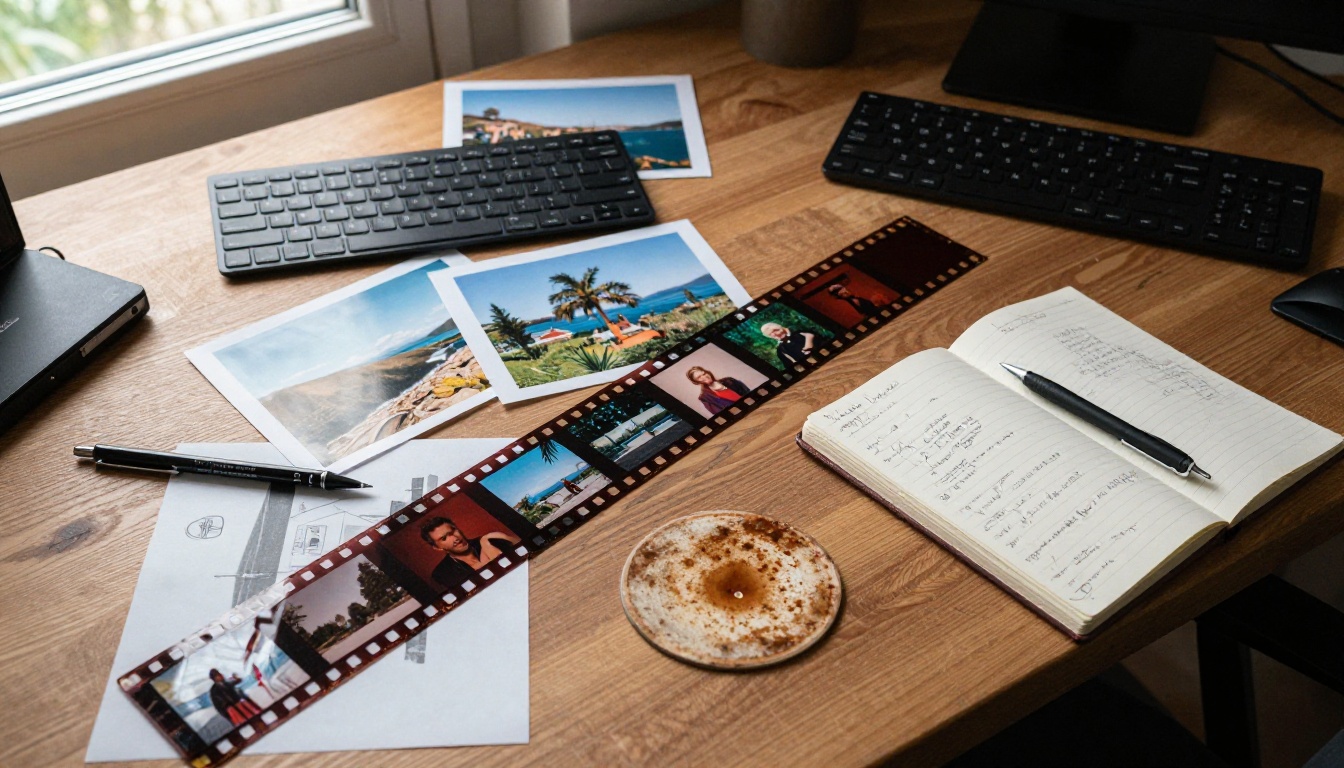
Seedance 2.0 vs Similar Models
How does Seedance 2.0 stack up against other multimodal video models available on PicassoIA?
The takeaway: if you need both multi-image input AND native audio in a single model, Seedance 2.0 is currently the only option on the platform that combines both capabilities. LTX-2.3-Pro wins on output length if audio sync on a single image is enough for your project.
Common Problems and Fixes
Even with good inputs, you will occasionally get results that don't match your expectations. These are the most frequent issues and how to fix them.
Characters Blending Incorrectly
Symptom: A person from one reference image starts morphing into the person from another reference image mid-clip.
Cause: The model is treating the different faces as variations of the same character rather than distinct subjects.
Fix: Ensure your reference images have clearly differentiated subjects. If both images show similar-looking people (same hair color, similar age), the model struggles to maintain separation. Try adding a third image that establishes a clear environmental or contextual boundary between the subjects. Alternatively, keep multi-person inputs to scenarios where each person appears in a distinctly different setting.
Audio Not Syncing to Motion
Symptom: The generated video moves at a consistent pace regardless of the audio's energy level.
Cause: Most often this is a motion strength setting issue. If motion strength is set below 0.4, the model dampens audio-driven variation.
Fix: Increase motion strength to at least 0.6 and regenerate. Also check that your audio file is not volume-normalized to a flat level: the model responds to dynamic range, so heavily compressed audio with no peaks will produce flat motion results. A light normalization to -6 LUFS rather than the streaming standard of -14 LUFS gives the model more dynamic information to work with.
Images Not Transitioning Smoothly
Symptom: The video cuts abruptly between reference images rather than transitioning.
Fix: Use the 10-second duration option rather than 5-second. Short durations don't give the model enough frames to interpolate smoothly. Also check that your images share at least one strong visual anchor (similar background tone, consistent lighting direction, or the same subject).
Other Models Worth Trying
Seedance 2.0 covers the multi-image plus audio use case better than anything else currently available, but depending on your specific project needs, these models on PicassoIA are worth knowing about:
For audio-driven single-image animation: Lightricks Audio to Video takes a single image and animates it to match an audio file. The model is specialized purely for audio-visual sync and produces cleaner sync on single-subject videos than a multi-image model would.
For start-and-end frame control: Vidu Q3 Pro accepts a start image and an end image and generates the interpolated motion between them. No audio input, but excellent for controlled scene transitions where you know exactly what the first and last frames should look like.
For high-quality single-shot video: Hailuo 2.3 is a strong single-image-to-video model known for smooth, naturalistic motion. If you only have one great photo and no audio requirements, it often produces higher per-frame quality than multi-image models.
For rapid iteration: Seedance 2.0 Fast is the same model architecture with optimized inference speed. Use it to test different prompt phrasings and image combinations before committing to a full-quality generation with the standard Seedance 2.0.
Start Creating Your Own Videos
The multi-image plus audio workflow in Seedance 2.0 is genuinely new territory for AI video generation. A year ago, producing a 10-second clip that maintained character consistency across multiple reference images and synced to an audio track required a full production team and post-production software. Now it takes four uploaded files and a text prompt.
The fastest way to get good at this is to run low-stakes experiments. Pick two photos you already have on your phone, grab a 10-second clip from a track you like, and generate something. Look at where the transitions feel rough and what adjustments you can make to the image selection or prompt. The learning curve is short because the feedback loop is fast.
Head over to Seedance 2.0 on PicassoIA, upload your reference images, drop in your audio, and see what comes out. The first generation is always surprising.


