Seedream 5.5 is not a minor update. It's a measurable jump in how AI handles fine texture, lighting direction, and prompt adherence across diverse image types. Whether you're generating photorealistic portraits, detailed interiors, product shots, or multi-subject compositions, this model produces results noticeably sharper and more spatially consistent than earlier Seedream versions. If you've been working with text-to-image tools and haven't yet put Seedream 5.5 to use, this article shows you exactly how to do that, from the first prompt to the final output.

What Seedream 5.5 Actually Does
Text-to-image models work by reversing a noise process: starting from a random field of pixels and progressively denoising it until the output matches a text embedding. Most models do this reasonably well for simple compositions but start to show spatial inconsistencies when prompts describe complex or multi-element scenes. Seedream 5.5 addresses this through refined cross-attention conditioning that keeps the text prompt influential across more denoising stages.
The practical result is a model that doesn't just get the broad composition right. It gets the fine details right in a way that stays consistent across the entire frame, from the texture of a fabric against the corner edge to the direction of shadow under a chin.
How Diffusion Models Handle Prompts
In a standard diffusion model, the text embedding primarily influences the early denoising stages that set the broad composition. Later stages that fill in detail operate with less direct guidance. Seedream 5.5 uses better cross-attention at intermediate stages, which is why fine details, including skin pores, fabric weave, hair texture, and material reflectivity, align more reliably with what the prompt describes.
The most visible improvements in 5.5 over prior versions fall into three categories:
- Skin and fabric texture: Individual pores, fine hair strands, and thread counts now render with photographic fidelity rather than smooth approximation
- Lighting coherence: Light sources stay physically consistent across the entire frame instead of shifting or doubling in different areas
- Multi-element compositions: Complex scenes with foreground, midground, and background elements no longer suffer from spatial drift or blending artifacts

Using Seedream 5.5 on PicassoIA
PicassoIA gives you direct access to Seedream 5 Pro, the platform's implementation of the Seedream 5.5 architecture. No local GPU, no API keys, no infrastructure to manage. You write a prompt, configure parameters through the interface, and generate directly in the browser.
Finding the Right Model
From PicassoIA's text-to-image section, search "Seedream" to see the full model lineup available: Seedream 3 for fast drafts, Seedream 4 for general use, Seedream 4.5 for solid portrait quality, Seedream 5 Lite for faster high-quality output, and Seedream 5 Pro for the full Seedream 5.5 experience. For professional work, start with Seedream 5 Pro.
Step-by-Step: Your First Image
- Open Seedream 5 Pro on PicassoIA
- Write your prompt in the prompt field (the next section covers how to structure it)
- Choose your aspect ratio: 16:9 for widescreen, 1:1 for social media, 9:16 for mobile content
- Set CFG Scale to 7 as a starting point
- Set Sampling Steps to 30 for solid quality
- Click Generate and wait 10-20 seconds
- Review the result and decide what to adjust
💡 Always run the same prompt at least twice before changing parameters. Seedream 5.5 has natural stochastic variation. A second run from the same prompt sometimes produces a significantly better result with no changes.

Writing Prompts That Work
Prompt quality is the largest single factor in output quality. Seedream 5.5 is a highly capable model, but it can only produce what you describe. Vague prompts produce generic images. Precise prompts produce targeted, usable results.
Anatomy of a Strong Prompt
A well-structured prompt for Seedream 5.5 has five components:
| Component | Example |
|---|
| Subject | "Woman in her 30s, natural makeup, dark hair" |
| Action or Pose | "seated at a desk, looking slightly left" |
| Environment | "modern home office, open window behind her" |
| Lighting | "morning sunlight from the left, soft fill shadows" |
| Camera specs | "85mm f/1.8 lens, Kodak Portra 400, RAW 8K" |
Spelling out all five components in every prompt is the fastest path to consistently good results. Each component gives the model something specific to render rather than a gap to fill with a statistical average.
Prompt Mistakes That Reduce Quality
Stacking emotional adjectives
"Beautiful, stunning, gorgeous, perfect" adds no visual information. Use descriptors that translate directly into image properties: "high cheekbones," "warm amber fill light," "rough linen texture." Those give the model something to render.
No lighting specification
Lighting is the single most important driver of photorealism in Seedream 5.5. Without it, the model defaults to flat, undramatic illumination. Always specify direction and quality: "rim lighting from the right," "diffused overcast north light," "golden hour warm backlight."
Generic style labels
"Cinematic" and "photorealistic" are used so often they've become weak signals. Describe the specific visual properties instead: "Kodak Portra 400 color science, slight color fade in the shadows, visible film grain." That gives the model a precise aesthetic target.
No lens information
A single line of lens specs forces the model into a specific perspective and depth of field. "85mm f/1.4" produces subject isolation with background blur. "24mm f/8" produces deep-focus wide shots. Adding this detail transforms the output from generic to intentional.
Keyword lists instead of sentences
"Woman, kitchen, morning, coffee, mug, steam" produces average results. "A woman seated at a marble kitchen counter, morning light casting long shadows across the surface, a ceramic mug with steam rising beside her right hand" produces something specific and usable. Seedream 5.5 handles coherent descriptions better than fragments.
Negative Prompts That Help
A focused negative prompt tells the model what to avoid. For photorealistic work, use:
cartoon, illustration, 3d render, anime, watercolor, blurry, low resolution, distorted hands, extra fingers, deformed, noise, artifacts
💡 Keep your negative prompt under fifteen terms. Overloading it creates conflicting guidance and can reduce quality rather than improve it.

Parameters Worth Knowing
Seedream 5.5 on PicassoIA exposes parameters that have real impact on output. Knowing what each one does saves time during prompt iteration.
Resolution and Aspect Ratio
Seedream 5.5 performs best at or above 1024x1024 pixels. PicassoIA lets you choose from preset ratios:
- 1:1: Social media, profile images, product shots on white backgrounds
- 16:9: Editorial, desktop wallpapers, widescreen compositions
- 9:16: Stories, Reels, and mobile-first content
- 4:3: Presentation slides and traditional photography framing
Always use the highest resolution available for your chosen ratio.
CFG Scale and Steps
CFG Scale (Classifier-Free Guidance) controls how strictly the model interprets your prompt:
| CFG Value | What Happens |
|---|
| 3-5 | Creative, loose interpretation |
| 6-8 | Balanced, recommended for most work |
| 9-12 | Very strict prompt adherence |
| 13+ | Often produces oversaturation and unnatural colors |
For photorealistic outputs, 7-9 is the reliable range. For more stylized results, try 4-6.
Sampling Steps add detail to the image progressively:
- 20 steps: Fast drafts for testing prompts
- 30 steps: Good quality for most finished outputs
- 40-50 steps: Maximum quality for final print-ready images
Test prompts at 20 steps for speed, then switch to 40-50 for the final generation.
Seed Control for Consistency
Every generation uses a random seed by default. If you produce an image worth building on, copy the seed number before generating again. The same seed with the same prompt produces a very similar result, which lets you test how individual parameter changes affect the same composition, create series of images with consistent character positions, and revisit successful compositions in later sessions.

Output Styles Seedream 5.5 Handles Well
Photorealistic Portraits
Portrait work is where Seedream 5.5 shows its greatest improvement over earlier versions. The model handles facial structure, skin texture, and eye detail with precision previously reserved for dedicated portrait models. For portraits, always specify:
- Exact skin tone ("warm olive complexion with visible pores," "fair skin with light freckles")
- Eye color and shape ("deep brown almond-shaped eyes," "ice blue with visible iris texture")
- Hair specifics ("coarse natural curls catching backlight," "fine straight hair with subtle volume")
Architectural and Interior Images
Seedream 5.5 produces excellent architectural results when prompts include specific materials and lighting conditions. Marble, concrete, glass, raw steel, and aged wood all render with accurate reflectivity and texture detail. The model also handles linear perspective correctly, which has historically been a weakness for text-to-image systems. Specify the angle (low, eye-level, aerial), the time of day, and the surface materials in detail.
Product photography follows similar rules: describe the surface the product rests on, the background tone, and the lighting setup. "Glass perfume bottle on polished white marble, overhead soft-box studio lighting, shallow depth of field, 100mm macro lens" produces results that hold up to commercial use.

How PicassoIA Extends Your Workflow
Seedream 5.5 output is the starting point, not the end. PicassoIA wraps the model with editing and post-processing tools that let you refine and repurpose results without leaving the platform.
Fix Areas with Inpainting
If a generated image is 90% correct but has a problem in one region (a distorted hand, an awkward facial expression, an odd background element), PicassoIA's inpainting tool lets you mask that area and regenerate it while keeping the rest of the image intact. This is faster than restarting from scratch and gives you surgical control over specific problem areas.
Expand Images with Outpainting
Outpainting extends an image beyond its original edges. If you generated a 1:1 portrait but need a 16:9 version for a header image, you expand the canvas horizontally and the model fills in the new area in a way that matches the original image's lighting, color, and style. This repurposes a single generation across multiple format requirements.
Upscale with Super Resolution
PicassoIA's Super Resolution models take a Seedream 5.5 output and upscale it 2x or 4x with added sharpness and detail. For web work, the base generation is usually sufficient. For print or large-format display, running the output through Super Resolution produces a file that holds up at large sizes.
Face Swap for Character Consistency
One of the most persistent problems in AI image workflows is maintaining consistent characters across different scenes. PicassoIA's Face Swap tool lets you generate one portrait you're satisfied with, then apply that face to other generated images. This gives you a consistent subject across different environments, lighting setups, and compositions, which is practical for editorial series, brand campaigns, and narrative visual content.

Real-World Applications
Content creators and bloggers benefit from removing the dependency on stock photography. Instead of searching for an image that approximates what you need, you describe exactly what you need and generate it in seconds. Custom thumbnails matched to the specific topic, social visuals without licensing constraints, and consistent visual identity across a content series all become practical rather than aspirational.
Marketing and brand teams use Seedream 5.5 to prototype campaign visuals before committing production budgets to photography. A campaign concept can be visualized in minutes, reviewed by stakeholders, and revised before a single photographer is booked. The model's strength in product photography also makes it practical for generating mock-up visuals for unreleased products, which shortens the time between ideation and stakeholder review.
Developers building AI-powered applications can access Seedream 5.5 through PicassoIA's API without managing inference infrastructure. Pass a prompt and parameters, receive an image URL. The same controls available in the browser interface (CFG scale, steps, seed, resolution, negative prompts) are all API-accessible, so values that work in manual testing translate directly to programmatic production use.

Comparing the Seedream Model Lineup
Not every project needs the full capability of Seedream 5.5. Here's how the available models on PicassoIA compare:
A practical approach: use Seedream 5 Lite for prompt iteration (fast feedback, high quality) and switch to Seedream 5 Pro when you're ready for the final generation.
Start Generating on PicassoIA
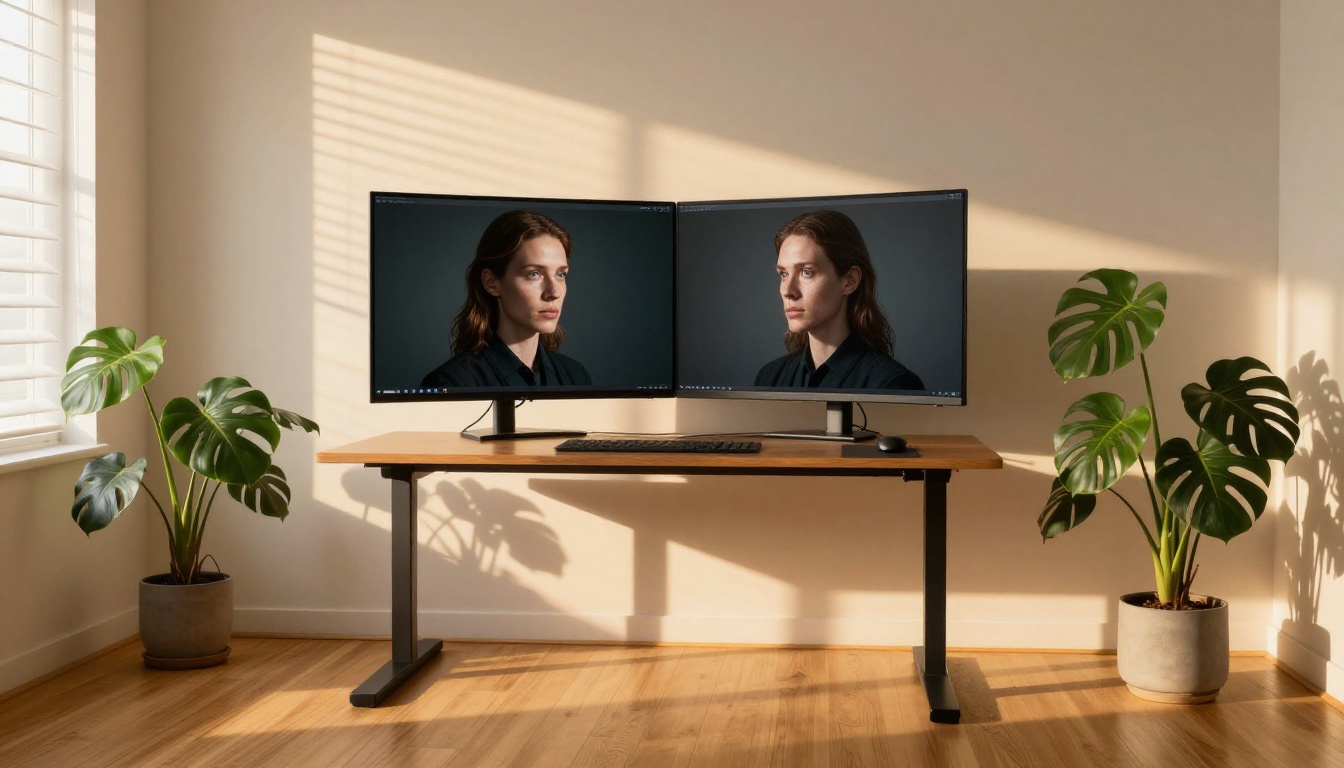
Everything in this article becomes concrete the moment you run a first generation. Seedream 5.5 is available now through PicassoIA's text-to-image section. Start with something you already know well: a portrait, a room interior, a product you've photographed before.
Use the five-component prompt structure: subject, action, environment, lighting, camera specs. Set CFG to 7 and steps to 30. Run it. See what the model does with your description. Every adjustment from that point forward, whether it's narrowing the lighting spec or adding a lens focal length, is a direct experiment with a real result.
PicassoIA's interface is built for rapid iteration. You're not committing to one image. Each generation costs seconds and gives you new information. The faster you iterate, the faster your instincts for what works in Seedream 5.5 develop.
Browse the full model catalog at picassoia.com/en/all-models to see what else you can pair with Seedream 5.5. From Large Language Models that help you write and refine prompts, to text-to-video models for bringing static images into motion, the platform covers the full creative workflow in one place.


