You have a photo you like. The pose is right, the face is right, the framing is almost perfect, but the outfit is off, the light is flat, or the location is boring. Typing a text prompt from scratch would throw all of that away. Img to img keeps what works and rewrites the rest, and for adult glamour content that shortcut matters even more, because a good base photo carries anatomy, pose and proportions that text prompts often get wrong.
This article explains how img to img NSFW workflows work, which free online tools are worth your time, which settings change the output, and which prompts you can copy today. Everything here stays on the suggestive, non-explicit side: swimwear, lingerie style fashion, boudoir lighting, beach and pool scenes. Think magazine shoot, not pornography.

What Img to Img Actually Does
Image to image generation takes an existing picture as input and produces a new picture guided by your text. The model reads the structure of the source (where the body is, where the light falls, what the background looks like) and then rewrites parts of it according to your instruction.
Text to Image vs Image to Image
With plain text to image, the model invents everything. You describe a woman on a beach and it decides her pose, her face, the camera angle and the horizon line. Results vary wildly from one run to the next.
With img to img, you supply the skeleton. The model only changes what you ask it to change. That gives you three practical advantages:
- Consistency: the same face and body proportions across many images.
- Control: you choose the pose and framing by choosing the source photo.
- Fewer rerolls: you spend less time regenerating until hands and limbs look right.
💡 Tip: Treat your source photo like a casting decision. A sharp, evenly lit, front facing photo gives the model far more to work with than a blurry mirror selfie in a dark room.
Why Glamour Creators Use It
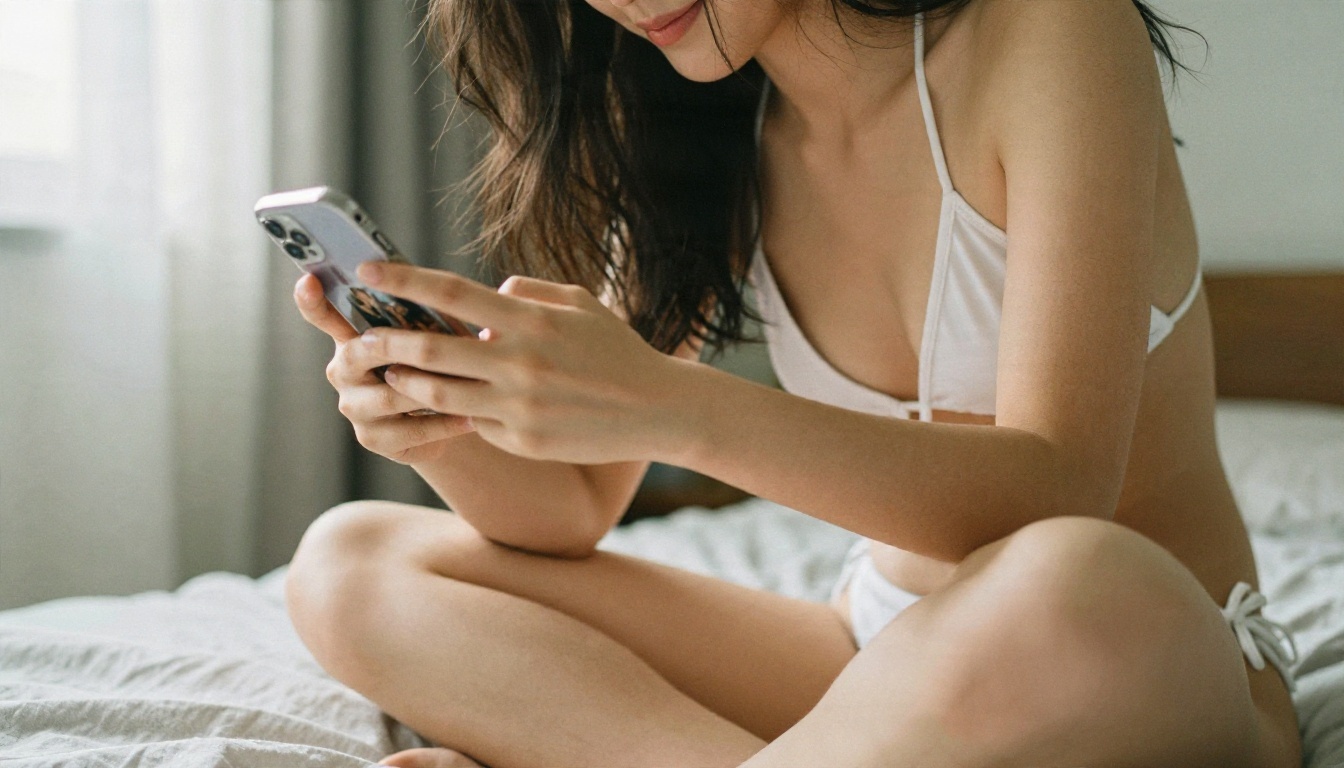
Photographers, models and content creators use img to img for a few repeatable jobs:
- Outfit swaps: try a red swimsuit, a black bodysuit or a silk robe without a second shoot.
- Relighting: turn a flat daylight photo into warm golden hour or soft boudoir light.
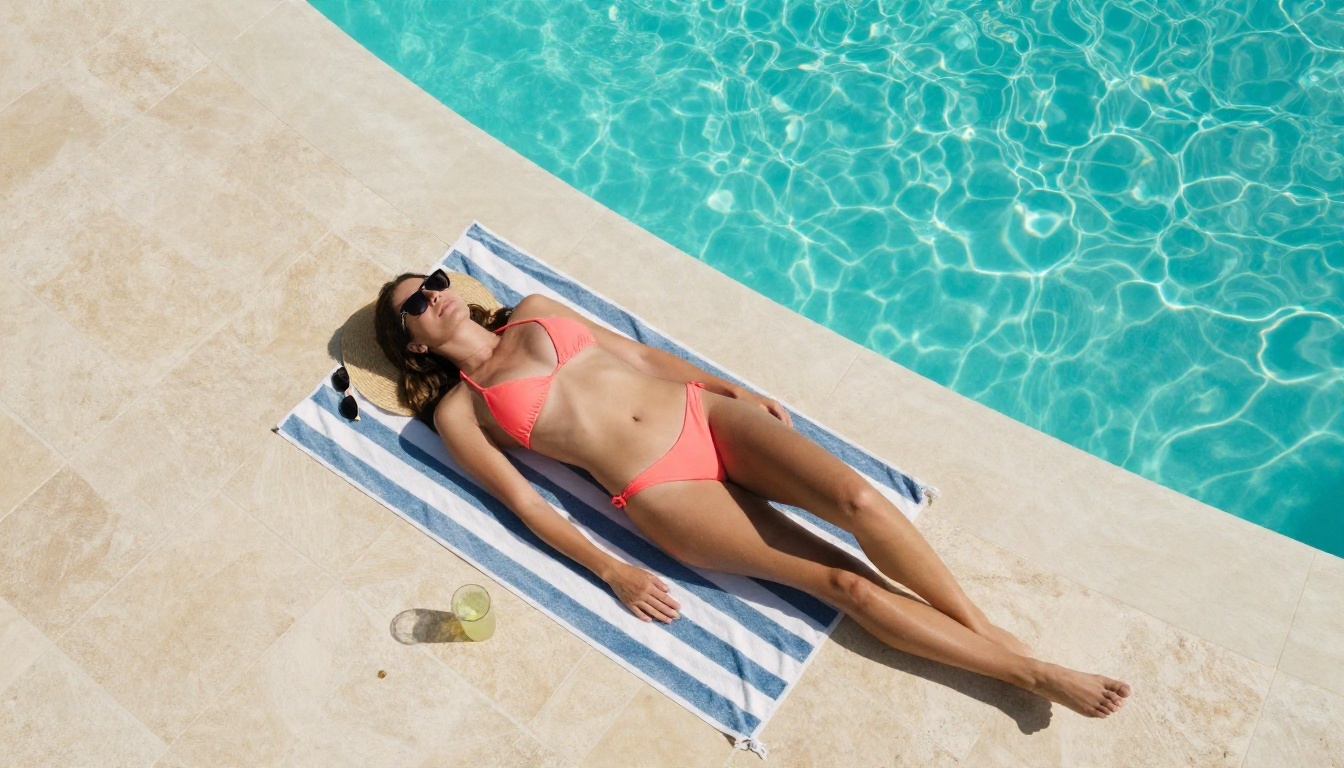
- Location changes: move the same subject from a bedroom to a yacht, a pool or a cliff at sunset.
- Cleanup: remove clutter, fix a harsh shadow or soften a distracting background.
- Style matching: make a batch of photos feel like one consistent series.
Plenty of sites offer img to img, but a large number either block adult themes entirely or bury you in watermarks and daily limits. For tasteful NSFW work, you want two things: a model that does not refuse swimwear and glamour prompts, and enough free or unlimited generations that you can iterate.
Seedream 4.5 Comes First
Seedream 4.5 is the model I reach for first when realism is the goal. It accepts between one and fourteen reference images, outputs at 2K or 4K, and handles the details that usually give AI photos away: skin pores, the weave of satin, wet sand, strap tension, the way hair catches backlight. It also supports batches, so a single run can return several related variations of your source photo.
If you want a polished, print ready glamour image, start here.
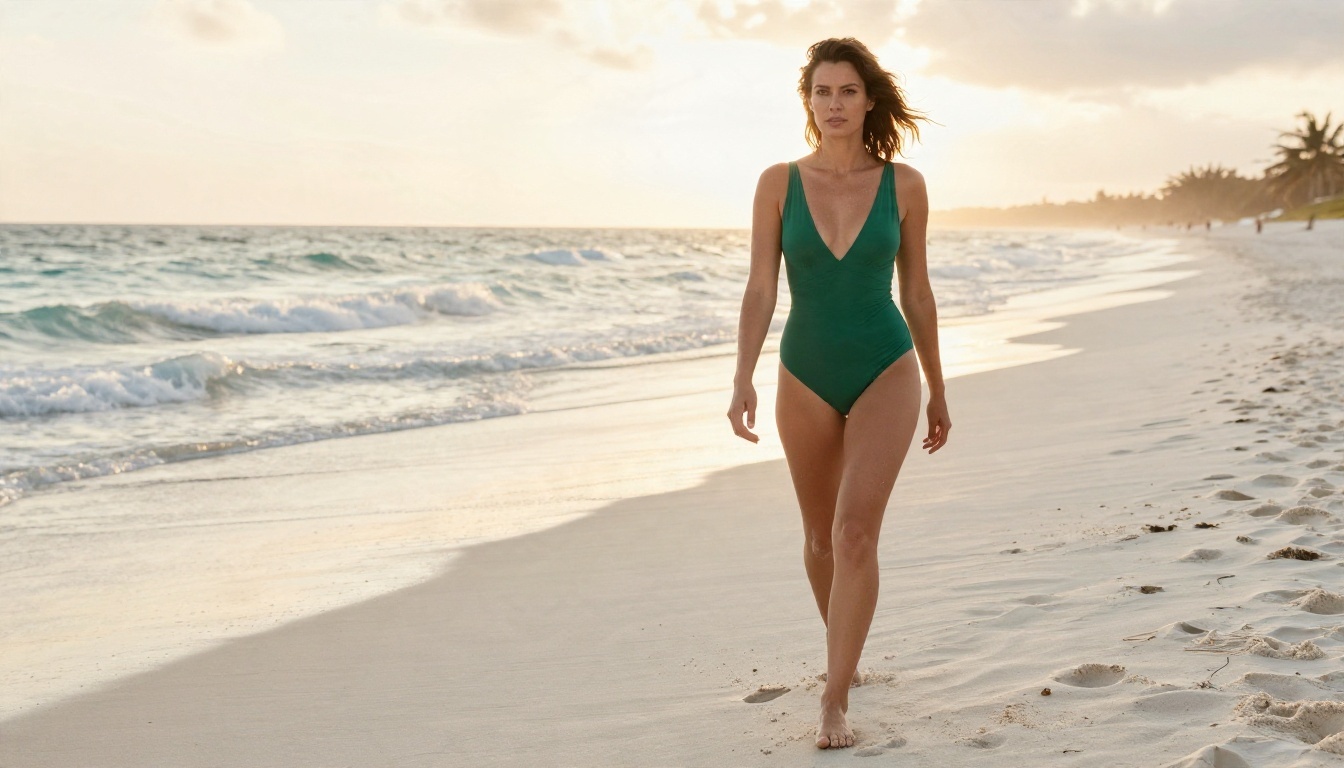
Image Editor Pro Removes the Limits
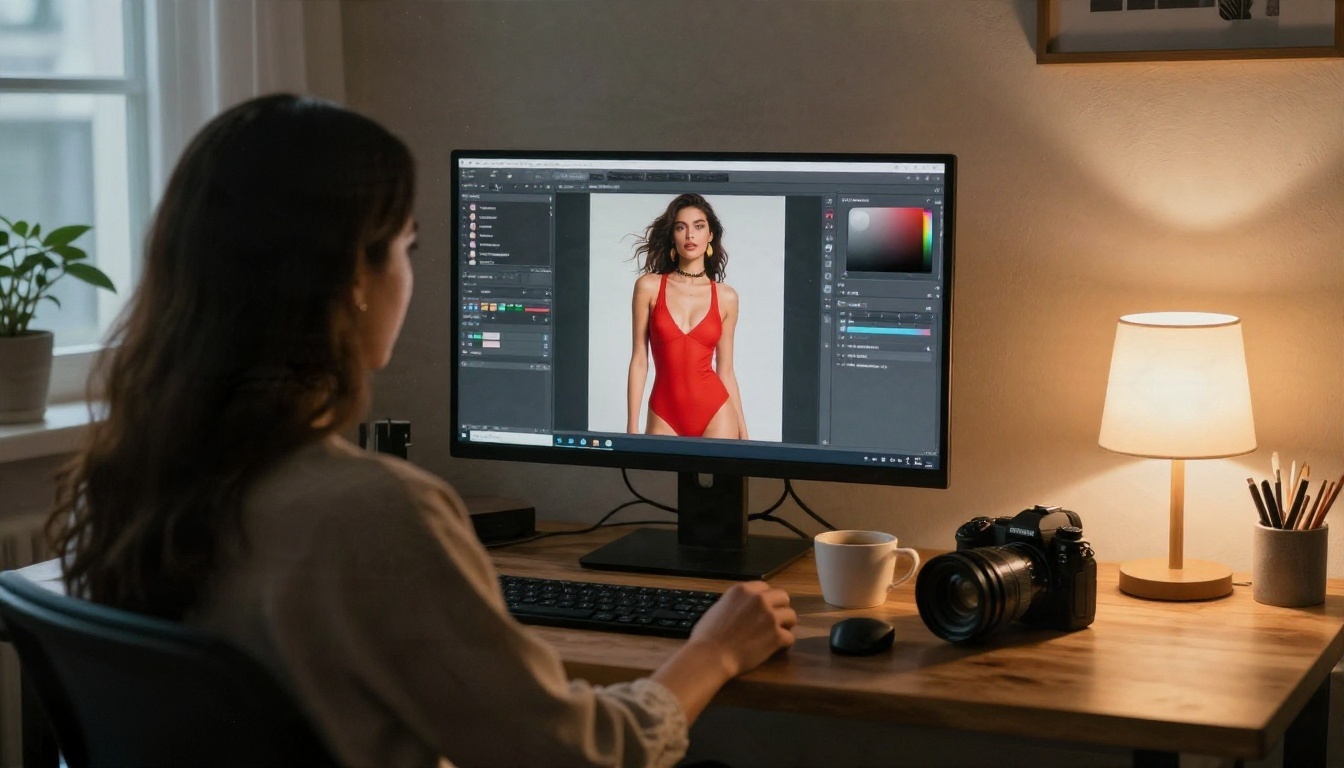
PicassoIA Image Editor Pro is built for the iteration loop that img to img demands. Edits finish in a few seconds, there is no per edit cap and no daily quota, and you can feed it up to three reference images and refer to them as "image 1", "image 2" and so on in your prompt. When you are testing five different outfits on one photo, unlimited generations change how you work: you stop rationing attempts and start experimenting.
It is the better pick when you already have a good photo and want to nudge it: change a swimsuit color, shift the light, swap a background.
Other Editors Worth a Look
Flux Kontext Fast is excellent at preserving identity while changing small things. Qwen Image Edit Plus lets you combine references, for example one image for the person and another for the outfit. P Image Edit is the fastest option when you want to test a prompt idea before committing to a longer, higher quality run. You can also browse every option at picassoia.com/en/all-models.
Best Settings That Actually Matter
Most img to img tutorials are written around Stable Diffusion style interfaces, where a denoising strength slider decides how far the output drifts from the source. Modern instruction based editors such as the ones above work a bit differently: the prompt wording does most of the controlling, and a handful of parameters do the rest.
Edit Strength Through Wording
In a slider based tool, a low value (around 0.3 to 0.4) keeps the source almost intact, a mid value (0.5 to 0.65) allows outfit and light changes, and a high value (0.75 and above) rewrites most of the image. In prompt driven editors you get the same effect by being specific about what stays and what changes.
| Goal | Wording that works |
|---|
| Small change | "Keep the same face, pose and background. Only change the swimsuit to red." |
| Medium change | "Keep the same woman and pose. Change the outfit and relight with warm golden hour sun." |
| Large change | "Use image 1 as a pose reference. New location: a cliff at sunset. New outfit: navy one piece." |
💡 Tip: Start with a small change. If the model keeps everything intact, go bigger on the next run. Going the other way, from big to small, usually wastes more attempts.
Aspect Ratio and Resolution
Both Seedream 4.5 and Image Editor Pro offer a match_input_image option for aspect ratio. Leave it on unless you deliberately want a new crop. That setting avoids stretched faces and cropped limbs. For resolution, Seedream 4.5 gives you a choice between 2K and 4K. Use 2K for testing and 4K only for final images you plan to print or post at full size.
Seeds, Batches and Output Format
Two small settings save a lot of time:
- Seed: Image Editor Pro lets you set a seed. When you find a result you like, keep the seed and change only one word in the prompt. You will see exactly what that word does.
- Batch size: Seedream 4.5 can generate multiple related images in one run when sequential generation is set to auto. Image Editor Pro can return one or two images per call. Two options per run roughly halves the number of attempts it takes to get a clean one.
- Output format: pick PNG for final files and WebP or JPG when you are only testing.
How to Use Seedream 4.5 on PicassoIA
Here is a practical workflow for a first run.
- Open the model page. Go to Seedream 4.5 on PicassoIA.
- Upload your source photo into the image input field. For multi reference blending, add up to fourteen images, though one to three is plenty for most glamour edits.
- Write a specific prompt. Name what stays and what changes. Include lighting, lens and texture words, for example "85mm lens, warm golden hour light from the left, natural skin texture, film grain".
- Set the aspect ratio to
match_input_image so the framing of your source is preserved.
- Choose 2K for the first pass. Switch to 4K once the composition is right.
- Set max images to 3 or 4 with sequential generation on auto if you want several variations to choose from.
- Run it, then refine. Change one thing at a time: the outfit, then the light, then the background.
- Polish in Image Editor Pro. For small fixes, move the best result into Image Editor Pro and run unlimited touch ups, such as adjusting a strap color or softening a shadow.
💡 Tip: Two stage workflows beat one stage workflows. Use Seedream 4.5 for the big visual change and Image Editor Pro for cheap, fast corrections.
Prompt Examples You Can Copy
A good img to img prompt has four parts: what to keep, what to change, the light, and the camera. Here are ready to use examples, grouped by task. Swap the details for your own photo.
Outfit and Styling Swaps
Swimwear change
Keep the same woman, face, pose and background. Change her outfit to a black satin two piece swimsuit with a thin gold clasp. Natural skin texture, soft sheen of sea mist, 85mm lens, warm golden hour light from the left, Kodak Portra 400 film grain.
Boudoir styling
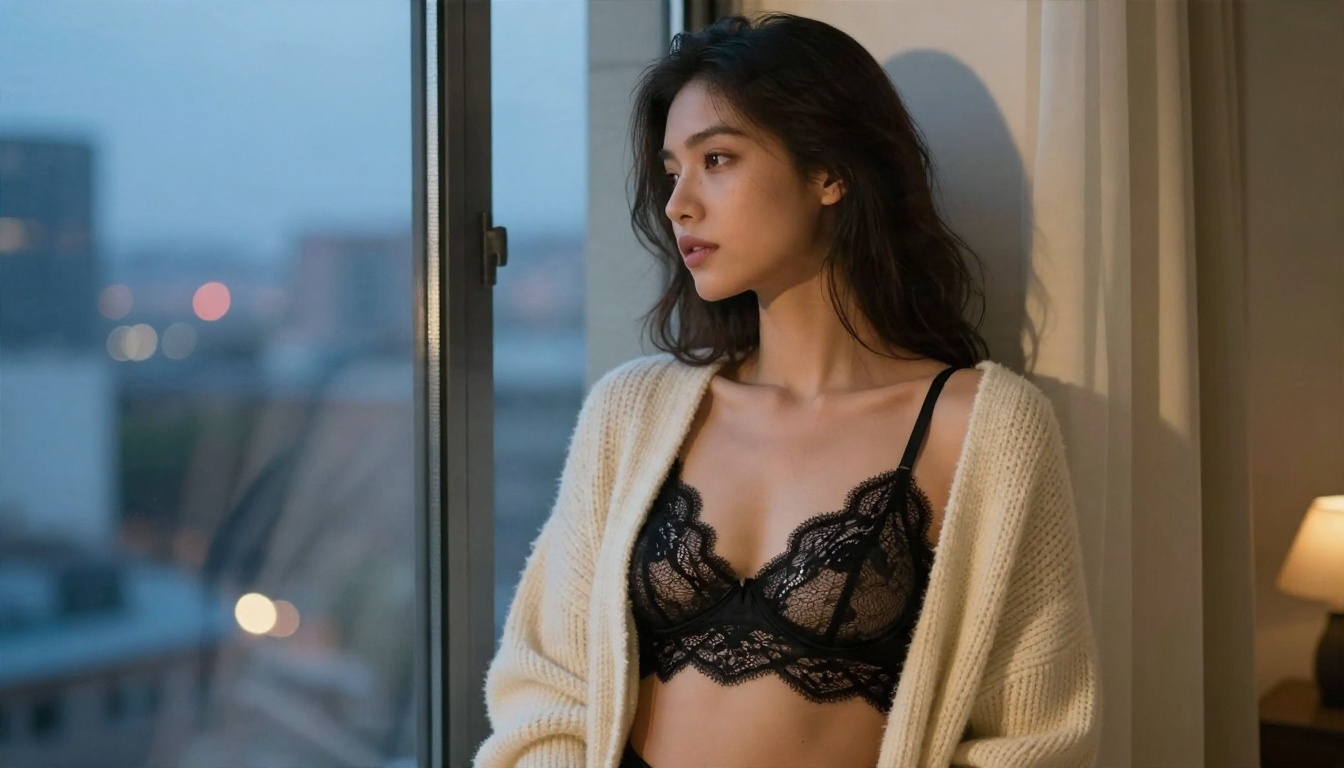
Keep the pose and framing. Dress her in a black lace bodysuit under an oversized cream knit cardigan slipping off one shoulder. Delicate lace pattern visible, soft tungsten lamp light from the right, shallow depth of field.
Robe and vanity
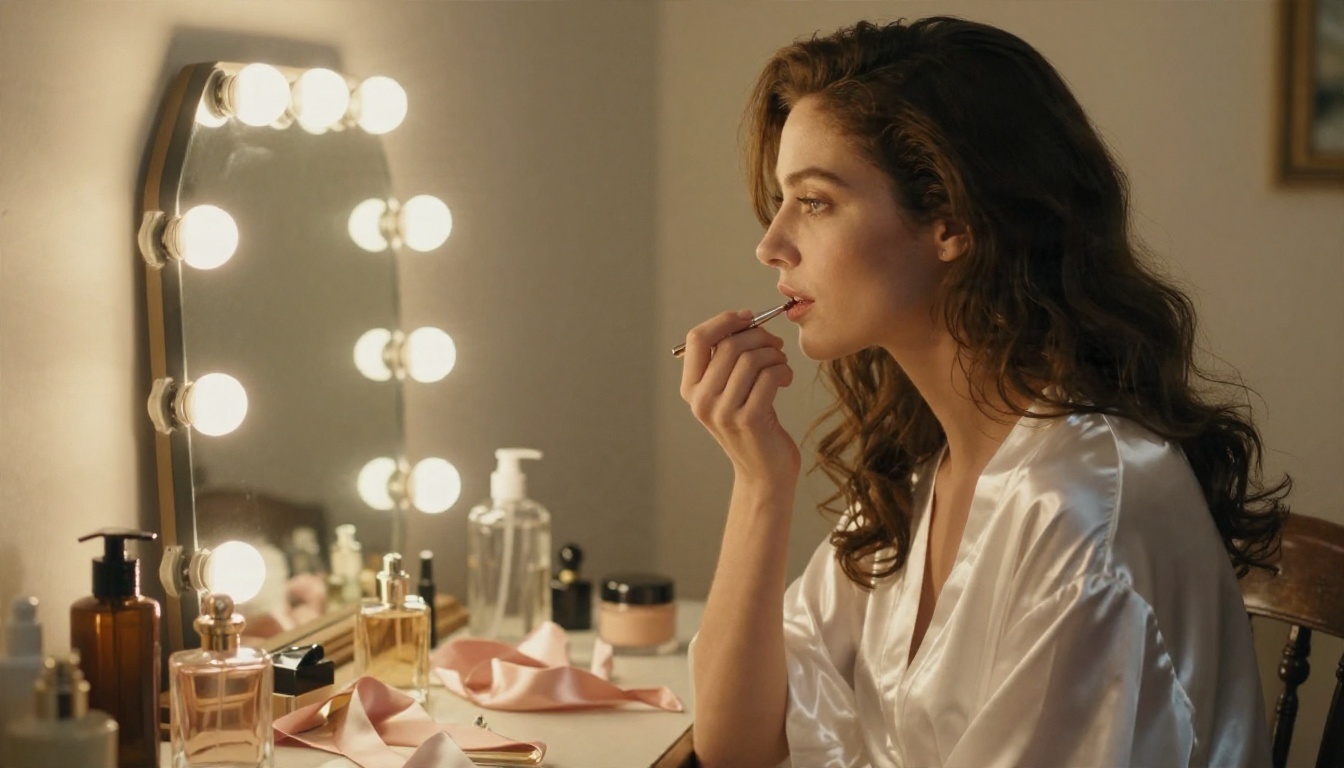
Keep the face and seated pose. Change the outfit to a white satin slip robe. Add a vintage vanity mirror with warm bulb lights. Visible satin sheen, soft light from the front left.
Lighting and Mood Changes
Golden hour relight
Keep everything the same. Relight the scene with low golden hour sun from behind and to the left, adding a soft rim light on hair and shoulders. Slightly warmer skin tones, gentle halation on highlights.
Soft studio portrait
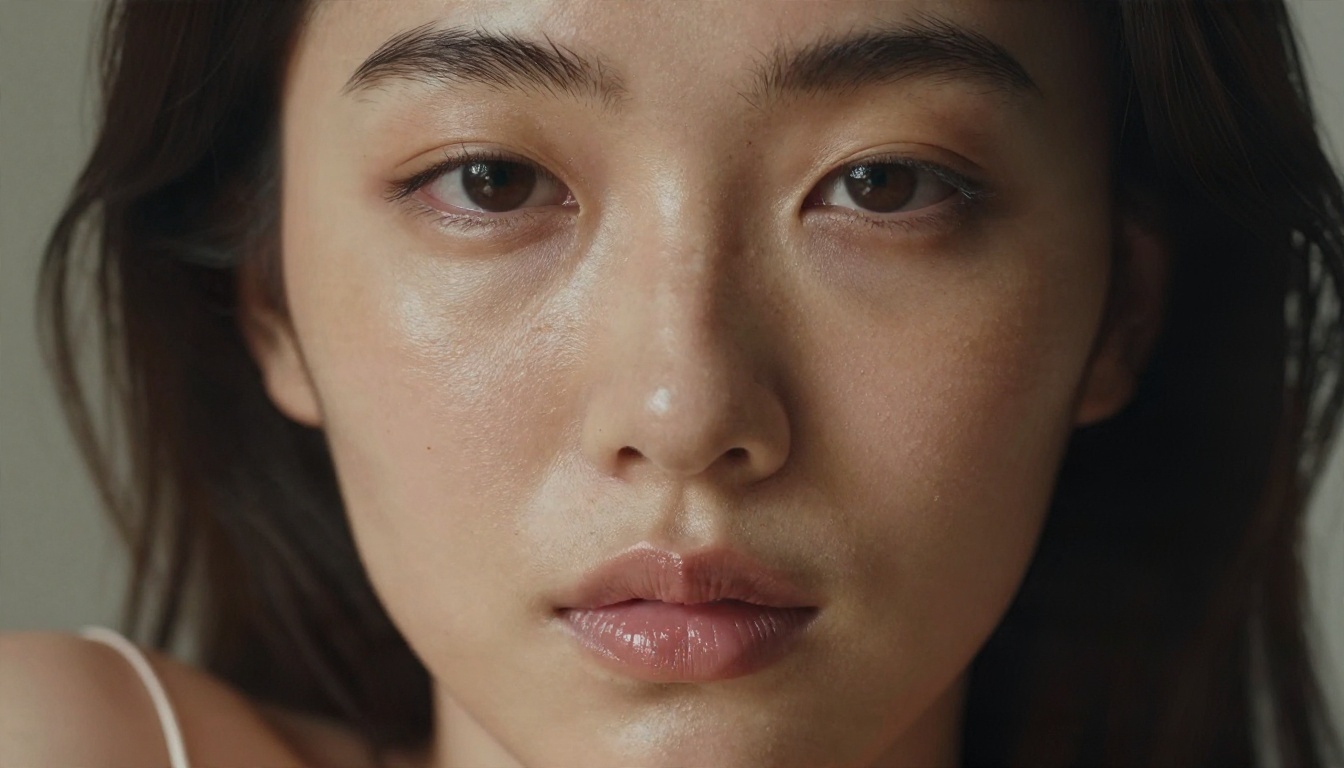
Keep the face and expression. Relight with a large softbox from the left, gentle shadow falloff on the right cheek, dewy skin with visible pores, 100mm lens, tight framing.
Here is what a tight, softbox lit boudoir portrait looks like when the skin keeps its real texture:
Location Swaps
Yacht deck
Keep the woman and pose. Move her to the teak deck of a private yacht in a calm turquoise bay at golden hour. Add a white rail and distant rocky island. Keep her outfit the same.
Cliff at sunset
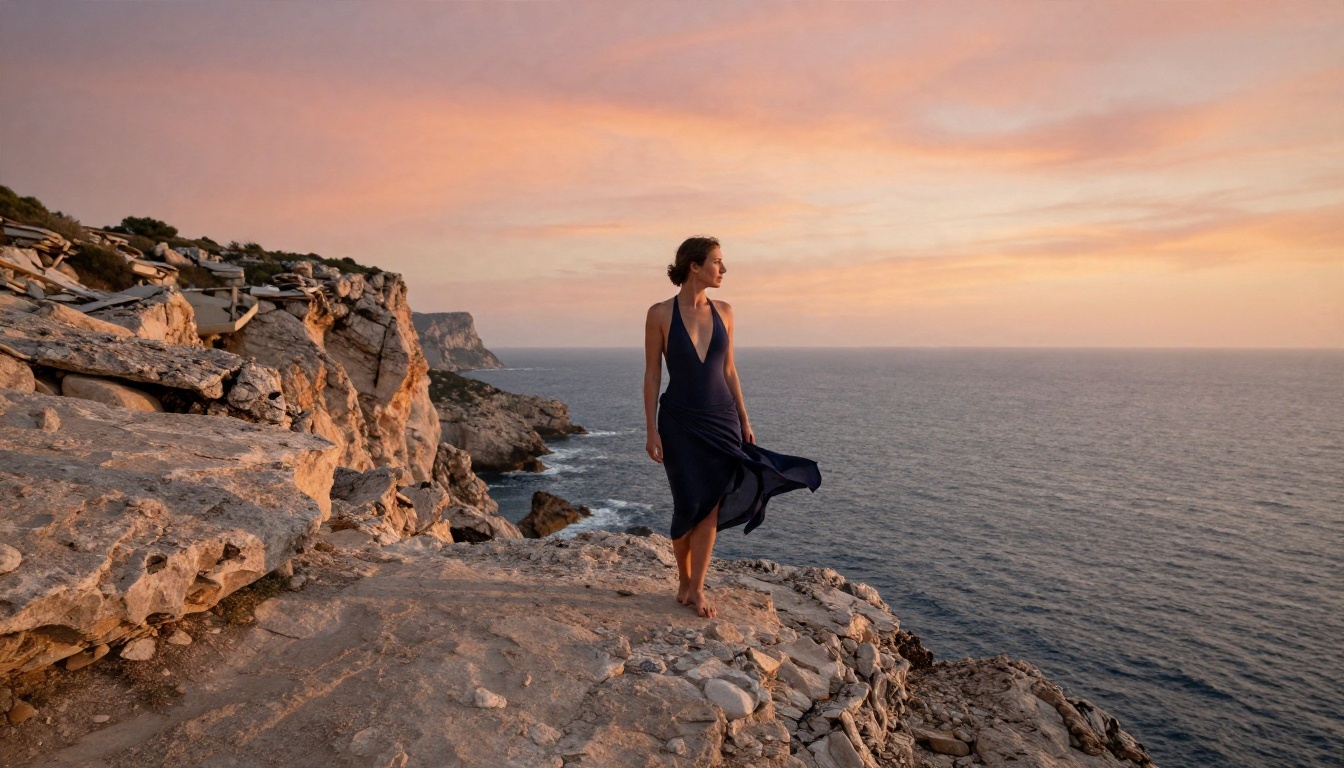
Keep the pose. Place her on a rocky Mediterranean cliff at sunset, wearing a navy one piece swimsuit with a sarong lifted by the wind. Warm side light from the right, sea spray in the distance.
Beach club boardwalk
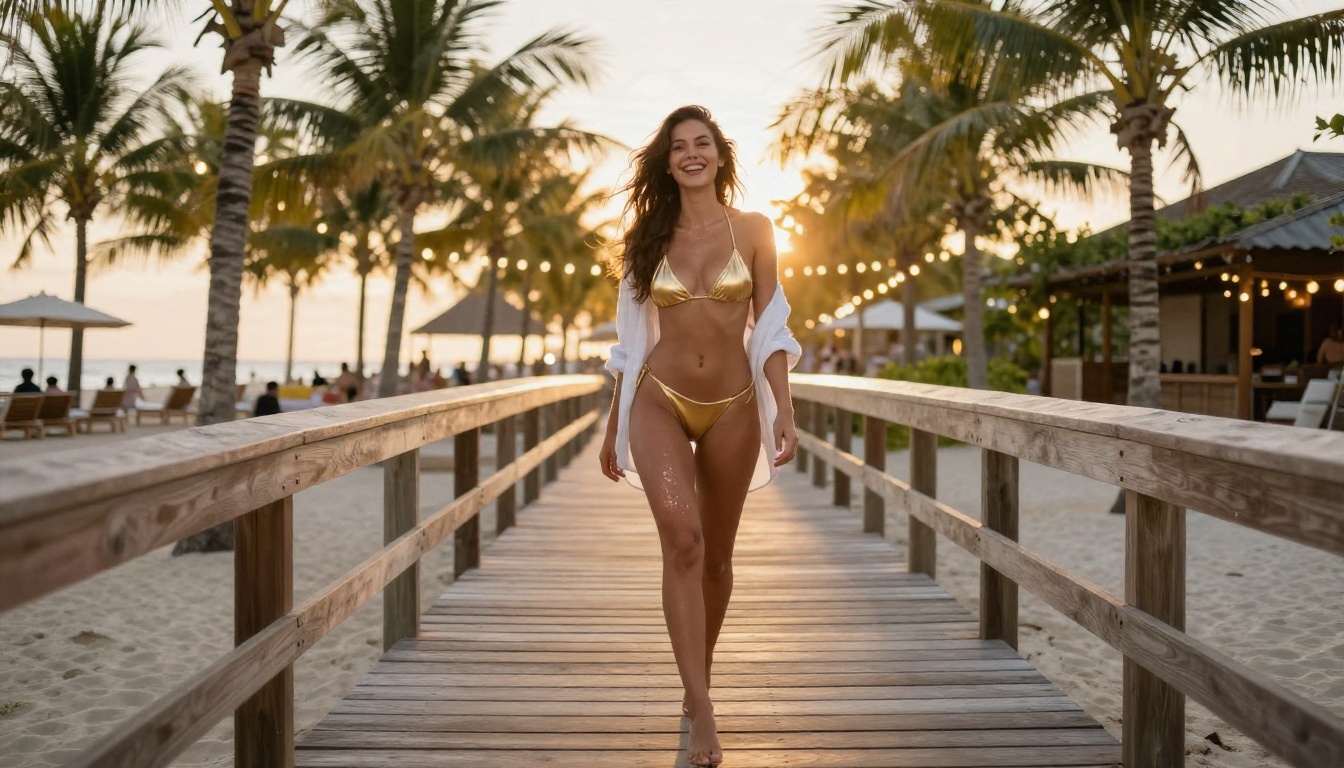
Keep the face and walking pose. Move her to a wooden boardwalk at a tropical beach club, palm trees and string lights behind, warm backlight, hair in motion.
Mistakes That Ruin Results
Most failed img to img runs come from the same handful of errors.
- Vague prompts. "Make it sexier" gives the model nothing to act on. Name the outfit, the light and the camera.
- Changing too much at once. Outfit, pose, background and lighting in one prompt means the face usually drifts. Split it into two or three runs.
- Low quality sources. Blur, heavy compression and harsh flash all get inherited by the output. Start sharp.
- Forgetting to say what stays. If you do not write "keep the same face and pose", the model may decide for you.
- Plastic skin. Add texture words: "visible pores, fine hairs, natural sheen, film grain". Avoid "flawless" and "perfect skin", which push models toward a waxy look.
- Wrong aspect ratio. Forcing 16:9 on a portrait photo crops or stretches the subject. Use
match_input_image first.
- Skipping the seed. Without a fixed seed you cannot tell whether a good result came from your wording or from luck.
💡 Tip: Keep a small notebook of prompts that worked. Reusing the structure "keep / change / light / camera" will save you hours.
Staying Safe and Legal
NSFW img to img is a sensitive area, and a few rules are not optional.
- Adults only. Only use source photos of people who are clearly adults. Never generate sexualized images of minors, in any form.
- Consent matters. Use your own photos, photos of models who have agreed to the use, or fully synthetic subjects. Do not run edits on photos of real people who have not consented. Non consensual intimate imagery is illegal in a growing number of places and harms real people.
- Keep it non explicit. The examples in this article stay with swimwear, lingerie style fashion and boudoir lighting. That is also what produces the best looking results, since glamour photography has always relied on suggestion.
- Respect platform rules. If you publish your images, check the rules of the site you are posting to, and label AI generated images where required.
Make Your Own Images Today
You now have the full workflow: pick a sharp source photo, choose the right editor, write a prompt that says what stays and what changes, and refine one variable at a time.
The fastest way to see the difference is to run the same photo through two tools. Upload it to Seedream 4.5 for a high realism restyle, then bring the best result into PicassoIA Image Editor Pro for unlimited quick touch ups. Try one outfit swap, one relight and one location change, and compare them side by side.
When you want to try other editors, Flux Kontext Fast, Qwen Image Edit Plus and P Image Edit are all a click away, and the full catalog is at picassoia.com/en/all-models. Pick a photo, write your first prompt and see what Picasso IA can do with it.


