Most AI image tools bury your work in a scrolling chat. You type, you get four pictures, you type again, and the good one from twenty minutes ago is lost somewhere above. Recraft took a different route: one enormous board where every generation, edit and variation sits side by side. That board is the infinite AI artboard, and it is the reason designers keep mentioning Recraft in the same breath as Figma and Photoshop rather than the usual chatbot generators. This article walks through what the free online canvas really offers, how the daily limits behave, which prompts produce clean results, and what to do when the free plan stops being enough.
💡 Quick summary: The canvas is great for comparing ideas and building brand sets. The free plan is generous enough to test it, but it runs on daily credits, and the images are public. If you want private, unlimited style experiments, the Recraft models also run on PicassoIA, without the canvas.
What the Infinite Canvas Actually Is
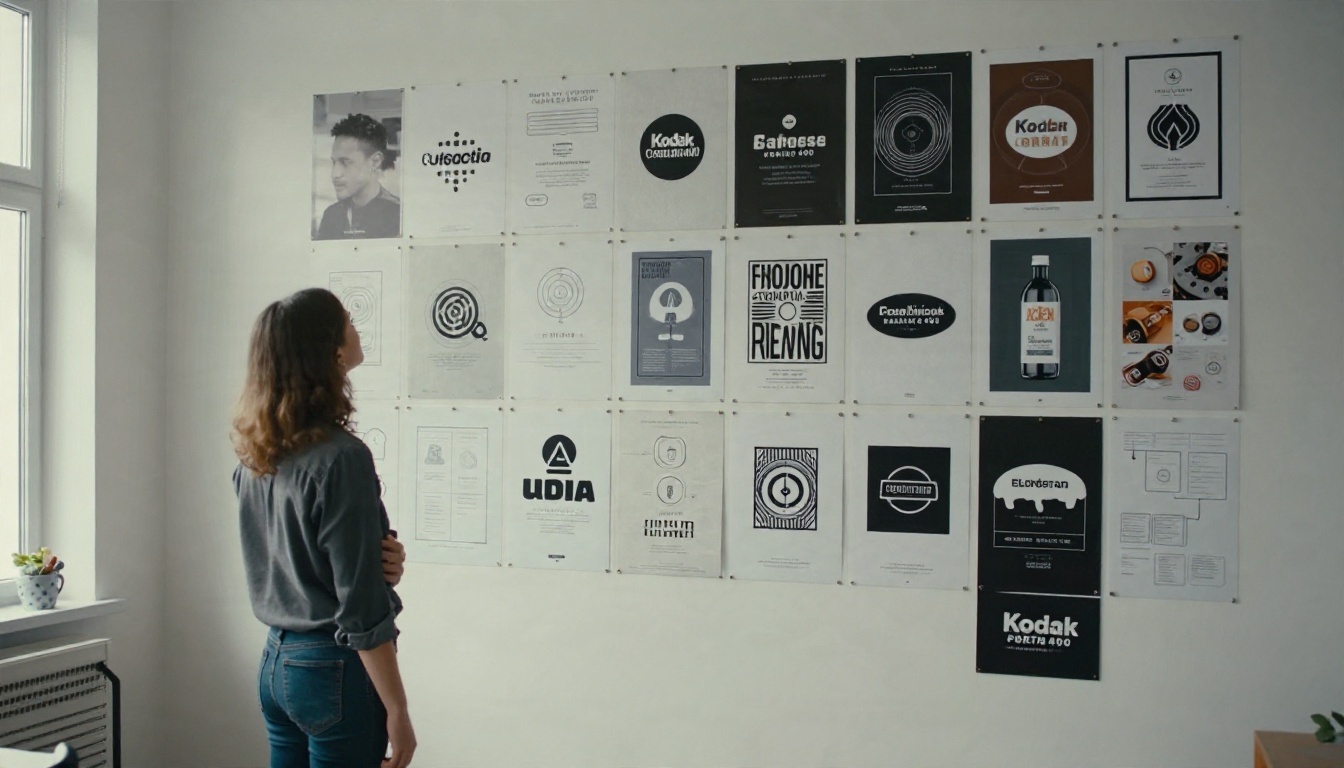
The idea is simple, and it is easier to grasp once you picture a physical wall of pinned proofs. Instead of a single preview window, you get a pannable, zoomable surface. Every image you make lands on that surface, and you can drag it, resize it, duplicate it, or send it back through the generator.
One Board, Unlimited Space
On a normal generator, space is the bottleneck. You get a grid of four, maybe eight, and anything older gets pushed out of view. On an infinite artboard there is no edge. You can park twelve logo directions on the left, a product mockup series in the middle, and a mood board on the right, then zoom out and judge them as a set.
That matters more than it sounds. Visual decisions are comparative. You rarely know a logo is right until you see it next to the wrong ones. A canvas keeps the wrong ones around long enough to be useful.
How It Differs From a Chat Box
A chat interface treats each prompt as a new turn. A canvas treats each image as an object. You select an image, then act on it: regenerate with a tweak, remove the background, change the style, upscale it, or turn it into a vector. The result lands next to the original instead of replacing it.
Here is the practical difference:
| Feature | Chat style generator | Infinite artboard |
|---|
| History | Linear scroll, hard to compare | Everything visible at once |
| Editing | Re-prompt the whole image | Select and act on one object |
| Organizing | Folders or favorites | Spatial layout, grouped by position |
| Team review | Share a link to a thread | Share the whole board |
| Best for | Fast single images | Brand sets, campaigns, iterations |
One caveat from research: the canvas lives in the desktop web app. Mobile apps have been described as lacking the full canvas, so plan your design sessions for a laptop or a monitor with real room to work.
What the Free Plan Gives You
The free plan is where most people start, and it is also where most confusion lives, because the numbers quoted around the web do not agree with each other.

Daily Credits and Resets
Recraft's free plan runs on daily credits that reset every 24 hours. That part is consistent across the official docs and every review I checked. The amount is the unclear part. Several recent sources put the free allowance at 30 credits per day, while older articles quote 50. Pricing pages change often, so treat any single number, including this one, as a snapshot and confirm it on the live pricing page before you plan a project around it.
What does a credit buy? Credits are spent per generation, and the cost depends on the model and the output. A standard raster image costs less than a vector or a high resolution render. That means 30 credits could be a decent number of quick drafts, or only a handful of premium outputs.
💡 Tip: Credits that reset daily do not roll over. If you only open the app once a week, you effectively get one day of credits per week. Short daily sessions beat one long weekend binge.
Public Images and Licensing
This is the limit people overlook. According to Recraft's own documentation, images generated on the free plan are public and can show up in the community gallery. Third-party summaries also state that free-tier images stay with Recraft and cannot be used commercially. If you are doing client work, that is a dealbreaker on its own. Paid plans change both points, and free users cannot buy extra credits as a top-up.
So the free canvas is a place to test, sketch and decide whether the tool fits you. It is not where a confidential client rebrand should live.
What the Free Tier Looks Like at a Glance
| Item | Free plan (as reported) | Paid plans |
|---|
| Credits | Daily, reset every 24 hours | Larger monthly allowance |
| Credit top-ups | Not available | Available |
| Image privacy | Public, may appear in gallery | Private |
| Commercial use | Reported as not allowed | Allowed |
| Canvas | Desktop web app | Desktop web app |
| Extra caps | Some sources list per style and upload caps, unverified | Higher or none |
If a figure in that table matters to your decision, check it at the source. I would rather you verify than rely on a number that was true three months ago.
Prompts That Work on the Canvas
Prompting on a canvas is slightly different from prompting in a chat. You are often building a set, so consistency counts as much as quality.
Structure of a Strong Prompt
Recraft rewards specific, design minded language. A reliable order is:
- Subject: what is in the image, in plain words.
- Style: photo, flat vector, line icon, editorial illustration, matte product shot.
- Palette: two or three named colors, not "colorful".
- Composition: centered, negative space on the right, top down.
- Use: logo, poster, app icon, packaging, social post.
- Exclusions: things you do not want, such as extra text or busy backgrounds.
Short beats long here. A prompt of 25 to 40 words with a clear subject and a clear use case almost always beats a 120 word paragraph of adjectives.
Prompt Examples by Use Case
Copy these, change the nouns, and see where they land.
| Use case | Prompt |
|---|
| Logo mark | A simple mountain peak inside a circle, flat vector, two colors, deep green and cream, centered, lots of white space |
| Product mockup | A matte white ceramic mug on a pale wooden table, soft window light from the left, minimal, top down |
| Packaging | A kraft paper coffee bag with a plain geometric emblem, studio lighting, shallow depth of field |
| Poster | A bold sunset gradient poster, large empty area on the top third for a headline, clean modern layout |
| App icon | A rounded square icon with a single leaf shape, soft shadow, flat, two tones of blue |
| Brand set | The same mountain emblem on a tote bag, a business card and a sticker, consistent colors, white background |
For brand sets, generate the hero mark first, drop it on the canvas, and then use it as the reference for everything else. That is where the board earns its keep.
Fixing Weak Results
Three problems come up again and again:
- Messy text. Most generators still struggle with long strings. Keep any wording to one or two words, or add real text afterward in a layout tool.
- Inconsistent style across a set. Lock the style words and palette, and change only the subject between runs.
- Overstuffed scenes. Remove adjectives, not nouns. If it still looks cluttered, add "plenty of negative space".
💡 Rule of thumb: If three runs in a row miss, the problem is almost always the prompt, not the model. Rewrite from scratch instead of piling on corrections.
Vectors, Mockups and Brand Sets
This is where Recraft earns its reputation. Many image generators produce pixels only. Recraft has leaned into design output, including scalable vector graphics that open cleanly in a vector editor.
Why Vector Output Matters
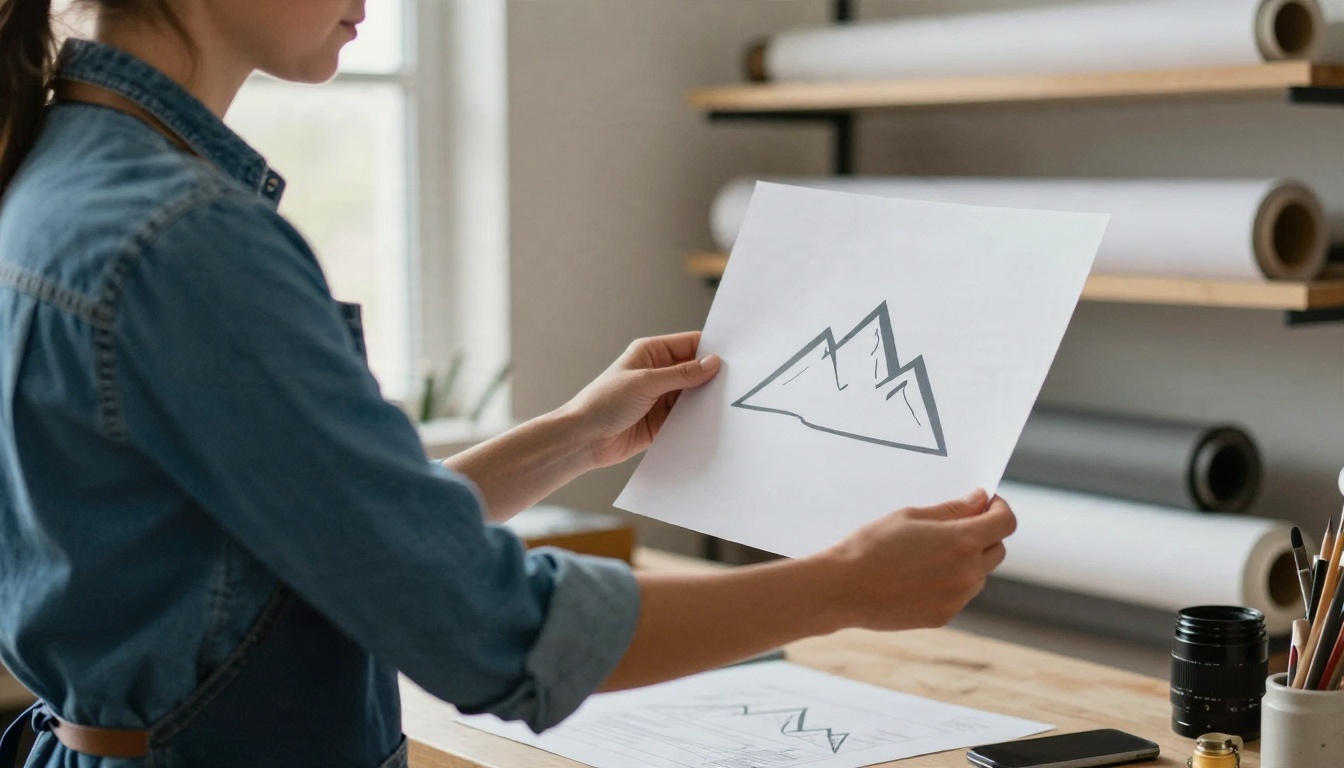
A raster logo breaks the moment someone needs it on a billboard. A vector scales to any size without blurring, and each shape can be recolored or edited by hand. For logos, icons, and simple illustrations, vector output saves the step of redrawing everything.
Practical places vector output pays off:
- Logos and wordmarks that must print at any size
- Icon sets for apps and websites
- Simple illustrations for slide decks
- Stickers, merch, and cut files
Styles and Consistency
The other strength is style control. Rather than hoping one prompt matches the last, you can anchor a set to a defined look and keep producing within it. That is the point of working on a board: every new asset sits next to the old ones, so drift is visible immediately.
Teams benefit too. A shared board lets a designer, a marketer and a founder look at the same wall and say "that one" without exporting files first.
Where the Free Canvas Falls Short
I like the canvas. I also think it is easy to oversell, so here is the honest list.
Limits You Will Hit
- Daily credits run out fast if you use vectors or high resolution outputs.
- Public images make private projects awkward.
- No commercial use on the free tier, as reported.
- Desktop focus. You cannot comfortably iterate on a phone.
- Learning the tool takes a few sessions. The canvas has many panels, and new users often spend their first day just finding things.
When a Chat Style Generator Wins
If you need one quick image for a blog post, the canvas is overkill. Open a simple generator, type, download, and move on. A board only pays off when you are comparing, building a set, or editing the same asset several times.
Planning Around the Daily Reset
Because credits reset every day, the smartest free plan workflow is to batch your thinking. Write your prompts in a notes file during the day, then spend credits on the best five rather than testing everything. Keep drafts cheap, and save premium outputs for the final pick.
How to Use Recraft v4.1 Pro on PicassoIA
Here is the clear distinction. The infinite canvas is a feature of Recraft's own app, and it is not part of PicassoIA. What PicassoIA does offer is the Recraft models themselves, run as a straightforward generator. That is useful when you want the look without daily credit caps or public galleries.
The relevant models are on PicassoIA today:
Step by Step
- Open the Recraft v4.1 Pro page on PicassoIA.
- Write a short prompt using the structure above: subject, style, palette, composition, use.
- Choose an aspect ratio that matches the final use. Square for icons and logos, 16:9 for banners, vertical for posters.
- Generate, then review the result at full size before changing anything.
- If it is close, change only one element of the prompt and run again. Changing three things at once hides which edit helped.
- For a logo or icon, switch to the SVG version and reuse the same prompt.
Parameter Tips
- Aspect ratio first. Pick it before you write the prompt, because composition words depend on it.
- Keep prompts under 40 words for logos and icons.
- Name the palette. "Deep green and cream" beats "nature colors".
- Reuse prompts as templates. Keep a note of the wording that worked and swap only the subject.
- Use vector for flat art, raster for photo looks. Do not ask a vector model for skin texture.
💡 Workflow idea: Generate on PicassoIA, then lay the best results out in any board or layout tool you already use. You get the Recraft look without being tied to one app's daily credit meter.
Alternatives Worth Trying
Recraft is strongest at design output. For photo looks, edits and different aesthetics, other models on PicassoIA fill the gaps.
| Model | Best for | Link |
|---|
| Recraft v4.1 Pro | Print ready 2K images, brand visuals | Open model |
| Seedream 4.5 | Sharp 4K images from text | Open model |
| Nano Banana Pro | Detailed 4K images and edits | Open model |
| Nano Banana | Quick generation and editing | Open model |
| PicassoIA Image Editor Pro | Unlimited photo editing | Open model |
A sensible split: use Recraft for logos, icons and flat brand assets, Seedream 4.5 for realistic hero images, and PicassoIA Image Editor Pro when you want to keep adjusting a picture without worrying about a cap.
💡 Why mix models? No single generator wins at everything. A brand kit often needs a vector mark, a photo style hero, and a few edited social crops. Three tools, one afternoon, no compromise.
Your Turn to Create
The infinite artboard is a smart idea: keep every image visible, act on objects instead of re-prompting, and judge ideas as a set. The free plan lets you test that idea with daily credits, as long as you accept public images and no commercial use. If those limits fit your project, start there. If they do not, the same Recraft models are a click away on PicassoIA.
Pick one small project today. A logo mark, a mug mockup, a three piece brand set. Write a 30 word prompt, run it on Recraft v4.1 Pro, then try the SVG version and compare. If you want photo looks next, run the same idea through Seedream 4.5 and see how far the styles drift. You can find every option at picassoia.com/en/all-models, and the fastest way to know what fits your work is to make something on PicassoIA right now.


