Instagram keeps rolling out features faster than most people notice them. The latest batch of AI tools built directly into the app are genuinely worth your time. Whether you post daily or just want your photos to look better without opening a separate editor, Instagram's AI editing suite has quietly become one of the most useful toolsets on any social platform. This piece breaks down exactly what the tools do, how to find them, and where a dedicated AI platform picks up where Instagram leaves off.

Instagram has integrated generative AI across several key areas of the app. The changes are not cosmetic. They affect how you shoot, how you edit, and what options you have when the original photo is not quite right.
The Generative Edit Feature
The generative edit tool is the most significant addition. You select an area of your photo, describe what you want there instead, and the AI fills it in. A dull grey wall behind your subject? Describe a sunlit brick alley and watch Instagram replace it. An unwanted object at the edge of your frame? Select it, hit remove, and the AI reconstructs the background seamlessly.
This works directly within the Instagram photo editor, no third-party app required. The quality depends on the complexity of the scene, but for most standard shots, the results are convincing enough to post without a second thought.
The Backdrop Feature
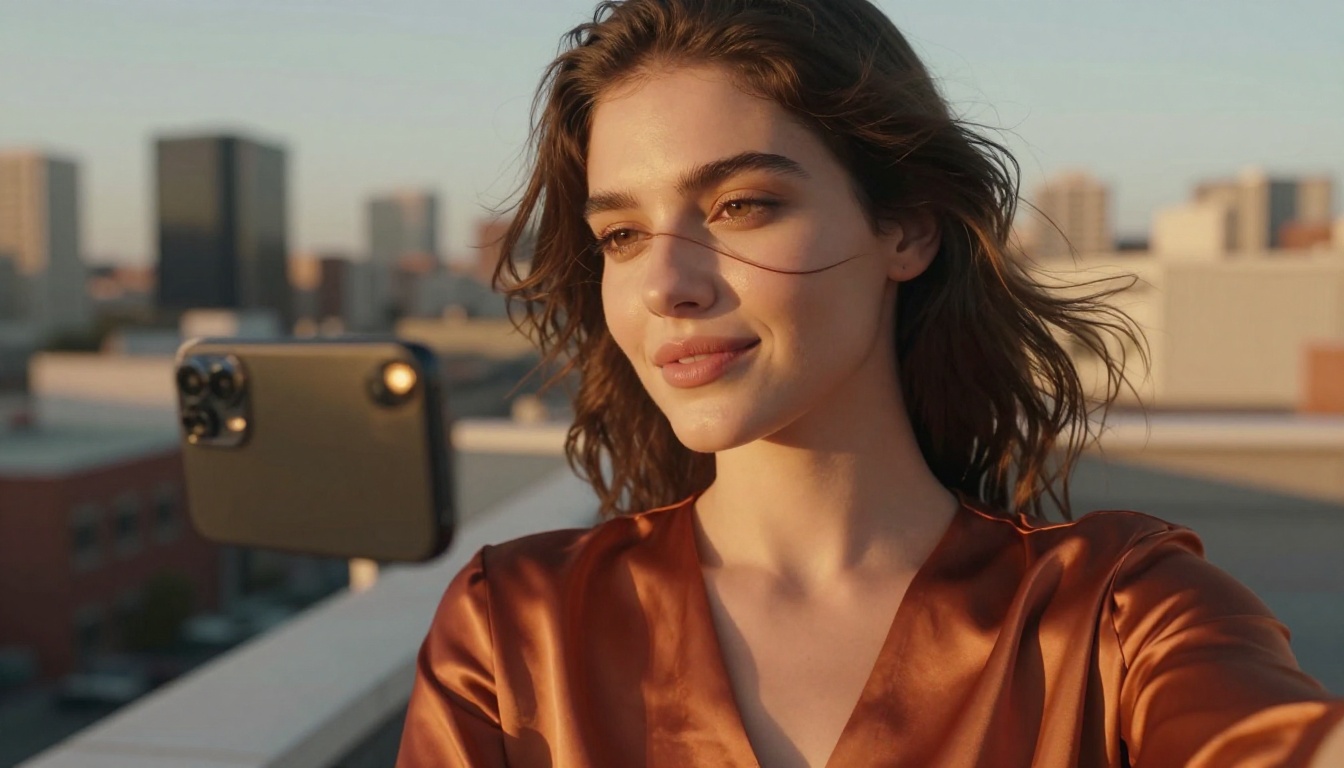
Backdrop is Instagram's take on AI background replacement for Stories and Reels. It isolates your subject automatically, removes the original background, and replaces it with a generated scene based on a text prompt you type.
You can go from a cramped apartment to a tropical beach in about ten seconds. The subject cutout quality has improved significantly since the initial rollout, handling hair strands and complex edges far better than earlier versions.
Why Your Photos Look Different Now
The biggest shift is that heavy editing no longer requires leaving the app. Before, a workflow involving background replacement, object removal, and color correction needed at least two or three tools. Instagram has collapsed that into a single editor.
The Editing Stays In-App
Keeping everything inside Instagram matters more than it sounds. When you edit externally and re-upload, you lose EXIF data and, more importantly, Instagram's algorithm treats re-uploaded files differently than photos posted directly from the camera roll or taken in-app. Editing natively avoids that entirely.
Results in Seconds, Not Minutes
The AI processes edits server-side at a speed that feels almost instant on a decent connection. Generative fills that would have taken minutes in dedicated software happen in three to eight seconds on Instagram. That is a real, practical advantage for anyone posting frequently.
💡 Tip: For generative edits, write descriptive prompts. "Warm sunset over mountains" produces better results than just "nice background." The more specific the language, the more accurate the fill.
How to Use It Step by Step
Finding Instagram's AI tools takes a moment the first time because they are not all grouped in one obvious place.
Where to Find the Tools
- Open any existing photo in your gallery within Instagram
- Tap Edit at the bottom of the screen
- Scroll right through the editing tools until you see Generative AI
- For Backdrop, create a new Story or Reel and look for the Backdrop sticker in the sticker menu
The Generative AI edit option may be labeled differently depending on your app version and region. If you do not see it yet, updating the app to the latest version usually resolves this.
Applying Generative Edits
- Select the Generative AI editing tool
- Tap and drag to select the area you want to replace or modify
- Type a description of what should replace the selected area
- Tap Generate and wait three to ten seconds
- Swipe left or right to cycle through the variations Instagram creates (usually three to four options)
- Tap your preferred result and continue editing
Swapping the Background
- In Stories or Reels creation, tap the Sticker icon
- Find and select Backdrop
- Type a description for your new background or choose from the suggested scenes
- Adjust the subject cutout edges if needed using the fine-tune brush
- Post as normal

3 Features Most People Miss
1. AI Captions for Reels: Instagram now auto-generates captions for video content. Beyond accessibility, these captions boost watch time because many people scroll with sound off. The accuracy rate for clear audio is high enough to use with light editing.
2. AI Stickers from Text: In Stories, you can generate custom stickers by typing a description. The sticker engine produces illustrated versions of whatever you describe, which is useful for branding or adding a unique visual element without sourcing graphics externally.
3. Object Removal in Still Photos: Separate from generative fill, the object removal tool specifically targets unwanted elements. Tap an object, confirm the selection, and Instagram removes it and reconstructs the background behind it. This is particularly effective for removing strangers who wandered into your shot.
| Feature | Where to Find | Best For |
|---|
| Generative Edit | Photo Editor > Generative AI | Background replacement, object modification |
| Backdrop | Stories/Reels > Sticker Menu | Full background swap |
| Object Removal | Photo Editor > Generative AI | Removing unwanted elements |
| AI Captions | Reels Editor > Captions | Video accessibility, watch time |
| AI Stickers | Stories > Sticker Menu | Custom branded graphics |
Portrait Shots Without a Studio
Instagram's AI tools shine brightest on portrait photography. The generative edit tools can replace distracting backgrounds behind people with impressive precision, and the backdrop feature handles hair-level accuracy better than most dedicated apps from two years ago.
AI Retouching Built In
Beyond background replacement, Instagram applies subtle AI retouching automatically when you enable it. This includes light smoothing, eye brightness adjustments, and contrast corrections specific to skin tones. The adjustments are intentionally conservative, not the heavy-handed filters associated with older beauty modes.
Lighting Correction
If your subject was shot in flat or uneven light, the AI lighting correction tool models how different light sources would interact with the existing photograph. It does not just add a brightness layer; it attempts to model realistic directional light, adding shadow and highlight in locations that make physical sense.
💡 Tip: Lighting correction works best on photos where the subject is clearly separated from the background. Mixed lighting scenes with complex shadows can produce uneven results.

Go Further with Dedicated AI Models
Instagram's built-in tools are convenient, but they are intentionally limited. The generation quality is constrained to keep file sizes manageable and processing fast for a mass-market app. If you want more control, higher resolution, or access to dozens of specialized models, PicassoIA closes the gap.
Flux Dev Changes the Game
Flux Dev is one of the most capable open-weight image generation models available right now. Where Instagram's generative fill works with a small selection and a simple prompt, Flux Dev generates full-resolution images from detailed text descriptions with a level of realism that rivals professional photography.
For content creators who want to produce Instagram-ready photos without a camera, Flux Dev produces shots with natural lighting, realistic textures, and a photographic quality that passes casual inspection. You can generate an entire content calendar's worth of lifestyle imagery in an afternoon.
Flux Pro steps up the quality further for commercial-grade output, offering sharper micro-detail and more consistent anatomy on human subjects.
Portrait Series for Headshots
The Portrait Series model on PicassoIA takes a single reference photo and generates a variety of professional portrait styles from it. Upload one photo and receive shots that look like they were taken across different sessions, locations, and lighting setups. This is what photographers charge day rates for, available in minutes.
Upscale Your Results
Instagram downsamples images on upload, which is a constant frustration for photographers posting high-detail work. Before posting, running your image through Real ESRGAN or Image Upscale by Topaz recovers sharpness and detail that would otherwise be compressed away. Topaz's model in particular handles portrait upscaling with exceptional skin detail preservation.

Background Removal Without the Hassle
One of the most practical AI tools on PicassoIA is the Remove Background model. It isolates subjects with precision that handles fine hair, transparent fabric, and complex edges. This pairs perfectly with Instagram's Backdrop feature: remove the background cleanly first, then drop the subject into Instagram's AI-generated scenes with a much cleaner cutout edge.
The workflow is simple:
- Upload your photo to PicassoIA's background removal tool
- Download the PNG with the transparent background
- Import into Instagram's Stories or Reels editor
- Apply the Backdrop sticker over your clean cutout
The result is noticeably cleaner than using Instagram's built-in subject isolation on photos with complex hair or fine detail.

It is worth being honest about the tradeoffs. Instagram's AI tools win on convenience. They are built into an app you are already using, they require no account setup, and they are free. The results are good enough for most casual and even semi-professional social media use.
Dedicated AI platforms win on depth, quality, and control. The models available on PicassoIA include over 90 text-to-image generators alone, specialized portrait tools, face transformation models, video editing AI, and more.
| Factor | Instagram AI | PicassoIA |
|---|
| Convenience | Very high | Moderate |
| Output resolution | Limited (compressed) | High (full resolution) |
| Model variety | Limited (3-5 tools) | 90+ models |
| Portrait control | Basic | Advanced |
| Background removal | Good | Excellent |
| Video AI | Basic filters | 87+ video models |
| Cost | Free | Free to use |
| Upscaling | None | 2x to 6x |
The practical answer for most creators is to use both. Instagram's AI for quick in-app fixes, and PicassoIA when quality, resolution, or a specific capability matters.

What Real Creators Are Doing
The most effective Instagram creators are not choosing between tools. They are using Instagram's AI to iterate fast and test ideas, then investing time on PicassoIA for the content that needs to look genuinely polished.
For Stories: Instagram's AI tools are fast enough to produce content in real time. Backdrop, AI stickers, and generative fills handle the majority of Story creation without leaving the app.
For feed posts: The higher-stakes content benefits from a dedicated workflow. Generate with Flux Kontext Pro, refine, upscale with Topaz Image Upscale, then post natively through Instagram.
For Reels: SDXL on PicassoIA can generate a sequence of consistent image frames that edit together into compelling visual content without video production overhead.
💡 Tip: Use Flux Kontext Fast when you need quick iterations. It produces results fast enough to test multiple concepts before committing to a full-quality generation.
Start Creating Right Now
Instagram's new AI tools are not hype. They represent a genuine shift in what a smartphone app can do with a photo. The generative edit feature alone saves hours that used to go to external editors, and the Backdrop tool opens up visual storytelling options that were previously only available with a green screen and production software.
But if you want to see what AI image tools can really do, the next step is PicassoIA. With models like Flux Dev, Portrait Series, and Flux Pro available instantly, you can create content that rivals professional photography without leaving your desk.
Pick a photo you have been meaning to post and run it through the tools. Use Instagram's AI to fix the quick things. Use PicassoIA to generate something you could not have shot with a camera. The difference in what you can create this week versus last week is significant, and it only takes a few minutes to see it for yourself.


