Kling 3.0 arrived without fanfare and immediately broke the benchmark. While the AI video space was busy comparing prompt adherence and clip length, Kuaishou's engineering team shipped something more significant: a model that can hold a single coherent story across multiple shots, maintain character identity from cut to cut, and render motion that actually looks like it was filmed. That shift, from single-shot generation to proper multi-scene video production, is what separates Kling 3.0 from everything else running right now.
If you have tried AI video generation before and walked away frustrated by the jitter, the warped faces, or the clips that feel like disconnected dreams, Kling 3.0 is the version that actually delivers on the promise. This article breaks down what it does differently, how it stacks up against Sora 2 and Veo 3, and how to get the most cinematic results from your prompts on PicassoIA.

What Kling 3.0 Actually Does
Kling 3.0 is a text-to-video and image-to-video generation model developed by Kuaishou (KwaiVGI). The version 3 architecture introduces two critical capabilities that prior releases lacked: native multi-shot scene sequencing and physics-aware motion modeling.
Where most AI video models generate a single continuous clip from a single prompt, Kling 3.0 can process a structured prompt and produce output that behaves like an edited sequence. Multiple scene cuts, camera angle changes, and character re-entries are all handled within one generation pass.
Multi-Shot Scene Control
The headline feature is the ability to describe different shots in a single prompt and receive a video that respects each described transition. You can write something like "close-up of a woman holding a coffee cup, then cut to wide shot of a busy city street, then return to medium shot of her reacting" and the model will honor that structure.
This is not perfect. Long prompt sequences with more than four distinct shots tend to lose fidelity on the later scenes. But for two to three shot sequences, the output is remarkably coherent and requires significantly less post-production work.
Physics and Motion Realism
Kling 3.0 uses a physically-grounded motion diffusion approach. Fabric moves with weight, water splashes behave like water, and hair responds to wind direction. Earlier Kling versions and most competitor models produced motion that looked like texture animation rather than a physical object moving through space.
The difference is visible immediately. A coat sleeve as a character turns. Liquid pouring into a glass. A flag catching wind. These details are where Kling 3.0 separates itself from single-frame interpolation approaches.
Resolution and Output Quality
Standard output reaches 1080p at 24fps with options for higher frame rates in certain generation modes. The Kling V3 Omni Video variant supports both text and image inputs with improved scene control, making it the most flexible option in the lineup.
For motion-specific work, Kling V3 Motion Control lets you transfer movement patterns from reference clips onto new characters, which opens up a completely different creative workflow entirely.
Kling 3.0 vs Previous Versions
The version history of the Kling model family is a clear trajectory of capability gains with each major release.
The jump from v2.6 to v3 is not incremental. The motion diffusion architecture was rebuilt, and the scene-level attention mechanism is entirely new. Users who have tested both versions consistently report that v3 produces 25 to 40% fewer artifacts in motion-heavy sequences and substantially better face consistency across cuts.
💡 Tip: If you need fast iteration cycles for social content, Kling v2.5 Turbo Pro still delivers strong results at faster generation times. Use v3 when output quality is the priority.
Where Kling 3.0 Beats the Competition
The AI video space in 2027 has four serious contenders at the top: Kling 3.0, Sora 2, Veo 3, and Hailuo 2.3. Each has genuine strengths, but the category of multi-shot narrative video is where Kling 3.0 pulls ahead.
Kling 3.0 vs Sora 2
Sora 2 Pro produces exceptional single-scene cinematic footage. The texture rendering and lighting are arguably the most photorealistic in the field. But Sora 2 does not natively handle multi-shot sequences with structural scene transitions. You are generating one clip at a time and stitching in post.
Kling 3.0 handles that within the generation itself. For storytellers, content creators, and marketers building multi-scene narratives, this removes significant friction from the workflow.
Kling 3.0 vs Veo 3
Veo 3 from Google offers outstanding audio-visual coherence and is particularly strong for nature and outdoor scenes. Its motion quality is excellent. Where it falls short is character consistency across shots and the multi-scene control that Kling 3.0 handles natively.
| Feature | Kling 3.0 | Sora 2 Pro | Veo 3 |
|---|
| Multi-shot scenes | Yes | No | Partial |
| Character face consistency | Excellent | Good | Good |
| Physics accuracy | Excellent | Excellent | Very Good |
| Audio generation | No | No | Yes |
| Max clip length | 3 minutes | 20 seconds | 1 minute |
| Motion control | Yes | No | No |
💡 Tip: For projects that require native audio, combine Kling 3.0 for visual generation with dedicated audio tools. PicassoIA offers Text to Speech and AI Music Generation models that pair well with silent video output.

How Kling 3.0 Handles Multi-Shot Videos
The multi-shot architecture in Kling 3.0 works through scene-level attention conditioning. When you describe multiple shots in your prompt, the model segments your description into scene units and applies separate spatial conditioning to each segment while maintaining shared character and environment embeddings across the full sequence.
This is why character faces stay consistent between shots even when camera angles change dramatically. The character identity is encoded separately from the scene composition, then both are conditioned into each frame during the diffusion process.
Scene Transitions
Kling 3.0 handles three transition types well:
- Hard cuts: Immediate scene changes with no blending
- Soft dissolves: Gradual transitions between scenes
- Camera movements: Pan, zoom, and dolly moves that connect scenes visually
To trigger a hard cut in your prompt, use clear directional language: "then cut to", "switch to", "now showing". For soft transitions, use "fading into", "dissolving to", or "slowly revealing".
Character Consistency
Character consistency is the most technically difficult problem in AI video generation. Kling 3.0 maintains face topology and clothing details across shots when you keep the character description consistent in your prompt.
What works: Naming distinctive visual features in every shot description ("the woman in the red jacket", "the same man with the white beard"). This anchors the character embedding across scene boundaries.
What breaks consistency: Changing the described environment too dramatically between scenes without transitional framing. Indoor to outdoor jumps with the same character can produce face drift in longer sequences.
Camera Movement Control
The dedicated Kling V3 Motion Control variant allows you to specify camera trajectories using reference video clips. You provide a clip that demonstrates the motion path you want, and the model applies that camera movement to your new subject and environment.
This is particularly useful for product videos where you want a specific reveal motion, or for replicating a cinematic camera move across multiple variations of the same scene.
How to Use Kling v3 on PicassoIA
PicassoIA has three Kling v3 models available, each optimized for a different use case. Here is how to get started with each.
Step 1: Choose the Right Model
Navigate to the text-to-video collection on PicassoIA and select based on your needs:
Step 2: Write a Multi-Shot Prompt
Structure your prompt in scene blocks separated by clear transition cues. A well-performing multi-shot prompt looks like this:
"Close-up of a woman's hands pouring coffee into a ceramic mug on a wooden kitchen counter, morning light from left window. Cut to medium shot of her sitting at a table by a large window, holding the mug, looking outside at a rainy street. Then cut to wide shot of the entire kitchen, showing her small apartment interior, warm tungsten light."
This three-shot structure gives the model a clear establishing action (pouring), a character moment (sitting, looking), and environmental context (wide shot). Each element is described with enough specificity that the scene-level attention conditioning has something concrete to work with.
Step 3: Set Duration and Aspect Ratio
- Duration: 5 to 10 seconds per shot works best. For a 3-shot sequence, aim for 15 to 20 seconds total output.
- Aspect ratio: 16:9 for standard video, 9:16 for vertical social content.
- Quality mode: Set to "Professional" for final output. Use "Draft" for prompt iteration.
Step 4: Iterate on Scene Structure
If your first generation has face drift between shots, try these fixes:
- Add the character's distinctive visual description to each scene block explicitly
- Reduce the number of shots to 2 instead of 3
- Use Kling V3 Omni Video with an image input to anchor the character's appearance from the start
💡 Tip: Generate a reference image of your character first using a text-to-image model, then feed that image into Kling V3 Omni Video as the anchor frame. This dramatically reduces face inconsistency across scene cuts.

Best Use Cases for Kling 3.0
Social Media Content
Short-form video platforms reward visual variety within a single clip. The multi-shot capability in Kling 3.0 means you can produce a 15-second video with three distinct camera angles without any editing software. This is particularly valuable for product showcases, lifestyle content, and storytelling formats that require scene changes.
Results to expect: Consistent character, smooth motion, two to three distinct shots within one generation. Output requires minimal trimming before publishing.
Short Film and Narrative Video
Independent filmmakers and storytellers can use Kling 3.0 to prototype scene sequences before committing to live production, or to produce complete short-form narrative pieces directly. The character consistency across shots makes it viable for three to five scene sequences following a single subject.
Pairing Kling 3.0 output with AI Video upscaling tools on PicassoIA can push the output to broadcast-quality resolution with minimal effort.
Product and Commercial Video
Multi-shot product videos showing an item from different angles, in different use contexts, and at different scales are exactly what Kling 3.0 was built for. A structured prompt can produce: hero shot, feature close-up, and lifestyle usage scene, all within one generation pass.
💡 Tip: For product videos, use Kling V3 Omni Video with an actual product image as your anchor. Describe each shot's camera angle and context explicitly. This gives you a production-ready multi-angle product video in minutes.
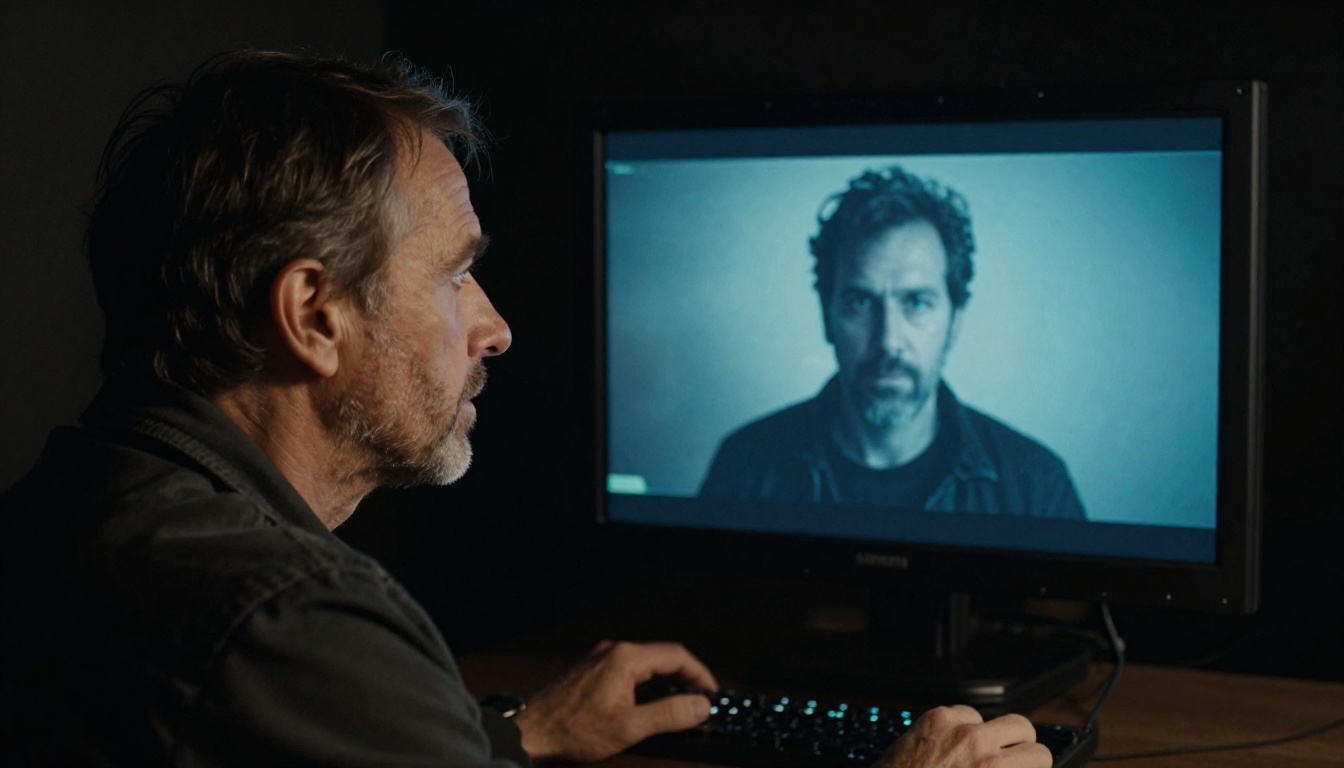
Real Limitations Worth Knowing
Kling 3.0 is the strongest multi-shot model available right now, but it has real boundaries that matter depending on your use case.
Audio: Kling 3.0 does not generate audio. If your project needs synchronized dialogue or sound effects, you will need to add audio in post using tools like Text to Speech or AI Music Generation from PicassoIA.
Text rendering: AI video models including Kling 3.0 still struggle with legible on-screen text. If your video needs titles or captions, add them in post using standard video editing tools.
Face drift at 4+ shots: While 2 to 3 shot sequences maintain strong face consistency, longer sequences can produce gradual face drift. The anchor image approach using Kling V3 Omni mitigates this significantly.
Generation time: High-quality 1080p multi-shot sequences can take 2 to 5 minutes to generate depending on sequence length. Draft mode is much faster for prompt iteration.
| Limitation | Workaround |
|---|
| No audio | Use PicassoIA TTS or AI Music tools |
| Text in video | Add in post-production |
| Face drift (4+ shots) | Anchor with reference image in Omni variant |
| Long generation time | Use Draft mode for testing prompts |

Start Creating with Kling v3
The barrier to producing cinematic, multi-shot video content has dropped significantly with Kling 3.0. What required a camera crew, editing software, and hours of post-production can now be sketched out in a single prompt and refined across a few iterations.
PicassoIA gives you direct access to all three Kling v3 variants without any setup: Kling v3 Video for standard text-to-video, Kling V3 Omni Video for image-anchored multi-shot sequences, and Kling V3 Motion Control for applying professional camera movement to any scene.
Try building a three-shot sequence around something you know well: a product you want to showcase, a location you want to portray, a short story you want to tell visually. The multi-shot capability means you are not just generating clips anymore. You are directing scenes.
If you want to pair your video output with generated images as anchor frames, PicassoIA's text-to-image collection has over 90 models to produce the exact character or scene reference you need. Start there, lock in your visual, and bring it to life with Kling v3.