Most people who search for Kling 3.0 are really asking one question: do I need to pay this much for a five second clip? Sometimes the answer is yes. Often it is no. The trick is knowing which jobs deserve a premium model and which ones a budget tool handles just as well, so you stop burning credits on b-roll that nobody will look at twice.
This breakdown puts Kling 3.0 next to the cheaper and free alternatives, with a hard look at video length limits, resolution, audio and the real cost of getting one usable clip. You will also see how to run Kling v3 on PicassoIA, and which budget models to reach for when the job is simple.
What Kling 3.0 Actually Offers
Kling 3.0, listed on PicassoIA as Kling v3 Video, is a text to video and image to video model from Kuaishou. The reasons people pick it are easy to list:
- Multi-shot scripting. You can define up to six separate shots, each with its own prompt and duration, inside one generation.
- 1080p in pro mode. Standard mode produces 720p, pro mode produces full HD.
- Native audio. Ambient sound can be generated together with the picture.
- Start and end frame pinning. You upload a first frame and a last frame, and the model builds the motion between them.
- Flexible ratios. 16:9, 9:16 and 1:1 are all supported.
That feature list is strong, and it explains the price. A model that handles camera moves, character consistency and sound in a single pass costs more to run than a model that only animates a still photo.
💡 Quick rule: pay for Kling when the clip has to look like a finished shot. Use a cheaper model when the clip is a draft, a test, or a background element.
Where Kling v3 Shines
Kling is at its best when the scene has people, physical contact or complicated camera work. Think of a hand pouring coffee, a dancer turning, a car cornering with the background sliding past. These are the shots where weaker models smear faces or let objects melt into each other.
Where You Are Overpaying
If your clip is a slow pan across a landscape, a product on a table, or an abstract loop for a website header, Kling's strengths barely matter. A budget model gets you 90 percent of the result for a fraction of the credits.
The Real Cost of Kling 3.0
Pricing around Kling is confusing because it is credit based, and reports from different sources do not agree. Here is what is reasonable to say without pretending the numbers are fixed.
| Plan type | Typical reported range | What it means in practice |
|---|
| Free tier | Around 66 credits, reported as daily by some sources and monthly by others | A handful of short clips, often with slower queues at busy hours and lower resolution |
| Entry paid plan | Roughly $6 to $7 per month | A few hundred credits, enough for experiments but not for client work |
| Mid tier | Around $30 per month | Several thousand credits, workable for a regular creator |
| Top tier | Around $60 per month | Heavy use, 4K output costs far more per second |
Treat all of these as moving targets. Credit costs change by mode, resolution, audio and duration, and a 4K clip can cost several times more than a 720p one.
Why One Clip Costs More Than You Think
The listed price per clip is rarely the price you pay. Real projects need retries. If one in three generations is usable, your effective cost per good clip is triple the sticker price. That is the number to compare across tools, not the headline credit cost.

A Simple Budget Formula
Take the cost of one generation, divide by your hit rate, and add the cost of any upscale or edit pass. A cheap model with a 25 percent hit rate can end up costing more than a premium model with a 70 percent hit rate. Track your own numbers for a week before you decide.
Video Length Limits Compared
Length is where marketing and reality drift apart. Sources disagree on Kling 3.0, with some reporting a 10 second cap per generation on certain endpoints and others listing durations up to 15 seconds. On PicassoIA, the Kling v3 Video page describes output up to 15 seconds. Check the duration field on the model page before you plan a project around it.
Here is how the models in this article compare on length and positioning.
💡 Length trick: a long clip is rarely one long generation. Editors build 15 to 30 second sequences by stitching several 5 second shots, which gives you control over every cut and lets you throw away only the bad piece.

Why Short Clips Are Not a Problem
Most social posts cut every few seconds anyway. A 5 second clip with a clean start frame and a clean end frame is more useful than a 15 second clip where the last ten seconds drift. If you plan your edit around short beats, a model with a lower length cap stops being a limitation.
Cheaper Alternatives That Hold Up
You do not need to pick one model for everything. Here is where each budget option earns its place.
Seedance 2.5 Lite for Free Drafts
Seedance 2.5 Lite is listed as a free and unlimited video generator for clips up to 10 seconds. That makes it the obvious place to test prompts before spending anything. If the composition works in Lite, you can move the winning prompt to a premium model for the final render. For longer pieces, Seedance 2.5 is listed for clips up to 30 seconds, and Seedance 2.0 Mini adds native audio at a lighter weight.
Wan for Value Per Credit
The Wan 2.5 T2V Fast and Wan 2.5 I2V Fast variants are built for speed and low cost. The Wan family is a favorite for animating a still image into a short loop, which is exactly what most b-roll needs. For higher fidelity, Wan 3 Prime produces 1080p from text.

Hailuo for Motion
Hailuo 02 is known for fluid motion and delivers 1080p. If your concern is that cheaper tools look stiff, this is the one to test. The faster variants, Hailuo 2.3 Fast and Hailuo 02 Fast, trade resolution for turnaround. The 02 Fast model is listed at 512p, so use it for drafts, not finals.
LTX for Speed and Resolution
LTX 2.5 Fast is listed for 4K output in seconds, and LTX 2 Pro targets higher quality. If you need to edit an existing clip rather than generate a new one, LTX 2 Retake lets you redo a single section instead of the whole thing, which saves credits.
Veo and Pixverse for Specific Jobs
Veo 3.1 Lite and Veo 3.1 Fast bring native audio at a lower price than flagship tiers. Pixverse v6 offers cinematic video with AI audio, while Pixverse v4.5 is a cheaper 1080p option for stylized content.
Free Options and Their Limits
Free is real, but it always comes with a price in time, resolution or rights. Here is what to expect.
- Watermarks. Many free tiers burn a logo into the corner. That is fine for drafts and unusable for client work.
- Queues. Free jobs wait behind paying users, sometimes for many minutes at peak hours.
- Resolution caps. Free outputs are often held at 720p or lower.
- Clip length caps. One 2026 roundup lists free-tier limits as short as 4 to 6 seconds for several big names.
- Daily or monthly credit limits. The 66 credit figure often quoted for Kling gets you only a few short clips.
💡 Smart workflow: draft in a free model, pick the winning prompt, then spend premium credits on the final render only. This simple habit can cut your spending by more than half.
Quality: Is Premium Worth It?
Honest answer: it depends on what the viewer sees.
| Use case | Best fit | Why |
|---|
| Client commercial with people | Kling v3 Video | Consistent faces, natural movement, audio included |
| Product spin or still-image loop | Wan 2.5 I2V Fast | Cheap and fast, the source image carries the quality |
| Social teaser, many versions | Seedance 2.5 Lite | Free, quick to iterate |
| Dialogue with ambient sound | Veo 3.1 Lite | Native audio at a lower cost |
| Fast concept testing | LTX 2.5 Fast | Quick turnaround |
| Long single piece | Seedance 2.5 | Longer clip limit |
The Test That Settles It
Run the same prompt through three models: one free, one mid-priced, and Kling v3. Put the three clips side by side at the size your audience will actually see them, often a phone screen. If you cannot tell the difference at that size, you just saved yourself a lot of credits.
How to Use Kling v3 on PicassoIA
When a shot really does need Kling, here is the workflow on PicassoIA. Open the Kling v3 Video page and follow these steps.

- Write the prompt. Describe the subject, the action, the camera move and the light in order. The prompt field accepts up to 2500 characters, but a tight 60 to 120 words usually works better than a wall of text.
- Pick the mode. Standard produces 720p and pro produces 1080p. Draft in standard, then switch to pro for the final render.
- Set the duration. The default is 5 seconds. Start there. Extend only when the action truly needs more time.
- Choose the aspect ratio. 16:9, 9:16 or 1:1. If you upload a start image, the ratio follows the image.
- Add a start image if you want the first frame to be exact. Use a JPG or PNG of at least 300 pixels, under 10 MB.
- Add an end image for a controlled finish. It requires a start image.
- Turn on audio when you need ambient sound. It is off by default, so switch it on only for the final render.
- Use a negative prompt to block common problems, such as warped hands, flickering text or extra limbs.
- Try multi-shot for sequences. The multi prompt field takes up to 6 shots, each with its own prompt and duration, and the total must equal the full duration.
Parameter Tips That Save Credits
- Draft in standard mode. Check composition and motion before paying for 1080p.
- Keep audio off during tests. Add it once the picture works.
- Pin the start frame. Generate a perfect still first with a text to image model, then animate it. You get more control and fewer wasted attempts.
- One camera move per shot. Combining a dolly, a pan and a zoom in one clip is a common cause of wobble.
A Prompt Pattern That Works
Try this structure: subject and pose, action over time, camera movement, lighting and atmosphere. For example: "A baker lifts a tray of bread from a stone oven, steam rising, slow dolly-in from the side, warm morning light through a window, realistic textures." Short, concrete and chronological beats a poetic paragraph.
A Budget Workflow That Works
Here is a practical way to combine everything above without overspending.
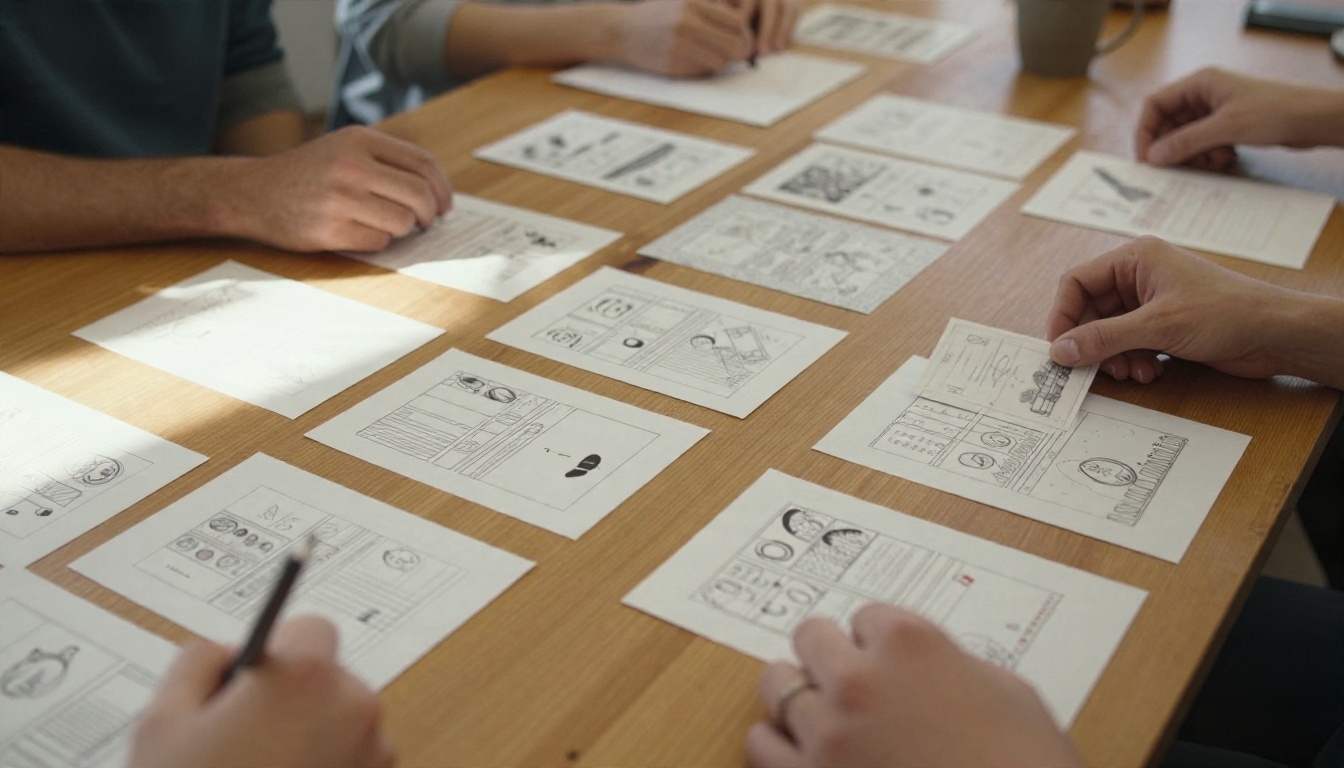
- Storyboard first. Write the shot list on paper. Every shot you cut on paper is a generation you never pay for.
- Draft free. Run each shot through Seedance 2.5 Lite to check composition and pacing.
- Upgrade only the hero shots. Pick the two or three shots the viewer will remember and render those in Kling v3 Video pro mode.
- Fill the gaps cheaply. Use Wan 2.5 I2V Fast for b-roll and cutaways.
- Stitch in an editor. Combine short clips into a longer sequence. This beats chasing a single 30 second generation.
💡 Cost check: if more than a third of your clips are hero shots, your plan is probably too expensive. Cut shots, not quality.
Common Mistakes to Avoid
- Paying for 1080p on every draft. Resolution matters for the final, not for testing.
- Writing huge prompts. More words rarely means better output.
- Ignoring the hit rate. A cheap model you retry five times is not cheap.
- Planning around length caps. Plan around beats instead, and stitch.
- Mixing too many styles. Keep lighting and color consistent between models, or the edit will look patchy.
Short version, by situation:
Try Your Own Clips Today
The best way to settle the Kling 3.0 versus budget question is to test it with your own prompt. Take one shot you actually need, run it through a free model, then through Kling v3 Video, and compare the two at the size your audience will watch. That ten minute experiment tells you more than any pricing table.
Everything mentioned here is a click away on PicassoIA. Browse the full list at picassoia.com/en/all-models, pick two or three models, and start creating your own videos. Draft cheap, finish premium, and spend credits only where the viewer will notice.


