You have a video that works in your own language, and you want it to work in five more. Somebody mentions that HeyGen Labs has a guest video translate page where you can try it without a full account, so you open it, drop in a clip and wait. Then the questions start. How long can the clip be? Will the output carry a watermark? How many times can you do this before the page asks for a card? This article answers those questions in plain terms, shows where the guest route stops being useful, and walks through a free alternative that handles online dubbing with lip sync in more than 150 languages.
💡 Quick answer: Guest and free tiers of AI video translators are built as a taste, not a workflow. Expect short clips, a small monthly allowance, a visible mark on the output and limits that change without much warning. If you need repeatable dubbing, pick a tool where you control the settings.
What Guest Video Translate Actually Is
Video translation tools do three jobs in one pass. They transcribe the speech, translate the text, then generate a new voice track in the target language. The better ones also adjust the speaker's mouth so the dub does not look like a badly dubbed film from the 1980s. HeyGen built its name on avatars and, later, on this exact translate-and-lip-sync pipeline.
The Labs Context
HeyGen uses a "Labs" area for experimental features that are released early and tuned in public. That matters for you as a user because Labs tools behave differently from the main product. Features there can appear, change shape or vanish, and the allowances attached to them are rarely published as a neat table.
I could not confirm exact figures for a guest tier of the Labs translator, and I would not trust any article that states them with total confidence. HeyGen itself describes its limits as dynamic, meaning they get adjusted over time and depend on account type and demand. So treat every number in this article about HeyGen's own plans as a rough pattern, and check the tool's own screen before you plan a project around it.
Why Guest Access Appeals
Guest access removes the friction that kills most experiments. No email confirmation, no onboarding survey, no billing page. You upload, pick a language, wait, and see whether the result is good enough to justify more effort.
That is a fair way to test lip sync quality. It is a poor way to run a content calendar, which is why most people end up searching for a free alternative within a day or two.
The Limits You Will Hit
Different reports describe HeyGen's free usage slightly differently, which is itself a clue. One breakdown of the free plan points to about three videos a month, a one minute cap per video, 720p export and a watermark. Another review of video translation on the free tier mentions around three videos a month with clips up to roughly three minutes. Both agree on the shape of the thing: a handful of short clips, a lower resolution and a mark on the result.
Length and Monthly Caps
Length is the first wall. A three minute cap sounds fine until you remember that a typical tutorial runs ten, an interview twenty and a webinar sixty. If you split a long video into chunks, every chunk eats one of your monthly slots, and you end up with a dub that has slightly different voice timing at each seam.
The monthly cap is the second wall. Three clips is enough to test one idea in one language. It is not enough to test the same clip in Spanish, German and Japanese, then fix a mistranslated sentence and run it again.
Watermarks and Resolution
A watermark is a deal breaker for anything client facing. It is acceptable for a private preview, where you show a colleague what the dub sounds like. It is not acceptable on a product demo, a course lesson or a social post that represents your business.
Resolution works the same way. 720p is fine for a phone screen and quite soft on a large monitor, particularly when lip sync work happens around the mouth, where compression artifacts are easiest to spot.
Why Numbers Keep Shifting
Compute for lip sync is expensive, and providers adjust free allowances when demand spikes. You will see a limit change in a changelog, a help article, or just in the interface one morning. If your plan depends on a specific allowance staying the same, it is a weak plan.
| Limit type | What to expect on guest or free tiers | Why it matters |
|---|
| Clip length | Roughly one to three minutes, reported differently by different sources | Long tutorials need splitting |
| Monthly videos | A small handful, often around three | No room for retakes |
| Output mark | Watermark on exported video | Not usable for client work |
| Resolution | Often 720p | Soft on large screens |
| Stability | Allowances change over time | Hard to build a schedule on |

A Free Alternative That Works Today
If the guest route is too tight, the straightforward move is to use the same class of model somewhere with fewer strings. Video Translate on PicassoIA takes an MP4, dubs it into the language you choose and adjusts the speaker's lip movements so the new audio looks natural on screen.
I will be direct about one thing: I am not claiming this is the Labs guest page under a different name. It is a separate listing for HeyGen's video translate model, run through PicassoIA, with its own settings you can see and change. That is the point of an alternative. You get a tool whose controls are on the page in front of you instead of hidden behind a guest session.
What Video Translate Offers
Here is what the model page lists, in plain language:
- 150+ output languages, including regional variants such as Arabic (Egypt), Spanish (Mexico) or Portuguese (Brazil)
- Lip sync alignment, so the mouth movement matches the dubbed audio
- Two modes, speed and precision
- Direct MP4 input, with no conversion step
- Dialect options, such as Chinese (Cantonese, Traditional) or English (Australia)
The regional variants are underrated. A Spanish dub aimed at Mexico and one aimed at Spain sound different, and viewers notice. Picking the right variant is often the difference between a dub that feels local and one that feels imported.
Speed or Precision Mode
Speed mode is built for fast turnaround. Precision mode, which is the default, aims for higher quality output. My rule of thumb is simple: use speed while you check whether the translation and voice feel right, then switch to precision for the version you actually publish.
💡 Tip: Run your first test on a 20 second slice of the video, in speed mode. If the voice and phrasing work, rerun the full file in precision mode. You save time and avoid redoing a long upload.
How to Use Video Translate on PicassoIA
The whole process takes a few minutes of attention, and most of that is choosing a language and checking the result.
Step by Step
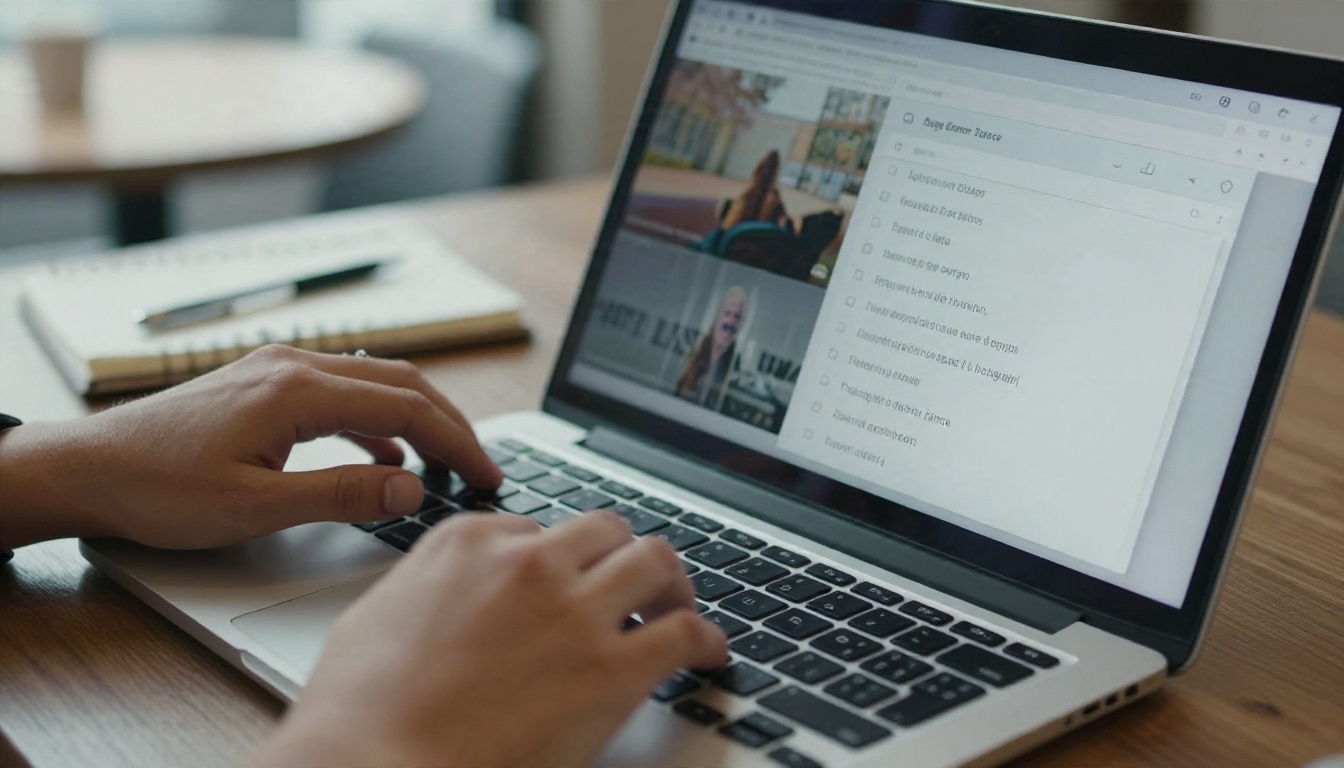
- Open the model. Go to the Video Translate page in the lipsync collection.
- Upload your video. The input is a standard
.mp4 file. If your clip is in another format, export it as MP4 first.
- Choose the output language. The default is English. Open the list and pick the exact variant you need, for example "Spanish (Mexico)" instead of plain "Spanish" if your audience is there.
- Pick a mode. Precision is the default. Switch to speed for a quick draft.
- Run it. When the dubbed video returns, watch it twice: once with sound on, once with sound off, looking only at the mouth.
- Iterate. Change the language variant or the mode, and run again.
Settings Worth Changing
The model has three inputs: the video, the mode and the output language. That is a short list, which means each choice carries weight.
| Setting | Default | When to change it |
|---|
| Mode | Precision | Switch to speed for drafts and quick checks |
| Output language | English | Choose a regional variant for local audiences |
| Video | Required | Use a clean MP4 with a clearly audible speaker |
A few extra habits help. Name your files by language so you can compare outputs later. Keep one master export of the original with no burned in subtitles, because subtitles in the source clash with the dubbed voice. And if the clip has more than one speaker, test with a short section where both speak, since overlapping voices are the hardest case for any dubbing model.
Online Dubbing Options Compared
Video Translate is not the only way to dub online. PicassoIA lists several models that cover slightly different jobs, and choosing the right one saves money and time.
| Model | Best for | Strength |
|---|
| Video Translate | Full dubbing of a speaking video | 150+ languages with lip sync |
| Lipsync Precision | Matching lips to a new audio track at higher quality | Polished final cuts |
| Lipsync Speed | Quick lip sync passes | Fast turnaround |
| Dubbing | Audio focused translation into 90+ languages | Voice track quality |
| Lipsync 2 Pro | Syncing lips to any supplied audio | Fine control over the audio source |
| Kling Lip Sync | Matching mouth to audio in existing footage | Works on generated and filmed clips |
When Dubbing Audio Fits
Dubbing from ElevenLabs belongs to the text to speech collection, which hints at its strength: the voice track. If your video has a speaker whose face is rarely visible, such as a screen recording, a slideshow or a b-roll montage, lip sync is wasted effort. You just want a convincing translated voice, and an audio first tool is the efficient choice.
When Lip Sync Models Fit
If a speaker looks into the camera, lip sync matters. Viewers forgive an accent. They do not forgive a mouth that keeps moving after the sentence ends. For talking head clips, use Video Translate for the whole job, or split the work: write and record the translated audio yourself, then apply Lipsync 2 Pro or Lipsync Precision to match the mouth.
💡 Tip: A split workflow takes longer, but it lets a native speaker approve the script before you spend time on the video.
Getting Cleaner Dubbed Results
Dubbing quality depends more on your input than on the model. A messy source gives a messy dub, however good the tool is.
Prepare the Source Video
Start with audio that has one clear voice, minimal background music and no echo. The model has to transcribe before it translates, and music underneath speech lowers transcription accuracy. If your clip has a music bed, export a version with the music lowered or removed for the dubbing pass, then lay it back under the new voice in your editor.
Face visibility matters too. A speaker who stays mostly facing the camera, with good light on the mouth, gives lip sync the most to work with. Wide shots and profile views are harder, because the mouth occupies fewer pixels.
Check the Script First
Transcription errors turn into translation errors. If you want to review the words before dubbing, run the audio through a speech to text model such as GPT 4o Transcribe and read the transcript. Names, product terms and numbers are the usual failures. Fix them in a short list so you can check the same items in the dubbed version.
Fix Audio Separately
Sometimes the translation is right and the voice is wrong. In that case, generate a new voice with a text to speech model such as Realtime TTS 2, which handles natural language direction for tone and pacing, and then sync it to the video with a lip sync model. It is more work, but it gives you control that a one click dub cannot.
| Problem | Likely cause | Fix |
|---|
| Wrong product name | Transcription error | Check the transcript first |
| Mouth drifts out of sync | Fast speech or overlapping voices | Use a shorter clip or precision mode |
| Flat, robotic delivery | Source audio is flat | Record the original with more variation |
| Dub sounds foreign to locals | Wrong language variant | Choose a regional option |

Who Gains Most From Dubbing
The people who benefit most are the ones with a library of speaking content that already works and an audience they cannot reach because of language.
Teachers and Course Creators
A lesson recorded once can serve students in several countries. A teacher with a strong set of explainer videos can dub the best ones first, check how viewers respond, then dub the rest. Because lessons are often short and the speaker faces the camera, this is the ideal case for lip synced dubbing.
Small Shops and Product Demos
A potter, a baker or a skincare founder who films a product demo on a phone can reach new markets with a translated version. The demo is short, the speaker is on camera and the audience wants to see the product in use. Dub the demo into two or three languages where you already ship, and add the new versions to the product page.
💡 Tip: Always disclose a dubbed version in the description or caption. Viewers appreciate knowing the voice has been translated, and it avoids confusion if someone who knows the original speaker hears a different voice.
Try Your Own Dub Today
The guest route is useful for one thing: finding out whether AI dubbing sounds good enough for your content. Once you know the answer is yes, you need a tool where limits, language choices and quality settings are visible and repeatable.
Pick one clip you already have, under a minute, with a single speaker facing the camera. Open Video Translate on PicassoIA, choose a language variant for a real audience, run it in speed mode, then rerun in precision mode and compare. If you want to go further, test Lipsync Speed for a quick pass or Kling Lip Sync on footage that was filmed or generated elsewhere. You can browse every model on picassoia.com/en/all-models and build a dubbing workflow that fits your own videos.


