Type "limitless AI generator" into a search bar and you will get a wall of tools promising endless images, zero credits and no sign-up. Some of those promises are true. Many are not. After a handful of generations you hit a queue, a watermark, a daily cap, or a paywall hiding behind a friendly button. This article sorts the real options from the marketing, gives you prompts you can copy right now, shows what good photorealistic output looks like, and lists the alternatives worth your time.
Here is the short version. A truly limitless setup exists in two forms: a model you run on your own computer, or a platform that offers unlimited generations on specific tools. Everything else is a free tier with a ceiling. Knowing where that ceiling sits saves you hours.
What "Limitless" Really Means
The word sounds simple, but different sites use it differently. Before you pick a tool, decide which meaning you actually need.
The Marketing Claim
Most "unlimited" pages are written to rank, not to inform. Research on this topic shows a pattern: one vendor says its free tier is unlimited in one post and quotes a monthly allowance in another. Another admits outright that no service can give endless free generation, because every image costs real computing power. Treat the headline as a starting point, then look for the fine print on queue times, resolution limits and commercial use.
The Three Real Meanings
When people say limitless, they usually mean one of three things:
- No credit counter. You can press generate as often as you like, though speed may slow down.
- No daily cap. The count resets or never applies, but you may be limited by image size.
- No creative filter. You can write the prompt you want without a vague refusal.
💡 Tip: Write down which of these three matters most to you. A photographer testing hundreds of lighting setups cares about the first. A designer building brand visuals cares more about resolution and licensing.
Free Options That Hold Up
Free does not have to mean useless. It does mean you should expect trade-offs, and you should pick the trade-off you can live with.
Browser Tools With Daily Caps
These are the easiest way in. You open a page, type a sentence and get a picture. The catch is predictable: a small number of fast generations per day, then slower queues or a prompt to pay. Some sites advertise a monthly allowance in the thousands, which sounds generous until you notice that a single polished image can take six to ten attempts.
Good for: quick tests, social posts, trying a new idea.
Weak at: batch work, high resolution, consistent style across a series.
Local Runs on Your Own PC
If you want a genuinely limitless AI generator with no counter at all, running open-weight models on your own hardware is the honest answer. Tools such as ComfyUI let you load a model and generate until your electricity bill complains. Nobody can throttle you, and nothing leaves your machine.
The cost is upfront. You need a capable graphics card, a few hours of setup, and patience when something breaks. Newer models also ask for more memory than older ones, so a machine that handled last year's model may struggle with this year's.
| Factor | Local setup | Browser free tier |
|---|
| Daily cap | None | Common |
| Setup time | Hours | Seconds |
| Hardware needed | Strong GPU | Any device |
| Privacy | Full | Depends on site |
| Image quality | Depends on model | Depends on plan |
Free Tiers on PicassoIA
If you want the ease of a browser without the usual walls, PicassoIA is built around that. The PicassoIA Image Editor Pro offers unlimited generations, which is the closest thing to a limitless counter you can get without buying a graphics card. Beyond that, the platform hosts dozens of text-to-image and text-to-video models in one place, so you can compare results without opening ten tabs.
There is no single model on PicassoIA called "Limitless." The phrase describes a way of working, and the tools below let you work that way.
How to Generate Without Limits on PicassoIA
This short walkthrough uses the unlimited editor as the starting point, then moves to higher-end models when you need more.
Step by Step
- Open the PicassoIA Image Editor Pro page.
- Write a prompt in plain English. Start with the subject, then add place, light and lens.
- Generate a first draft. Do not judge it yet.
- Change one thing only: the light, the angle or the mood. Generate again.
- Keep the best two or three versions and compare them side by side.
- When you need maximum detail for a final piece, move the same prompt to Seedream 4.5 for crisp 4K output.
Settings That Matter
- Aspect ratio: Choose it before you write the prompt. A 16:9 frame calls for different composition than a square.
- Seed: If a tool lets you fix the seed, do it while you test wording. Then you can tell whether the prompt or the dice made the difference.
- Resolution: Draft small, finish big. Unlimited drafting is where the real value sits.
- Batch size: Generate several variations at once when the option exists.
💡 Tip: Keep a notes file with prompts that worked. Reusing a good base prompt and swapping only the subject gives you a consistent look across a whole project.
Prompts That Work Every Time
A limitless generator is only as good as the sentence you give it. Vague prompts produce vague pictures, no matter how many attempts you throw at them.
The Four-Part Formula
Build every prompt from four pieces:
- Subject and action. Who or what, doing what.
- Setting. Where, with two or three concrete details.
- Light. Direction, time of day, softness.
- Camera. Lens length, aperture, angle.
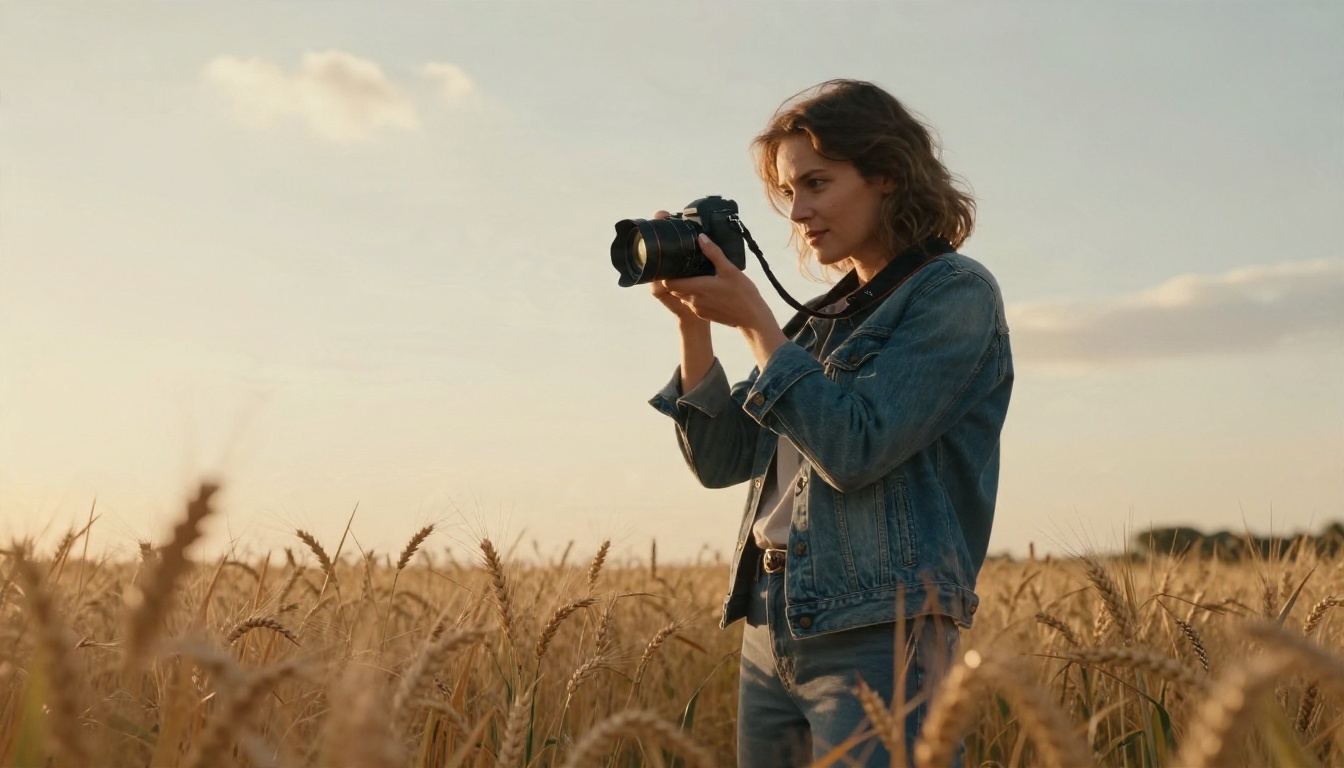
Example: A woman in a denim jacket holds a mirrorless camera in a wheat field, low angle, warm backlight at golden hour, 24mm lens at f/2, soft film grain.
Ten Prompts to Copy
Paste these and change the nouns:
- Candid portrait of an elderly fisherman mending a net on a wooden dock, overcast morning, 85mm f/1.8.
- Barista pouring latte art in a small cafe, side window light, macro lens, shallow depth of field.
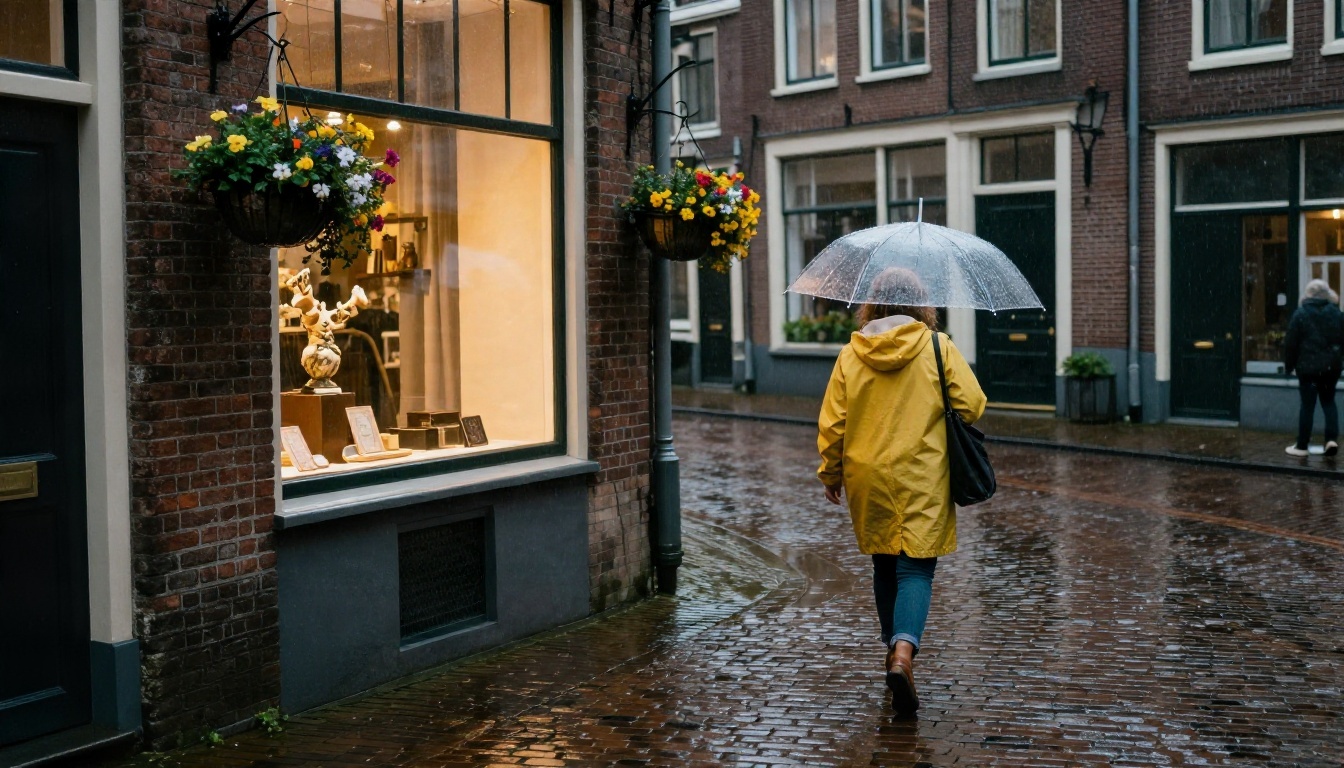
- Rainy cobblestone alley at dusk, woman with a clear umbrella, warm shop windows reflected on the stones, 35mm.
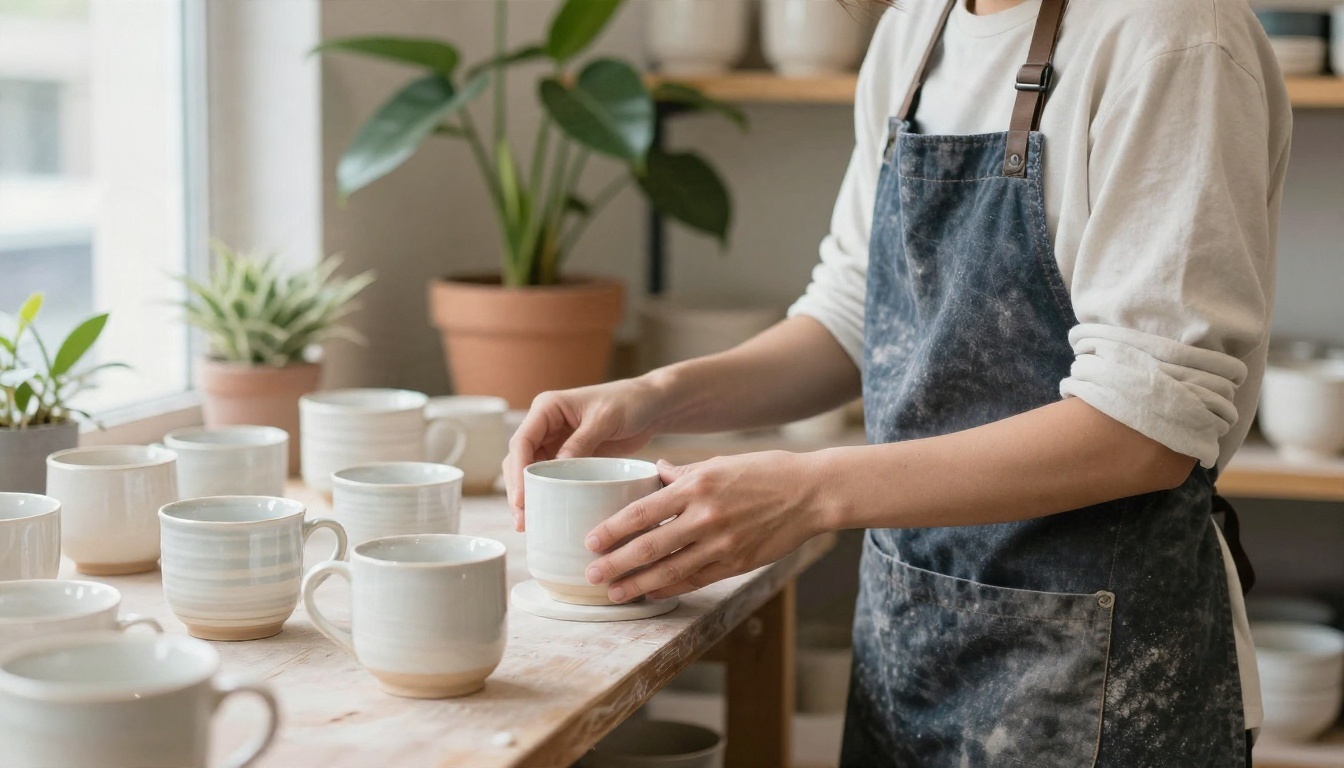
- Ceramic mugs on a rustic shelf, soft diffused daylight, visible glaze texture, 50mm f/2.
- Hiker on a ridge above low clouds at sunrise, wide angle, long shadows, natural color.
- Close-up of hands kneading dough on a floured wooden counter, warm kitchen light, 100mm macro.
- Two friends laughing on a sofa with a wool blanket, evening lamp light, 35mm, candid.
- Vintage bicycle leaning against a pastel wall in a Mediterranean village, midday sun, hard shadows.
- Chef plating a dish in a quiet restaurant kitchen, overhead light, steam rising, 50mm.
- Child splashing in a puddle in rubber boots, low angle, soft overcast light, fast shutter feel.
Common Mistakes
- Stacking adjectives. "Beautiful, stunning, amazing" tells the model nothing. Describe what you see instead.
- Ignoring light. Lighting decides whether an image looks like a photograph or a render.
- Changing everything at once. If you edit five things between attempts, you cannot tell what helped.
- Asking for text in the image. Keep it to one or two short words at most, or add text afterward.
Examples by Use Case
The same workflow handles very different jobs. Here is what photorealistic output looks like when the prompt is specific.
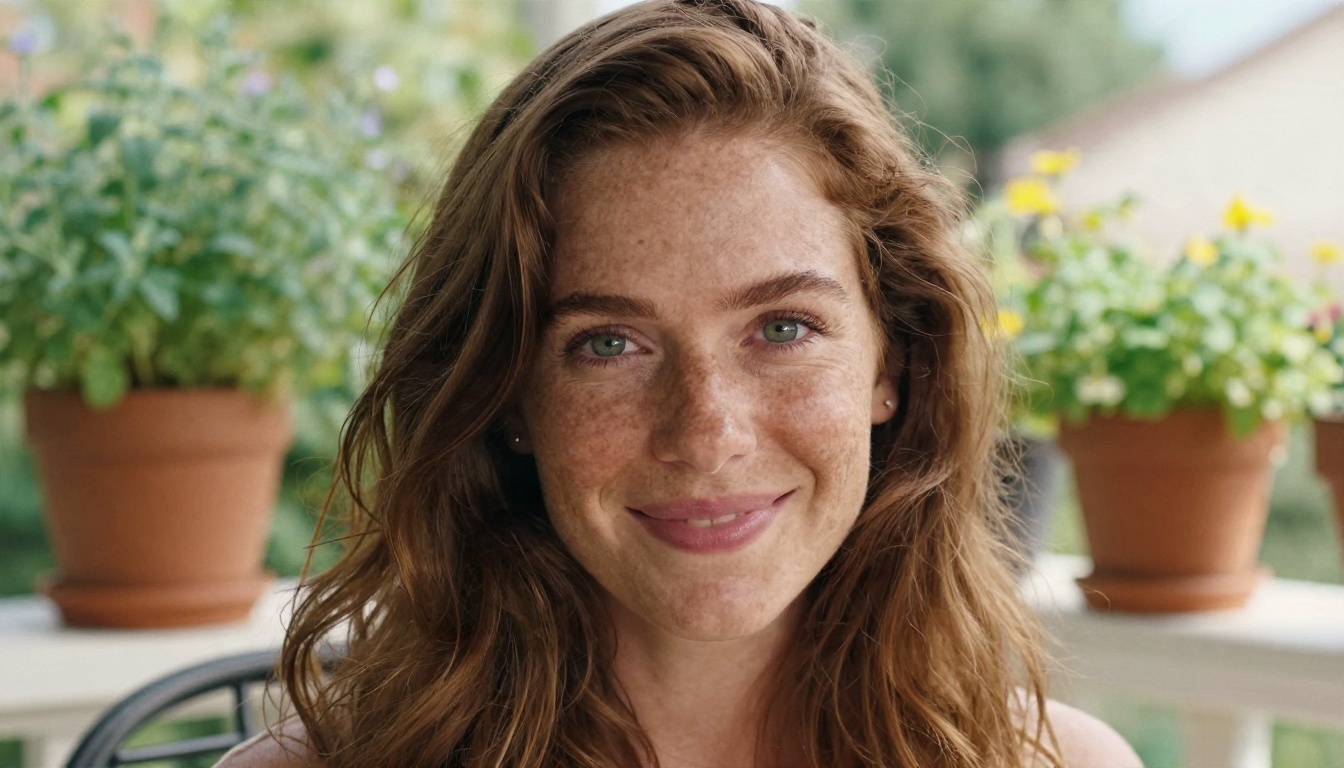
Portraits
Portraits live or die on skin texture, catchlights and depth of field. A prompt that names the lens (85mm f/1.8 is a dependable start) and the light direction usually gets you pores, flyaway hair and a soft background.
Product Shots
Small shops use generated images for mockups, ads and catalog pages before a real shoot. Ask for the material by name (glazed ceramic, brushed steel, linen) and state where the light comes from.
Street and Landscape
Wet stone, hanging flower baskets, warm shop windows: environments with many small details reward long prompts. Unlimited drafting helps here, because the first attempt rarely nails the composition.
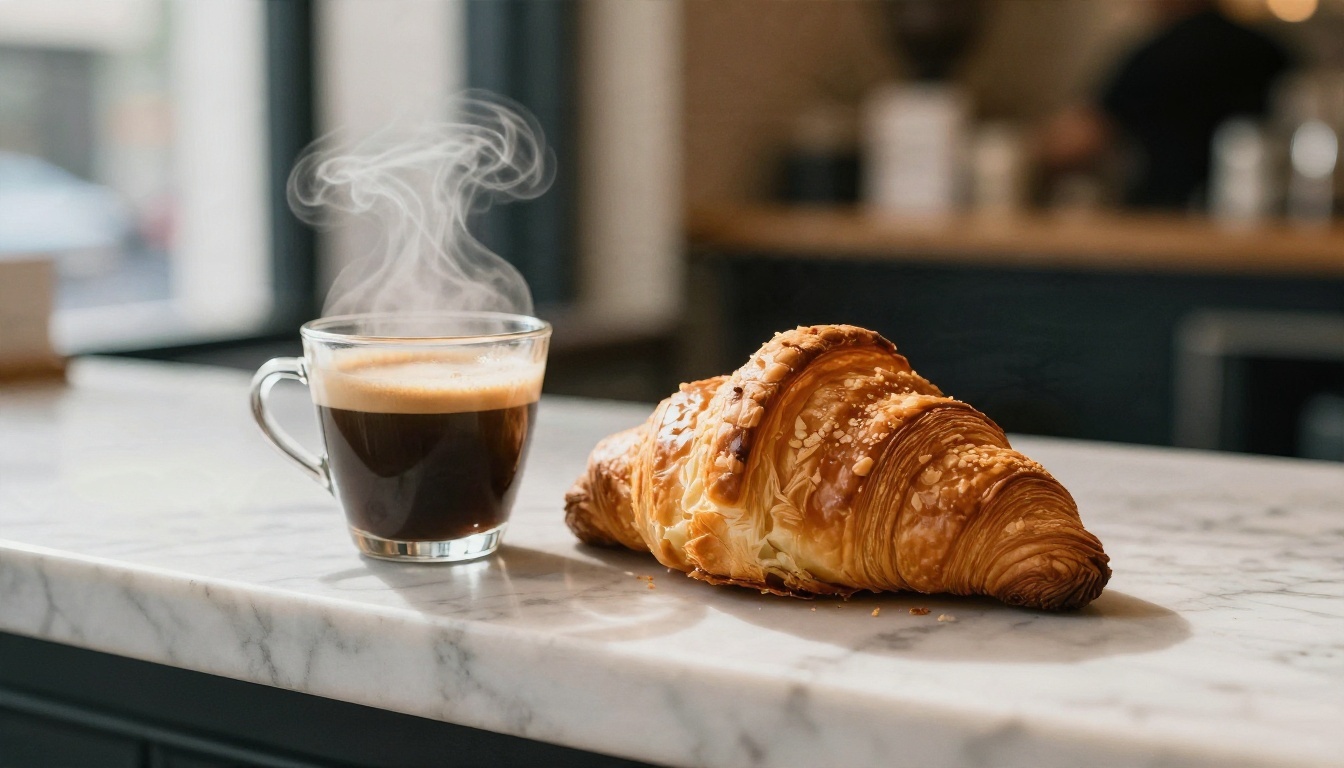
Food and Still Life
Food is a good stress test. Steam, crema, flaky layers and crumbs expose weak models fast. A macro lens and side light make the surfaces readable.
Alternatives Worth Trying
If a single tool does not give you what you need, switch models instead of fighting the prompt. Each has its own strengths.

Image Models
| Model | Best for | Link |
|---|
| PicassoIA Image Editor Pro | Unlimited drafts and edits | Open model |
| Seedream 4.5 | Sharp 4K text-to-image | Open model |
| Seedream 5 Pro | Clean 2K results | Open model |
| Nano Banana Pro | High resolution plus editing | Open model |
| Qwen Image 3 Pro | Photorealistic scenes | Open model |
| Z Image Turbo | Fast iterations | Open model |
| Flux 2 Klein 4B Base | Style control and tuning | Open model |
A good rhythm: draft with Z Image Turbo or the unlimited editor, then finalize with Seedream 4.5 or Nano Banana Pro.
Video Models
Once you have a still you like, you can animate it. Kling v3 Video is a strong pick for cinematic motion, and LTX 2.5 Fast suits quick tests when you want to see movement before committing. For character-driven shots, Kling v3 Motion Control lets you direct how a subject moves.
Free vs Paid: The Real Cost
Free tools cost something even when the price tag says zero. Time is the main currency.
| Path | Money | Time | Ceiling |
|---|
| Local install | Hardware | High at first | None |
| Browser free tier | Zero | Low | Daily or monthly cap |
| Unlimited platform tool | Low or zero | Low | Tool-specific |
| Paid high-end model | Per image | Low | Budget |
A practical rule: spend unlimited generations on exploration and keep paid or high-resolution runs for the final pick. If you generate fifty drafts for free and two finals at full quality, you get better results for far less than generating everything at the top setting.
Watch for these red flags on any "limitless" site:
- A watermark that appears only after you download.
- A "free" label that quietly drops to tiny resolution.
- Terms that block commercial use without saying so.
- An account wall after your third image.
- A queue that grows longer the more you use it.
💡 Tip: Before relying on a free tool for client work, read its licensing page. A great image you cannot legally publish is worth nothing.
Your Turn to Create
You do not need a perfect prompt or an expensive computer to begin. You need a subject, a light source, a lens, and the patience to change one detail at a time. Open PicassoIA Image Editor Pro, paste one of the ten prompts above, and run it five times with small changes. Then take your favorite to Seedream 4.5 for a sharp final, or animate it with Kling v3 Video.
If you want to see everything on offer, browse every model on PicassoIA and try a few side by side. Make your first image with Picasso IA today, then keep going until the picture in your head matches the one on screen.


