You took a photo years ago, maybe a portrait at a wedding, a travel shot from a place you loved, or just a random selfie on your phone. Now imagine that photo starting to move. Hair lifts in the wind. Eyes blink. The background slowly pans. That moment, frozen in time, breathes again. That is exactly what AI image-to-video tools do today, and many of them cost absolutely nothing.
This is not a distant promise or an expensive studio production. In 2027, you can upload one photo, type a short description of the motion you want, and have a short video clip in under two minutes. No subscriptions needed. No editing timeline. No rendering software. Just a photo and an internet connection.
What "Image to Video AI" Actually Does
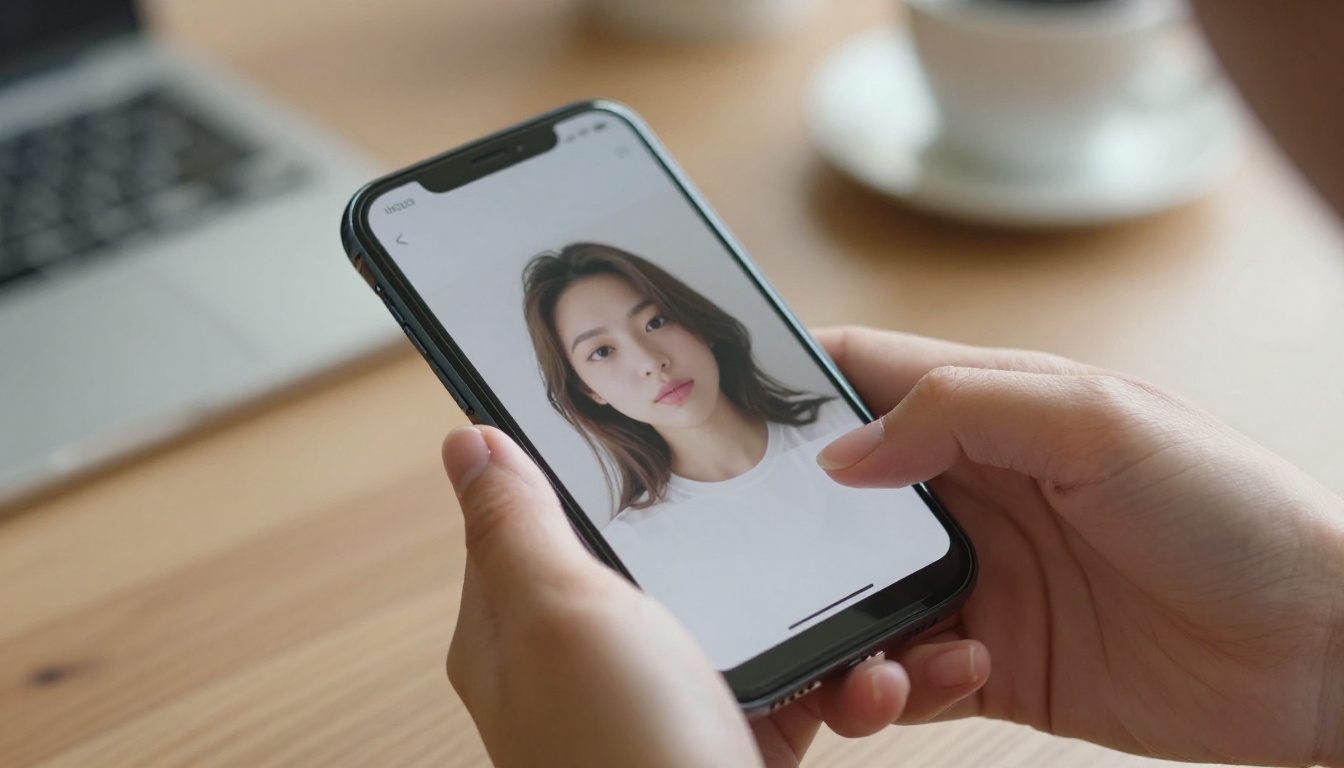
Most people think video requires capturing multiple frames per second with a camera. That is true for traditional recording. But AI video generation works differently. Instead of recording motion, it predicts it.
A static photo vs. a moving clip
A photograph is a single frozen frame. A video is a sequence of frames played in rapid succession, typically 24 or 30 frames per second. When you give an AI model your photo, it does not "film" anything. It generates all the intermediate frames based on what it understands about how the world moves.
For a portrait, the model knows how hair flows in wind, how eyelids blink, how a smile fades naturally over time. For a landscape, it understands how clouds drift, how water ripples, how light shifts. The AI fills in those missing frames with remarkable accuracy, producing motion that feels organic and real.
How AI reads and animates a photo
Modern image-to-video models are trained on millions of real video clips. They absorb the physics of motion at a deep level. When you give the model a photo, it analyzes:
- Subject type: person, animal, landscape, object
- Lighting direction: which way shadows fall and where highlights sit
- Depth cues: what is foreground vs. background
- Texture and material: how fabric, skin, water, or foliage would realistically move
The result is a short clip, usually 3 to 8 seconds, where the AI has made everything in the frame move in a physically plausible way. The longer the video, the more compute is required, which is why most free tiers cap output at a few seconds.
Best Free Models Right Now
There is no shortage of tools, but quality varies enormously. Below are the models currently available on PicassoIA that handle image-to-video with the strongest results.
DreamActor-M2.0: Animate Any Character
DreamActor-M2.0 from ByteDance is specifically built for one thing: animating a character from a single photo. You upload a portrait, describe the motion or emotion you want, and it produces a realistic short clip of that person moving. It handles body pose, facial expressions, and subtle secondary motion like hair and clothing with impressive fidelity.
This is the go-to model when your goal is to animate a person. It works with real photographs as well as illustrated characters.
💡 Tip: For best results with DreamActor-M2.0, use a photo where the person is clearly visible from at least the waist up with a relatively clean background. The AI needs a clear read on the subject to produce smooth motion.
Wan2.6 I2V Flash: Speed Without Sacrifice
Wan2.6 I2V Flash is built for rapid generation. It takes your photo and produces a motion clip faster than most models while maintaining solid visual consistency. The "Flash" name is accurate: you get results in a fraction of the time compared to heavier models.
It works especially well on landscapes, product shots, and nature photography where you want smooth, natural motion without complex character animation.
Hailuo 2.3 Fast: High-Quality Output
Hailuo 2.3 Fast from Minimax sits at a sweet spot between speed and visual quality. It handles a wide variety of photo types and tends to produce videos with smooth motion curves and minimal artifacts. For portraits, it does a particularly strong job preserving facial likeness across frames.
If you want consistent, polished output that holds up to close inspection, Hailuo 2.3 Fast is a reliable choice.
LTX-2.3-Pro: Add Audio to Your Animation
LTX-2.3-Pro from Lightricks handles text, image, and audio inputs simultaneously. This means you can upload a photo, provide a motion prompt, and even add an audio track, producing a video that is synchronized to sound. It is a step up in production value for anyone who wants more than silent motion.
💡 Tip: Pair LTX-2.3-Pro with Audio to Video from the same studio for a full audio-visual workflow that goes from a single photo to a sound-synced clip.
Kling V3 Omni: Versatility First
Kling V3 Omni Video handles both text and image inputs with equal competence. It is one of the more versatile models available, capable of handling everything from simple photo animations to more complex scene compositions where you have a reference image but want significant motion added throughout the frame.
Model Comparison at a Glance
How to Use DreamActor-M2.0 on PicassoIA
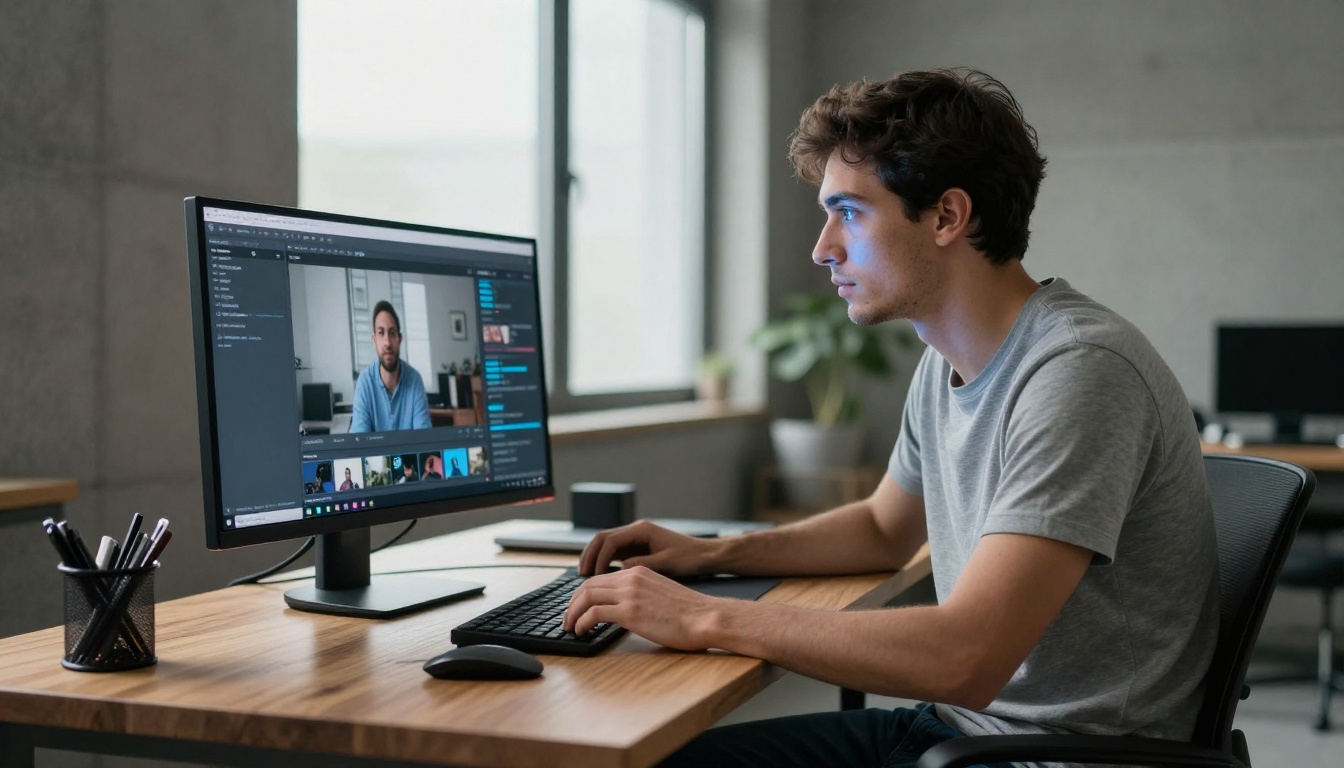
Since DreamActor-M2.0 is purpose-built for animating characters from a single photo, it is worth walking through the full process step by step. Here is exactly how to get your first result.
Step 1: Open the Model Page
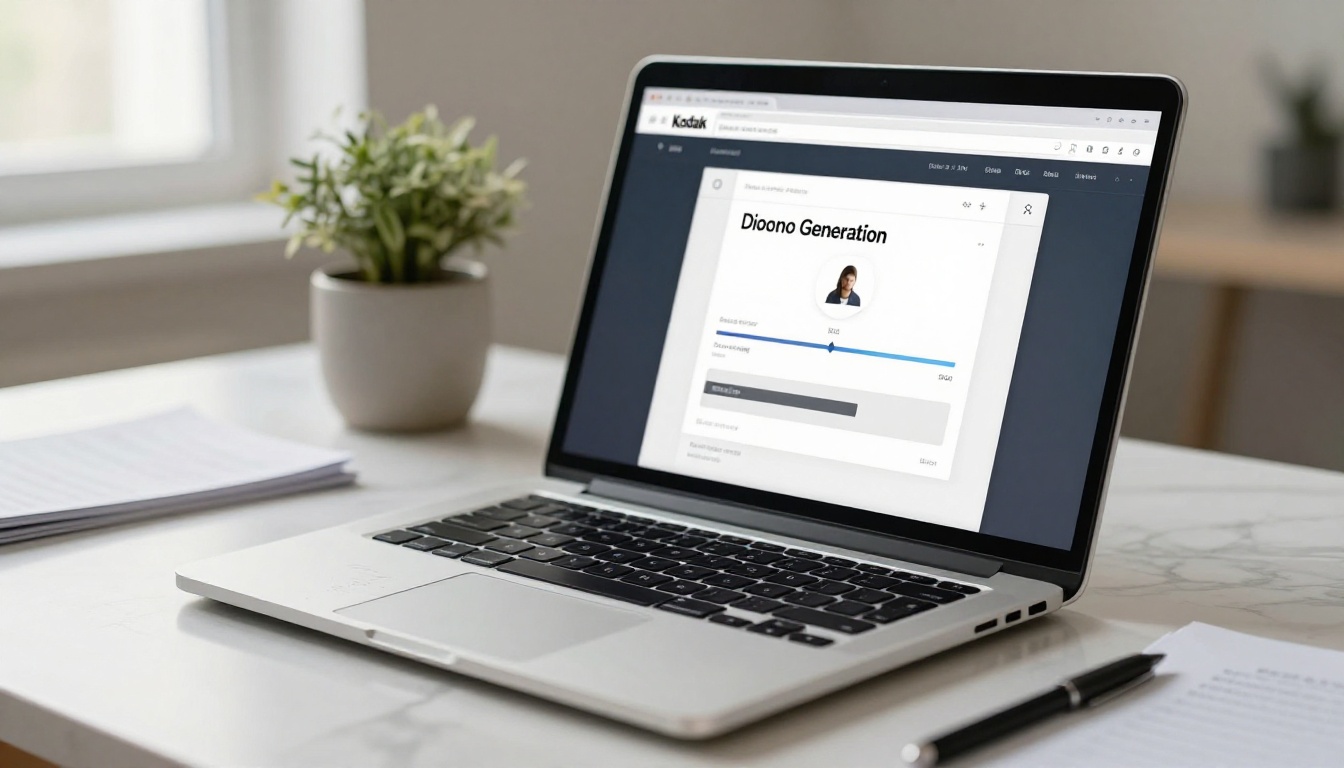
Head to DreamActor-M2.0 on PicassoIA. You will see the upload interface with two main areas: a photo input field and a text prompt box.
Step 2: Upload Your Photo
Click the upload area and select the photo you want to animate. For the best output, use a photo where:
- The subject is clearly visible and well-lit with no heavy shadows on the face
- The face or body is facing toward the camera rather than at an extreme side angle
- The background is relatively simple or at least not busier than the subject
- Resolution is at least 512x512 pixels, though 1024x1024 or higher yields noticeably better results
Blurry or heavily compressed images will produce lower-quality animation. A sharp, well-exposed photo is your biggest asset going into the process.
Step 3: Write Your Motion Prompt
The motion prompt tells the model what kind of movement to apply. Be specific about what you want to happen. Here are examples that work well:
For portrait animation:
- "Gentle head turn to the left, slight smile forming, hair moving softly in a breeze"
- "Eyes blinking naturally, slight breathing motion in the shoulders, calm and relaxed expression"
For landscape or background shots:
- "Clouds drifting slowly to the right, grass swaying gently, soft wind effect across the whole frame"
The cleaner and more specific your prompt, the more the output will match what you had in mind. Vague prompts produce unpredictable results.
💡 Tip: Avoid asking for too many simultaneous actions. One or two motion elements in the prompt typically produce cleaner output than five competing actions fighting for the model's attention.
Step 4: Set Duration and Generate
Most models let you choose between 3, 5, or 8 seconds of output. Start with 3 or 5 seconds for your first test run. Longer videos take more time and compute to generate.
Hit Generate and wait. Processing typically takes between 30 seconds and 2 minutes depending on server load and the complexity of your photo.
Step 5: Download and Iterate
Once the video is ready, preview it directly in the interface. If the motion is not quite right, adjust your prompt and run again. Changing one or two words can significantly shift the output. Iteration is a normal part of using these tools, not a sign something went wrong.
What Photos Work Best
Not every photo produces great animation. After running many tests across different models, certain patterns emerge consistently.
Qualities that help
- Sharp focus on the main subject: blurry source images produce blurry video frames
- Good, even lighting: photos with clear, natural shadows give the model better depth information to work with
- Simple or soft backgrounds: busy backgrounds compete with the subject and can cause visual artifacts in the output
- Forward-facing or three-quarter-facing subjects: these poses animate more naturally than strict profiles
- High resolution: more pixels give the AI more data, producing more detail in the final clip
What to avoid
- Heavy filters or edits: extreme Lightroom presets or Instagram filters confuse the model's reading of natural lighting
- Group shots with multiple subjects of equal prominence: most image-to-video models are optimized for a single focal subject
- Motion blur already present in the source photo: the video output inherits any blur from the original
- Very small subjects within a large frame: a person occupying only 5% of the frame will not animate with meaningful detail
Writing Motion Prompts That Work
The motion prompt is where most first-time users struggle. The model cannot read your intentions, so the more precisely you describe the intended movement, the better your output will be.
The anatomy of a strong prompt
A good motion prompt has three parts:
- What moves: specify the element (hair, eyes, the whole body, the background clouds, the water)
- How it moves: direction, speed, and intensity (slowly drifts left, gentle sway, quick and subtle turn)
- What stays still: if you want most of the image to remain static with only one element moving, say so explicitly
Weak prompt: "Add motion"
Strong prompt: "Hair blowing gently from right to left in a subtle breeze, eyes blinking once slowly, upper body with slight natural breathing movement, background stays mostly still"
Prompt styles for different photo types
| Photo Type | Suggested Motion Style |
|---|
| Portrait (person) | Facial expression shift, head tilt, hair movement, natural blink |
| Landscape | Cloud drift, water ripple, grass sway, light change |
| Food or product | Slow rotation, steam rising, liquid movement |
| Architecture | Slow zoom in, camera pan left, light shifting |
| Animal | Natural blinking, breathing, fur or feather movement |
💡 Tip: If you want the camera to move rather than (or in addition to) the subject, describe it explicitly: "slow camera push in" or "subtle camera pan right." Models like Vidu Q3 Pro and Kling V3 Omni support camera movement instructions directly in the prompt.
Going Beyond a Single Photo
Once you are comfortable animating a single image, PicassoIA offers more options that take your video further without adding complexity.
Add audio: Wan 2.5 I2V can generate video and sound simultaneously from an image, creating a more immersive result. LTX-2.3-Pro lets you sync animation to an uploaded audio track.
Control start and end frames: Vidu Q3 Pro accepts both a starting image and an ending image, letting you define the opening and closing moments of the motion arc. This gives you far more narrative control over the clip.
Transfer motion to characters: Wan 2.2 Animate Animation lets you apply a specific motion sequence to any character in a photo. If you have reference footage of a dance move or gesture, the model transfers that motion onto your subject.
Upscale the result: After generating your video, run it through AI Video Upscaling from Topaz Labs to bring the output to a higher resolution before publishing or sharing.
5 Ways People Use These Videos
Knowing what you can do with the output matters as much as knowing how to create it. Here are the most common and effective uses right now:
-
Social media posts: A 3-second animated portrait or landscape is far more attention-grabbing in a feed than a static image. Instagram Reels, TikTok, and YouTube Shorts all support short video clips natively.
-
Tribute and memorial videos: Animating old family photographs creates moving, emotional content for anniversaries, memorial services, or family reunions where the person may no longer be present.
-
Product showcases: A still product photo animated with a slow rotation or subtle zoom feels far more premium than a flat listing image. E-commerce teams use this regularly to lift click-through rates.
-
Presentation slides: Adding a subtle animated background to a keynote or pitch deck makes it stand out without needing video production resources or a dedicated motion designer.
-
Creative experimentation: Many creators animate photos purely for the joy of it, building collections, testing different styles, and sharing results with their audience as part of an ongoing creative practice.
Free vs. Paid: What Actually Changes
Free tiers on most platforms are generous enough to produce real, publishable results. Here is what typically changes when you move to a paid plan:
| Feature | Free | Paid |
|---|
| Resolution | Standard (480p to 720p) | High (1080p and above) |
| Video length | 3 to 5 seconds | Up to 10 to 30 seconds |
| Generation speed | Standard queue | Priority queue |
| Watermarks | Sometimes included | Removed |
| Daily generations | Limited (5 to 20 per day) | Higher or no limit |
The free tier is entirely sufficient for testing, practicing, and producing social media content. Paid access makes sense when you need longer clips, higher resolution for professional contexts, or faster turnaround on time-sensitive projects.
Your Photos Are Waiting
Every photo in your camera roll holds a moment that was alive when it was captured. AI video generation gives that moment its motion back. The technology is free, accessible from any browser, and requires no technical background to use effectively.
The fastest way to understand what these tools can do is to run your first generation. Pick a photo you care about, write a simple motion prompt, and see what comes back. From there, you will pick up quickly which models, photo types, and prompt styles produce results you love.
PicassoIA brings all of these image-to-video models into one place. Start with DreamActor-M2.0 for portraits, Wan2.6 I2V Flash for fast results on any photo type, or Hailuo 2.3 Fast for the strongest all-around quality. No credit card. No complicated setup. Just upload your photo, write what you want to see move, and generate.
Your photo just needs one more thing: motion.


