Most people who search for a NAFW video generator want the same thing: a short, good-looking clip of an adult subject, made in minutes, without a paywall and without a lecture. The problem is that the web is full of tools that promise it and then hand you a watermarked, jittery five-second loop with melted hands. This article sorts the useful from the noise. You will see which kinds of free online tools hold up, how to build a first frame that animates well, which prompts produce smooth motion, and which settings decide whether the result looks like footage or like a glitch.
What a NAFW Video Generator Is
NAFW vs NSFW
"NAFW" is a very common typo and variant of NSFW, and people type it into search bars all the time. In practice, a NAFW video generator is an AI video tool that is willing to animate adult-oriented, glamour or suggestive material: swimwear, lingerie, boudoir lighting, slow sensual movement. It is not the same as a generic video tool with strict filters that refuse anything involving skin.
On this page, everything stays on the tasteful, non-explicit side: glamour, fashion, editorial and boudoir style. That is where the best results are anyway, because AI video models handle a slow hair flip and a drifting camera far better than anything chaotic.
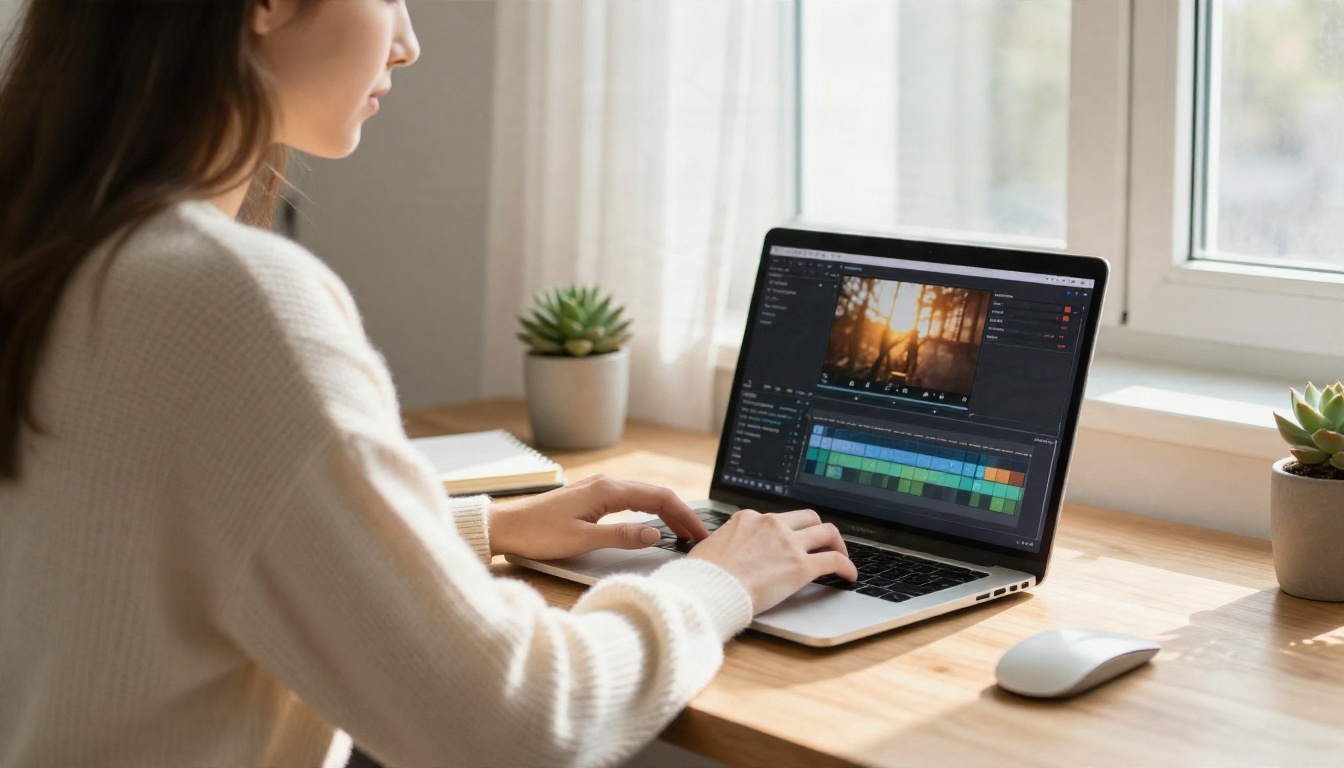
Image to Video Beats Text to Video
There are two ways to make a clip. Text to video starts from a sentence. Image to video starts from a picture you already like and animates it. For adult glamour content, image to video wins almost every time, for three reasons:
- You control the look. The face, outfit, lighting and pose are locked in before any motion exists.
- Fewer anatomy errors. The model only has to invent five seconds of movement, not an entire person.
- Consistency. You can make ten clips of the same character by reusing the same source image or a close variation.
💡 Rule of thumb: spend 70% of your effort on the first frame and 30% on the motion prompt. A great still image with a plain prompt beats a mediocre still with a brilliant prompt.
What "Free" Really Means
Free comes in several flavors, and the label on the button rarely tells you which one you are getting. Here is how the common models break down.
| Free model | What you get | The catch |
|---|
| Daily free credits | A handful of clips per day | Credits run out fast, queues are slow |
| Free trial | Full quality, once | Needs sign up, then paywall |
| Watermarked free tier | Unlimited or generous clips | Logo burned into the video |
| Short clip cap | 2 to 3 seconds | Barely usable for anything |
| Truly unlimited | No hard cap on generations | Fewer, but rare |
The last row is the one worth chasing. A tool with unlimited generations lets you do what actually produces good video: run the same image six times, keep the best take, and move on. A tool with ten credits a day forces you to gamble.
Free Options on PicassoIA
PicassoIA has two free video options that fit this workflow. Seedance 2.5 Lite is a free and unlimited video generator that produces clips up to 10 seconds, which is double the length most free tools allow. PicassoIA Video is another free, unlimited generator that accepts either text or an image as input.
When you want more power, step up to Seedance 2.5 for longer, higher-end clips, Wan 2.7 I2V for strong image animation, Kling v2.5 Turbo Pro for smooth cinematic camera work, or Hailuo 2.3 Fast when speed matters more than polish.

Build the Source Image First
Seedream 4.5 for the First Frame
If the first frame is weak, the clip is weak. For adult glamour stills, Seedream 4.5 is the model to start with. It produces sharp, photorealistic skin, believable fabric and natural lighting, and it handles swimwear, lingerie and boudoir scenes without turning every prompt into a refusal. It also outputs high resolution, which gives the video model more detail to hold on to.
A good first-frame prompt names five things: subject and pose, outfit and fabric, environment, light direction, and lens. For example:
"Adult woman in a red satin robe leaning on a hotel doorframe, warm bedside lamp from the left, green velvet curtains, 85mm f/1.8, shallow depth of field, natural skin texture, film grain."
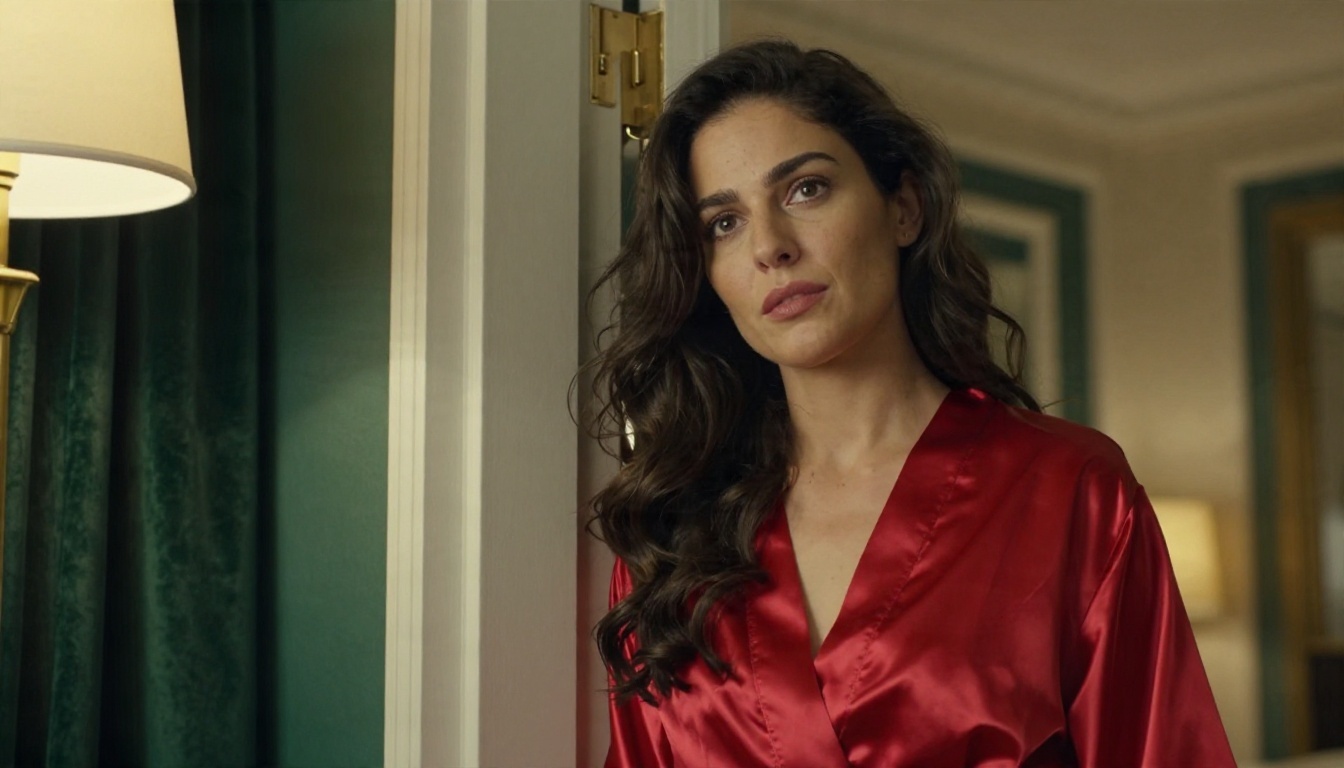
Image Editor Pro for Fixes
Even a good still sometimes has a flaw: a strange finger, a harsh shadow, a strap in the wrong place. Do not push that flaw into a video model, because motion makes small errors loud. Fix it first with PicassoIA Image Editor Pro, which offers unlimited generations. That matters because editing is a trial and error job. You can change an outfit color, adjust the lighting, clean a background or alter a pose, and rerun as many times as you need without watching a credit counter.
What Makes a Frame Animate Well
Not every beautiful image is a good animation source. Check these before you press generate:
- Space around the subject. Leave room for the camera to move.
- Clear separation of limbs. Crossed arms and tangled hands cause artifacts.
- Soft, directional light. Harsh multi-source lighting flickers.
- A neutral or relaxed expression. Extreme expressions drift into strange faces.
- No readable text. Signs and labels warp the moment anything moves.
Prompts That Move Well
The Four Part Motion Prompt
When you start from an image, the prompt does not need to describe the scene again. It only describes what changes. Use this structure:
- Subject motion: what the person does (turns her head, exhales, adjusts a strap, walks forward).
- Camera motion: what the camera does (slow dolly in, gentle pan left, handheld sway).
- Environment motion: what the world does (curtain drifts, waves roll in, rain slides down glass).
- Light and mood: how it feels (warm lamp flicker, golden hour glow, soft shadows).
Keep it to two or three sentences. Long, stacked instructions make models do all of them badly.
Ten Prompts to Copy
Paste these after uploading your source image, and adjust the nouns to fit your scene.
- Slow dolly in as she turns her head toward the camera and smiles softly, hair settling on her shoulder.
- Gentle handheld sway, she exhales and glances down, then back up at the lens.
- Curtains drift in a light breeze while she shifts her weight and adjusts her robe.
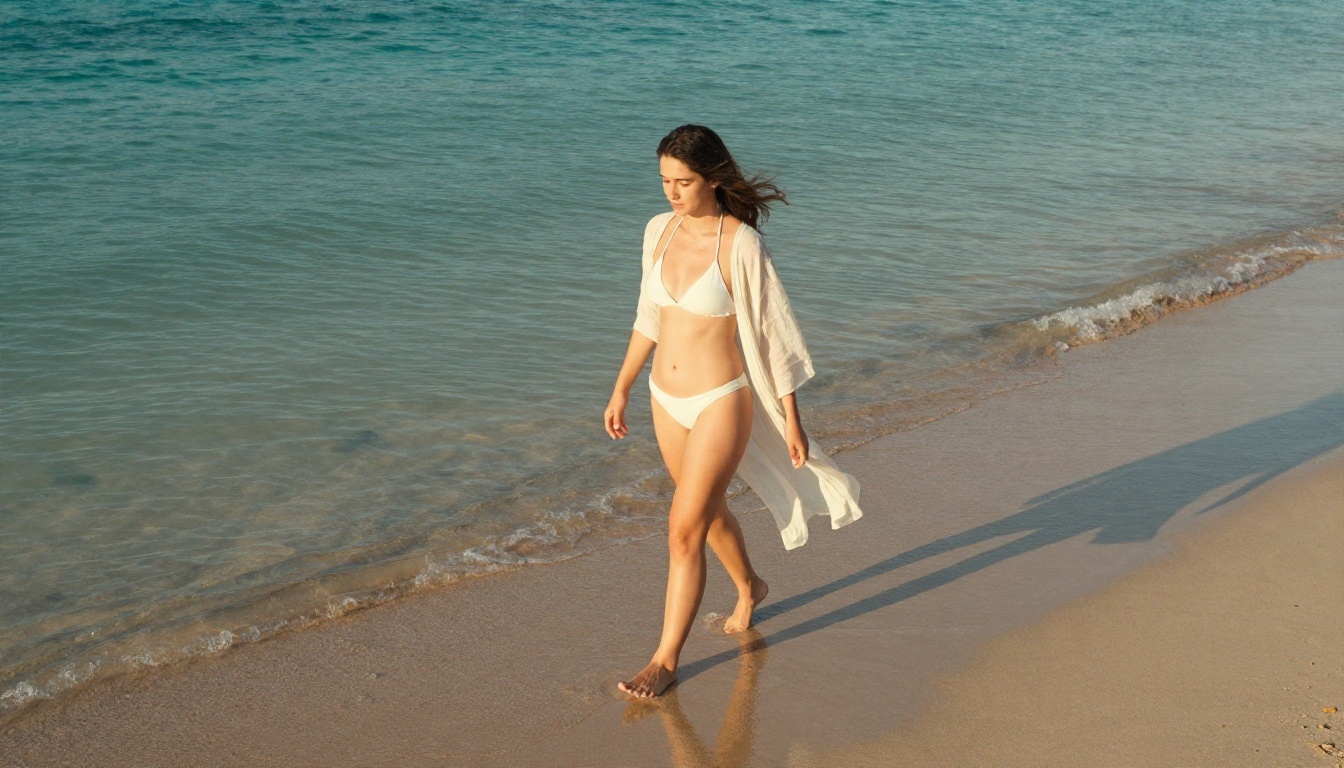
- Waves wash over her ankles as she walks forward, camera tracking backward at walking pace.
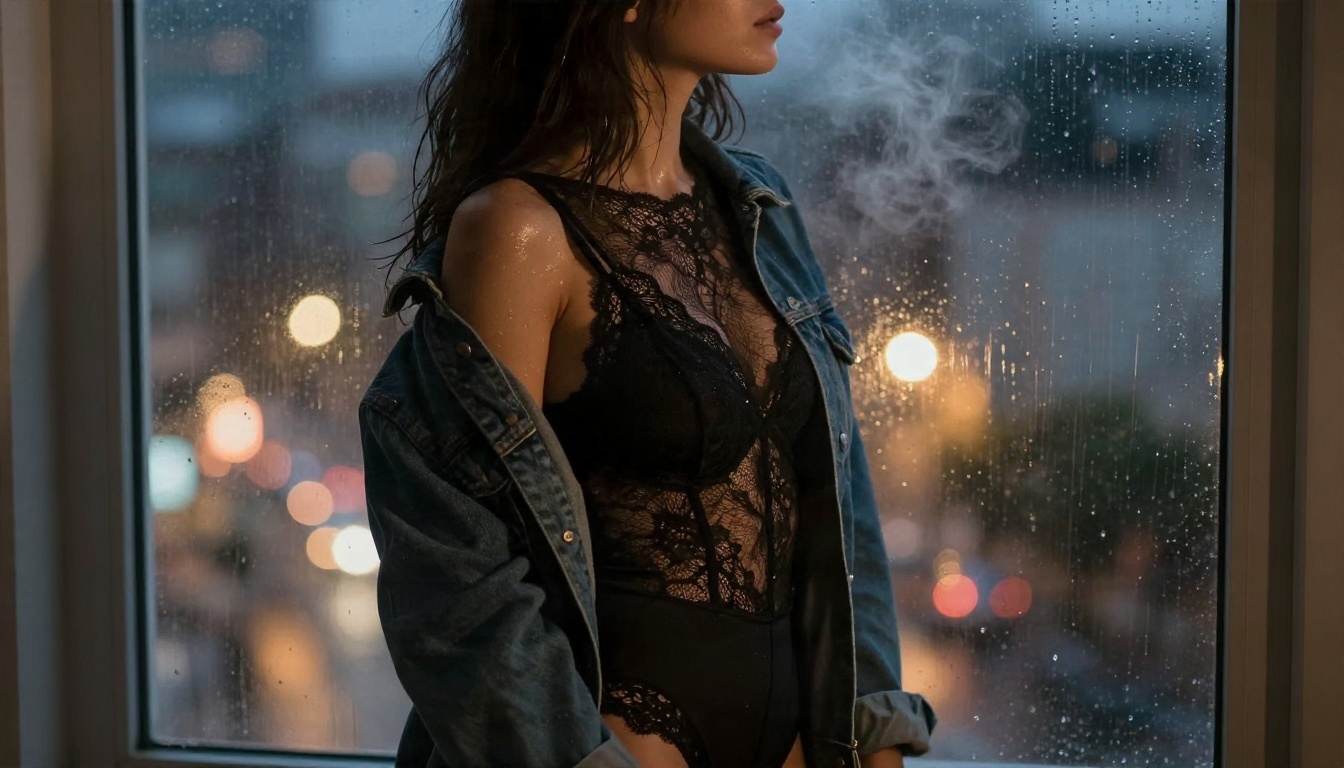
- Rain slides down the window glass, she traces a finger along it, soft lamp light flickers behind her.
- Silk dress ripples in the wind, she looks over her shoulder, slow orbit to the left.
- She steps into frame from the left, pauses, and tucks her hair behind her ear.
- Slow tilt up from her hands to her face, warm golden light moving across her skin.
- She sits, crosses one leg over the other in a smooth motion, camera holds steady.
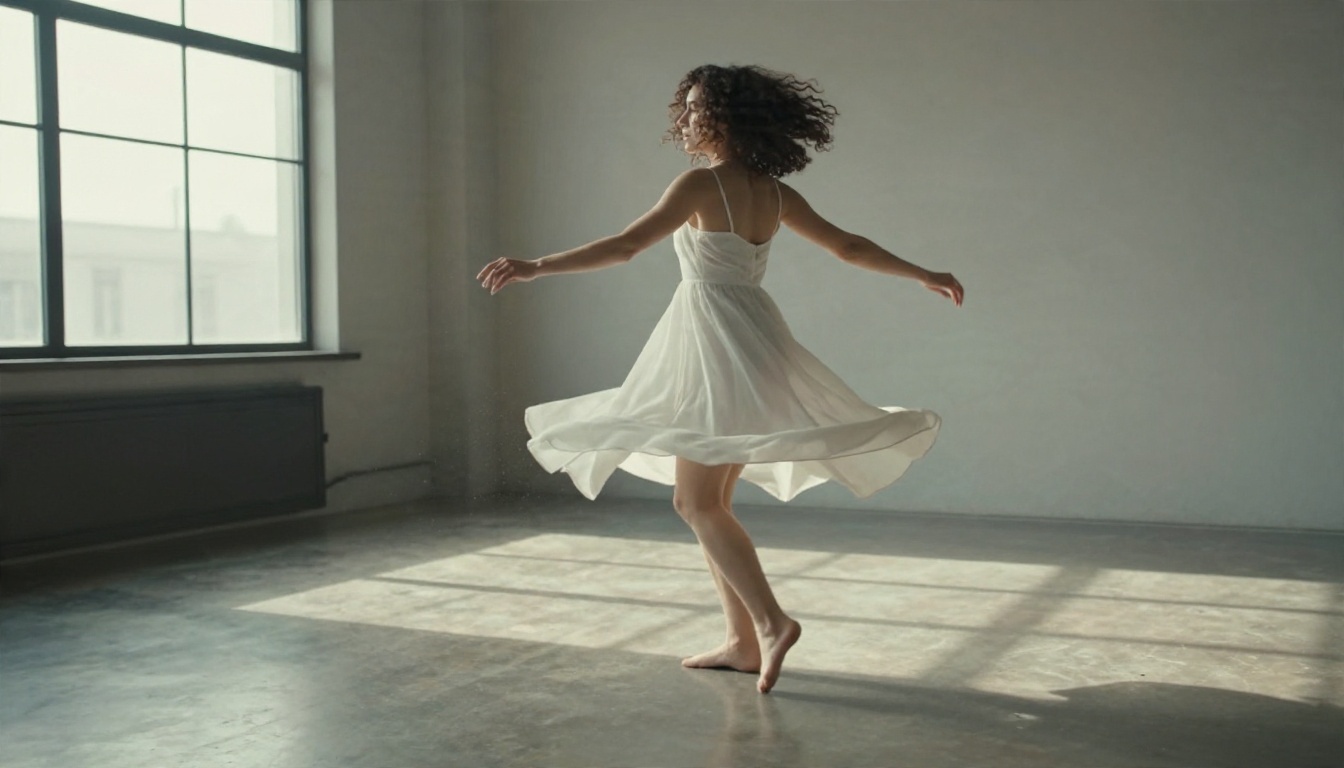
- Gentle pan right as she dances slowly, skirt hem swirling with natural motion blur.
💡 Words that help: slow, gentle, soft, subtle, steady, natural. Words that hurt: fast, sudden, wild, dramatic, spinning, jumping. Speed is where AI video breaks.
Settings That Matter
Duration, Resolution and Aspect Ratio
These three settings change the result more than any prompt trick.
| Setting | Best choice | Why |
|---|
| Duration | 5 seconds for first tests, 8 to 10 for finals | Longer clips drift in face and body |
| Resolution | 720p for drafts, 1080p for finals | Drafts are faster, finals show skin detail |
| Aspect ratio | Match the source image | Stretching causes warped proportions |
| Audio | On, if the model supports it | Ambient sound makes clips feel real |
| Seed | Keep the same when refining | Isolates what your prompt change did |
The practical workflow: generate a 5-second 720p draft, check the face and hands, and only then spend time on a longer, sharper version.
Motion Strength and Camera
Many tools offer a motion strength or motion scale slider. Resist the urge to push it high. At low to medium motion, faces stay stable, fabric behaves, and skin keeps its texture. At high motion, the model starts inventing new anatomy.
For the camera, pick one move per clip. A slow push in, a slow pan, or a gentle orbit all work. Combining a zoom, a pan and a tilt in five seconds nearly always produces drift. If the tool has a "fixed camera" option, use it for close portraits, where any camera move amplifies facial warping.
A Simple Draft to Final Workflow
Here is a routine that wastes the least time:
- Generate the still in Seedream 4.5. Fix flaws in Image Editor Pro.
- Run three 5-second drafts at 720p with different motion prompts.
- Pick the best one. Rerun it with the same seed at higher resolution or longer duration.
- Trim the first and last half second, where AI video is usually weakest.
- Export, and keep the source image so you can make matching clips later.
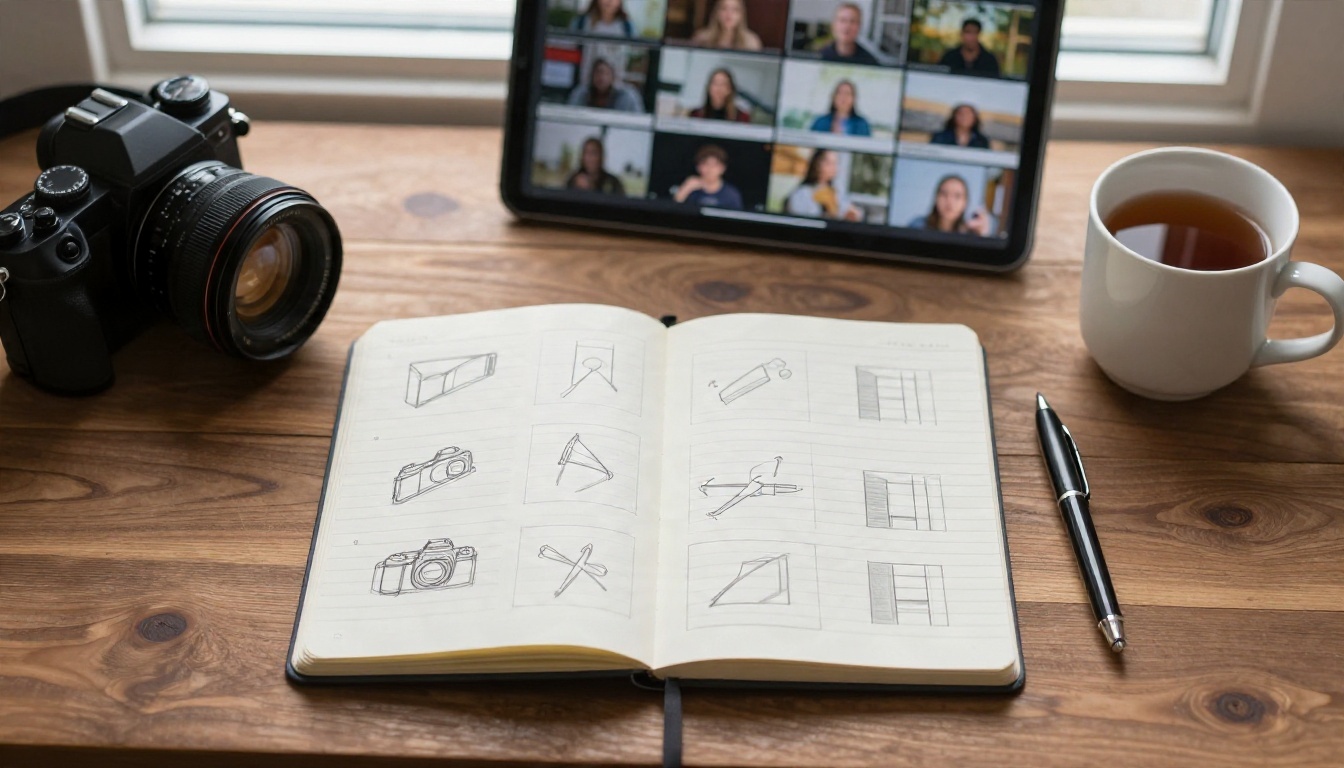
How to Make a Clip on PicassoIA
This is the exact path from blank page to finished clip, using only the free tools above.
Step 1: Create the still. Open Seedream 4.5, write a prompt with subject, outfit, setting, light direction and lens, and generate several versions. Pick the one with the cleanest hands and face.
Step 2: Fix and refine. Upload that image to PicassoIA Image Editor Pro. Correct anything that looks off. With unlimited generations, there is no reason to settle.
Step 3: Open the video model. Go to Seedance 2.5 Lite for free, unlimited clips up to 10 seconds, or PicassoIA Video if you want a second free option.
Step 4: Upload and prompt. Add your still as the first frame. Write a two or three sentence motion prompt using the four part structure from earlier.
Step 5: Set the basics. Choose 5 seconds, match the aspect ratio to your image, and keep motion low to medium.
Step 6: Generate several takes. Run three or four versions. Because the generation is unlimited, treat the first result as a draft, not the answer.
Step 7: Upgrade the winner. If you want more detail, longer length or smoother camera work, send the same image to Seedance 2.5 or Wan 2.7 I2V.
💡 Tip: keep a folder of your best source images and prompts. Reusing a prompt that worked is faster than inventing a new one every time.
Keeping One Character Consistent
If you plan to make a series, consistency matters more than any single clip. Viewers notice when a face changes between videos.
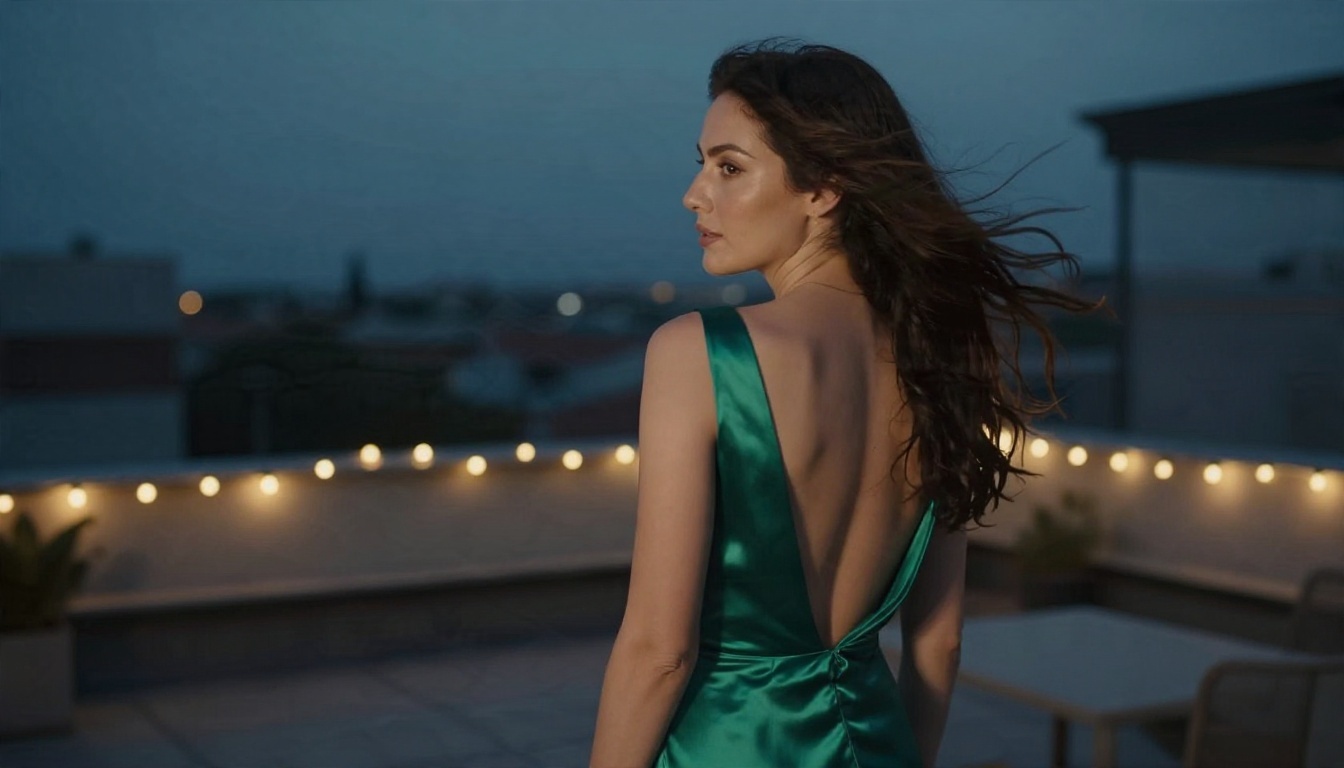
Reuse the Same Anchor Image
Pick one strong portrait as your anchor. Make variations from it in Image Editor Pro: new outfit, new room, new lighting. Each variation inherits the same face, so every clip built on top of them feels like the same person.
Describe the Character the Same Way
Write a short character line and paste it into every still prompt: age range, hair color and length, skin tone, one or two distinctive details such as freckles or a beauty mark. Small wording changes produce a different face.
Stay in One Lighting Family
Switching from golden hour to harsh flash to moody lamp light in a series makes a face look different even if the model is the same. Choose one or two lighting setups and stick with them.
Mistakes That Ruin Clips
3 Common Mistakes
- Asking for too much motion. A five-second clip cannot hold a dance routine, a costume change and a camera orbit. One action, one camera move.
- Skipping the draft. Rendering a long, high-resolution clip before checking a short one wastes the time you were trying to save.
- Ignoring the first frame. Blurry, noisy or cluttered source images produce blurry, noisy, cluttered video. No prompt fixes that.
Consent and Age Rules
This is the part that is not optional. Only create content of adult, fictional or AI-generated characters, or of people who have clearly given their consent. Never animate a real person's photo without permission, and never create anything involving minors. Face swap and photo animation tools carry the highest legal risk, and several countries now have specific laws on synthetic intimate imagery. Keep your own projects clearly on the right side of that line.
Watermarks and Fake Free Tools
Be skeptical of any site that advertises "unlimited, uncensored, no signup" and then asks for a credit card after your first clip. Check what the free tier actually allows before you spend time on it: length, resolution, watermark and queue time. The most useful free tools are the ones that tell you plainly what the limits are.
Start Making Your Own Clips
Everything above comes down to a short loop: a strong still, a calm motion prompt, a quick draft, and a better final. You do not need a paid plan to run that loop on PicassoIA. Start with a still in Seedream 4.5, polish it in PicassoIA Image Editor Pro, then bring it to life in Seedance 2.5 Lite.
Pick one of the ten prompts above, run three takes, and see which one feels most natural. Change one setting at a time, so you can tell what actually made the difference. When you want to try other video models side by side, browse the full catalog at picassoia.com/en/all-models and see which one fits your style best.


