If you have never generated an AI image before, or if you tried and got blurry, disappointing results, this is the article that changes that. Nano Banana 2 by Google is a fast, capable text-to-image model that responds well to clear prompts and produces sharp, detailed output without requiring any technical setup. You type a description, adjust a couple of settings, and in seconds you have an image ready to download. That is genuinely it. Below is a step-by-step breakdown of exactly how the process works, including what to write, which settings to touch, and what to do when results fall short of expectations.

What Nano Banana 2 Actually Is
Before touching the tool, it helps to know what you are working with. Not all AI image models behave the same way. Some prioritize artistic style, others focus on accuracy, and some are built purely for speed.
Built by Google, Optimized for Speed
Nano Banana 2 sits in the "fast and capable" category. It is a lightweight model in Google's image generation family, designed to produce high-quality results significantly faster than heavier alternatives. The "Nano" in the name refers to its optimized architecture, not a reduction in output quality. It handles photorealistic portraits, environmental scenes, conceptual imagery, and stylized compositions with consistent reliability.
For comparison, Google's own Imagen 3 and Imagen 4 are heavier models that offer more fine-grained control at the cost of generation time. Nano Banana 2 strikes a balance: fast enough for iteration, good enough for production use.
Why Beginners Do Well With It
Most text-to-image models punish vague prompts. Nano Banana 2 is more forgiving. Its training makes it reasonably good at inferring context when prompts are short, which means you do not need to write 200-word descriptions to get a usable result. At the same time, it rewards specificity, so as your prompting skills grow, your output quality scales with them.
💡 The model is also available alongside its upgraded sibling: nano-banana-pro offers more detailed control for advanced outputs, but for first-time users, the standard Nano Banana 2 is the right starting point.
Step 1: Write a Prompt That Works
This is the most important step. Every image starts here, and the quality of your prompt has more impact on your result than any setting you tweak afterward.
The Anatomy of a Strong Prompt
A strong prompt for Nano Banana 2 has four parts working together:
- Subject - Who or what is in the image
- Environment - Where the subject exists and what surrounds it
- Lighting - The quality, direction, and color of the light
- Style or mood - The emotional tone or visual treatment
You do not need to write these as labeled sections. Just string them together naturally as a description. The model reads context well.
Bad Prompts vs. Good Prompts
Here is where most beginners go wrong. Vague prompts produce generic, muddy images. Specific prompts produce recognizable, sharp results.
| Type | Example Prompt | What You Get |
|---|
| Too vague | "a woman outside" | Generic figure, flat lighting, undefined background |
| Better | "a woman standing in a garden at sunset" | More context, warmer tones, some environmental detail |
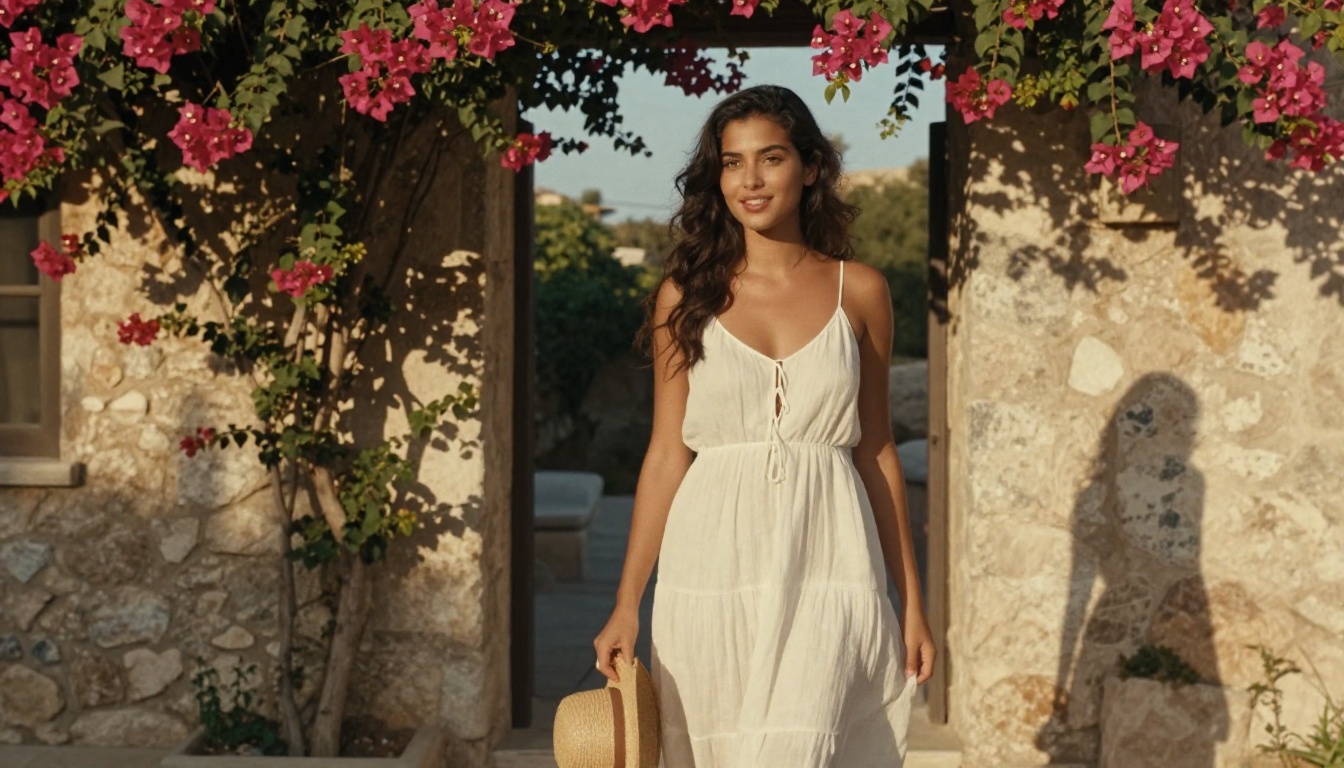
| Strong | "a woman with dark curly hair standing in a walled garden at golden hour, wearing a linen dress, warm side light, photorealistic, 8k" | Clear subject, defined setting, specific light, quality signal |
| Very strong | "close-up portrait of a woman with freckled skin and dark curly hair in a stone walled garden at golden hour, wearing a flowing cream linen dress, warm volumetric light from the right, 85mm f/1.8, Kodak Portra 400, photorealistic" | Maximum detail, camera simulation, film tone, professional result |
The difference between row one and row four is not luck. It is information. The more you describe, the less the model has to guess.
5 Prompt Templates to Use Right Now
These templates work consistently with Nano Banana 2. Swap in your own subject and setting:
- Portrait: "Close-up portrait of [subject], [lighting type] from [direction], [background description], [camera lens], photorealistic, 8k, Kodak Portra 400"
- Landscape: "Wide aerial view of [location] at [time of day], [weather/atmosphere], natural volumetric light, photorealistic, cinematic composition"
- Lifestyle scene: "[Subject] [doing action] in [environment], [light quality], candid photography, 35mm film, high detail"
- Architecture: "Exterior of [building type] in [style/era], [natural light], wide angle lens, realistic textures, overcast sky, photorealistic"
- Product: "[Product] on [surface] in [setting], [directional light], clean background, commercial photography, sharp focus"
💡 Add quality boosters at the end. Phrases like "photorealistic, 8k, high detail, natural lighting, sharp focus" consistently push output quality upward without requiring you to redesign your whole prompt.
Step 2: Pick Your Settings
Once you have a prompt, there are a handful of settings worth understanding. You do not need to adjust all of them, but knowing what they do gives you more control over the output.
Aspect Ratio and Resolution
This is the setting you will change most often. Different use cases need different proportions:
| Use Case | Recommended Ratio |
|---|
| Blog or article cover image | 16:9 |
| Social media post (Instagram square) | 1:1 |
| Portrait or story format | 9:16 |
| Landscape photography | 3:2 |
| Product or editorial | 4:3 |
Nano Banana 2 handles all standard ratios cleanly. If you are creating images for a specific platform, set this first before generating to avoid cropping issues later.
Seed Control for Consistency
The seed is a number that controls the randomness in how the model generates your image. By default, the seed is random, so every generation produces something different even with the same prompt. If you find a result you like and want to iterate on it without changing the overall composition, locking the seed lets you make small prompt edits while keeping the basic structure stable.
This is particularly useful when you are refining a portrait or scene and want to adjust only the lighting or clothing without regenerating a completely different person.
Prompt Upsampling
Some platforms offer prompt upsampling, where an LLM expands your short prompt into a more detailed version before sending it to the image model. This can boost quality from minimal prompts but sometimes adds elements you did not ask for. Try it on short prompts to see if it improves your results. For detailed prompts you have already written out, you can usually skip it.

Step 3: Generate and Download Your Image
With your prompt written and settings chosen, this step is straightforward, but there are a few things to do after you click generate.
What Happens After You Generate
Nano Banana 2 is fast. Most generations complete in a few seconds. When the image appears, resist the impulse to either accept it immediately or discard it. Instead, evaluate it against three things:
- Composition - Is the main subject positioned well? Is there unwanted cropping?
- Detail accuracy - Does the output match what you described? Are faces and hands rendered naturally?
- Lighting - Does the light source feel believable? Is there detail in both shadows and highlights?
If two out of three are good, try a small prompt edit rather than a full regeneration. If the composition is right but the lighting is off, add lighting descriptors and re-run. If faces look odd, add "realistic facial proportions, natural skin texture, photorealistic portrait" to your prompt.
Iterate Fast, Save What Works
The speed of Nano Banana 2 means iteration is cheap. Generate, evaluate, adjust, repeat. Most experienced users run 5 to 10 generations before settling on a final image. Do not treat the first result as the final one.
When you find an image you want to keep, download it immediately. Most platforms do not preserve generation history indefinitely.
💡 Save your successful prompts. Keep a text file of prompts that produced strong results. These become reusable templates that save time on future projects.

How to Use Nano Banana 2 on PicassoIA
Nano Banana 2 is available directly on PicassoIA's text-to-image platform, alongside over 90 other models. Here is exactly how to use it from scratch.
Step-by-Step Walkthrough
1. Go to the model page. Navigate to the Nano Banana 2 page on PicassoIA. You will see the input panel on the right side of the screen.
2. Type your prompt. Enter your text description in the prompt field. Use the templates from Step 1 above as a starting point. Be specific about subject, environment, lighting, and style.
3. Set your aspect ratio. Choose the ratio that matches your intended use. For most article or social content, 16:9 or 1:1 are the most practical choices.
4. Adjust seed if needed. Leave it random for exploratory generation. Set a specific number when you want to iterate on a result you already like.
5. Click generate. The model will return your image within a few seconds. Review it against the criteria above and decide whether to download or iterate.
Platform-Specific Tips
- PicassoIA lets you switch between models without losing your prompt. If Nano Banana 2 is not giving you the photorealism you want, you can try the same prompt on flux-2-pro or GPT Image 1.5 without rewriting anything.
- The platform also includes Super Resolution tools that can upscale your finished image 2x to 4x, useful when you need a larger file for print or high-resolution display.
- If you want to edit or refine a generated image, PicassoIA's inpainting and outpainting tools let you make targeted changes without starting over.
Nano Banana 2 vs Other Models
Knowing when to use Nano Banana 2 versus other options saves time and produces better results for specific use cases.
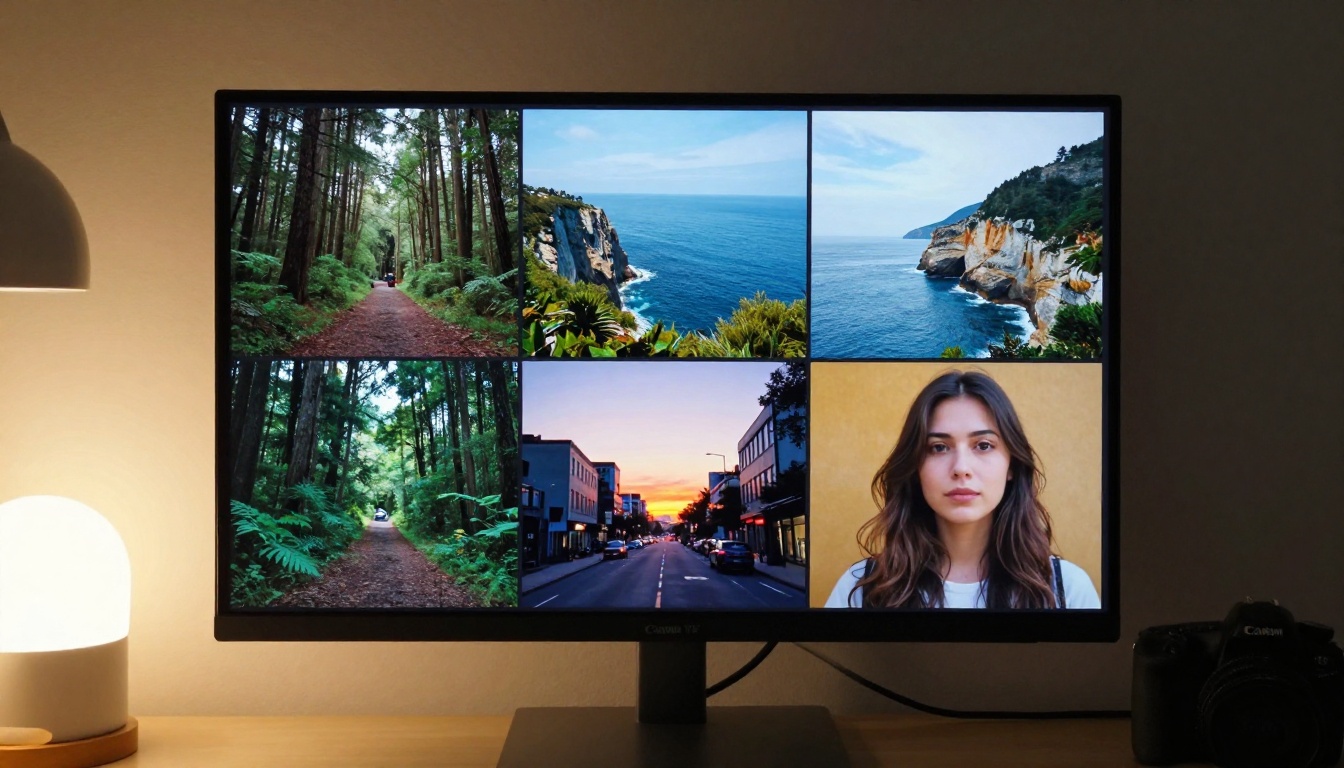
Side-by-Side Comparison
When Nano Banana 2 Is the Right Choice
Use Nano Banana 2 when you are:
- Iterating quickly and need fast turnaround between prompt versions
- Creating blog, social, or editorial content where speed matters
- New to prompt writing and want a model that is responsive without being punishing
- Testing a concept before committing to a higher-cost generation on a premium model
Switch to a heavier model like flux-2-pro or nano-banana-pro when you are producing final assets that need maximum detail.
What You Can Actually Make With It
The range of output Nano Banana 2 handles well is wider than beginners expect. Here are the use cases where it performs consistently.
Portraits and People
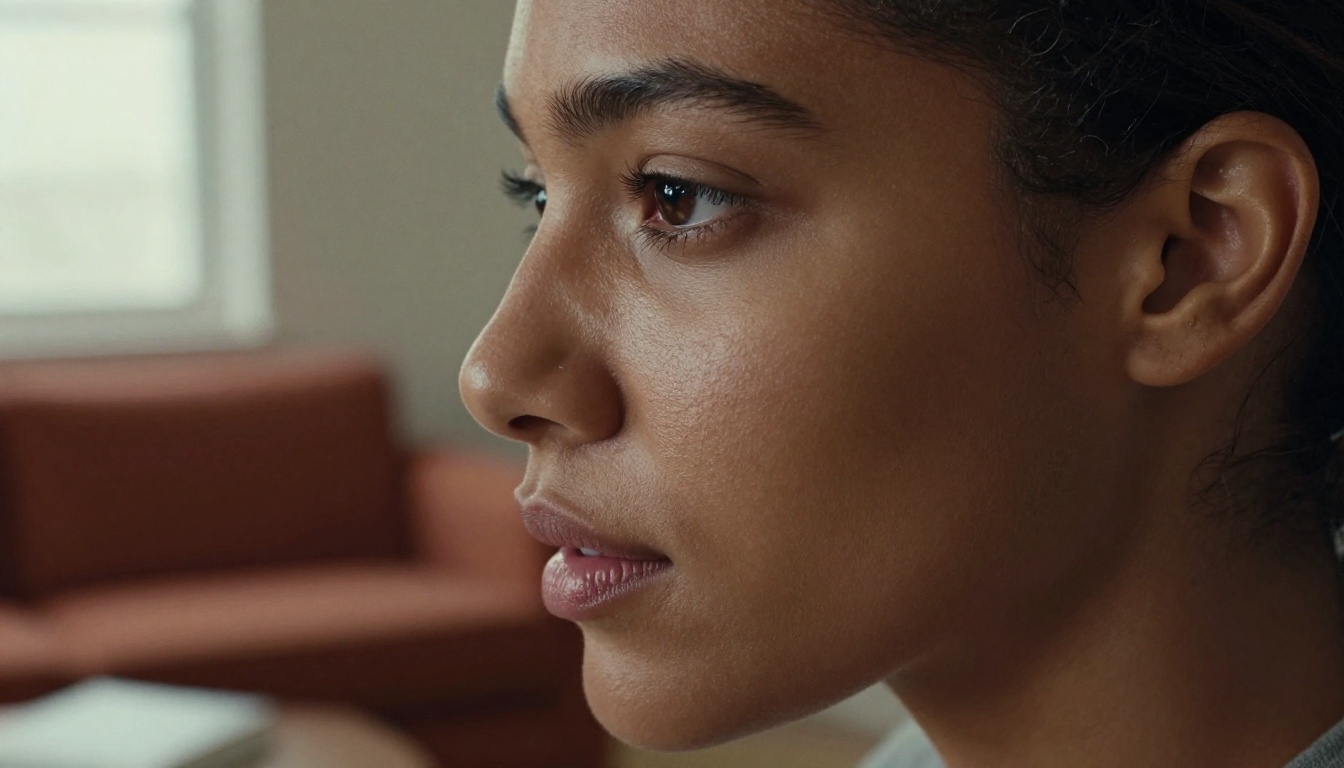
Portrait generation is where strong prompts make the biggest visible difference. With specific lighting instructions (Rembrandt, side light, golden hour backlight) and camera simulation details (85mm f/1.4, shallow depth of field), Nano Banana 2 produces portraits with realistic skin texture, natural expression, and believable environmental context. Adding film emulation terms like "Kodak Portra 400" pushes the tonal quality into territory that reads as professional photography rather than generated imagery.
Landscapes and Environments
Outdoor scenes respond well to time-of-day and weather descriptors. "Golden hour," "overcast midday," "blue hour," and "early morning fog" each produce distinctly different atmospheric results from the same base scene description. Aerial perspective prompts ("shot from above," "wide establishing shot") give you cinematic compositions that work well for editorial or header images.
Lifestyle and Conceptual Scenes
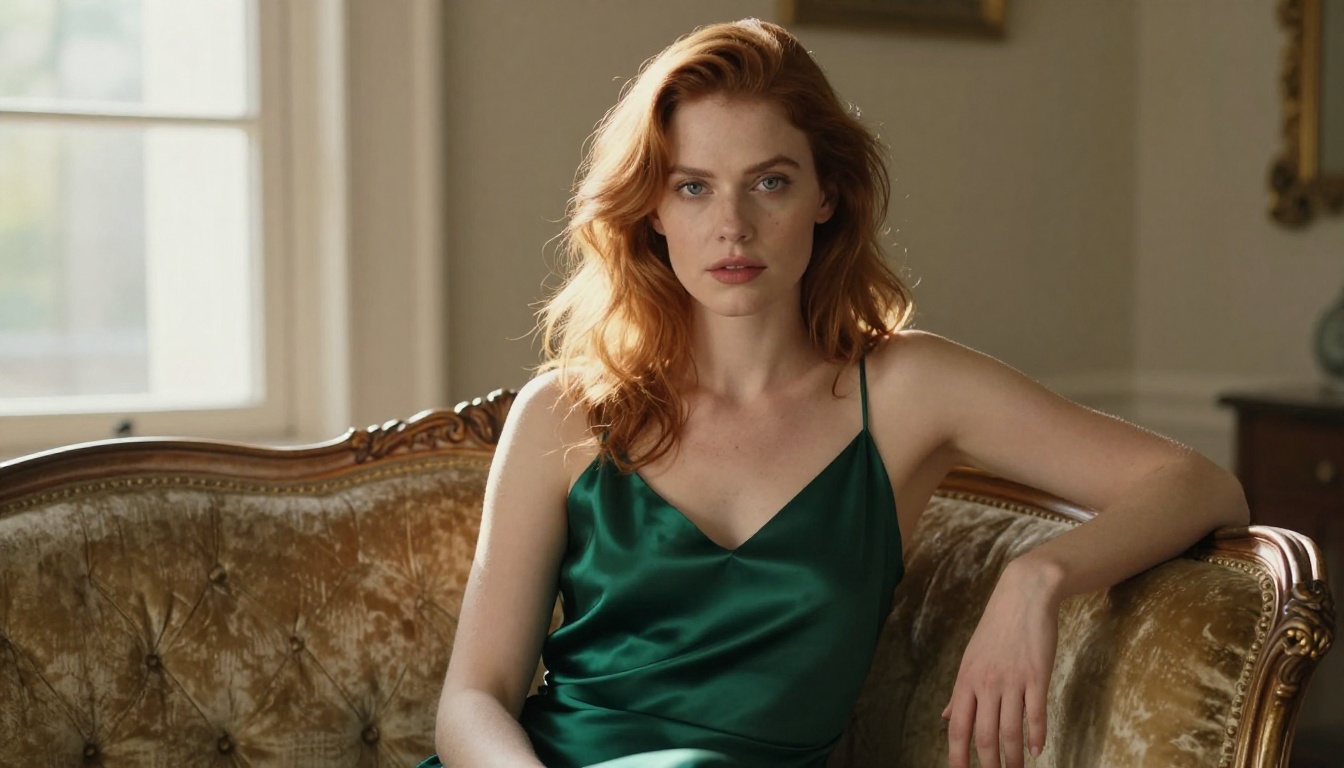
People interacting with objects or environments, fashion editorial setups, workspace scenes, product placements: all of these fall in Nano Banana 2's strength zone. For these, emphasize action and relationship ("holding," "sitting across from," "reaching toward") to avoid static, posed-looking results.
Content for Social and Marketing
For social media content, thumbnails, and marketing visuals, the speed of Nano Banana 2 is a significant practical advantage. You can generate and test multiple visual directions for a campaign in minutes instead of hours. Pair this with PicassoIA's Super Resolution upscaling to bring final assets up to print-ready dimensions.
💡 For video content creators: PicassoIA also has text-to-video models if you want to extend your static AI images into motion. Check the full model library to see what fits your project.
Your First Image Is One Prompt Away
There is no setup required. No software to install, no technical background needed. Nano Banana 2 is accessible directly in your browser on PicassoIA, alongside a full library of over 90 text-to-image models and dozens of additional tools for editing, upscaling, face swapping, and more.
The three steps above cover everything you need to generate your first strong result:
- Write a specific prompt using the subject, environment, lighting, and style formula
- Set your aspect ratio and seed based on your use case
- Generate, evaluate, and iterate using the quality checklist
The only thing left is to actually try it. Start with one of the prompt templates from this article, paste it into the Nano Banana 2 input field, and hit generate. See what comes back. Then adjust one element and run it again. Within a few iterations, you will have a workflow that produces the results you are looking for, and a first-hand sense of exactly what this model can do.


