You type a prompt for a woman walking along a beach at sunset, hit generate, and get a blunt "this request violates our policy" message back. If that has happened to you, you already know why people search for a no filter AI video generator. The frustration is real, and so is the confusion. Some tools advertise "no restrictions" and deliver watermarks, queues and blurry 3 second clips. Others are genuinely open, but they hide behind a paywall.
This article sorts it out. You will see what "no filter" means in practice, how online apps compare with running models at home, which free options are worth your time, what good output looks like, and the exact settings that make a still photo move like real footage.
💡 Quick answer: For most people, the fastest route is an online app that offers unlimited free video, starts from a strong still image, and keeps the prompt focused on motion. Everything below shows you how.
What "No Filter" Really Means
Fewer Blocks, Not Zero Rules
The phrase sounds absolute, but nobody ships a model with literally no rules. Even platforms that brand themselves as unrestricted block a short list of things: content involving minors, real people used without consent, and anything explicit or illegal. What people usually want when they type "no filter" is something simpler: a generator that does not refuse normal creative requests.
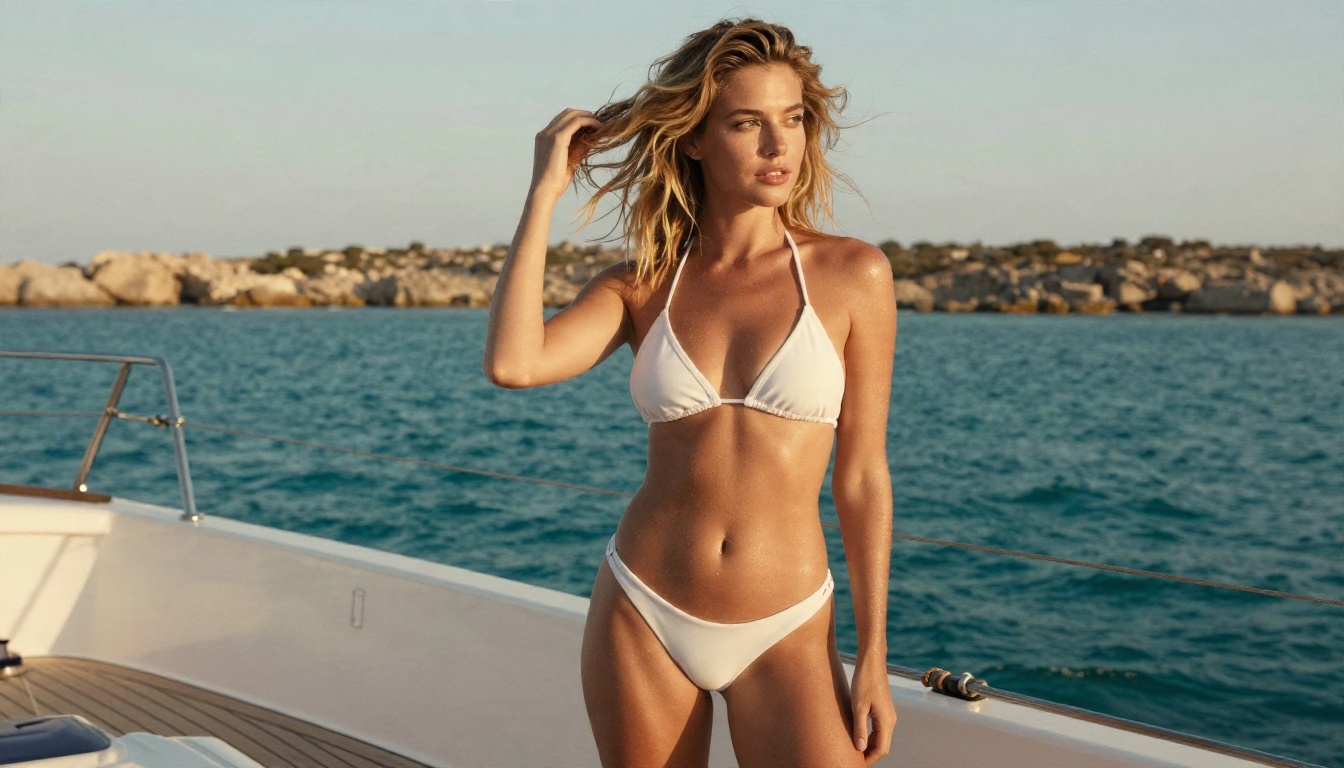
Think of swimwear shoots, glamour portraits, moody boudoir lighting, fashion editorials, dramatic fight scenes, or a stylized horror shot. Mainstream tools often flag these by keyword alone, even when the result would be perfectly tasteful. A more permissive generator lets those prompts through and judges the output, not the vocabulary.
Why People Search for It
Here are the most common reasons, based on what creators ask for:
- Over-cautious refusals: a bikini or a bare shoulder triggers a block.
- Inconsistent results: the same prompt works one day and fails the next.
- Watermarks and caps: "free" tiers that limit you to a few seconds.
- Privacy: a wish to keep personal experiments off a public feed.
- Creative control: artists who want mature themes handled with taste.
⚠️ Reality check: Be wary of any site that promises "unlimited, unrestricted, free, no watermark, 4K" all at once. Reviews of these promises in 2026 keep landing on the same finding: you usually get three of those five, not all of them.
Online App or Local Install?
Browser-Based Generators
An online app is the easiest entry point. You open a page, upload an image or type a prompt, and get a clip back in a minute or two. There is nothing to install, no graphics card to buy, and the newest models are available the day they release.
The trade-offs are limits on queue time, credits, and whatever safety rules the host applies. That last point matters most for this keyword, so check what a platform allows before you spend an hour on a project.
Running Open Weights at Home
The other path is running open-weight video models on your own computer, often through a node-based tool such as ComfyUI. Cost per clip is zero once the hardware is paid for, and nothing leaves your machine. Newer open models like the Wan family can produce decent clips locally.
The catch is hardware and patience. Smooth 720p video wants a powerful GPU with a lot of memory, setup takes an afternoon, and a single 5 second clip can take several minutes. If you are not already comfortable with Python environments and model files, this is a hobby in itself.
| Factor | Online app | Local install |
|---|
| Setup time | Under a minute | Hours |
| Hardware needed | Any browser | High-memory GPU |
| Cost per clip | Free to low | Free after hardware |
| Model choice | Many, updated fast | Whatever you download |
| Privacy | Depends on host | Fully local |
| Best for | Most creators | Tinkerers |
Free Options That Actually Work
Unlimited Free Video on PicassoIA
If your goal is to generate a lot of clips without watching a credit counter, two models stand out. PicassoIA Video is built as a free, unlimited generator that works from text or from a single image. Seedance 2.5 Lite is also listed as free and unlimited, with clips up to 10 seconds long.
That second detail matters. Most free tiers cut you off at 3 to 5 seconds. Ten seconds is enough to hold a camera move, a gesture, and a small reaction, which is what makes a clip feel like a scene instead of a GIF.
For a fast, fairly open pipeline, this is the order that works best:
- Create the still image with Seedream 4.5, which handles skin, fabric and light with very convincing realism.
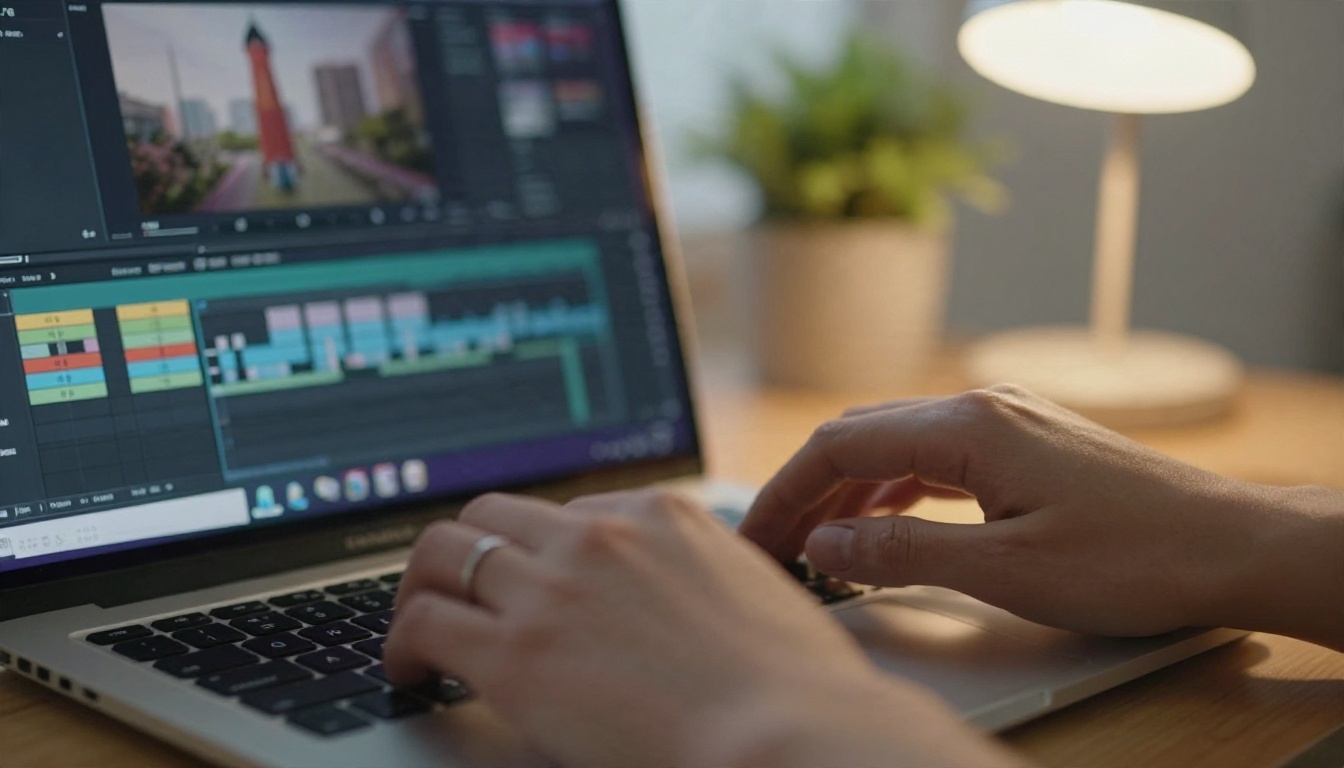
- Refine it with PicassoIA Image Editor Pro, which offers unlimited generations, so you can fix hands, outfit details or the background without paying per attempt.
- Animate it with PicassoIA Video or Seedance 2.5 Lite.
💡 PicassoIA is built for tasteful, non-explicit work: swimwear, glamour, fashion, portraits and cinematic scenes. It is not an adult content site, and that is a feature when you want clean results you can publish.
Free Tiers and Their Catches
Beyond that, most "free" services follow the same pattern. Here is what to expect:
| Free offer | Typical limit | What to check |
|---|
| Daily credits | 1 to 5 clips a day | Does the credit reset? |
| Trial period | 3 to 7 days | Card required? |
| Free tier | Watermark, 3 to 5 sec | Can you remove it? |
| Open weights | Free but slow | Your GPU memory |
If a tool asks for a card before you generate anything, read the terms. If it asks you to upload a face photo of a real person, think twice about where that image ends up.
Examples of Clean, Realistic Output
Nothing explains this topic better than looking at what a good clip starts from. A strong still image makes a strong video. These examples show the kind of source frames that animate well.
Beach and Poolside Scenes
Outdoor swimwear scenes are the most requested category, and also the one most often blocked by strict filters. They work well for video because the motion is natural: water, wind, hair, fabric, a slow walk.
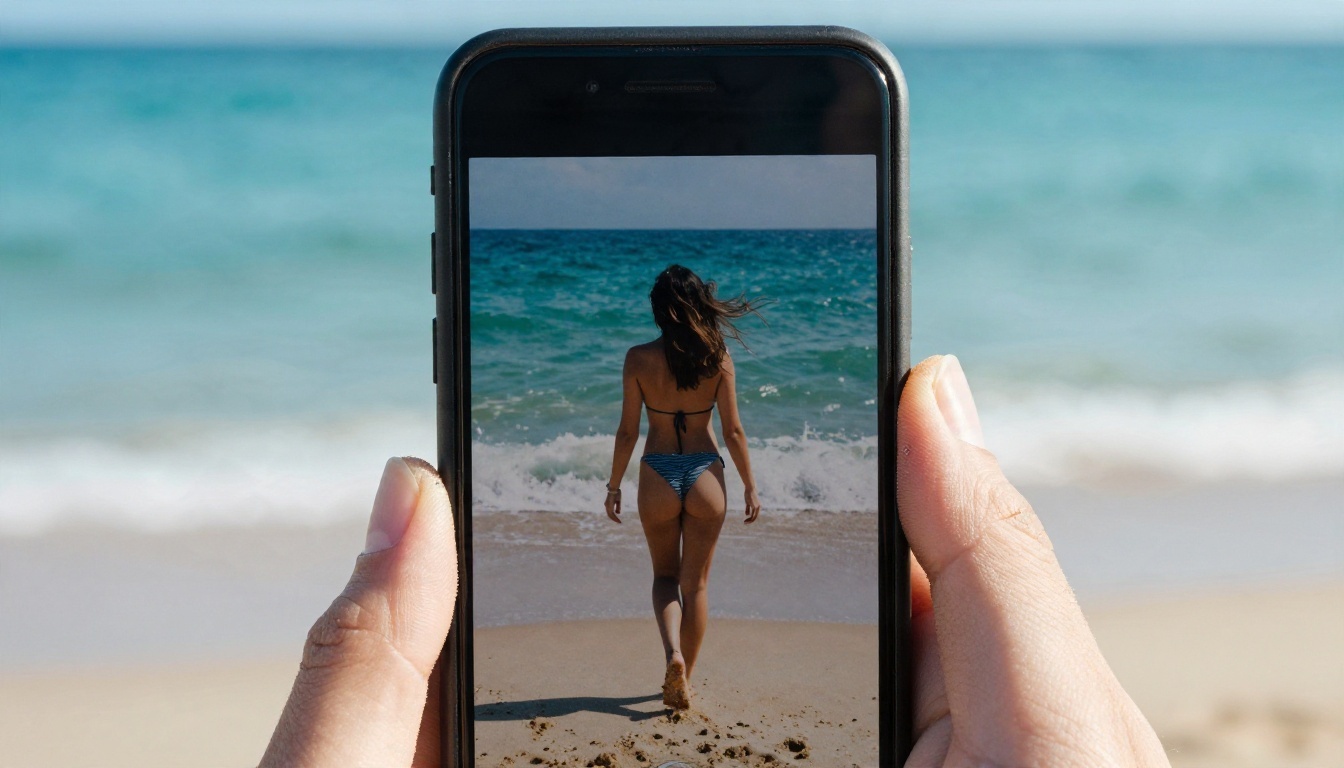
A good motion prompt for a scene like this reads: "The woman walks slowly toward the camera along the wet sand, sea breeze moving her hair, gentle waves washing over her ankles, slow dolly back, warm late afternoon sun." That is one subject, one action, one camera move, and one light source.
Portraits and Evening Looks
Portrait frames are the second big category. Think silk robes at golden hour, an evening dress on a rooftop, or a close-up with a subtle head turn. They reward small movements: a blink, a smile, a curtain drifting, a hand brushing hair back.
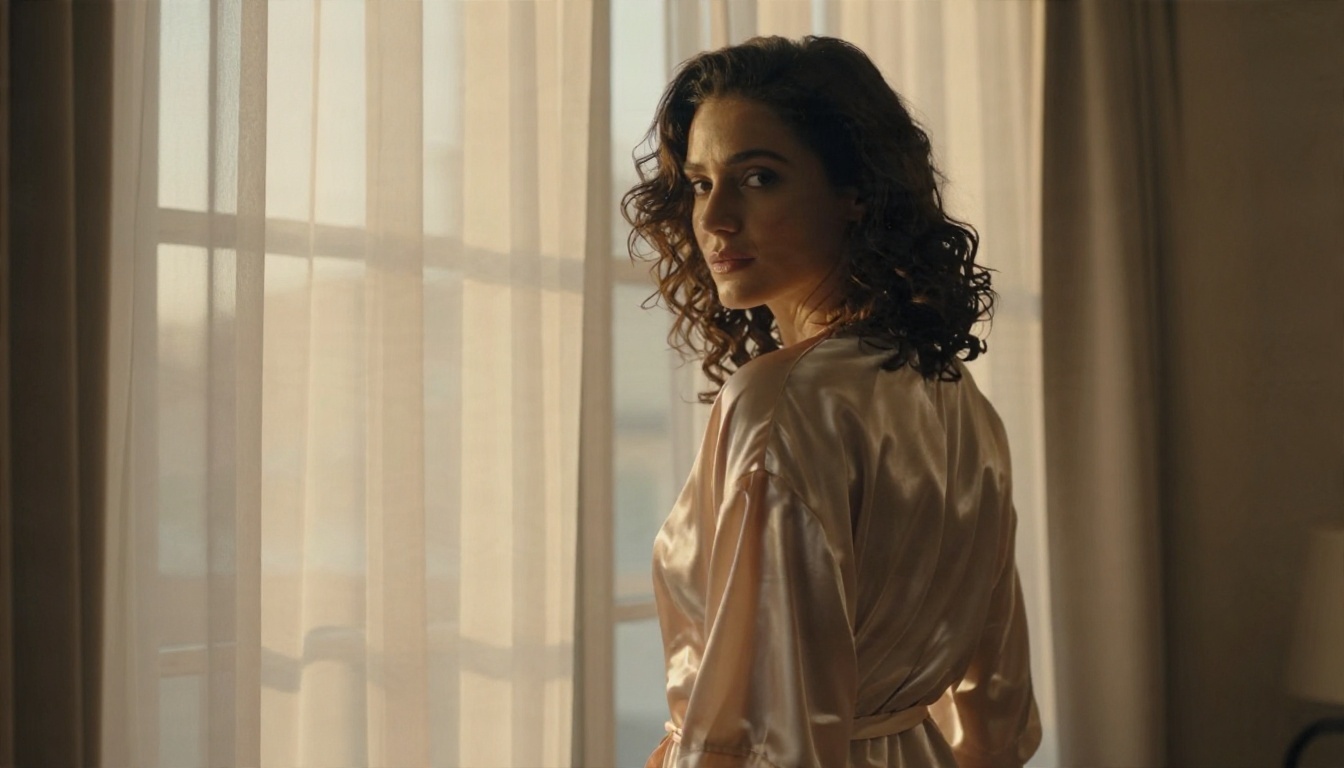
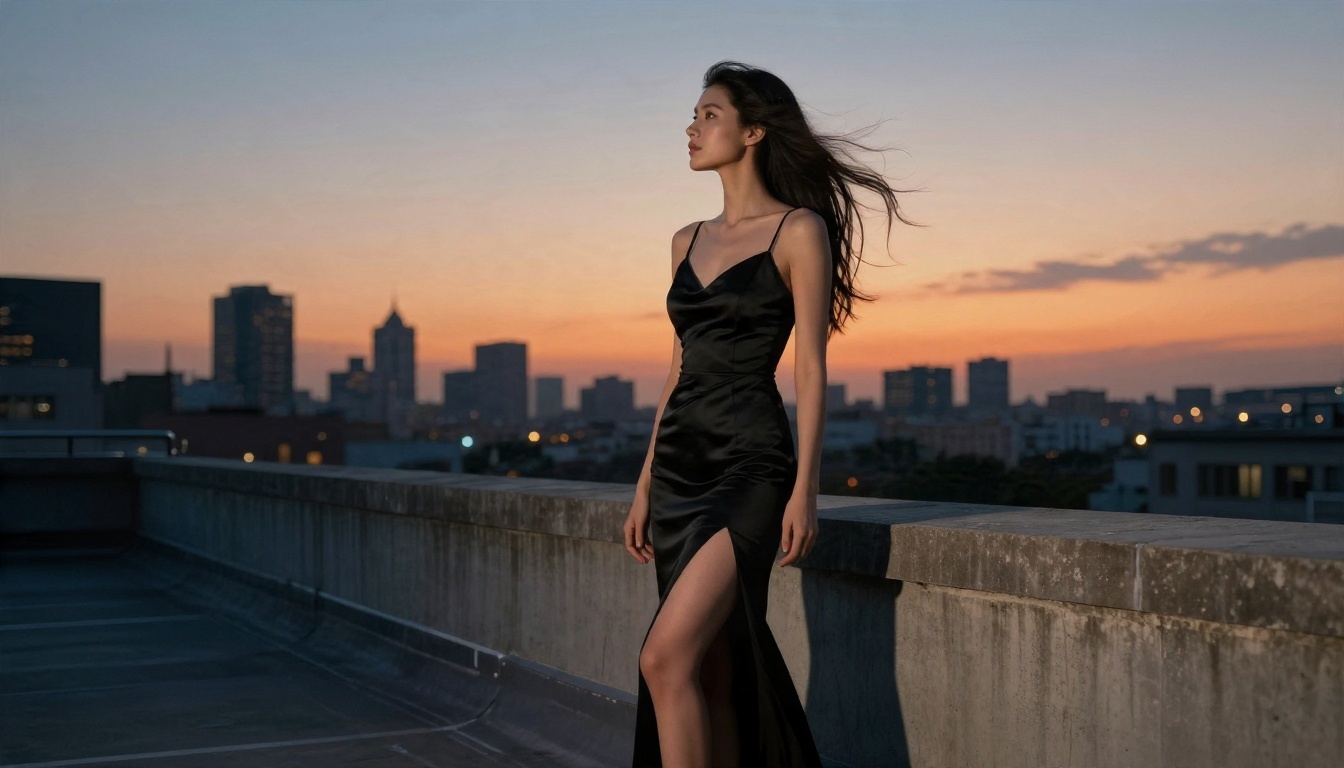
💡 Rule of thumb: the less your frame has to invent, the better the video looks. A single person, a clear background and a soft light direction give you a steady 10 second clip. Crowds and busy hands cause most of the wobble.
Settings That Change the Result
Start From a Strong Image
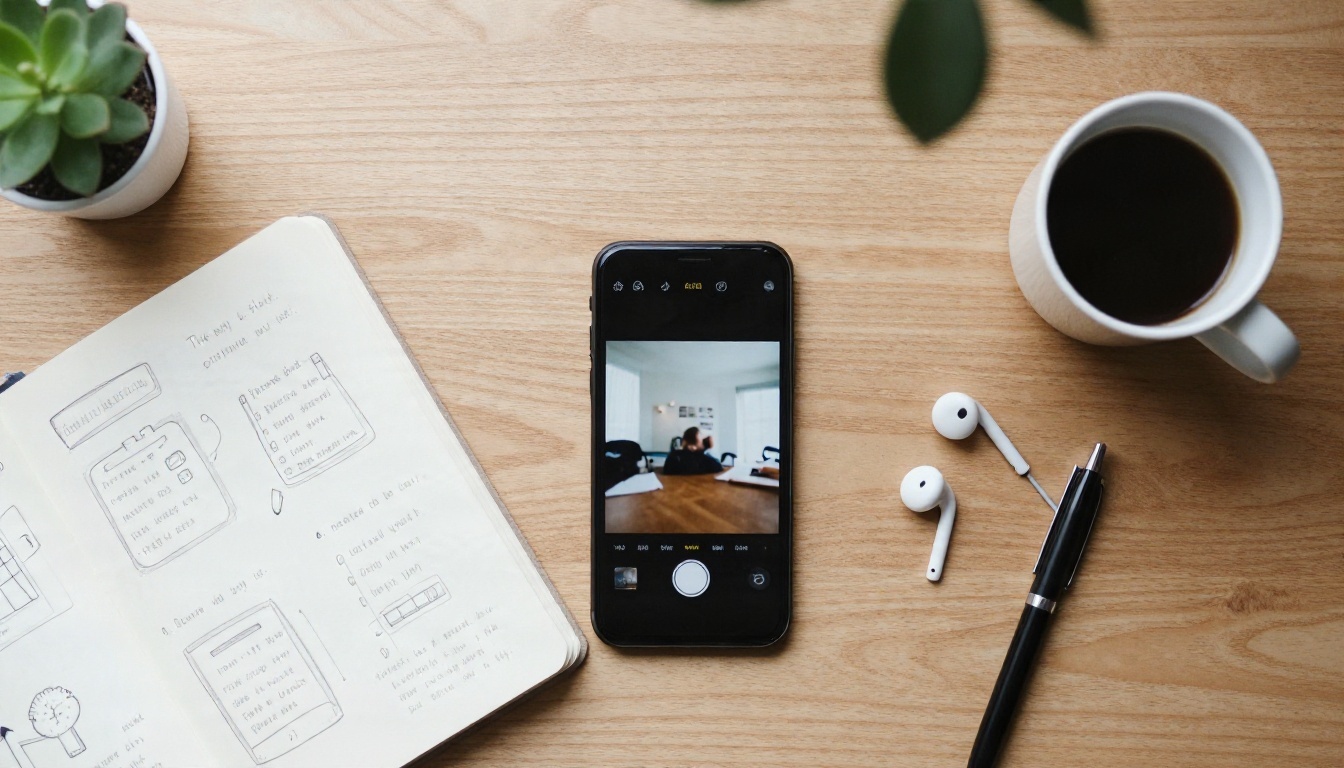
Image to video beats text to video for consistency. When you give the model a finished first frame, it only has to decide how things move, not what they look like. That means your character keeps the same face, outfit and lighting from the first frame to the last.
Models built for this job include Wan 2.6 I2V, Kling v3 Video, and Veo 3.1. For quick drafts, Wan 2.6 I2V Flash trades a little polish for speed.
Write Prompts About Motion
Your image already contains the subject. The prompt should describe what changes. Use this structure:
- Subject and starting pose: "The woman stands at the railing."
- Action over time: "She turns her head and smiles, lifting her hand to her hair."
- Camera move: "Slow push in, slight handheld sway."
- Light and atmosphere: "Warm sun from the left, soft sea haze."
Skip long lists of adjectives. Video models respond better to chronological sentences than to a pile of style words.
Resolution, Length and Sound
These three settings decide how usable the result is:
| Setting | Recommended | Why |
|---|
| Resolution | 720p for drafts, 1080p for finals | Saves time while you iterate |
| Duration | 5 seconds to test, 10 to publish | Longer clips expose more drift |
| Aspect ratio | Match the source image | Avoids stretched crops |
| Audio | On, when the model supports it | Ambience sells realism |
| Seed | Keep it when a result is close | Lets you tweak one thing at a time |
Several current models, including Seedance 2.0, Sora 2 and Veo 3.1, create synchronized sound with the picture: waves, wind, footsteps, room tone. If you are posting to social media, that single feature saves you a trip through an audio editor.
A Simple Four-Step Workflow
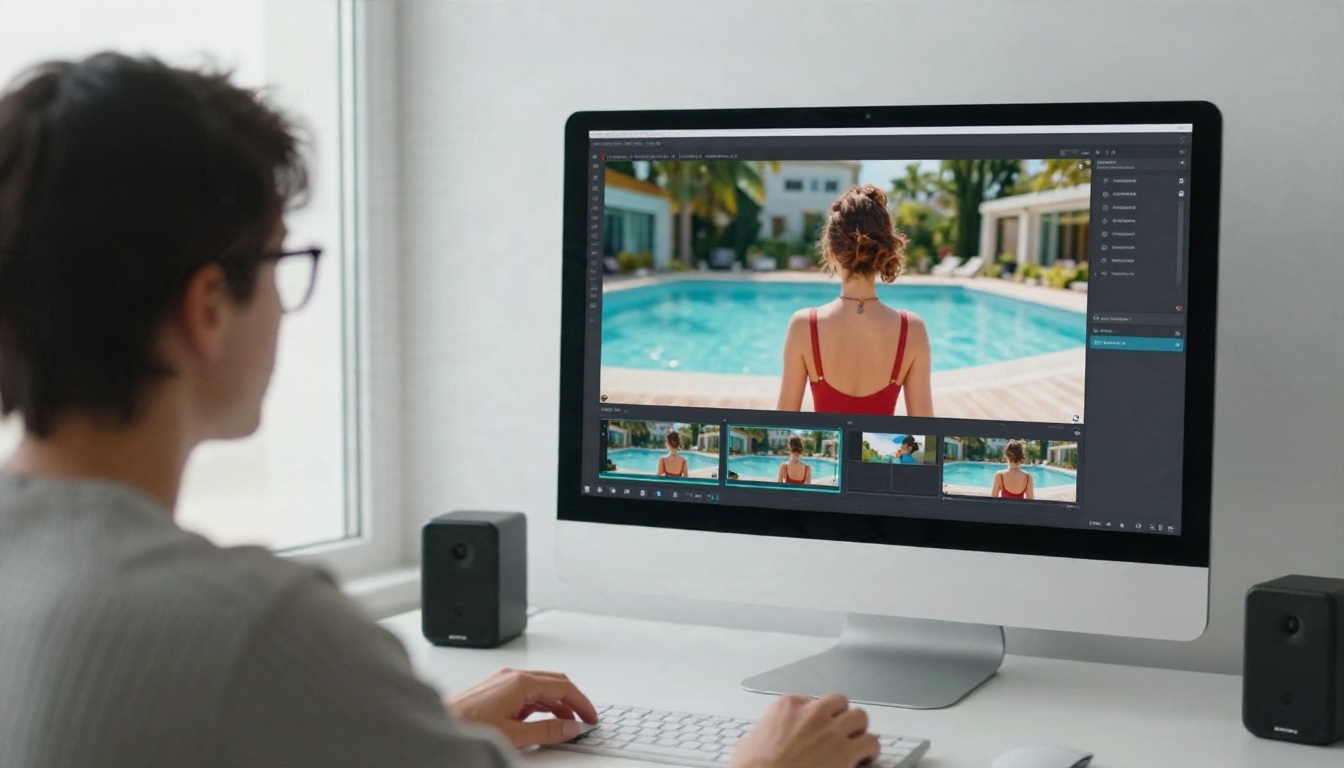
Here is a repeatable routine you can follow in about ten minutes.
Step 1: Build the first frame. Open Seedream 4.5, describe a single subject, one setting and one light source. Add a lens detail such as "85mm, shallow depth of field" to get a natural look. Generate a few variations and keep the best.
Step 2: Fix what is wrong. Use Image Editor Pro to correct anything that looks off. Hands, jewelry and background signage are the usual suspects. Because generations are unlimited, you can iterate until the frame is clean.
Step 3: Animate in a cheap model first. Send the image to PicassoIA Video or Seedance 2.5 Lite at a short duration. This is your draft. If the movement looks right, keep going. If not, edit only the motion sentence of your prompt.
Step 4: Render the final. When the draft works, send the same image and prompt to a higher-fidelity model such as Kling v3 Video or Veo 3.1 for the final render at higher resolution.
💡 Budget tip: Test every idea at the shortest length first. A 5 second draft tells you 90 percent of what a 10 second render will show, in half the time.
Common Mistakes to Avoid
Overloading the Prompt
Asking for a dance, a costume change, a camera orbit and a lighting shift in 5 seconds will produce mush. Pick one action per clip. Two simple clips edited together look far better than one overcrowded clip.
Ignoring the Source Image
If the first frame has a distorted hand or an odd background object, the video will amplify it. Fix the still image before you spend a render on it.
Trusting "Unlimited" Without Reading the Terms
Look for what "unlimited" really covers. Is it image only, or video too? Is there a daily speed cap? Is the output watermarked? A tool that states these limits clearly is more trustworthy than one that hides them.
Uploading Photos of Real People
Using someone's face without their consent is a quick way to land in legal and ethical trouble, and reputable platforms block it for good reason. Create original characters instead. Your clips will be safer to publish and easier to keep consistent.
Make Your First Clip Today
You do not need a render farm or a monthly subscription to try this. Open Seedream 4.5, write a single paragraph describing one person in one place under one kind of light, and pick the best of four results. Refine it in PicassoIA Image Editor Pro, then animate it with PicassoIA Video or Seedance 2.5 Lite.
Your first clip will not be perfect, and that is fine. The second one will be better, because you will already know which sentence in your prompt to change. Keep a note of the settings that worked, reuse the same seed when you are close, and build a small library of prompts you trust.
Ready to see what else is available? Browse every model at picassoia.com/en/all-models, pick a video model that matches your style, and start creating your own clips on Picasso IA today.


